> ## Documentation Index
> Fetch the complete documentation index at: https://hc.starbridge.ai/llms.txt
> Use this file to discover all available pages before exploring further.
# Granting Starbridge write access to Salesforce contacts
Some Salesforce environments restrict which types of contact records a user can edit. For those Salesforce environments, if you don't follow the steps in this article, then Starbridge will report the Salesforce error `INSUFFICIENT_ACCESS_OR_READONLY` when creating or updating contacts.
Complete the steps on this page only if:
* Your organization-wide default (OWD) Contact Sharing Settings is **Private**, **Public Read Only**, or **Controlled by Parent**.
* If your Contact OWD is **Public Read/Write**, you do not need this page.
* You've encountered the Salesforce error`INSUFFICIENT_ACCESS_OR_READONLY` when updating or creating contacts.
## 1: Confirm your organization-wide default Contact Sharing Settings
Check your Contact organization-wide default (OWD) sharing settings:
* Go to **Setup** → **Security →** **Sharing Settings**. Then, read your organization-wide defaults for Contact.
* If Salesforce displays a Default Internal Access and Default External Access, look at the Default **Internal** Access.
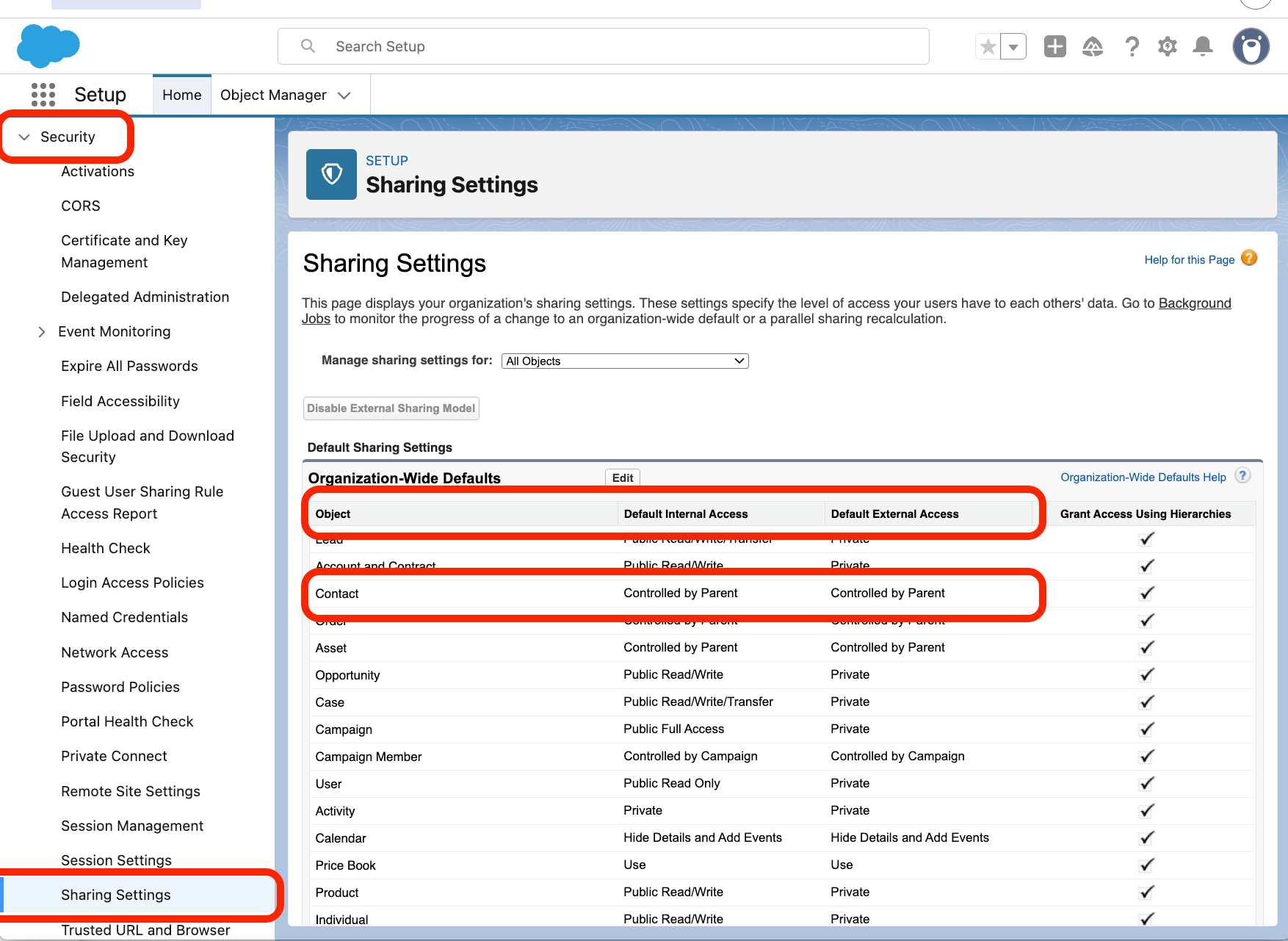 * **If Contact Default (Internal) Access is Public Read/Write**: nothing to do. Close this page.
* **If Contact Default (Internal) Access is Private, Public Read Only, or Controlled by Parent**: keep track of this value. Continue to 2: Choose an option.
## 2: Choose an option
You have two options to enable write access for Starbridge to keep your contacts up to date. Both give Starbridge the required permissions.
* Option 1 is easier, but grants Starbridge permission to delete Contact records. Starbridge will never delete a Contact record, even if you grant it this permission.
* Option 2 is harder, but offers more granular sharing settings and does not grant Starbridge permission to delete Contact records.
| | Option 1: Modify All Records | Option 2: Sharing rule |
| ----------------------------- | ---------------------------- | ----------------------------------------------------------------- |
| Setup | Simple: One checkbox | Multiple steps: create a public group, then create a sharing rule |
| Contacts Starbridge can read | All | All |
| Contacts Starbridge can write | All | Only those matching your criteria |
| Delete permission | Included | Not included |
Starbridge will **never** delete a Contact record from your Salesforce instance. Option 1 gives Starbridge *permission* to delete; but Starbridge will never use this permission and has no features that allow Contact records to be deleted.
## Option 1: Enable `Modify All Records` on the Contact object
In the **Starbridge API Integration** permission set, open **Object Settings** → **Contacts**, click **Edit**, and check **Modify All Records**.
* **If Contact Default (Internal) Access is Public Read/Write**: nothing to do. Close this page.
* **If Contact Default (Internal) Access is Private, Public Read Only, or Controlled by Parent**: keep track of this value. Continue to 2: Choose an option.
## 2: Choose an option
You have two options to enable write access for Starbridge to keep your contacts up to date. Both give Starbridge the required permissions.
* Option 1 is easier, but grants Starbridge permission to delete Contact records. Starbridge will never delete a Contact record, even if you grant it this permission.
* Option 2 is harder, but offers more granular sharing settings and does not grant Starbridge permission to delete Contact records.
| | Option 1: Modify All Records | Option 2: Sharing rule |
| ----------------------------- | ---------------------------- | ----------------------------------------------------------------- |
| Setup | Simple: One checkbox | Multiple steps: create a public group, then create a sharing rule |
| Contacts Starbridge can read | All | All |
| Contacts Starbridge can write | All | Only those matching your criteria |
| Delete permission | Included | Not included |
Starbridge will **never** delete a Contact record from your Salesforce instance. Option 1 gives Starbridge *permission* to delete; but Starbridge will never use this permission and has no features that allow Contact records to be deleted.
## Option 1: Enable `Modify All Records` on the Contact object
In the **Starbridge API Integration** permission set, open **Object Settings** → **Contacts**, click **Edit**, and check **Modify All Records**.
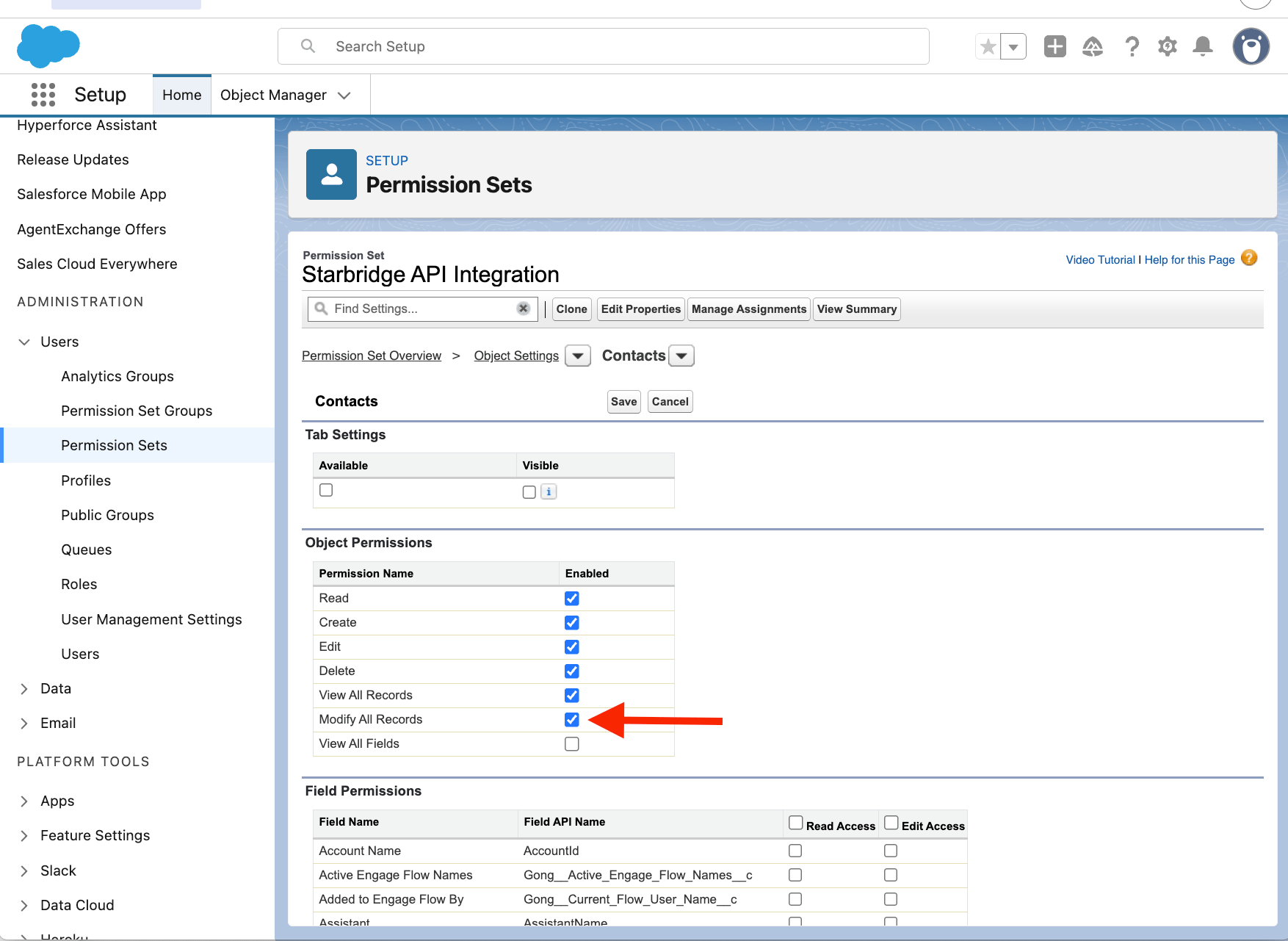 Make sure that all of Read, Create, Edit, Delete, View All Records, and Modify All Records are selected.
## Option 2: Grant write access with a sharing rule
This takes more setup but lets you scope which contacts Starbridge can write to, and does not include delete. The exact steps depend on your Contact organization-wide default (OWD), from [**Connect your CRM**](/admins/connecting-your-crm) **> Step 2: Choose who will connect your CRM > Step-by-step instructions for Salesforce > Step 6**.
### If Contact OWD is Private or Public Read Only
1. Add the integration user to a public group (for example, `Starbridge Integration`)
1. Navigate to **Setup → Public Groups → New.**
1. **Label:** `Starbridge Integration`
2. **Grant Access Using Hierarchies:** leave unchecked.
3. Under **Search**, select **Users**, find `Integration, Starbridge`, move it to Selected Members.
4. Click **Save.**
2. Create a criteria-based **Contact** sharing rule:
* Go to **Setup → Security → Sharing Settings → scroll to Contact Sharing Rules → New**
1. **Label:**`Starbridge Integration Write Access`
2. **Rule Type:** select **Based on criteria** (the default is "Based on record owner").
3. **Criteria:** Whatever criteria you'd like to add. If you want to share access to a specific record type, typically something like: `Record Type` `equals` `K-12`.
1. Click **Add Filter Logic** if you need OR or nested conditions; the default is AND across rows.
4. **Share with:** set the first dropdown to **Public Groups**, then pick `Starbridge Integration`.
5. **Contact Access:** **Read/Write**.
6. **Save**, then confirm the recalculation prompt.
### If Contact OWD is Controlled by Parent
Contact access derives entirely from Account, so you cannot create Contact sharing rules at all.
On the same page where you confirmed the Contact OWD (**Setup** → **Security →** **Sharing Settings**), read the organization-wide defaults for the Account object.
* **If *Account* OWD is Private or Public Read Only**:
1. Add the integration user to a public group (for example, `Starbridge Integration`).
2. Create a criteria-based **Account** sharing rule granting the group **Read/Write** on Account, with **Contact Access** set to **Read/Write**.
* **If *Account* OWD is Public Read/Write**: Starbridge already has write access to all accounts, so contacts should already be writable.
* If you are just setting up your CRM integration for the first time, you can proceed to the next step.
* If you are currently seeing a sync error, this suggests the root cause is something other than your sharing permissions. Contact your GTME or [support@starbridge.ai](mailto:support@starbridge.ai).
## Next steps
If you arrived at this page because you encountered the Salesforce error `INSUFFICIENT_ACCESS_OR_READONLY` when updating or creating contacts:
* This error should now be resolved.
* Resync the affected contacts in your **Contact sync** page.
* If the error persists, contact your GTME or [support@starbridge.ai](mailto:support@starbridge.ai).
If you arrived at this page from the initial CRM integration configuration:
1. After completing Option 1 or Option 2, log out of your current account in Salesforce.
2. Log in to Salesforce using the Starbridge API Integration user username (**not** your personal email) and password.
3. Once you log in, you will not be able to access the Salesforce UI, since you are logged in as an API only integration user. This is expected.
**Don't have a password?** Check your email for a verification email from Salesforce. Verify your integration user account to create a password. Save this password in a secure place.
4. Return to [Connect your CRM](/admins/connecting-your-crm) and continue from **Step 3: Navigate to the CRM integration**.
Make sure that all of Read, Create, Edit, Delete, View All Records, and Modify All Records are selected.
## Option 2: Grant write access with a sharing rule
This takes more setup but lets you scope which contacts Starbridge can write to, and does not include delete. The exact steps depend on your Contact organization-wide default (OWD), from [**Connect your CRM**](/admins/connecting-your-crm) **> Step 2: Choose who will connect your CRM > Step-by-step instructions for Salesforce > Step 6**.
### If Contact OWD is Private or Public Read Only
1. Add the integration user to a public group (for example, `Starbridge Integration`)
1. Navigate to **Setup → Public Groups → New.**
1. **Label:** `Starbridge Integration`
2. **Grant Access Using Hierarchies:** leave unchecked.
3. Under **Search**, select **Users**, find `Integration, Starbridge`, move it to Selected Members.
4. Click **Save.**
2. Create a criteria-based **Contact** sharing rule:
* Go to **Setup → Security → Sharing Settings → scroll to Contact Sharing Rules → New**
1. **Label:**`Starbridge Integration Write Access`
2. **Rule Type:** select **Based on criteria** (the default is "Based on record owner").
3. **Criteria:** Whatever criteria you'd like to add. If you want to share access to a specific record type, typically something like: `Record Type` `equals` `K-12`.
1. Click **Add Filter Logic** if you need OR or nested conditions; the default is AND across rows.
4. **Share with:** set the first dropdown to **Public Groups**, then pick `Starbridge Integration`.
5. **Contact Access:** **Read/Write**.
6. **Save**, then confirm the recalculation prompt.
### If Contact OWD is Controlled by Parent
Contact access derives entirely from Account, so you cannot create Contact sharing rules at all.
On the same page where you confirmed the Contact OWD (**Setup** → **Security →** **Sharing Settings**), read the organization-wide defaults for the Account object.
* **If *Account* OWD is Private or Public Read Only**:
1. Add the integration user to a public group (for example, `Starbridge Integration`).
2. Create a criteria-based **Account** sharing rule granting the group **Read/Write** on Account, with **Contact Access** set to **Read/Write**.
* **If *Account* OWD is Public Read/Write**: Starbridge already has write access to all accounts, so contacts should already be writable.
* If you are just setting up your CRM integration for the first time, you can proceed to the next step.
* If you are currently seeing a sync error, this suggests the root cause is something other than your sharing permissions. Contact your GTME or [support@starbridge.ai](mailto:support@starbridge.ai).
## Next steps
If you arrived at this page because you encountered the Salesforce error `INSUFFICIENT_ACCESS_OR_READONLY` when updating or creating contacts:
* This error should now be resolved.
* Resync the affected contacts in your **Contact sync** page.
* If the error persists, contact your GTME or [support@starbridge.ai](mailto:support@starbridge.ai).
If you arrived at this page from the initial CRM integration configuration:
1. After completing Option 1 or Option 2, log out of your current account in Salesforce.
2. Log in to Salesforce using the Starbridge API Integration user username (**not** your personal email) and password.
3. Once you log in, you will not be able to access the Salesforce UI, since you are logged in as an API only integration user. This is expected.
**Don't have a password?** Check your email for a verification email from Salesforce. Verify your integration user account to create a password. Save this password in a secure place.
4. Return to [Connect your CRM](/admins/connecting-your-crm) and continue from **Step 3: Navigate to the CRM integration**.