> ## Documentation Index
> Fetch the complete documentation index at: https://hc.starbridge.ai/llms.txt
> Use this file to discover all available pages before exploring further.
# Craft Personalized Outbound Emails
The **Personalized Outbound Email Column** allows you to create personalized, ready-to-send emails directly within your bridges. Write your own email copy and enhance it with dynamic variables and AI-generated personalized snippets.
## Overview
The Personalized Outbound Email Column helps you:
* **Compose emails** with your own static copy to stay true to your branding and tone, or have Starbridge's AI generate a first draft based on your input
* **Include AI snippets** that generate personalized content for each signal
* **Add variables** like first name or buyer name to further personalize your email
This column is available for all bridge types.
## How to Add a Personalized Outbound Email Column
1. Open your Bridge and click **Add Column**
2. Select **Create Personalized Outreach → Create Personalized Outbound Email** from the column menu
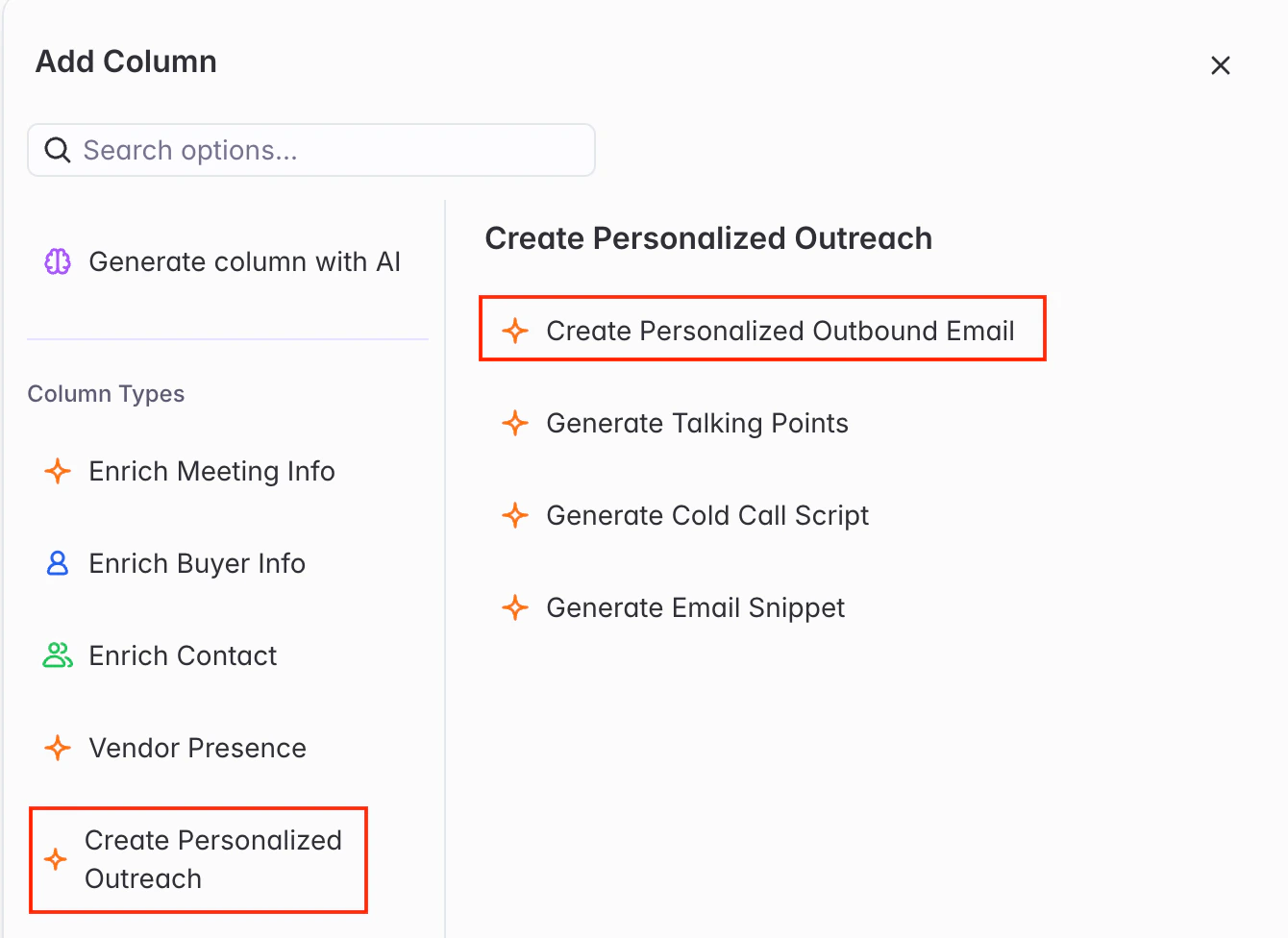 3. Decide whether you want to have Starbridge's AI draft the email for you, or build it yourself from scratch. If you'd like AI to draft your email for you, provide guidance around the goal of the meeting (ex: book a meeting) and any other information you'd like included.
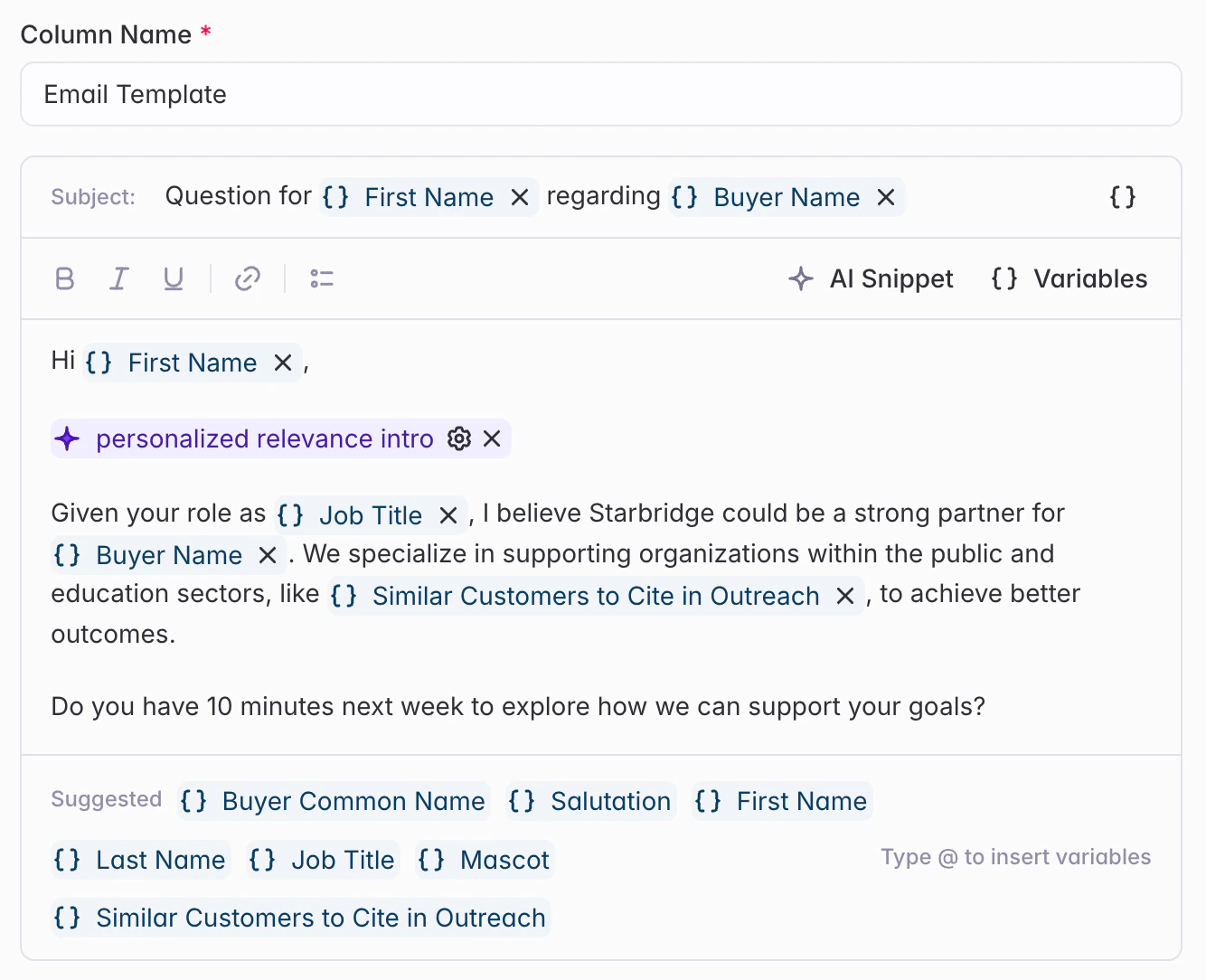
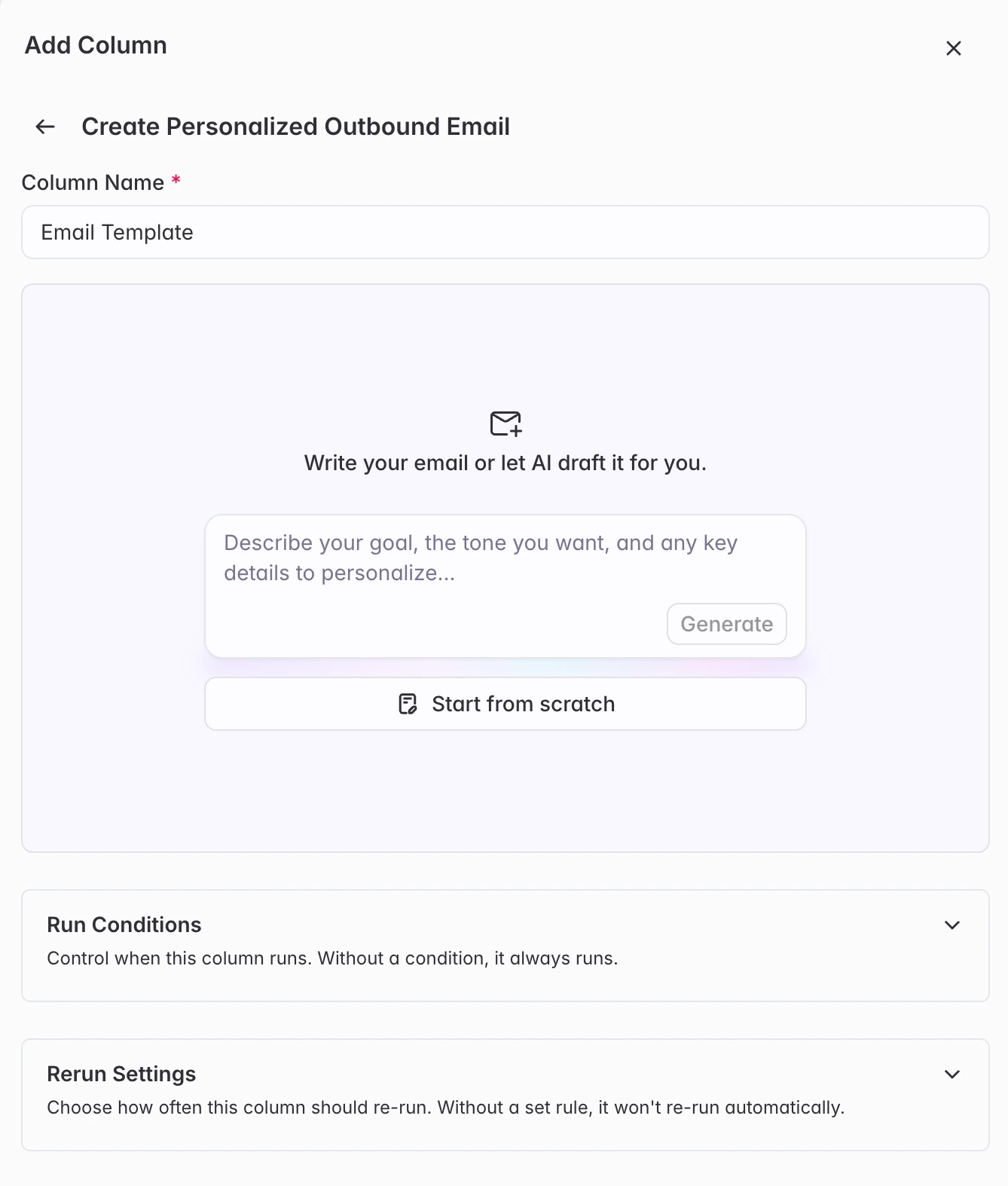 4. Once you're in the email editor itself, you'll see two fields to configure:
* **Subject Line** – Write your email subject line
* **Email Body** – Compose your email message
4. Once you're in the email editor itself, you'll see two fields to configure:
* **Subject Line** – Write your email subject line
* **Email Body** – Compose your email message
 ## Building Your Email
Your email can include three types of conten
Type your email copy directly. This text will appear exactly as written in every email.
**Example:**
> I wanted to reach out to see if you'd be open to connecting.
Insert dynamic data from your bridge or from signal attributes. These will change for each row/signal.
Examples:
* @First Name : Contact's first name
* @Buyer Common Name: Buyer / account common name
* @Conference: Conference name
* @Due Date: RFP due date
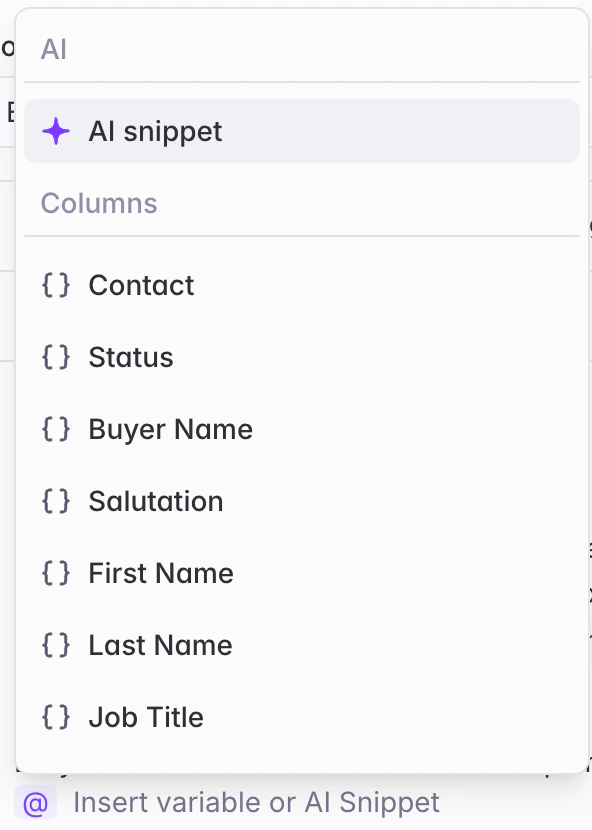
How to add: Type @ and select from the suggested attributes.
## Building Your Email
Your email can include three types of conten
Type your email copy directly. This text will appear exactly as written in every email.
**Example:**
> I wanted to reach out to see if you'd be open to connecting.
Insert dynamic data from your bridge or from signal attributes. These will change for each row/signal.
Examples:
* @First Name : Contact's first name
* @Buyer Common Name: Buyer / account common name
* @Conference: Conference name
* @Due Date: RFP due date
How to add: Type @ and select from the suggested attributes.
 Example:
> Hi @First Name,
Add AI-generated content that creates personalized email snippets for each row based on the signal. This is configurable via a prompt that you can tailor to pull the exact desired insights from each signal.
How to add:
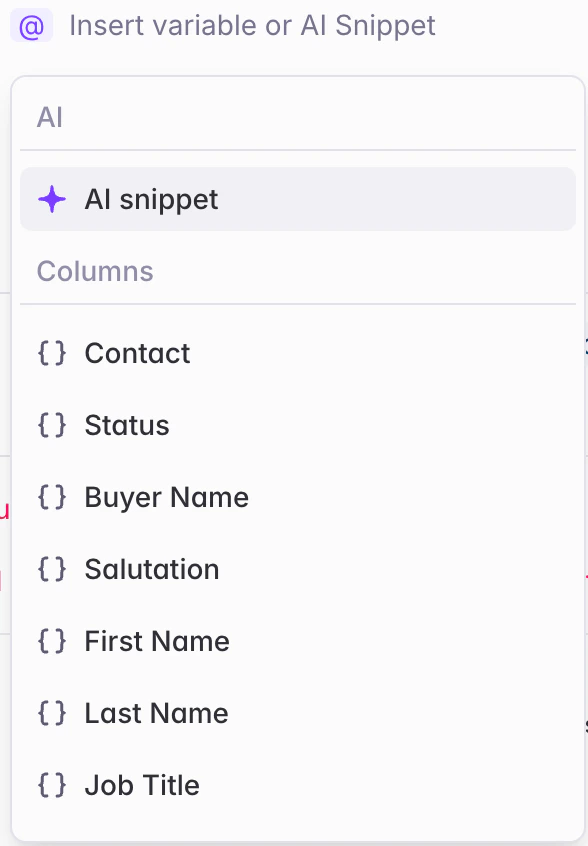
1. Type @ in the subject line or email body fields.
2. Select **Add AI Snippet**
Example:
> Hi @First Name,
Add AI-generated content that creates personalized email snippets for each row based on the signal. This is configurable via a prompt that you can tailor to pull the exact desired insights from each signal.
How to add:
1. Type @ in the subject line or email body fields.
2. Select **Add AI Snippet**
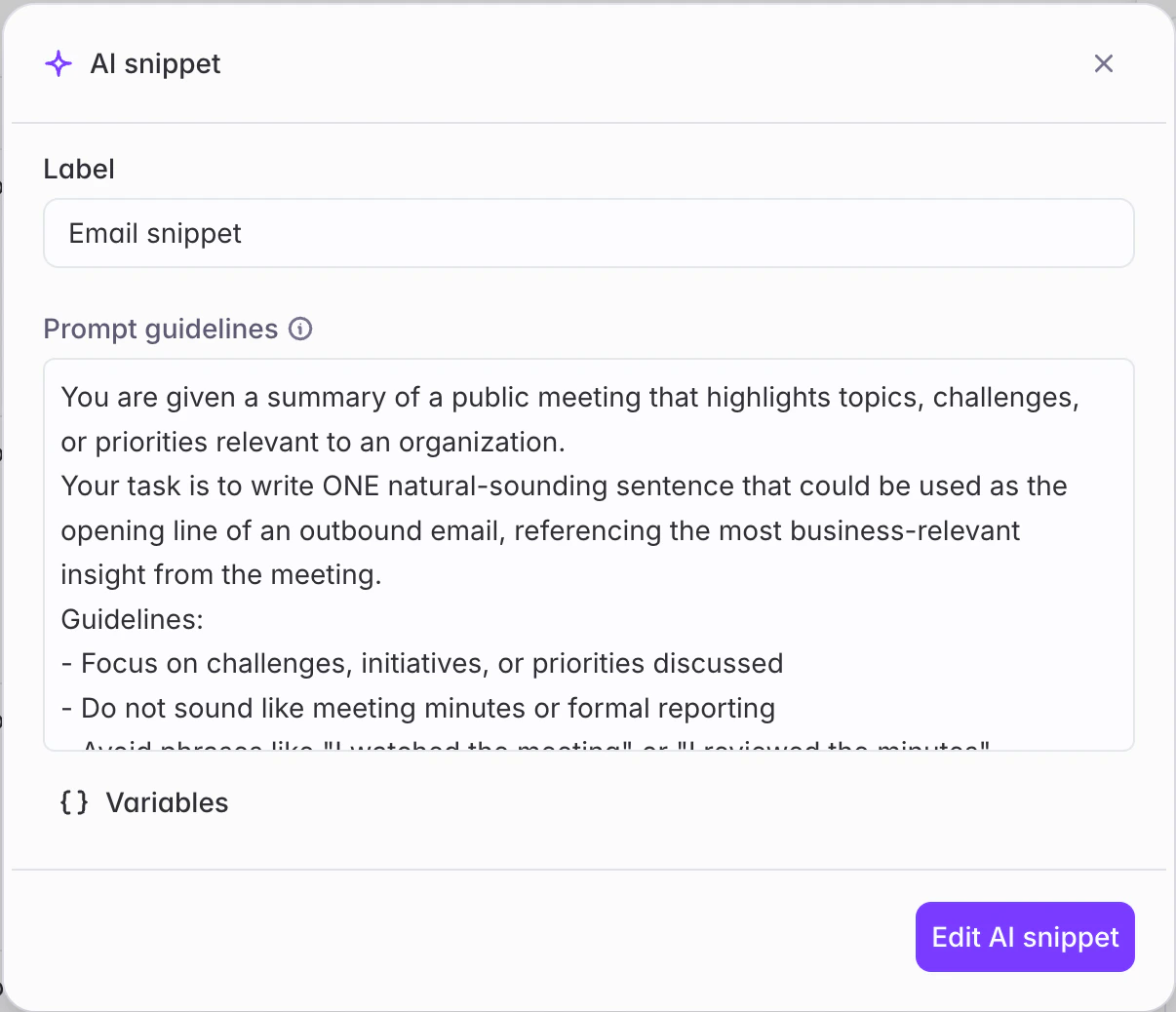
 3. Give your snippet a name
4. Write a prompt describing what you want the email snippet to include from each signal
3. Give your snippet a name
4. Write a prompt describing what you want the email snippet to include from each signal
 ## AI Email Snippet Best Practices
When you add an AI Snippet:
Describe the insights from each signal you want the AI Snippet to capture
Give your snippet a descriptive name so you can identify it easily
You can always modify the snippet by clicking on the "Gear" icon
**Tips for effective AI snippet prompts:**
**Be specific:** "Write one sentence mentioning the budget challenges discussed"
**Set length guidelines:** "Keep under 50 words" or "Write 1-2 sentences"
**Define tone:** "Write conversationally" or "Keep it professional"
**Directly reference the signal, attribute, or bridge column:** "Based on meeting @Summarized Relevance , write a 1-2 sentence opening" or "Congratulate them on their new @Job Change"
**Avoid vague prompts:** "Make it good" or "Personalize this"
We've pre-generated snippet prompts for certain bridge types for you. You can always edit them to tailor them to your use case!
## Running your Personalized Outbound Email Column
After configuring your email:
Test your template before running all rows to make sure you’re happy with the email and snippets. Make any edits to your snippet prompts as needed.
Once you're happy with your email, run the column on all rows.
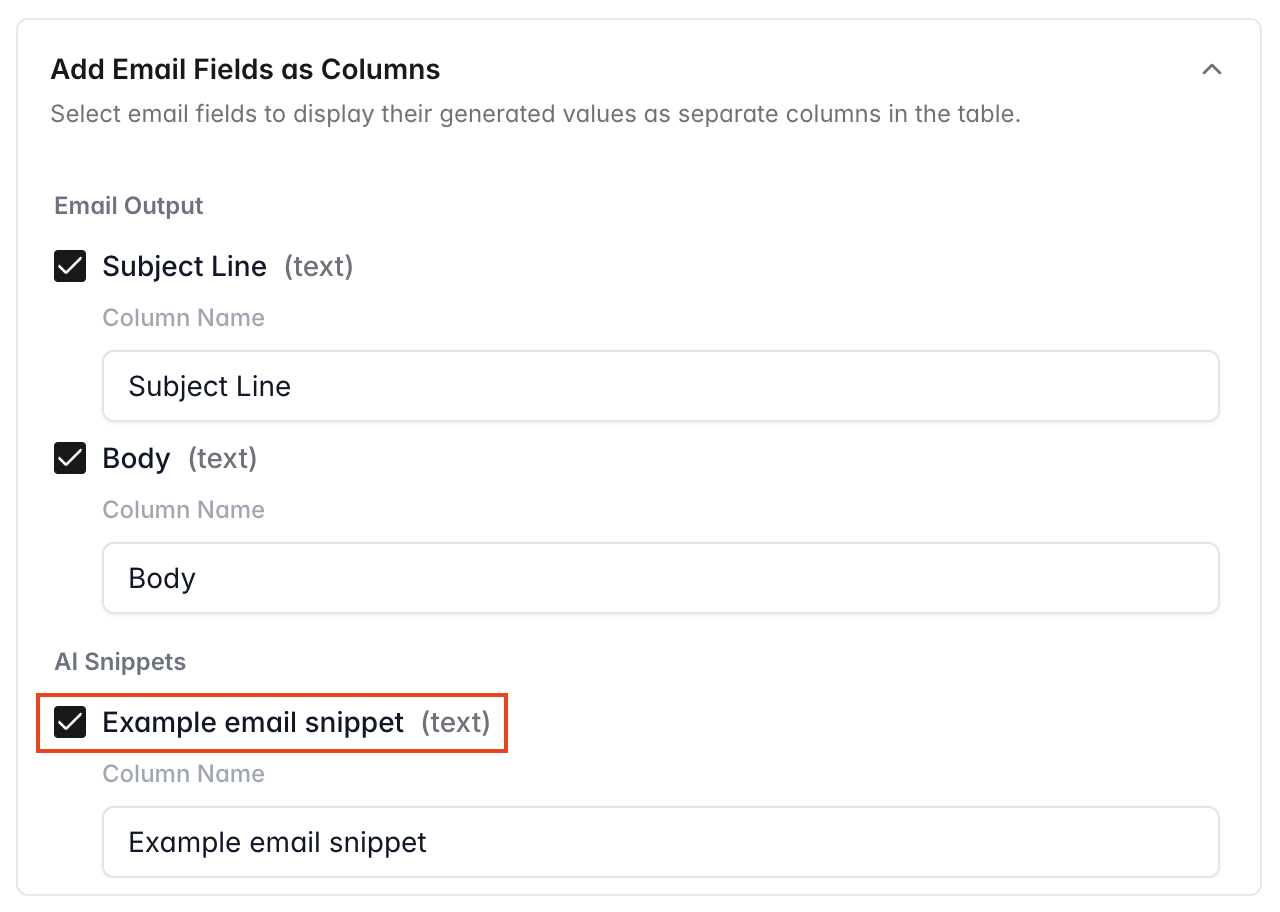
By default, it will be outputted as 3 columns:
1. Consolidated email (with subject line, email, and any AI Email Snippets in 1 column)
2. Subject line
3. Email Body
You can optionally choose to:
* Additionally output individual AI Email Snippets as separate columns by checking the email snippet option in the "Add Email Fields as Columns" section of the column editor
## AI Email Snippet Best Practices
When you add an AI Snippet:
Describe the insights from each signal you want the AI Snippet to capture
Give your snippet a descriptive name so you can identify it easily
You can always modify the snippet by clicking on the "Gear" icon
**Tips for effective AI snippet prompts:**
**Be specific:** "Write one sentence mentioning the budget challenges discussed"
**Set length guidelines:** "Keep under 50 words" or "Write 1-2 sentences"
**Define tone:** "Write conversationally" or "Keep it professional"
**Directly reference the signal, attribute, or bridge column:** "Based on meeting @Summarized Relevance , write a 1-2 sentence opening" or "Congratulate them on their new @Job Change"
**Avoid vague prompts:** "Make it good" or "Personalize this"
We've pre-generated snippet prompts for certain bridge types for you. You can always edit them to tailor them to your use case!
## Running your Personalized Outbound Email Column
After configuring your email:
Test your template before running all rows to make sure you’re happy with the email and snippets. Make any edits to your snippet prompts as needed.
Once you're happy with your email, run the column on all rows.
By default, it will be outputted as 3 columns:
1. Consolidated email (with subject line, email, and any AI Email Snippets in 1 column)
2. Subject line
3. Email Body
You can optionally choose to:
* Additionally output individual AI Email Snippets as separate columns by checking the email snippet option in the "Add Email Fields as Columns" section of the column editor
 * Only show the consolidated email column by unchecking the subject line, email body, and email snippet fields in the section above
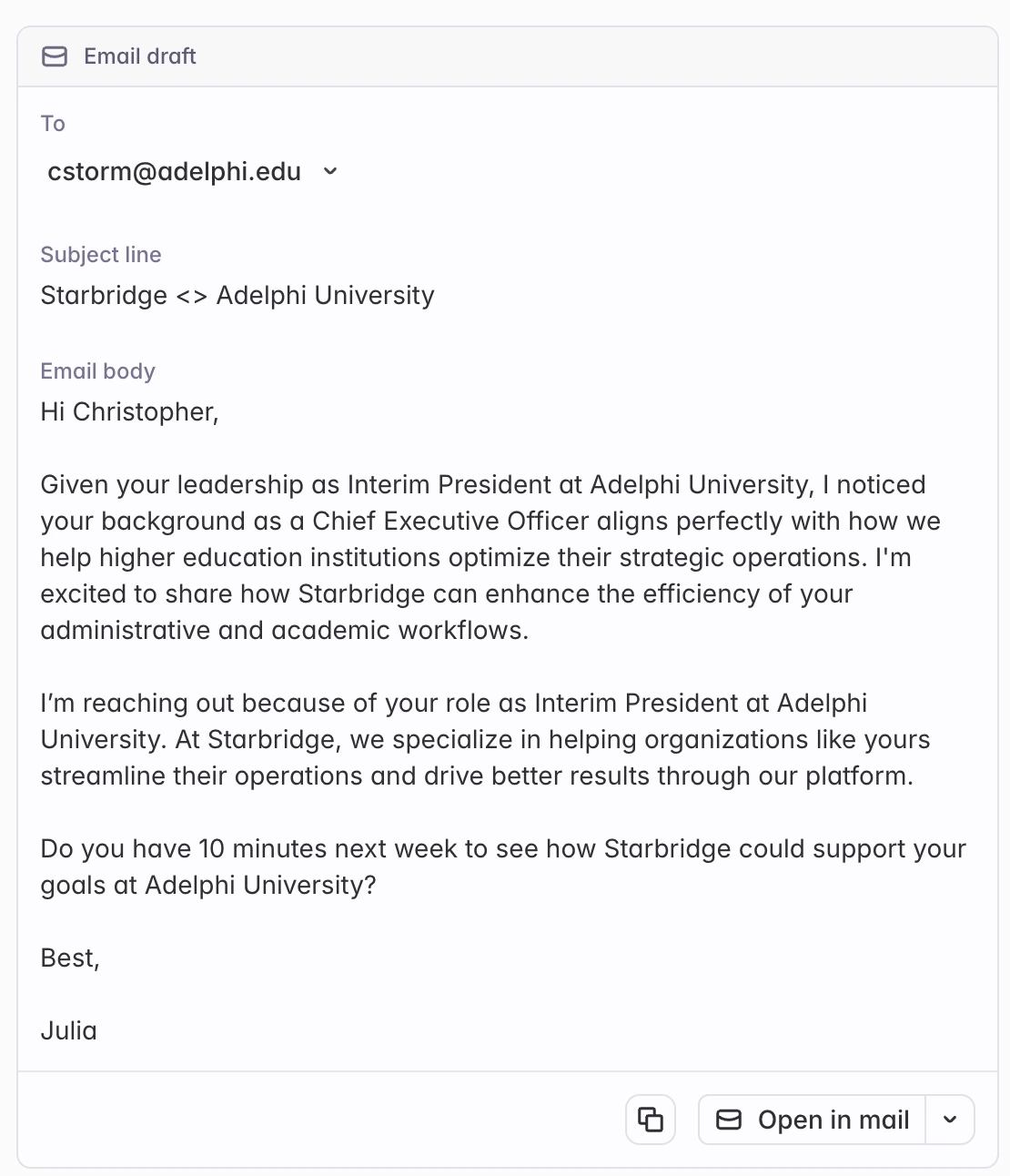
* Click the *Open in mail* button for each signal on your feed or within your bridge to send the email in your email tool of choice
* Only show the consolidated email column by unchecking the subject line, email body, and email snippet fields in the section above
* Click the *Open in mail* button for each signal on your feed or within your bridge to send the email in your email tool of choice
 * Export the subject line, body, and/or snippets to your CRM or sequencer via our CRM integration or CSV export
## Example Emails
Subject Line:
> /\[AI Snippet: "Write a 3-5 word subject line referencing the main topic discussed in the meeting from @summarized relevance"]
Email Body:
> Hi @First Name,
>
> /\[AI Snippet: "Write 2-3 sentences referencing specific challenges or initiatives mentioned in the meeting from @Summarized Relevance and positioning them as something we can help with"]
>
> I'd love to share how we've helped organizations like @Buyer Common Name tackle similar challenges. Would you be open to a brief conversation?
>
> Best,
>
> \[Your name]
Subject Line:
> Your @Seller Name contract
Email Body:
> Hi @First Name,
>
> I noticed your contract with @Seller Name is ending soon.
>
> /\[AI Snippet: "Ask conversationally if the buyer has started looking at alternatives for contract/product in @Purchase, and/or mention upcoming contract expiration if @Contract End Date is coming up soon. Use information from @Summary."]
>
> We've helped organizations like @Buyer Common Name optimize costs and improve outcomes. Happy to share more if you're evaluating options.
>
> Best,
>
> \[Your name]
Subject Line:
> Congrats on the new role at @Buyer Common Name
Email Body:
> Hi @First Name,
>
> /\[AI Snippet: "Write one sentence congratulating this person on their new role based on @Job Change."]
>
> I'd love to share how we're helping other leaders in similar roles.
>
> Open to a quick conversation?
>
> Best,
>
> \[Your name]
Subject Line:
> /\[AI Snippet: "Write a 3-5 word subject line referencing the most relevant finding from the specific signal or event mentioned in @Signal Finding"]
Email Body:
> Hi @First Name,
>
> /\[AI Snippet: "Write 2 sentences referencing @Signal Finding and why it's relevant to them. Be conversational and show you've done your research."]
>
> I'd love to connect and share how we've helped organizations like @Buyer Common Name with similar initiatives. Would you be open to a brief chat?
>
> Best,
>
> \[Your name]
Subject Line:
> Thought of @Buyer Common Name
Email Body:
> Hi @First Name,
>
> /\[AI Snippet: "Write 2-3 sentences explaining why we're reaching out to this specific @Buyer based on their profile, industry, or recent activity. Reference any relevant buyer attributes or signals from cross-referenced bridges."]
>
> We work with organizations like @Buyer Common Name to \[your value proposition]. Would you be interested in learning more?
>
> Best,
>
> \[Your name]
Subject Line:
> Quick question for @Buyer Name
Email Body:
> Hi @First Name,
>
> I'm reaching out because of your role as @Job Title at @Buyer Common Name.
>
> /\[AI Snippet: "Write 1-2 sentences about why this person's @Job Title makes them a good fit for our solution"]
>
> Would you have a few minutes to connect?
>
> Best,
>
> \[Your name]
Subject Line:
> Re: Your Posted RFP
Email Body:
> Hi @First Name,
>
> I saw that @Buyer Common Name recently posted an RFP with a due date of @Due Date. /\[AI Snippet: "Write 1-2 sentences explaining how our solution aligns with the specific requirements mentioned in @RFP @Summary"]
>
> I'd love to schedule a brief call to discuss how we can support your goals. Would you have 15 minutes this week?
>
> Best,
>
> \[Your name]
Subject Line:
> Following up from @Conference
Email Body:
> Hi,
>
> I saw that you'll be at @Conference Name in @City. /\[AI Snippet: "Explain in one sentence why @Conference @Conference Description is relevant to their work based on the conference focus areas"]
>
> I'd love to connect while you're there to discuss how we're helping similar organizations.
>
> Would you have 15 minutes for a quick coffee?
>
> Best,
>
> \[Your name]
## Feature Walkthrough Video
* Export the subject line, body, and/or snippets to your CRM or sequencer via our CRM integration or CSV export
## Example Emails
Subject Line:
> /\[AI Snippet: "Write a 3-5 word subject line referencing the main topic discussed in the meeting from @summarized relevance"]
Email Body:
> Hi @First Name,
>
> /\[AI Snippet: "Write 2-3 sentences referencing specific challenges or initiatives mentioned in the meeting from @Summarized Relevance and positioning them as something we can help with"]
>
> I'd love to share how we've helped organizations like @Buyer Common Name tackle similar challenges. Would you be open to a brief conversation?
>
> Best,
>
> \[Your name]
Subject Line:
> Your @Seller Name contract
Email Body:
> Hi @First Name,
>
> I noticed your contract with @Seller Name is ending soon.
>
> /\[AI Snippet: "Ask conversationally if the buyer has started looking at alternatives for contract/product in @Purchase, and/or mention upcoming contract expiration if @Contract End Date is coming up soon. Use information from @Summary."]
>
> We've helped organizations like @Buyer Common Name optimize costs and improve outcomes. Happy to share more if you're evaluating options.
>
> Best,
>
> \[Your name]
Subject Line:
> Congrats on the new role at @Buyer Common Name
Email Body:
> Hi @First Name,
>
> /\[AI Snippet: "Write one sentence congratulating this person on their new role based on @Job Change."]
>
> I'd love to share how we're helping other leaders in similar roles.
>
> Open to a quick conversation?
>
> Best,
>
> \[Your name]
Subject Line:
> /\[AI Snippet: "Write a 3-5 word subject line referencing the most relevant finding from the specific signal or event mentioned in @Signal Finding"]
Email Body:
> Hi @First Name,
>
> /\[AI Snippet: "Write 2 sentences referencing @Signal Finding and why it's relevant to them. Be conversational and show you've done your research."]
>
> I'd love to connect and share how we've helped organizations like @Buyer Common Name with similar initiatives. Would you be open to a brief chat?
>
> Best,
>
> \[Your name]
Subject Line:
> Thought of @Buyer Common Name
Email Body:
> Hi @First Name,
>
> /\[AI Snippet: "Write 2-3 sentences explaining why we're reaching out to this specific @Buyer based on their profile, industry, or recent activity. Reference any relevant buyer attributes or signals from cross-referenced bridges."]
>
> We work with organizations like @Buyer Common Name to \[your value proposition]. Would you be interested in learning more?
>
> Best,
>
> \[Your name]
Subject Line:
> Quick question for @Buyer Name
Email Body:
> Hi @First Name,
>
> I'm reaching out because of your role as @Job Title at @Buyer Common Name.
>
> /\[AI Snippet: "Write 1-2 sentences about why this person's @Job Title makes them a good fit for our solution"]
>
> Would you have a few minutes to connect?
>
> Best,
>
> \[Your name]
Subject Line:
> Re: Your Posted RFP
Email Body:
> Hi @First Name,
>
> I saw that @Buyer Common Name recently posted an RFP with a due date of @Due Date. /\[AI Snippet: "Write 1-2 sentences explaining how our solution aligns with the specific requirements mentioned in @RFP @Summary"]
>
> I'd love to schedule a brief call to discuss how we can support your goals. Would you have 15 minutes this week?
>
> Best,
>
> \[Your name]
Subject Line:
> Following up from @Conference
Email Body:
> Hi,
>
> I saw that you'll be at @Conference Name in @City. /\[AI Snippet: "Explain in one sentence why @Conference @Conference Description is relevant to their work based on the conference focus areas"]
>
> I'd love to connect while you're there to discuss how we're helping similar organizations.
>
> Would you have 15 minutes for a quick coffee?
>
> Best,
>
> \[Your name]
## Feature Walkthrough Video