> ## Documentation Index
> Fetch the complete documentation index at: https://hc.starbridge.ai/llms.txt
> Use this file to discover all available pages before exploring further.
# Contacts Bridge: Enrich an existing lead list
## Introduction
If you know the contacts you want to reach, a [Contacts Bridge](/builders/contacts-bridge) can enrich your existing leads or contacts to verify their current title, employment status, and email.
This is the most common starting point for teams enriching a lead list for outreach ahead of a conference, or verifying existing contacts in their CRM.
### How to enrich an existing contact list
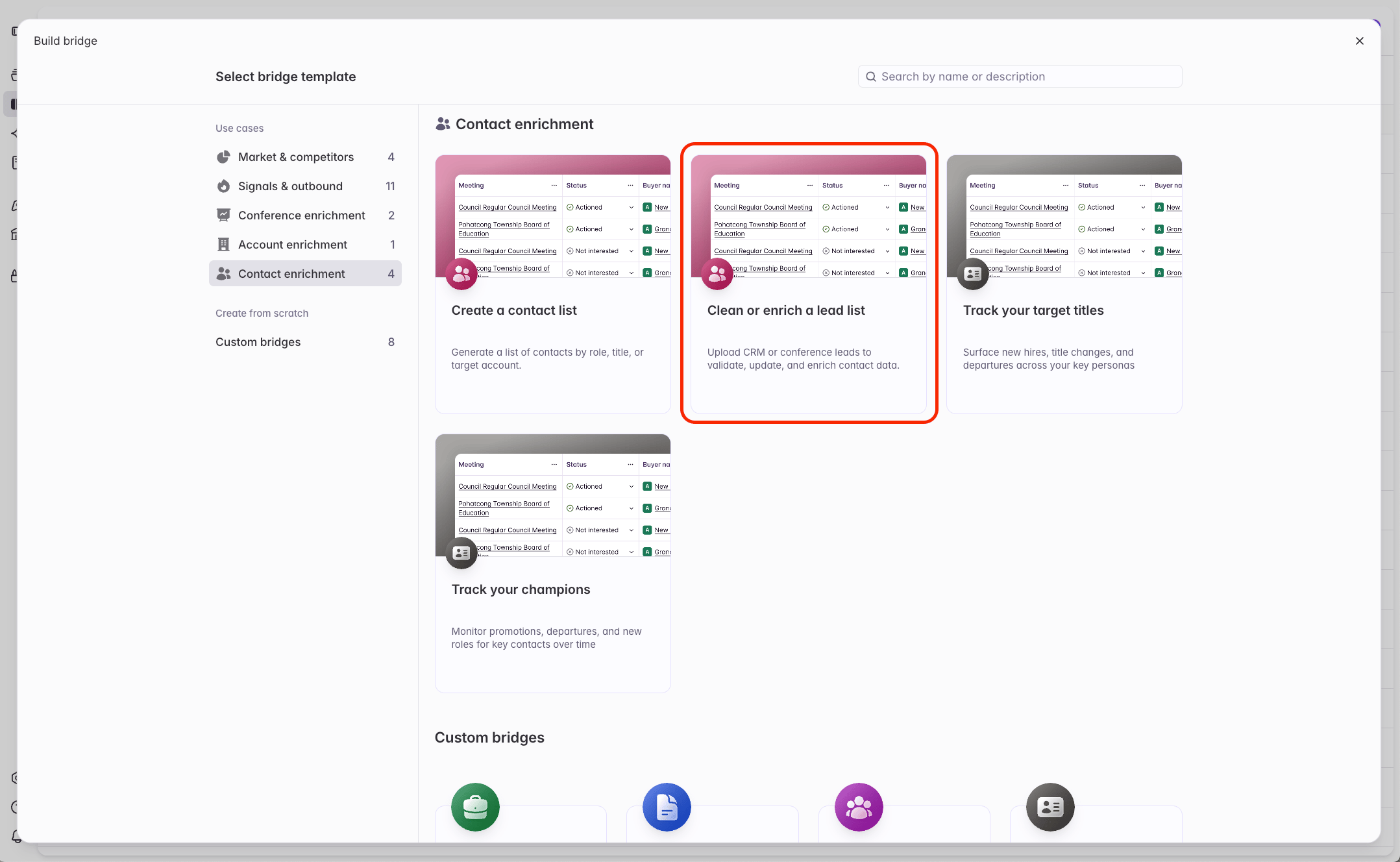
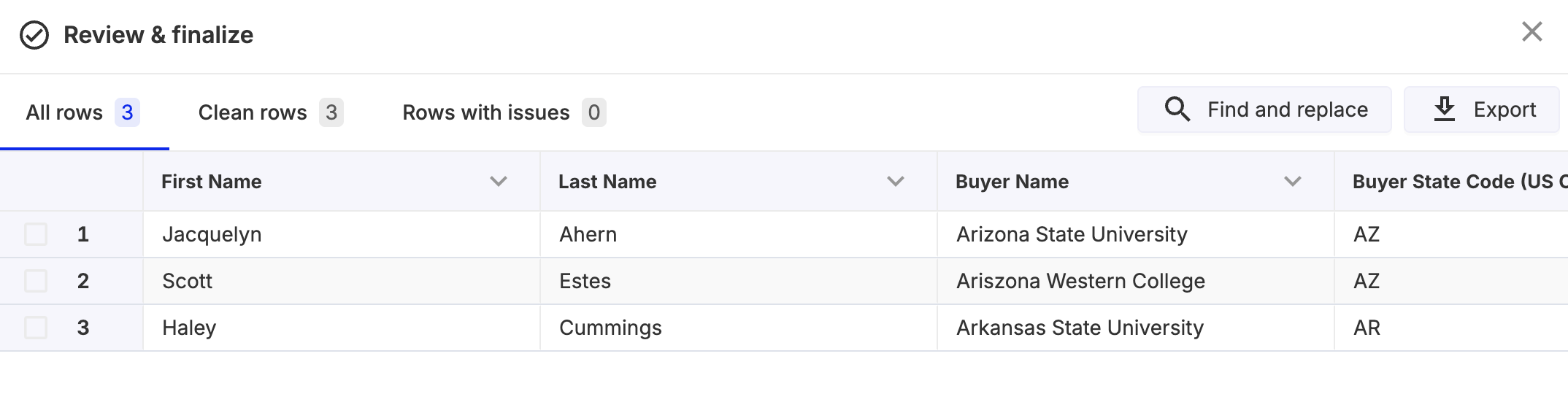
Select **Clean or enrich a lead list**.
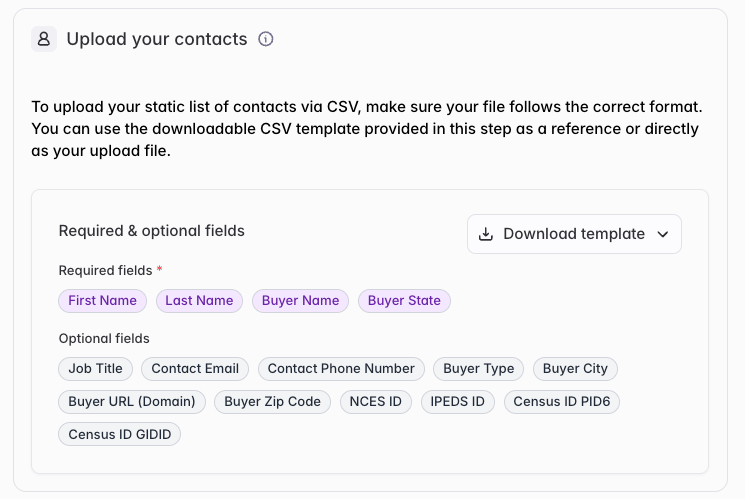
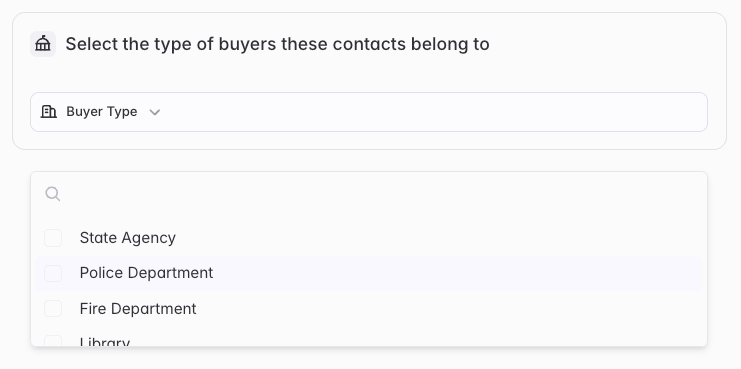
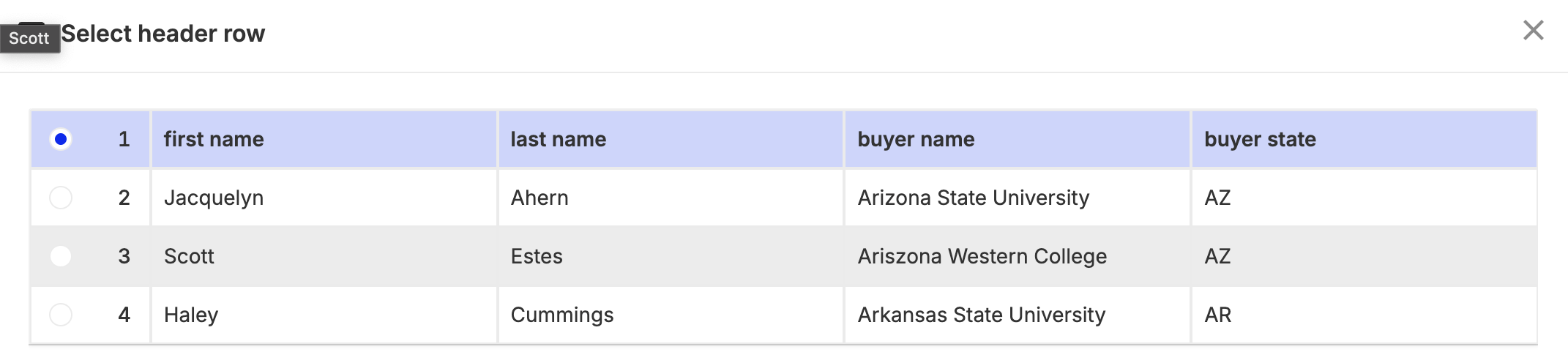
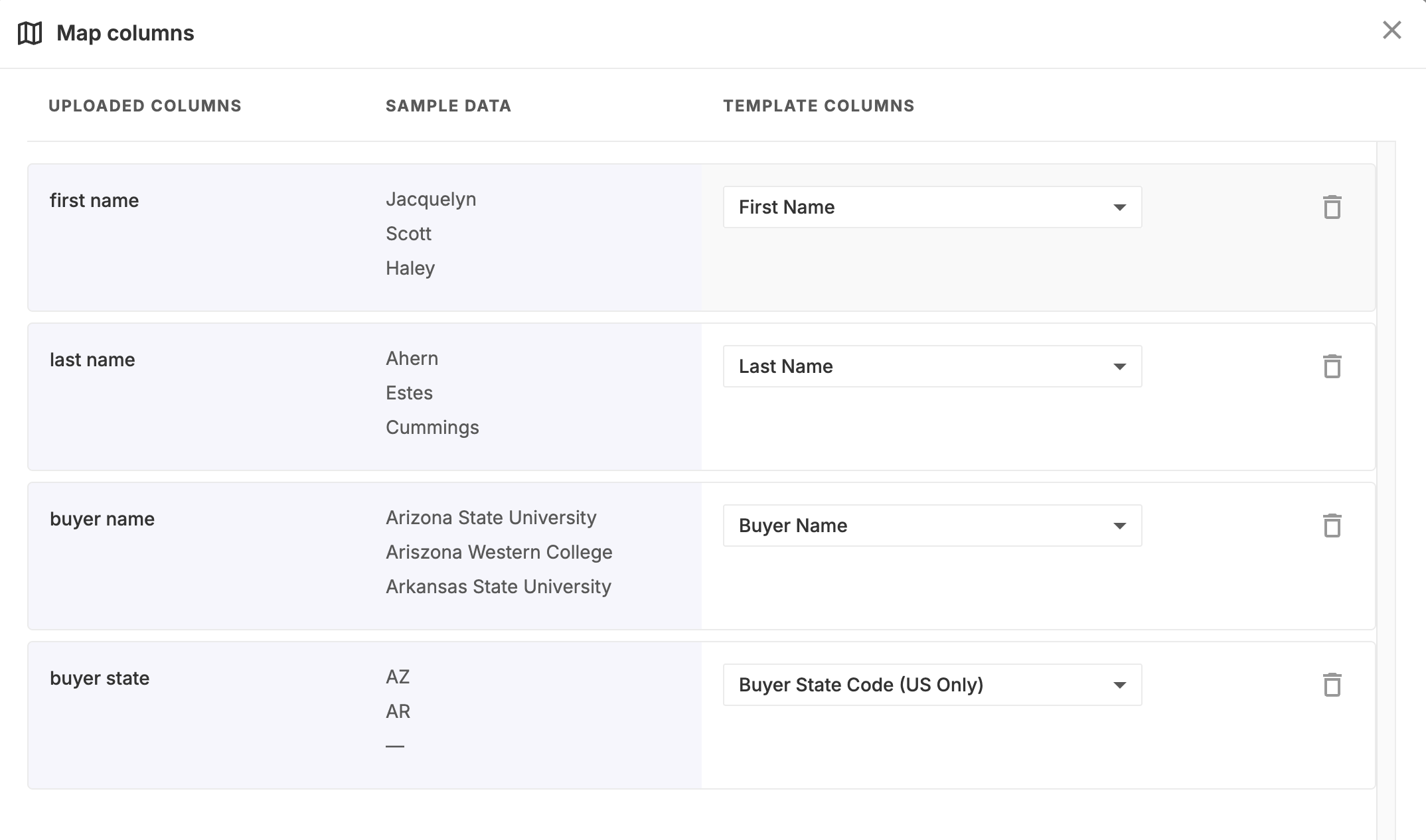
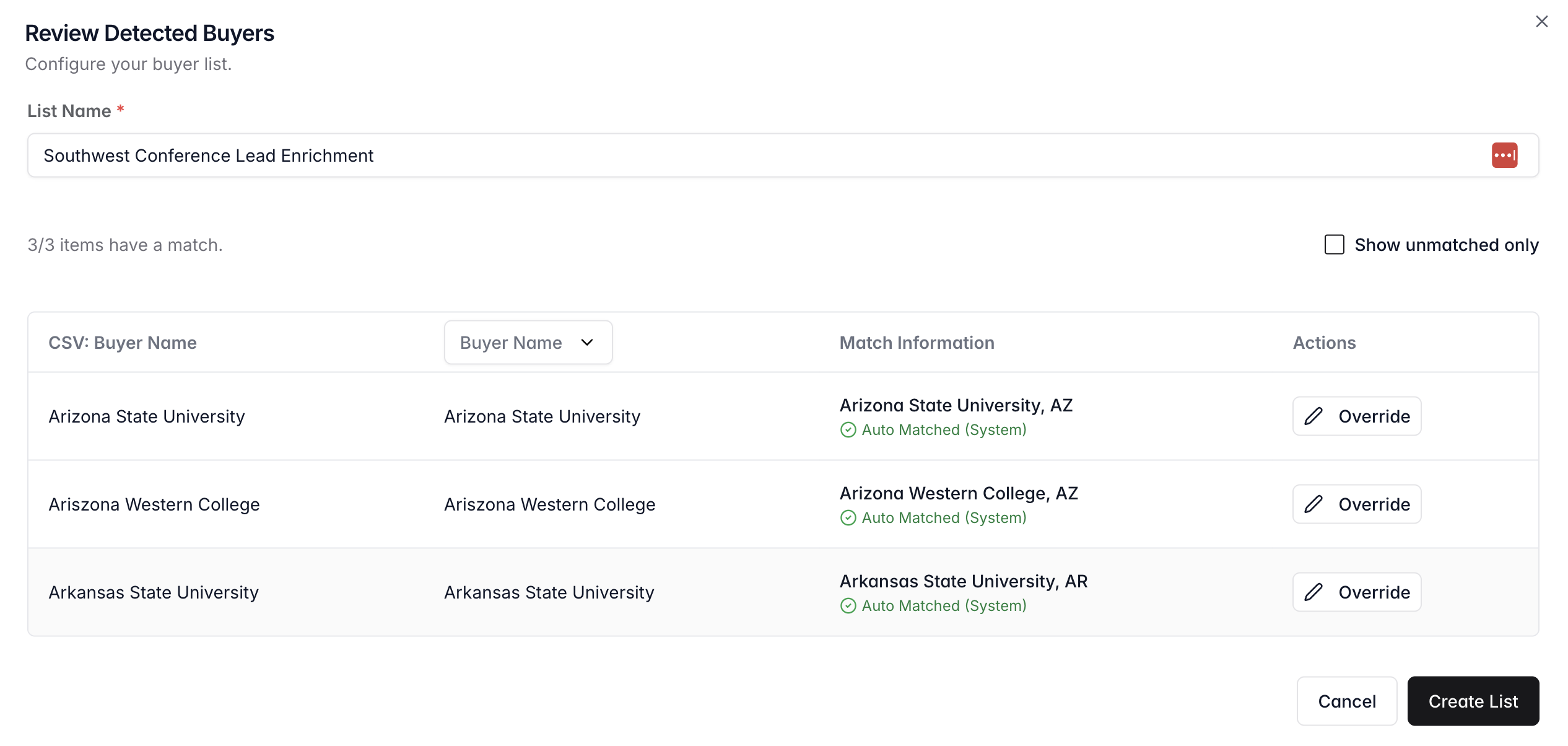
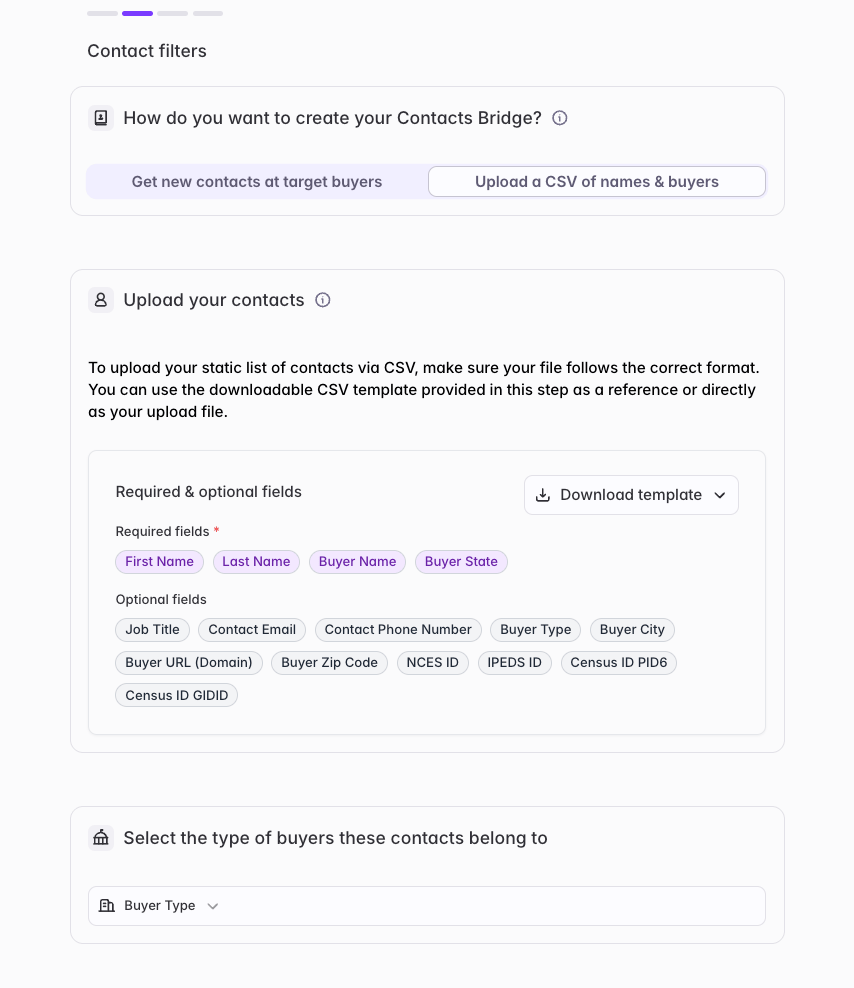 Buyer name and buyer state code are required to ensure Starbridge verifies and enriches the contact at the right organization.
If you include an email for the contact, Starbridge will bounce-check your provided email and no additional charge. Starbridge will always attempt to enrich an email for the contact, even if you provide an existing email.
Buyer name and buyer state code are required to ensure Starbridge verifies and enriches the contact at the right organization.
If you include an email for the contact, Starbridge will bounce-check your provided email and no additional charge. Starbridge will always attempt to enrich an email for the contact, even if you provide an existing email.
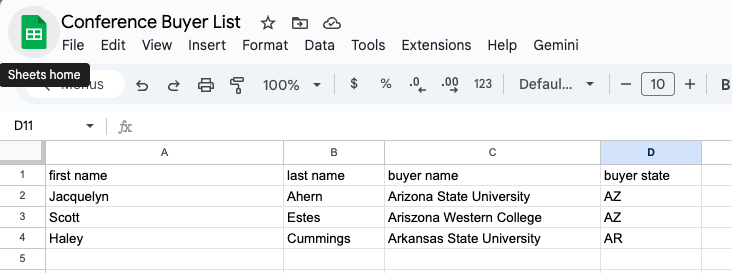 Starbridge uses these to focus on the right buyer types for your uploaded leads and contacts.
 Questions about the results? [This explainer](/builders/csv-enrichment-understanding-the-results) breaks down the outputs of CSV contact enrichment, especially the **Is Active** and **Contact Email** columns.
## Understanding the results
### Output columns you can expect to see
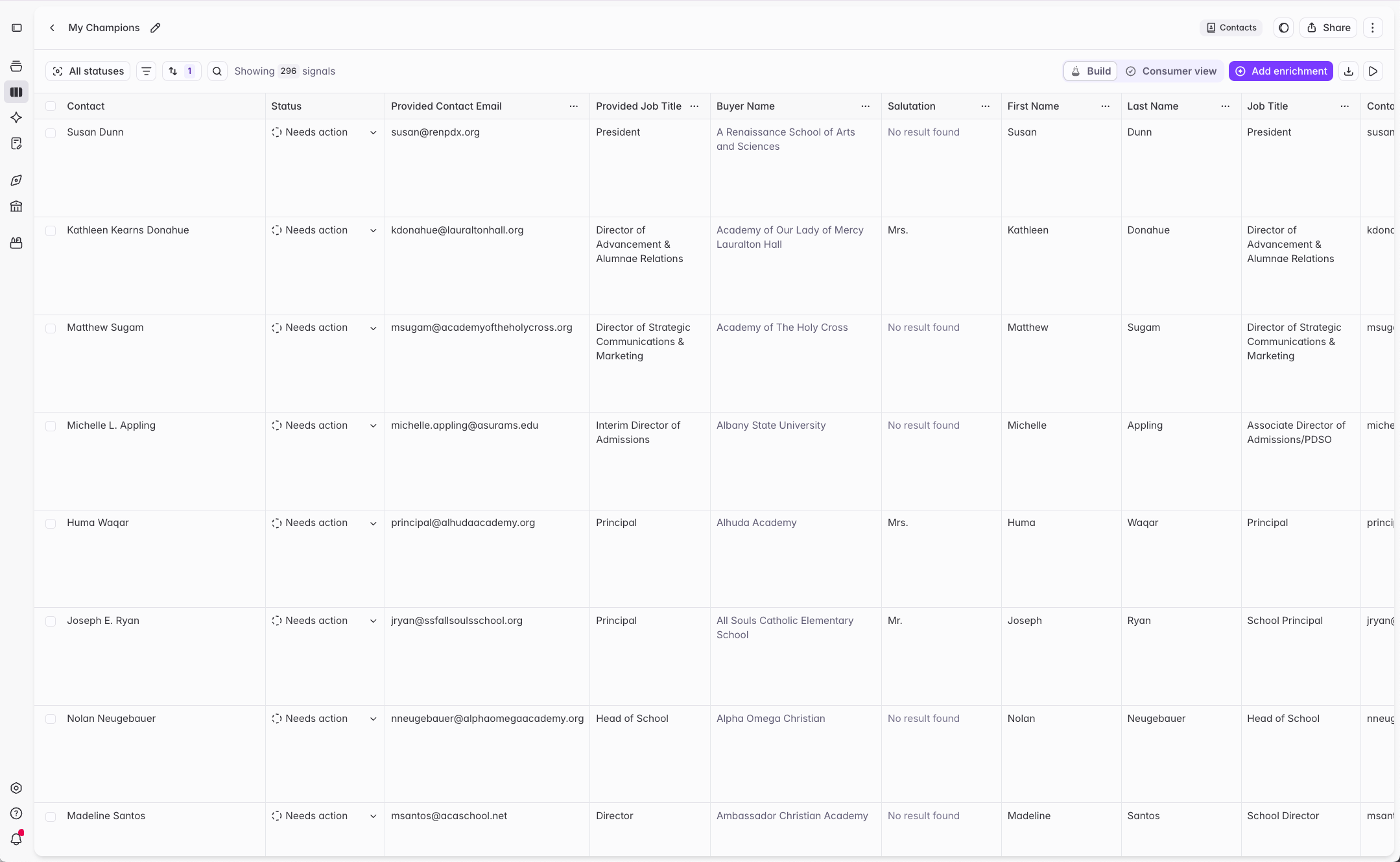
Your CSV enrichment results will include at least:
* Contact (Full Name)
* Buyer Name
* Salutation
* First Name
* Last Name
* Job Title
* Contact Email
* Phone Number
* Relevance
* Is Active
If your CSV included any of the following inputs, we will also include them in the output so you can compare your inputs to Starbridge’s outputs:
* Provided Job Title
* Provided Contact Email
* Provided Contact Phone
### Quick definitions
This section focuses on two important outputs: **Is Active** and **Contact Email**.
* **Is Active:** Whether Starbridge believes the contact should be treated as “active at this buyer.” This is driven by whether we can verify the person works at the buyer.
* **Contact Email:** The email Starbridge returns (if any), after enrichment and validation steps like bounce checking.
Is Active is based on rigorous web verification.
* If we **confirmed the contact works at the buyer** → **Is Active = true**
* If we **confirmed the contact does not work at the buyer** → **Is Active = false**
* If we **could not confirm either way** → **Is Active = true** (default to "keep active" when the web is ambiguous)
**Why we default to Is Active = true when we are not sure:** If a contact exists in your CRM or lead list and we cannot confidently verify they left, we do not want to push you toward inactivating or deleting good data just because the web has no conclusive information.
**We do not use bounce check results from your provided email to determine Is Active:** Bounce checks only tell us whether an email address is deliverable — not whether the email address belongs or belonged to that person. For example, your provided email can fail a bounce check due to a typo, even if the contact is still active.
> **Workaround:** If you would like to mark contacts inactive when your provided email fails bounce check, you can add an AI Analysis column that accepts the result in **Is Active** unless your **Provided Email** failed the bounce check per **Relevance**. [1-minute video explainer](https://www.loom.com/share/739b7a715f8748ef9a80ff09947ca89a).
* Starbridge will attempt to enrich an email for every active contact.
* Starbridge runs a **bounce check** as a final validation step on its enriched email and any email you provide. You can see the outcome of those bounce checks in **Relevance**.
* If a Starbridge-enriched email or your provided email **fails bounce check**, we **do not show it** as the output **Contact Email**.
* If you provided an email and Starbridge found a different email, we may validate both and explain the outcome in **Relevance**.
This table explains what you'll see in the **Contact Email** output. Read this table from left to right.
| Is Active | Your provided email passes a bounce check | Our enriched email passes a bounce check | Returned in Contact Email |
| --------- | ----------------------------------------- | ---------------------------------------- | ------------------------- |
| true | Yes | Yes | Our email |
| true | No | Yes | Our email |
| true | No email provided | Yes | Our email |
| true | Yes | No email found | Your provided email |
| true | No | No email found | No email |
| true | No email provided | No email found | No email |
| false | Yes | We don't enrich an email | Your provided email |
| false | No | We don't enrich an email | No email |
| false | No email provided | We don't enrich an email | No email |
### Examples
* We verified they no longer work at the buyer, so the contact is inactive.
* Their email has not been deactivated. This can happen when a buyer keeps an old email inbox active, often to forward or monitor messages for a departed employee.
* Our verifier found strong evidence the contact works at the buyer, so we marked **Is Active** = true.
* We do not use bounce check results from your provided email to determine **Is Active**. Bounce check only tells us whether an email address is deliverable, not whether the email address belongs or belonged to that person. For example, your provided email can fail bounce check due to a typo, even if the contact is still active. [1-minute video explainer](https://www.loom.com/share/739b7a715f8748ef9a80ff09947ca89a).
* Our verifier could not find strong evidence they work at the buyer. It also could not find strong evidence they do not work at the buyer.
* We default to keeping the contact active when we are not sure, because ambiguity is not a good reason to inactivate or delete CRM records.
* We do not use bounce check results from your provided email to determine **Is Active**. Bounce check only tells us whether an email address is deliverable, not whether the email address belongs or belonged to that person. For example, your provided email can fail bounce check due to a typo, even if the contact is still active. [1-minute video explainer](https://www.loom.com/share/739b7a715f8748ef9a80ff09947ca89a).
## Next steps
Push enriched contacts directly to your CRM.
Starbridge keeps your enriched contacts up to date — also get alerted when contacts change roles.
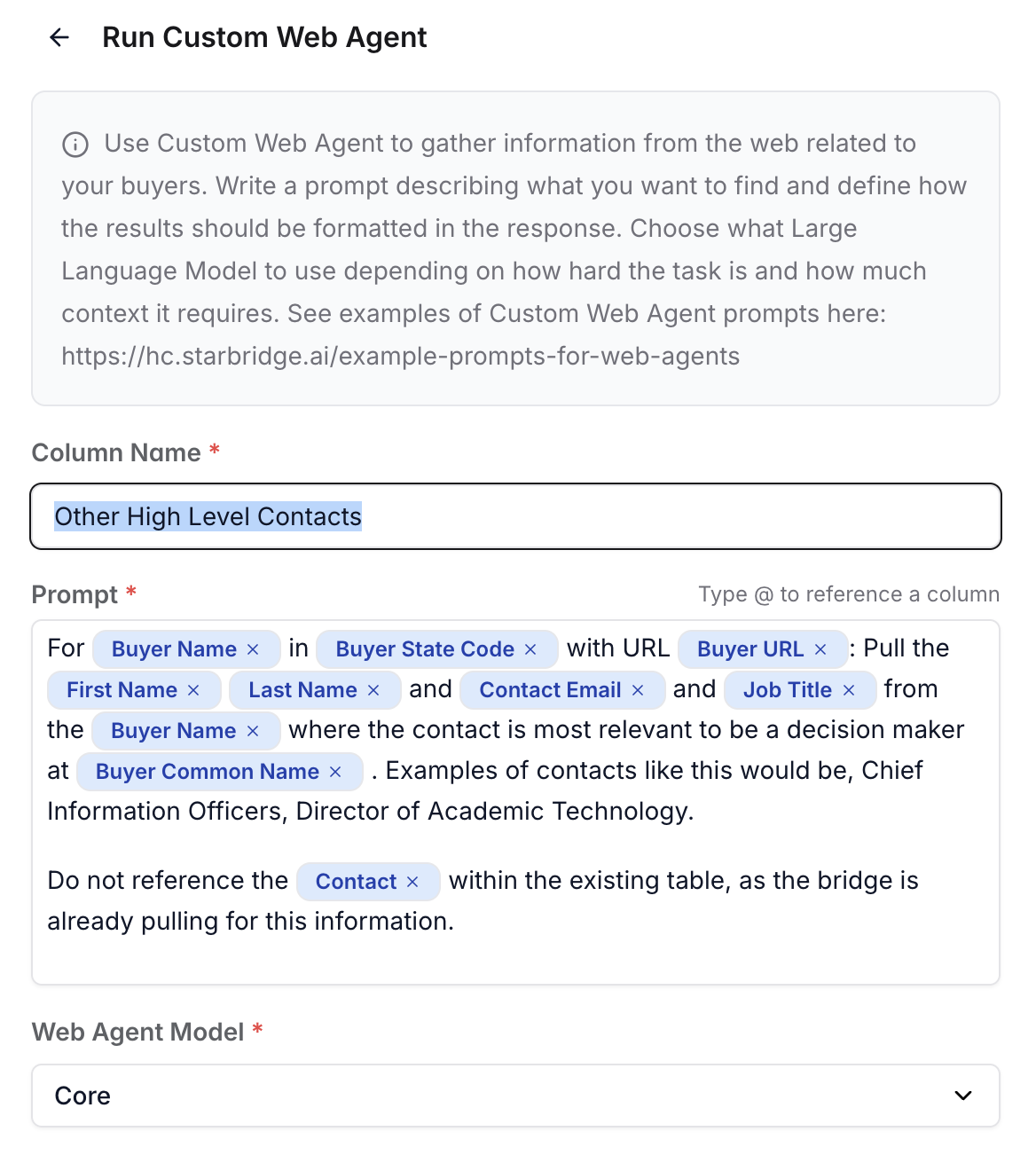
Another valuable enrichment use case is leveraging the buyer name from the original contact to identify additional high-level decision-makers at that same organization. To do this, create a new Custom Web Agent Column and prompt it to pull the names, emails, and job titles of the most relevant contacts for that buyer. Appropriate titles might include roles such as Superintendent or Director of Information Technology.
Questions about the results? [This explainer](/builders/csv-enrichment-understanding-the-results) breaks down the outputs of CSV contact enrichment, especially the **Is Active** and **Contact Email** columns.
## Understanding the results
### Output columns you can expect to see
Your CSV enrichment results will include at least:
* Contact (Full Name)
* Buyer Name
* Salutation
* First Name
* Last Name
* Job Title
* Contact Email
* Phone Number
* Relevance
* Is Active
If your CSV included any of the following inputs, we will also include them in the output so you can compare your inputs to Starbridge’s outputs:
* Provided Job Title
* Provided Contact Email
* Provided Contact Phone
### Quick definitions
This section focuses on two important outputs: **Is Active** and **Contact Email**.
* **Is Active:** Whether Starbridge believes the contact should be treated as “active at this buyer.” This is driven by whether we can verify the person works at the buyer.
* **Contact Email:** The email Starbridge returns (if any), after enrichment and validation steps like bounce checking.
Is Active is based on rigorous web verification.
* If we **confirmed the contact works at the buyer** → **Is Active = true**
* If we **confirmed the contact does not work at the buyer** → **Is Active = false**
* If we **could not confirm either way** → **Is Active = true** (default to "keep active" when the web is ambiguous)
**Why we default to Is Active = true when we are not sure:** If a contact exists in your CRM or lead list and we cannot confidently verify they left, we do not want to push you toward inactivating or deleting good data just because the web has no conclusive information.
**We do not use bounce check results from your provided email to determine Is Active:** Bounce checks only tell us whether an email address is deliverable — not whether the email address belongs or belonged to that person. For example, your provided email can fail a bounce check due to a typo, even if the contact is still active.
> **Workaround:** If you would like to mark contacts inactive when your provided email fails bounce check, you can add an AI Analysis column that accepts the result in **Is Active** unless your **Provided Email** failed the bounce check per **Relevance**. [1-minute video explainer](https://www.loom.com/share/739b7a715f8748ef9a80ff09947ca89a).
* Starbridge will attempt to enrich an email for every active contact.
* Starbridge runs a **bounce check** as a final validation step on its enriched email and any email you provide. You can see the outcome of those bounce checks in **Relevance**.
* If a Starbridge-enriched email or your provided email **fails bounce check**, we **do not show it** as the output **Contact Email**.
* If you provided an email and Starbridge found a different email, we may validate both and explain the outcome in **Relevance**.
This table explains what you'll see in the **Contact Email** output. Read this table from left to right.
| Is Active | Your provided email passes a bounce check | Our enriched email passes a bounce check | Returned in Contact Email |
| --------- | ----------------------------------------- | ---------------------------------------- | ------------------------- |
| true | Yes | Yes | Our email |
| true | No | Yes | Our email |
| true | No email provided | Yes | Our email |
| true | Yes | No email found | Your provided email |
| true | No | No email found | No email |
| true | No email provided | No email found | No email |
| false | Yes | We don't enrich an email | Your provided email |
| false | No | We don't enrich an email | No email |
| false | No email provided | We don't enrich an email | No email |
### Examples
* We verified they no longer work at the buyer, so the contact is inactive.
* Their email has not been deactivated. This can happen when a buyer keeps an old email inbox active, often to forward or monitor messages for a departed employee.
* Our verifier found strong evidence the contact works at the buyer, so we marked **Is Active** = true.
* We do not use bounce check results from your provided email to determine **Is Active**. Bounce check only tells us whether an email address is deliverable, not whether the email address belongs or belonged to that person. For example, your provided email can fail bounce check due to a typo, even if the contact is still active. [1-minute video explainer](https://www.loom.com/share/739b7a715f8748ef9a80ff09947ca89a).
* Our verifier could not find strong evidence they work at the buyer. It also could not find strong evidence they do not work at the buyer.
* We default to keeping the contact active when we are not sure, because ambiguity is not a good reason to inactivate or delete CRM records.
* We do not use bounce check results from your provided email to determine **Is Active**. Bounce check only tells us whether an email address is deliverable, not whether the email address belongs or belonged to that person. For example, your provided email can fail bounce check due to a typo, even if the contact is still active. [1-minute video explainer](https://www.loom.com/share/739b7a715f8748ef9a80ff09947ca89a).
## Next steps
Push enriched contacts directly to your CRM.
Starbridge keeps your enriched contacts up to date — also get alerted when contacts change roles.
Another valuable enrichment use case is leveraging the buyer name from the original contact to identify additional high-level decision-makers at that same organization. To do this, create a new Custom Web Agent Column and prompt it to pull the names, emails, and job titles of the most relevant contacts for that buyer. Appropriate titles might include roles such as Superintendent or Director of Information Technology.
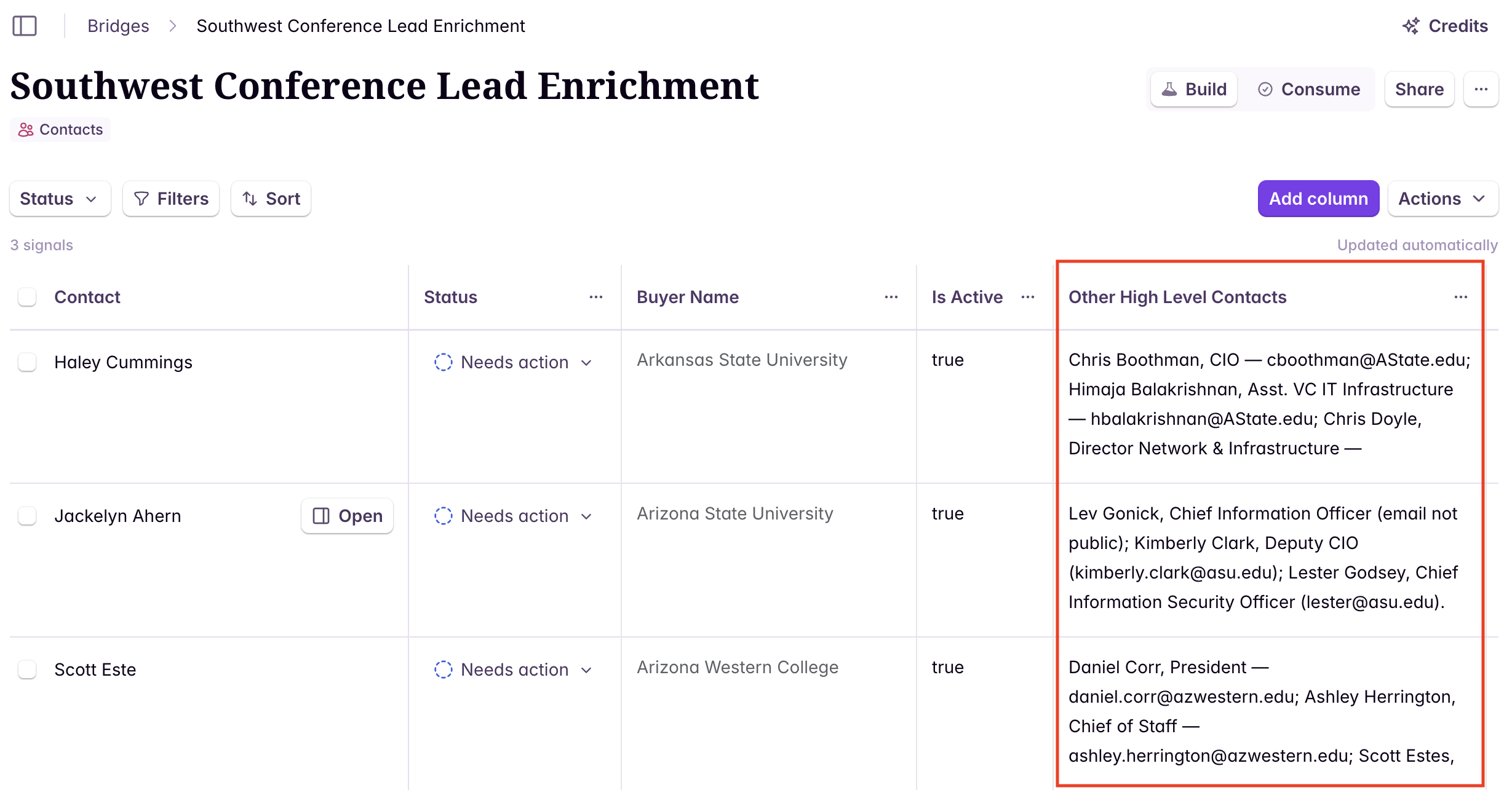 Example prompt: