> ## Documentation Index
> Fetch the complete documentation index at: https://hc.starbridge.ai/llms.txt
> Use this file to discover all available pages before exploring further.
# Creating a buyer list
> A buyer list defines the set of accounts you want to work with in Starbridge.
A **buyer list** is a collection of SLED entities — cities, counties, school districts, state agencies, or other public sector accounts — that represents the accounts you care about for a given use case. It's the basic unit of analysis in Starbridge: everything you do (scoring, enrichment, signals, territories) operates on a buyer list.
Not sure where to start? Most teams begin with a broad list — the most encompassing set of buyers they could plausibly sell into — and narrow from there.
## How can a buyer list be used?
Define the set of accounts you want to score and prioritize.
Represent your entire total addressable market.
Scope all accounts in a new geography or segment you want to move into.
## How to define a buyer list
There are three ways to define a buyer list in Starbridge.
Build a list using Starbridge's built-in SLED data — either by applying filters (a **dynamic list**) or by selecting specific buyers manually (a **static list**).
Starbridge includes out-of-the-box attributes you can use to slice your potential TAM into actionable lists, for example:
* All cities and counties with a minimum population of 2,000
* State agencies with minimum funding of \$1M
* School districts above a minimum percentage of students eligible for free or reduced lunch
Upload a static list of accounts as a CSV file. This is a good option if you already have a defined list of target accounts outside of Starbridge.
CSV-imported lists are static — they won't update over time. If you want your list to stay in sync with changes in your data, consider syncing from your CRM instead.
Connect a Salesforce list or HubSpot segment to Starbridge and keep it up to date automatically. This is useful for plays that are grounded in your CRM data, for example:
* All recently closed-lost accounts
* Accounts with fewer than two ICP contacts (sync to Starbridge and enrich to fill the gap)
See [CRM-Synced Buyer Lists](/integrations/crm-synced-buyer-lists) for setup guidance.
## Creating a buyer list
Navigate to the **Buyers** tab and click **Create list**:
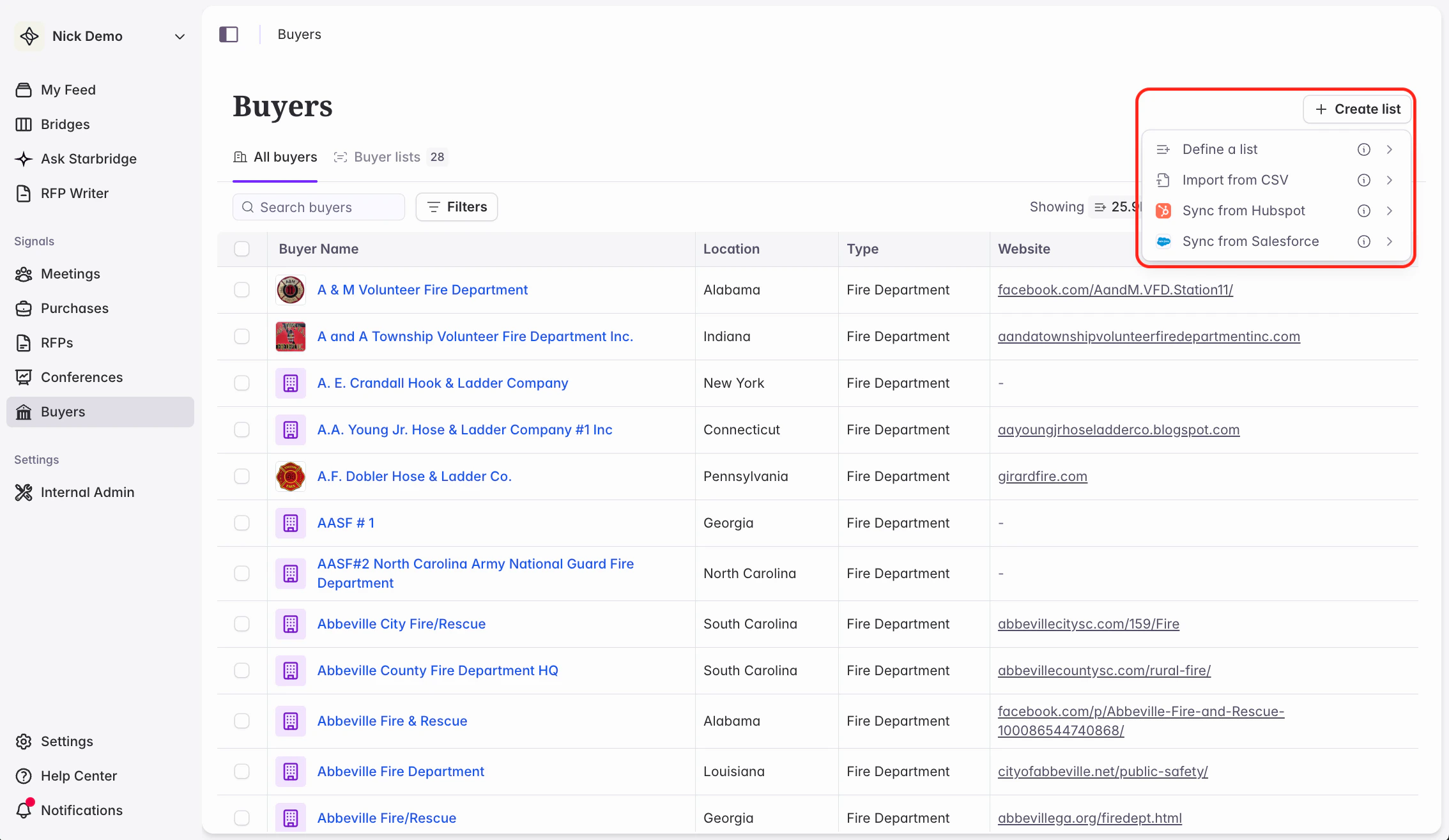 Use this when you want to define a list of buyers using Starbridge data, like:
* Universities above 5,000 enrollment
* Cities with budgets above \$10M
* A specific set of buyers. For example, four specific universities: Texas A\&M, UMD, Texas Tech, and Caltech.
For your first buyer list, start broad: the most encompassing list of buyers you could plausibly sell into.
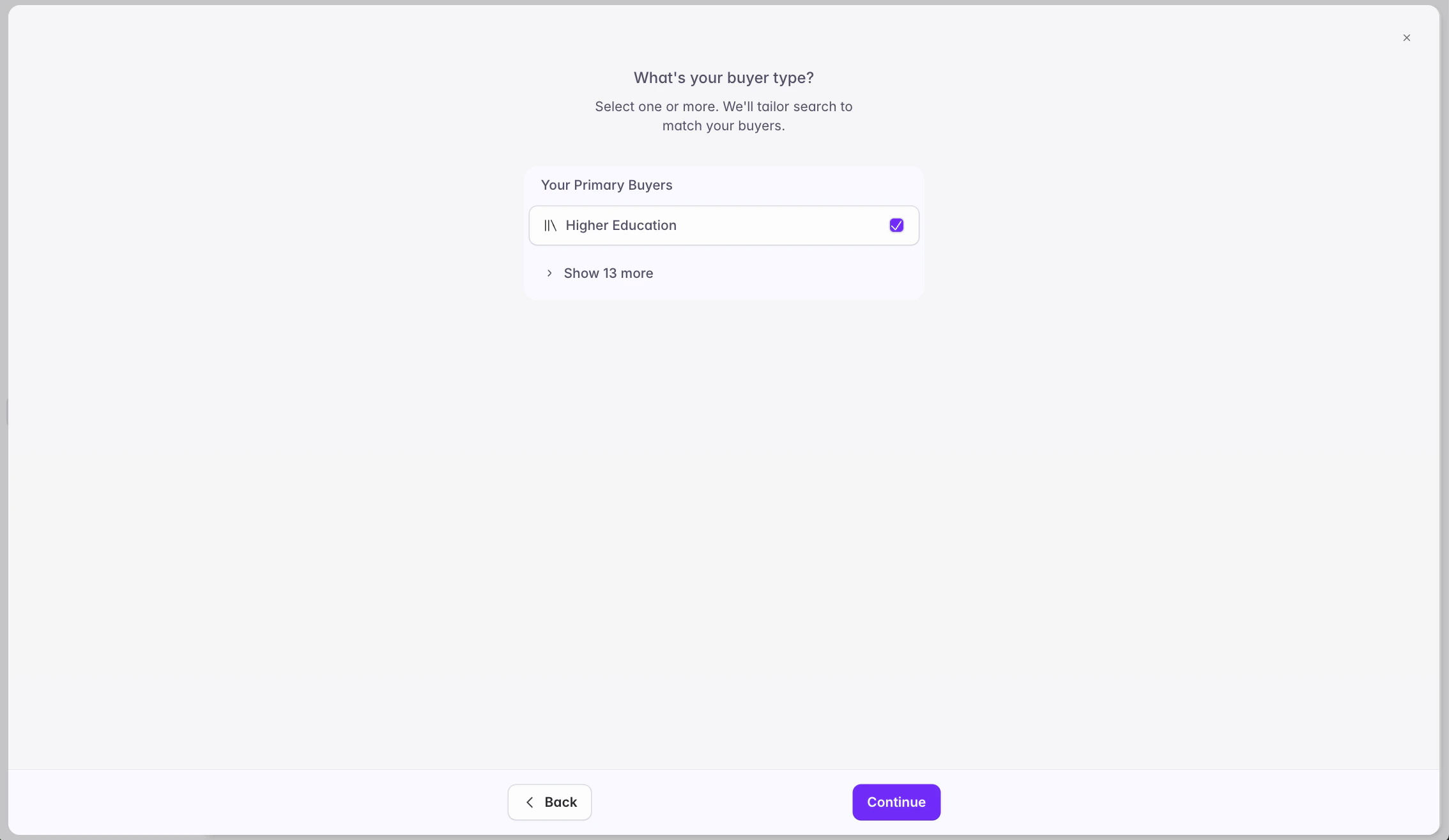
Select the type of buyer you want to appear in your list. This will pre-filter the results, which you can edit before saving your list.
Use this when you want to define a list of buyers using Starbridge data, like:
* Universities above 5,000 enrollment
* Cities with budgets above \$10M
* A specific set of buyers. For example, four specific universities: Texas A\&M, UMD, Texas Tech, and Caltech.
For your first buyer list, start broad: the most encompassing list of buyers you could plausibly sell into.
Select the type of buyer you want to appear in your list. This will pre-filter the results, which you can edit before saving your list.
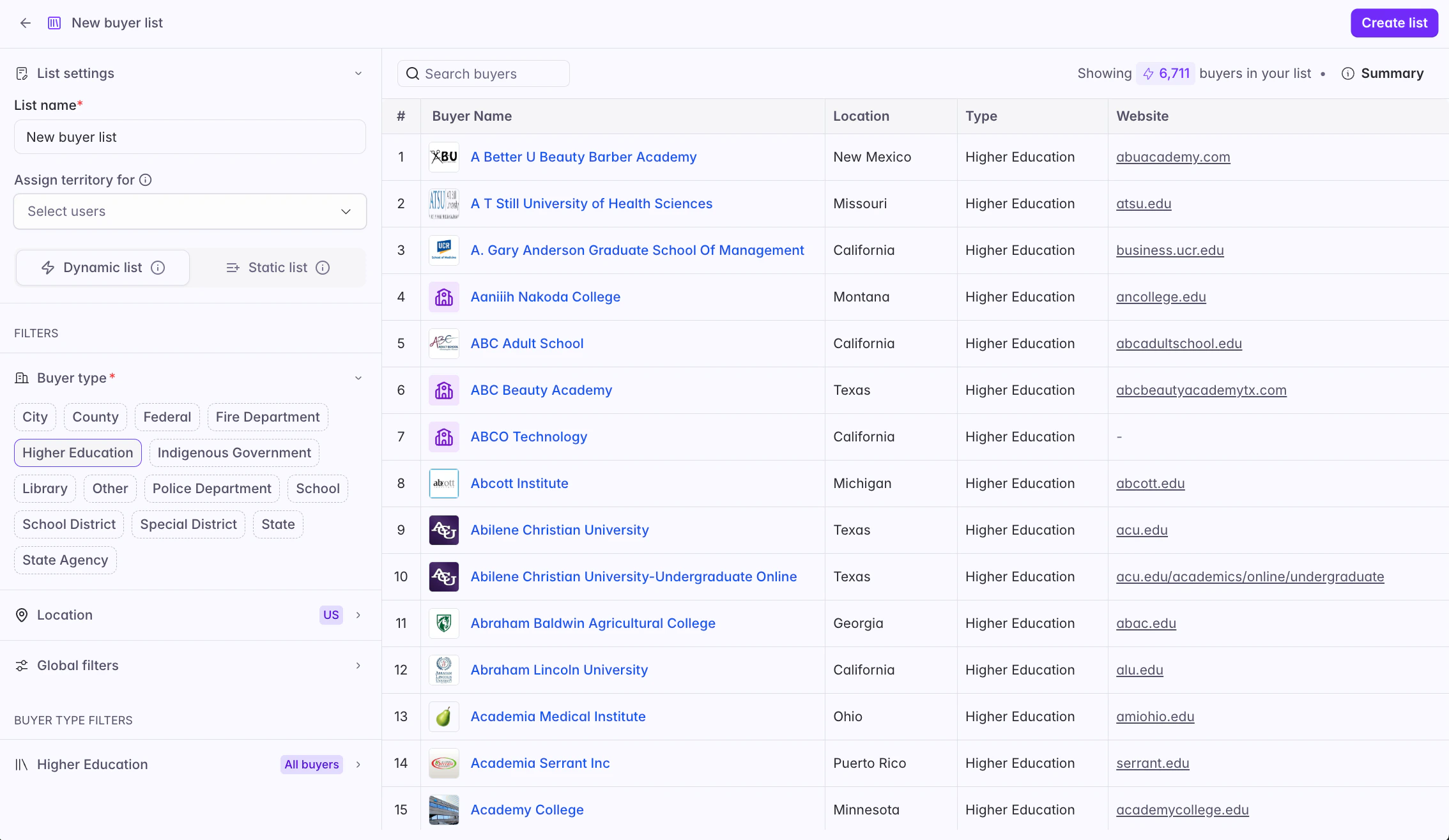
 Define your list in terms of filters (dynamic list) or by selecting a specific set of buyers (static list). Use the left menu to select more specific filters.
 Use this when you have a static list of accounts that you want to import to Starbridge. This is a **static** list. If you want this buyer list to change over time, consider instead **syncing** a list of accounts from Salesforce or HubSpot.
Download a template with the CSV format Starbridge needs to parse your uploaded accounts.
Use this when you have a static list of accounts that you want to import to Starbridge. This is a **static** list. If you want this buyer list to change over time, consider instead **syncing** a list of accounts from Salesforce or HubSpot.
Download a template with the CSV format Starbridge needs to parse your uploaded accounts.
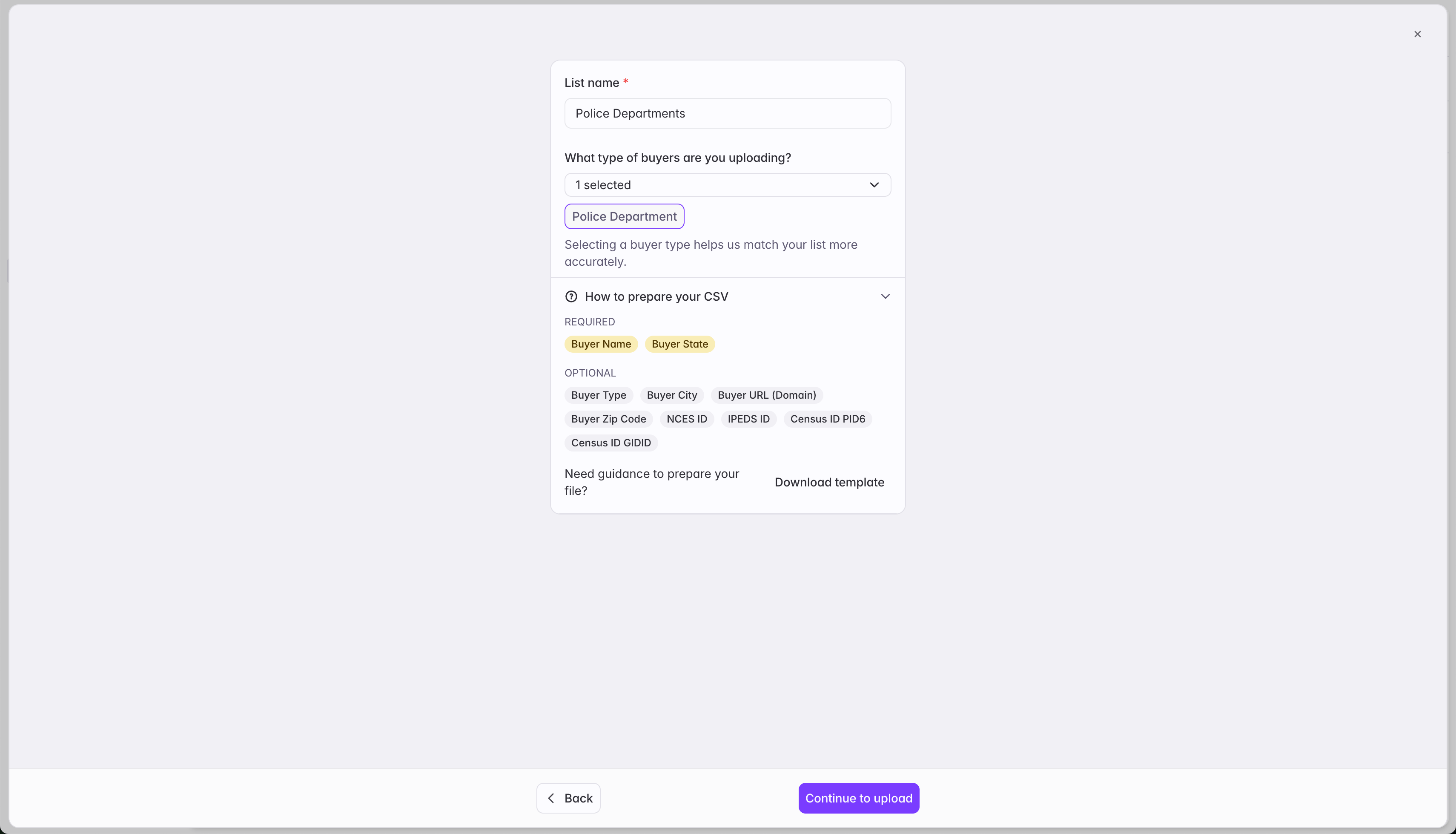 The minimum requirements for uploading a custom list via a CSV file is the **account name** and **state**. However, additional datapoints like unique identifiers, websites, and zip codes are valuable and will make the list creation process faster. Starbridge will match your uploaded accounts to our buyers, ensuring a robust match with your list.
Once you have uploaded your accounts, Starbridge will quickly scan the data to ensure there is no missing or incomplete data. If any such gaps are identified, you will be able to exclude those rows from matching or manually make any edits (like adding a missing state).
The minimum requirements for uploading a custom list via a CSV file is the **account name** and **state**. However, additional datapoints like unique identifiers, websites, and zip codes are valuable and will make the list creation process faster. Starbridge will match your uploaded accounts to our buyers, ensuring a robust match with your list.
Once you have uploaded your accounts, Starbridge will quickly scan the data to ensure there is no missing or incomplete data. If any such gaps are identified, you will be able to exclude those rows from matching or manually make any edits (like adding a missing state).
 Starbridge will return the corresponding buyer matched to every row of data in your uploaded file. You are able to review and download this result and make manual changes as you see fit. We recommend reviewing the unmatched accounts, likely not found due to incomplete or incorrect information, and create your customer list!

 Use this when you want to sync a list of accounts from Salesforce or HubSpot, to keep it up to date with your Salesforce or HubSpot over time.
See [CRM-Synced Buyer Lists](/integrations/crm-synced-buyer-lists) for more guidance.
## Related articles
Learn about creating custom lists by syncing with your CRM, so that when your territories change, Starbridge dynamically updates.
Discover use cases for building buyer Bridges, such as Account Scoring and custom Account Enrichment.
Explore all the out-of-the-box attributes and datapoints Starbridge offers and keeps up to date for public sector accounts.
Use this when you want to sync a list of accounts from Salesforce or HubSpot, to keep it up to date with your Salesforce or HubSpot over time.
See [CRM-Synced Buyer Lists](/integrations/crm-synced-buyer-lists) for more guidance.
## Related articles
Learn about creating custom lists by syncing with your CRM, so that when your territories change, Starbridge dynamically updates.
Discover use cases for building buyer Bridges, such as Account Scoring and custom Account Enrichment.
Explore all the out-of-the-box attributes and datapoints Starbridge offers and keeps up to date for public sector accounts.