> ## Documentation Index
> Fetch the complete documentation index at: https://hc.starbridge.ai/llms.txt
> Use this file to discover all available pages before exploring further.
# Building Bridges
## Overview
Bridges are created by Search Agents that you configure. When configuring a Search Agent, you provide inputs on the set of accounts you'd like the Agent to search over, the types of relevant signals it should look for, and the guidance on what makes a good signal. Once you set the Search Agent live, it will continuously scrape the web looking for new signals that match your criteria.
Bridges are the resulting set of relevant signals that the Search Agent found for you. Once you have a Bridge with signals populated, you can add enrichment columns to do further analysis on the signals found.
This Help Center article describes how to configure Search Agents for Bridges, and how to further enrich your Bridges with additional columns.
 ## Who can build Bridges?
Only **Builders and Admins** can create Bridges, and they have access to all Bridges within your organization.
**Consumers** can only view Bridges that have been shared with them.
See [user roles](/admins/adding-new-users-configuring-roles-and-teams-s) for more information.
## Creating a Bridge
There are two main ways to create a Bridge within Starbridge:
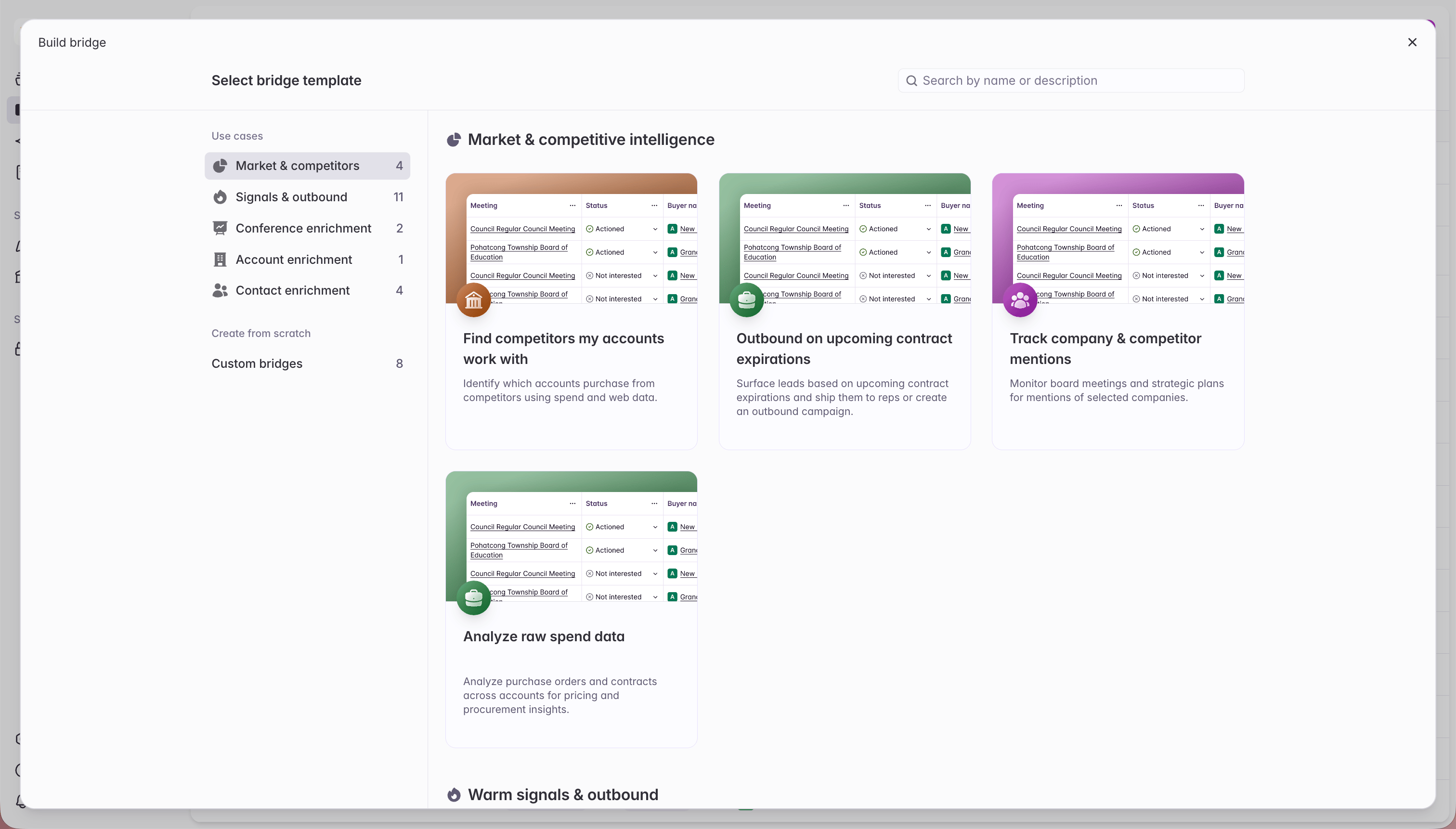
1. From "Build Bridge" use case templates
## Who can build Bridges?
Only **Builders and Admins** can create Bridges, and they have access to all Bridges within your organization.
**Consumers** can only view Bridges that have been shared with them.
See [user roles](/admins/adding-new-users-configuring-roles-and-teams-s) for more information.
## Creating a Bridge
There are two main ways to create a Bridge within Starbridge:
1. From "Build Bridge" use case templates
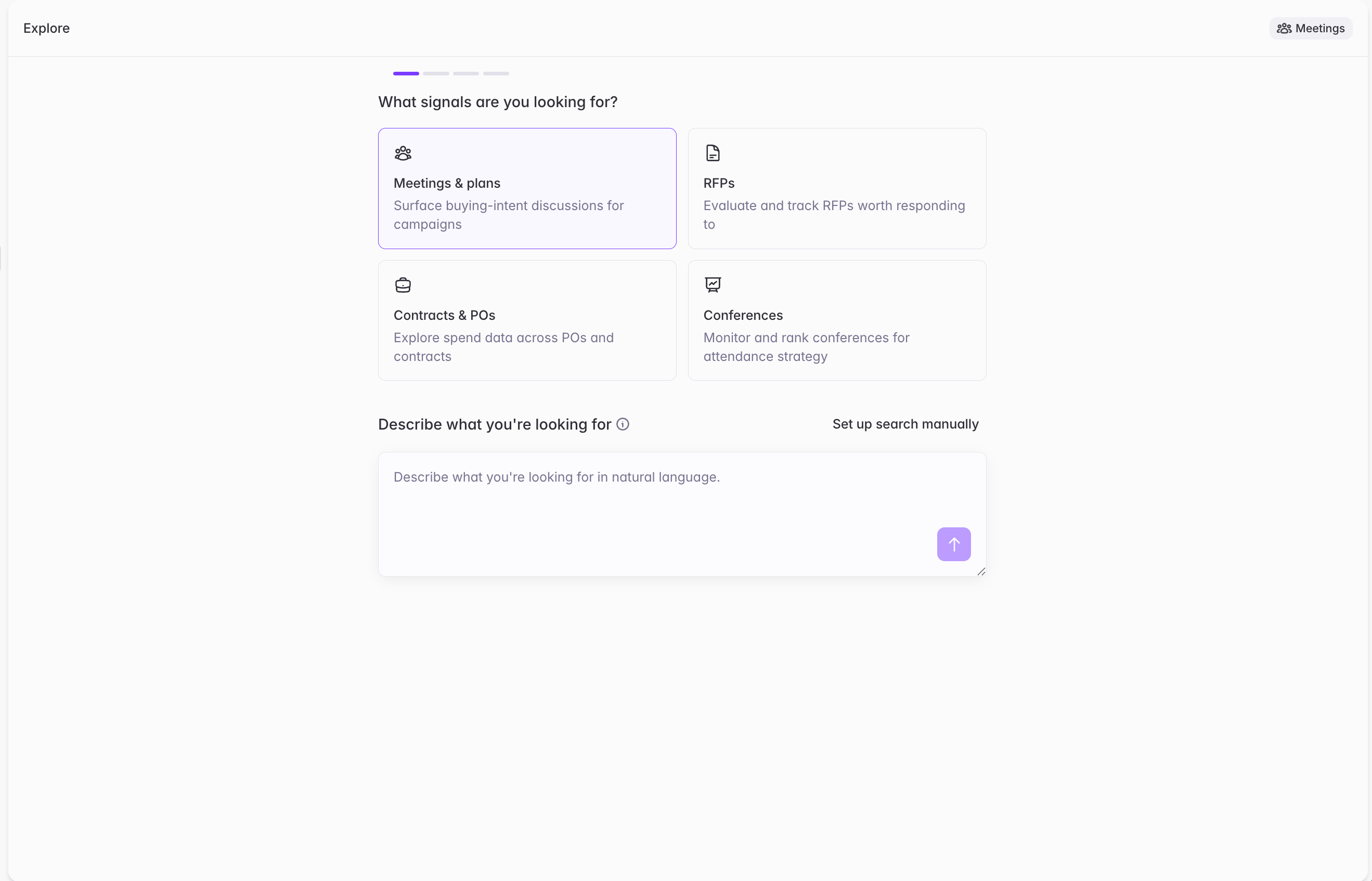
 2. From "Explore" in the Signals sidebar
 Our recommended entry point for Bridge creation is from the **Bridge use case templates** since it's a more guided experience based on the use case you have in mind.
This article will focus on building from the Bridge use case templates. To learn more about building from Signal Explore, see [Signal Explore](/signal-explore).
## Configuring your Search Agent
There are two ways to configure your Search Agent:
1. Describing your ideal signals using natural language
2. Building your criteria with manual filters and search terms
## Building a Search Agent using Natural Language
This type of Search Agent configuration is available for meeting, RFP, purchase, and conference Bridges.
### The three phases of bridge building
1. **Describe** — Enter a natural language description of what you're trying to find.
2. **Refine** — Review the structured search Starbridge generated for you. Edit buyer filters, bridge filters, search phrases, and match score criteria. Preview scored results.
3. **Create** — When the preview looks right, create the bridge.
### Phase 1: Describe what you're looking for
From the Bridge creation entry point (for example, **Create Bridge** on the Meetings, RFPs, or Purchases page), you'll land on a single input that asks you to describe your search in natural language.
Our recommended entry point for Bridge creation is from the **Bridge use case templates** since it's a more guided experience based on the use case you have in mind.
This article will focus on building from the Bridge use case templates. To learn more about building from Signal Explore, see [Signal Explore](/signal-explore).
## Configuring your Search Agent
There are two ways to configure your Search Agent:
1. Describing your ideal signals using natural language
2. Building your criteria with manual filters and search terms
## Building a Search Agent using Natural Language
This type of Search Agent configuration is available for meeting, RFP, purchase, and conference Bridges.
### The three phases of bridge building
1. **Describe** — Enter a natural language description of what you're trying to find.
2. **Refine** — Review the structured search Starbridge generated for you. Edit buyer filters, bridge filters, search phrases, and match score criteria. Preview scored results.
3. **Create** — When the preview looks right, create the bridge.
### Phase 1: Describe what you're looking for
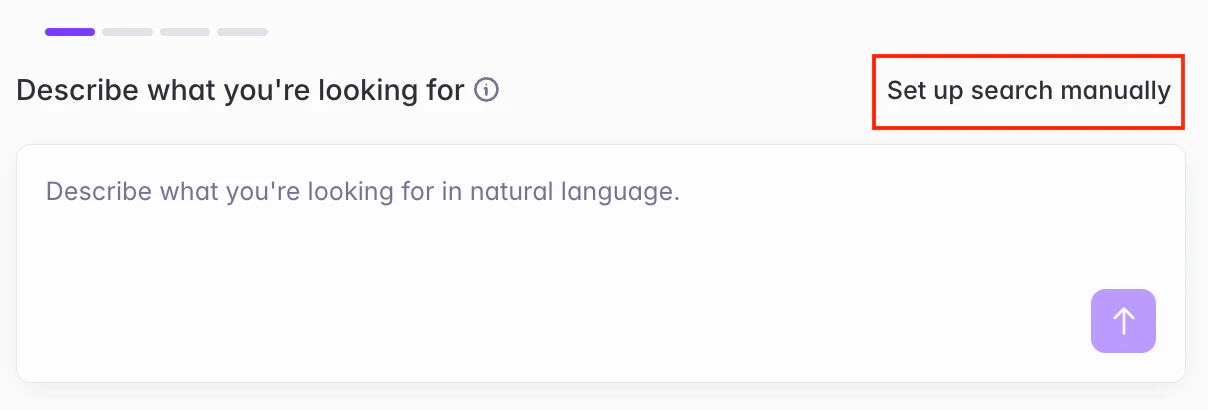
From the Bridge creation entry point (for example, **Create Bridge** on the Meetings, RFPs, or Purchases page), you'll land on a single input that asks you to describe your search in natural language.
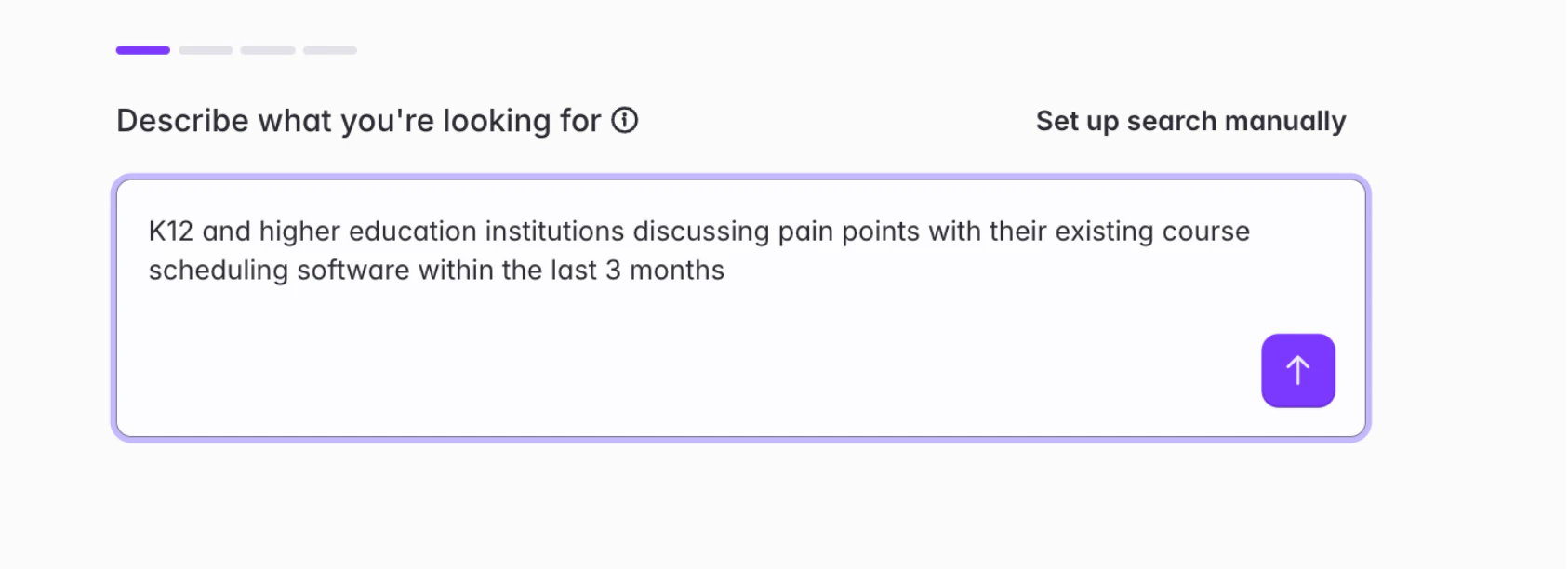 The more specific you are, the better the structured search will be. A good prompt typically includes:
* **Who** you're looking at — the type of buyer, geography, size, or segment
* **What** you're looking for — the topic, keyword, product category, or signal type
* **Timeframe** you're interested in – things like "meetings in last 3 months", or "RFPs due in the next 6 months"
* **What "good" looks like** — the conditions that make a result worth acting on (e.g., "actively evaluating alternatives," "contracts expiring within 12 months," "budget already allocated")
**A strong example:** K–12 school districts in California serving more than 15,000 students discussing new math curriculum in the last 12 months, prioritizing districts evaluating vendors or forming pilot committees.
**A weak example:** cybersecurity and tech funding
You can skip the natural language input and jump straight to manually configuring filters and search phrases if you prefer - the button to do so is on the same screen.
The more specific you are, the better the structured search will be. A good prompt typically includes:
* **Who** you're looking at — the type of buyer, geography, size, or segment
* **What** you're looking for — the topic, keyword, product category, or signal type
* **Timeframe** you're interested in – things like "meetings in last 3 months", or "RFPs due in the next 6 months"
* **What "good" looks like** — the conditions that make a result worth acting on (e.g., "actively evaluating alternatives," "contracts expiring within 12 months," "budget already allocated")
**A strong example:** K–12 school districts in California serving more than 15,000 students discussing new math curriculum in the last 12 months, prioritizing districts evaluating vendors or forming pilot committees.
**A weak example:** cybersecurity and tech funding
You can skip the natural language input and jump straight to manually configuring filters and search phrases if you prefer - the button to do so is on the same screen.
 ### Phase 2: Refine search and match criteria
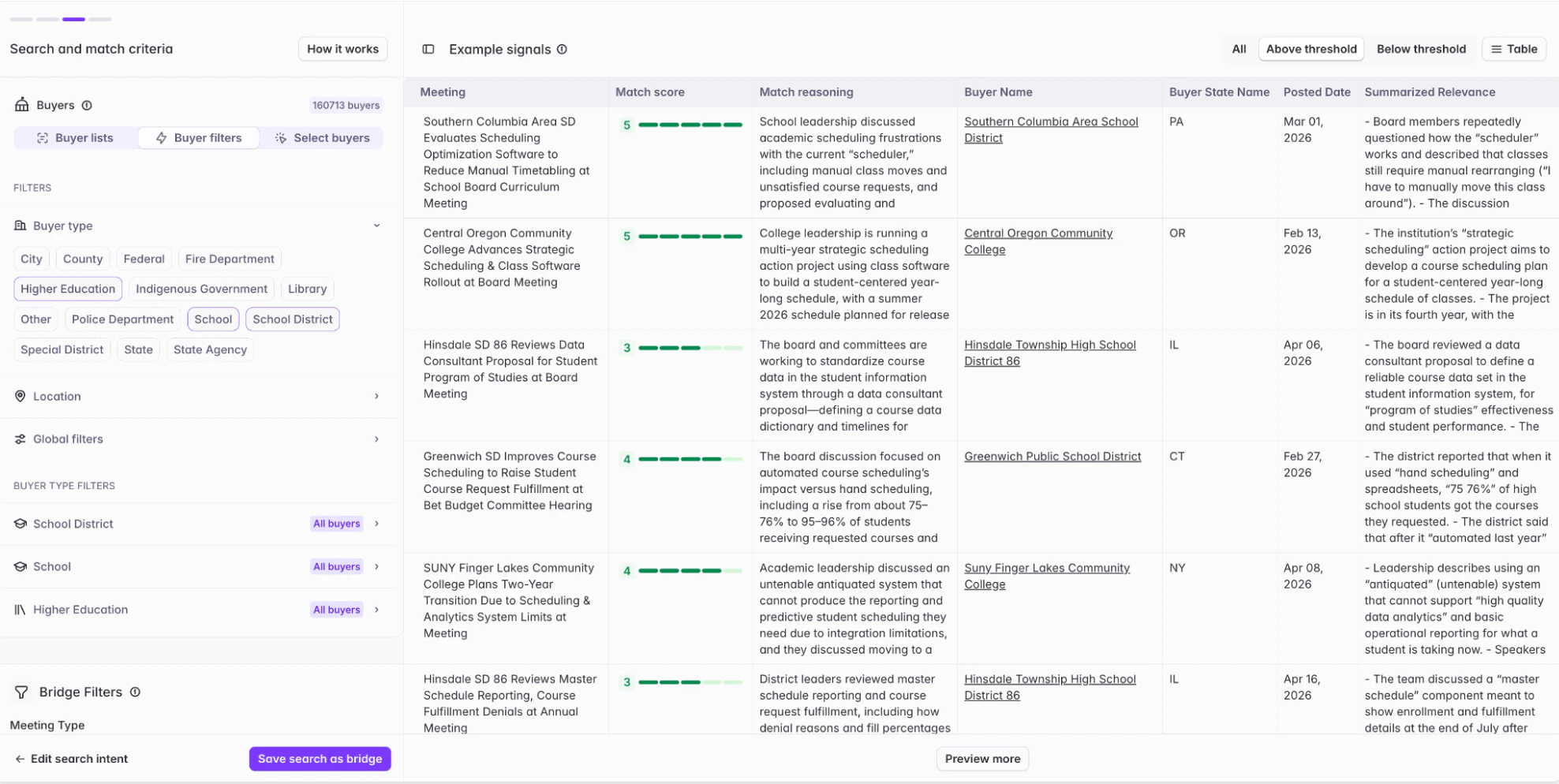
After you submit your prompt, Starbridge analyzes it and generates a structured search draft. You'll see a short animation while we break your query into filters, phrases, and scoring criteria - then the full **Search and match criteria** view opens for review.
### Phase 2: Refine search and match criteria
After you submit your prompt, Starbridge analyzes it and generates a structured search draft. You'll see a short animation while we break your query into filters, phrases, and scoring criteria - then the full **Search and match criteria** view opens for review.
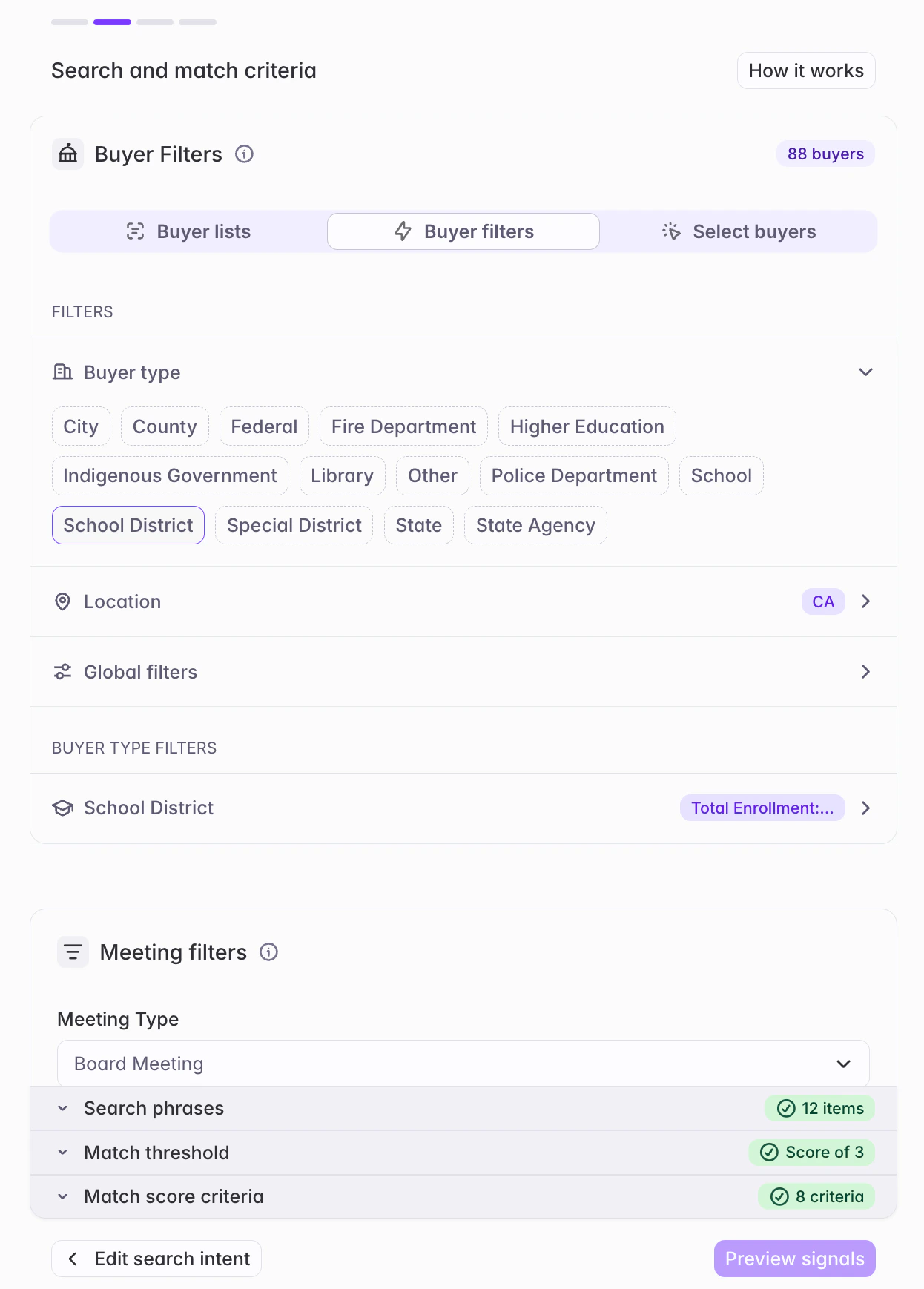 The structured search has four components. Each one is visible, editable, and independently tunable.
#### Buyer filters
Defines **who** you're searching over. This controls the set of buyers whose signals are eligible to appear in the bridge.
You can define buyer filters in one of three ways:
* **Buyer lists** — Use a pre-configured list or territory
* **Buyer filters** — Filter by geography, buyer type, size, classification, and other structured attributes
* **Select buyers** — Pick individual buyers by name
When Starbridge generates buyer filters from your prompt, we use attribute-based filters rather than pre-configured lists — that way, you can see exactly which attributes we selected and modify as needed.
Buyer filters apply to all supported bridge types except Conferences.
To learn more about Buyer lists and filters, check out [Creating a buyer list](/builders/how-to-create-a-buyer-list)
#### Bridge filters
These are filters specific to the signal type you're searching for. They are the structured fields native to the document itself — for example:
* **Meetings and strategic plans** — meeting type, date range, meeting body
* **RFPs** — RFP status, due date, issuer type
* **Purchases** — contract type, purchase type, effective and expiration dates, total value
#### Search phrases
Defines **what you're searching for** - the specific phrases used to surface candidate signals from the document corpus.
The structured search has four components. Each one is visible, editable, and independently tunable.
#### Buyer filters
Defines **who** you're searching over. This controls the set of buyers whose signals are eligible to appear in the bridge.
You can define buyer filters in one of three ways:
* **Buyer lists** — Use a pre-configured list or territory
* **Buyer filters** — Filter by geography, buyer type, size, classification, and other structured attributes
* **Select buyers** — Pick individual buyers by name
When Starbridge generates buyer filters from your prompt, we use attribute-based filters rather than pre-configured lists — that way, you can see exactly which attributes we selected and modify as needed.
Buyer filters apply to all supported bridge types except Conferences.
To learn more about Buyer lists and filters, check out [Creating a buyer list](/builders/how-to-create-a-buyer-list)
#### Bridge filters
These are filters specific to the signal type you're searching for. They are the structured fields native to the document itself — for example:
* **Meetings and strategic plans** — meeting type, date range, meeting body
* **RFPs** — RFP status, due date, issuer type
* **Purchases** — contract type, purchase type, effective and expiration dates, total value
#### Search phrases
Defines **what you're searching for** - the specific phrases used to surface candidate signals from the document corpus.
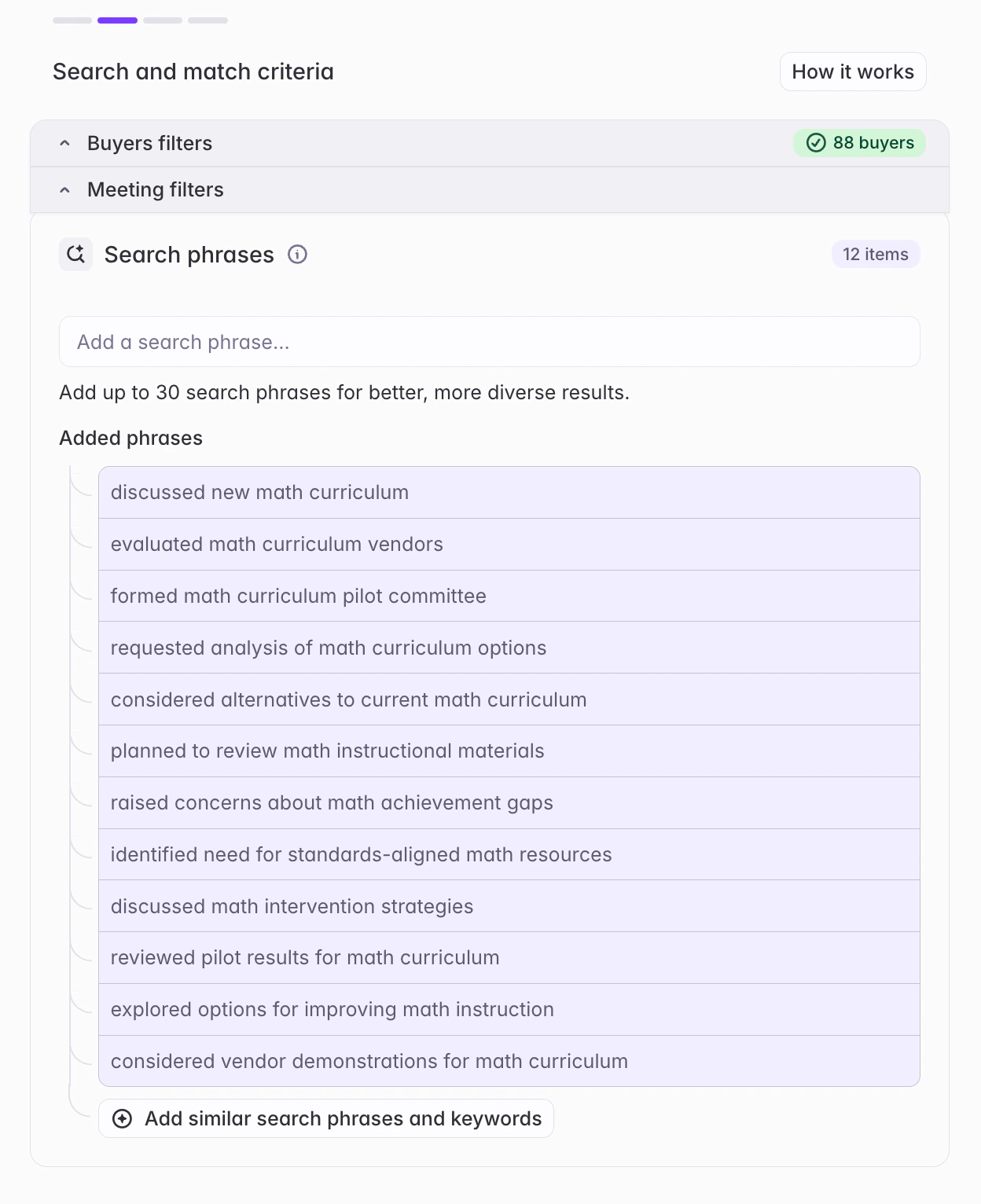 You can further add, edit, or remove search phrases to refine your search intent.
A few things to know:
* **Starbridge generates phrases proactively** to make your search comprehensive. If a generated phrase doesn't match your intent, delete it.
* **For Meetings bridges, you can add up to 30 phrases** to cast a wider net and improve accuracy.
* **Auto-generate additional similar search phrases** by using the "Add similar search phrases and keywords" option or by hovering over a specific search phrase and clicking the "+" button to generate additional phrases similar to that specific phrase
* **Cast the net wide here, filter hard in scoring.** Search phrases control which signals are evaluated for your bridge; match score criteria control which signals eventually make it into the bridge.
#### Match score threshold
Set a minimum match score — any signal scoring below it is excluded from the bridge entirely. Moving the threshold up is the fastest way to tighten a noisy bridge; moving it down is how you open it up if you're missing results you expected to see.
You can further add, edit, or remove search phrases to refine your search intent.
A few things to know:
* **Starbridge generates phrases proactively** to make your search comprehensive. If a generated phrase doesn't match your intent, delete it.
* **For Meetings bridges, you can add up to 30 phrases** to cast a wider net and improve accuracy.
* **Auto-generate additional similar search phrases** by using the "Add similar search phrases and keywords" option or by hovering over a specific search phrase and clicking the "+" button to generate additional phrases similar to that specific phrase
* **Cast the net wide here, filter hard in scoring.** Search phrases control which signals are evaluated for your bridge; match score criteria control which signals eventually make it into the bridge.
#### Match score threshold
Set a minimum match score — any signal scoring below it is excluded from the bridge entirely. Moving the threshold up is the fastest way to tighten a noisy bridge; moving it down is how you open it up if you're missing results you expected to see.
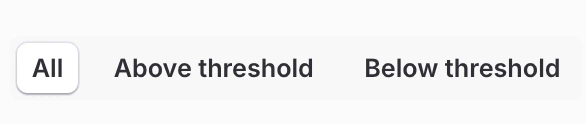
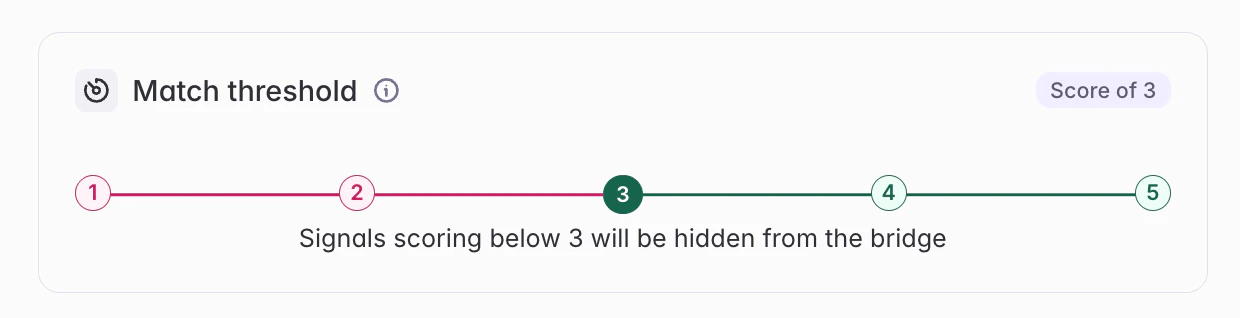 You can also toggle the preview between **All signals**, **Above threshold**, and **Below threshold** to see what you're excluding and sanity-check that the threshold is set where you want it.
 To adjust the logic used to produce match scores, see "Match score criteria" section below.
#### Match score criteria
Defines **what counts as a strong match**. This is where you translate "a result I'd actually act on" into criteria Starbridge can apply to every potential signal.
To adjust the logic used to produce match scores, see "Match score criteria" section below.
#### Match score criteria
Defines **what counts as a strong match**. This is where you translate "a result I'd actually act on" into criteria Starbridge can apply to every potential signal.
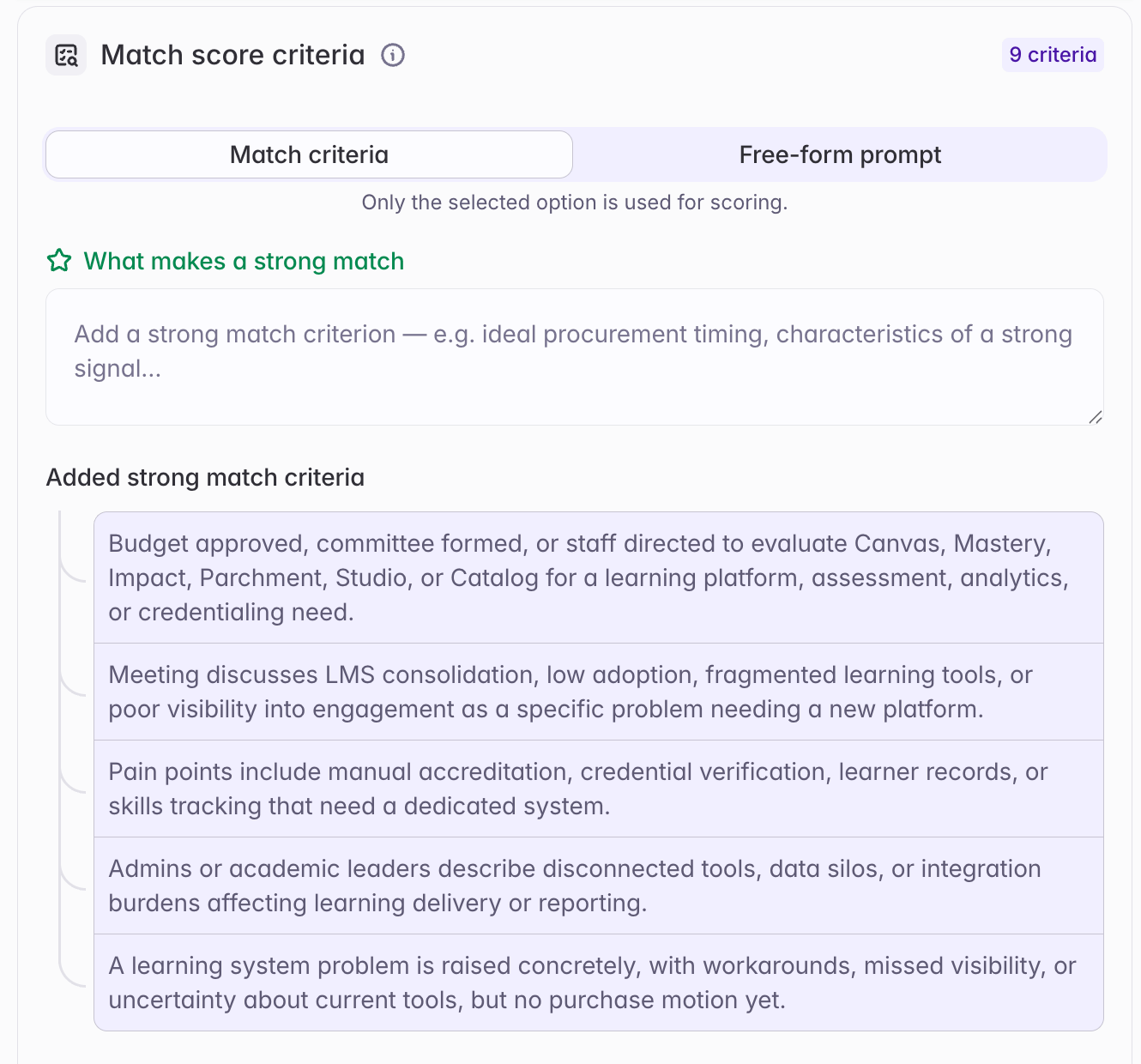 There are two ways to define your scoring logic. By default, Starbridge generates **positive / negative match criteria** for you, and for most organizations this delivers good results out of the box. If you need more granular control, you can switch to a **free-form scoring prompt** instead.
* **Match criteria (default)** — The simplified experience. Starbridge generates strong-match and red-flag criteria from your prompt, and you tune them as discrete statements. Best for most use cases.
* **Free-form scoring prompt (advanced)** — Replaces the positive / negative criteria with a single prompt you write yourself, giving you full control over how signals are scored.
##### Option 1: Positive / negative match criteria (default)
Write criteria as discrete statements under two headings:
* **What makes a strong match** — Criteria that define a good result (e.g., "Discusses an active evaluation or pilot," "Mentions a named vendor under consideration")
* **Red flags - penalize or exclude** — Criteria that weaken or exclude a signal (e.g., "Passing mention only, not the focus of the meeting," "Historical reference with no current activity")
These criteria are generated and applied automatically, so most Bridges don't require any additional setup here.
##### Option 2: Free-form scoring prompt (advanced)
Instead of positive / negative criteria, you can supply a single free-form prompt that fully defines your scoring logic.
Reach for a free-form scoring prompt when you have more complicated scoring logic, or when you're struggling to get the score specificity you want out of the positive / negative criteria. For most organizations, the default criteria are sufficient — the free-form prompt is an advanced mode for more nuanced scoring needs.
What a free-form scoring prompt gives you:
* **Explicit control over the score scale.** You can define exactly what earns a 5 vs. a 4 vs. a 3 (and so on), including calibration guidance and how to handle edge cases.
* **Customizable outputs.** Similar to an [AI Analysis](/builders/enriching-bridges-with-data) scoring column, you control how the match reasoning, summarized relevance, and snippet are presented — length, level of detail, formatting, and focus (for example, "keep it concise" or "call out named vendors").
* **More descriptive reasoning.** Match reasoning and summarized relevance generated from a free-form prompt tend to be richer and reference specific elements of your prompt, compared to those produced from positive / negative criteria.
The positive / negative criteria remain the default and are generated for you out of the box. You only need the free-form prompt when the criteria approach isn't giving you the precision you want.
The example below scores buying signals surfaced from sales or discovery meetings on a 1–5 scale, on behalf of a fictional buyer (Ramp). Note how it explicitly defines each score, adds calibration guidance, and instructs the model on how to reason.
```text theme={null}
## Scoring scale (1–5)
You are scoring the quality of a buying signal surfaced from a sales or discovery meeting, on behalf of **Ramp**. Judge how strong and actionable the signal is as an opportunity for Ramp to sell a relevant product to the buyer, based only on what was actually discussed in the meeting. Score on signal strength, not account fit.
**Score 5 — Strong, actionable signal.** The meeting contains clear, specific evidence of an active need in Ramp's domain AND the buyer has recognized they need to solve it — an active evaluation, a stated intent to fix it, a named initiative, a budget or timeline, a mandate or deadline. The strongest signals are early enough that Ramp can still influence the outcome: the problem is identified and being acted on, but no competing vendor has been selected yet. Requires both a specific in-domain pain and evidence the buyer intends to act.
**Score 4 — Clear pain, no committed next step.** A specific, in-domain problem is clearly articulated with concrete detail, but the buyer has not yet aligned that they need to solve it or committed to a next step. The pain is real and mappable to Ramp's domain; the intent to act is missing or soft.
**Score 3 — Relevant but light.** The in-domain topic or pain is referenced with enough specificity to confirm it is not coincidental, but it is a passing mention, background context, or not a focus of the meeting. **Literal phrase match floor:** if the meeting unambiguously contains the event described by one of the search phrases — that is, the described discussion clearly took place — the score is at minimum 3, even when detail is light. Stronger evidence of specificity and intent can raise it to a 4 or 5 per the scale above.
**Score 2 — Weak or unactionable.** One of two cases: (a) the topic overlaps loosely with Ramp's domain but there is no real, described pain — just keyword-level resemblance; or (b) a genuine in-domain need was discussed but the buyer is already too far down another path to influence — a competing vendor has been selected, or a contract or decision is already made. Not actionable for Ramp.
**Score 1 — Irrelevant.** Incidental or off-domain. No pain in Ramp's domain, or the discussion merely shares surface keywords with finance or operations without a real, mappable need.
## Calibration guidance
- **Signal strength, not fit.** Score how strong and actionable the buying signal is, not whether the account looks like a good customer in the abstract.
- **Early intent beats late intent.** A problem that is identified and being acted on early scores higher than one that is only aspirational or has no next step.
- **Specificity is required for 4–5.** Named systems or incumbents, dollar amounts, timelines, formal decisions, mandates, or documented problems justify a 4 or 5. General aspirations ("we want tighter spend control") without implementation specifics do not clear a 3.
- **Existing tools working = low.** If a process or system is described as functioning normally, it is not a signal. Do not score above a 2 on domain keyword overlap alone.
- **Map before you score.** Ramp's domain is corporate finance and spend operations — corporate cards, expense management, bill pay and accounts payable, procurement, accounting automation and month-end close, travel, and treasury. If you cannot connect the discussed problem to one of these, it is off-domain (1–2).
```
#### Previewing your bridge results
There are two ways to define your scoring logic. By default, Starbridge generates **positive / negative match criteria** for you, and for most organizations this delivers good results out of the box. If you need more granular control, you can switch to a **free-form scoring prompt** instead.
* **Match criteria (default)** — The simplified experience. Starbridge generates strong-match and red-flag criteria from your prompt, and you tune them as discrete statements. Best for most use cases.
* **Free-form scoring prompt (advanced)** — Replaces the positive / negative criteria with a single prompt you write yourself, giving you full control over how signals are scored.
##### Option 1: Positive / negative match criteria (default)
Write criteria as discrete statements under two headings:
* **What makes a strong match** — Criteria that define a good result (e.g., "Discusses an active evaluation or pilot," "Mentions a named vendor under consideration")
* **Red flags - penalize or exclude** — Criteria that weaken or exclude a signal (e.g., "Passing mention only, not the focus of the meeting," "Historical reference with no current activity")
These criteria are generated and applied automatically, so most Bridges don't require any additional setup here.
##### Option 2: Free-form scoring prompt (advanced)
Instead of positive / negative criteria, you can supply a single free-form prompt that fully defines your scoring logic.
Reach for a free-form scoring prompt when you have more complicated scoring logic, or when you're struggling to get the score specificity you want out of the positive / negative criteria. For most organizations, the default criteria are sufficient — the free-form prompt is an advanced mode for more nuanced scoring needs.
What a free-form scoring prompt gives you:
* **Explicit control over the score scale.** You can define exactly what earns a 5 vs. a 4 vs. a 3 (and so on), including calibration guidance and how to handle edge cases.
* **Customizable outputs.** Similar to an [AI Analysis](/builders/enriching-bridges-with-data) scoring column, you control how the match reasoning, summarized relevance, and snippet are presented — length, level of detail, formatting, and focus (for example, "keep it concise" or "call out named vendors").
* **More descriptive reasoning.** Match reasoning and summarized relevance generated from a free-form prompt tend to be richer and reference specific elements of your prompt, compared to those produced from positive / negative criteria.
The positive / negative criteria remain the default and are generated for you out of the box. You only need the free-form prompt when the criteria approach isn't giving you the precision you want.
The example below scores buying signals surfaced from sales or discovery meetings on a 1–5 scale, on behalf of a fictional buyer (Ramp). Note how it explicitly defines each score, adds calibration guidance, and instructs the model on how to reason.
```text theme={null}
## Scoring scale (1–5)
You are scoring the quality of a buying signal surfaced from a sales or discovery meeting, on behalf of **Ramp**. Judge how strong and actionable the signal is as an opportunity for Ramp to sell a relevant product to the buyer, based only on what was actually discussed in the meeting. Score on signal strength, not account fit.
**Score 5 — Strong, actionable signal.** The meeting contains clear, specific evidence of an active need in Ramp's domain AND the buyer has recognized they need to solve it — an active evaluation, a stated intent to fix it, a named initiative, a budget or timeline, a mandate or deadline. The strongest signals are early enough that Ramp can still influence the outcome: the problem is identified and being acted on, but no competing vendor has been selected yet. Requires both a specific in-domain pain and evidence the buyer intends to act.
**Score 4 — Clear pain, no committed next step.** A specific, in-domain problem is clearly articulated with concrete detail, but the buyer has not yet aligned that they need to solve it or committed to a next step. The pain is real and mappable to Ramp's domain; the intent to act is missing or soft.
**Score 3 — Relevant but light.** The in-domain topic or pain is referenced with enough specificity to confirm it is not coincidental, but it is a passing mention, background context, or not a focus of the meeting. **Literal phrase match floor:** if the meeting unambiguously contains the event described by one of the search phrases — that is, the described discussion clearly took place — the score is at minimum 3, even when detail is light. Stronger evidence of specificity and intent can raise it to a 4 or 5 per the scale above.
**Score 2 — Weak or unactionable.** One of two cases: (a) the topic overlaps loosely with Ramp's domain but there is no real, described pain — just keyword-level resemblance; or (b) a genuine in-domain need was discussed but the buyer is already too far down another path to influence — a competing vendor has been selected, or a contract or decision is already made. Not actionable for Ramp.
**Score 1 — Irrelevant.** Incidental or off-domain. No pain in Ramp's domain, or the discussion merely shares surface keywords with finance or operations without a real, mappable need.
## Calibration guidance
- **Signal strength, not fit.** Score how strong and actionable the buying signal is, not whether the account looks like a good customer in the abstract.
- **Early intent beats late intent.** A problem that is identified and being acted on early scores higher than one that is only aspirational or has no next step.
- **Specificity is required for 4–5.** Named systems or incumbents, dollar amounts, timelines, formal decisions, mandates, or documented problems justify a 4 or 5. General aspirations ("we want tighter spend control") without implementation specifics do not clear a 3.
- **Existing tools working = low.** If a process or system is described as functioning normally, it is not a signal. Do not score above a 2 on domain keyword overlap alone.
- **Map before you score.** Ramp's domain is corporate finance and spend operations — corporate cards, expense management, bill pay and accounts payable, procurement, accounting automation and month-end close, travel, and treasury. If you cannot connect the discussed problem to one of these, it is off-domain (1–2).
```
#### Previewing your bridge results
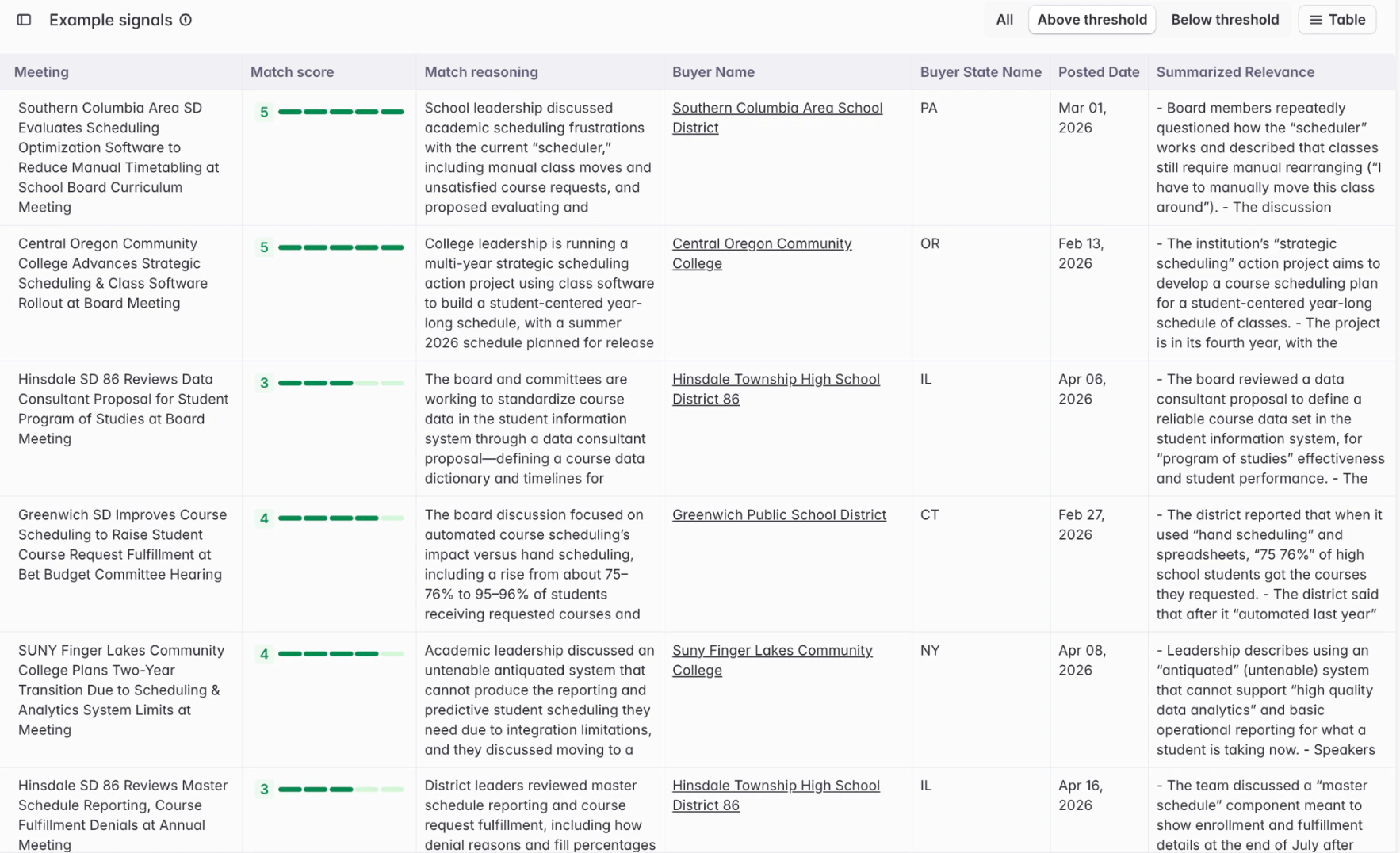
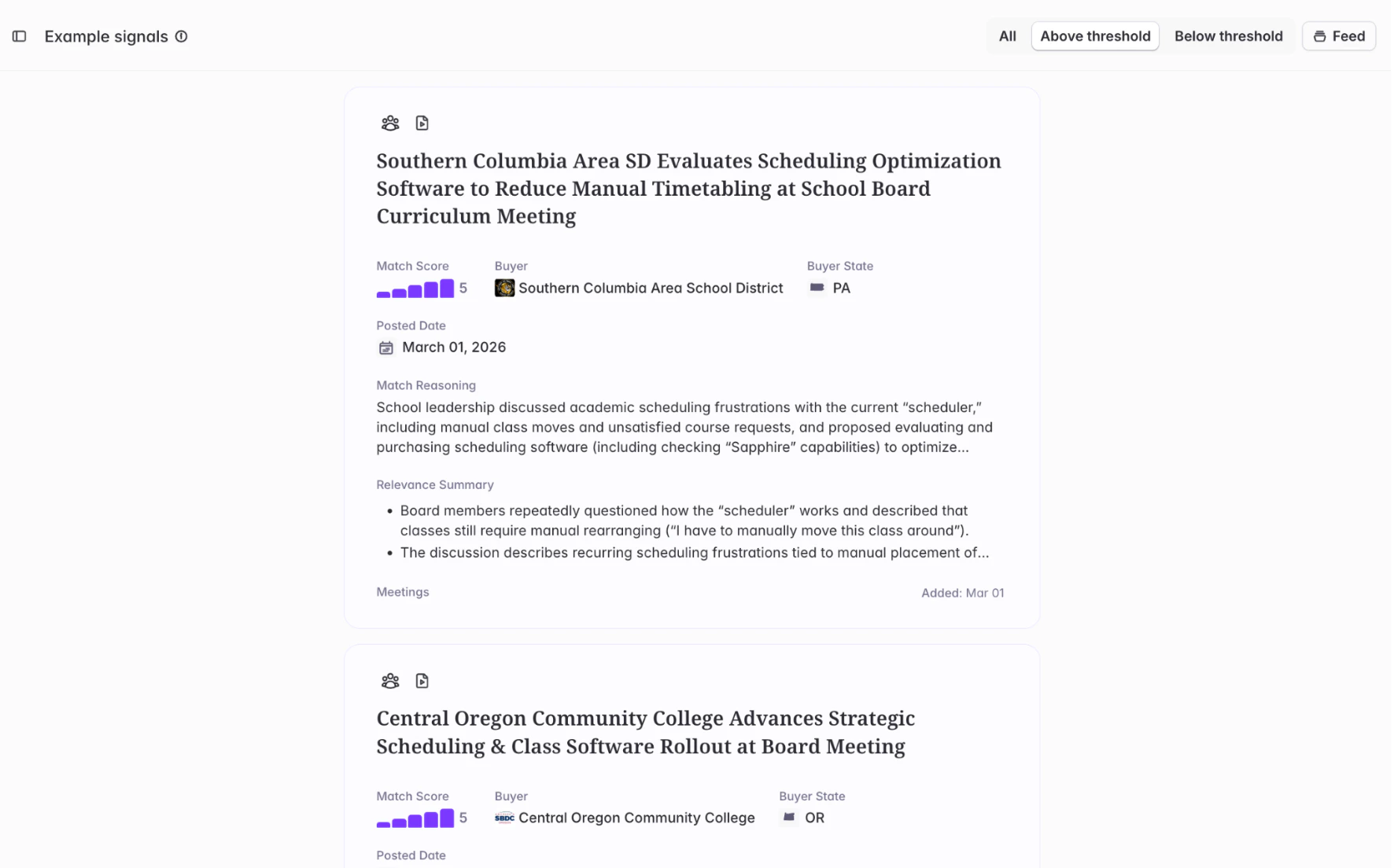 Each result in the preview includes:
* **The signal itself** — the meeting, RFP, or purchase that matched
* **A match score** — the score for that result against your criteria
* **A match reasoning** — why that result received the score it did, tied directly to your match score criteria
* **Summarized relevance** — a longer plain-language summary of why this signal matters (Meetings only in v0; expanding to other bridge types)
You can view your bridge preview results in a table format or in a feed card format, depending on your preference.
Iterate until the preview looks right. Common moves:
* **Seeing irrelevant results?** Add a disqualifier to your scoring criteria, or raise the threshold.
* **Missing results you expected?** Add a search phrase, widen a buyer filter, or lower the threshold.
* **Scores feel off but results are correct?** Tune the scoring criteria to ensure that different factors increase / decrease match scores appropriately
Anytime you change filters, phrases, or criteria, you'll be prompted to refresh your preview to see the latest results.
### Phase 3: Create the bridge
When the preview matches what you want, click **Save search as bridge**.
Your Bridge is created with every existing signal that matches your criteria (which may include more signals than the bridge preview). Starbridge will surface and add new relevant signals automatically as they appear. You can further enrich signals by adding columns to the bridge — contacts, CRM data, AI analysis, web agents, and more.
Every bridge created through this flow includes three default columns:
* **Match score**
* **Score explanation**
* **Summarized relevance**
These are added to the Bridge by default and are visible to both Builders and Consumers, so anyone acting on a signal can quickly see why it was surfaced.
### Editing a bridge after creation
You can edit any part of the structured search after the Bridge is created — buyer filters, bridge filters, search phrases, and match score criteria are all editable from the bridge's settings.
What you **cannot** edit after creation is the original natural language prompt. If you want to start over with a fundamentally different intent, duplicate the bridge and start a new search — this is intentional, to prevent silent drift between the prompt and the structured search it generated.
Edits to scoring criteria rescore existing results; edits to filters or search phrases may surface entirely new results or drop existing ones.
### Tips for a good search
A few patterns that consistently produce better bridges:
* **Start broad, tighten with scoring.** Generate a wide candidate set through search phrases, then use match score criteria to filter down to what's actionable. Resist the urge to over-constrain phrases.
* **Write disqualifiers, not just strong-match criteria.** Naming what *shouldn't* be in the bridge is often faster than describing every nuance of what should.
* **Preview before creating.** The preview is there specifically so you can catch problems before they turn into a cluttered bridge.
* **If you'd describe the ideal result out loud, write that down as the prompt.** Don't translate it into keyword-speak — the whole point of the new flow is that you don't have to.
## Building a Search Agent using Filters & Search Terms
### Define your buyer set
You can define your buyer set in one of three ways:
* **Buyer lists** — Use a pre-configured list or territory
* **Buyer filters** — Filter by geography, buyer type, size, classification, and other structured attributes
* **Select buyers** — Pick individual buyers by name
### Perform Bridge-specific configuration
Different Bridge types have different configuration setups. See the articles below for more on configuring your Search Agent for each Bridge type:
[Enriching Contacts: Contact Bridges](/builders/contacts-bridge)
Each result in the preview includes:
* **The signal itself** — the meeting, RFP, or purchase that matched
* **A match score** — the score for that result against your criteria
* **A match reasoning** — why that result received the score it did, tied directly to your match score criteria
* **Summarized relevance** — a longer plain-language summary of why this signal matters (Meetings only in v0; expanding to other bridge types)
You can view your bridge preview results in a table format or in a feed card format, depending on your preference.
Iterate until the preview looks right. Common moves:
* **Seeing irrelevant results?** Add a disqualifier to your scoring criteria, or raise the threshold.
* **Missing results you expected?** Add a search phrase, widen a buyer filter, or lower the threshold.
* **Scores feel off but results are correct?** Tune the scoring criteria to ensure that different factors increase / decrease match scores appropriately
Anytime you change filters, phrases, or criteria, you'll be prompted to refresh your preview to see the latest results.
### Phase 3: Create the bridge
When the preview matches what you want, click **Save search as bridge**.
Your Bridge is created with every existing signal that matches your criteria (which may include more signals than the bridge preview). Starbridge will surface and add new relevant signals automatically as they appear. You can further enrich signals by adding columns to the bridge — contacts, CRM data, AI analysis, web agents, and more.
Every bridge created through this flow includes three default columns:
* **Match score**
* **Score explanation**
* **Summarized relevance**
These are added to the Bridge by default and are visible to both Builders and Consumers, so anyone acting on a signal can quickly see why it was surfaced.
### Editing a bridge after creation
You can edit any part of the structured search after the Bridge is created — buyer filters, bridge filters, search phrases, and match score criteria are all editable from the bridge's settings.
What you **cannot** edit after creation is the original natural language prompt. If you want to start over with a fundamentally different intent, duplicate the bridge and start a new search — this is intentional, to prevent silent drift between the prompt and the structured search it generated.
Edits to scoring criteria rescore existing results; edits to filters or search phrases may surface entirely new results or drop existing ones.
### Tips for a good search
A few patterns that consistently produce better bridges:
* **Start broad, tighten with scoring.** Generate a wide candidate set through search phrases, then use match score criteria to filter down to what's actionable. Resist the urge to over-constrain phrases.
* **Write disqualifiers, not just strong-match criteria.** Naming what *shouldn't* be in the bridge is often faster than describing every nuance of what should.
* **Preview before creating.** The preview is there specifically so you can catch problems before they turn into a cluttered bridge.
* **If you'd describe the ideal result out loud, write that down as the prompt.** Don't translate it into keyword-speak — the whole point of the new flow is that you don't have to.
## Building a Search Agent using Filters & Search Terms
### Define your buyer set
You can define your buyer set in one of three ways:
* **Buyer lists** — Use a pre-configured list or territory
* **Buyer filters** — Filter by geography, buyer type, size, classification, and other structured attributes
* **Select buyers** — Pick individual buyers by name
### Perform Bridge-specific configuration
Different Bridge types have different configuration setups. See the articles below for more on configuring your Search Agent for each Bridge type:
[Enriching Contacts: Contact Bridges](/builders/contacts-bridge)
[Tracking Job Changes](/builders/starbridge-for-builders/tracking-job-changes)
[Custom Web Signal Bridges](/builders/custom-web-signal-bridges)
[Account Scoring || Buyer Bridge](/builders/account-scoring-buyer-bridge)
### Choose your Bridge name and description
Bridge descriptions clarify the purpose of a Bridge and how it should be used. Adding a description makes it easier for you and your team to understand what a Bridge is tracking when viewing it later. Create a new Bridge and navigate to the Edit Bridge view, or open an existing Bridge and select "Add description".
## Sharing Bridges with Consumers
After you create a Bridge and finish [customizing the Consumer view](/builders/configuring-bridges-for-consumers), you'll need to share it with Consumers before they can see it. Consumers can only access Bridges that have been shared with them. Once a Bridge is shared, they're automatically subscribed to it, though they can still manage their Feed and subscriptions at any time. You can share a Bridge with Consumers in two ways:
1. Share a Bridge with specific users
2. Share a Bridge with teams
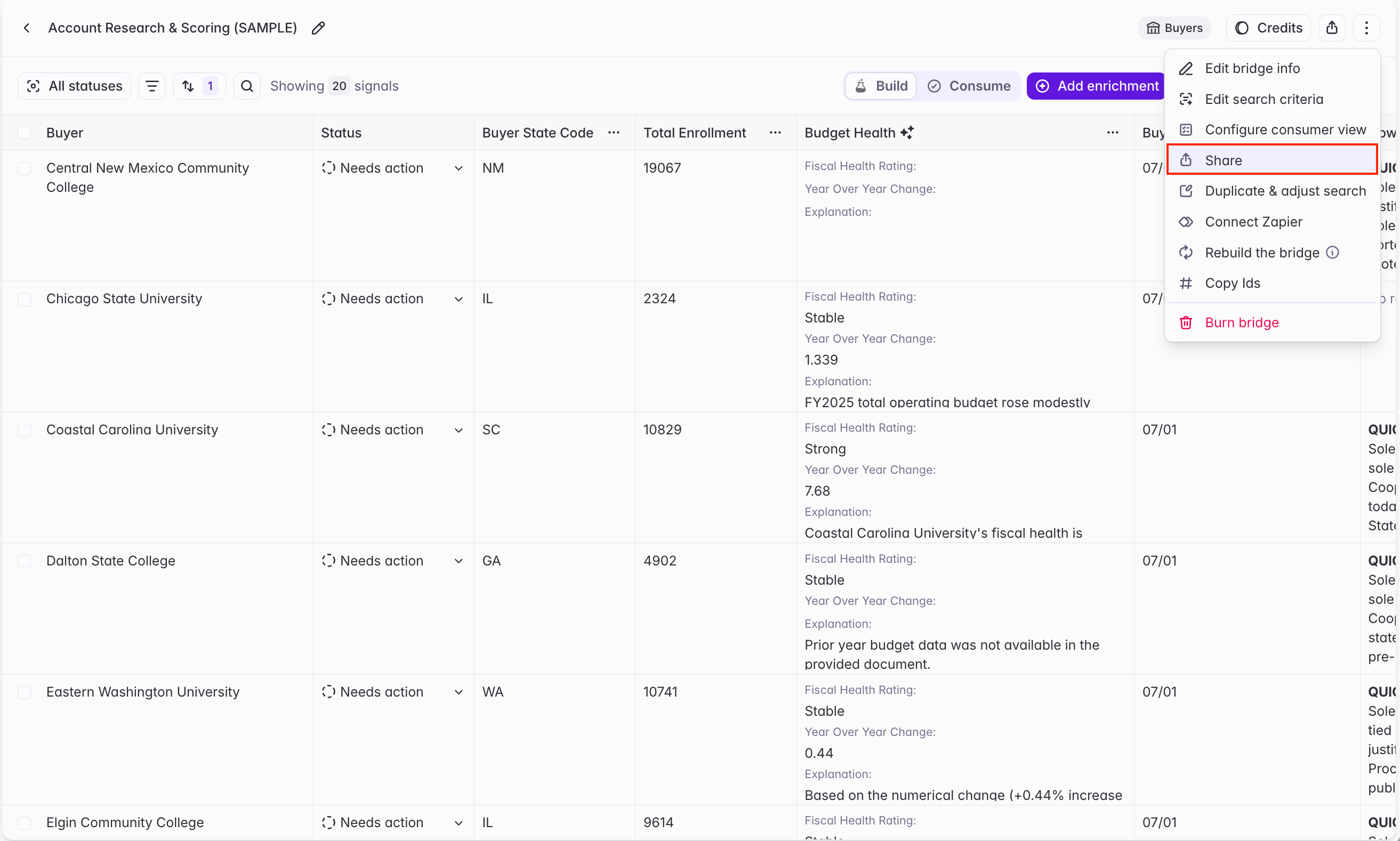
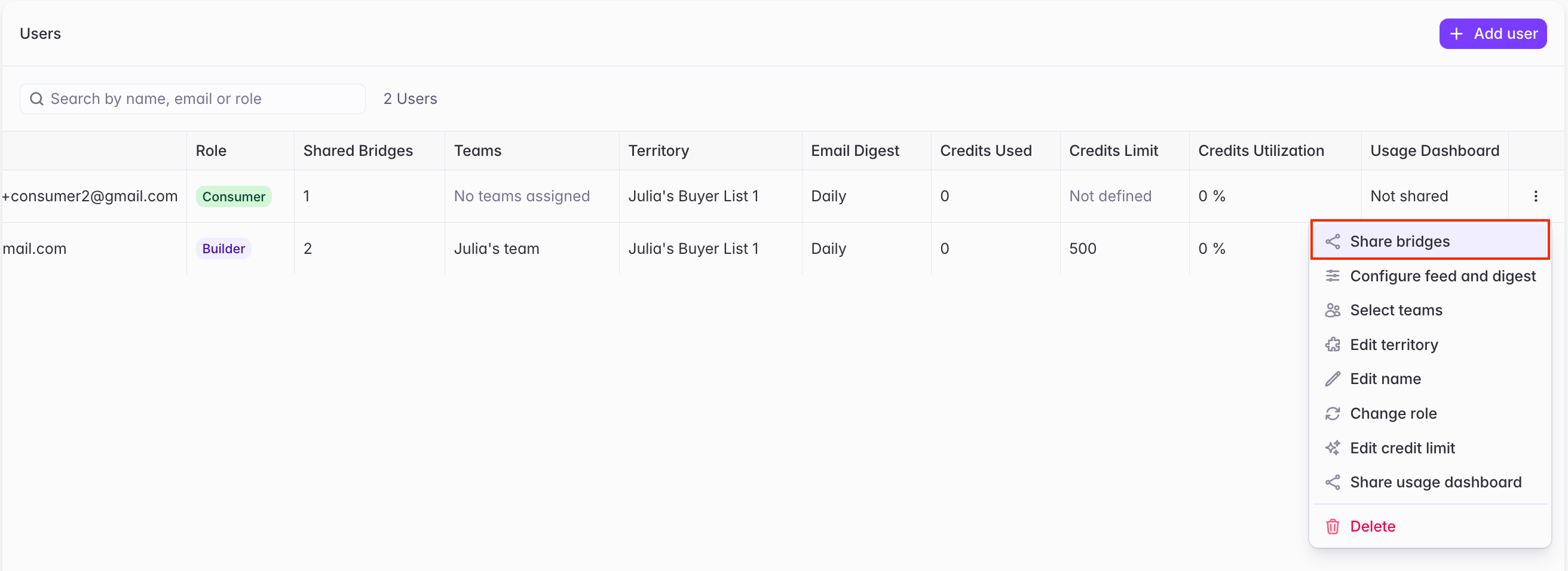
### **Sharing a Bridge with specific users**
This can be done using the "Share" option on the Bridge page itself, in addition to from the Users management page within Organization settings.
 ### **Sharing a Bridge with teams**
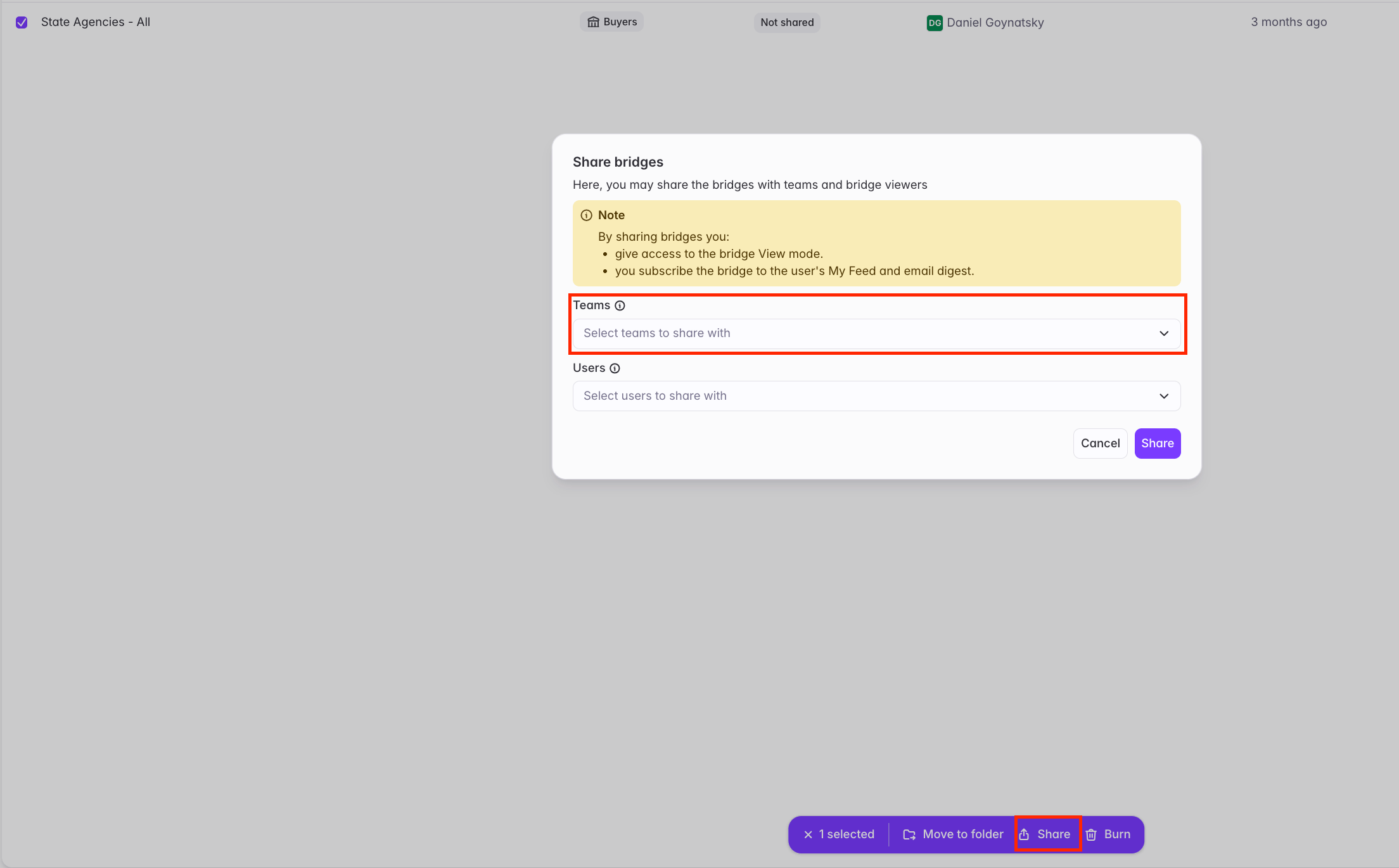
You can also share a Bridge with teams (groups of users) to make it easy to share with multiple users at once. To do so, you can utilize the "Share" button on the Bridge page (similar to above), or from the "Teams" page within organization Settings.
Only Admins can create teams and add or remove users from teams.
### **Sharing a Bridge with teams**
You can also share a Bridge with teams (groups of users) to make it easy to share with multiple users at once. To do so, you can utilize the "Share" button on the Bridge page (similar to above), or from the "Teams" page within organization Settings.
Only Admins can create teams and add or remove users from teams.

 ### **Sharing a signal with specific users**
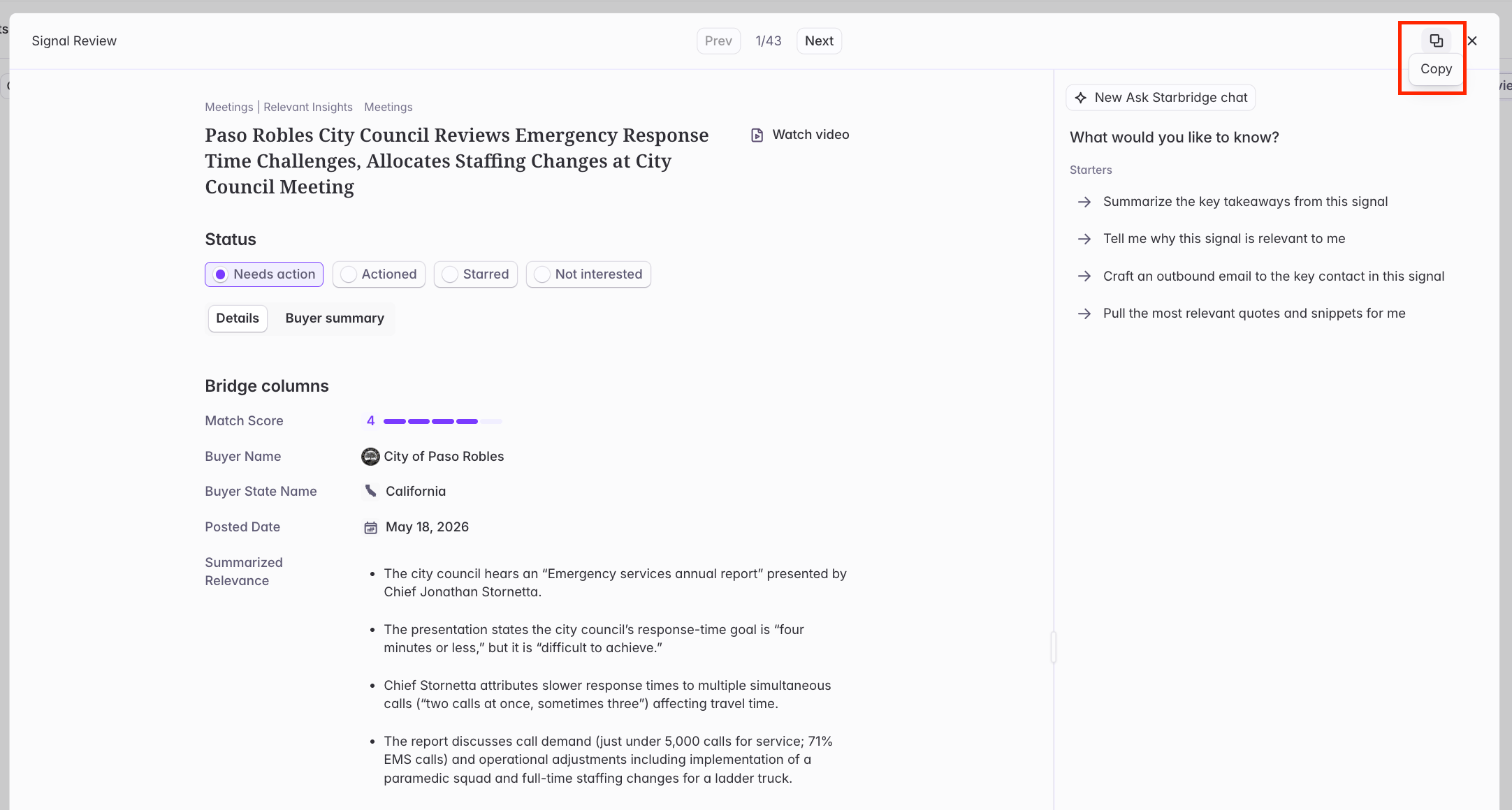
Anyone — Admin, Builder, or Consumer — can click the "Send" icon in the top right of a signal card to copy a link to their clipboard. Any user in the Starbridge account can open that link to view the signal, even if the Bridge isn't shared with them. However, they can only see additional Bridge results if the Bridge has been shared with them.
### **Sharing a signal with specific users**
Anyone — Admin, Builder, or Consumer — can click the "Send" icon in the top right of a signal card to copy a link to their clipboard. Any user in the Starbridge account can open that link to view the signal, even if the Bridge isn't shared with them. However, they can only see additional Bridge results if the Bridge has been shared with them.
 ## Related articles
Foundational overview of Bridges and how specific Bridge types can be used to accomplish highly curated and business-specific outcomes.
Dive deeper into the custom AI datapoints that can be added to a Bridge. Learn about scoring opportunities, building campaigns, and drafting emails and call scripts at scale.
## Related articles
Foundational overview of Bridges and how specific Bridge types can be used to accomplish highly curated and business-specific outcomes.
Dive deeper into the custom AI datapoints that can be added to a Bridge. Learn about scoring opportunities, building campaigns, and drafting emails and call scripts at scale.