> ## Documentation Index
> Fetch the complete documentation index at: https://hc.starbridge.ai/llms.txt
> Use this file to discover all available pages before exploring further.
# Job Changes Bridge
> Track new hires, promotions, and departures at your target accounts — and sync verified contact data to your CRM.
## Overview
A Job Changes Bridge monitors role and employment changes across the accounts you care about. Every job change includes verified contact information you can sync directly to [Salesforce or HubSpot](/admins/connecting-your-crm).
## What is a job change?
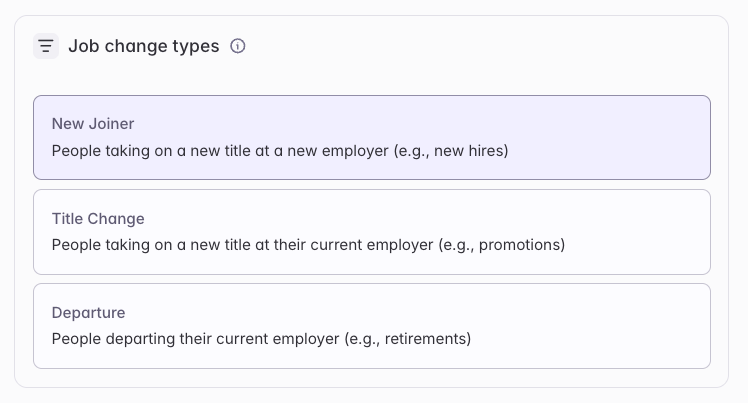
Starbridge tracks three types of job changes:
1. **New joiners** — People taking on a new title at a new employer (new hires, appointments, elections). **Use case:** Reach out to newly hired CIOs, Superintendents, or Procurement Directors during their onboarding period, when they're evaluating vendors and systems.
2. **Title changes** — People taking on a new title at their current employer (promotions, lateral moves). **Use case:** Connect with contacts who've been promoted into decision-making roles or expanded their scope of responsibility.
3. **Departures** — People leaving their current employer (retirements, resignations, end of term). **Use case:** Identify when key champions are leaving an account, or track outgoing contacts for future relationship-building at their next role.
## How teams use job changes
**Target new decision makers**
Reach out to anyone who has taken on a title with decision-making or budgetary authority, or a mandate that aligns with your offering — especially during their first 3–6 months, when they're evaluating vendors and systems.
**Track champions moving to new organizations**
Identify contacts who have moved from champion accounts to new organizations. These contacts already have a positive association with your product and are likely to be receptive at their new role.
There are a few ways to define a champion, all valid depending on how broadly you want to target:
* **Any contact from a customer account** — Anyone who previously worked at an organization where you have a closed-won deal.
* **Champions from customer accounts** — Anyone who previously worked at a closed-won account and was themselves a champion or power user.
* **Contacts marked as champions** — Any contact explicitly marked as a champion in your CRM.
For Account Executives, reaching out to champions early in their new tenure can open doors at net-new accounts. For Account Managers, tracking departures from existing accounts gives you time to line up a new executive sponsor before a champion's exit becomes a renewal risk.
## Credits
Job Changes Bridges consume **2 credits per job change for a new contact** — meaning a contact not previously in your Starbridge workspace. If a contact already exists from a previous Contacts or Job Changes Bridge, no additional credits are charged. See [How do credits work?](/builders/how-do-credits-work) for more detail.
## Create a Job Changes Bridge
There are two ways to set up a Job Changes Bridge. Pick the tab that matches how you want to track changes:
* **By job title** — monitor a set of titles across a buyer list (e.g., every new Superintendent hire across your target school districts).
* **By specific contacts** — monitor job changes for contacts you've already enriched (e.g., champions across your customer accounts).
Use this flow to track job changes for a set of titles across a buyer list — for example, every new Superintendent hire across your target school districts, or every CIO departure across your in-pipeline and current customer accounts.
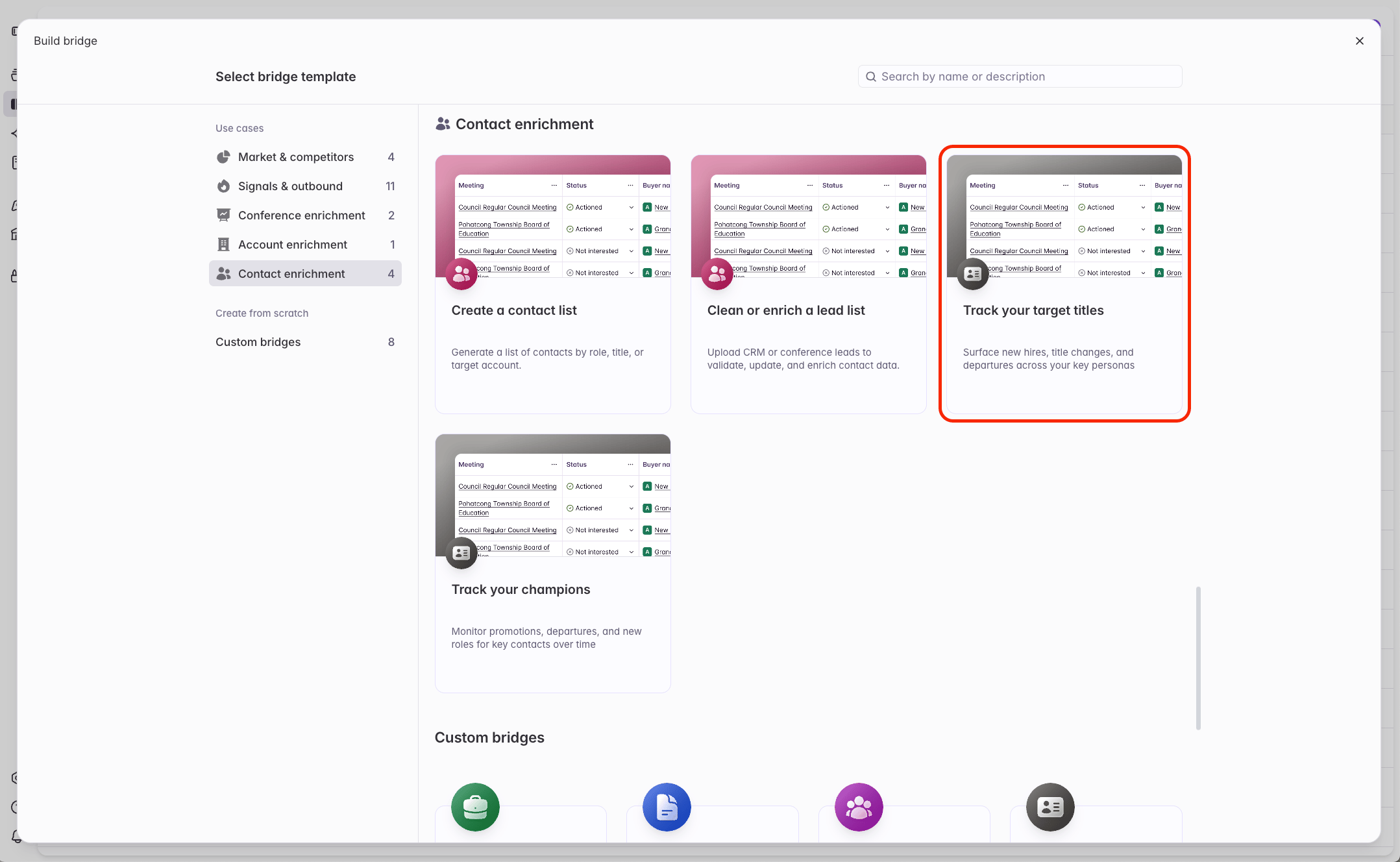
Navigate to the **Bridges** tab and click **Create bridge**. Select **Track your target titles** as the Bridge template.
 Choose the type(s) of changes you want to track: **New joiners**, **Title changes**, and/or **Departures**.
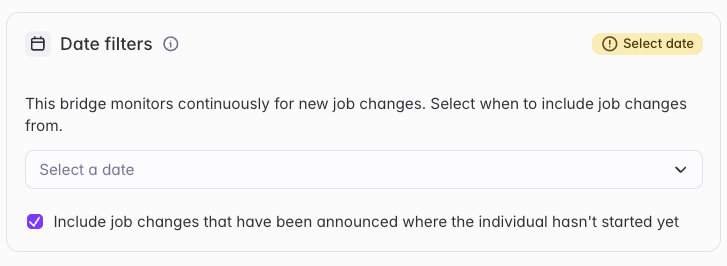
 Define the timeframe for surfacing job changes:
* **From:** last 30 days, last 3 months, or last 6 months.
* Optionally include job changes announced before they take effect — for example, a Superintendent retirement announced one semester before the official departure date.
Define the timeframe for surfacing job changes:
* **From:** last 30 days, last 3 months, or last 6 months.
* Optionally include job changes announced before they take effect — for example, a Superintendent retirement announced one semester before the official departure date.
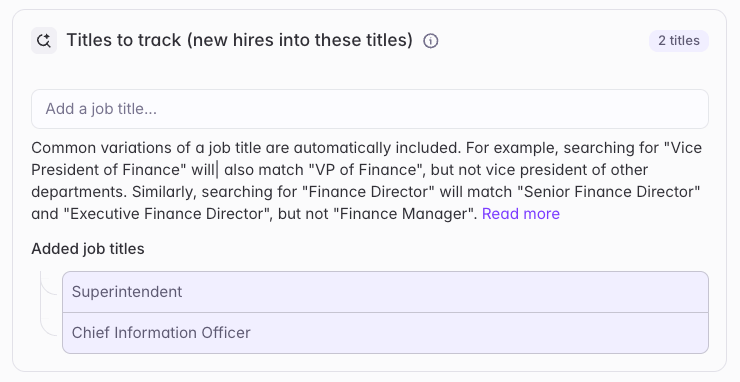
 Enter the job titles you want to monitor. Common variations of each title are automatically included — see [Searching by titles](/builders/searching-by-title) for more detail.
Be specific enough to stay relevant, but broad enough to catch common variations. "VP of Finance" will match "Vice President of Finance", "Vice President for Finance", and "VP, Finance".
Enter the job titles you want to monitor. Common variations of each title are automatically included — see [Searching by titles](/builders/searching-by-title) for more detail.
Be specific enough to stay relevant, but broad enough to catch common variations. "VP of Finance" will match "Vice President of Finance", "Vice President for Finance", and "VP, Finance".
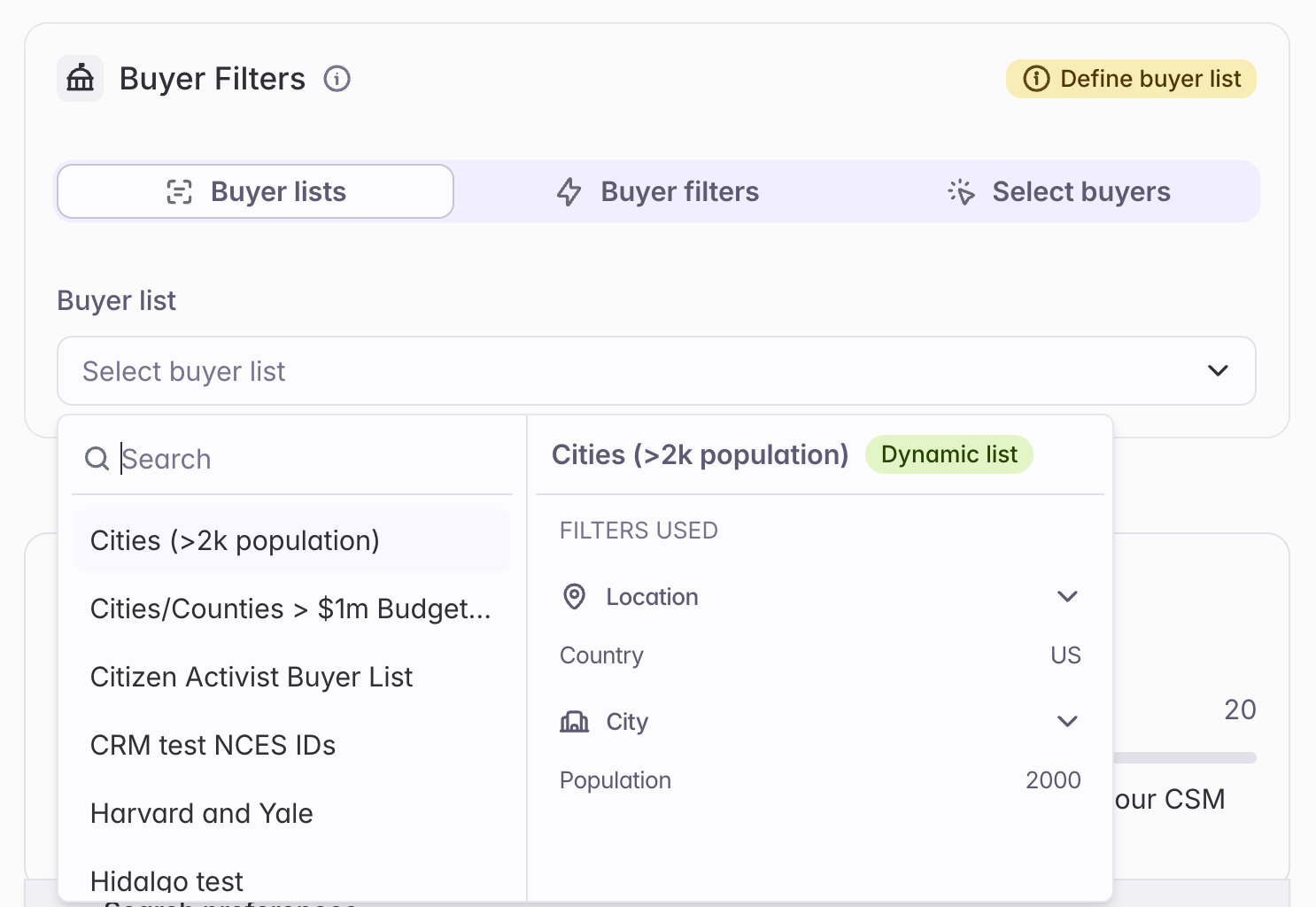
 Define the scope of your search to the accounts you care about. Select an existing [buyer list](/builders/how-to-create-a-buyer-list), filter down to the buyers you care about, or select a specific set of buyers.
 To cap credit usage, set a limit on **job changes for new contacts** per buyer per month. We generally recommend 1–2 per unique title. To stop the Bridge from consuming additional credits entirely, set this value to zero.
Click **Create bridge**. Starbridge populates it with all matching job changes based on your configuration.
This can take some time, as Starbridge searches the web for job change signals, then verifies and enriches each job change and contact.
Use this flow to monitor job changes for contacts you've already enriched — for example, tracking champions across your customer accounts, or staying up to date on key contacts in your open pipeline.
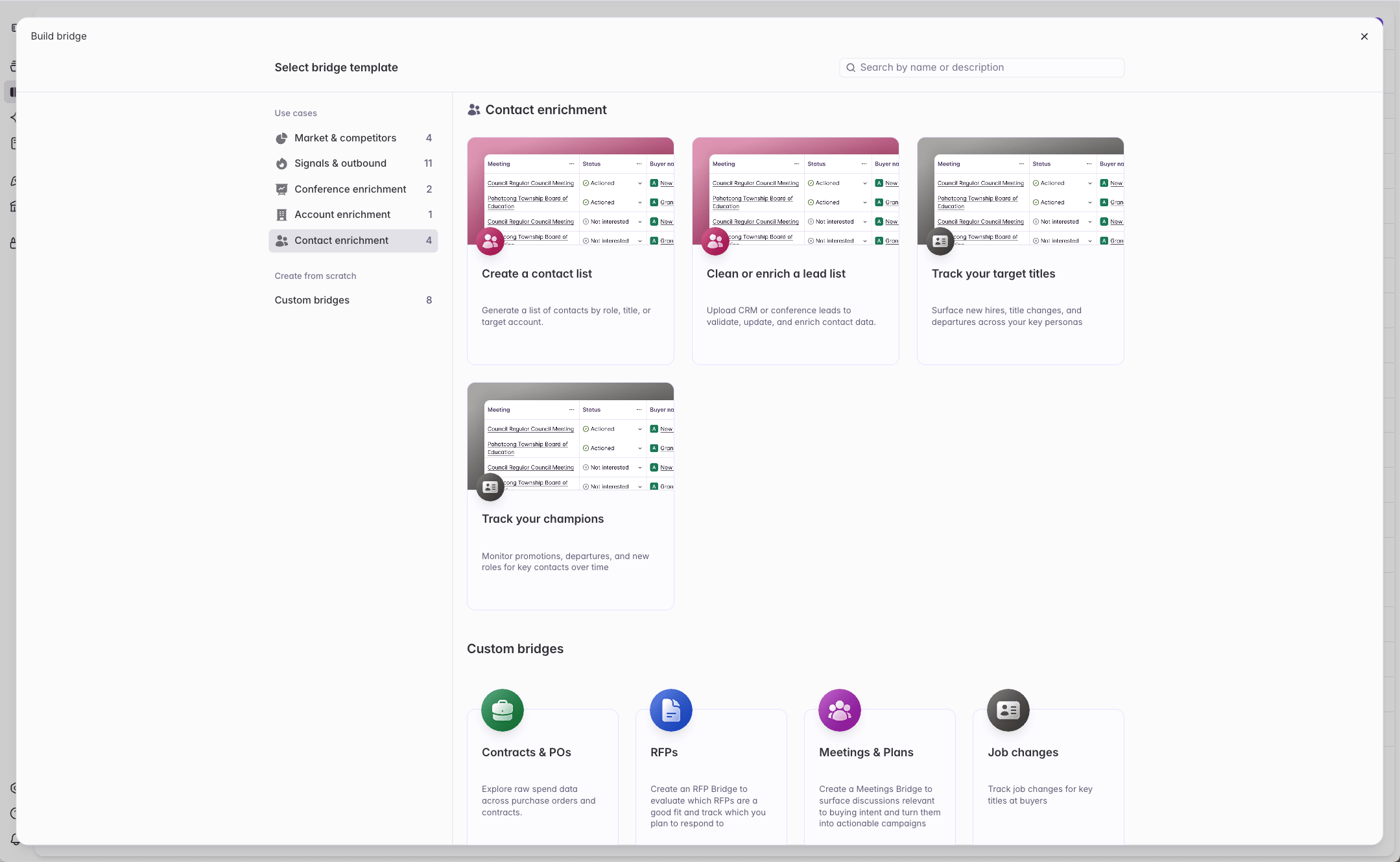
Navigate to the **Bridges** tab and click **Create bridge**. Select **Track your champions** as the Bridge template.
To cap credit usage, set a limit on **job changes for new contacts** per buyer per month. We generally recommend 1–2 per unique title. To stop the Bridge from consuming additional credits entirely, set this value to zero.
Click **Create bridge**. Starbridge populates it with all matching job changes based on your configuration.
This can take some time, as Starbridge searches the web for job change signals, then verifies and enriches each job change and contact.
Use this flow to monitor job changes for contacts you've already enriched — for example, tracking champions across your customer accounts, or staying up to date on key contacts in your open pipeline.
Navigate to the **Bridges** tab and click **Create bridge**. Select **Track your champions** as the Bridge template.
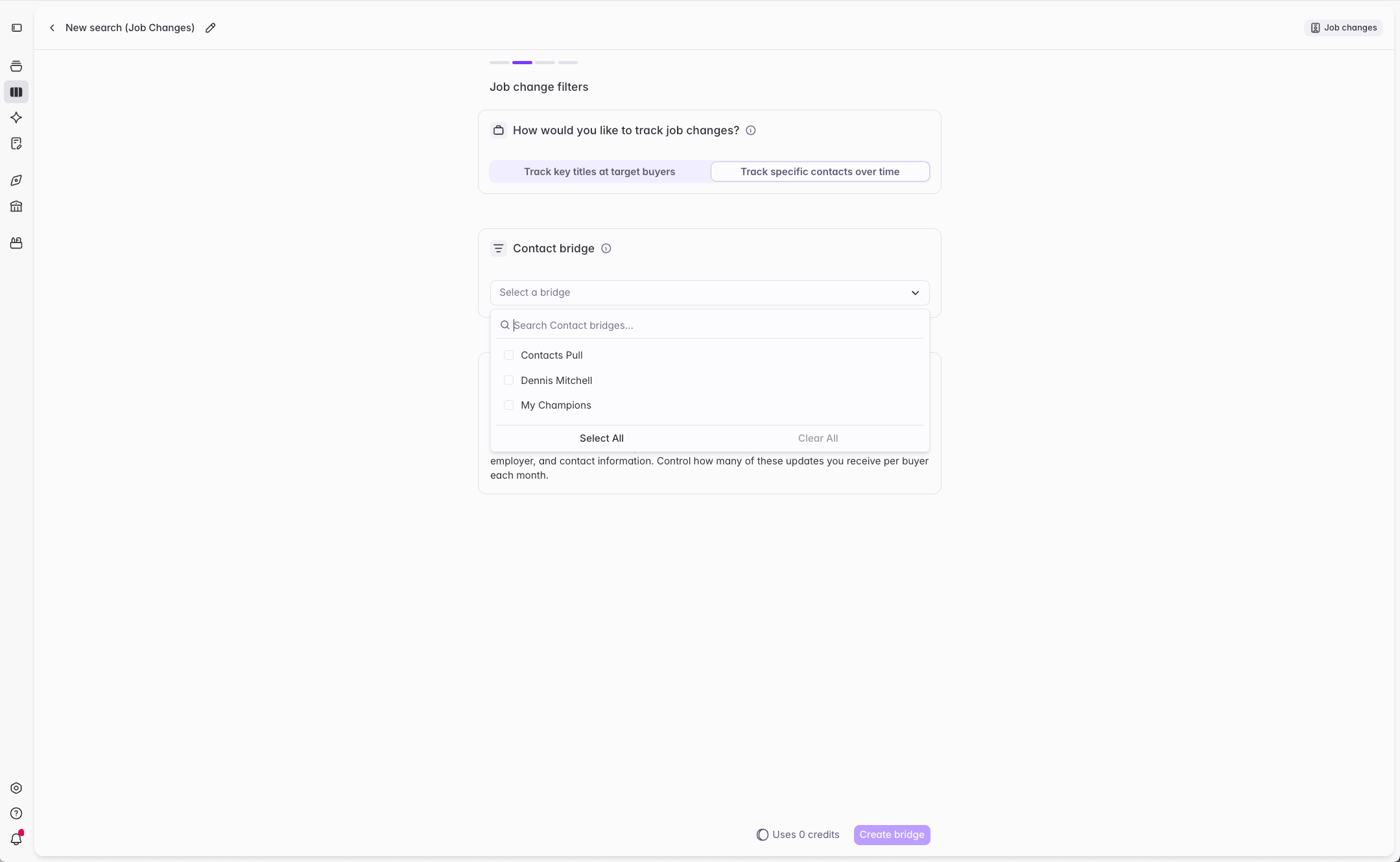
 Choose one or more [Contacts Bridges](/builders/contacts-bridge) whose contacts you want to monitor. As those Bridges add new contacts over time, this Bridge automatically tracks them too.
Don't have a Contacts Bridge yet? [Create one first](/builders/contacts-bridge), then return to set up job change tracking.
Choose one or more [Contacts Bridges](/builders/contacts-bridge) whose contacts you want to monitor. As those Bridges add new contacts over time, this Bridge automatically tracks them too.
Don't have a Contacts Bridge yet? [Create one first](/builders/contacts-bridge), then return to set up job change tracking.
 To cap credit usage, set a limit on **job changes for new contacts** per buyer per month. We generally recommend 1–2 per unique title. To stop the Bridge from consuming additional credits entirely, set this value to zero.
Click **Create bridge**. Starbridge populates it with job changes for the contacts in your selected Bridges.
This can take several hours, as Starbridge searches the web for job change signals, then verifies and enriches each job change and contact.
## Using your Bridge
Every Job Changes Bridge includes these columns by default:
* **Job Change** — A one-sentence description of the job change.
* **Buyer Name** — The organization where the change occurred.
* **Job Title** — The person's new title (for new hires and promotions) or former title (for departures).
* **Summary** — A one-to-four sentence description of the job change.
* **Contact** — The person who experienced the job change.
* **Effective Date** — When the job change takes effect. Future-dated changes have been announced before they take effect — for example, retirements or elected appointments confirmed months in advance.
You can add custom columns to enrich your results further with AI analysis, web search, or CRM lookups and syncs.
## Syncing to your CRM
Sync job change contacts directly to Salesforce or HubSpot to create or update contact records, trigger sequences, or set custom fields. See [Syncing to your CRM](/admins/connecting-your-crm) for setup instructions.
## Tracking and identifying champions
The simplest way to track champions is to create a Contacts Bridge that [enriches your existing contacts or champions](/builders/enrich-an-existing-lead-list) from your customer accounts, then use the **By specific contacts** flow above to monitor those contacts for any role or employer changes. When a champion moves to a new organization, you'll be alerted automatically with a new signal — so you can follow them into net-new accounts.
To check whether a newly surfaced contact came from a champion account or was previously a champion in your CRM, use a CRM Lookup Column:
1. Add a **Previous Contact** column: **Add column → Enrich Job Change Info → Previous Contact → Finalize Selection → Add column**.
2. Add a **CRM Lookup Column**: **Add column → Configure Integration → Pull Data from My CRM**.
3. Configure the lookup to match by email or Starbridge Contact ID, using the value from the Previous Contact column.
4. If the lookup returns a match marked as a champion — or from a closed-won account — the new hire is a former champion or comes from a champion account.
## Related articles
Push verified job change contacts to Salesforce or HubSpot.
Step-by-step guide to syncing job changes to your CRM as custom objects.
To cap credit usage, set a limit on **job changes for new contacts** per buyer per month. We generally recommend 1–2 per unique title. To stop the Bridge from consuming additional credits entirely, set this value to zero.
Click **Create bridge**. Starbridge populates it with job changes for the contacts in your selected Bridges.
This can take several hours, as Starbridge searches the web for job change signals, then verifies and enriches each job change and contact.
## Using your Bridge
Every Job Changes Bridge includes these columns by default:
* **Job Change** — A one-sentence description of the job change.
* **Buyer Name** — The organization where the change occurred.
* **Job Title** — The person's new title (for new hires and promotions) or former title (for departures).
* **Summary** — A one-to-four sentence description of the job change.
* **Contact** — The person who experienced the job change.
* **Effective Date** — When the job change takes effect. Future-dated changes have been announced before they take effect — for example, retirements or elected appointments confirmed months in advance.
You can add custom columns to enrich your results further with AI analysis, web search, or CRM lookups and syncs.
## Syncing to your CRM
Sync job change contacts directly to Salesforce or HubSpot to create or update contact records, trigger sequences, or set custom fields. See [Syncing to your CRM](/admins/connecting-your-crm) for setup instructions.
## Tracking and identifying champions
The simplest way to track champions is to create a Contacts Bridge that [enriches your existing contacts or champions](/builders/enrich-an-existing-lead-list) from your customer accounts, then use the **By specific contacts** flow above to monitor those contacts for any role or employer changes. When a champion moves to a new organization, you'll be alerted automatically with a new signal — so you can follow them into net-new accounts.
To check whether a newly surfaced contact came from a champion account or was previously a champion in your CRM, use a CRM Lookup Column:
1. Add a **Previous Contact** column: **Add column → Enrich Job Change Info → Previous Contact → Finalize Selection → Add column**.
2. Add a **CRM Lookup Column**: **Add column → Configure Integration → Pull Data from My CRM**.
3. Configure the lookup to match by email or Starbridge Contact ID, using the value from the Previous Contact column.
4. If the lookup returns a match marked as a champion — or from a closed-won account — the new hire is a former champion or comes from a champion account.
## Related articles
Push verified job change contacts to Salesforce or HubSpot.
Step-by-step guide to syncing job changes to your CRM as custom objects.