> ## Documentation Index
> Fetch the complete documentation index at: https://hc.starbridge.ai/llms.txt
> Use this file to discover all available pages before exploring further.
# Buyer Page
> Everything Starbridge knows about an account in one place.
The **Buyer Page** is your single source of truth for any account, comprising of an AI-powered summary, buying signals, contacts, attributes, procurement insights, and org structure. It helps you understand who the buyer is, what's happening there, and how to engage.
## Opening a Buyer Page
You can reach a Buyer Page from anywhere you encounter an account in Starbridge:
* Click a buyer name in a card in **My Feed**
* Click into a Buyer from the **Buyers** tab in the left panel
* Click into any account from a **Bridge**
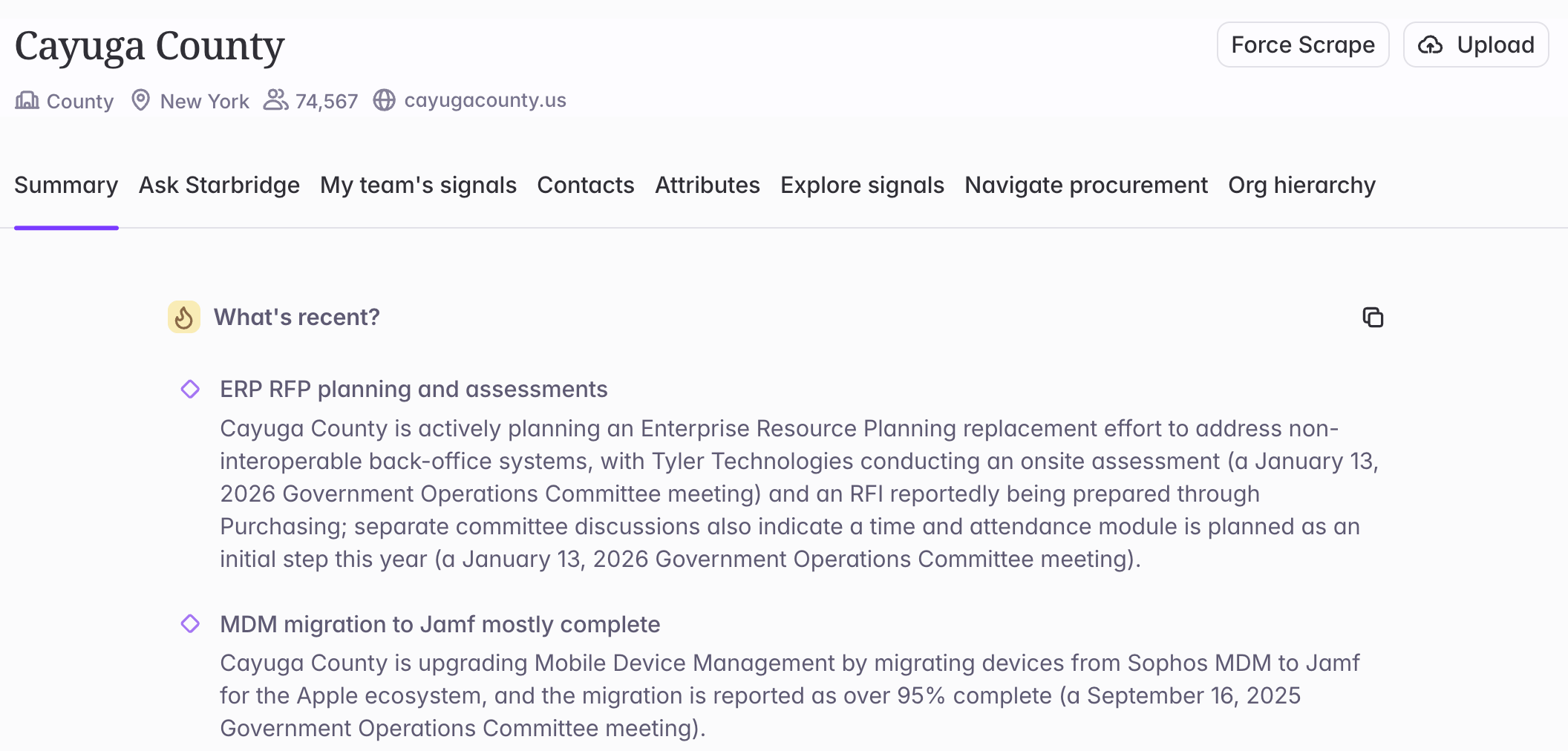 ## What's on the Buyer Page
An AI-written briefing on what's happening at the account, grounded in your team's Bridge data
Ask questions about the account and get instant answers, pulled from Starbridge data and the web
Every buying signal tied to the account surfaced by your team's data across Bridges
Decision-makers and stakeholders, enriched with verified contact info and role details.
Buyer type, location, size, budget, and other firmographic details for qualification and segmentation.
How the buyer purchases: thresholds, cooperative activity, and reseller usage that point to the fastest path to contract
Parent-child relationships across agencies, departments, schools, and districts
## The Summary tab
The **Summary** tab provides a concise briefing that reads across all of your team's Bridge data for that buyer. It's organized into two sections:
Key developments, buying signals, leadership changes, and other activity relevant to upcoming outreach.
Strategic initiatives, priorities, procurement considerations, and account context.
### Every claim is cited
Each statement in the summary is grounded in a specific Bridge signal.
* **Hover** over a citation to see the source snippet inline.
* **Click** a citation to open the original document, meeting transcript, or bridge entry.
This means you can always trace a claim back to its source and dig deeper when you need to.
The Summary is grounded only in your Bridge data. It re-generates automatically each time you open it on a Buyer Page or in your Feed, so it always reflects the latest data.
### Where else the Summary appears
The same briefing follows you into your workflow. When you click into a signal from **My Feed**, a **Buyer Summary** tab sits alongside the signal detail.
You can also add the Buyer Summary data enrichment as a column in any Bridge. Use it to:
* **Sync context to your CRM** — Push a current account summary to Salesforce or HubSpot so insights stay attached to the account record.
* **Improve outbound personalization** — Give AI-generated emails richer account context beyond a single signal.
* **Enhance account scoring** — Incorporate broader buyer context into account prioritization and scoring.
* **Power AI analysis** — Feed a holistic account view into any AI Analysis column for more informed outputs.
## Related articles
Research accounts through an interactive chat.
Pull the Buyer Page and Ask Starbridge into your browser, on any site.
Where new signals on your accounts show up day to day.
## What's on the Buyer Page
An AI-written briefing on what's happening at the account, grounded in your team's Bridge data
Ask questions about the account and get instant answers, pulled from Starbridge data and the web
Every buying signal tied to the account surfaced by your team's data across Bridges
Decision-makers and stakeholders, enriched with verified contact info and role details.
Buyer type, location, size, budget, and other firmographic details for qualification and segmentation.
How the buyer purchases: thresholds, cooperative activity, and reseller usage that point to the fastest path to contract
Parent-child relationships across agencies, departments, schools, and districts
## The Summary tab
The **Summary** tab provides a concise briefing that reads across all of your team's Bridge data for that buyer. It's organized into two sections:
Key developments, buying signals, leadership changes, and other activity relevant to upcoming outreach.
Strategic initiatives, priorities, procurement considerations, and account context.
### Every claim is cited
Each statement in the summary is grounded in a specific Bridge signal.
* **Hover** over a citation to see the source snippet inline.
* **Click** a citation to open the original document, meeting transcript, or bridge entry.
This means you can always trace a claim back to its source and dig deeper when you need to.
The Summary is grounded only in your Bridge data. It re-generates automatically each time you open it on a Buyer Page or in your Feed, so it always reflects the latest data.
### Where else the Summary appears
The same briefing follows you into your workflow. When you click into a signal from **My Feed**, a **Buyer Summary** tab sits alongside the signal detail.
You can also add the Buyer Summary data enrichment as a column in any Bridge. Use it to:
* **Sync context to your CRM** — Push a current account summary to Salesforce or HubSpot so insights stay attached to the account record.
* **Improve outbound personalization** — Give AI-generated emails richer account context beyond a single signal.
* **Enhance account scoring** — Incorporate broader buyer context into account prioritization and scoring.
* **Power AI analysis** — Feed a holistic account view into any AI Analysis column for more informed outputs.
## Related articles
Research accounts through an interactive chat.
Pull the Buyer Page and Ask Starbridge into your browser, on any site.
Where new signals on your accounts show up day to day.