> ## Documentation Index
> Fetch the complete documentation index at: https://hc.starbridge.ai/llms.txt
> Use this file to discover all available pages before exploring further.
# Getting started
## Logging in for the first time
Initial setup for users will be completed during Starbridge onboarding. Admin users have the ability to add new users into the platform. After a new user has been added into the platform, the new user will:
Please check spam/junk for your email as well
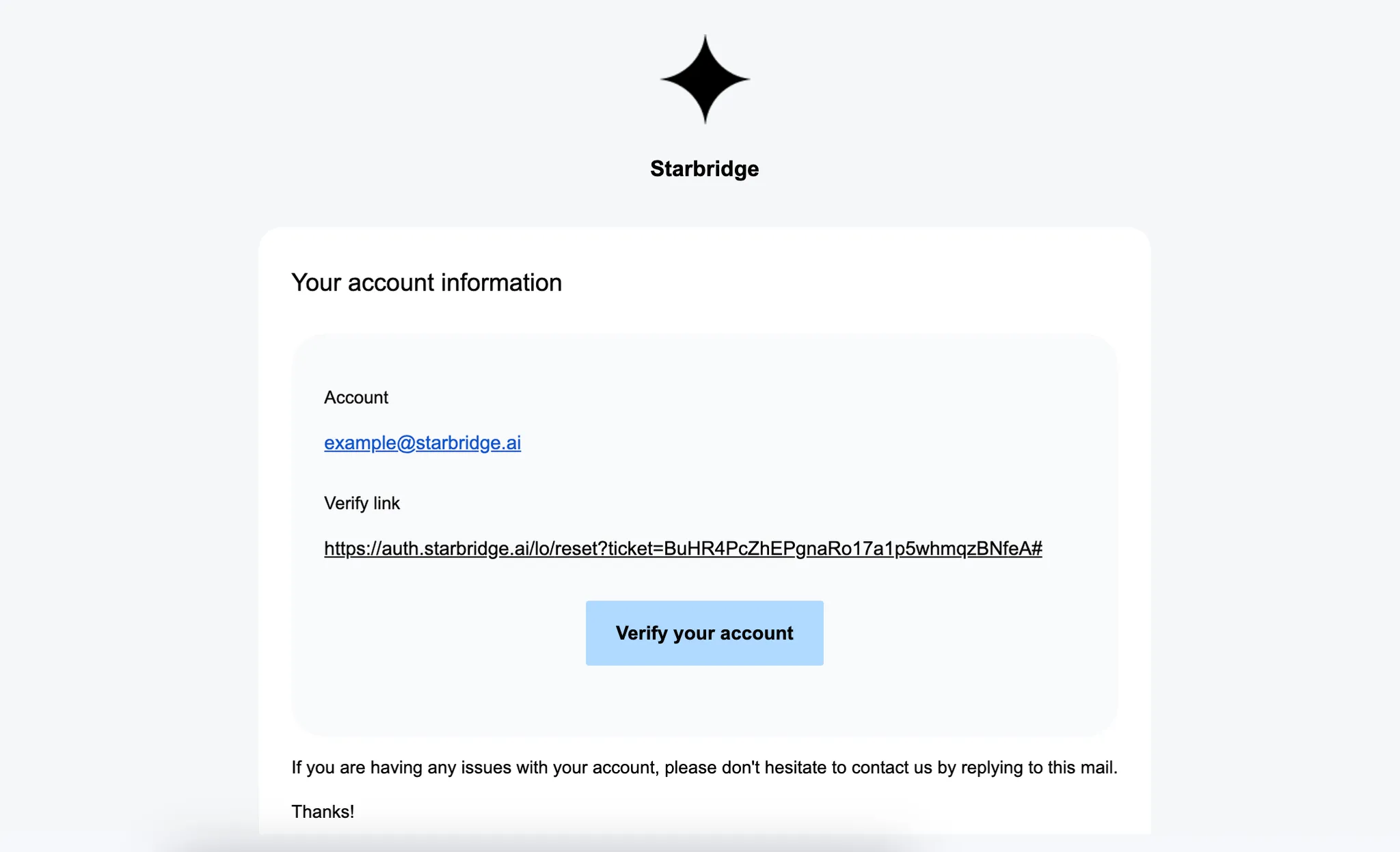 Click the verification link, create a password, then log in to Starbridge.
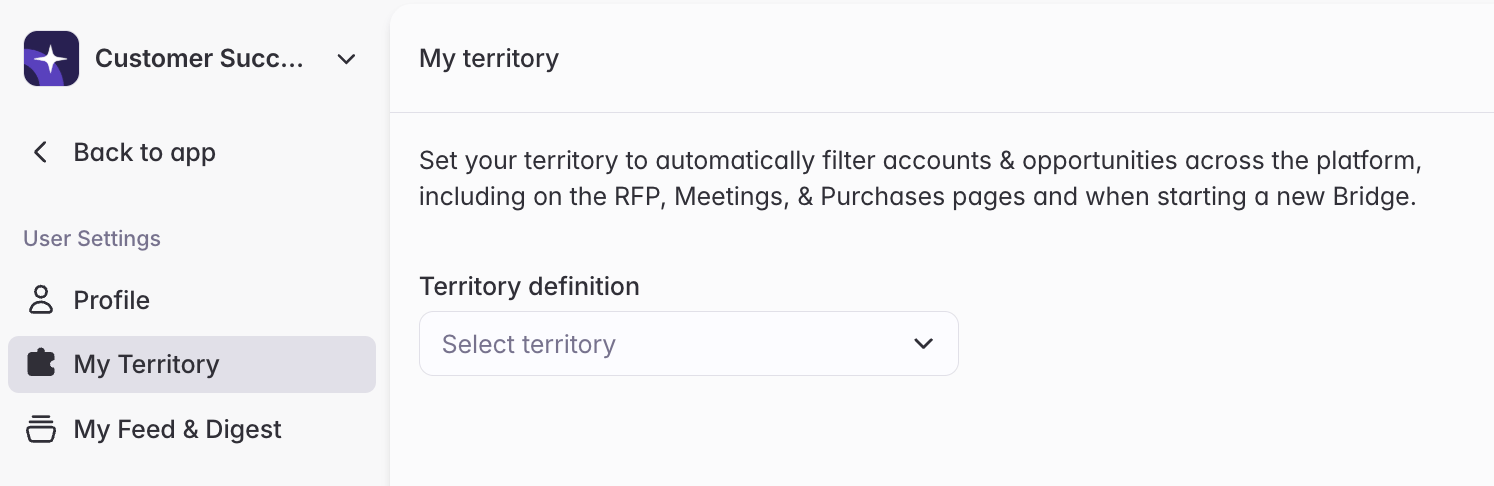
A user's territory customizes their feed to only surface leads and signals from Buyers within their territory. Admin and Builder roles are responsible for creating Territory Buyer Lists for each user. To have a new Territory Buyer List created, please contact your company's Starbridge Admin/Builders. To confirm or adjust, go to [Settings > My Territory](https://dashboard.starbridge.ai/settings/filters) and adjust to the relevant buyer list.
Click the verification link, create a password, then log in to Starbridge.
A user's territory customizes their feed to only surface leads and signals from Buyers within their territory. Admin and Builder roles are responsible for creating Territory Buyer Lists for each user. To have a new Territory Buyer List created, please contact your company's Starbridge Admin/Builders. To confirm or adjust, go to [Settings > My Territory](https://dashboard.starbridge.ai/settings/filters) and adjust to the relevant buyer list.
 ## Set your Email Digest cadence
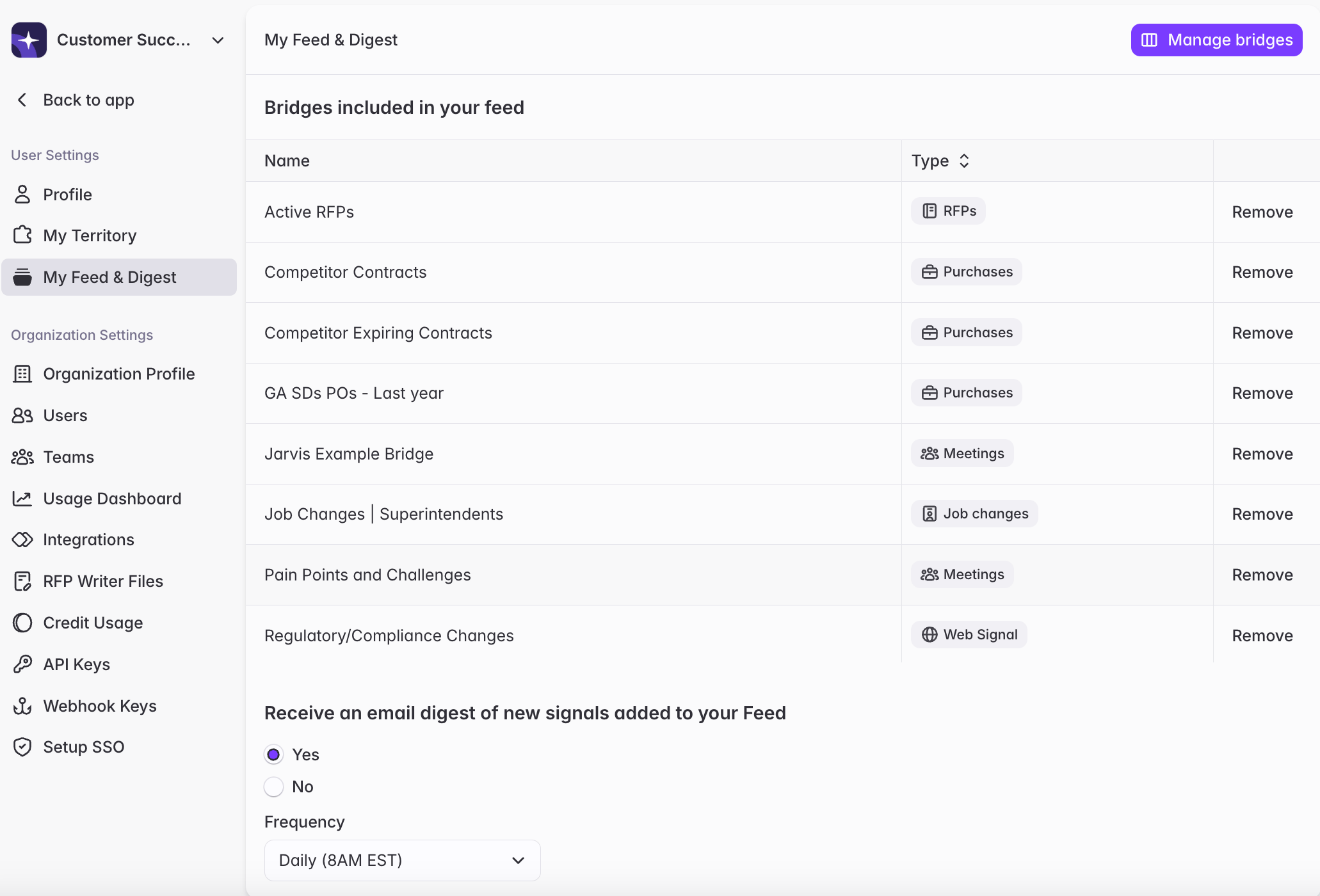
You can control how often you receive notifications via **email digests,** removing the need to set up notifications individually for every search. You can set your notification frequency to be daily or weekly.
More on configuring your Email Digest: [Email Digest](/consumers/email-digest)
## Set your Email Digest cadence
You can control how often you receive notifications via **email digests,** removing the need to set up notifications individually for every search. You can set your notification frequency to be daily or weekly.
More on configuring your Email Digest: [Email Digest](/consumers/email-digest)
 ## Related articles
Click to read more about customizing [My Feed](/consumers/my-homefeed) and [Email Digest](/consumers/email-digest).
Understand what's in My Feed and how to customize it.
Configure cadence and troubleshoot email notifications.
## Related articles
Click to read more about customizing [My Feed](/consumers/my-homefeed) and [Email Digest](/consumers/email-digest).
Understand what's in My Feed and how to customize it.
Configure cadence and troubleshoot email notifications.