> ## Documentation Index
> Fetch the complete documentation index at: https://hc.starbridge.ai/llms.txt
> Use this file to discover all available pages before exploring further.
# Quoting
> Build and submit a quote against a co-op vehicle, and follow it through to a purchase order.
**Quoting is how a live deal gets transacted through a co-op vehicle.** You build the quote, Starbridge reviews and issues it, and your buyer purchases off the contract.
## What a quote covers
* **The vehicle and term.** Which approved co-op contract the deal sells through, and how long it runs.
* **Who it's for.** Your details, Starbridge as the distributor, and your end customer.
* **What you're quoting.** Line items you add in Starbridge, or your own quote PDF.
* **Terms and your EULA.** Any terms of your own, plus the EULA from onboarding.
## Building the quote
Start from **"Build a new quote"** and pick how you want to create it.
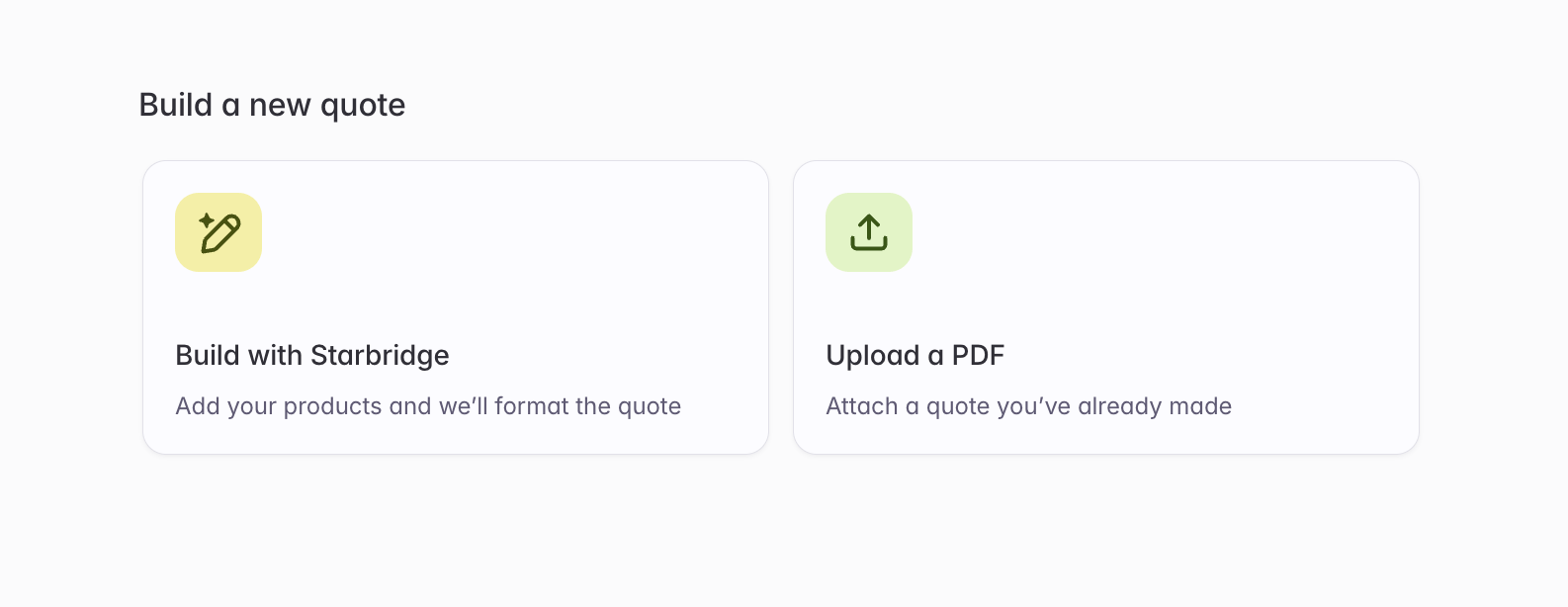 Build with Starbridge by default. Upload a PDF only when you already have an internal process that produces complete, correct quotes.
Pick the vehicle this quote sells through, then set how long the deal runs.
Build with Starbridge by default. Upload a PDF only when you already have an internal process that produces complete, correct quotes.
Pick the vehicle this quote sells through, then set how long the deal runs.
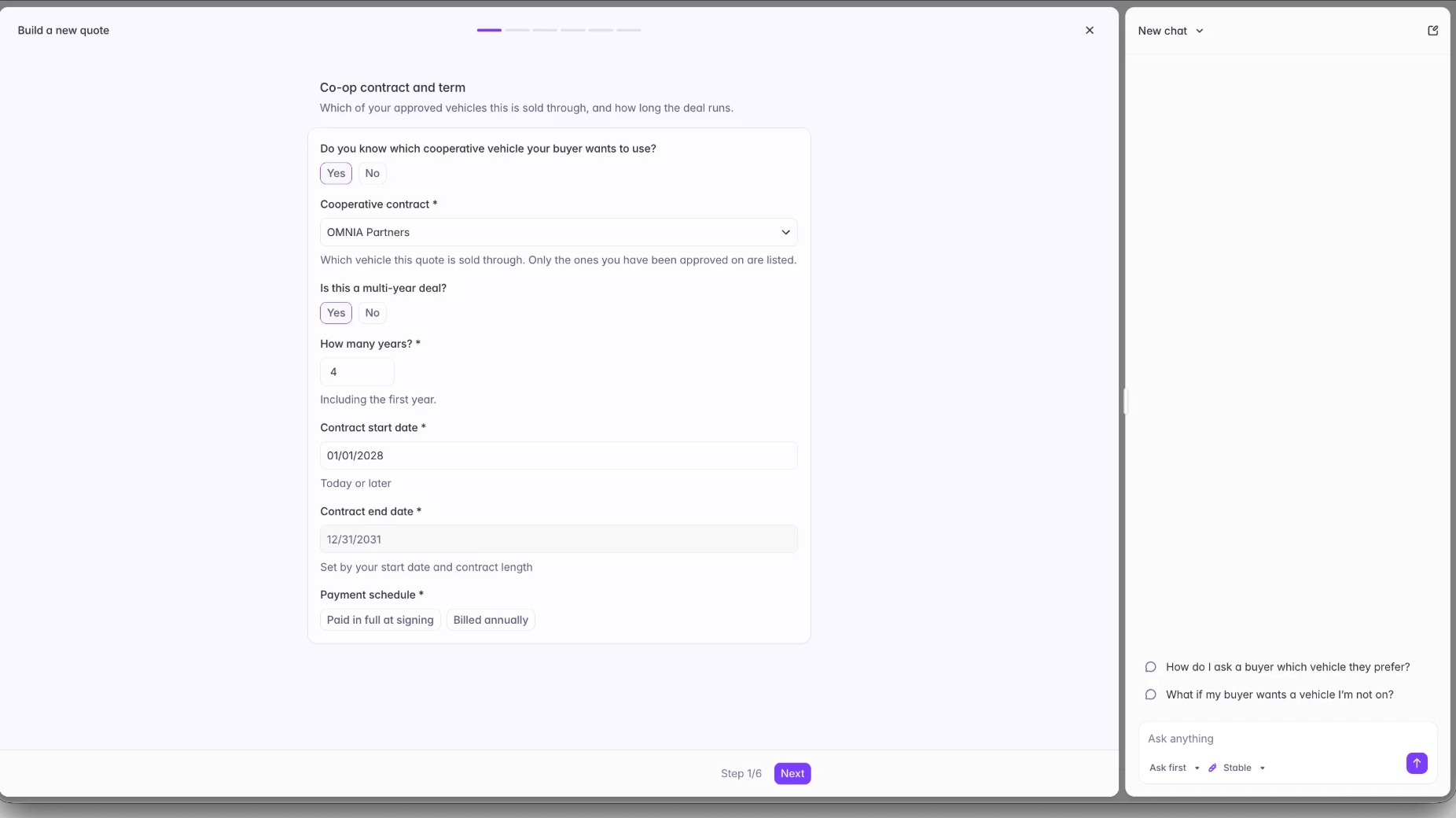 Only vehicles you've been approved on are listed. If you don't know which one your buyer wants, answer **"No"** and Ask Starbridge opens alongside with prompts for working it out.
On a multi-year deal, the contract end date is set from your start date and term length, and you choose a payment schedule of **"Paid in full at signing"** or **"Billed annually"**.
Your details come from onboarding. Change anything that's different on this quote.
Only vehicles you've been approved on are listed. If you don't know which one your buyer wants, answer **"No"** and Ask Starbridge opens alongside with prompts for working it out.
On a multi-year deal, the contract end date is set from your start date and term length, and you choose a payment schedule of **"Paid in full at signing"** or **"Billed annually"**.
Your details come from onboarding. Change anything that's different on this quote.
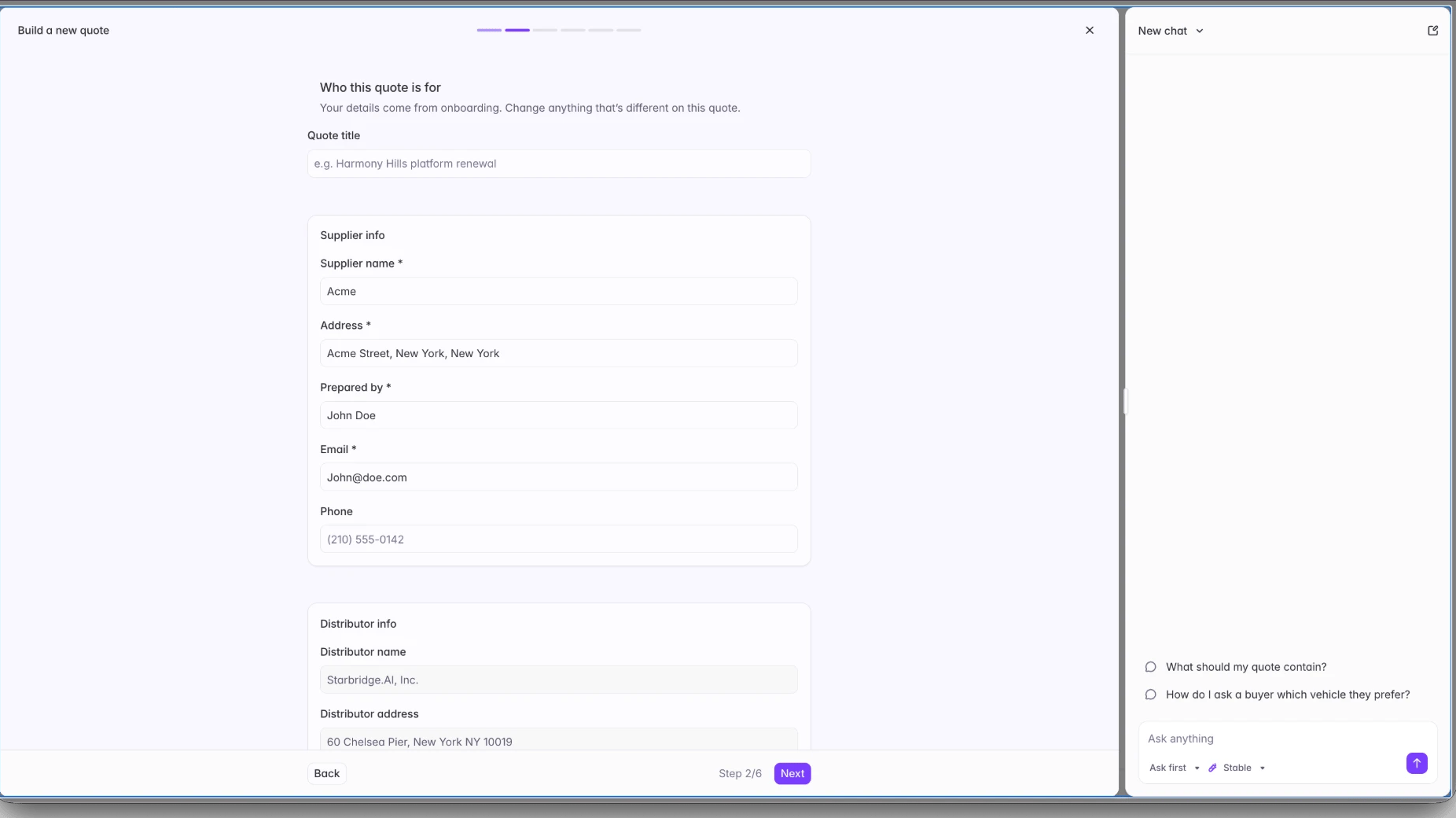 The distributor block is Starbridge and can't be edited. Your customer is picked from a list.
One line per product, with its quantity and what it costs.
The distributor block is Starbridge and can't be edited. Your customer is picked from a list.
One line per product, with its quantity and what it costs.
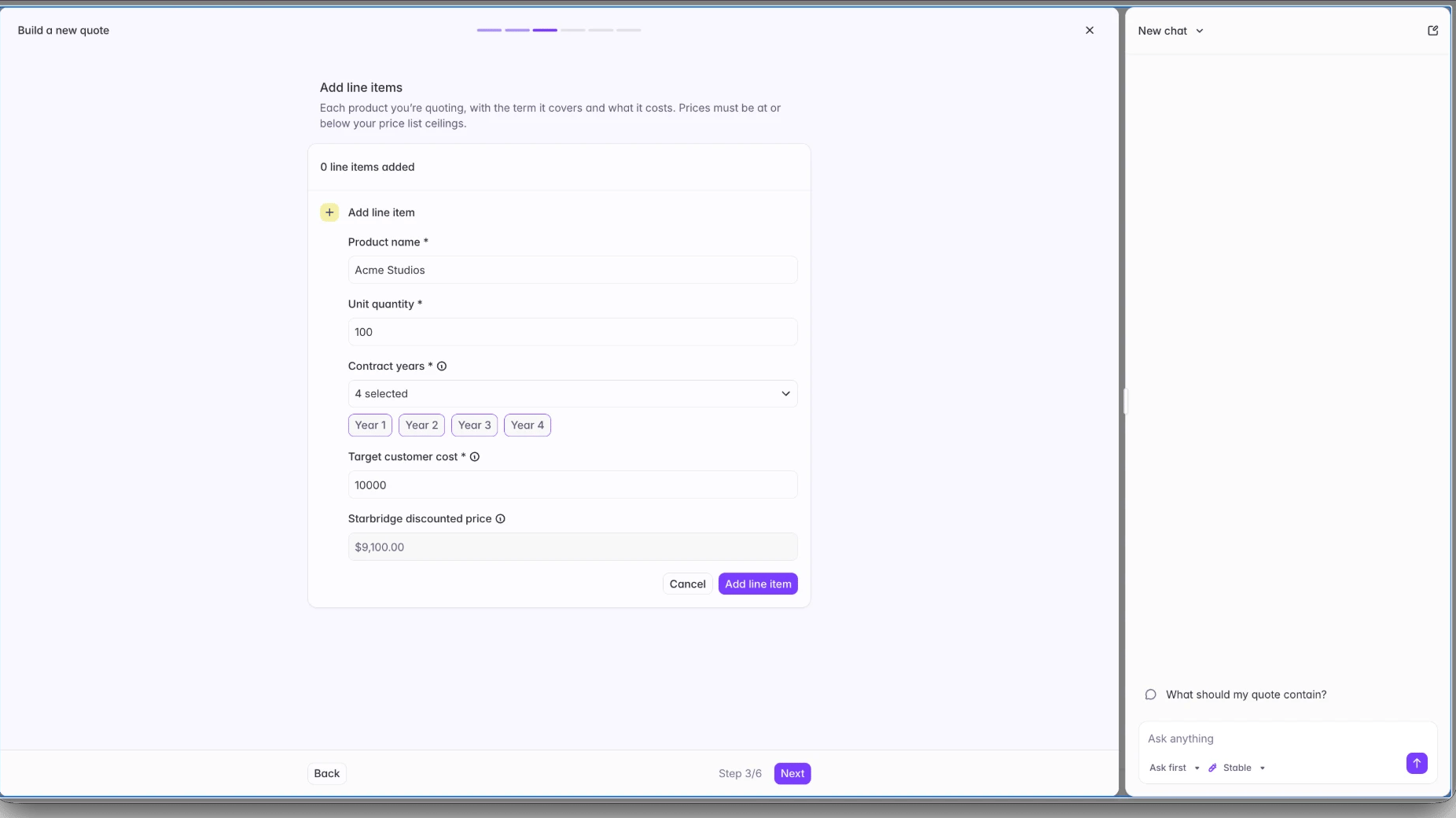 Prices must be at or below your price list ceilings. **"Target customer cost"** is what your buyer pays. **"Starbridge discounted price"** is calculated from it, net of your agreed distribution discount.
Every line needs a product name, a quantity, and the target customer cost. On a multi-year deal it also needs at least one contract year, and a single line can span several of them.
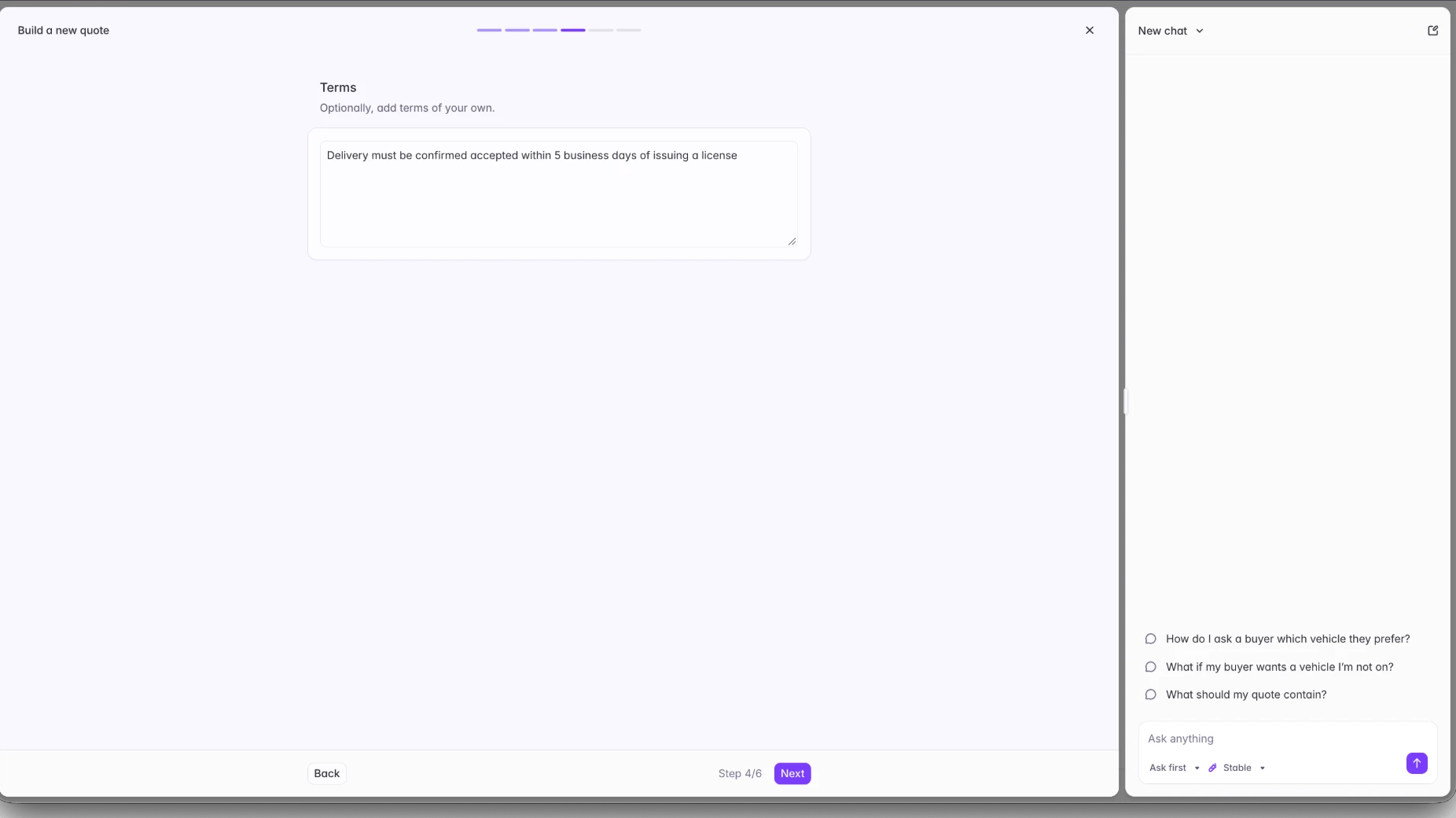
Optional. Add any terms of your own.
Prices must be at or below your price list ceilings. **"Target customer cost"** is what your buyer pays. **"Starbridge discounted price"** is calculated from it, net of your agreed distribution discount.
Every line needs a product name, a quantity, and the target customer cost. On a multi-year deal it also needs at least one contract year, and a single line can span several of them.
Optional. Add any terms of your own.
 The EULA you gave us during onboarding attaches to every quote you send. Confirm it here.
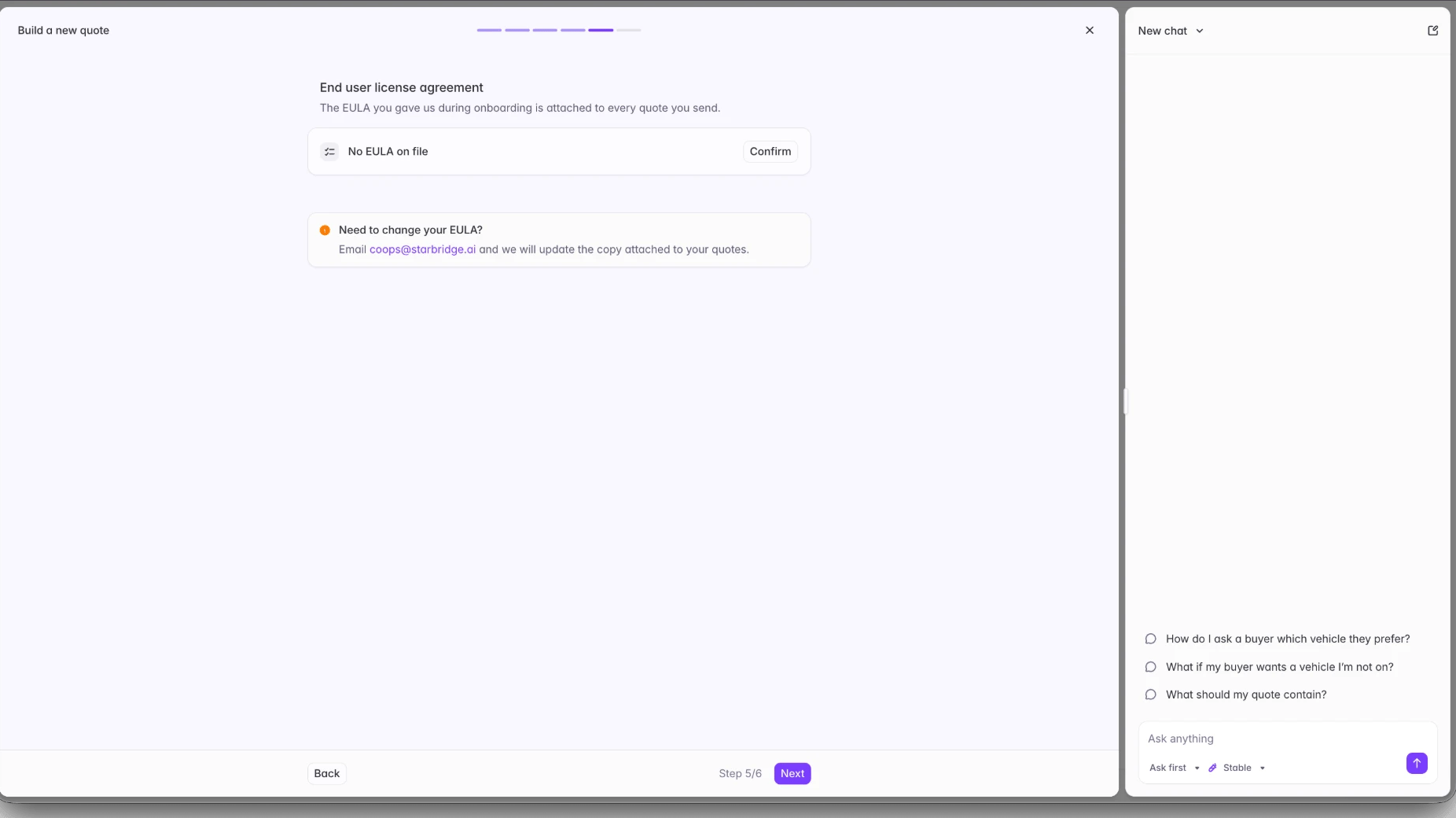 To change it, email [coops@starbridge.ai](mailto:coops@starbridge.ai) and we'll update the copy attached to your quotes.
Check the whole quote, then click **"Submit quote"**.
To change it, email [coops@starbridge.ai](mailto:coops@starbridge.ai) and we'll update the copy attached to your quotes.
Check the whole quote, then click **"Submit quote"**.
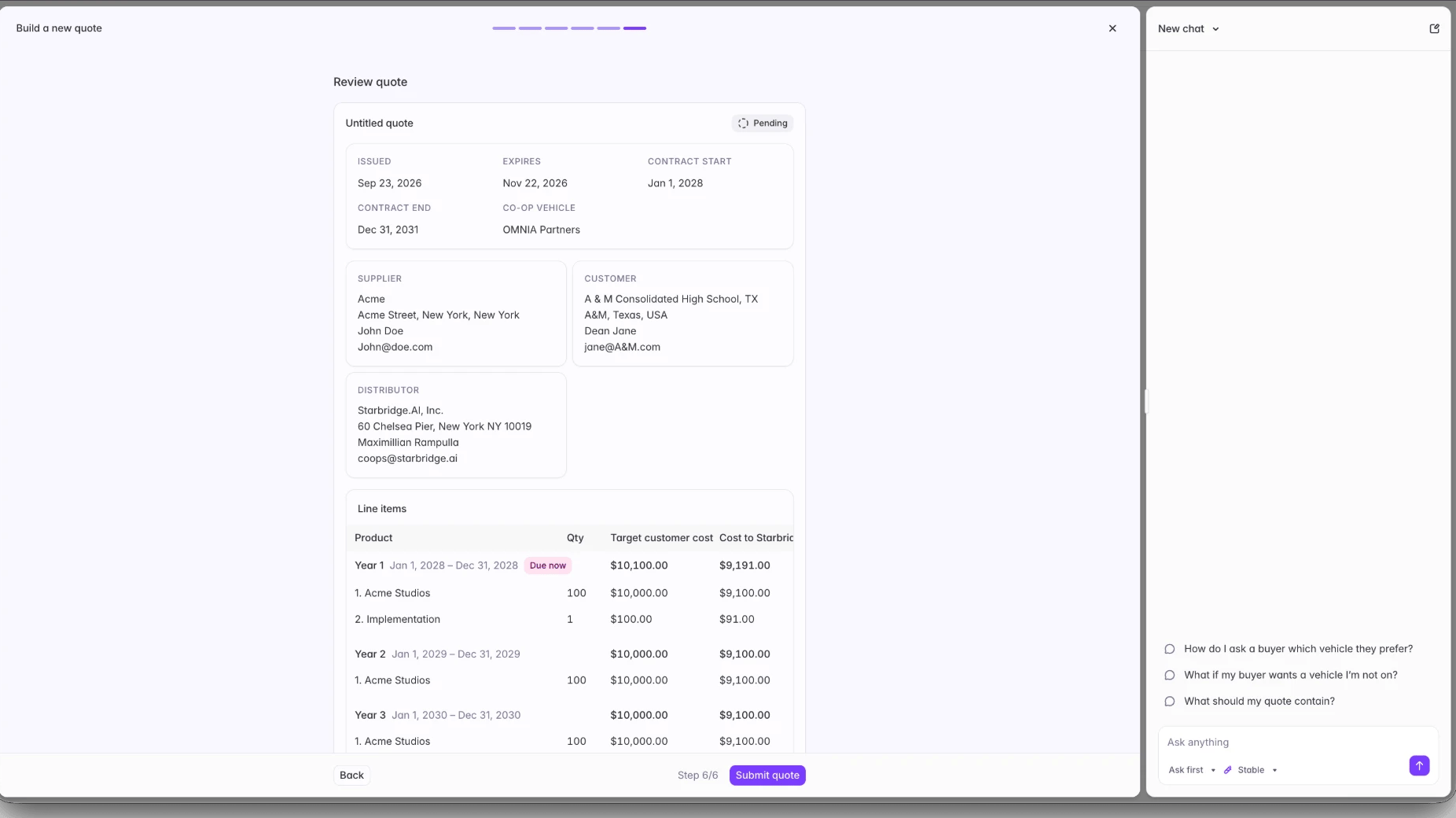 A multi-year quote breaks out year by year, with the first year marked **Due now**. The quote carries an issue date and an expiry date, and starts as **Pending**.
Attach a quote you've already made. Five steps, and your line items stay in the file.
Pick the vehicle this quote sells through, then set how long the deal runs.
Only vehicles you've been approved on are listed. If you don't know which one your buyer wants, answer **"No"** and Ask Starbridge opens alongside with prompts for working it out.
On a multi-year deal, the contract end date is set from your start date and term length, and you choose a payment schedule of **"Paid in full at signing"** or **"Billed annually"**.
Name the quote, confirm who it's for, and attach your PDF.
A multi-year quote breaks out year by year, with the first year marked **Due now**. The quote carries an issue date and an expiry date, and starts as **Pending**.
Attach a quote you've already made. Five steps, and your line items stay in the file.
Pick the vehicle this quote sells through, then set how long the deal runs.
Only vehicles you've been approved on are listed. If you don't know which one your buyer wants, answer **"No"** and Ask Starbridge opens alongside with prompts for working it out.
On a multi-year deal, the contract end date is set from your start date and term length, and you choose a payment schedule of **"Paid in full at signing"** or **"Billed annually"**.
Name the quote, confirm who it's for, and attach your PDF.
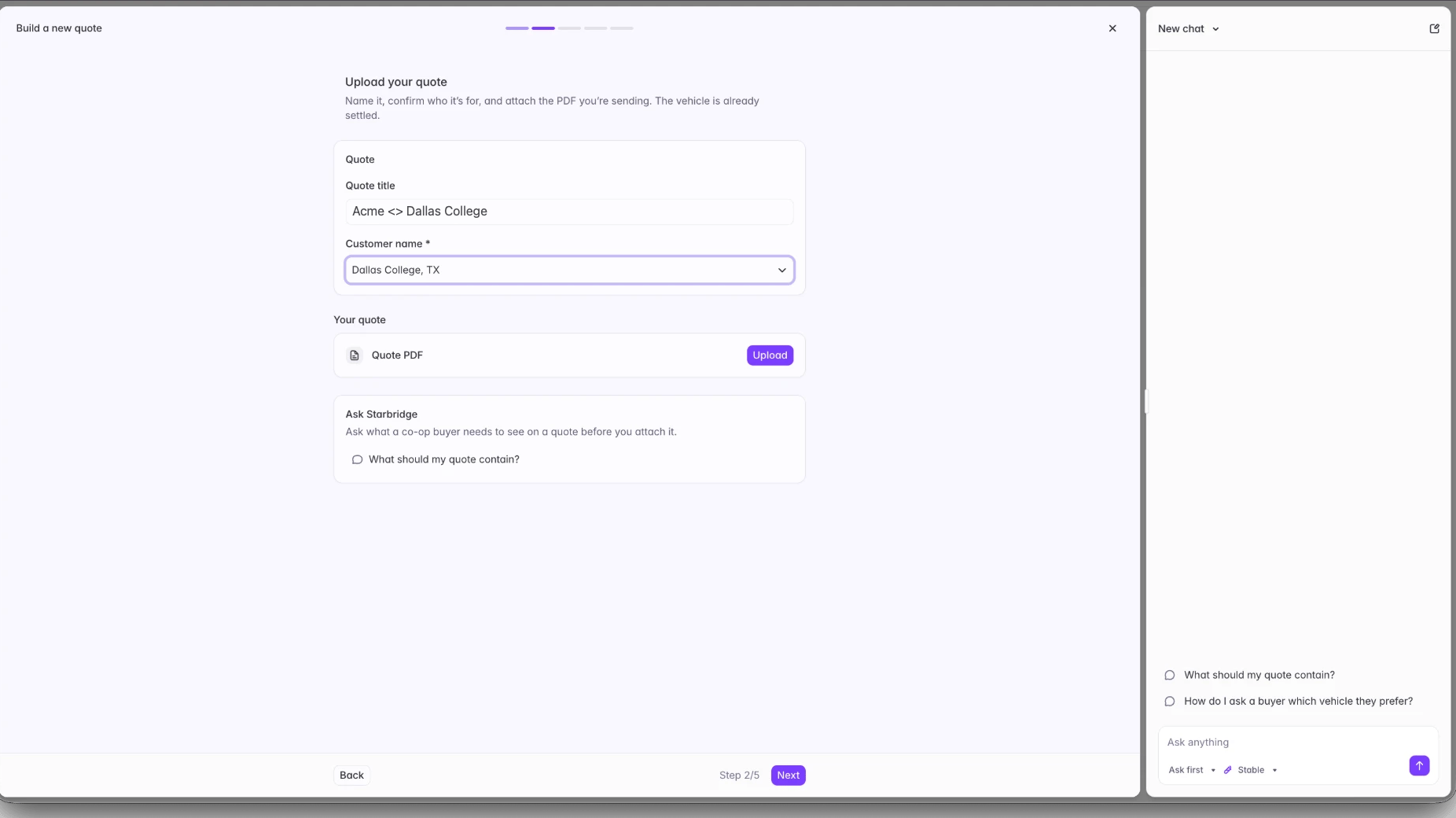 Your PDF has to carry the same information the Starbridge builder collects:
* **Your details.** Supplier name, address, and who prepared the quote, with an email.
* **The customer.** The buying entity, its address, and your contact there.
* **Starbridge as the distributor.** Starbridge.AI, Inc., 60 Chelsea Pier, New York NY 10019.
* **The co-op vehicle.** Which contract the deal sells through.
* **The term.** Contract start and end dates, plus the payment schedule on a multi-year deal.
* **Line items.** Each product with its quantity, the years it covers on a multi-year deal, and two prices: the target end customer price, and the price to Starbridge net of your agreed distribution discount. Prices must be at or below your price list ceilings.
* **Any terms of your own.**
Ask Starbridge sits under the upload and can answer the same question against your own setup.
The EULA you gave us during onboarding attaches to every quote you send. Confirm it here.
To change it, email [coops@starbridge.ai](mailto:coops@starbridge.ai) and we'll update the copy attached to your quotes.
Optional. Add any terms of your own.
Check the quote, then click **"Submit quote"**.
Your PDF has to carry the same information the Starbridge builder collects:
* **Your details.** Supplier name, address, and who prepared the quote, with an email.
* **The customer.** The buying entity, its address, and your contact there.
* **Starbridge as the distributor.** Starbridge.AI, Inc., 60 Chelsea Pier, New York NY 10019.
* **The co-op vehicle.** Which contract the deal sells through.
* **The term.** Contract start and end dates, plus the payment schedule on a multi-year deal.
* **Line items.** Each product with its quantity, the years it covers on a multi-year deal, and two prices: the target end customer price, and the price to Starbridge net of your agreed distribution discount. Prices must be at or below your price list ceilings.
* **Any terms of your own.**
Ask Starbridge sits under the upload and can answer the same question against your own setup.
The EULA you gave us during onboarding attaches to every quote you send. Confirm it here.
To change it, email [coops@starbridge.ai](mailto:coops@starbridge.ai) and we'll update the copy attached to your quotes.
Optional. Add any terms of your own.
Check the quote, then click **"Submit quote"**.
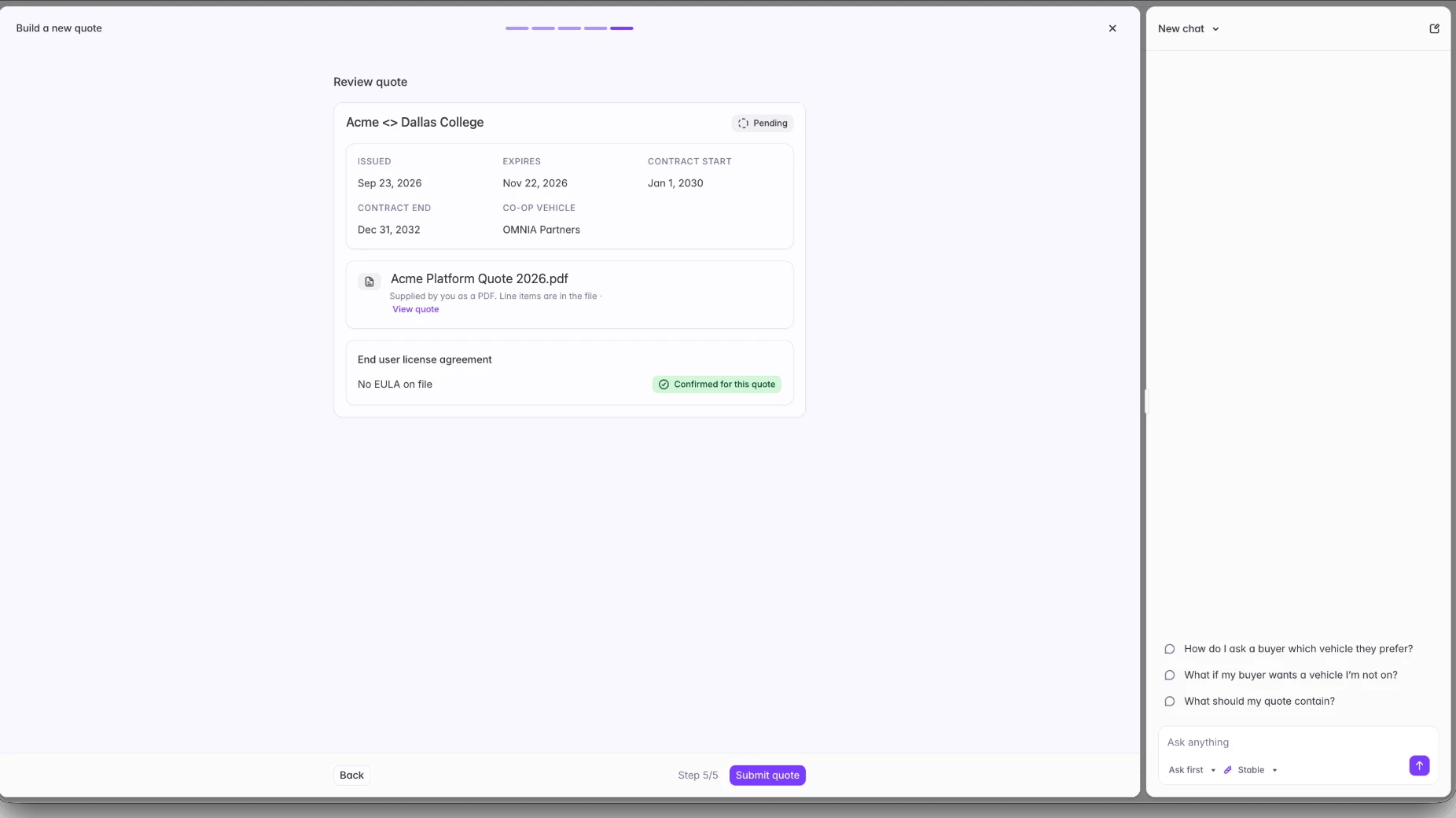 Your PDF shows as an attachment you can open with **"View quote"**, and the EULA reads **Confirmed for this quote**. There's no line item breakdown here, because those live in your file.
## What happens after you submit
We check the details. If anything needs changing it comes back to you to resubmit.
Once yours is clean, Starbridge issues its own quote to the cooperative.
Questions come to Starbridge first. We answer what we can, and come to you only when we need detail that has to come from you.
Once there are no further questions, it goes out.
## From quote to purchase order
Your buyer issues the purchase order against the quote.
You sign the purchase order.
Signing obligates you to deliver, and to evidence that delivery.
Payment follows the proof of delivery.
If your buyer raises issues instead of issuing a PO, where it goes depends on what kind:
* **Contract level.** Reissued and sent back to the buyer, without restarting the quote.
* **Pricing or EULA.** Comes back to you to renegotiate, and the quote starts over.
## Questions about a quote
Ask Starbridge sits alongside every step of the quote builder and can answer most questions as you go. For anything specific to a live deal, reach out to your GTME.
## Related articles
Get approved on the co-ops you want to sell through, and set your price list ceilings.
How contract vehicles work, what qualifies, costs, and timelines per vehicle.
Your PDF shows as an attachment you can open with **"View quote"**, and the EULA reads **Confirmed for this quote**. There's no line item breakdown here, because those live in your file.
## What happens after you submit
We check the details. If anything needs changing it comes back to you to resubmit.
Once yours is clean, Starbridge issues its own quote to the cooperative.
Questions come to Starbridge first. We answer what we can, and come to you only when we need detail that has to come from you.
Once there are no further questions, it goes out.
## From quote to purchase order
Your buyer issues the purchase order against the quote.
You sign the purchase order.
Signing obligates you to deliver, and to evidence that delivery.
Payment follows the proof of delivery.
If your buyer raises issues instead of issuing a PO, where it goes depends on what kind:
* **Contract level.** Reissued and sent back to the buyer, without restarting the quote.
* **Pricing or EULA.** Comes back to you to renegotiate, and the quote starts over.
## Questions about a quote
Ask Starbridge sits alongside every step of the quote builder and can answer most questions as you go. For anything specific to a live deal, reach out to your GTME.
## Related articles
Get approved on the co-ops you want to sell through, and set your price list ceilings.
How contract vehicles work, what qualifies, costs, and timelines per vehicle.