> ## Documentation Index
> Fetch the complete documentation index at: https://hc.starbridge.ai/llms.txt
> Use this file to discover all available pages before exploring further.
# CRM enrichment columns
> Pull CRM records into Starbridge, and push Starbridge data back to your CRM.
CRM enrichment columns connect Starbridge data to your CRM without leaving Starbridge. There are two column types that work together: **lookup columns** pull CRM records into each row of a bridge, and **sync columns** push data from Starbridge back into Salesforce or HubSpot.
Adding lookup and sync columns is available to all builders. Enabling the objects and fields that those columns can access is an admin-only step — ask your Starbridge admin if you don't see the objects or fields you need.
## Prerequisites
Before adding CRM enrichment columns to a bridge, an admin must connect your Salesforce or HubSpot integration and enable the relevant objects and fields in **Settings > Integrations > \[your CRM integration] > Objects and fields**.
See [Connecting your CRM](/admins/connecting-your-crm) for setup instructions. If you're not sure whether your integration is configured correctly, check with your Starbridge admin.
## Lookup columns
A lookup column finds a CRM record — an account, contact, opportunity, or custom object — for each row in your bridge. Lookup columns are the foundation for sync columns: before you can push data into the right CRM record, Starbridge needs to know which record to update.
### **To add a lookup column**
Click **Add enrichment → Configure integration → Pull data from my CRM**. Name the column, choose your CRM account, and select the object type to look up.
### **Matching logic**
For **Salesforce Account or HubSpot Company objects**, you'll see an **Account matching** option. When enabled, Starbridge resolves the CRM account for each buyer using your org-level account matching settings, then falls back to any custom rules you define.
For all other object types — or if you disable automatic account matching — define your own lookup rules. Rules work as a series of if-else statements: each block compares a CRM field to a value in your bridge, and Starbridge returns the first object that matches.
Here you can define custom lookup rules, like: **Match if CRM Contact Email equals Starbridge Contact Email, or if CRM Starbridge Contact ID equals Starbridge Contact ID.**
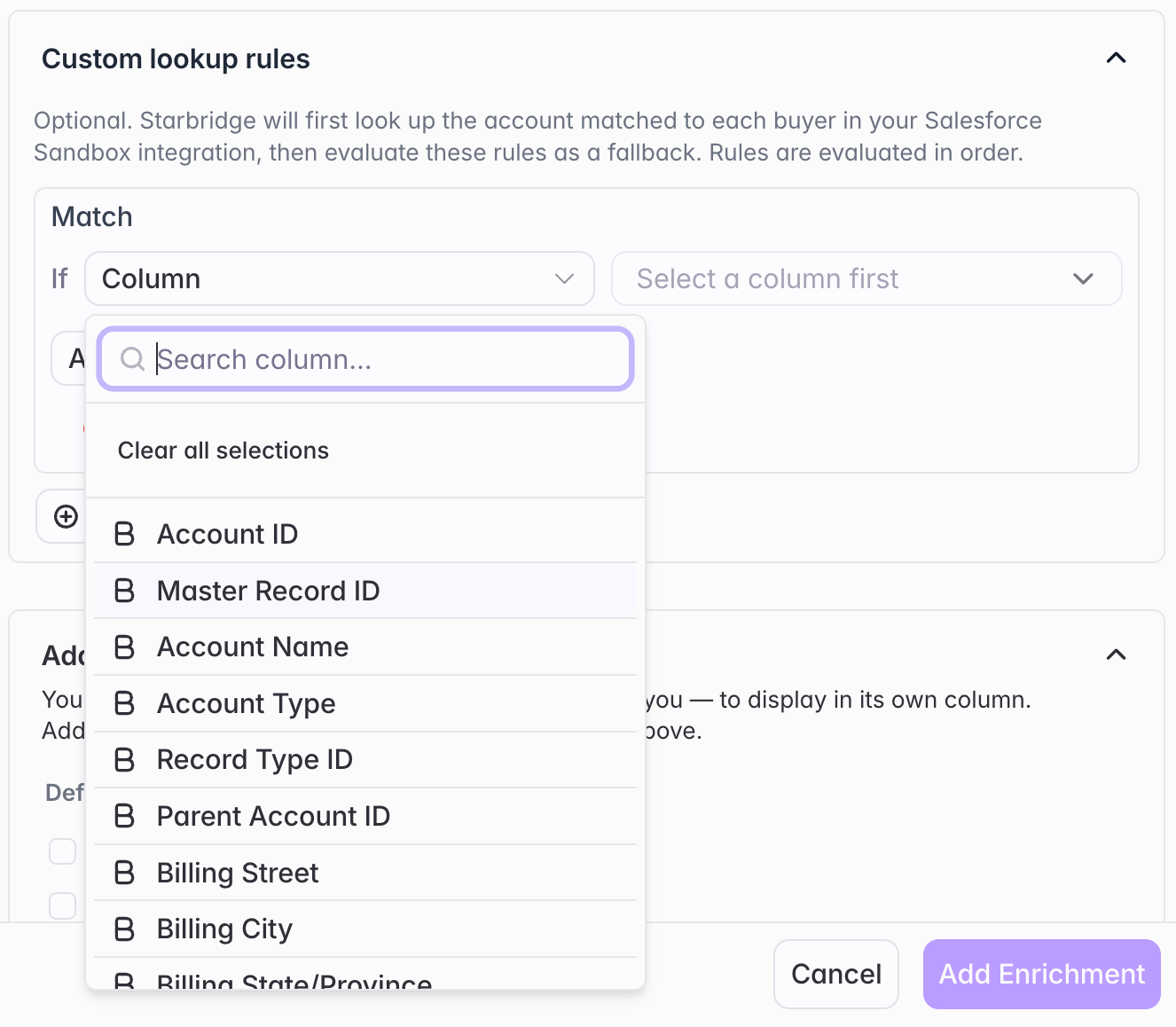 A lookup column can only return one object per row. If multiple CRM records match your rules, the cell will show a **multiple match** warning. Tighten your matching rules or add a more specific identifier to resolve it.
### **Lookup results**
Once the column runs, each cell shows one of three states:
* **No match** — no CRM object matched your rules
* **One match** — a single object was found
* **Multiple matches** — more than one object matched your rules
Click into any cell to view the details of the matched object.
### **Using lookup output**
Lookup columns behave like any other multi-value column in Starbridge. You can use the result as an input to other columns (for example, an AI Analysis or Web Agent column), or pull a specific field from the matched object as a standalone reference column via **Add enrichment → Reference existing data → Reference a column**.
You can add multiple lookup columns to the same bridge.
## Sync columns
A sync column pushes data from a bridge into Salesforce or HubSpot. In most cases you'll set up one or more lookup columns first so Starbridge knows which CRM records to update.
### **To add a sync column**
Click **Add enrichment → Configure integration → Send data to my CRM**. Name the column, select your CRM account, and choose the object type to sync.
### **Sync modes**
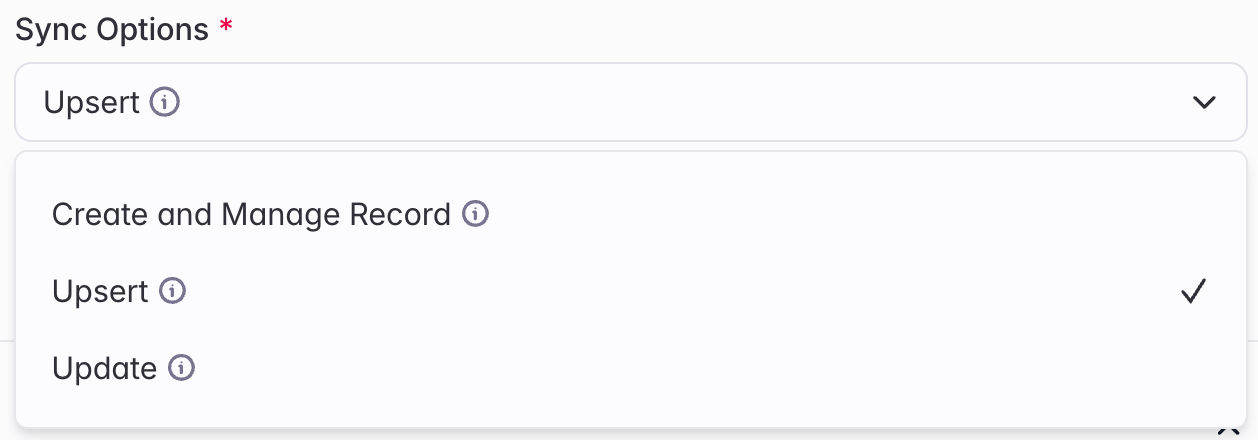
There are three sync modes:
* **Create and manage record** — creates a new record. Can optionally keep the record updated as data changes in Starbridge.
* **Upsert** (**recommended**) — updates the record if a match exists; creates a new one if it doesn't. Requires a lookup column or account matching.
* **Update only** — updates the record if a match exists; takes no action if it doesn't. Requires a lookup column or account matching.
A lookup column can only return one object per row. If multiple CRM records match your rules, the cell will show a **multiple match** warning. Tighten your matching rules or add a more specific identifier to resolve it.
### **Lookup results**
Once the column runs, each cell shows one of three states:
* **No match** — no CRM object matched your rules
* **One match** — a single object was found
* **Multiple matches** — more than one object matched your rules
Click into any cell to view the details of the matched object.
### **Using lookup output**
Lookup columns behave like any other multi-value column in Starbridge. You can use the result as an input to other columns (for example, an AI Analysis or Web Agent column), or pull a specific field from the matched object as a standalone reference column via **Add enrichment → Reference existing data → Reference a column**.
You can add multiple lookup columns to the same bridge.
## Sync columns
A sync column pushes data from a bridge into Salesforce or HubSpot. In most cases you'll set up one or more lookup columns first so Starbridge knows which CRM records to update.
### **To add a sync column**
Click **Add enrichment → Configure integration → Send data to my CRM**. Name the column, select your CRM account, and choose the object type to sync.
### **Sync modes**
There are three sync modes:
* **Create and manage record** — creates a new record. Can optionally keep the record updated as data changes in Starbridge.
* **Upsert** (**recommended**) — updates the record if a match exists; creates a new one if it doesn't. Requires a lookup column or account matching.
* **Update only** — updates the record if a match exists; takes no action if it doesn't. Requires a lookup column or account matching.
 See [Salesforce + HubSpot](/crm-integration) for guidance on choosing the right sync mode for your use case.
### **Field mapping**
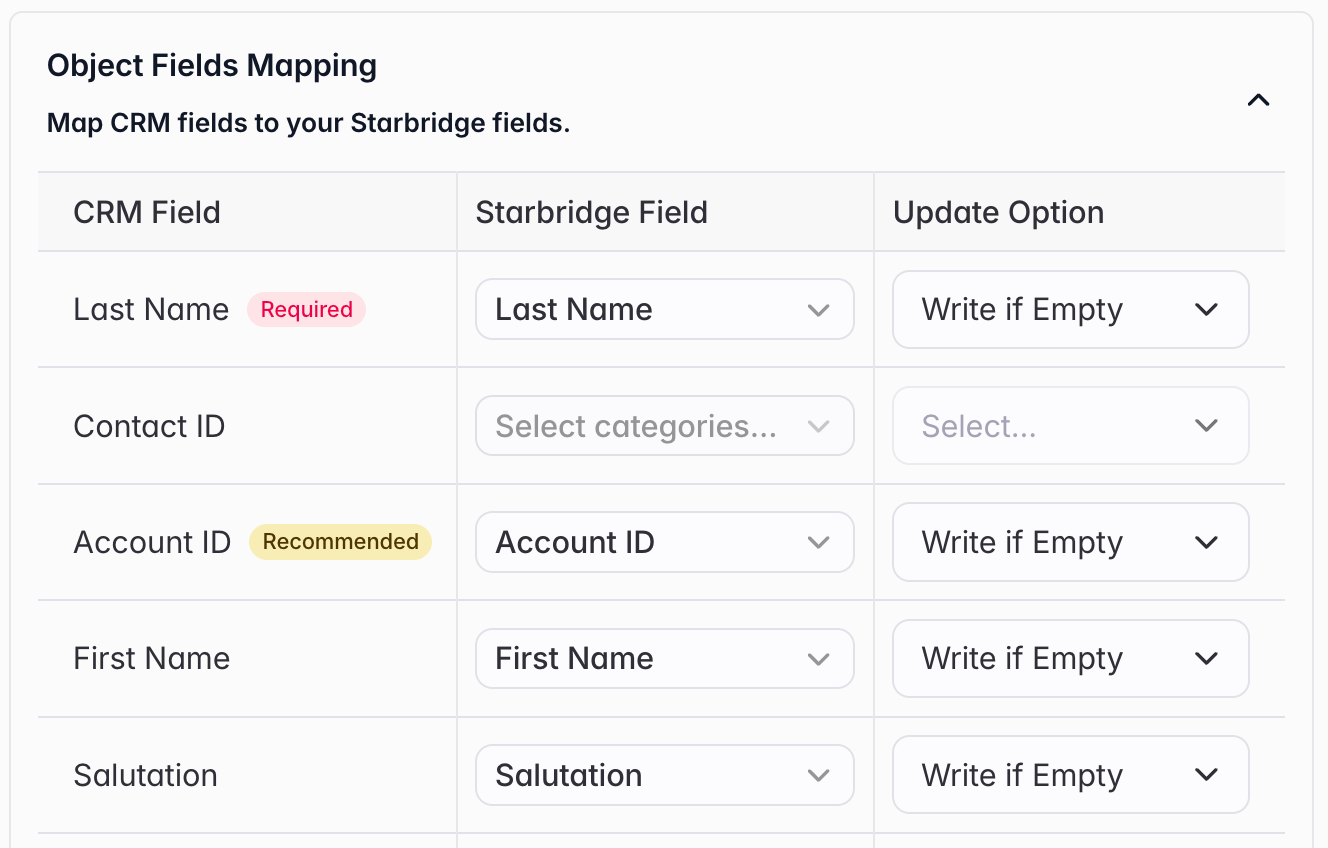
Starbridge displays CRM fields on the left. For each one, select the bridge column you want to map on the right — only type-compatible fields can be mapped.
For each mapped field, choose a write behavior:
* **Write if empty** — only fills the field if it has no current value in your CRM
* **Overwrite** — always writes the Starbridge value, replacing whatever is in your CRM
See [Salesforce + HubSpot](/crm-integration) for guidance on choosing the right sync mode for your use case.
### **Field mapping**
Starbridge displays CRM fields on the left. For each one, select the bridge column you want to map on the right — only type-compatible fields can be mapped.
For each mapped field, choose a write behavior:
* **Write if empty** — only fills the field if it has no current value in your CRM
* **Overwrite** — always writes the Starbridge value, replacing whatever is in your CRM
 ### **Run conditions**
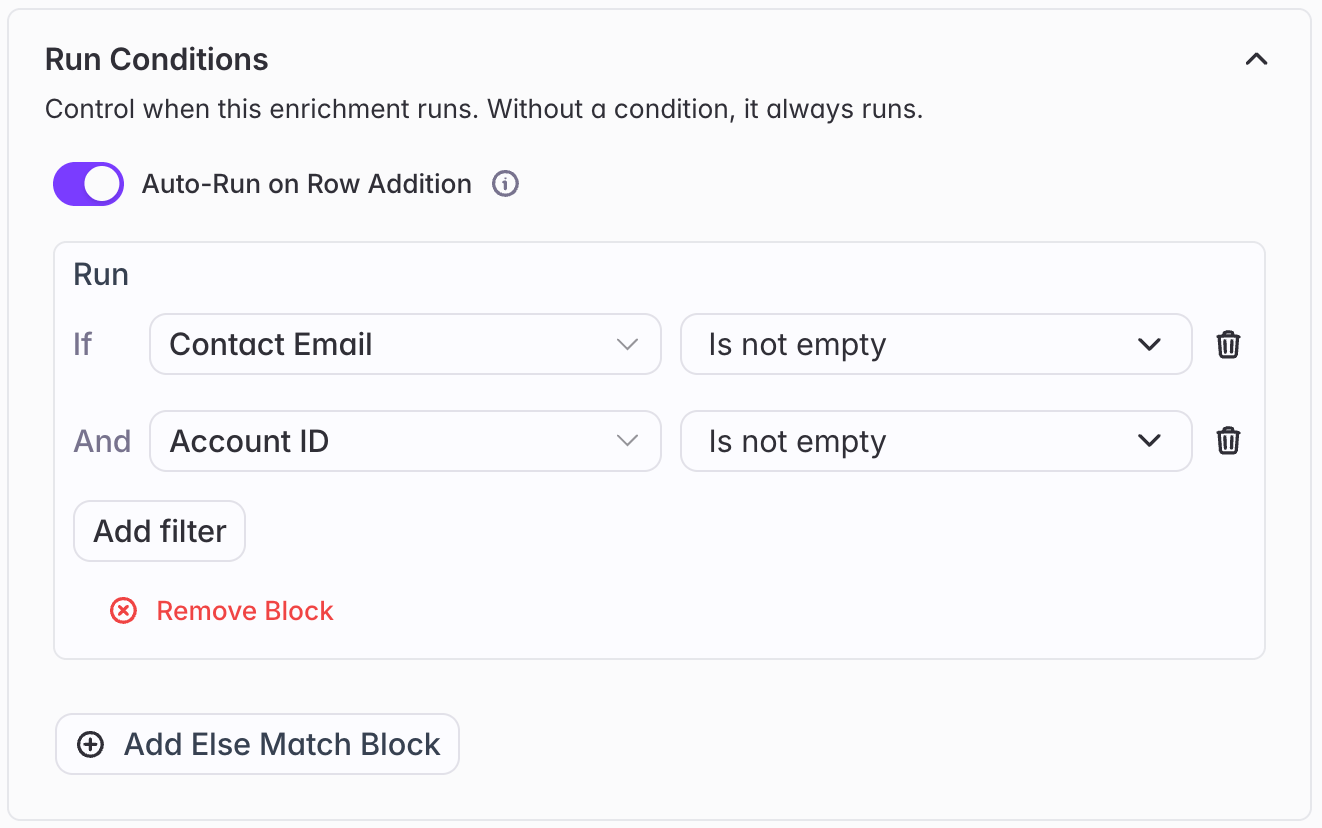
Run conditions let you control whether a sync column executes for a given row. For example, you might only want to sync a contact if the account lookup found a match, or only create a record if an email address is present.
### **Run conditions**
Run conditions let you control whether a sync column executes for a given row. For example, you might only want to sync a contact if the account lookup found a match, or only create a record if an email address is present.
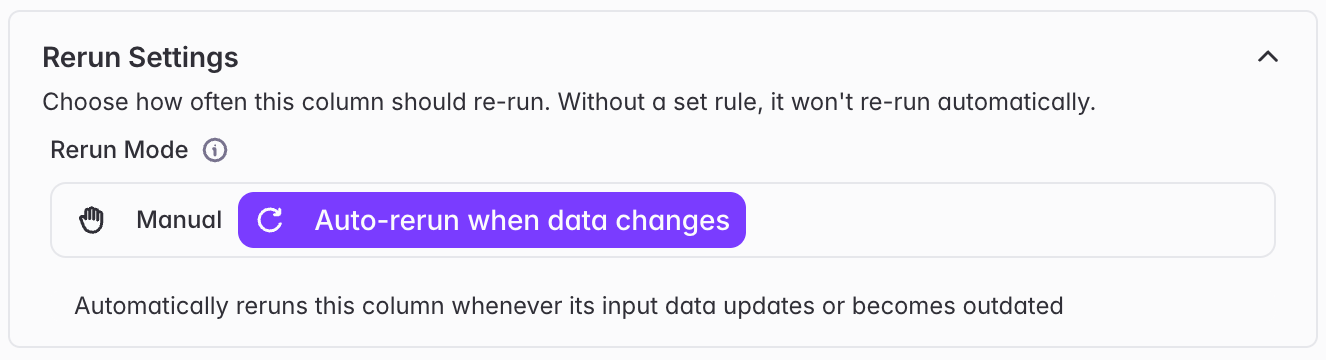
 ### **Rerun settings**
Rerun settings let you control how often Starbridge reruns the sync. For example, you might want to resync anytime data changes or only when you want to manually push an update.
When syncing the Contact object, set this to **Auto-rerun when data changes** so that Starbridge pushes updates to a contact's Is Active status to your CRM.
### **Rerun settings**
Rerun settings let you control how often Starbridge reruns the sync. For example, you might want to resync anytime data changes or only when you want to manually push an update.
When syncing the Contact object, set this to **Auto-rerun when data changes** so that Starbridge pushes updates to a contact's Is Active status to your CRM.
 ### **Sync status**
After the column runs, each cell shows a sync status: **Success**, **Skipped: Run condition not met**, **No action taken**, or **Error** with an error message. Click into any cell to see a full history of syncs for that row.
When Starbridge initially runs the sync, it will show a **Success** message. Starbridge will often rerun the sync to check for updates. When there are no updates, the message will change to **No action taken**. You can click into the cell to see the full sync history, including the original **Success**.
## Common patterns
### Sync contacts to your CRM
See [Sync contacts to your CRM](/integrations/sync-contacts-to-your-crm).
### Sync account data to your CRM
Add a **Pull data from my CRM** column for the Account or Company object. Configure it using your org-level account matching settings or a custom matching rule.
Add a **Push data to my CRM** column for the Account or Company object and set the sync type to **Update only**.
Map each Starbridge column to the corresponding CRM account field. For fields like scores or enrichment data that should always reflect the latest value from Starbridge, use **Overwrite**. For fields you only want to fill once, use **Write if empty**.
## HubSpot-specific details
### Normalized fields
HubSpot doesn't differentiate between field types for several categories of data that Salesforce treats distinctly. As a result, Starbridge exposes a **Normalized** checkbox across a range of fields in the sync configuration UI.
Starbridge provides built-in normalizations for:
* **Emails** — strips whitespace, lowercases, and standardizes format for consistent matching
* **URLs and domains** — strips protocol, trailing slashes, and `www.` prefixes for consistent matching
Select the **Normalized** option whenever you're referencing a field that can be normalized. This improves match accuracy and keeps lookup and sync behavior consistent — especially important for contact deduplication where a small formatting difference can cause a match to fail.
## Next steps
Setup guide for connecting your CRM and configuring objects and fields.
Map your CRM accounts to Starbridge buyers — the foundation for all CRM enrichment columns.
### **Sync status**
After the column runs, each cell shows a sync status: **Success**, **Skipped: Run condition not met**, **No action taken**, or **Error** with an error message. Click into any cell to see a full history of syncs for that row.
When Starbridge initially runs the sync, it will show a **Success** message. Starbridge will often rerun the sync to check for updates. When there are no updates, the message will change to **No action taken**. You can click into the cell to see the full sync history, including the original **Success**.
## Common patterns
### Sync contacts to your CRM
See [Sync contacts to your CRM](/integrations/sync-contacts-to-your-crm).
### Sync account data to your CRM
Add a **Pull data from my CRM** column for the Account or Company object. Configure it using your org-level account matching settings or a custom matching rule.
Add a **Push data to my CRM** column for the Account or Company object and set the sync type to **Update only**.
Map each Starbridge column to the corresponding CRM account field. For fields like scores or enrichment data that should always reflect the latest value from Starbridge, use **Overwrite**. For fields you only want to fill once, use **Write if empty**.
## HubSpot-specific details
### Normalized fields
HubSpot doesn't differentiate between field types for several categories of data that Salesforce treats distinctly. As a result, Starbridge exposes a **Normalized** checkbox across a range of fields in the sync configuration UI.
Starbridge provides built-in normalizations for:
* **Emails** — strips whitespace, lowercases, and standardizes format for consistent matching
* **URLs and domains** — strips protocol, trailing slashes, and `www.` prefixes for consistent matching
Select the **Normalized** option whenever you're referencing a field that can be normalized. This improves match accuracy and keeps lookup and sync behavior consistent — especially important for contact deduplication where a small formatting difference can cause a match to fail.
## Next steps
Setup guide for connecting your CRM and configuring objects and fields.
Map your CRM accounts to Starbridge buyers — the foundation for all CRM enrichment columns.