> ## Documentation Index
> Fetch the complete documentation index at: https://hc.starbridge.ai/llms.txt
> Use this file to discover all available pages before exploring further.
# Referencing data from another Bridge
> Bring signals from your other Bridges onto a list of buyers, so you can see where and when each buyer shows up across Starbridge.
## What it does
Referencing is built to enrich a **list of Buyers** — so you'll add it to a **Buyer Bridge**, the Bridge that holds the accounts you care about. On its own, a Buyer Bridge tells you about each account (size, location, attributes).
**Referencing another Bridge** helps you check each Buyer on your list against another Bridge and tells you whether, or how often, that Buyer shows up there. You can reference **any Bridge except another Buyer Bridge**: Meetings, RFPs, Purchases, Conferences, and so on.
In plain terms: *"For each Buyer on my list, how many times have they appeared in my \[RFP / Meetings / Purchases] Bridge?"*
This is most often used to power **account scoring**: pulling each account's RFP activity, buying-intent meetings, and competitor contracts onto one list, then rolling those signals into a score. But it's just as useful on its own to spot which accounts are heating up.
## What it returns
The reference adds **one column** to your Buyer Bridge. For each account, the cell shows a **count** — how many matching items that account has in the Bridge you referenced. (An account can match several rows in the source Bridge, which is why you see a count instead of a single value. A `0` or blank means no matches.)
From a populated cell you can:
* **Click the count** to see a summary of the matched items
* Select **View Results in Reference Bridge** to open the source Bridge with that account pre-filtered, alongside all of its columns.
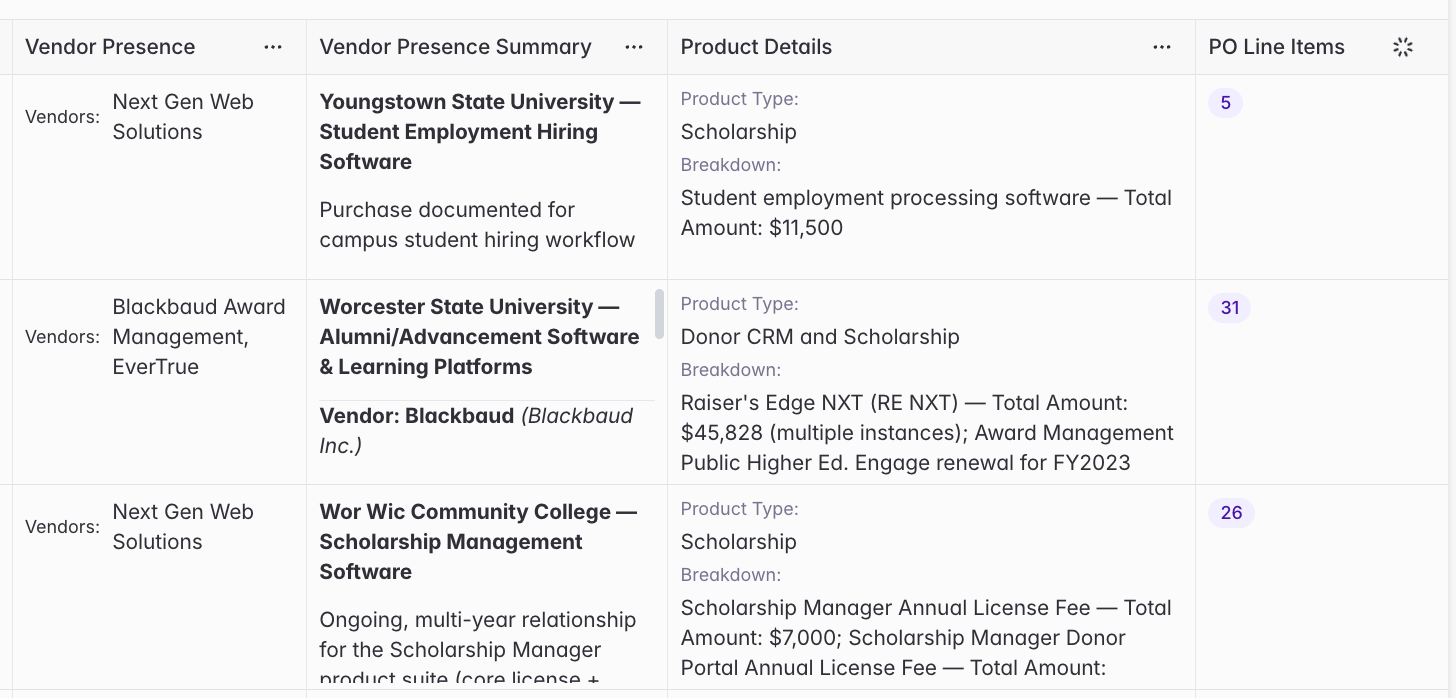
**Example:** You have a Buyer Bridge of target universities and community colleges, and you reference a Purchases Bridge. The reference column here — **PO Line Items** — counts how many matching purchase records each institution has: Youngstown State University shows `5`, Worcester State University shows `31`, and Wor Wic Community College shows `26`. Click a count to see the matched purchases (vendors, products, and amounts), so you know which accounts have the most relevant buying activity and can drill in to act on it.
 ## Example use cases
Each of these is a reference column added to a Buyer Bridge of your target accounts:
* **Flag accounts with open RFPs.** Reference an RFPs Bridge, filtered to active (unexpired) RFPs, to see which of your accounts have a live opportunity to pursue right now.
* **Surface buying intent.** Reference a Meetings Bridge that captures pain points or initiatives, so you can see which accounts are signaling intent — e.g., "all meetings, all dates, that mention budget shortfalls."
* **Catch expiring competitor contracts.** Reference a Purchases Bridge to see which accounts have a competitor contract — e.g., "actioned purchases in the last 12 months that name a competitor" — so you can time outreach ahead of a renewal.
* **Feed an account score.** Add several reference columns (RFPs, meetings, competitor contracts) and use them as inputs to an account scoring column that ranks your list.
## Set up a reference
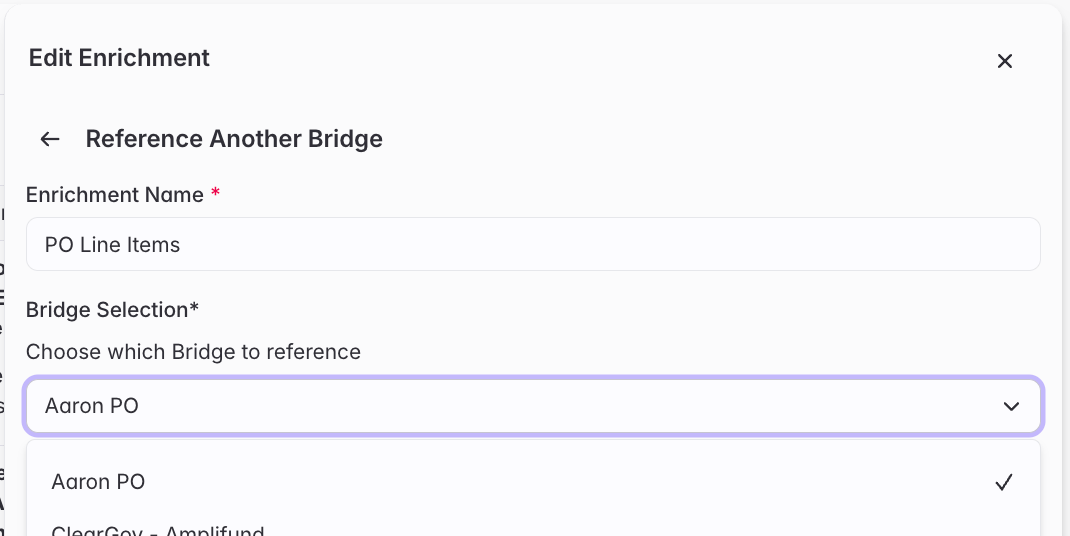
From your Buyer Bridge, click **Add enrichment**, choose **Reference another Bridge**, then configure it.
Pick any Bridge as the source — Meetings, RFPs, Purchases, Conferences, and so on — **except** another Buyer Bridge. This is the Bridge each account on your list will be checked against.
## Example use cases
Each of these is a reference column added to a Buyer Bridge of your target accounts:
* **Flag accounts with open RFPs.** Reference an RFPs Bridge, filtered to active (unexpired) RFPs, to see which of your accounts have a live opportunity to pursue right now.
* **Surface buying intent.** Reference a Meetings Bridge that captures pain points or initiatives, so you can see which accounts are signaling intent — e.g., "all meetings, all dates, that mention budget shortfalls."
* **Catch expiring competitor contracts.** Reference a Purchases Bridge to see which accounts have a competitor contract — e.g., "actioned purchases in the last 12 months that name a competitor" — so you can time outreach ahead of a renewal.
* **Feed an account score.** Add several reference columns (RFPs, meetings, competitor contracts) and use them as inputs to an account scoring column that ranks your list.
## Set up a reference
From your Buyer Bridge, click **Add enrichment**, choose **Reference another Bridge**, then configure it.
Pick any Bridge as the source — Meetings, RFPs, Purchases, Conferences, and so on — **except** another Buyer Bridge. This is the Bridge each account on your list will be checked against.
 Narrow what counts as a match by **status** (new, actioned, not interested, or all) and **time frame**, so the count reflects only the signals you care about. For example, choose *actioned* mentions in the *last 12 months* to ignore old or unreviewed signals.
Click **Add & Run Enrichment** to populate the column. Run a few rows first to confirm the counts look right, then run the rest.
## Related articles
Build a Buyers Bridge to enrich, score, and activate your target account list
Narrow what counts as a match by **status** (new, actioned, not interested, or all) and **time frame**, so the count reflects only the signals you care about. For example, choose *actioned* mentions in the *last 12 months* to ignore old or unreviewed signals.
Click **Add & Run Enrichment** to populate the column. Run a few rows first to confirm the counts look right, then run the rest.
## Related articles
Build a Buyers Bridge to enrich, score, and activate your target account list