> ## Documentation Index
> Fetch the complete documentation index at: https://hc.starbridge.ai/llms.txt
> Use this file to discover all available pages before exploring further.
# June 2026: Streamlined CRM integration
## Overview
Setting up an integration to your CRM requires you to decide which objects and fields to sync to Starbridge. Knowing which objects and fields to sync isn't always obvious. Sync too few and features don't work. Sync bit by bit and each new object or field triggers another resync, slowing your progress.
The new **Objects & fields** experience solves this problem. Starbridge now tells you exactly what to sync and why, connecting every object and field recommendation to the specific features it powers.
 ## What admins experience
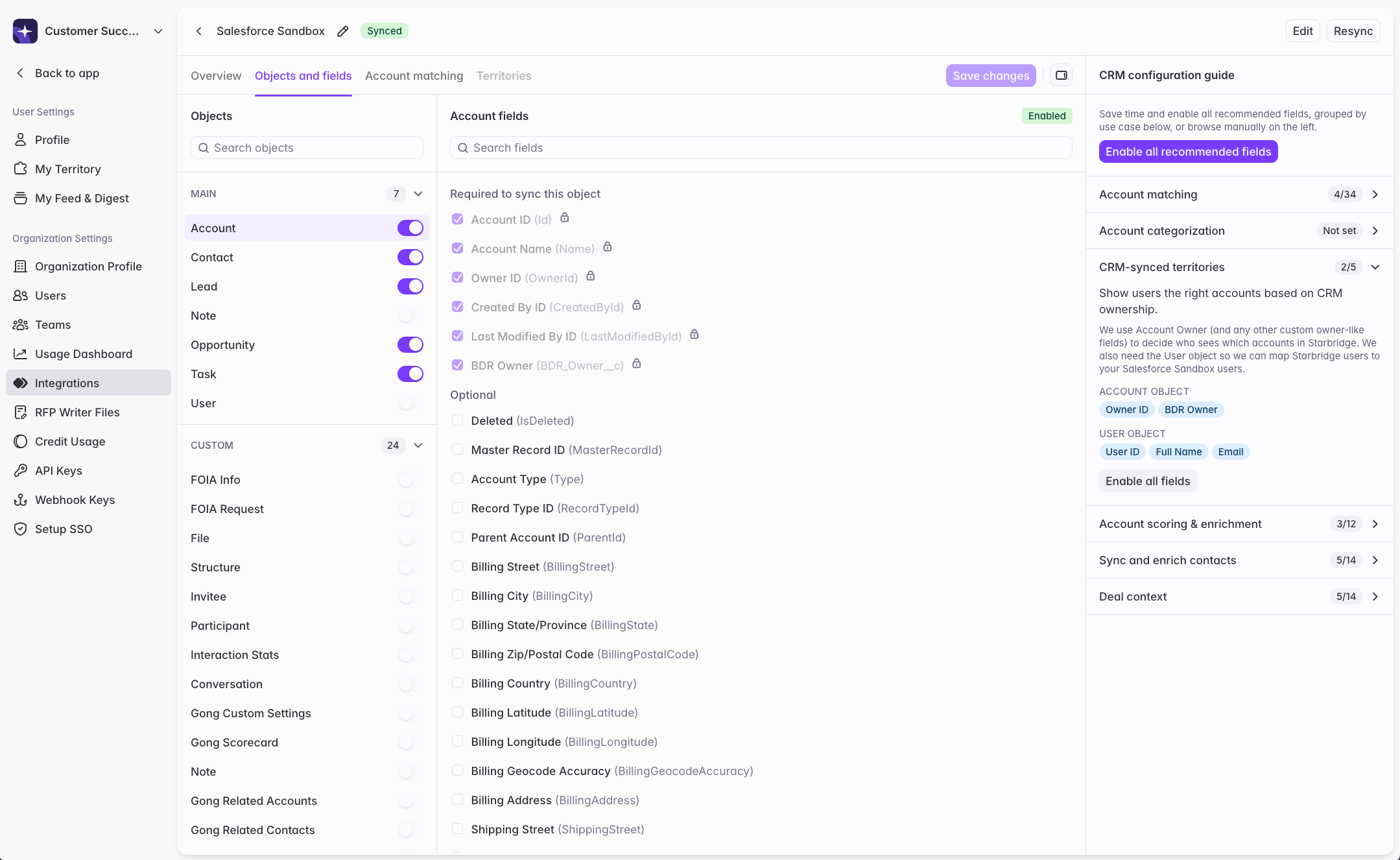
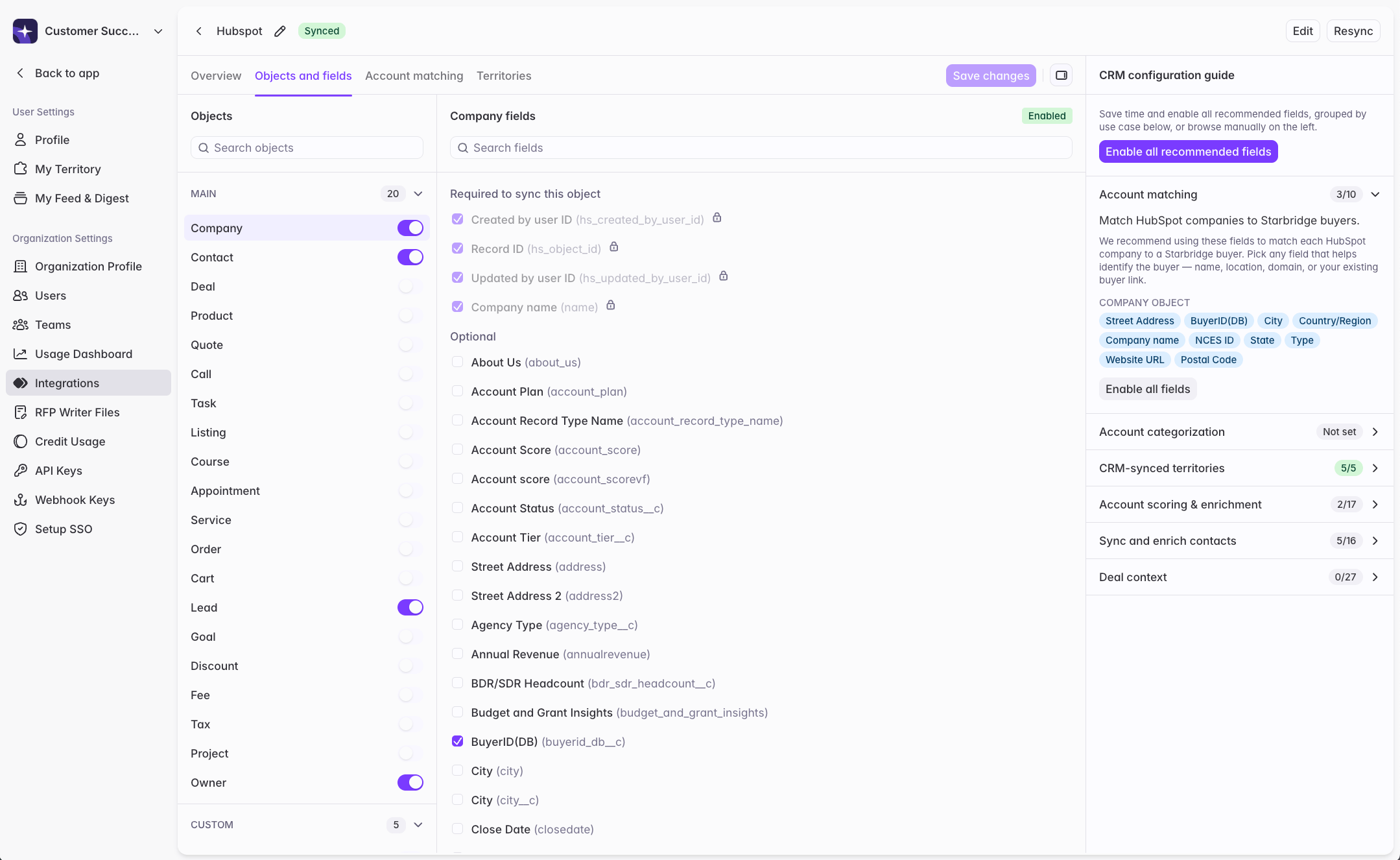
When you open your Salesforce or HubSpot integration and navigate to **Objects & fields**, you'll see a redesigned experience. Starbridge lists every object available in your CRM. Select one, and Starbridge shows all its fields — each with its human-readable label and API name — so you know exactly what you're looking at even when field names in Salesforce don't match what your team calls them.
The **CRM Configuration Guide** panel opens alongside the field list by default. It organizes Starbridge's recommendations by use case — Account Scoring, Contact Enrichment, CRM-Synced Territories, and others — and for each one, shows precisely which objects and fields to enable. Recommendations are generated by reading the actual field names in your CRM and interpreting them to match against each use case, so what you see reflects your organization's specific schema, not a generic list.
To act on a recommendation, click **Enable all fields** next to any use case. Starbridge selects the relevant objects and fields in one step. You can review the selection, adjust it, then save — triggering a sync.
The practical result is that admins can make comprehensive, informed selections upfront rather than discovering gaps after the fact. Features that depend on specific fields — Account Scoring, Contact Enrichment, CRM-Synced Territories, and others — become available right away when the right data is synced.
## What admins experience
When you open your Salesforce or HubSpot integration and navigate to **Objects & fields**, you'll see a redesigned experience. Starbridge lists every object available in your CRM. Select one, and Starbridge shows all its fields — each with its human-readable label and API name — so you know exactly what you're looking at even when field names in Salesforce don't match what your team calls them.
The **CRM Configuration Guide** panel opens alongside the field list by default. It organizes Starbridge's recommendations by use case — Account Scoring, Contact Enrichment, CRM-Synced Territories, and others — and for each one, shows precisely which objects and fields to enable. Recommendations are generated by reading the actual field names in your CRM and interpreting them to match against each use case, so what you see reflects your organization's specific schema, not a generic list.
To act on a recommendation, click **Enable all fields** next to any use case. Starbridge selects the relevant objects and fields in one step. You can review the selection, adjust it, then save — triggering a sync.
The practical result is that admins can make comprehensive, informed selections upfront rather than discovering gaps after the fact. Features that depend on specific fields — Account Scoring, Contact Enrichment, CRM-Synced Territories, and others — become available right away when the right data is synced.
 ## Get started
The new **Objects & fields** experience is live for all Salesforce and HubSpot integrations. To access it, go to **Settings → Integrations**, open your CRM connection, and click into **Objects & fields**. If you're setting up a new integration, you'll land here as part of the connection flow.
Read the complete setup guide here: [Syncing to Salesforce and HubSpot](/integrations/syncing-to-your-crm-sfdc-or-hubspot). Reach out to [support@starbridge.ai](mailto:support@starbridge.ai) if you have questions about which use cases to prioritize for your team.
## Get started
The new **Objects & fields** experience is live for all Salesforce and HubSpot integrations. To access it, go to **Settings → Integrations**, open your CRM connection, and click into **Objects & fields**. If you're setting up a new integration, you'll land here as part of the connection flow.
Read the complete setup guide here: [Syncing to Salesforce and HubSpot](/integrations/syncing-to-your-crm-sfdc-or-hubspot). Reach out to [support@starbridge.ai](mailto:support@starbridge.ai) if you have questions about which use cases to prioritize for your team.