> ## Documentation Index
> Fetch the complete documentation index at: https://hc.starbridge.ai/llms.txt
> Use this file to discover all available pages before exploring further.
# Resolving duplicate accounts in your CRM
> Starbridge identifies duplicate account records in your CRM. This article describes how to navigate which records to keep and which to merge in Salesforce or HubSpot.
## Overview
When Starbridge runs [account matching](/integrations/account-matching), it identifies and tags duplicate account records. It stores these tags in an account matching **CSV export**.
This guide walks through reading the CSV file and turning it into a clean merge in Salesforce or HubSpot.
This is an admin task. You'll need permission to merge accounts (Salesforce) or companies (HubSpot) in your CRM, and you should have already completed account matching.
Copy-paste this prompt into Claude or ChatGPT to have it walk you through this process step-by-step:
```text theme={null}
Read https://hc.starbridge.ai/resolving-duplicate-accounts-in-your-crm
Then walk me through step-by-step how to resolve duplicate accounts
in my CRM using Starbridge's account matching CSV export.
```
## Prerequisites
Before you begin, make sure:
* **Account matching has run** and you've worked through the review flow. See [Run account matching](/integrations/account-matching).
* **You have CRM merge permissions.** In Salesforce, you need "Merge" on Accounts. In HubSpot, you need merge access on Companies.
## Export Starbridge's account matching as a CSV
1. Go to **Starbridge** > **Settings** > [Integrations](https://dashboard.starbridge.ai/settings/integrations) > **\[your CRM integration]** > **Account matching**.
2. Export **all** accounts Starbridge has flagged as duplicates. To do this:
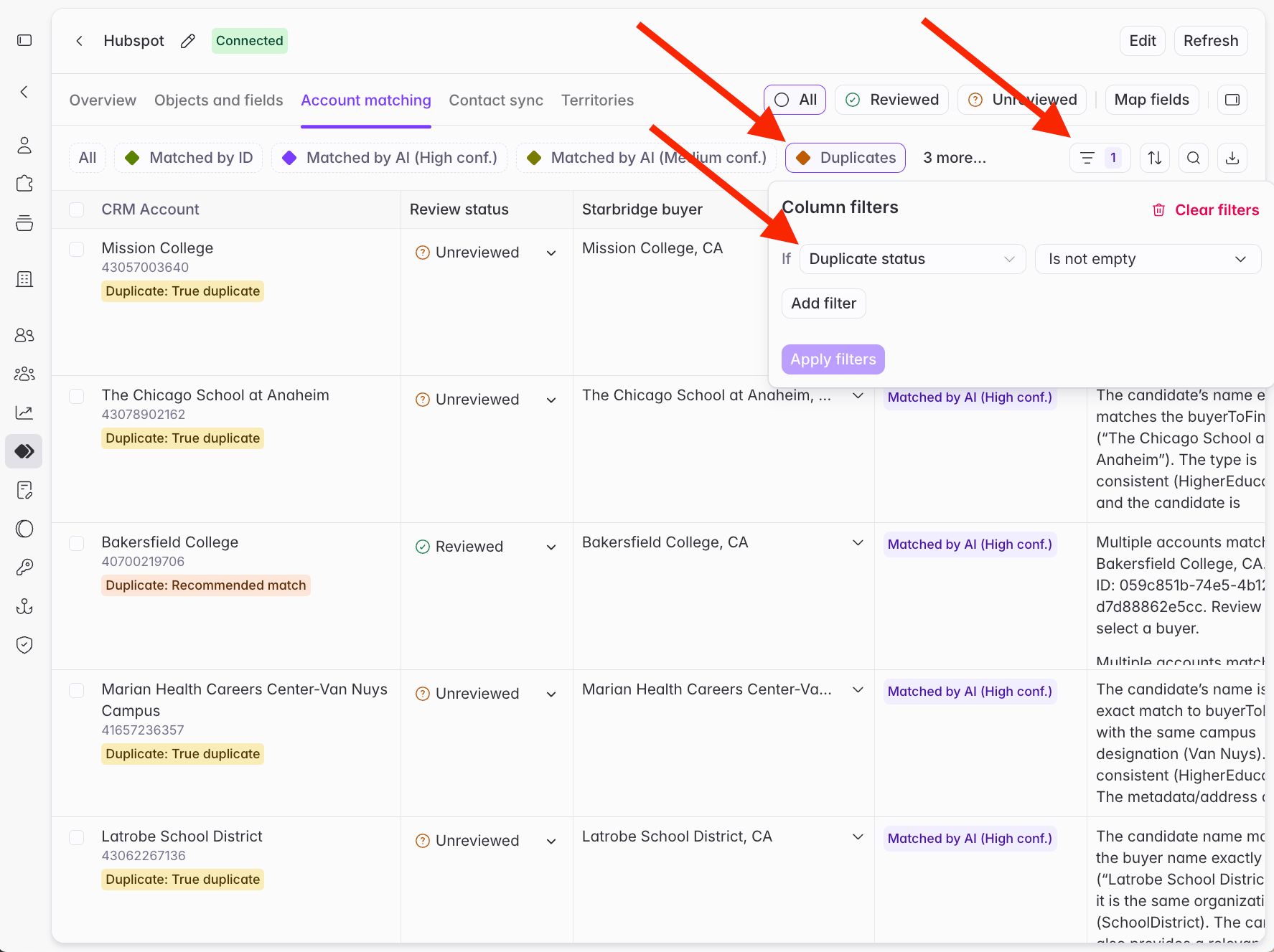
* First click the **Duplicates** button marked with a red-orange diamond.
* Then, double-check that the **only** filter applied to the table is: `Duplicate status is not empty`.
* Clear any other filters, if there are other filters present.
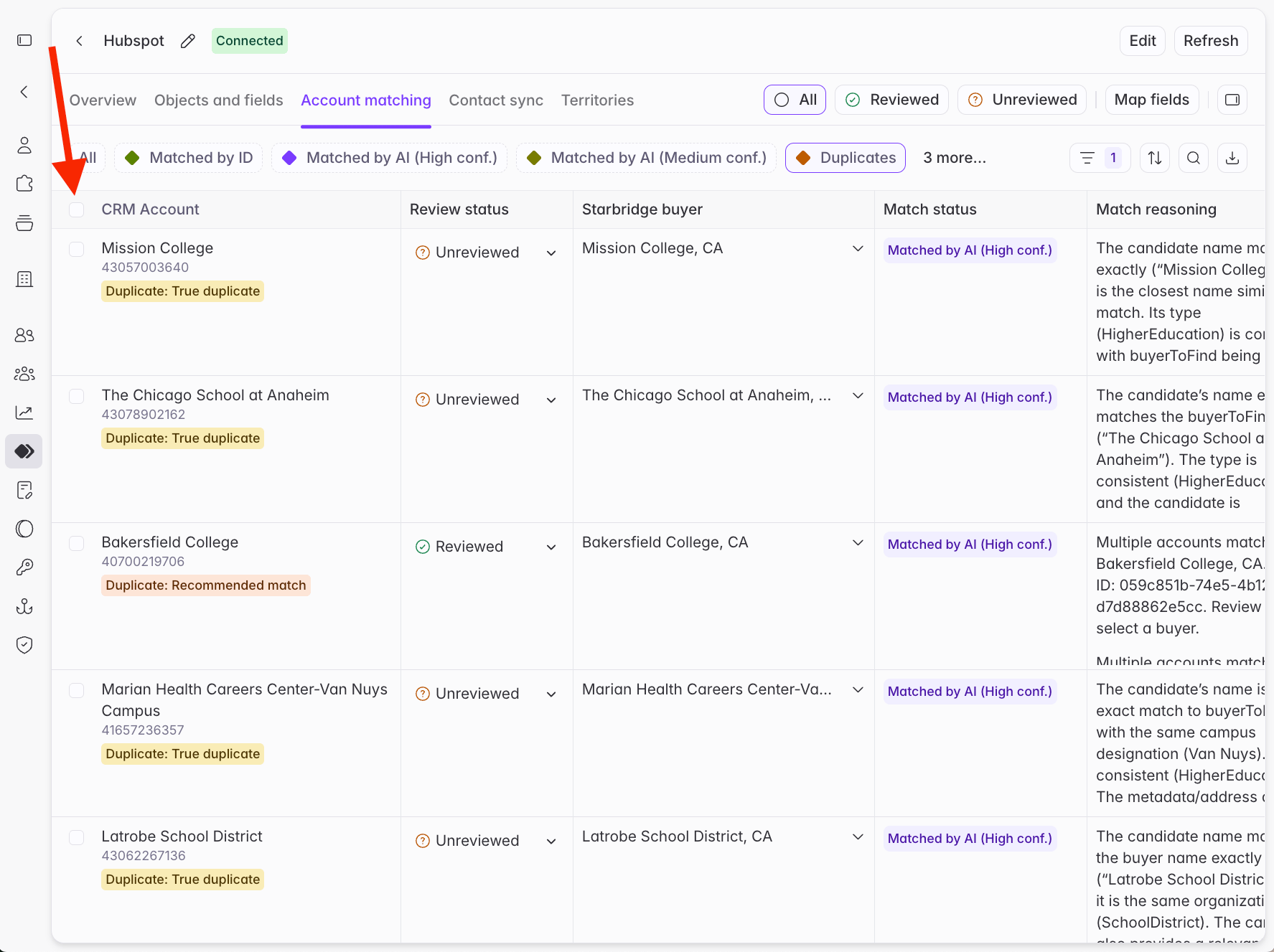
 3. Select all the rows by clicking the checkbox in the top left.
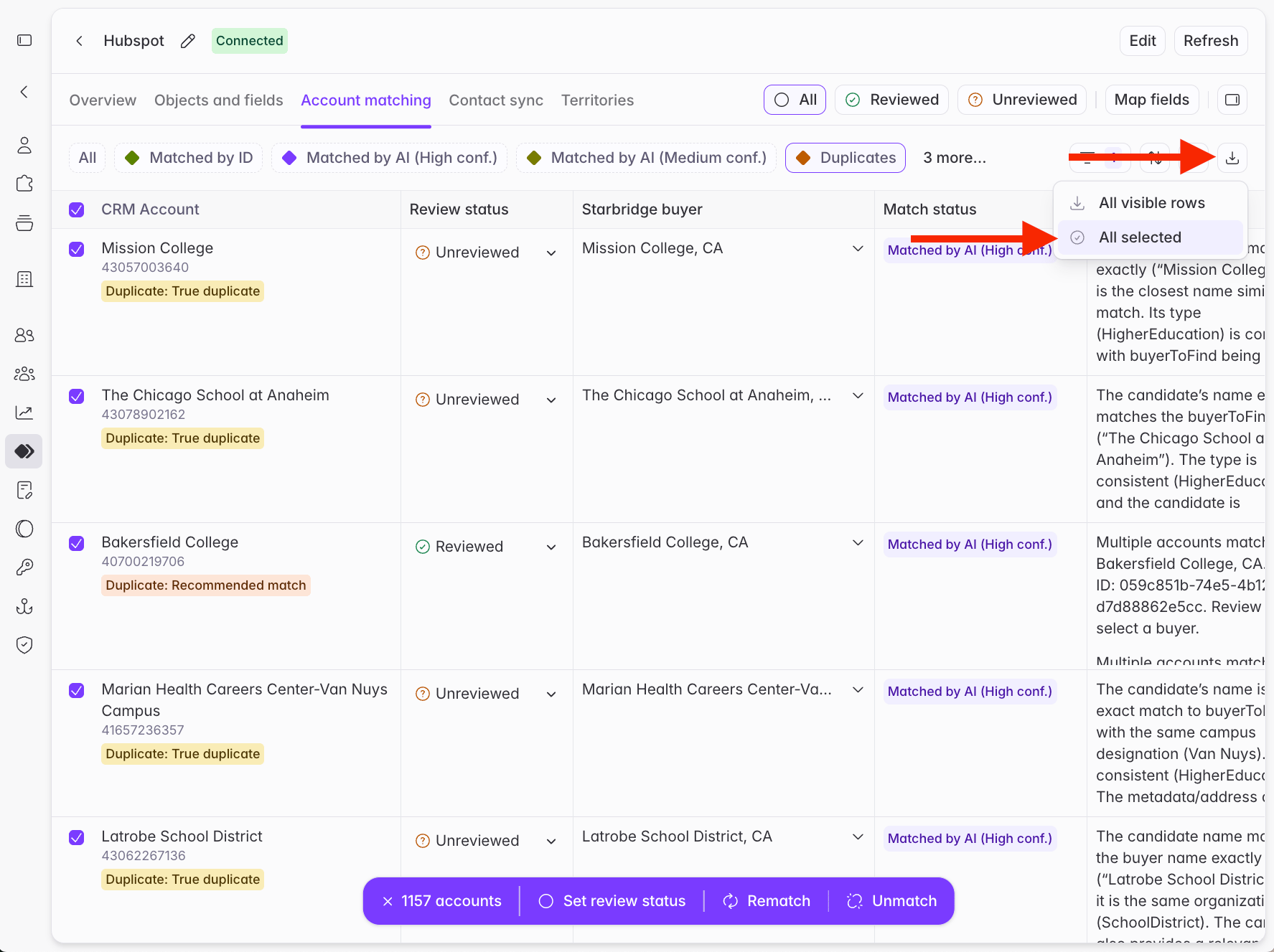
 4. Click the `Download` icon in the top right to download the full CSV. Make sure to download **All selected rows**, not **All visible rows**.
 ## Read the relevant columns in the CSV
Each row in the CSV represents an account in your CRM. Focus on these five columns relevant to de-duplication:
| Column | What it contains | How you use it |
| ---------------------- | ------------------------------------------------------------------------------------------------ | ----------------------------------------------------------------------------------------------------- |
| **CRM ID** | The record's own CRM record ID — the Salesforce Account ID or HubSpot Company ID. | This is the record you act on in your CRM. |
| **Duplicate group ID** | A shared ID across every duplicate record that resolves to the same real-world Starbridge buyer. | Sort or group by this to see each cluster of duplicates together. |
| **Duplicate status** | Starbridge's classification of the record within its group. | Tells you *what kind* of record this is (keep / merge / child / bad match). |
| **Duplicate action** | The machine-readable instruction, including the target CRM record ID where relevant. | Tells you *exactly what to do* — this is the authoritative field. |
| **Duplicate reason** | A plain-English explanation of the decision. | Read this when you want to understand Starbridge's reasoning for flagging the account as a duplicate. |
Use the **CRM ID** column, not **CRM Account ID**. **CRM Account ID** refers to the **Starbridge Buyer ID** that has been written back onto your CRM account record, not the ID of your CRM account record.
Rows that aren't part of any duplicate group have **Duplicate group ID**, **Duplicate status**, and **Duplicate action** blank. This is expected; you can ignore those accounts as they are non-duplicates and there is no action needed for them. To find everything that needs action, filter to rows where **Duplicate status** is not empty.
## Interpret the CSV columns for status and action
Every record in a duplicate group is assigned exactly one status and a matching action:
| Duplicate status | Duplicate action | What it means | What you do |
| -------------------- | --------------------------- | ------------------------------------------------------------------------------------------------------------------------------------------ | -------------------------------------------------------------------------------------------------------------------------------------------------------------------------------------------------------------- |
| **RecommendedMatch** | `MASTER_RECORD` | The record Starbridge recommends keeping. This is the most complete, canonical record for the buyer. | Keep it. This is the merge target for everything else in the group. |
| **TrueDupe** | `CONSOLIDATE_INTO:` | A genuine duplicate of the master. The ID after the colon is the **CRM ID** of the record to keep. | Merge this record **into** the record named after the colon. |
| **HierarchyChild** | `LINK_TO_PARENT:` | Not a true duplicate: a sub-entity (a campus, department, or foundation) of the parent. The ID after the colon is the parent's **CRM ID**. | Depends on your business. See [Hierarchy children](#hierarchy-children-merge-or-model-separately) below. |
| **BadMatch** | `REVIEW_UNMAP` | Starbridge flagged this as an incorrect match: the Starbridge buyer does not correspond to the CRM account. | Don't merge. Unmap it from the buyer manually in the Starbridge account matching table.
## Read the relevant columns in the CSV
Each row in the CSV represents an account in your CRM. Focus on these five columns relevant to de-duplication:
| Column | What it contains | How you use it |
| ---------------------- | ------------------------------------------------------------------------------------------------ | ----------------------------------------------------------------------------------------------------- |
| **CRM ID** | The record's own CRM record ID — the Salesforce Account ID or HubSpot Company ID. | This is the record you act on in your CRM. |
| **Duplicate group ID** | A shared ID across every duplicate record that resolves to the same real-world Starbridge buyer. | Sort or group by this to see each cluster of duplicates together. |
| **Duplicate status** | Starbridge's classification of the record within its group. | Tells you *what kind* of record this is (keep / merge / child / bad match). |
| **Duplicate action** | The machine-readable instruction, including the target CRM record ID where relevant. | Tells you *exactly what to do* — this is the authoritative field. |
| **Duplicate reason** | A plain-English explanation of the decision. | Read this when you want to understand Starbridge's reasoning for flagging the account as a duplicate. |
Use the **CRM ID** column, not **CRM Account ID**. **CRM Account ID** refers to the **Starbridge Buyer ID** that has been written back onto your CRM account record, not the ID of your CRM account record.
Rows that aren't part of any duplicate group have **Duplicate group ID**, **Duplicate status**, and **Duplicate action** blank. This is expected; you can ignore those accounts as they are non-duplicates and there is no action needed for them. To find everything that needs action, filter to rows where **Duplicate status** is not empty.
## Interpret the CSV columns for status and action
Every record in a duplicate group is assigned exactly one status and a matching action:
| Duplicate status | Duplicate action | What it means | What you do |
| -------------------- | --------------------------- | ------------------------------------------------------------------------------------------------------------------------------------------ | -------------------------------------------------------------------------------------------------------------------------------------------------------------------------------------------------------------- |
| **RecommendedMatch** | `MASTER_RECORD` | The record Starbridge recommends keeping. This is the most complete, canonical record for the buyer. | Keep it. This is the merge target for everything else in the group. |
| **TrueDupe** | `CONSOLIDATE_INTO:` | A genuine duplicate of the master. The ID after the colon is the **CRM ID** of the record to keep. | Merge this record **into** the record named after the colon. |
| **HierarchyChild** | `LINK_TO_PARENT:` | Not a true duplicate: a sub-entity (a campus, department, or foundation) of the parent. The ID after the colon is the parent's **CRM ID**. | Depends on your business. See [Hierarchy children](#hierarchy-children-merge-or-model-separately) below. |
| **BadMatch** | `REVIEW_UNMAP` | Starbridge flagged this as an incorrect match: the Starbridge buyer does not correspond to the CRM account. | Don't merge. Unmap it from the buyer manually in the Starbridge account matching table.
You can do this **after** resolving the TrueDupe and HierarchyChild accounts as described in this article. |
### A true duplicate example
Starbridge has a buyer in its database called **Maine Virtual Academy**. In your CRM, two account records resolve to the same buyer. They share one **Duplicate group ID**.
| Account | CRM ID | Duplicate group ID | Duplicate status | Duplicate action |
| --------------------- | ------------- | -------------------------------------- | ---------------- | ------------------------------ |
| Maine Virtual Academy | `18705832838` | `34c8daa0-2b69-4b02-92f6-6a8474959a0d` | RecommendedMatch | `MASTER_RECORD` |
| Maine Virtual Academy | `18706313528` | `34c8daa0-2b69-4b02-92f6-6a8474959a0d` | TrueDupe | `CONSOLIDATE_INTO:18705832838` |
Note that the instruction is unambiguous: keep record `18705832838`, and merge record `18706313528` into it.
### A hierarchy child example
Starbridge has a buyer in its database called **Danbury High School**. In your CRM, two account records resolve to the same buyer. They share one **Duplicate group ID**.
| Account | CRM ID | Duplicate group ID | Duplicate status | Duplicate action |
| --------------------------------- | ------------- | -------------------------------------- | ---------------- | ---------------------------- |
| Danbury High School | `14119948327` | `1234c221-7a2a-4b3f-93c4-a7282486e97b` | RecommendedMatch | `MASTER_RECORD` |
| Danbury High School - West Campus | `36650784436` | `1234c221-7a2a-4b3f-93c4-a7282486e97b` | HierarchyChild | `LINK_TO_PARENT:14119948327` |
Here, record `36650784436` is a real sub-entity of record `14119948327`, not a redundant record. You can choose to merge it into the parent or keep it as its own account depending on what's best for your team's ops — see [Hierarchy children](#hierarchy-children-merge-or-model-separately) for more detail.
## Build your merge list
Open the CSV and filter to rows where **Duplicate status** is not blank. Everything else is a clean, single match with nothing to resolve or change in your CRM.
Grouping the rows puts each buyer's `MASTER_RECORD` next to the records that fold into or hang off it, so you can review each cluster as a unit.
Separate the rows into three working lists by `Duplicate action`:
* **`CONSOLIDATE_INTO`** — your merge list. Each row's **CRM ID** is the losing record; the ID after the colon is the record to keep and merge the losing record into.
* **`LINK_TO_PARENT`** — your hierarchy list. Each row's **CRM ID** is the child; the ID after the colon is the parent. See [Hierarchy children](#hierarchy-children-merge-or-model-separately).
* **`REVIEW_UNMAP`** — your manual-review list.
You can ignore `MASTER_RECORD` and `REVIEW_UNMAP`.
## Execute in your CRM
Merging is not reversible in Salesforce and HubSpot. Start with a small batch, confirm the result looks right, then work through the rest.
**Merge true duplicates.** For each `CONSOLIDATE_INTO` row, merge the losing account (the row's **CRM ID**) into the keep account (the ID after the colon).
* **A handful of duplicates:** use the native merge tool. Go to an Account, open **Merge Accounts**, find the matching records, and select the keep record — the one whose **CRM ID** matches the `CONSOLIDATE_INTO` target — as the master. Salesforce reparents child records (contacts, opportunities, activities) to the master and deletes the losers.
* **Larger volumes:** Salesforce's native merge handles up to three records at a time and can't be driven by Data Loader. For bulk de-duplication, feed your merge list (loser **CRM ID** → keep CRM ID) into a merge-capable tool such as a dedupe app from the AppExchange, or an Apex job using `Database.merge`.
**Merge true duplicates.** For each `CONSOLIDATE_INTO` row, merge the losing company (the row's **CRM ID**) into the keep company (the ID after the colon).
* **A handful of duplicates:** open the keep company (the `CONSOLIDATE_INTO` target), choose **Actions → Merge**, and select the losing company as the secondary record. HubSpot keeps the primary company's ID and properties, moves associations over, and removes the secondary.
* **Larger volumes:** HubSpot merges two companies at a time in the UI and has no native bulk-merge. For bulk work, use the companies merge API (`primaryObjectId` = the keep CRM ID, `objectIdToMerge` = the losing **CRM ID**) or a HubSpot-compatible dedupe app.
## Hierarchy children: merge or model separately?
A `HierarchyChild` is not a redundant record — it's a real sub-entity (a campus, a department, a foundation) of a parent account. You can either merge the child record into its parent or keep it as its own account record.
Whether to merge a child into its parent or keep it as its own account record is a modeling decision best made with your **GTM Engineer (GTME)**. Bring them the `LINK_TO_PARENT` list and decide together:
* **Keeping children separate can be the right call.** A vendor that sells into multiple colleges within a single university often benefits from a distinct account per college — separate owners, opportunities, and pipeline — even though Starbridge models the university as one buyer and does not treat each college as its own buyer. Collapsing them into the parent would flatten distinctions your reps actually sell against.
* **Merging children into the parent can be the right call.** If your team only ever transacts at the parent level — one contract, one relationship, one owner for the whole institution — separate child records add noise without adding signal, and folding them into the parent keeps the account clean.
If you decide to merge a child into its parent, treat it exactly like a true duplicate: merge the child's **CRM ID** into the parent (the ID after the colon in `LINK_TO_PARENT`). If you decide to keep it separate:
* Leave both records in place in your CRM.
* In the Starbridge UI, select-all Duplicates where Duplicate status equals Hierarchy child, and unmatch them.
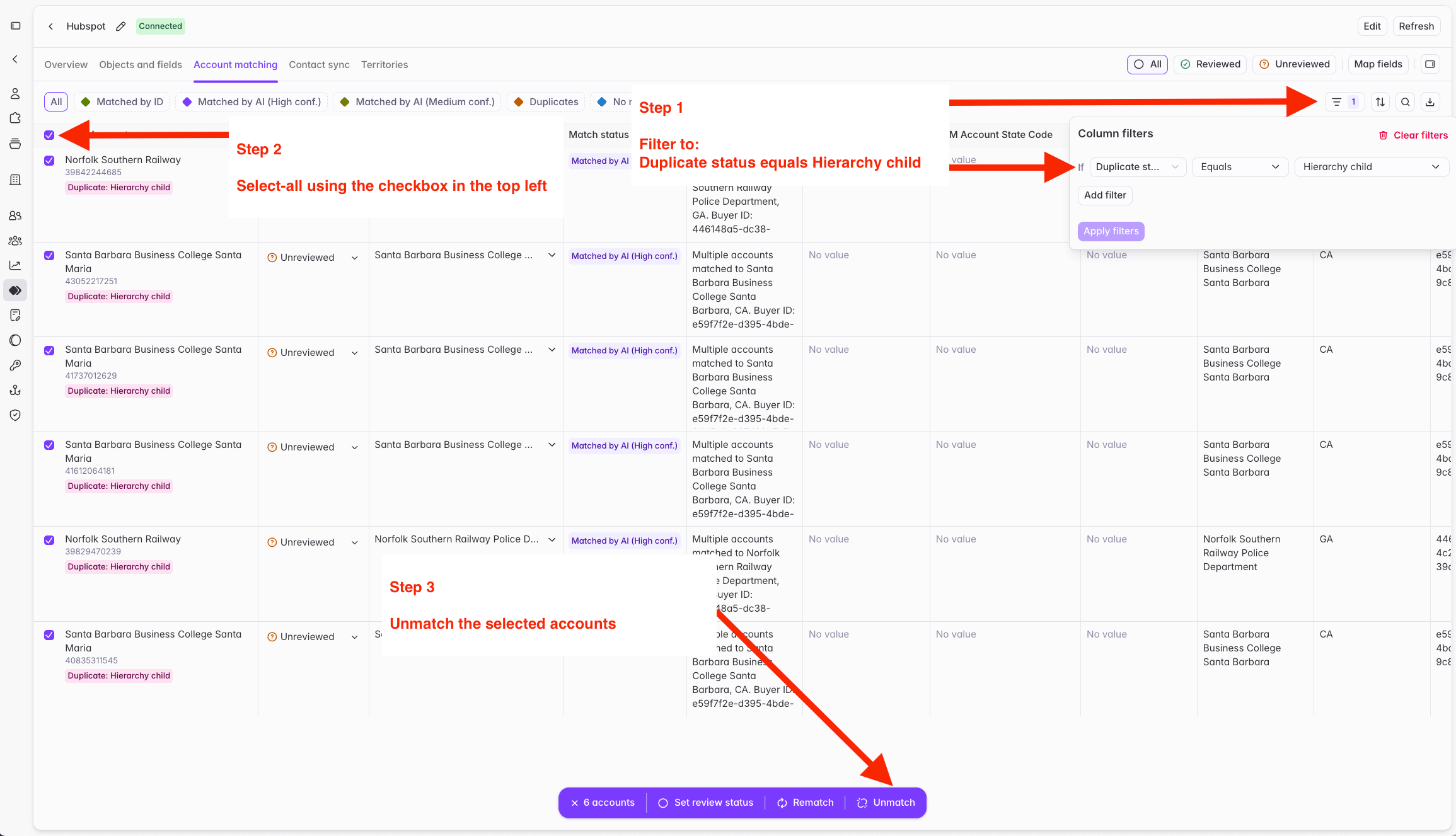 * Starbridge will continue storing the parent record as matched to the buyer.
## After you merge
**Give Starbridge until the next morning to reflect a large merge.** In general, Starbridge refreshes every few hours to pull the latest data from your CRM — but merged accounts are the exception: Starbridge re-pulls those on a **nightly** cycle to rebuild its account-matching bridge. After running a large merge job, wait until the following morning before checking Starbridge for the updates rather than expecting them within a few hours.
**Clear the duplicate labels once merges are done.** Starbridge does not automatically strip the duplicate label from records that were originally flagged, even after you've merged their duplicates away. To clear the labels and confirm your work landed, open the bridge, **filter to duplicates (click the** `Duplicates `**filter)**, **select all**, and **rematch**. This clears the duplicate labels on those records and confirms their duplicates have been merged.
You don't *need* to re-run matching across the duplicates just because you merged — but if you've merged a large number of records, the filter-and-rematch pass above is the cleanest way to confirm everything resolved.
Clearing a duplicate in Starbridge — setting a flagged record to **No match** — resolves it in the app, but Starbridge preserves the original duplicate categorization under the hood so you keep a permanent historical record of what was flagged. That history remains available in the CSV export.
The practical side effect: **clearing a duplicate in Starbridge does not remove it from the CSV export.** A record you've already set to No match can still carry its original **Duplicate status** and **Duplicate action** in a later export. This is by design, so you can fully resolve duplicates inside Starbridge and still retain an exportable audit trail of every duplicate tag.
## What's next
Configure, run, and review the matching that produces these de-duplication columns.
* Starbridge will continue storing the parent record as matched to the buyer.
## After you merge
**Give Starbridge until the next morning to reflect a large merge.** In general, Starbridge refreshes every few hours to pull the latest data from your CRM — but merged accounts are the exception: Starbridge re-pulls those on a **nightly** cycle to rebuild its account-matching bridge. After running a large merge job, wait until the following morning before checking Starbridge for the updates rather than expecting them within a few hours.
**Clear the duplicate labels once merges are done.** Starbridge does not automatically strip the duplicate label from records that were originally flagged, even after you've merged their duplicates away. To clear the labels and confirm your work landed, open the bridge, **filter to duplicates (click the** `Duplicates `**filter)**, **select all**, and **rematch**. This clears the duplicate labels on those records and confirms their duplicates have been merged.
You don't *need* to re-run matching across the duplicates just because you merged — but if you've merged a large number of records, the filter-and-rematch pass above is the cleanest way to confirm everything resolved.
Clearing a duplicate in Starbridge — setting a flagged record to **No match** — resolves it in the app, but Starbridge preserves the original duplicate categorization under the hood so you keep a permanent historical record of what was flagged. That history remains available in the CSV export.
The practical side effect: **clearing a duplicate in Starbridge does not remove it from the CSV export.** A record you've already set to No match can still carry its original **Duplicate status** and **Duplicate action** in a later export. This is by design, so you can fully resolve duplicates inside Starbridge and still retain an exportable audit trail of every duplicate tag.
## What's next
Configure, run, and review the matching that produces these de-duplication columns.