> ## Documentation Index
> Fetch the complete documentation index at: https://hc.starbridge.ai/llms.txt
> Use this file to discover all available pages before exploring further.
# RFP Co-Pilot
> Work on your RFP proposals in plain language: reshape outlines, edit sections, and manage compliance tasks by chatting with Ask Starbridge inside RFP Writer.
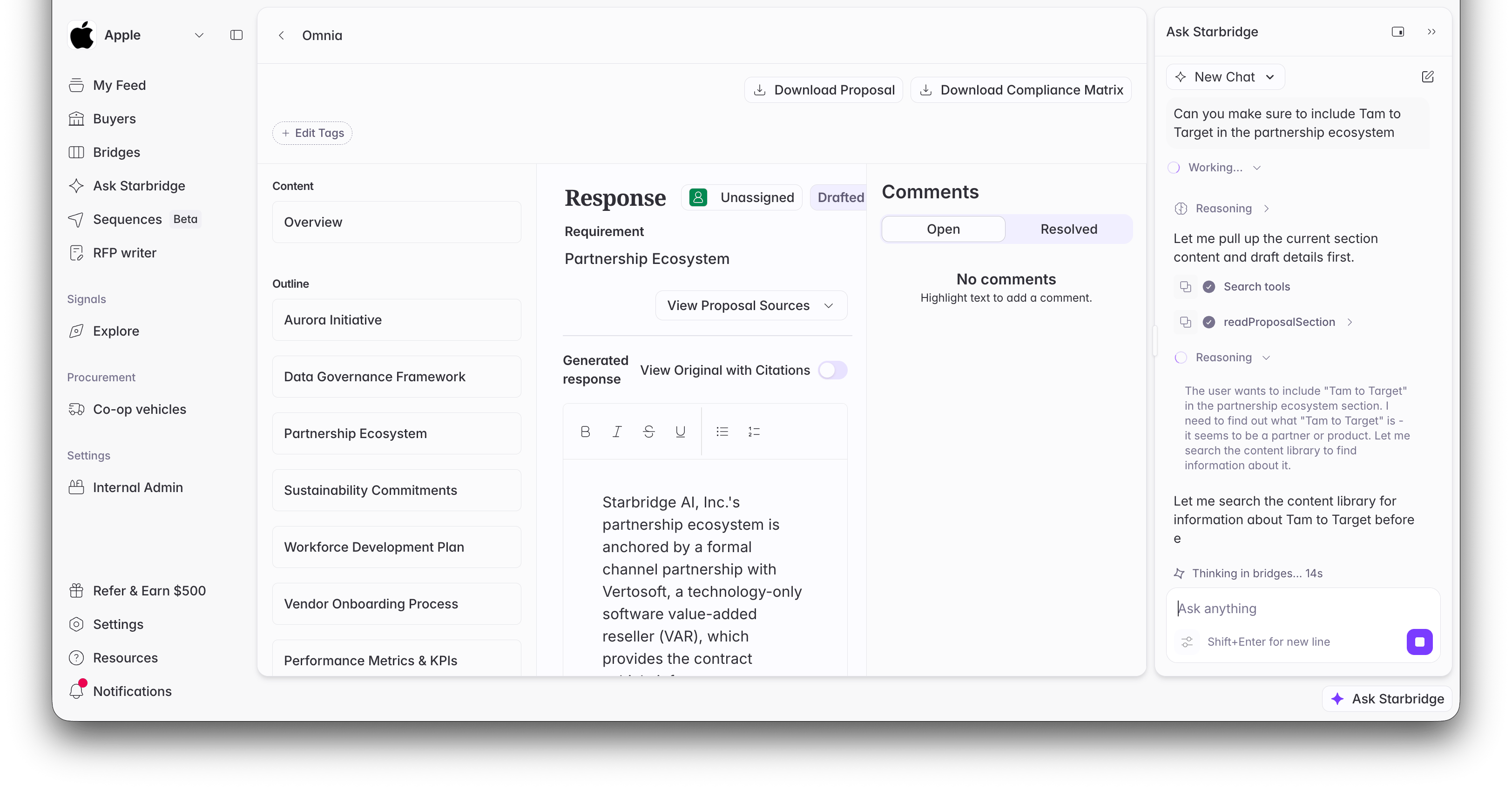
The **RFP Co-Pilot** is Ask Starbridge working inside RFP Writer. Instead of clicking through the outline and editor by hand, you tell it what you want in plain language and it makes the change for you, grounded in the RFP's documents and your own source materials.
The co-pilot follows the same flow as RFP Writer itself: first you shape the outline, then you work the draft. What it can do depends on which step you're in.
## Example use cases
* **Find areas to improve.** "Where can I add more color to my RFP to make our application stronger."
* **Outline cleanup.** "Restructure my outline to match the submission requirements in Section 4 of the RFP."
* **Grounded revisions.** "Rewrite the implementation timeline using the phasing from our past K-12 proposals."
* **Compliance sweep.** "List every form and certification this RFP requires, and add each one as a task."
## Where to find it
Open any RFP draft and click **"Ask Starbridge"** in the bottom-right corner of the screen. The panel opens alongside whatever you're working on, in both the outline and draft steps.
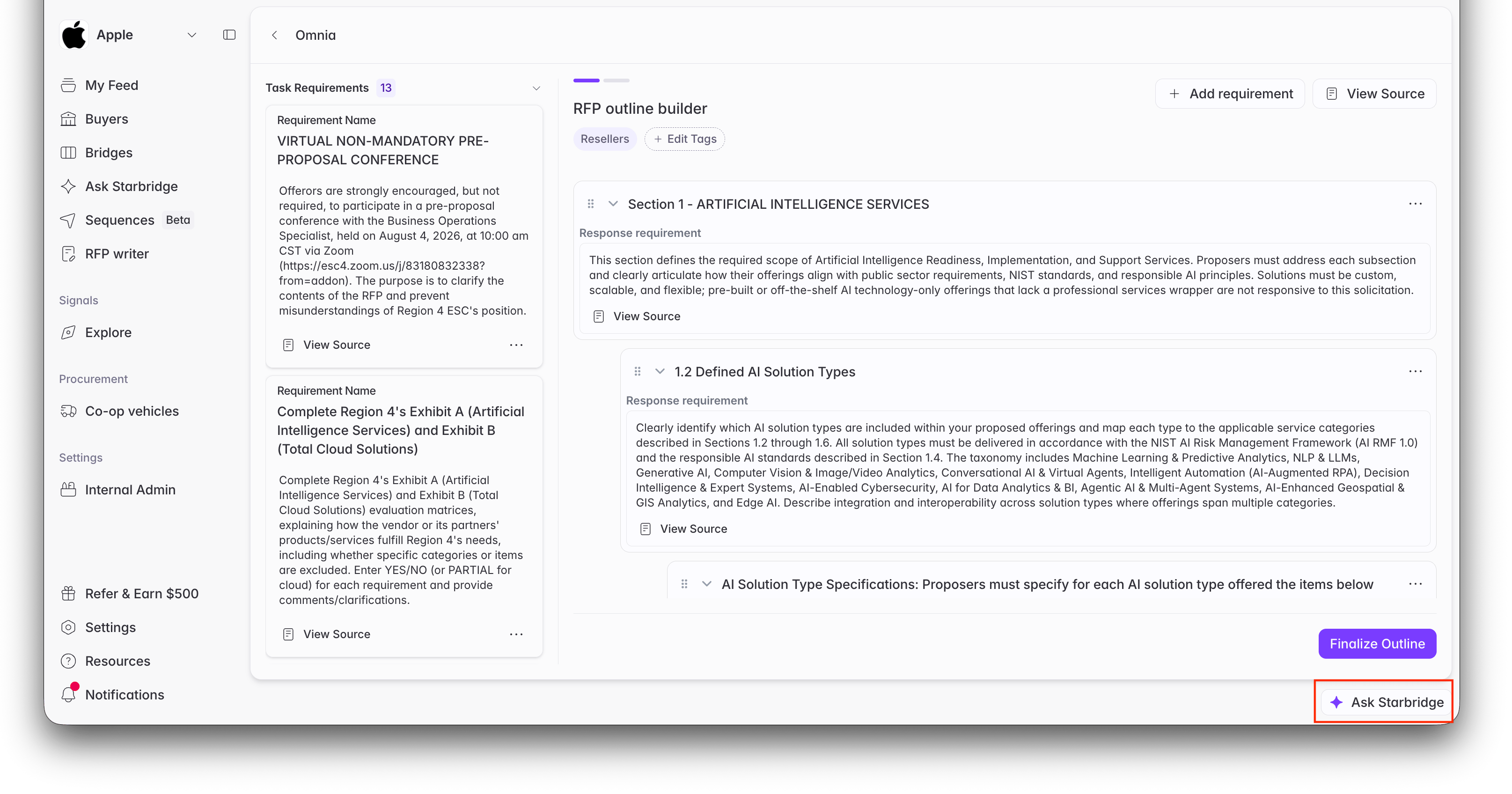 Every new chat opens with starter prompts if you're not sure where to begin. As it works, the co-pilot shows its reasoning and each lookup it runs, so you can follow exactly what it's doing.
And it isn't limited to the proposal in front of you: the co-pilot can also draw on Starbridge buyer data and web search when a question needs outside context.
## In the outline step
Once your draft finishes initializing, the outline is ready for review (see [Drafting an RFP Response](/rfp-writer/drafting-an-rfp-response)). Open the co-pilot to get the structure right before anything is written:
Every new chat opens with starter prompts if you're not sure where to begin. As it works, the co-pilot shows its reasoning and each lookup it runs, so you can follow exactly what it's doing.
And it isn't limited to the proposal in front of you: the co-pilot can also draw on Starbridge buyer data and web search when a question needs outside context.
## In the outline step
Once your draft finishes initializing, the outline is ready for review (see [Drafting an RFP Response](/rfp-writer/drafting-an-rfp-response)). Open the co-pilot to get the structure right before anything is written:
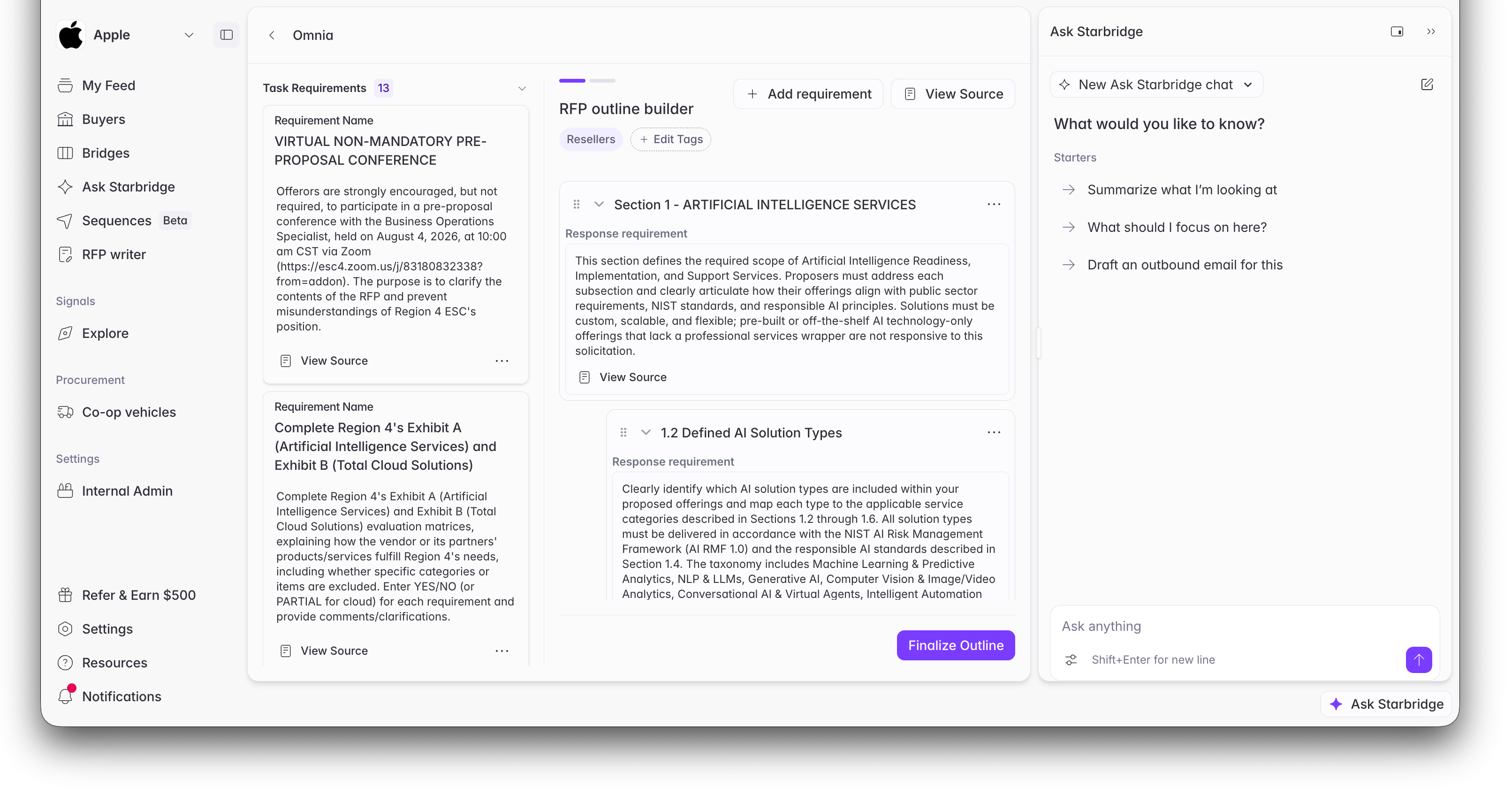 * **Shape sections.** Add, rename, reorder, and re-nest sections, or rewrite the response requirement describing what each section should cover.
* **Manage the checklist.** Add, edit, or remove task requirements (forms, approvals, third-party quotes) and assign them to teammates. Assignees are notified.
* **Scope your source materials.** Choose which tagged parts of your source file library should ground the answers. This is only possible before generation, so get it right in this step.
* **Ask about the RFP itself.** The co-pilot reads the solicitation and its attachments as clean text, so you can ask what the buyer requires without opening the PDFs.
* **Shape sections.** Add, rename, reorder, and re-nest sections, or rewrite the response requirement describing what each section should cover.
* **Manage the checklist.** Add, edit, or remove task requirements (forms, approvals, third-party quotes) and assign them to teammates. Assignees are notified.
* **Scope your source materials.** Choose which tagged parts of your source file library should ground the answers. This is only possible before generation, so get it right in this step.
* **Ask about the RFP itself.** The co-pilot reads the solicitation and its attachments as clean text, so you can ask what the buyer requires without opening the PDFs.
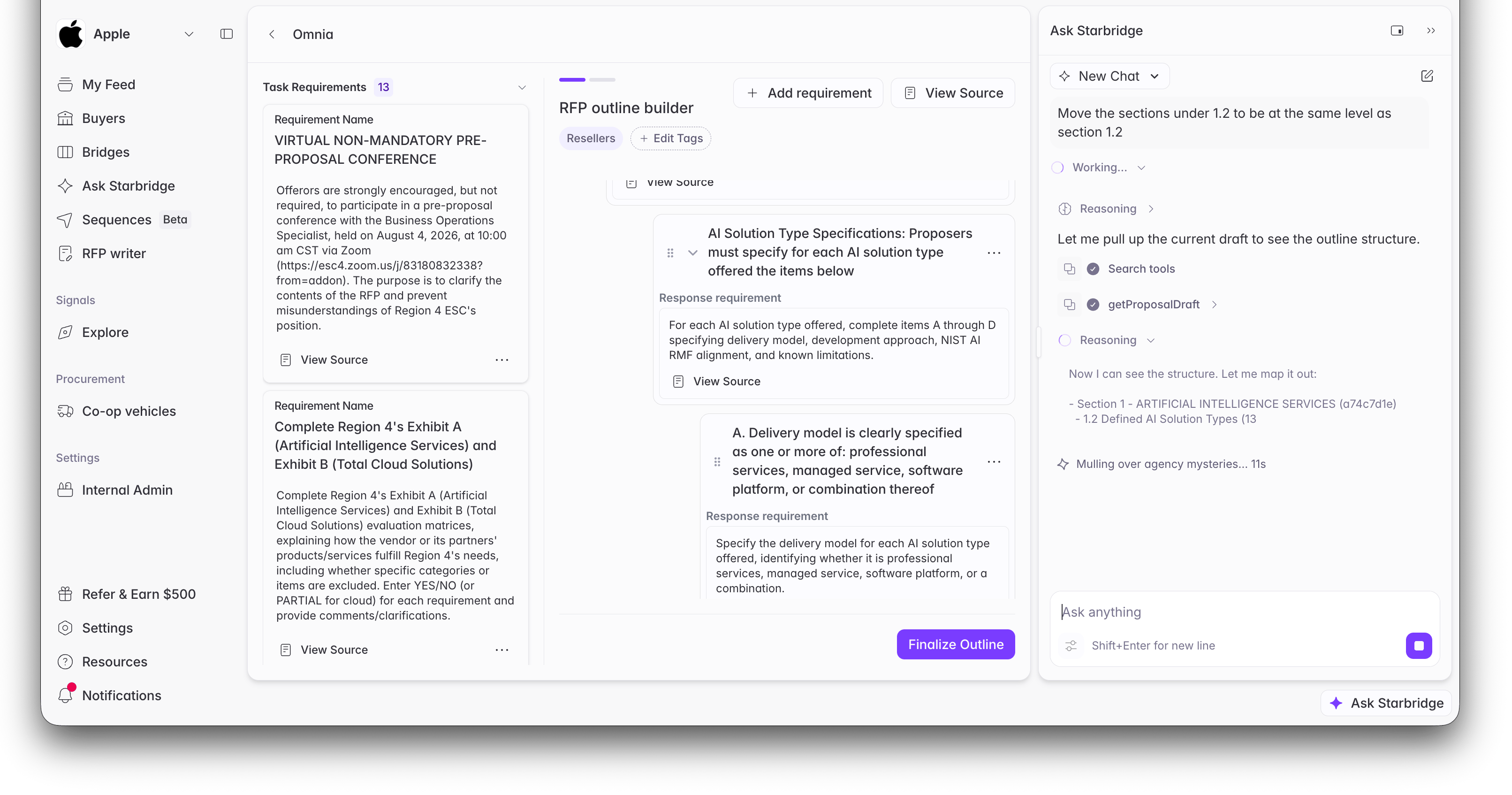 When the outline looks right, click **"Finalize Outline"** to generate the draft. Generating is deliberately a human decision: the co-pilot can never trigger it for you.
## In the draft step
Once the draft's status is **Open**, the co-pilot switches from shaping the structure to working the content:
When the outline looks right, click **"Finalize Outline"** to generate the draft. Generating is deliberately a human decision: the co-pilot can never trigger it for you.
## In the draft step
Once the draft's status is **Open**, the co-pilot switches from shaping the structure to working the content:
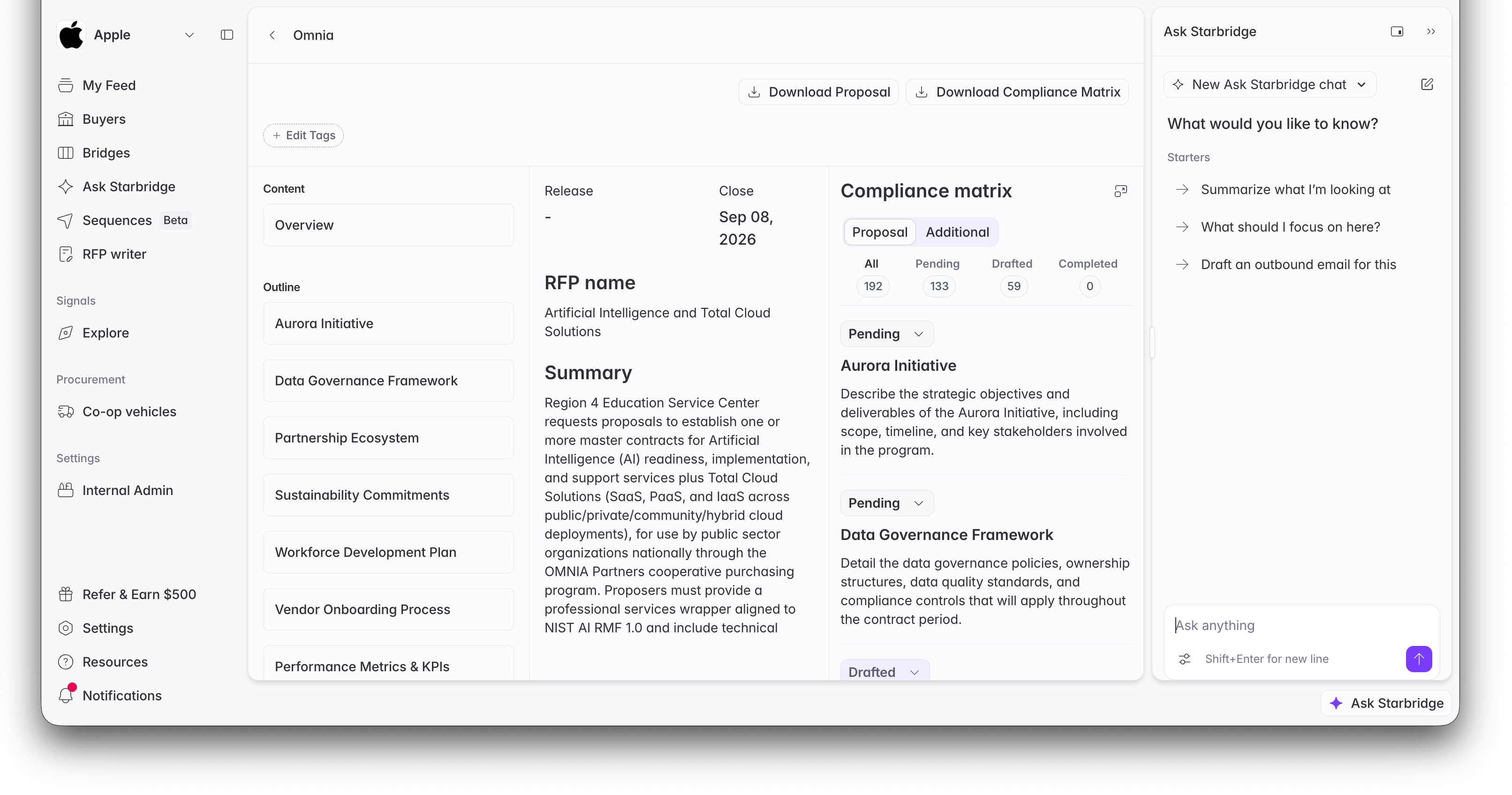 * **Review like a reader.** Ask for a summary of any section, or have it read the whole proposal to flag repetition, inconsistent claims, and sections that still read like placeholders.
* **Edit sections.** Rewrite a whole section, or change a single passage and leave the rest untouched. Edits land in the live editor like a teammate's change, and existing comments are preserved.
* **Answer from your own material.** The co-pilot searches your source files with the same retrieval that grounds generation, pulls the most relevant passages, and writes from them. Specific domain terms surface better passages than paraphrases.
* **Manage the work.** Move sections and tasks to **Drafted** or **Completed**, and reassign them as the response comes together.
* **Review like a reader.** Ask for a summary of any section, or have it read the whole proposal to flag repetition, inconsistent claims, and sections that still read like placeholders.
* **Edit sections.** Rewrite a whole section, or change a single passage and leave the rest untouched. Edits land in the live editor like a teammate's change, and existing comments are preserved.
* **Answer from your own material.** The co-pilot searches your source files with the same retrieval that grounds generation, pulls the most relevant passages, and writes from them. Specific domain terms surface better passages than paraphrases.
* **Manage the work.** Move sections and tasks to **Drafted** or **Completed**, and reassign them as the response comes together.
 ## Example prompts
* *"Reorder my sections to match the order in the RFP's submission instructions."*
* *"Move the sections under 1.2 to be at the same level as section 1.2."*
* *"Compare my outline against the RFP requirements and list anything I'm missing."*
* *"Add a task to collect our insurance certificates before the due date, and assign it to Dana."*
* *"Rewrite the Executive Summary to lead with outcomes. Keep it under 400 words."*
* *"Make sure the partnership ecosystem section mentions our Vertosoft channel partnership."*
* *"Search our past proposals for how we describe SOC 2 compliance, and use it to answer section 5.2."*
* *"Read the full draft and flag any sections that contradict each other."*
* *"Mark sections 1 through 3 as Drafted."*
## What the co-pilot won't do
* **Generate the draft.** A person always finalizes the outline and starts generation from the dashboard.
* **Manage your source files.** Uploading, deleting, and re-tagging files stays in Settings (see [Setup RFP Writer Source Materials](/rfp-writer/setup-rfp-writer-source-materials)). The co-pilot can only read and search them.
* **Submit the RFP.** Like the rest of RFP Writer, the final export, formatting, and submission are yours.
## Related articles
Upload and tag the past proposals and answer banks that ground the co-pilot's responses.
The full RFP Writer flow, from starting a proposal to exporting the finished draft.
Find and score the RFPs worth responding to in the first place.
## Example prompts
* *"Reorder my sections to match the order in the RFP's submission instructions."*
* *"Move the sections under 1.2 to be at the same level as section 1.2."*
* *"Compare my outline against the RFP requirements and list anything I'm missing."*
* *"Add a task to collect our insurance certificates before the due date, and assign it to Dana."*
* *"Rewrite the Executive Summary to lead with outcomes. Keep it under 400 words."*
* *"Make sure the partnership ecosystem section mentions our Vertosoft channel partnership."*
* *"Search our past proposals for how we describe SOC 2 compliance, and use it to answer section 5.2."*
* *"Read the full draft and flag any sections that contradict each other."*
* *"Mark sections 1 through 3 as Drafted."*
## What the co-pilot won't do
* **Generate the draft.** A person always finalizes the outline and starts generation from the dashboard.
* **Manage your source files.** Uploading, deleting, and re-tagging files stays in Settings (see [Setup RFP Writer Source Materials](/rfp-writer/setup-rfp-writer-source-materials)). The co-pilot can only read and search them.
* **Submit the RFP.** Like the rest of RFP Writer, the final export, formatting, and submission are yours.
## Related articles
Upload and tag the past proposals and answer banks that ground the co-pilot's responses.
The full RFP Writer flow, from starting a proposal to exporting the finished draft.
Find and score the RFPs worth responding to in the first place.