> ## Documentation Index
> Fetch the complete documentation index at: https://hc.starbridge.ai/llms.txt
> Use this file to discover all available pages before exploring further.
# Bridge-based sequences
> Turn a Bridge into a scaled, personalized outbound play, generated for every contact and sent on a schedule you control.
 Bridge-based sequence takes the contacts in a Bridge and generates a personalized, multi-step email sequence for every one of them. It's the right choice to run a scaled but targeted play: every account where a competitor is present, every new hire in a title you sell to, every district that just posted a relevant budget line.
Builders create Bridge-based sequences. Reps don't see them.
## Before you start
Your Bridge needs contacts. That means a Contacts Bridge, a Job Changes Bridge, or a Bridge with at least one contact column on it.
You also need at least one connected inbox before the sequence can start sending. You can connect one during setup or afterward. See [Connect your inbox](/sequences/connect-your-inbox).
## Create a sequence
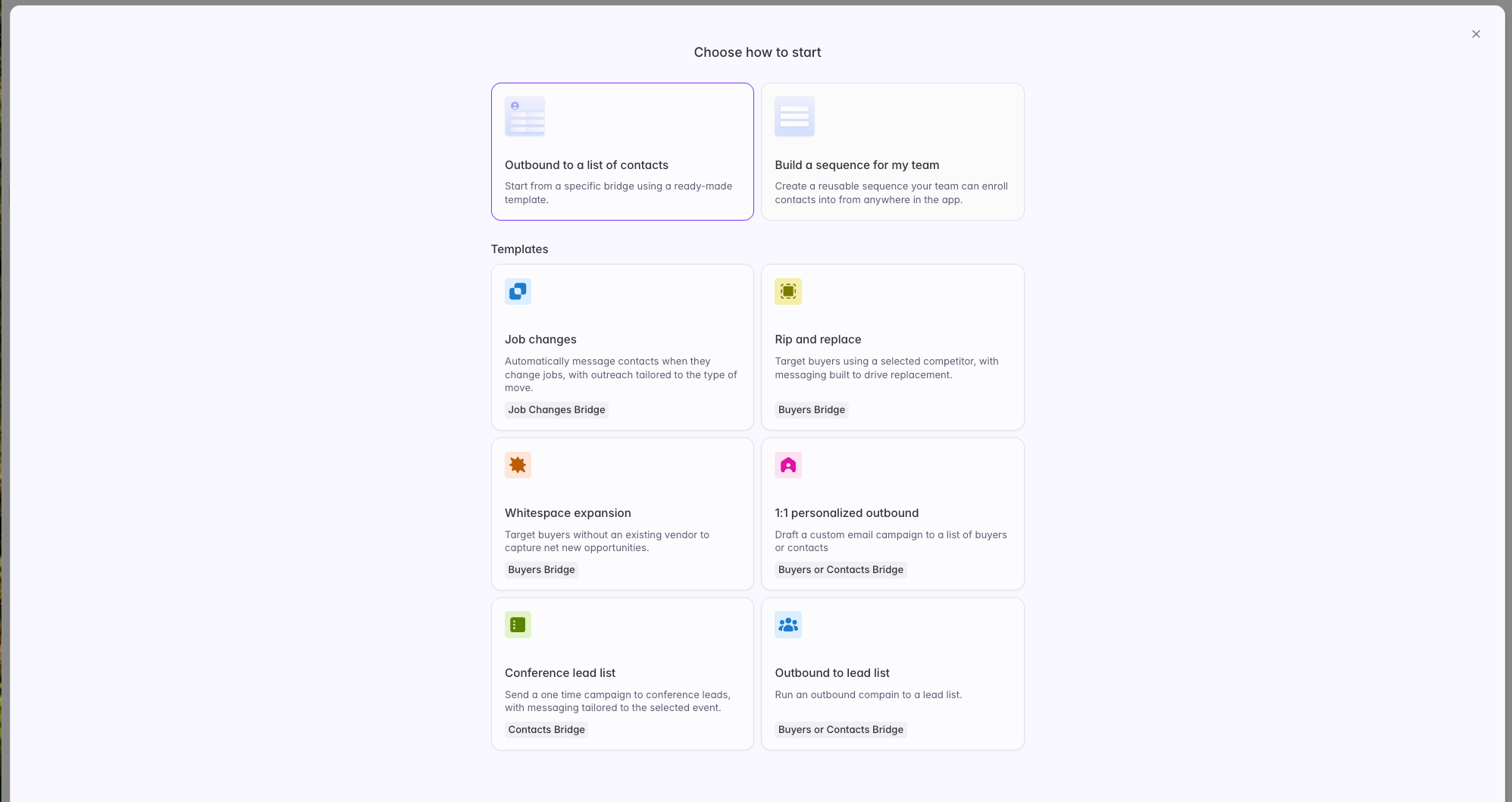
Open **Sequences** from the left sidebar and select **New sequence**.
The template determines what data the sequence can use and what configuration it asks you for.
| Template | Requires | Setup |
| ------------------------------------ | --------------------------------------------------------------------- | -------------------------------------------------------------------------------------------------------------------------------- |
| **Job changes** | A Job Changes Bridge | Choose which job change types to include. New hires and promotions are selected by default. Messaging adapts to the change type. |
| **Rip & replace** | A Buyer Bridge with a vendor presence column and a contact column | Select the competitor or competitors to target. |
| **Whitespace expansion** | A Buyer Bridge with a vendor presence column and a contact column | Targets buyers with none of your competitors present. |
| **Outbound to conference lead list** | A Contacts Bridge | Optionally select a conference to make messaging contextual. |
| **1:1 personalized outbound** | A Contacts Bridge, or a Buyer Bridge with at least one contact column | None |
| **Outbound to a lead list** | A Contacts Bridge, or a Buyer Bridge with at least one contact column | None |
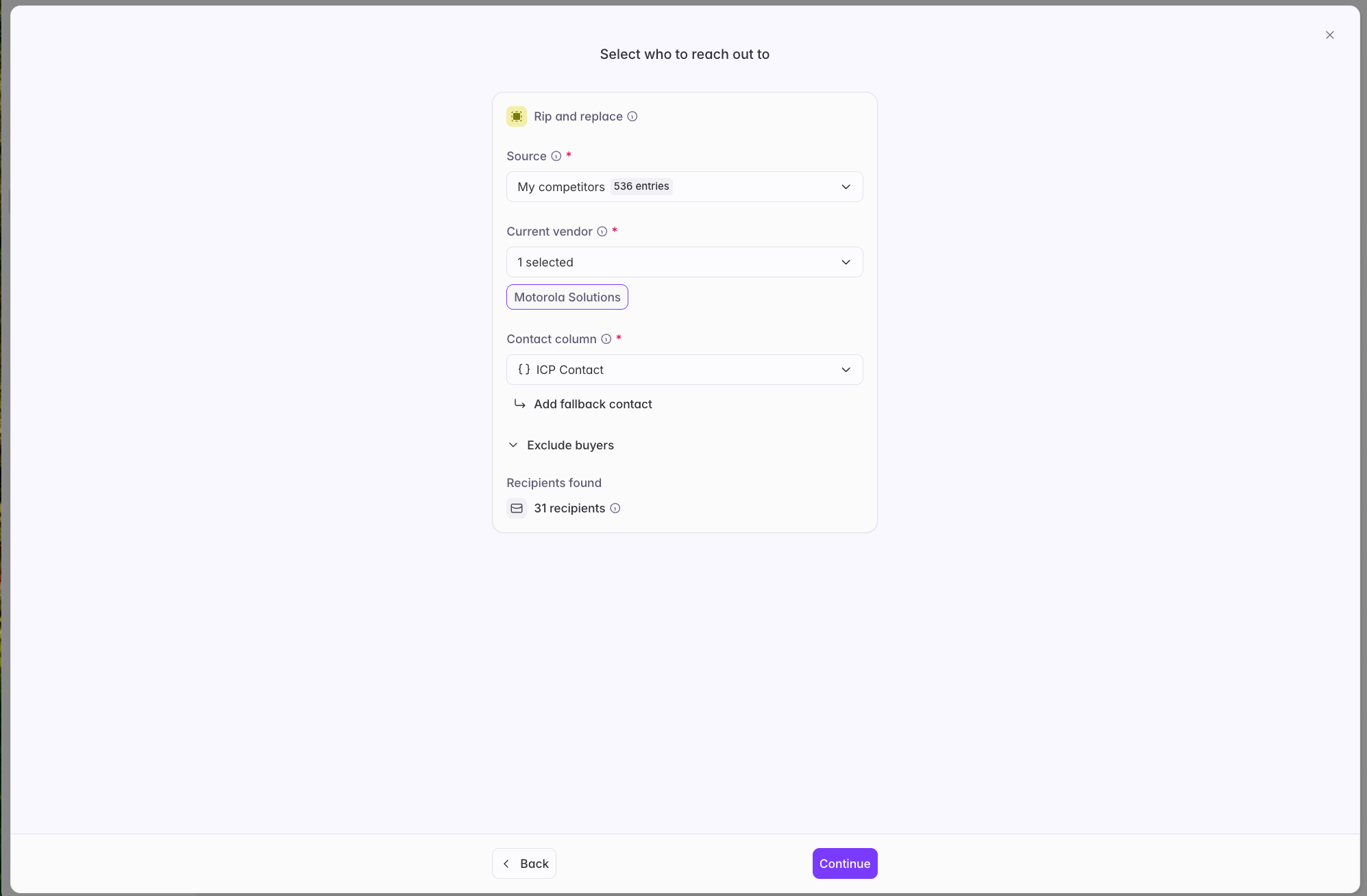
Give the sequence a unique name, then select the Bridge to draw contacts from.
Depending on the template, you may need to provide more detail here: which vendor for a rip and replace, which job change types for a job changes sequence.
If your Bridge has more than one contact column, select a primary contact column and optionally a backup, so Starbridge knows which contact to prioritize for each account.
Bridge-based sequence takes the contacts in a Bridge and generates a personalized, multi-step email sequence for every one of them. It's the right choice to run a scaled but targeted play: every account where a competitor is present, every new hire in a title you sell to, every district that just posted a relevant budget line.
Builders create Bridge-based sequences. Reps don't see them.
## Before you start
Your Bridge needs contacts. That means a Contacts Bridge, a Job Changes Bridge, or a Bridge with at least one contact column on it.
You also need at least one connected inbox before the sequence can start sending. You can connect one during setup or afterward. See [Connect your inbox](/sequences/connect-your-inbox).
## Create a sequence
Open **Sequences** from the left sidebar and select **New sequence**.
The template determines what data the sequence can use and what configuration it asks you for.
| Template | Requires | Setup |
| ------------------------------------ | --------------------------------------------------------------------- | -------------------------------------------------------------------------------------------------------------------------------- |
| **Job changes** | A Job Changes Bridge | Choose which job change types to include. New hires and promotions are selected by default. Messaging adapts to the change type. |
| **Rip & replace** | A Buyer Bridge with a vendor presence column and a contact column | Select the competitor or competitors to target. |
| **Whitespace expansion** | A Buyer Bridge with a vendor presence column and a contact column | Targets buyers with none of your competitors present. |
| **Outbound to conference lead list** | A Contacts Bridge | Optionally select a conference to make messaging contextual. |
| **1:1 personalized outbound** | A Contacts Bridge, or a Buyer Bridge with at least one contact column | None |
| **Outbound to a lead list** | A Contacts Bridge, or a Buyer Bridge with at least one contact column | None |
Give the sequence a unique name, then select the Bridge to draw contacts from.
Depending on the template, you may need to provide more detail here: which vendor for a rip and replace, which job change types for a job changes sequence.
If your Bridge has more than one contact column, select a primary contact column and optionally a backup, so Starbridge knows which contact to prioritize for each account.
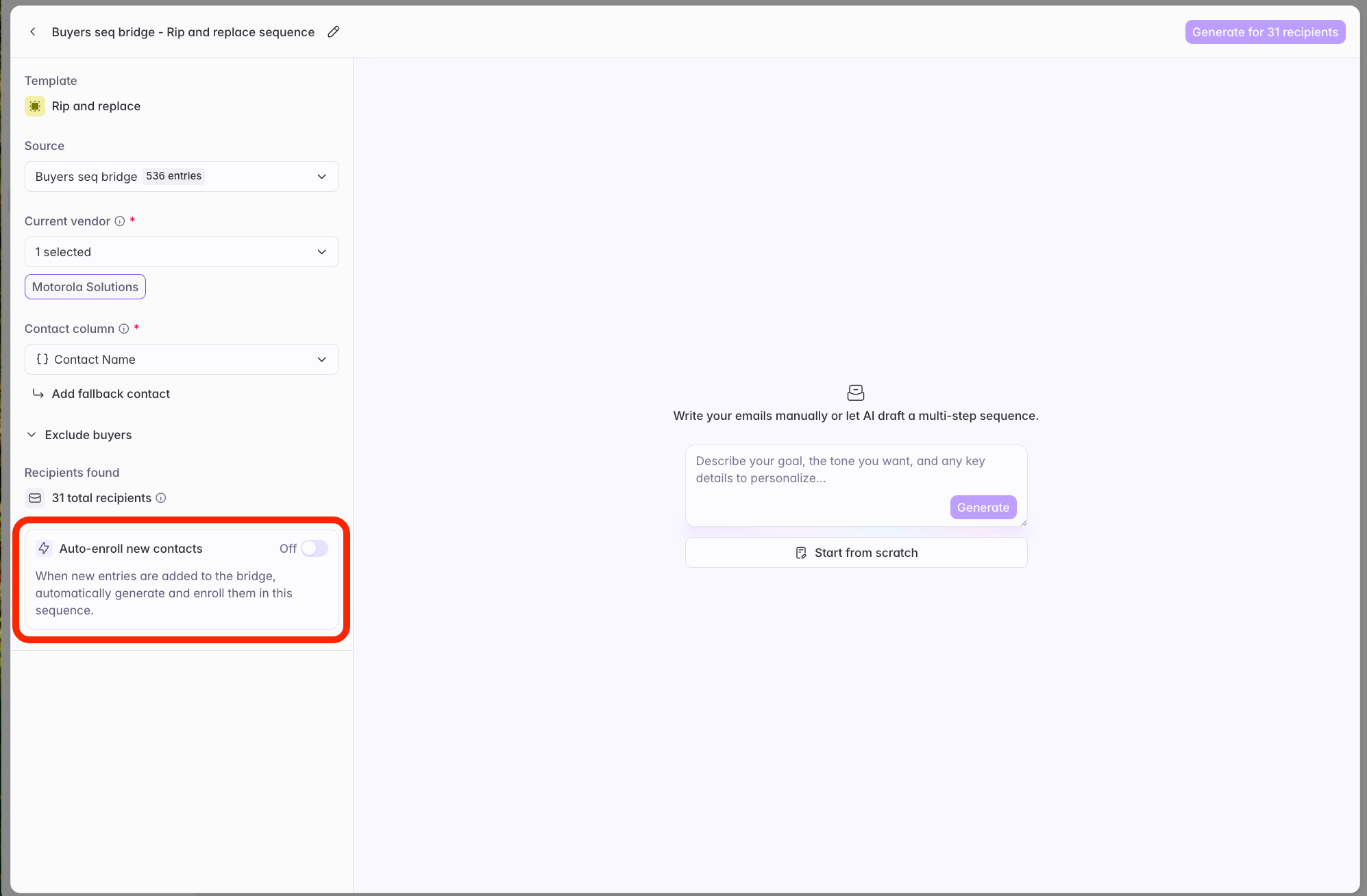
 Choose whether the sequence pulls in new contacts as your Bridge finds them.
**Live updates** means new contacts are added automatically as the Bridge grows. This suits ongoing plays like job changes, where the signal keeps arriving.
**Static** means the sequence works only the contacts present when you generate it. This suits time-boxed plays like a conference lead list or a one-time displacement push.
You can switch between the two at any point, during setup or after the sequence is live. Switching from static to live updates pulls in everyone the Bridge added while it was static, along with anyone it finds going forward.
Choose whether the sequence pulls in new contacts as your Bridge finds them.
**Live updates** means new contacts are added automatically as the Bridge grows. This suits ongoing plays like job changes, where the signal keeps arriving.
**Static** means the sequence works only the contacts present when you generate it. This suits time-boxed plays like a conference lead list or a one-time displacement push.
You can switch between the two at any point, during setup or after the sequence is live. Switching from static to live updates pulls in everyone the Bridge added while it was static, along with anyone it finds going forward.
 Your org's default exclusion lists are pre-selected. Remove any that don't apply to this sequence, or add others from your buyer lists. See [Send settings and exclusions](/sequences/send-settings#exclusion-lists).
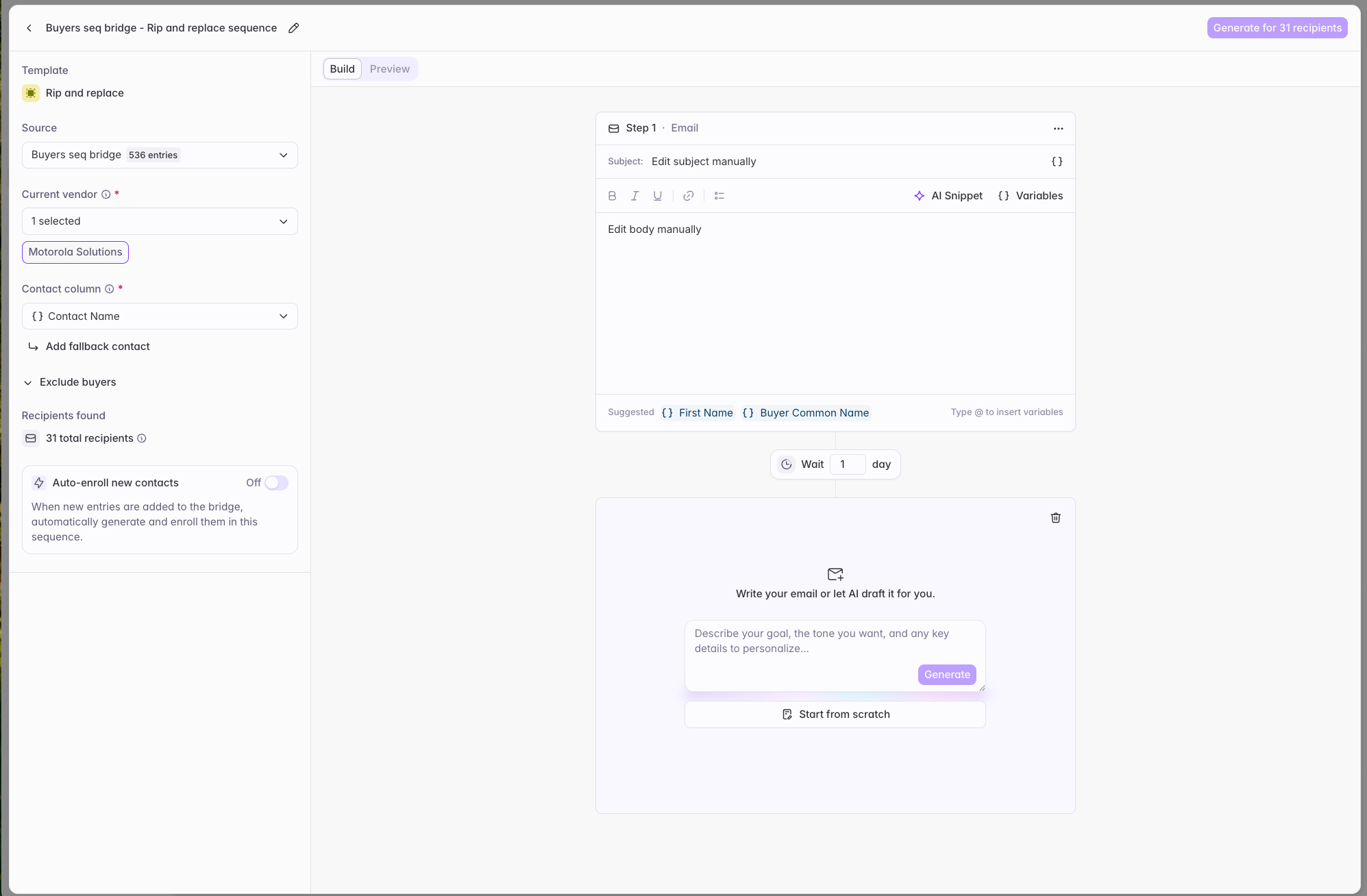
Build your steps in one of two ways.
**Generate from a prompt.** Describe the sequence you want, in as much or as little detail as you want. Starbridge drafts the whole thing, including the copy for every step.
**Build steps manually.** Add each step yourself and set the wait period. For each one, write the content by hand or give Starbridge a short prompt to generate it.
You can mix the two. Generate a sequence from a prompt, then rewrite any step by hand. See [Generate personalized outbound](/generate-personalized-outbound) for guidance on how to create steps with variables, AI snippets, and static text.
**Admins:** Set org-level message generation preferences in your Organization Profile to apply your team's tone, style, and value props to every generated message across Sequences, the Personalized Outbound Email column, and Ask Starbridge.
Your org's default exclusion lists are pre-selected. Remove any that don't apply to this sequence, or add others from your buyer lists. See [Send settings and exclusions](/sequences/send-settings#exclusion-lists).
Build your steps in one of two ways.
**Generate from a prompt.** Describe the sequence you want, in as much or as little detail as you want. Starbridge drafts the whole thing, including the copy for every step.
**Build steps manually.** Add each step yourself and set the wait period. For each one, write the content by hand or give Starbridge a short prompt to generate it.
You can mix the two. Generate a sequence from a prompt, then rewrite any step by hand. See [Generate personalized outbound](/generate-personalized-outbound) for guidance on how to create steps with variables, AI snippets, and static text.
**Admins:** Set org-level message generation preferences in your Organization Profile to apply your team's tone, style, and value props to every generated message across Sequences, the Personalized Outbound Email column, and Ask Starbridge.
 Preview at least one contact before generating. You can preview up to five, drawn at random, and preview shows every message with variables and snippets fully resolved so you're reading the real output rather than a template.
When you're happy with the copy, generate the sequence for all contacts.
## Start with a recommended sequence
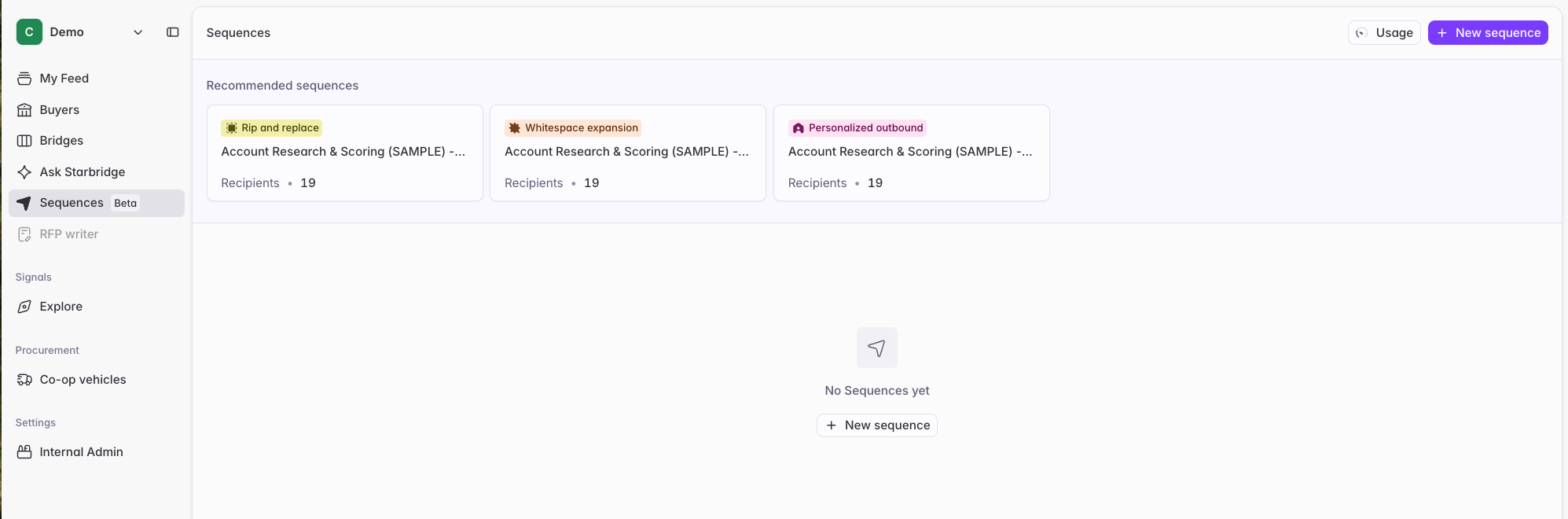
If you'd rather not start from a blank template, Starbridge suggests sequences tailored to your org based on your Organization Profile and the Bridges you already have, with messages pre-generated for every step.
Recommended sequences cover the same templates as building from scratch. Which ones you see depends on which Bridges exist in your org, so a team without a Job Changes Bridge won't be offered a job changes sequence.
Preview at least one contact before generating. You can preview up to five, drawn at random, and preview shows every message with variables and snippets fully resolved so you're reading the real output rather than a template.
When you're happy with the copy, generate the sequence for all contacts.
## Start with a recommended sequence
If you'd rather not start from a blank template, Starbridge suggests sequences tailored to your org based on your Organization Profile and the Bridges you already have, with messages pre-generated for every step.
Recommended sequences cover the same templates as building from scratch. Which ones you see depends on which Bridges exist in your org, so a team without a Job Changes Bridge won't be offered a job changes sequence.
 ## Editing after generation
You can edit a generated sequence, with some limits once it's live.
**Editing step content.** Edit any step while the sequence is in Draft, Generated, or Paused. Changes regenerate copy only for steps that haven't sent yet.
**Editing sequence structure.** Steps can be added or deleted when a sequence is Draft or Generated. Steps can't be added or deleted once a sequence is Active or Paused.
**Choosing who gets the changes.** When you edit the structure of a generated sequence, choose whether to regenerate messages for all contacts, or only for contacts enrolled from that point forward. Regenerating for everyone rewrites unsent messages for people already in the sequence; future-contacts-only leaves them untouched.
**Editing one contact's message.** Click into any generated message and type your changes. Edits apply to the resolved copy for that contact only, and don't affect anyone else or future generations.
## If your source Bridge is deleted
Deleting the Bridge behind a sequence doesn't delete the sequence, but it does change what happens next.
A sequence with live updates converts to static. Existing contacts keep their generated messages and keep sending; no new contacts are added. A static sequence is unaffected. A draft sequence needs a new data source before you can preview or generate it.
## Sending
Once your sequence is generated, connect an inbox and configure your send settings, then set the sequence Active. See [Send settings and exclusions](/sequences/send-settings).
You can also send individual messages yourself using **Open in mail**, which opens the message in your mail client with the copy already resolved. This is useful for a handful of high-value contacts you want to send personally. After sending emails manually, mark the contact as Removed or Completed to ensure they aren't accidentally set to Enrolled and start receiving automated emails from the sequence in the future.
If you run outbound in another tool, export the sequence as a CSV and import it there.
You can filter what you export by contact status, to exclude Removed or Completed contacts.
## Where to go next
Configure sending volume, schedule, and the protections Starbridge applies automatically.
Build a sequence your reps can enroll contacts into one at a time.
Monitor live sequences, and what every status means.
A deep dive on variables, AI snippets, and writing prompts that produce grounded copy.
Add vendor presence to a Bridge to unlock rip and replace and whitespace expansion.
## Editing after generation
You can edit a generated sequence, with some limits once it's live.
**Editing step content.** Edit any step while the sequence is in Draft, Generated, or Paused. Changes regenerate copy only for steps that haven't sent yet.
**Editing sequence structure.** Steps can be added or deleted when a sequence is Draft or Generated. Steps can't be added or deleted once a sequence is Active or Paused.
**Choosing who gets the changes.** When you edit the structure of a generated sequence, choose whether to regenerate messages for all contacts, or only for contacts enrolled from that point forward. Regenerating for everyone rewrites unsent messages for people already in the sequence; future-contacts-only leaves them untouched.
**Editing one contact's message.** Click into any generated message and type your changes. Edits apply to the resolved copy for that contact only, and don't affect anyone else or future generations.
## If your source Bridge is deleted
Deleting the Bridge behind a sequence doesn't delete the sequence, but it does change what happens next.
A sequence with live updates converts to static. Existing contacts keep their generated messages and keep sending; no new contacts are added. A static sequence is unaffected. A draft sequence needs a new data source before you can preview or generate it.
## Sending
Once your sequence is generated, connect an inbox and configure your send settings, then set the sequence Active. See [Send settings and exclusions](/sequences/send-settings).
You can also send individual messages yourself using **Open in mail**, which opens the message in your mail client with the copy already resolved. This is useful for a handful of high-value contacts you want to send personally. After sending emails manually, mark the contact as Removed or Completed to ensure they aren't accidentally set to Enrolled and start receiving automated emails from the sequence in the future.
If you run outbound in another tool, export the sequence as a CSV and import it there.
You can filter what you export by contact status, to exclude Removed or Completed contacts.
## Where to go next
Configure sending volume, schedule, and the protections Starbridge applies automatically.
Build a sequence your reps can enroll contacts into one at a time.
Monitor live sequences, and what every status means.
A deep dive on variables, AI snippets, and writing prompts that produce grounded copy.
Add vendor presence to a Bridge to unlock rip and replace and whitespace expansion.