> ## Documentation Index
> Fetch the complete documentation index at: https://hc.starbridge.ai/llms.txt
> Use this file to discover all available pages before exploring further.
# Enrolling a contact
> Add a contact to a sequence from a contact card or Ask Starbridge, review the generated copy, and start sending.
When you find someone worth reaching out to on a buyer page, in your feed, or in an Ask Starbridge chat, you can put them into a sequence without leaving the page.
 ## Before you start
**Connect your inbox.** Sequences send from your own inbox, so you need one connected before you can enroll anyone. See [Connect your inbox](/sequences/connect-your-inbox).
## Enroll from a contact card
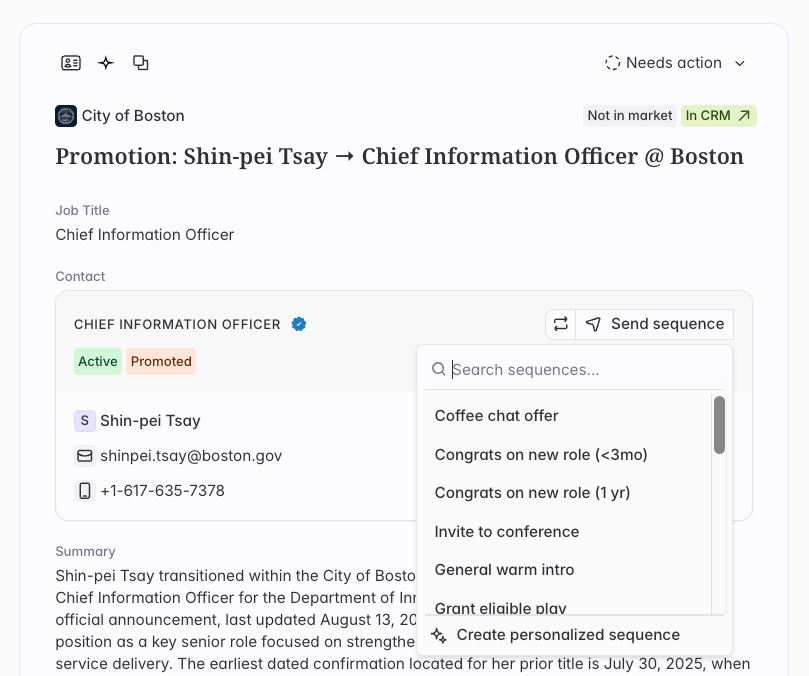
Contact cards appear anywhere Starbridge shows you a contact: buyer pages, feed cards, and Ask Starbridge results.
You have two options: enroll the contact in a sequence your team has already built, or create a personalized one-off sequence specifically for them.
Choose an existing sequence when your team has a play for this situation. Choose a personalized one-off sequence for entirely customized outreach. See [One-off sequences](/sequences/one-off-sequences) for more.
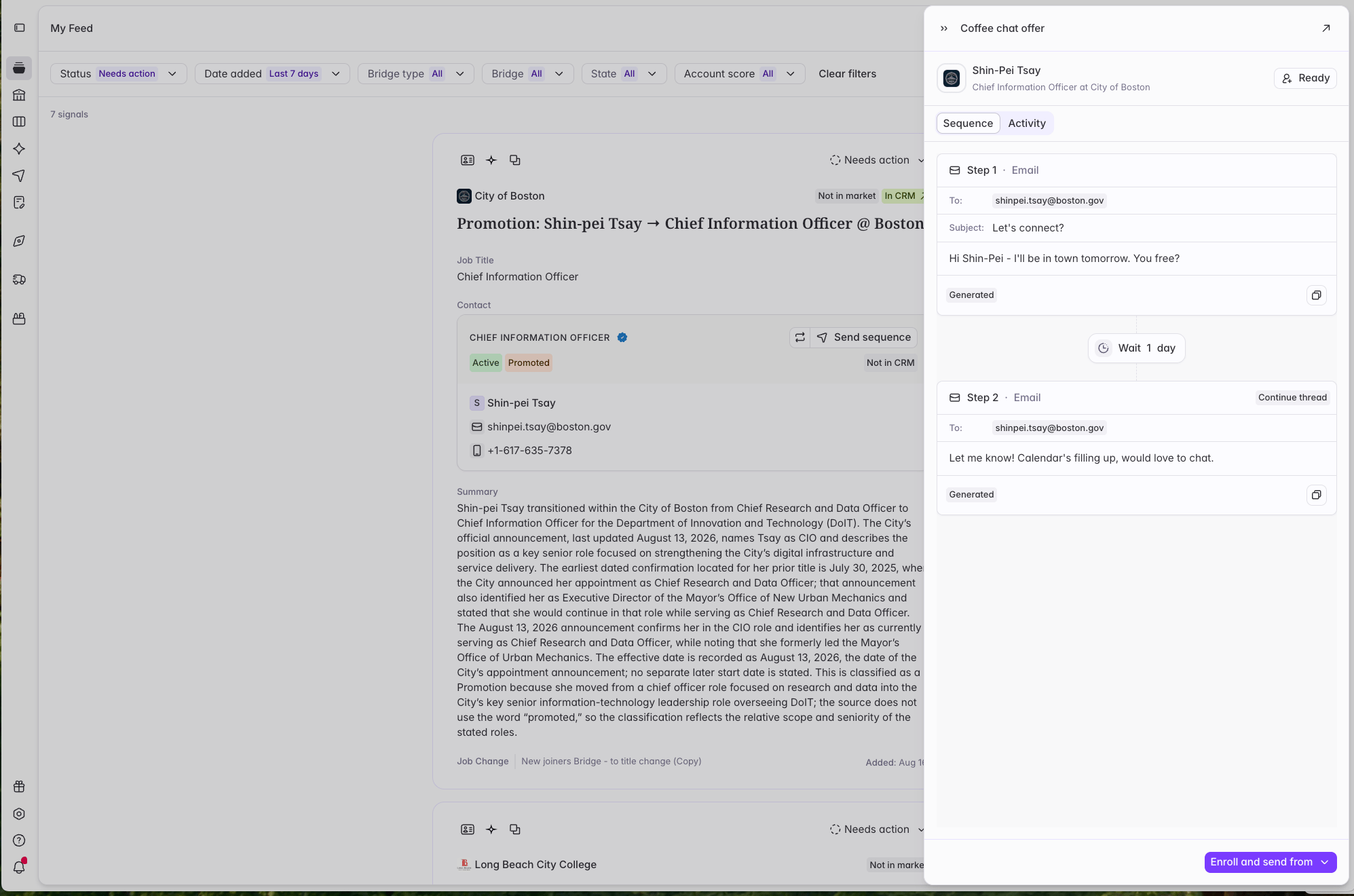
Starbridge generates every step for this contact using what it knows about them and the account. The contact enters the sequence in **Ready** status, which means nothing has sent yet and nothing will send until you **Enroll** them.
Read through the steps and edit anything that doesn't sound just right. Your edits apply to this contact only.
## Before you start
**Connect your inbox.** Sequences send from your own inbox, so you need one connected before you can enroll anyone. See [Connect your inbox](/sequences/connect-your-inbox).
## Enroll from a contact card
Contact cards appear anywhere Starbridge shows you a contact: buyer pages, feed cards, and Ask Starbridge results.
You have two options: enroll the contact in a sequence your team has already built, or create a personalized one-off sequence specifically for them.
Choose an existing sequence when your team has a play for this situation. Choose a personalized one-off sequence for entirely customized outreach. See [One-off sequences](/sequences/one-off-sequences) for more.
Starbridge generates every step for this contact using what it knows about them and the account. The contact enters the sequence in **Ready** status, which means nothing has sent yet and nothing will send until you **Enroll** them.
Read through the steps and edit anything that doesn't sound just right. Your edits apply to this contact only.
 When the copy is right, enroll the contact. Their status changes to **Enrolled** and the first step sends on your sequence's schedule.
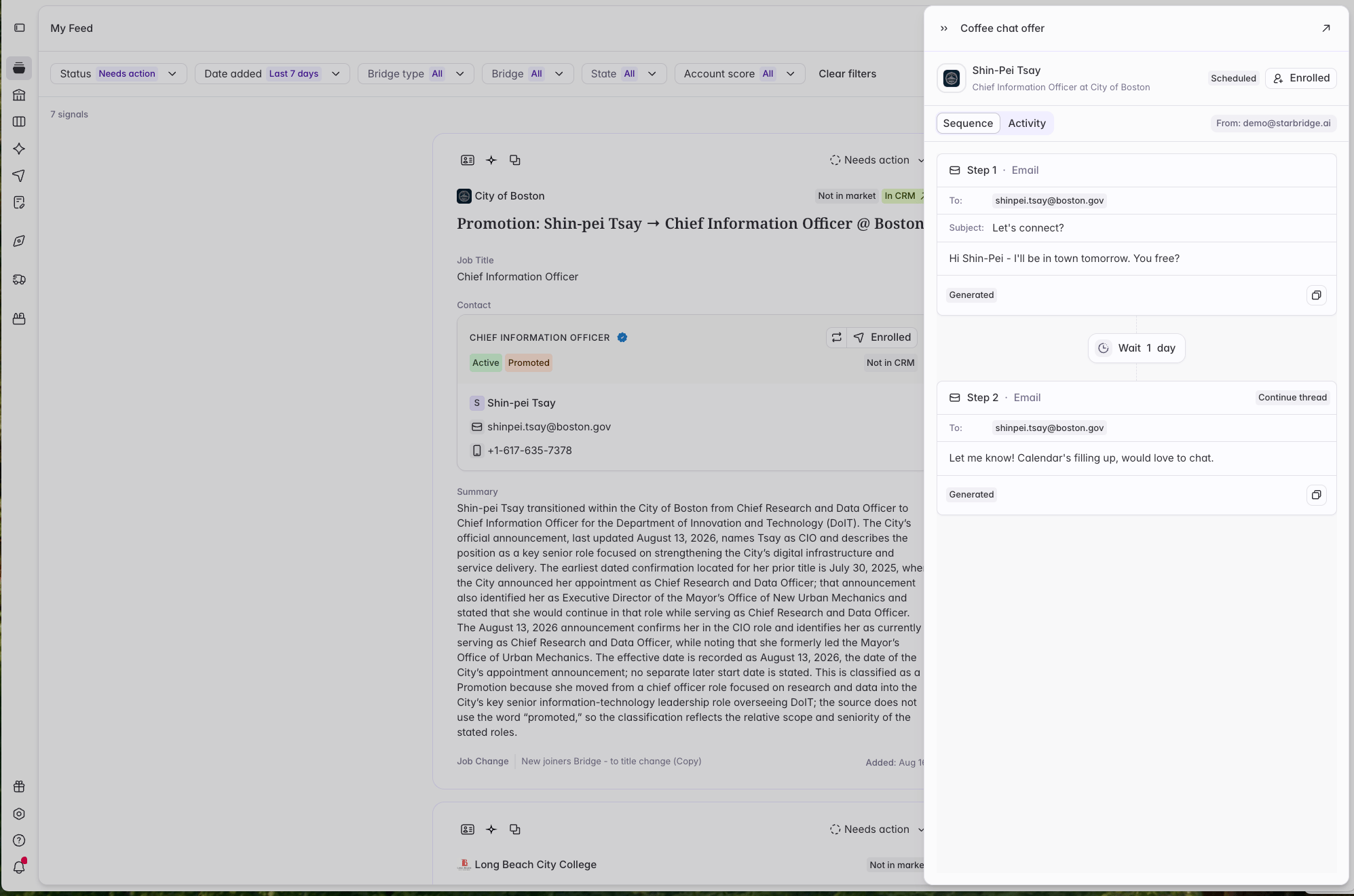 A contact sitting in **Ready** status will never be emailed. You must **Enroll** a contact for them to receive the sequence.
## Enroll from Ask Starbridge
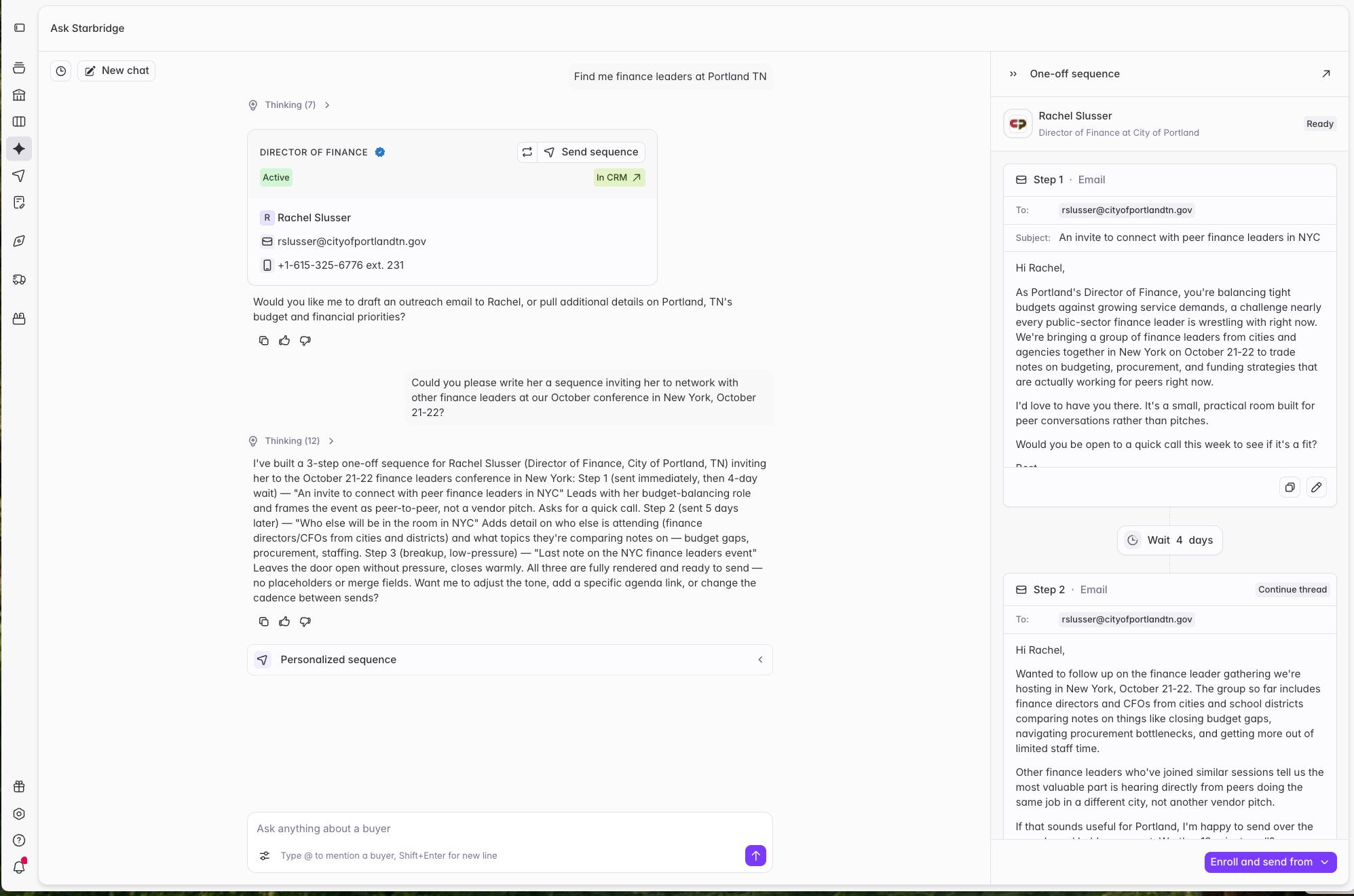
Ask Starbridge can enroll contacts directly. Ask it to find contacts at an account, then enroll one from the contact card in the response, or just tell it what you want.
A contact sitting in **Ready** status will never be emailed. You must **Enroll** a contact for them to receive the sequence.
## Enroll from Ask Starbridge
Ask Starbridge can enroll contacts directly. Ask it to find contacts at an account, then enroll one from the contact card in the response, or just tell it what you want.
 ## When you can't enroll someone
**The contact is on your blocklist, unsubscribe list, or an exclusion list.** Enrollment is disabled and can't be overridden. Blocklists and unsubscribes exist because someone asked not to be contacted, or your admin decided the domain is off limits. Exclusion lists cover accounts your admin has put out of bounds for outbound, usually current customers.
**The contact is already enrolled in another sequence.** They'll be added in **Removed** status and can't be enrolled here until they finish or are removed from the other one. This stops the same person getting outreach from two directions at once. If you re-enroll a contact later, their sequence restarts from step 1.
**You don't have an inbox connected.** The contact stays in **Ready** status until you connect one, then you can enroll them.
**The contact isn't Starbridge-verified.** Only verified contacts can be added to a sequence. Unverified contacts extracted from documents aren't eligible, and won't offer an enroll action at all.
**The contact is locked.** Unlock them for 2 credits, then enroll.
## After you enroll
Find everything you've enrolled under [**Sequences**](https://dashboard.starbridge.ai/sequences) in the sidebar. You can watch each contact's progress, read replies, and remove anyone at any time.
Replies stop the sequence automatically, so you won't keep emailing someone who already wrote back. Their status changes to **Completed**, and you can continue the conversation from your inbox.
## Where to go next
Build a sequence from scratch for a single contact.
What Ready, Enrolled, Completed, and Removed mean.
## When you can't enroll someone
**The contact is on your blocklist, unsubscribe list, or an exclusion list.** Enrollment is disabled and can't be overridden. Blocklists and unsubscribes exist because someone asked not to be contacted, or your admin decided the domain is off limits. Exclusion lists cover accounts your admin has put out of bounds for outbound, usually current customers.
**The contact is already enrolled in another sequence.** They'll be added in **Removed** status and can't be enrolled here until they finish or are removed from the other one. This stops the same person getting outreach from two directions at once. If you re-enroll a contact later, their sequence restarts from step 1.
**You don't have an inbox connected.** The contact stays in **Ready** status until you connect one, then you can enroll them.
**The contact isn't Starbridge-verified.** Only verified contacts can be added to a sequence. Unverified contacts extracted from documents aren't eligible, and won't offer an enroll action at all.
**The contact is locked.** Unlock them for 2 credits, then enroll.
## After you enroll
Find everything you've enrolled under [**Sequences**](https://dashboard.starbridge.ai/sequences) in the sidebar. You can watch each contact's progress, read replies, and remove anyone at any time.
Replies stop the sequence automatically, so you won't keep emailing someone who already wrote back. Their status changes to **Completed**, and you can continue the conversation from your inbox.
## Where to go next
Build a sequence from scratch for a single contact.
What Ready, Enrolled, Completed, and Removed mean.