> ## Documentation Index
> Fetch the complete documentation index at: https://hc.starbridge.ai/llms.txt
> Use this file to discover all available pages before exploring further.
# One-off sequences
> Generate a multi-step sequence for a single contact, workshop the copy with Ask Starbridge, and send it from your own inbox.
A one-off sequence is built for one person. Starbridge drafts the whole thing, including how many steps, how long to wait between them, and what each message says, using everything it knows about that contact and their organization. You edit it until it sounds like you, then send.
Use a one-off when the account is worth the attention and no existing sequence quite fits: an account you're actively working, a contact whose situation is unusual, or a second and third stakeholder you want to reach with different angles than the first.
## Before you start
You need a connected inbox and a contact. See [Connect your inbox](/sequences/connect-your-inbox).
## Generate a one-off sequence
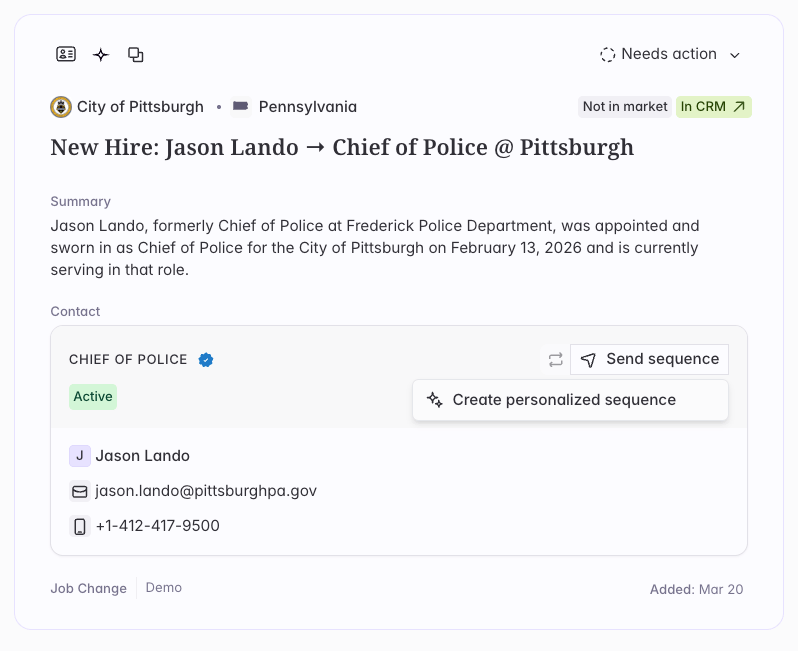
On any contact card, click **Send sequence** to create a personalized sequence. Ask Starbridge will start drafting a proposed sequence.
You can also start in Ask Starbridge directly: find a contact, then ask for a sequence.
 Edit any message directly, or tell Ask Starbridge what to change: a different angle on the second email, a shorter opener, a reference to a specific signal, etc.
Starbridge draws on the contact's details, their buyer's context and recent signals, the signal you found them through (if any), and your org's message generation preferences.
Edit any message directly, or tell Ask Starbridge what to change: a different angle on the second email, a shorter opener, a reference to a specific signal, etc.
Starbridge draws on the contact's details, their buyer's context and recent signals, the signal you found them through (if any), and your org's message generation preferences.
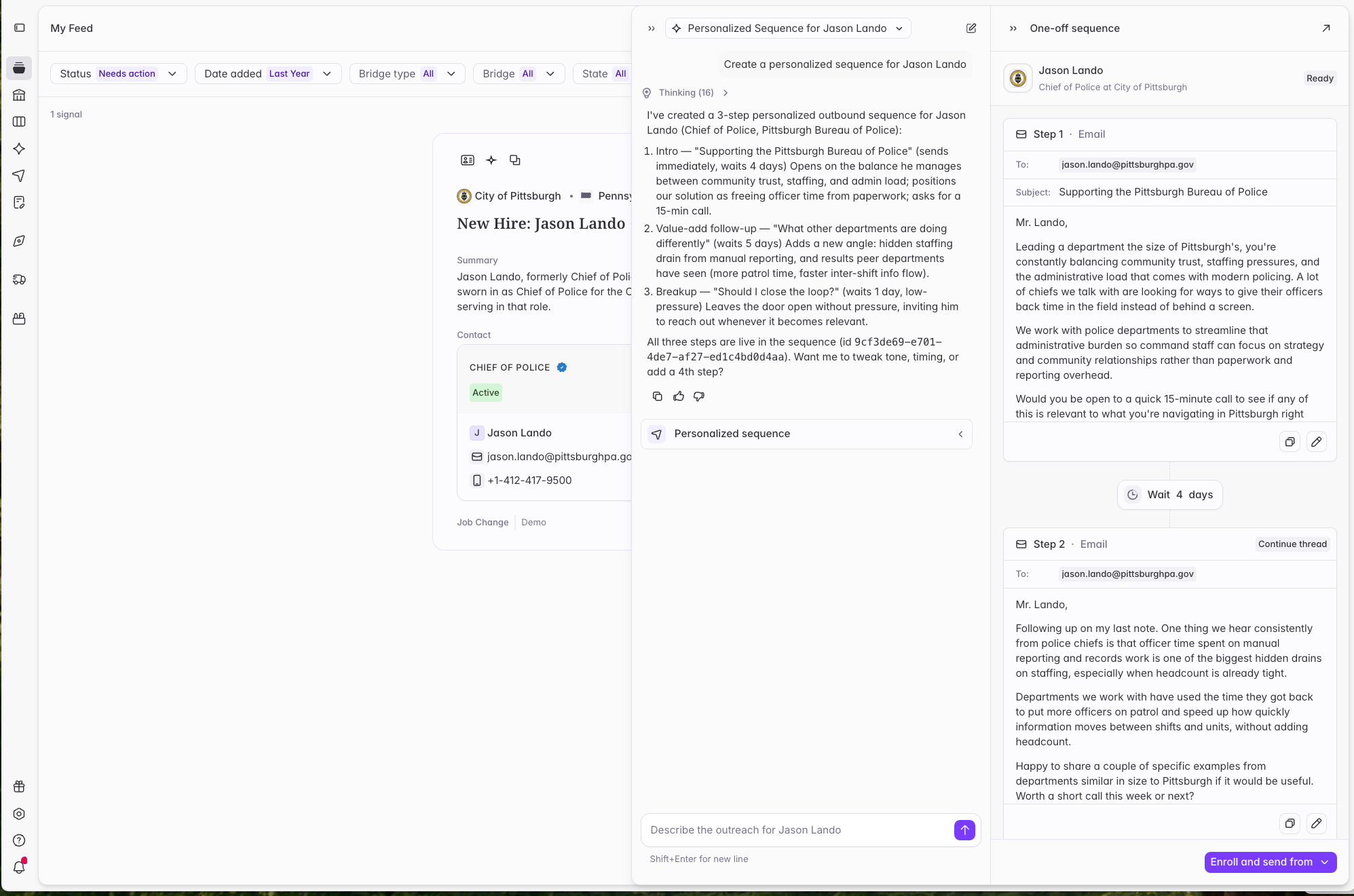 Click **Enroll** in the bottom right of the sequence side panel. The contact will switch from **Ready** to **Enrolled**, and sending starts on your inbox's schedule.
## Where your one-off sequences live
All your one-off sequences roll up into a single view under **Sequences** in the sidebar. Open the Sequences page and click **One-off sequences** to see every contact you've generated one for, alongside the sequence written for each.
Click **Enroll** in the bottom right of the sequence side panel. The contact will switch from **Ready** to **Enrolled**, and sending starts on your inbox's schedule.
## Where your one-off sequences live
All your one-off sequences roll up into a single view under **Sequences** in the sidebar. Open the Sequences page and click **One-off sequences** to see every contact you've generated one for, alongside the sequence written for each.
 You can edit the generated copy for any recipient, at any time, for steps that haven't sent. You can't bulk-edit sequence steps, because each sequence is unique to the recipient. There's no pause: to stop sending to someone, remove them, which stops all their remaining steps.
Reps see their own one-off sequences. Builders and admins can see all of them across the org.
## When you can't create one
The same guardrails apply as for any enrollment. A contact on your blocklist, unsubscribe list, or an exclusion list can't be sequenced. A contact already enrolled in another sequence is added in **Removed** status, so finish or remove them there first. And a locked contact needs unlocking before you can enroll them.
## Where to go next
Add a contact to a sequence your team already built.
Connect Gmail or Outlook so Starbridge can send on your behalf.
You can edit the generated copy for any recipient, at any time, for steps that haven't sent. You can't bulk-edit sequence steps, because each sequence is unique to the recipient. There's no pause: to stop sending to someone, remove them, which stops all their remaining steps.
Reps see their own one-off sequences. Builders and admins can see all of them across the org.
## When you can't create one
The same guardrails apply as for any enrollment. A contact on your blocklist, unsubscribe list, or an exclusion list can't be sequenced. A contact already enrolled in another sequence is added in **Removed** status, so finish or remove them there first. And a locked contact needs unlocking before you can enroll them.
## Where to go next
Add a contact to a sequence your team already built.
Connect Gmail or Outlook so Starbridge can send on your behalf.