> ## Documentation Index
> Fetch the complete documentation index at: https://hc.starbridge.ai/llms.txt
> Use this file to discover all available pages before exploring further.
# Team sequences
> Build a sequence once, and let your reps enroll contacts into it one at a time as they surface.
 A Team sequence is a play your reps can enroll contacts into at any time. You write it once, and reps add contacts to it individually as they find them: a new hire worth congratulating, a contact at an account that just came up in a board meeting, a prospect they met at a conference.
It's the middle ground between a Bridge-based sequence, where Starbridge enrolls everyone automatically, and a one-off, where a rep builds something from scratch for a single person. The messaging stays consistent and on-brand, but the timing stays a rep's judgment call.
Builders create Team sequences. Any rep can enroll contacts into them.
## When to build one
Build a Team sequence when the play is repeatable but the audience isn't a list. If you can describe your recipients as a Bridge, build a [Bridge-based sequence](/sequences/bridge-based-sequences) instead and let Starbridge do the enrolling.
Good candidates are the follow-ups your reps write over and over: the meeting mention follow-up, the RFP near-miss re-engage, the new-in-seat introduction. Writing it once means every rep sends the version you'd want them to send.
## Create a Team sequence
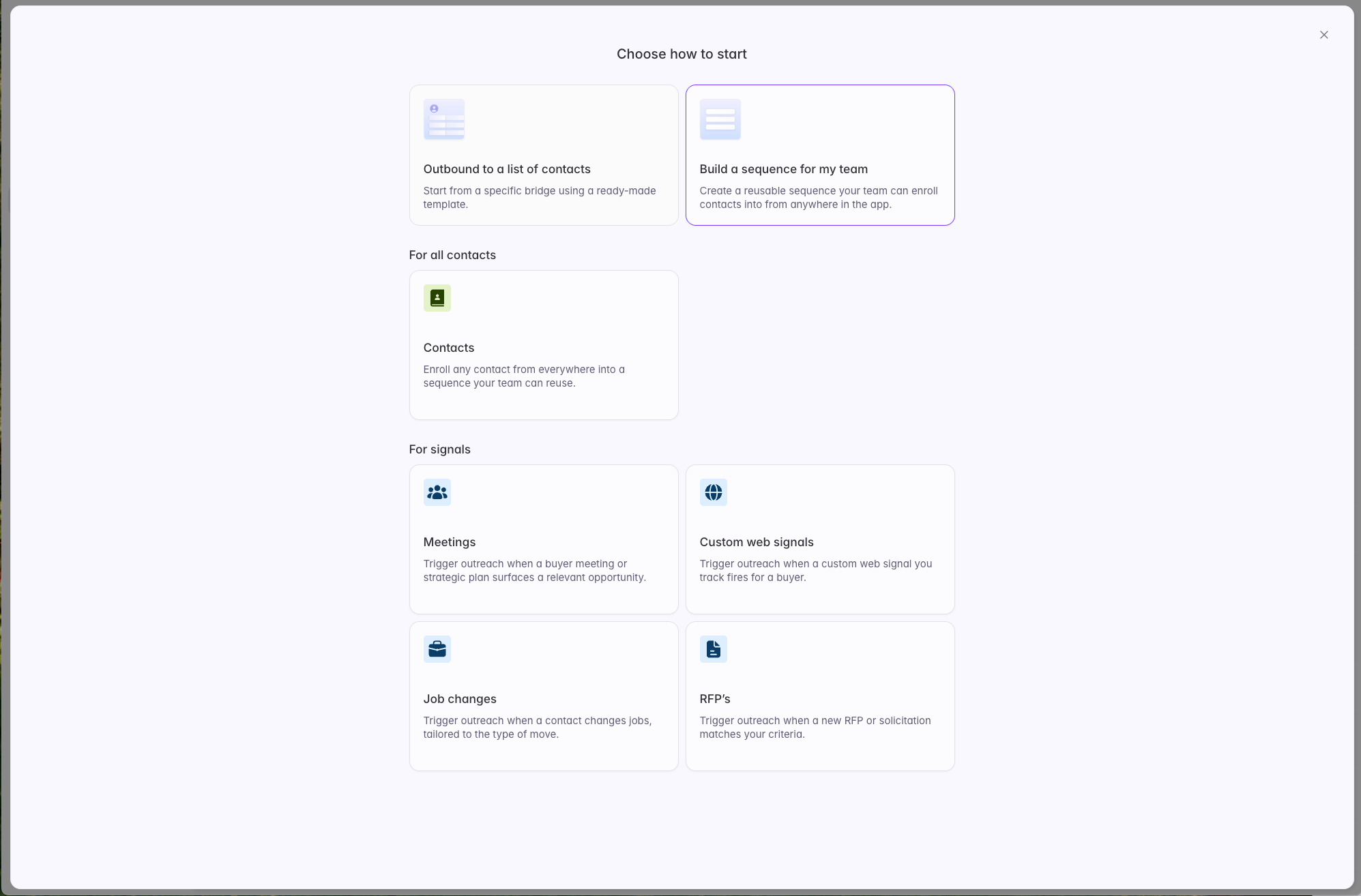
Open **Sequences** from the left sidebar and select **New sequence**.
The type scopes the sequence to a kind of data, which determines both what your messages can reference and which contacts reps can enroll.
| Type | Reps can enroll contacts found through |
| ---------------------- | ------------------------------------------------- |
| **Contacts** | Any verified contact card, anywhere in Starbridge |
| **Meetings** | Any verified contact card on a meeting signal |
| **RFPs** | Any verified contact card on an RFP signal |
| **Job Changes** | Any verified contact card on a job change signal |
| **Custom Web Signals** | Any verified contact card on a custom web signal |
Only Starbridge-verified contacts can be added to a sequence. Unverified contacts extracted from documents aren't eligible.
A rep enrolling a contact only sees sequences matching the signal that contact came from. Someone working a meeting signal sees your meeting sequences; someone on a buyer page sees your contact sequences. This keeps a job changes sequence, which opens by congratulating someone on a new role, from going to a contact who didn't just change jobs.
**Not sure which to pick?** Contacts is the most flexible: reps can enroll anyone from anywhere. Choose a signal type when your copy needs to reference the signal itself.
A Team sequence is a play your reps can enroll contacts into at any time. You write it once, and reps add contacts to it individually as they find them: a new hire worth congratulating, a contact at an account that just came up in a board meeting, a prospect they met at a conference.
It's the middle ground between a Bridge-based sequence, where Starbridge enrolls everyone automatically, and a one-off, where a rep builds something from scratch for a single person. The messaging stays consistent and on-brand, but the timing stays a rep's judgment call.
Builders create Team sequences. Any rep can enroll contacts into them.
## When to build one
Build a Team sequence when the play is repeatable but the audience isn't a list. If you can describe your recipients as a Bridge, build a [Bridge-based sequence](/sequences/bridge-based-sequences) instead and let Starbridge do the enrolling.
Good candidates are the follow-ups your reps write over and over: the meeting mention follow-up, the RFP near-miss re-engage, the new-in-seat introduction. Writing it once means every rep sends the version you'd want them to send.
## Create a Team sequence
Open **Sequences** from the left sidebar and select **New sequence**.
The type scopes the sequence to a kind of data, which determines both what your messages can reference and which contacts reps can enroll.
| Type | Reps can enroll contacts found through |
| ---------------------- | ------------------------------------------------- |
| **Contacts** | Any verified contact card, anywhere in Starbridge |
| **Meetings** | Any verified contact card on a meeting signal |
| **RFPs** | Any verified contact card on an RFP signal |
| **Job Changes** | Any verified contact card on a job change signal |
| **Custom Web Signals** | Any verified contact card on a custom web signal |
Only Starbridge-verified contacts can be added to a sequence. Unverified contacts extracted from documents aren't eligible.
A rep enrolling a contact only sees sequences matching the signal that contact came from. Someone working a meeting signal sees your meeting sequences; someone on a buyer page sees your contact sequences. This keeps a job changes sequence, which opens by congratulating someone on a new role, from going to a contact who didn't just change jobs.
**Not sure which to pick?** Contacts is the most flexible: reps can enroll anyone from anywhere. Choose a signal type when your copy needs to reference the signal itself.
 Give the sequence a unique name. Reps see this name when choosing where to enroll a contact, so make it describe the play rather than the mechanism. "New hire intro" beats "Job changes sequence 2."
Your org's default exclusion lists are pre-selected. Remove any that don't apply, or add others from your buyer lists.
Reps can't enroll a contact whose account is on one of these lists. See [Send settings and exclusions](/sequences/send-settings#exclusion-lists).
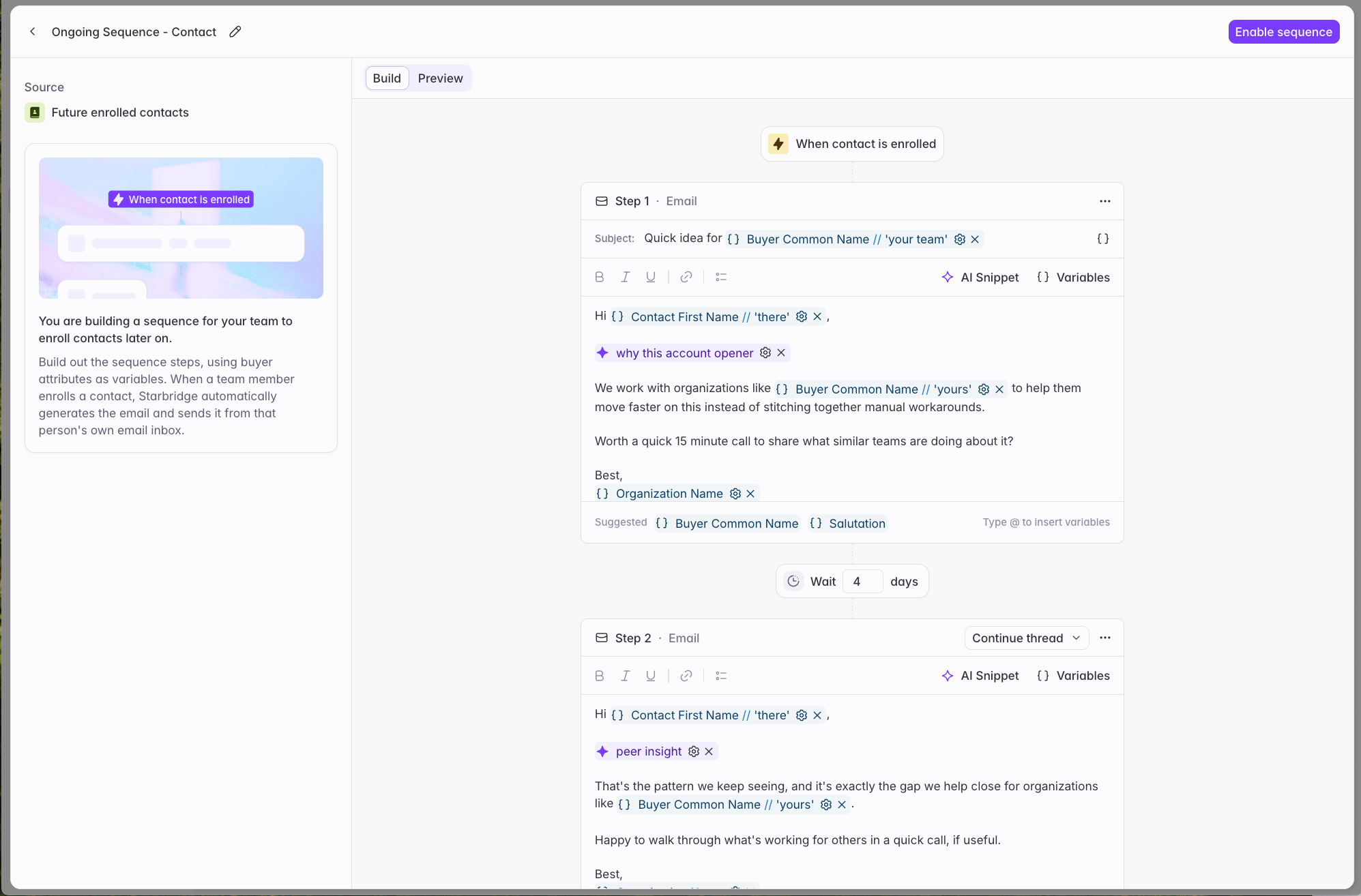
Build your steps exactly as you would for a Bridge-based sequence: generate the whole thing from a prompt, or add steps manually and write or generate each one.
Your messages can use buyer attributes, contact attributes, and, if you chose a signal type, attributes from that signal. Because a Team sequence isn't tied to a specific Bridge, columns specific to one Bridge aren't available.
Static text, variables, and AI snippets all work the same way as they do in a Bridge-based sequence. See [Generate personalized outbound](/generate-personalized-outbound).
Give the sequence a unique name. Reps see this name when choosing where to enroll a contact, so make it describe the play rather than the mechanism. "New hire intro" beats "Job changes sequence 2."
Your org's default exclusion lists are pre-selected. Remove any that don't apply, or add others from your buyer lists.
Reps can't enroll a contact whose account is on one of these lists. See [Send settings and exclusions](/sequences/send-settings#exclusion-lists).
Build your steps exactly as you would for a Bridge-based sequence: generate the whole thing from a prompt, or add steps manually and write or generate each one.
Your messages can use buyer attributes, contact attributes, and, if you chose a signal type, attributes from that signal. Because a Team sequence isn't tied to a specific Bridge, columns specific to one Bridge aren't available.
Static text, variables, and AI snippets all work the same way as they do in a Bridge-based sequence. See [Generate personalized outbound](/generate-personalized-outbound).
 A Team sequence goes Active as soon as you create it. It starts empty, so nothing sends and nobody is contacted. Reps can begin enrolling contacts right away.
You can preview a Team sequence against five randomly selected contacts before your team starts using it. These preview contacts aren't added to the sequence; they exist only so you can see resolved copy.
## How sending works
Team sequences send from the inbox of the rep who enrolled each contact, not from a shared pool you assign. Each rep needs their own connected inbox before they can enroll anyone.
The sequence controls how much and how the emails send: daily volume, step prioritization, plain text, and unsubscribe link. The rep's own inbox controls when, following their personal send schedule and daily limit. The Settings tab reflects this, showing that sending uses each enrolling rep's inbox.
See [Send settings and exclusions](/sequences/send-settings) for what each setting does.
## What reps see
Reps see Team sequences in their **Sequences** tab, filtered to those matching whatever signal they're working from. They can enroll contacts, review and edit the generated copy for the contacts they enroll, and remove contacts. They can't edit your steps, change settings, or pause the sequence.
Reps see the contacts they've enrolled themselves. Builders and admins see every contact in the sequence, whoever added them, so you have the full picture of who's being worked.
For the rep-side walkthrough, see [Enrolling a contact](/sequences/enrolling-contacts).
## Editing after creation
Edit steps while the sequence is Paused. As with Bridge-based sequences, steps can't be added or deleted once a sequence is Active or Paused, and edits regenerate copy only for steps that haven't sent.
Pausing stops sending for everyone currently enrolled and prevents reps from enrolling anyone new.
## Where to go next
The rep-side flow for adding a contact to a Team sequence.
Enroll a whole Bridge automatically instead of one contact at a time.
Configure sending volume, schedule, and deliverability protections.
Monitor live sequences, and what every status means.
A Team sequence goes Active as soon as you create it. It starts empty, so nothing sends and nobody is contacted. Reps can begin enrolling contacts right away.
You can preview a Team sequence against five randomly selected contacts before your team starts using it. These preview contacts aren't added to the sequence; they exist only so you can see resolved copy.
## How sending works
Team sequences send from the inbox of the rep who enrolled each contact, not from a shared pool you assign. Each rep needs their own connected inbox before they can enroll anyone.
The sequence controls how much and how the emails send: daily volume, step prioritization, plain text, and unsubscribe link. The rep's own inbox controls when, following their personal send schedule and daily limit. The Settings tab reflects this, showing that sending uses each enrolling rep's inbox.
See [Send settings and exclusions](/sequences/send-settings) for what each setting does.
## What reps see
Reps see Team sequences in their **Sequences** tab, filtered to those matching whatever signal they're working from. They can enroll contacts, review and edit the generated copy for the contacts they enroll, and remove contacts. They can't edit your steps, change settings, or pause the sequence.
Reps see the contacts they've enrolled themselves. Builders and admins see every contact in the sequence, whoever added them, so you have the full picture of who's being worked.
For the rep-side walkthrough, see [Enrolling a contact](/sequences/enrolling-contacts).
## Editing after creation
Edit steps while the sequence is Paused. As with Bridge-based sequences, steps can't be added or deleted once a sequence is Active or Paused, and edits regenerate copy only for steps that haven't sent.
Pausing stops sending for everyone currently enrolled and prevents reps from enrolling anyone new.
## Where to go next
The rep-side flow for adding a contact to a Team sequence.
Enroll a whole Bridge automatically instead of one contact at a time.
Configure sending volume, schedule, and deliverability protections.
Monitor live sequences, and what every status means.