> ## Documentation Index
> Fetch the complete documentation index at: https://hc.starbridge.ai/llms.txt
> Use this file to discover all available pages before exploring further.
# Signal Explore
Your Builder has set up Bridges to surface signals across your territory - but if you're looking for something specific that isn't coming through your Feed, **Explore** lets you configure a search yourself and preview what Starbridge would find for you. You can describe what you're looking for, refine the search criteria, and view matching signals, all without waiting for a Builder to set something up from scratch.
## Accessing Explore
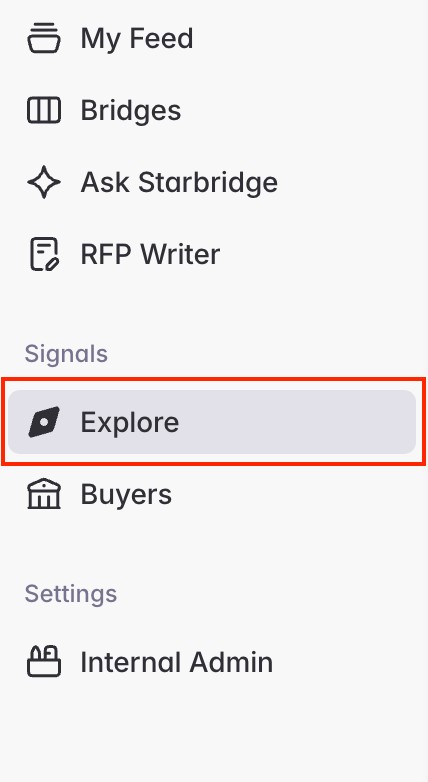
In the left sidebar, click **Signals**, then select **Explore**.
 ## Building your search
Start with a plain-language description of your ideal signal. The more specific, the better.
## Building your search
Start with a plain-language description of your ideal signal. The more specific, the better.
 A strong description includes:
* **Who** you're looking at: buyer type, geography, or size
* **What** you're looking for: a topic, keyword, product category, or signal type
* **Timeframe**: e.g., "meetings in the last 3 months" or "RFPs due in the next 6 months"
* **What makes a strong result**: e.g., "actively evaluating alternatives" or "budget already allocated"
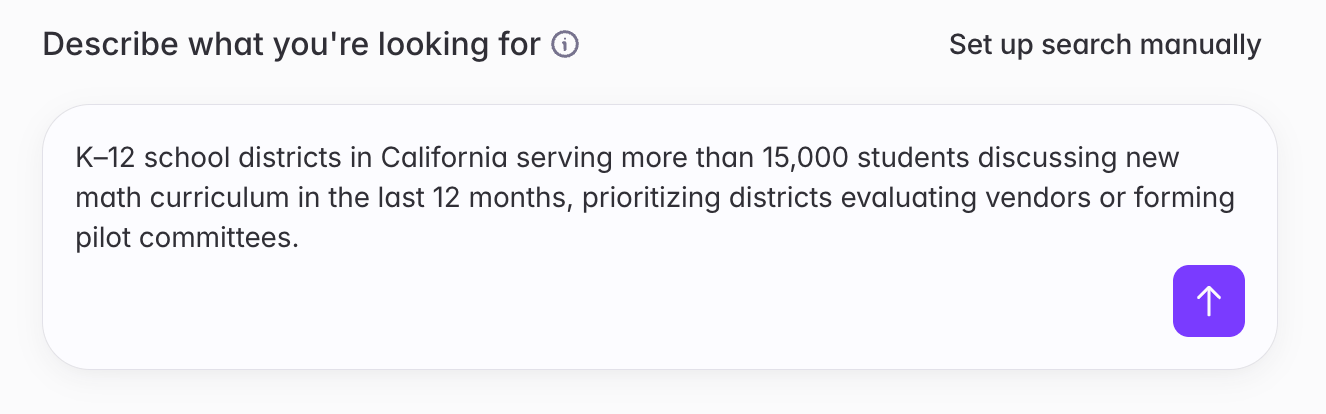
Strong example: *K–12 school districts in California serving more than 15,000 students discussing new math curriculum in the last 12 months, prioritizing districts evaluating vendors or forming pilot committees.*
Prefer to set filters manually? Use the **Set up search manually** option on the same screen.
After submitting your description, Starbridge generates a structured search with five components you can review and adjust.
A strong description includes:
* **Who** you're looking at: buyer type, geography, or size
* **What** you're looking for: a topic, keyword, product category, or signal type
* **Timeframe**: e.g., "meetings in the last 3 months" or "RFPs due in the next 6 months"
* **What makes a strong result**: e.g., "actively evaluating alternatives" or "budget already allocated"
Strong example: *K–12 school districts in California serving more than 15,000 students discussing new math curriculum in the last 12 months, prioritizing districts evaluating vendors or forming pilot committees.*
Prefer to set filters manually? Use the **Set up search manually** option on the same screen.
After submitting your description, Starbridge generates a structured search with five components you can review and adjust.
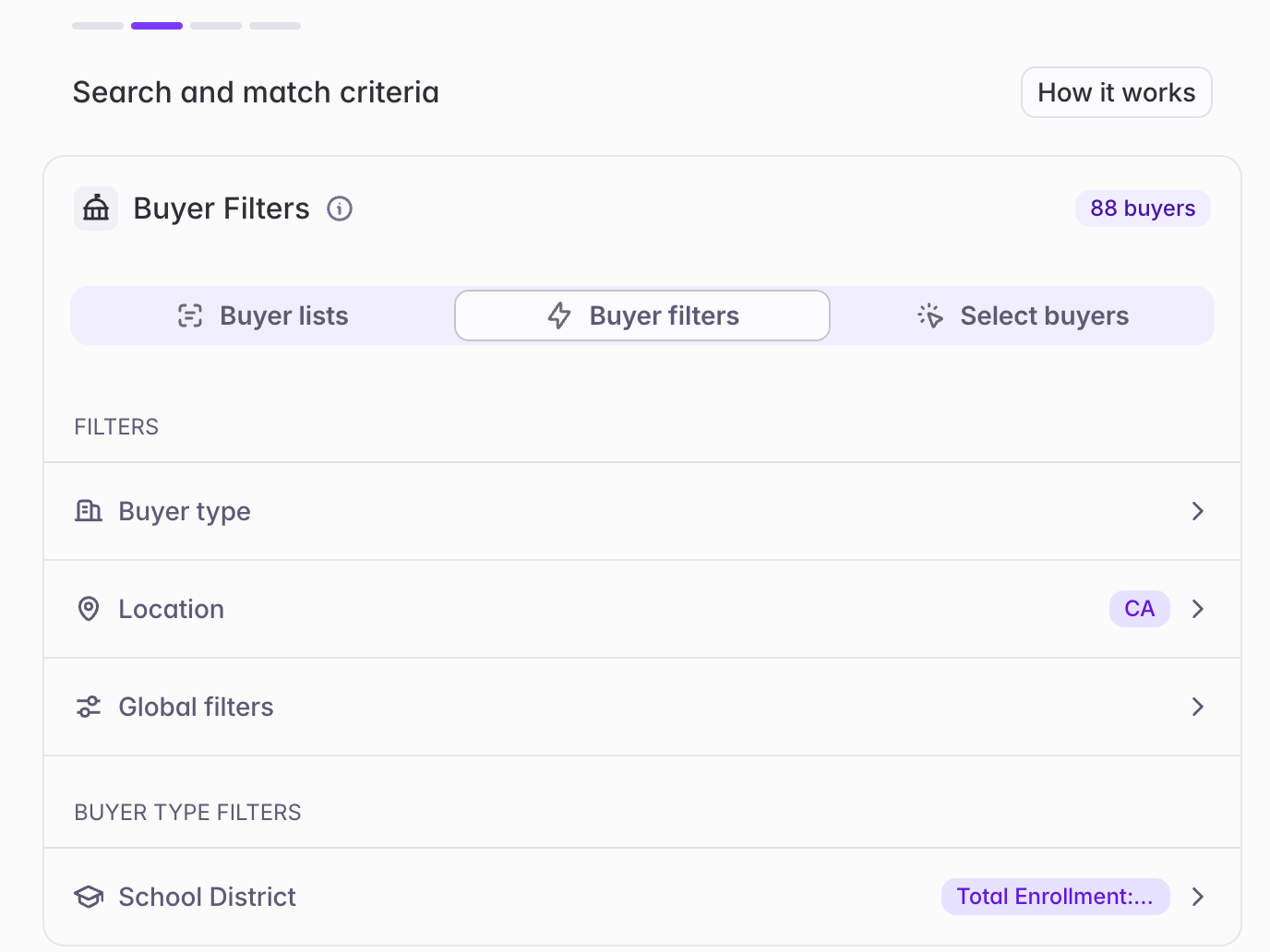
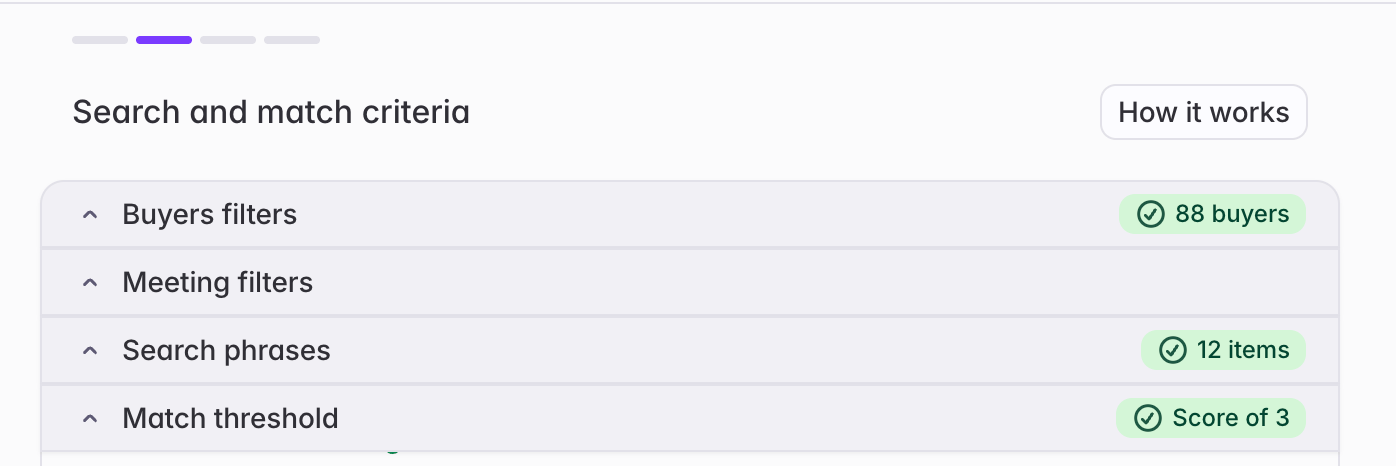 **Buyer filters** define who you're searching over — buyers whose signals are eligible to appear. Filter by geography, buyer type, size, and other attributes; choose a pre-configured list or territory; or select individual buyers by name.
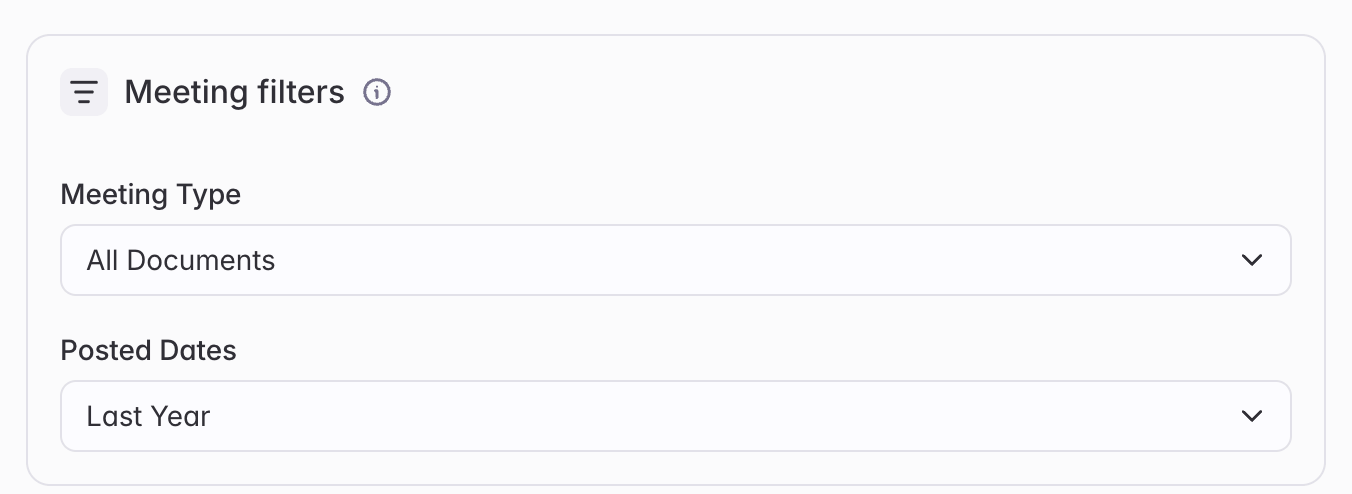
 **Bridge filters** narrow results by signal type specifics. For meetings: date range and meeting type. For RFPs: status and due date. For purchases: contract type, purchase type, and date ranges.
 **Search phrases** are the terms used to surface candidate signals. Add, edit, or remove phrases to match your intent — up to 30 total.
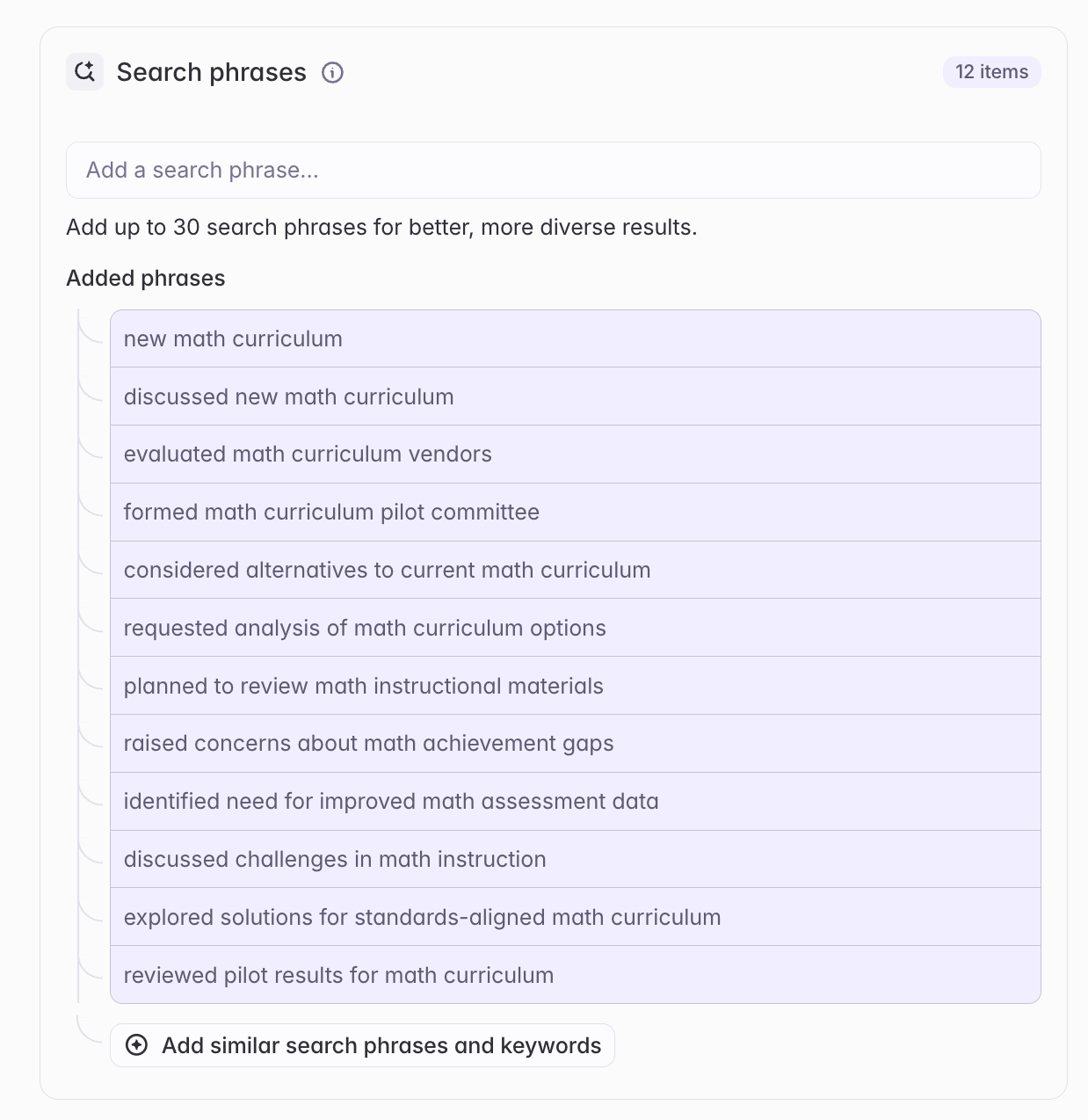 Use **Add similar search phrases** to auto-generate variations, or hover over any phrase and click **+** to generate variations based on that specific phrase. Delete any auto-generated phrases that don't fit your intent.
**Match threshold** sets the minimum score a signal must hit to appear in results. Scores run from 1 (barely relevant) to 5 (closely matches your criteria).
Use **Add similar search phrases** to auto-generate variations, or hover over any phrase and click **+** to generate variations based on that specific phrase. Delete any auto-generated phrases that don't fit your intent.
**Match threshold** sets the minimum score a signal must hit to appear in results. Scores run from 1 (barely relevant) to 5 (closely matches your criteria).
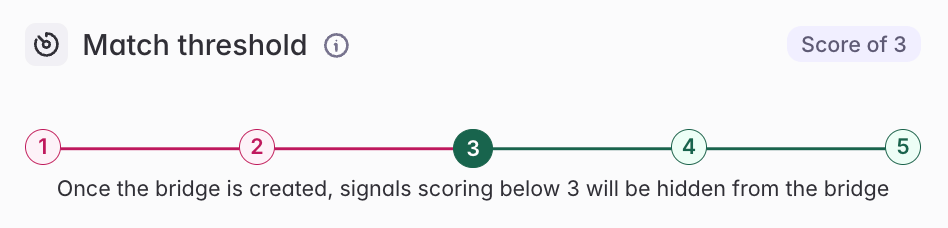 Set your match threshold to 3 for balanced results.
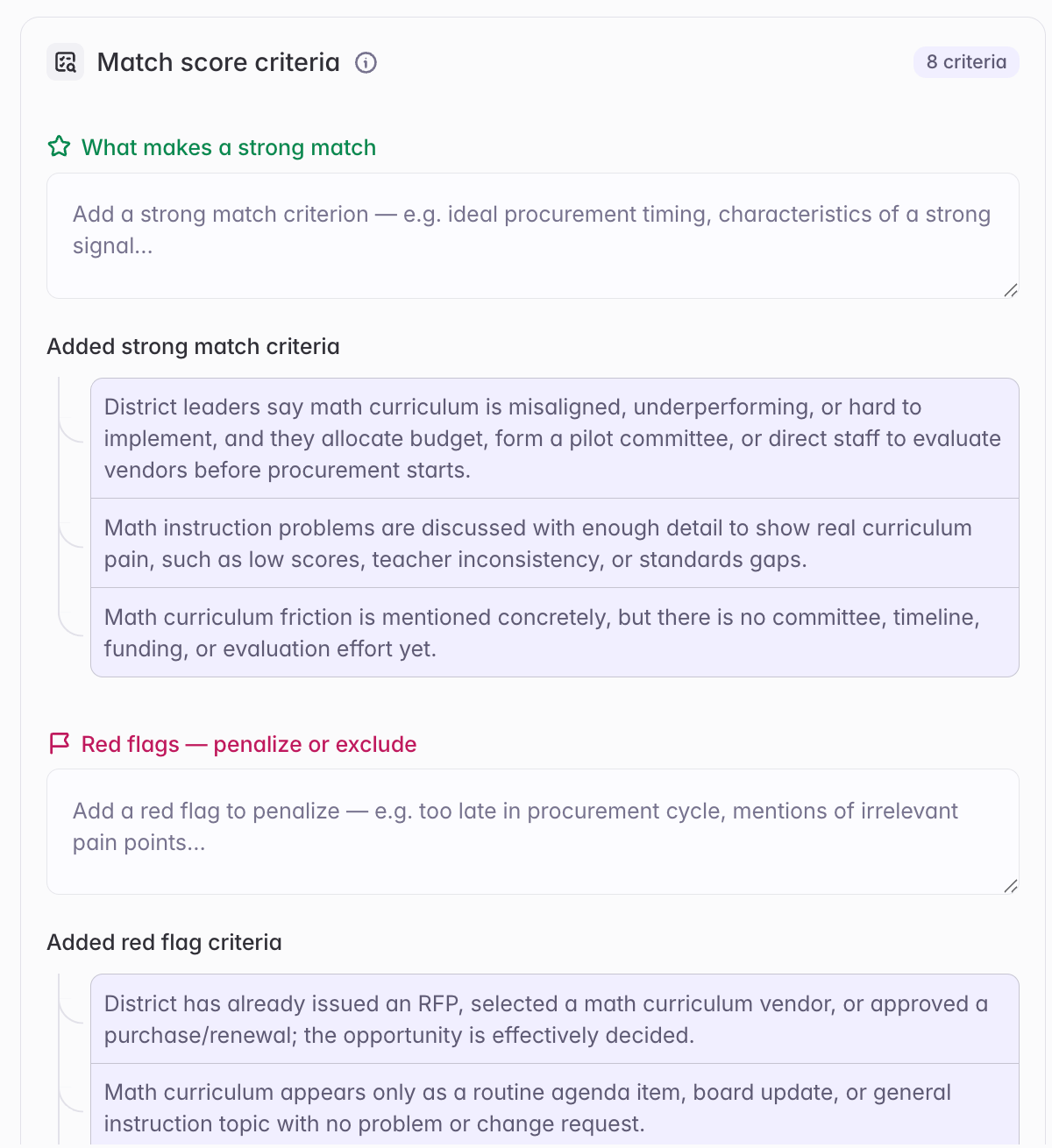
**Match score criteria** define what counts as a strong result. Write plain statements under two headings: *What makes a strong match* and *Red flags — penalize or exclude*.
Set your match threshold to 3 for balanced results.
**Match score criteria** define what counts as a strong result. Write plain statements under two headings: *What makes a strong match* and *Red flags — penalize or exclude*.
 Starbridge shows a live preview of matching signals. Each result includes:
* The **signal** — the meeting, RFP, or purchase that matched
* A **match score** — how closely it aligns with your criteria
* A **match reasoning** — why it received that score
* A **summarized relevance** — plain-language explanation of why this signal matters (meetings only)
Starbridge shows a live preview of matching signals. Each result includes:
* The **signal** — the meeting, RFP, or purchase that matched
* A **match score** — how closely it aligns with your criteria
* A **match reasoning** — why it received that score
* A **summarized relevance** — plain-language explanation of why this signal matters (meetings only)
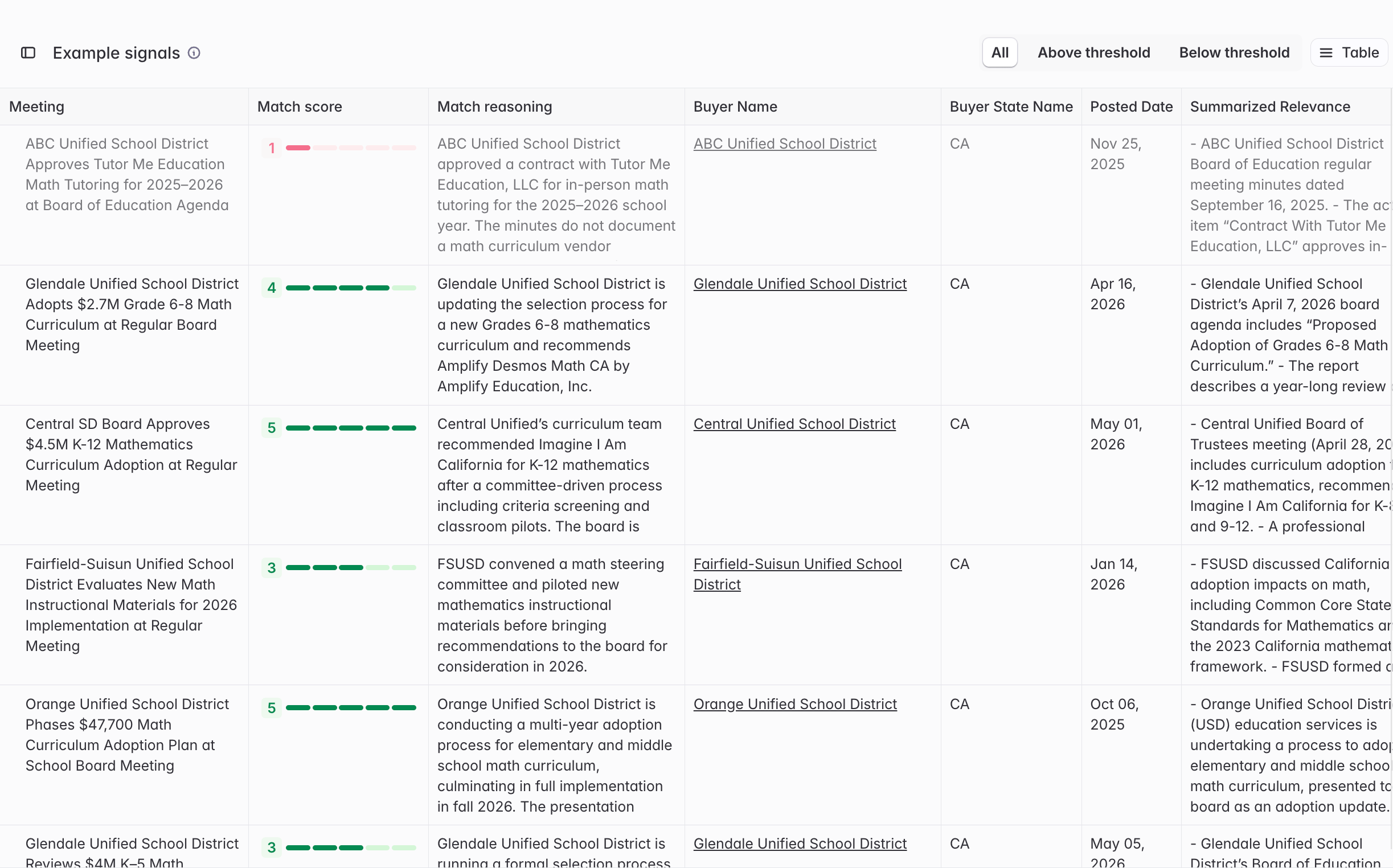 Toggle the preview between **All signals**, **Above threshold**, and **Below threshold** to see what the score threshold is including and excluding. Use the threshold slider to adjust.
Seeing irrelevant results? Add a disqualifier to your match criteria or raise the score threshold. Missing expected signals? Add a search phrase, widen a buyer filter, or lower the threshold.
Anytime you change filters, phrases, or criteria, refresh the preview to see updated results.
## Turn your search into a Bridge
If you're happy with your search and want ongoing updates, ask your Builder to turn it into a Bridge. Once active, it works like any other Bridge — automatically surfacing new matching signals in your Feed as they appear.
## Related articles
Ask questions about any buyer, signal, or market directly in Starbridge.
Review and action signals from your Bridges.
Toggle the preview between **All signals**, **Above threshold**, and **Below threshold** to see what the score threshold is including and excluding. Use the threshold slider to adjust.
Seeing irrelevant results? Add a disqualifier to your match criteria or raise the score threshold. Missing expected signals? Add a search phrase, widen a buyer filter, or lower the threshold.
Anytime you change filters, phrases, or criteria, refresh the preview to see updated results.
## Turn your search into a Bridge
If you're happy with your search and want ongoing updates, ask your Builder to turn it into a Bridge. Once active, it works like any other Bridge — automatically surfacing new matching signals in your Feed as they appear.
## Related articles
Ask questions about any buyer, signal, or market directly in Starbridge.
Review and action signals from your Bridges.