> ## Documentation Index
> Fetch the complete documentation index at: https://hc.starbridge.ai/llms.txt
> Use this file to discover all available pages before exploring further.
# Custom Web Agent Columns
> Search the open web for buyer-specific data that doesn't exist anywhere else in Starbridge, and add it as a column on any Bridge.
## What it does
A Custom Web Agent column runs a natural-language prompt against the open web for every row in your Bridge, then returns the result as a structured column.
It's the counterpart to [Custom AI Analysis](/ai-columns): AI Analysis reasons over data you already have in Starbridge, while a Web Agent column goes out and finds new data — a district's website, a budget document, a local news article — and brings it back into your Bridge.
## Example use cases
* **Grants & funding.** Has this district received any technology grants in the last 3 months?
* **Budget & procurement.** What's this buyer's technology budget, or the dollar threshold that triggers a formal RFP?
* **Org-specific detail.** How many distance/virtual learners are enrolled? How large is this fire department's fleet?
* **Anything else public but hard to find.** If it's findable with a web search and you can describe it in a prompt, a Web Agent column can go get it — for every row in your Bridge, at once.
## Set up a Custom Web Agent column
From any Bridge, click **"Add enrichment"**, choose **Custom Web Agent**, name the column, then configure it.
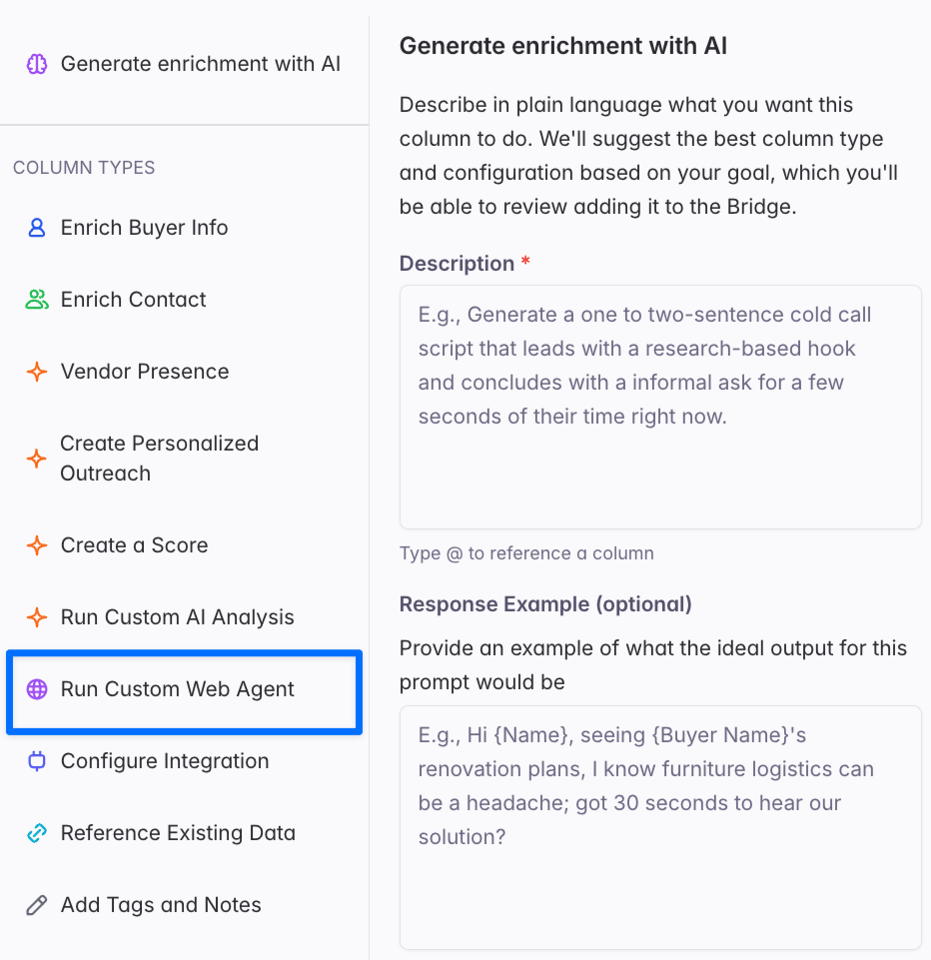 Describe what to search for in plain language. Reference buyer attributes with **@** so the agent knows who and what to search — for example, `@Buyer Name` or `@Enrollment Trend` — and be specific about the output format you want back.
Always give the agent a time window when the answer is time-sensitive (e.g. "in the last 3 months"). Without one, it has no way to filter out stale results.
Pick Core, Pro, or Ultra depending on how deep the search needs to go. Higher tiers search more thoroughly and cost more credits per run — see [Credits](#credits) below.
Choose **Single Output** for one value per row, or **Multiple Output** to split the result into several fields. Pick a **Field Format** (text, number, date) so the column is typed correctly for sorting, filtering, and CRM sync.
* **Run Conditions** control when the enrichment runs. Without one, it always runs.
* **Rerun Settings** control how often the column refreshes. Without a rule, it won't re-run automatically — useful to set for anything time-sensitive, like grants or leadership changes.
Click **"Add Enrichment"** to run it. Test on the first few rows first: prompting is iterative, so check the output, refine, and rerun before running every row.
## Credits
Unlike Custom AI Analysis, Custom Web Agent columns consume credits, since each run searches the live web. Cost depends on the model tier you choose:
| Model | Credits per row, per run |
| ----- | ------------------------ |
| Core | 1 |
| Pro | 4 |
| Ultra | 12 |
A column that reruns on a cadence consumes credits on every run, not just the first. See [How do credits work?](/builders/how-do-credits-work) for the full breakdown and worked examples.
Not the same as a **Custom Web Signals Bridge**. A Web Agent column is a single enrichment you add to any existing Bridge (Meetings, RFP, Buyers, Contacts, etc.) to pull in web data per row. A [Custom Web Signals Bridge](/builders/custom-web-signal-bridges) is a whole Bridge type that searches the web for a signal you define, across your entire buyer list, on its own recurring cadence.
## Example prompts
```text theme={null}
For {buyer:name} in {buyer:stateCode} with URL {buyer:url}:
Identify whether the school district has received any new funding or grants within the past 3 months, or currently has any active grants, that would support education technology purchases within the classroom.
Curriculum or professional development related grants are not applicable.
Output your findings as a bulleted list, one grant per bullet, including:
- Grant name
- Amount
- Effective dates
- One sentence of context
Respond in no more than 200 words.
If no relevant, active technology grants are found, respond: "No active technology grants found."
```
```text theme={null}
For {buyer:name}, research the total case load processed for Medicaid services. Search for the latest year for which there is data found in an official city, county, or state agency website or report. Do not make assumptions if there is no verified data.
Sources:
- The county agency's own site, strategic plan, and audit report
- The state health & human services department (county-by-county QC breakdowns, management reports, corrective action plans)
- State auditor, legislative analyst, and oversight reports
- Recent news, press releases, and local reporting on error rates or federal liability
If no published county figure exists after a thorough search, return the most granular case load data available (e.g., regional or state level) and clearly label which level it represents and the year.
Output instructions:
Return:
1. Case load
2. Level: County / Regional / State
3. Reporting period or fiscal year
4. Source name + link
5. A one-line note on how the figure was found and any caveats
Return null only if no case load figure at any level can be found after deep research.
```
## Related articles
Analyze data already in your Bridge — no web search, no credits.
Search the web for a signal across your entire buyer list, on a recurring cadence.
How credits are metered across Web Agent columns, contacts, and Custom Web Signals Bridges.
An overview of every column type you can add to a Bridge.
Describe what to search for in plain language. Reference buyer attributes with **@** so the agent knows who and what to search — for example, `@Buyer Name` or `@Enrollment Trend` — and be specific about the output format you want back.
Always give the agent a time window when the answer is time-sensitive (e.g. "in the last 3 months"). Without one, it has no way to filter out stale results.
Pick Core, Pro, or Ultra depending on how deep the search needs to go. Higher tiers search more thoroughly and cost more credits per run — see [Credits](#credits) below.
Choose **Single Output** for one value per row, or **Multiple Output** to split the result into several fields. Pick a **Field Format** (text, number, date) so the column is typed correctly for sorting, filtering, and CRM sync.
* **Run Conditions** control when the enrichment runs. Without one, it always runs.
* **Rerun Settings** control how often the column refreshes. Without a rule, it won't re-run automatically — useful to set for anything time-sensitive, like grants or leadership changes.
Click **"Add Enrichment"** to run it. Test on the first few rows first: prompting is iterative, so check the output, refine, and rerun before running every row.
## Credits
Unlike Custom AI Analysis, Custom Web Agent columns consume credits, since each run searches the live web. Cost depends on the model tier you choose:
| Model | Credits per row, per run |
| ----- | ------------------------ |
| Core | 1 |
| Pro | 4 |
| Ultra | 12 |
A column that reruns on a cadence consumes credits on every run, not just the first. See [How do credits work?](/builders/how-do-credits-work) for the full breakdown and worked examples.
Not the same as a **Custom Web Signals Bridge**. A Web Agent column is a single enrichment you add to any existing Bridge (Meetings, RFP, Buyers, Contacts, etc.) to pull in web data per row. A [Custom Web Signals Bridge](/builders/custom-web-signal-bridges) is a whole Bridge type that searches the web for a signal you define, across your entire buyer list, on its own recurring cadence.
## Example prompts
```text theme={null}
For {buyer:name} in {buyer:stateCode} with URL {buyer:url}:
Identify whether the school district has received any new funding or grants within the past 3 months, or currently has any active grants, that would support education technology purchases within the classroom.
Curriculum or professional development related grants are not applicable.
Output your findings as a bulleted list, one grant per bullet, including:
- Grant name
- Amount
- Effective dates
- One sentence of context
Respond in no more than 200 words.
If no relevant, active technology grants are found, respond: "No active technology grants found."
```
```text theme={null}
For {buyer:name}, research the total case load processed for Medicaid services. Search for the latest year for which there is data found in an official city, county, or state agency website or report. Do not make assumptions if there is no verified data.
Sources:
- The county agency's own site, strategic plan, and audit report
- The state health & human services department (county-by-county QC breakdowns, management reports, corrective action plans)
- State auditor, legislative analyst, and oversight reports
- Recent news, press releases, and local reporting on error rates or federal liability
If no published county figure exists after a thorough search, return the most granular case load data available (e.g., regional or state level) and clearly label which level it represents and the year.
Output instructions:
Return:
1. Case load
2. Level: County / Regional / State
3. Reporting period or fiscal year
4. Source name + link
5. A one-line note on how the figure was found and any caveats
Return null only if no case load figure at any level can be found after deep research.
```
## Related articles
Analyze data already in your Bridge — no web search, no credits.
Search the web for a signal across your entire buyer list, on a recurring cadence.
How credits are metered across Web Agent columns, contacts, and Custom Web Signals Bridges.
An overview of every column type you can add to a Bridge.