

Setting up a webhook column
To start receiving webhooks, add a Webhook column to your bridge.1
Open your bridge
Open the bridge you want to receive webhooks for in the Starbridge dashboard.
2
Add a Webhook column
Click Add Column (or edit an existing column) and select Configure Integration → Trigger Webhook as the column type.
3
Configure the webhook
Enter your Webhook URL — this is the endpoint where Starbridge will send HTTP POST requests.Select when the webhook is triggered: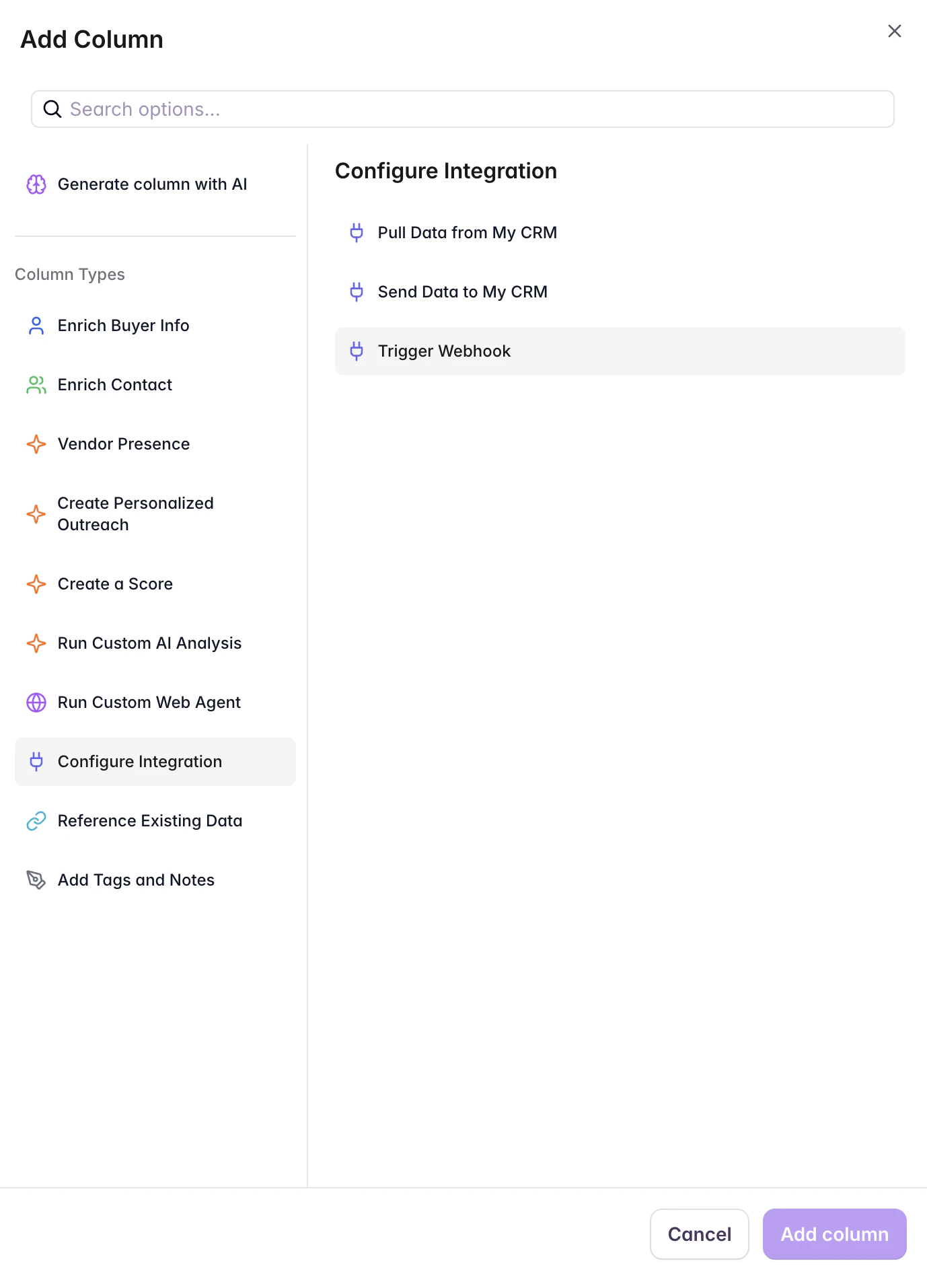
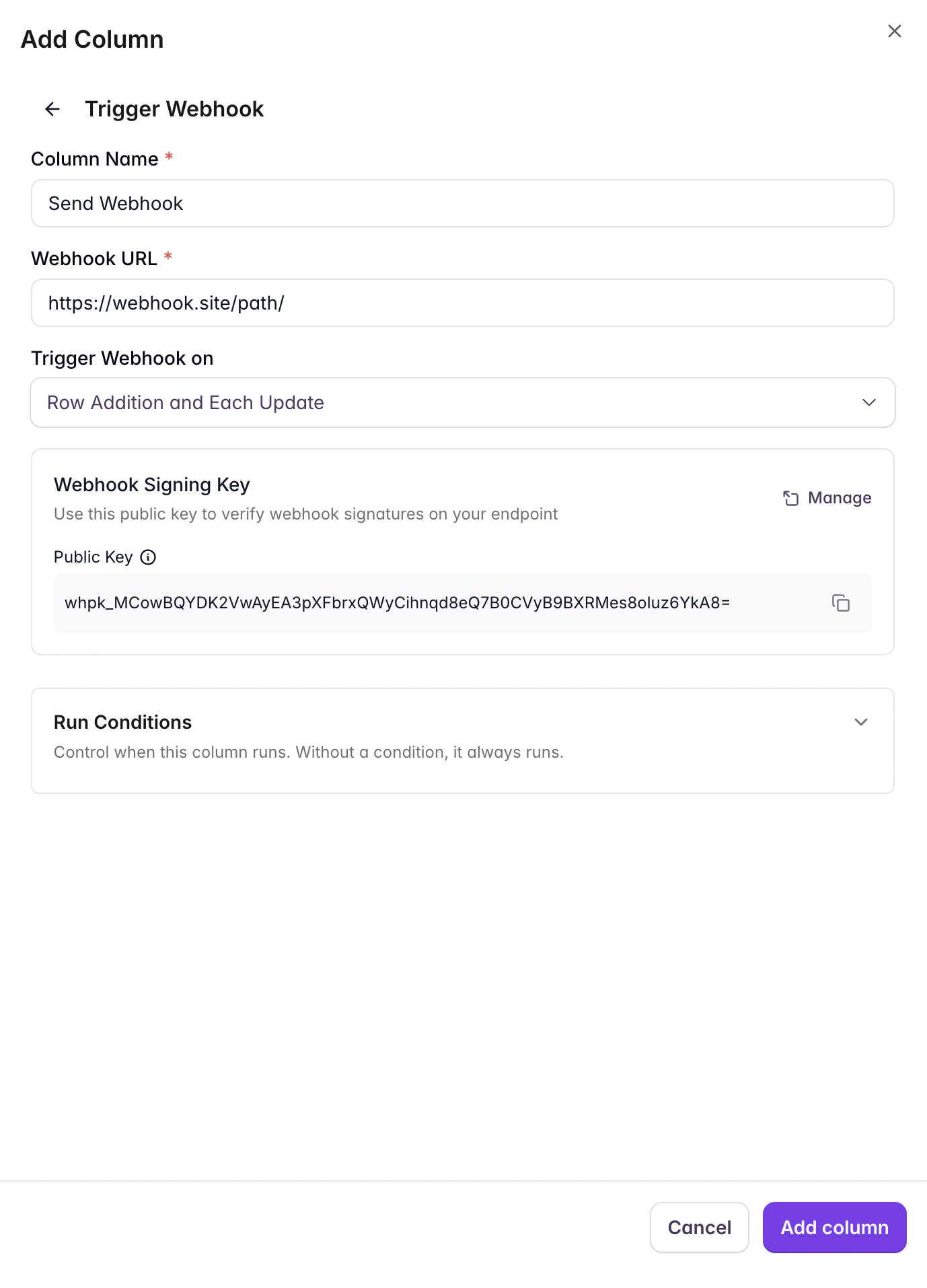
- Row Addition — triggers only when a new row is added
- Row Addition and Each Update — triggers on both new rows and updates
4
Save
Save the column. Starbridge will send a webhook to your URL every time a bridge row is created or updated and all preceding columns have finished processing.
Getting your signing key
Every webhook request from Starbridge is cryptographically signed so you can verify it is authentic. To verify signatures, you need your organization’s public signing key. You can find your public key in two places:- From Settings
- From the column popup
Go to Settings → Webhook Keys (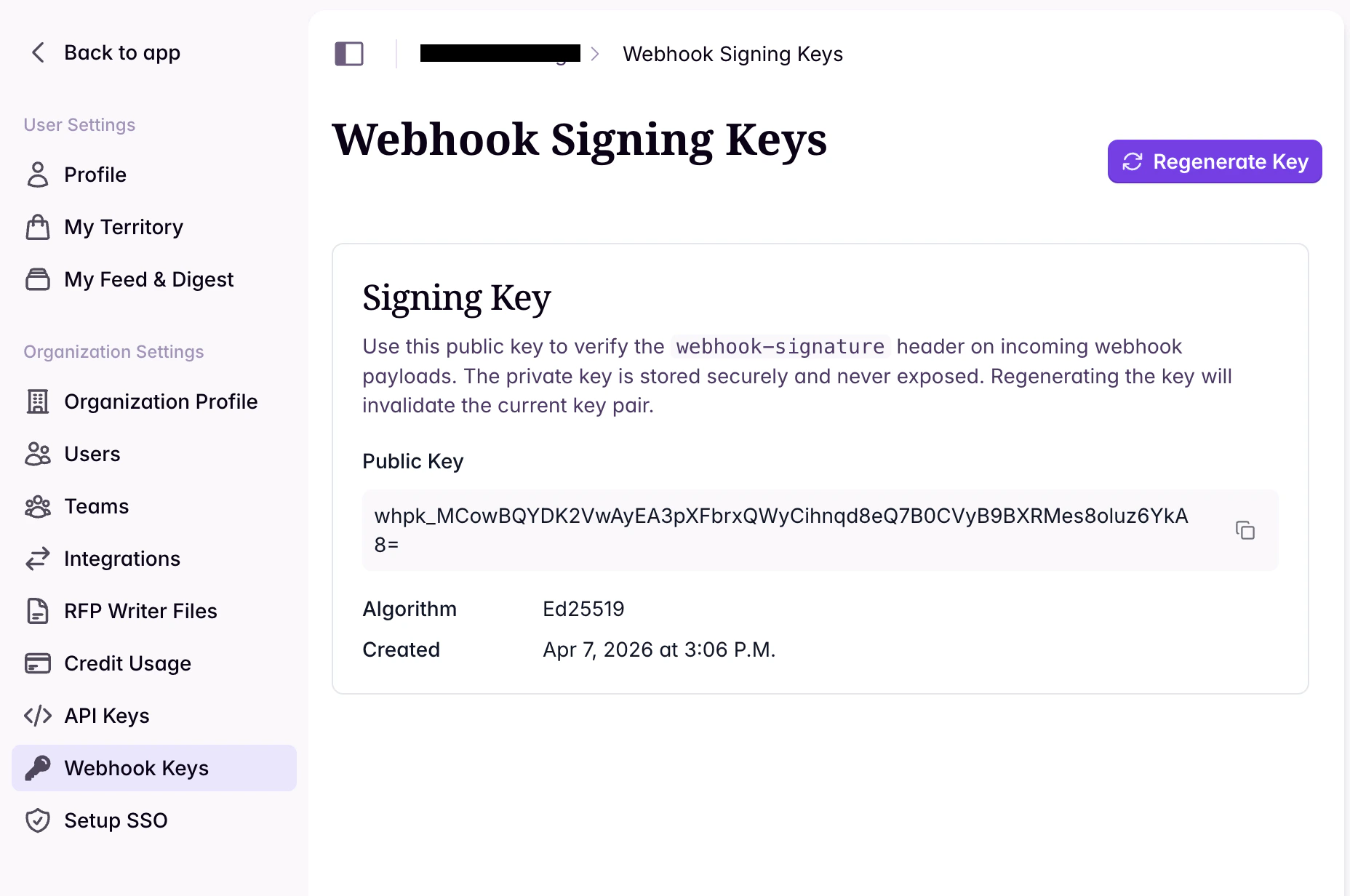
/settings/webhook-signing-keys) and copy your public key.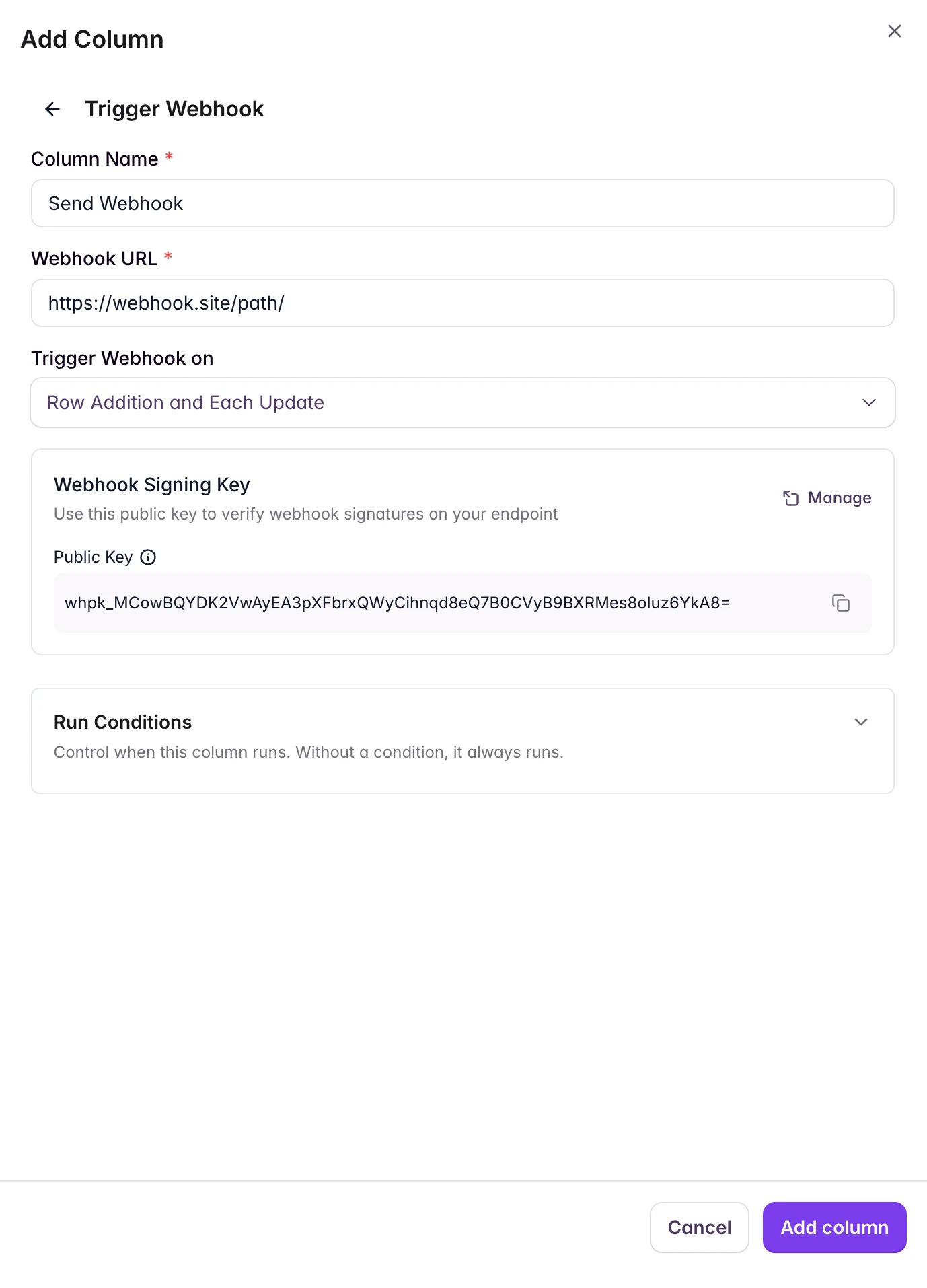
whpk_ prefix identifies this as a webhook public key. You need to strip this prefix before using the key for verification (see Signature Verification).
Your public key is safe to share — it can only be used to verify signatures, not create them.
Using webhooks with automation tools
You can receive Starbridge webhooks in workflow automation tools without writing code.Zapier
Zapier
- Create a new Zap and choose Webhooks by Zapier as the trigger.
- Select Catch Hook.
- Copy the webhook URL provided by Zapier.
- Paste it as the URL in your Starbridge Webhook column.
- Test the trigger — Zapier will receive the payload and let you map fields in subsequent steps.
n8n
n8n
- Add a Webhook node to your workflow.
- Set the HTTP method to POST.
- Copy the generated webhook URL (use the production URL).
- Paste it as the URL in your Starbridge Webhook column.
- Activate your workflow — n8n will receive incoming webhooks.
Other tools
Other tools
Any tool that can receive incoming HTTP POST requests works with Starbridge webhooks. Look for a “Webhook” or “HTTP Trigger” option in your tool, get the URL, and set it as the Webhook column URL.
Error handling and retries
Your endpoint should return an HTTP 2xx status code (200-299) to confirm receipt.
When delivery fails with a status code of 429 or above, Starbridge retries the request up to 3 times. Requests that fail with status codes below 429 (e.g., 400, 404) are not retried.
Best practices
- Use the raw body for verification. Do not parse and re-serialize the JSON body before verifying the signature. Even minor differences in whitespace or key ordering will cause verification to fail.
- Validate the timestamp. Reject webhooks where
webhook-timestampis more than 5 minutes old to prevent replay attacks. - Use
webhook-idfor idempotency. Store recently processed webhook IDs and skip duplicates to protect against duplicate deliveries. - Respond quickly. Return a
2xxresponse as soon as you receive the webhook. Process the data asynchronously if needed. - Use HTTPS. Always use an HTTPS URL for your webhook endpoint to ensure payloads are encrypted in transit.
- Keep your public key up to date. If you regenerate your signing key in Starbridge settings, update it in your verification code.