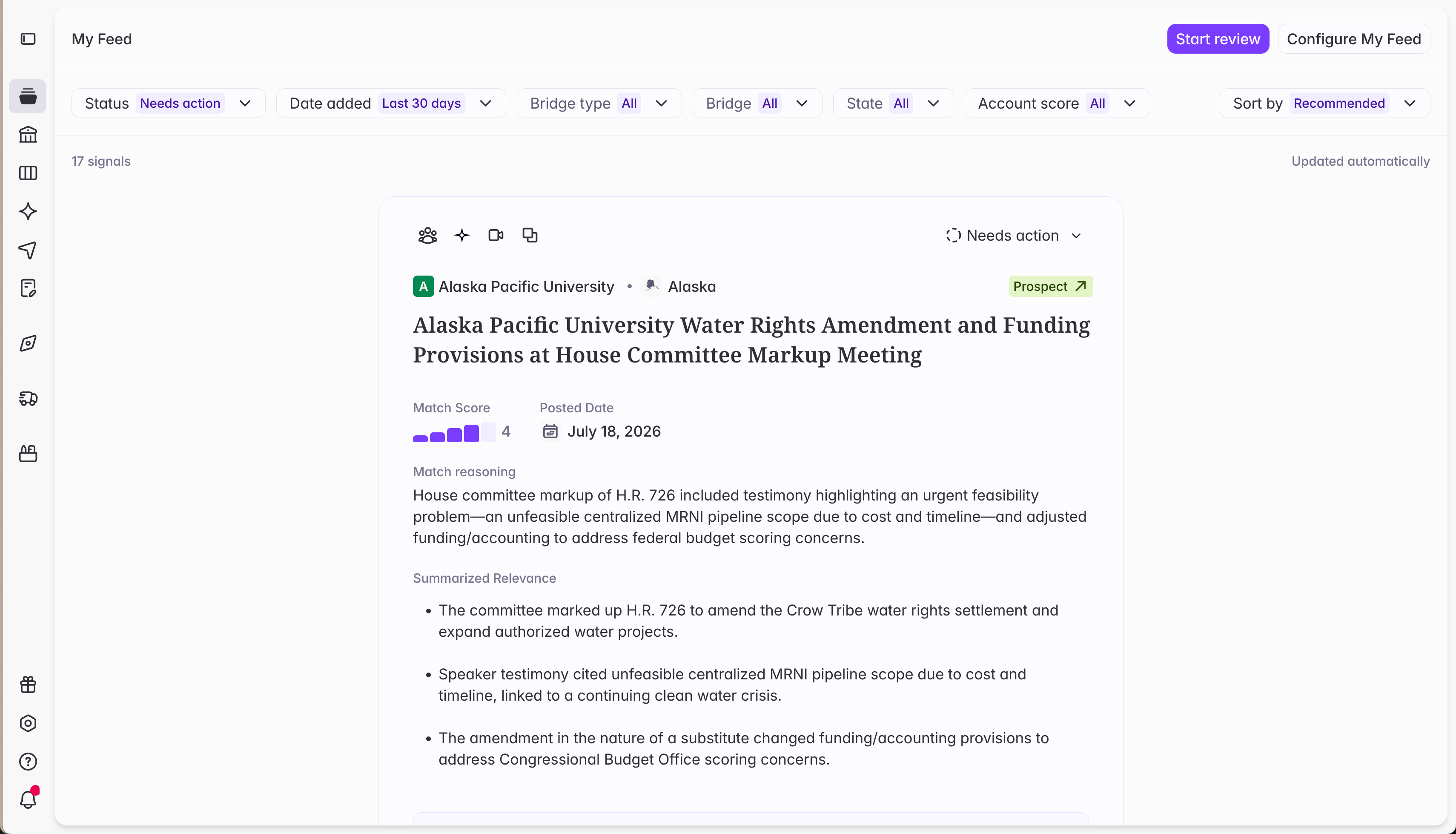
Reps live in Starbridge to catch buying signals early and research their top accounts. But the answer to “do we already know this account?” has always lived somewhere else — in your CRM, a tab away. This release brings that context into Starbridge. Buyers and signals now carry a tag showing their account type or lifecycle stage, pulled straight from Salesforce or HubSpot.
Screenshot 2026 07 28 At 1 33 03 PM 1

What your reps experience

When a buyer is matched to an account in your CRM, a green tag appears next to its name in My Feed and on Buyers pages, showing that account’s type: Customer, Prospect, or whatever values your CRM uses. Two things get easier.
  1. Reps can see your relationship to a buyer at a glance. Seeing Customer next to a signal means something very different from Prospect — expansion versus net-new, defense versus discovery. Reps no longer miss that context or have to leave Starbridge to find it.
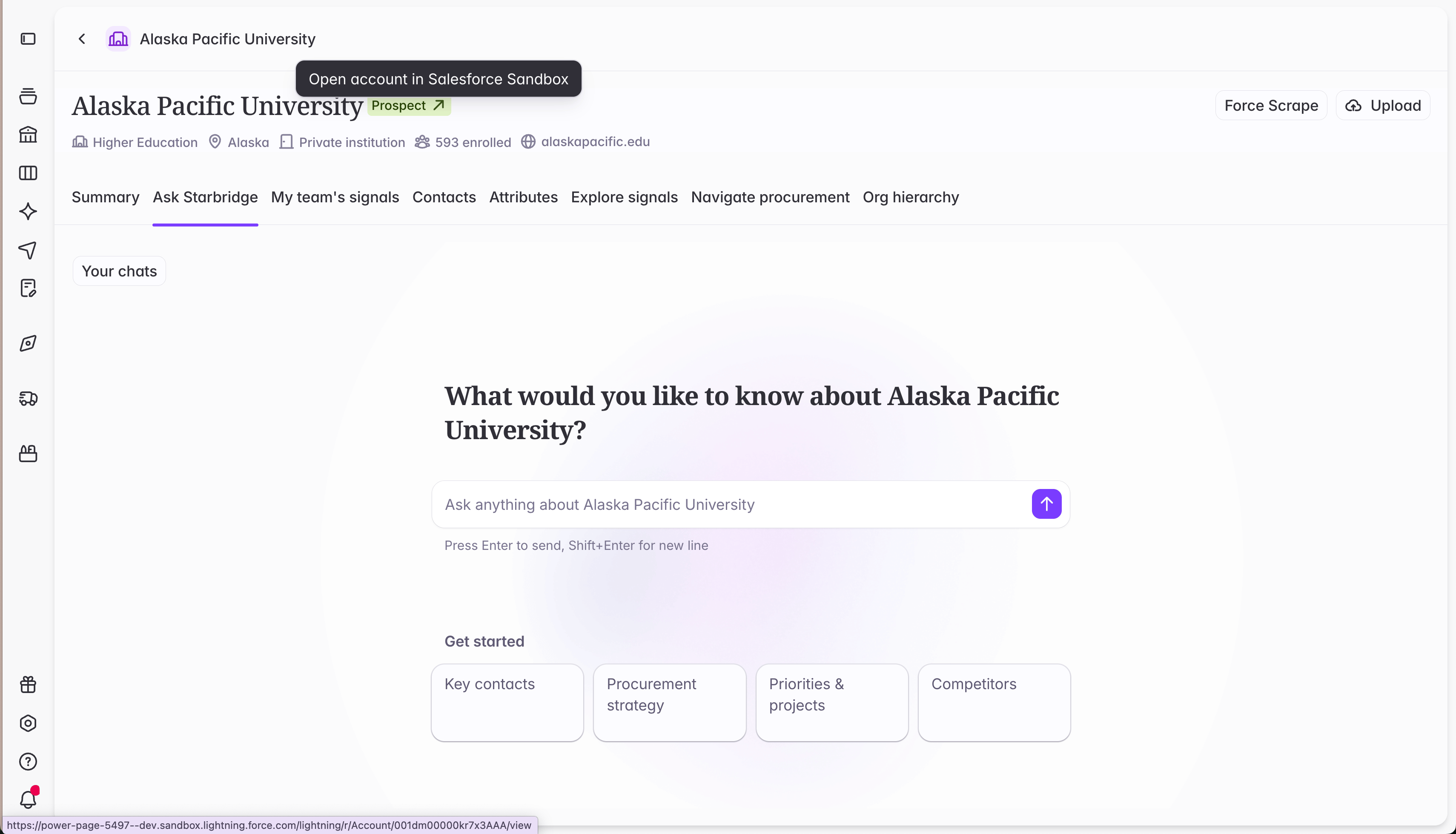
  2. The tag is a one-click path into the CRM. A rep who spots a signal, researches the buyer, and wants the full account no longer switches tabs and hunts for the “right” record in your CRM. Clicking the tag opens that exact account in Salesforce or HubSpot in a new tab.
Screenshot 2026 07 28 At 1 33 30 PM

Get started

This works automatically once your admin has completed account matching — reps and builders don’t need to do anything. Builders and admins who want to control which field the tag displays (Salesforce’s Account Type, HubSpot’s Lifecycle Stage, or a custom field your team uses instead) can set it under Objects & fields. See the instructions in Step 5 of Connect your CRM.