Overview
Syncing contacts from Starbridge to your CRM used to require an expert to configure every bridge. Now, admins define sync rules once. Builders apply them to any sync. And reps can enrich and send any contact they find in Starbridge straight to Salesforce or HubSpot in one button click. Starbridge keeps those contacts up to date in the CRM — including their title, email, and phone — and flag them as departed if they leave the account.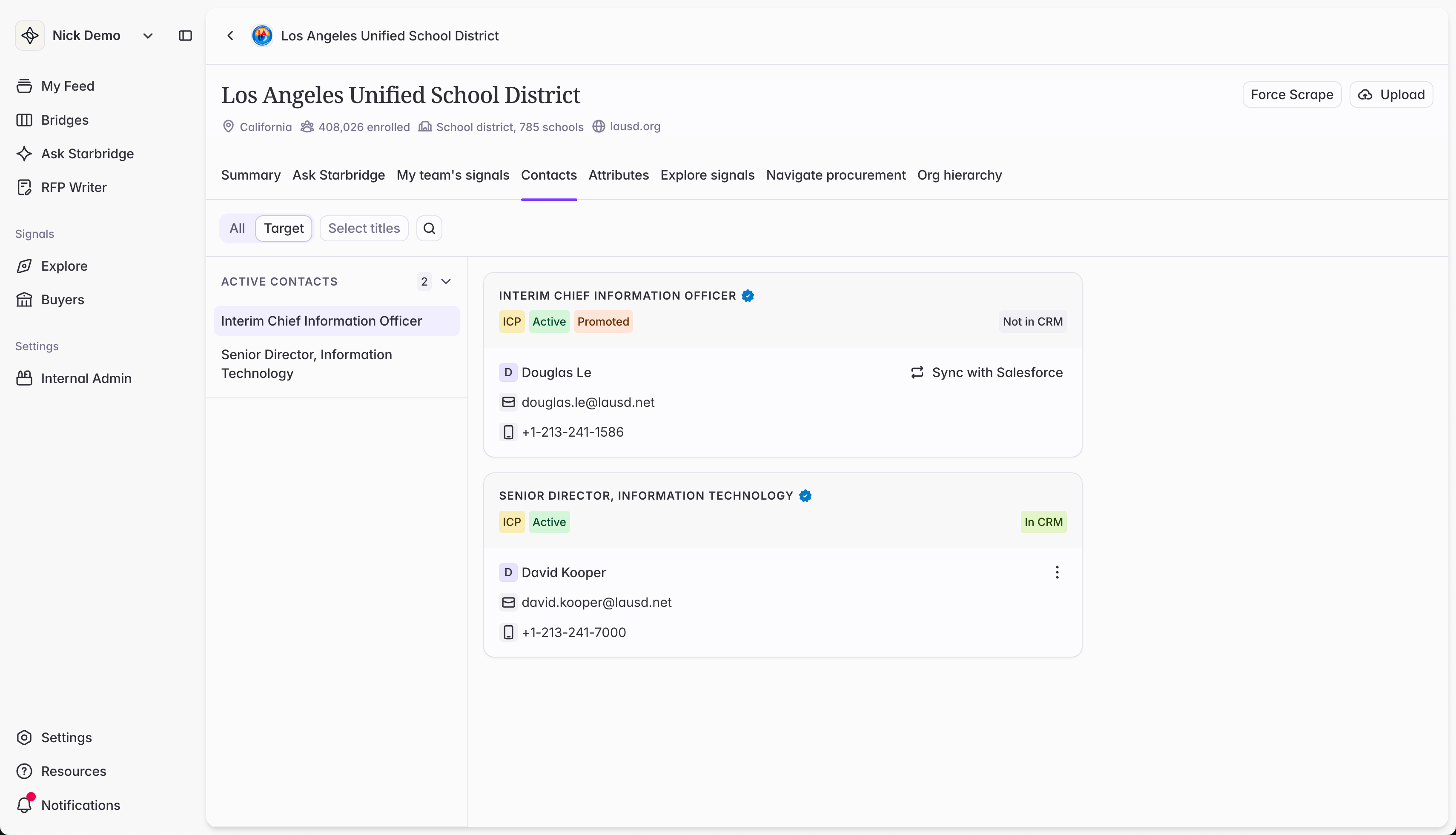
What admins experience
Admins set up Contact sync from Settings → Integrations → [your CRM] → Contact sync. Admins have granular control over the full upsert lifecycle: how Starbridge looks up existing records before writing, when to create versus update, and exactly what happens to each field on write — overwrite, write if empty, or leave unchanged. Once configured, the Contact sync tab becomes your audit view: every contact your org has ever enriched, where it was enriched from, who enriched it, and its live sync status with your CRM. You can flip sync on or off per contact, or in bulk.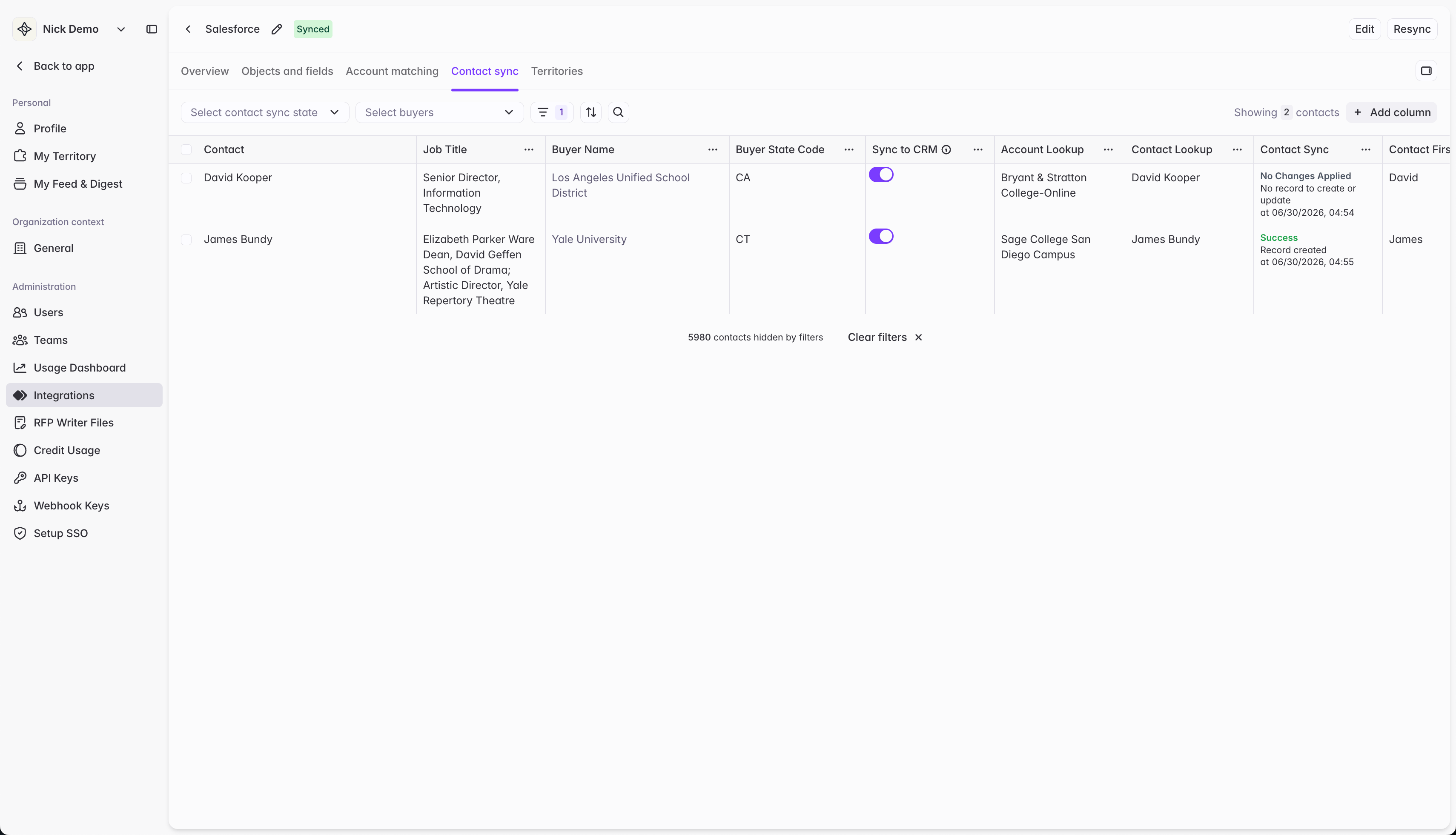
What your reps experience
Contacts on Buyer pages and in Ask Starbridge now show a Sync to CRM action. Clicking it enriches the contact and pushes it into Salesforce or HubSpot using your admin’s sync rules. If the contact already exists in your CRM, Starbridge updates the existing record and keeps it up to date. If it doesn’t exist yet, Starbridge creates a new record and keeps it up to date.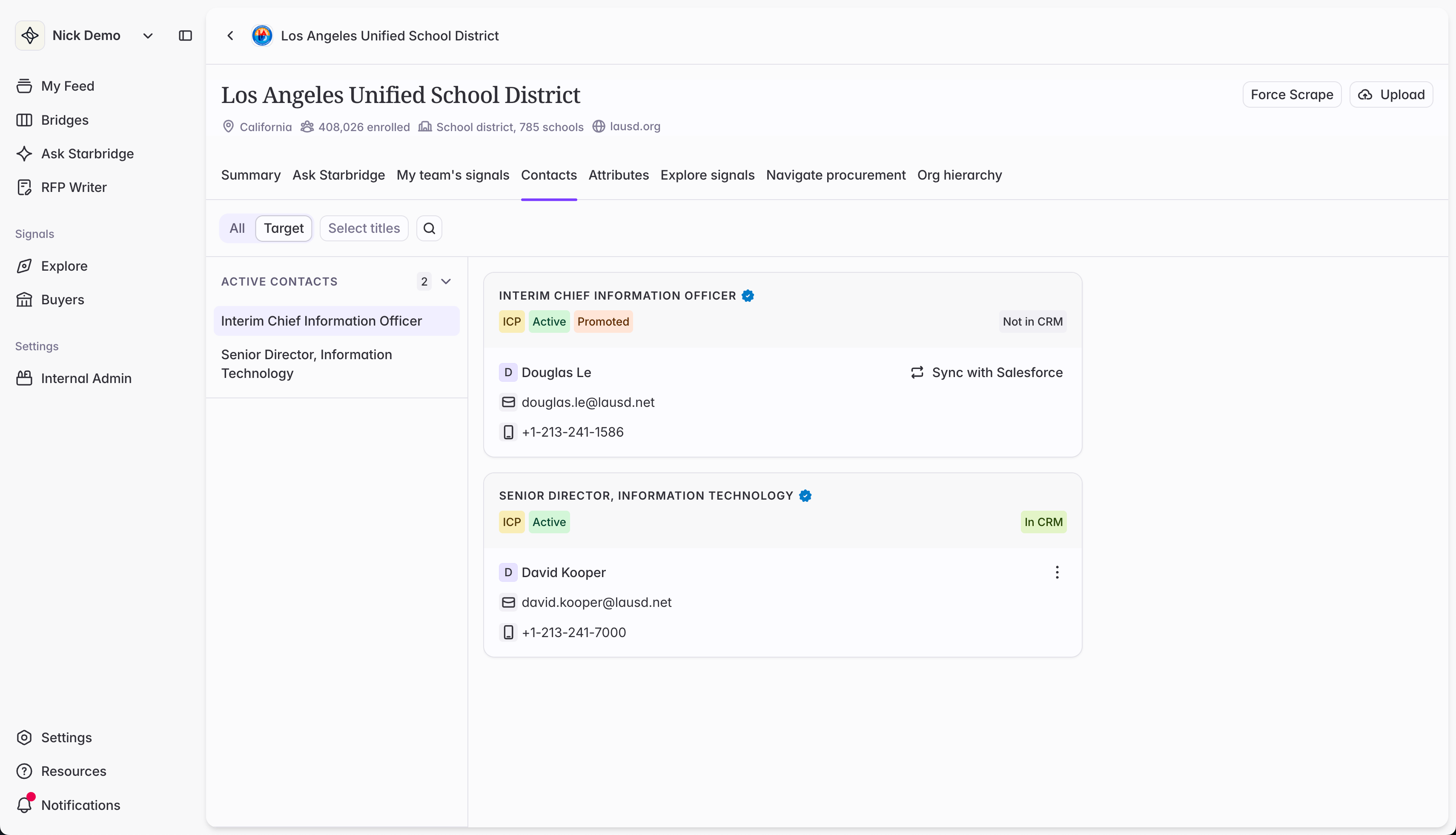
What builders experience
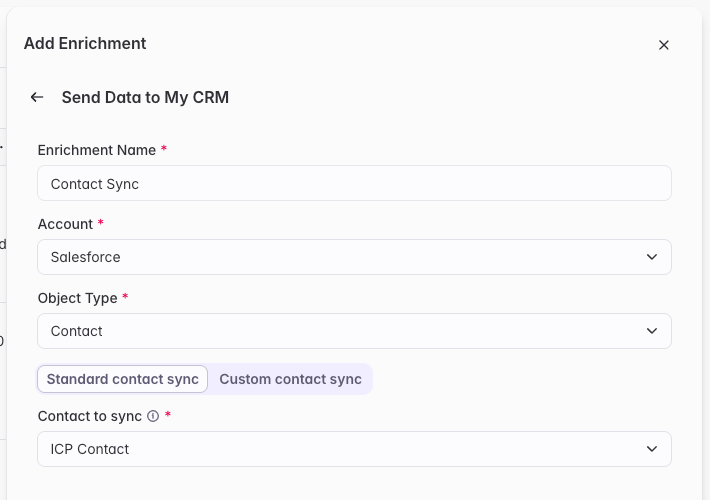
When syncing contacts to the CRM from any bridge, builders now see two options: Standard contact sync, which inherits the admin’s sync rules, and Custom contact sync, for defining bridge-specific sync rules from scratch. Selecting Standard means lookup logic, field mappings, and run conditions are all inherited automatically from the admin’s sync rules — no rebuilding them per bridge.