

Overview
Contact sync lets you configure CRM sync rules for contacts once, in one place, instead of rebuilding them inside every bridge. Once it’s set up, any contact your team enriches — from a Buyer page, Ask Starbridge, MCP, or a bridge — can be synced to your CRM automatically, using the rules you define here.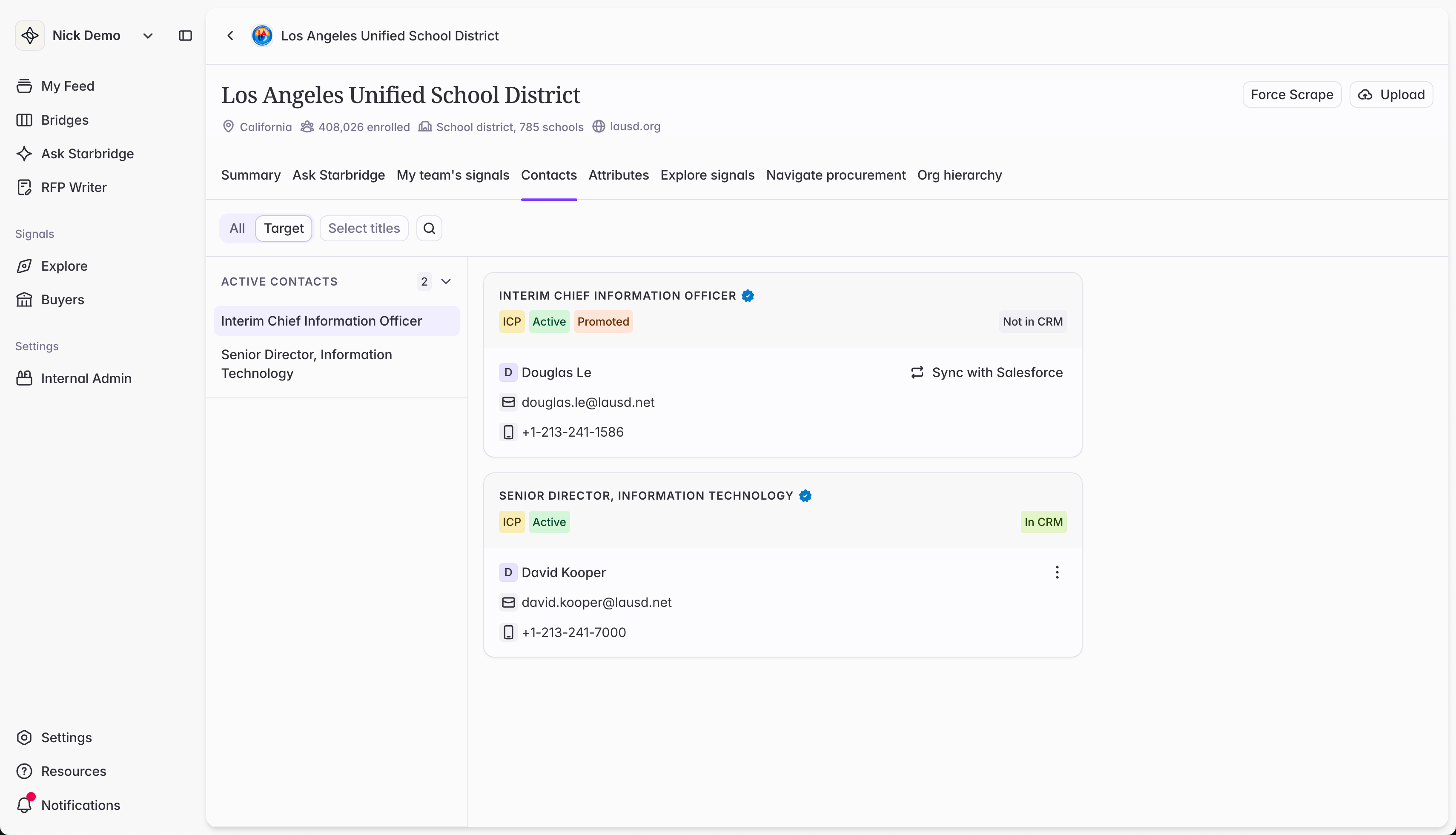
Before you start
You’ll need:- A Salesforce or HubSpot integration connected. See Connect your CRM.
- Account matching completed. Contact sync requires you to associate a contact to a valid CRM account, so Starbridge doesn’t create orphaned contact records in your CRM. See Account matching.
- Required standard fields: first name, last name, email, the account/company association field, phone, salutation, and job title.
- Required custom fields:
- Starbridge Contact ID (text) — Starbridge’s unique identifier for every contact. Enables lookups by Starbridge contact identifier and helps admins identify which contacts were created or modified by Starbridge.
- Starbridge Is Active (boolean) — whether Starbridge considers the contact currently active. Defaults to
truefor active contacts; set tofalsewhen Starbridge detects the contact is no longer employed at the account. - See Step 1 of Connect your CRM for step-by-step instructions on creating these custom fields.
Set credit limits for your Consumer users
Once you configure Contact sync, your Consumer users will see the option to enrich and sync new contacts directly from a Buyer page or Ask Starbridge — respecting the lookup and sync rules you define here. Enriching a contact consumes 2 credits. Once a contact has been enriched by anyone in your org, it’s available to your whole team from then on — you’ll never be charged twice for the same contact, whether enriched from the Buyer page, MCP, Ask Starbridge, or a Bridge. See How do credits work? for more detail. Before configuring Contact sync, consider whether you want to modify your per-user credit limits for your Consumer-role users. The default limit for Consumer users is 100 credits, or 50 enriched contacts. You can set your preferred limit in bulk from Settings → Organization Settings → Users — select your Consumer users, then Set credit limit.Step 1: Open the Contact sync tab
Go to Settings → Integrations, open your CRM integration, and click the Contact sync tab. If you have more than one CRM connected, Contact sync is configured independently per integration.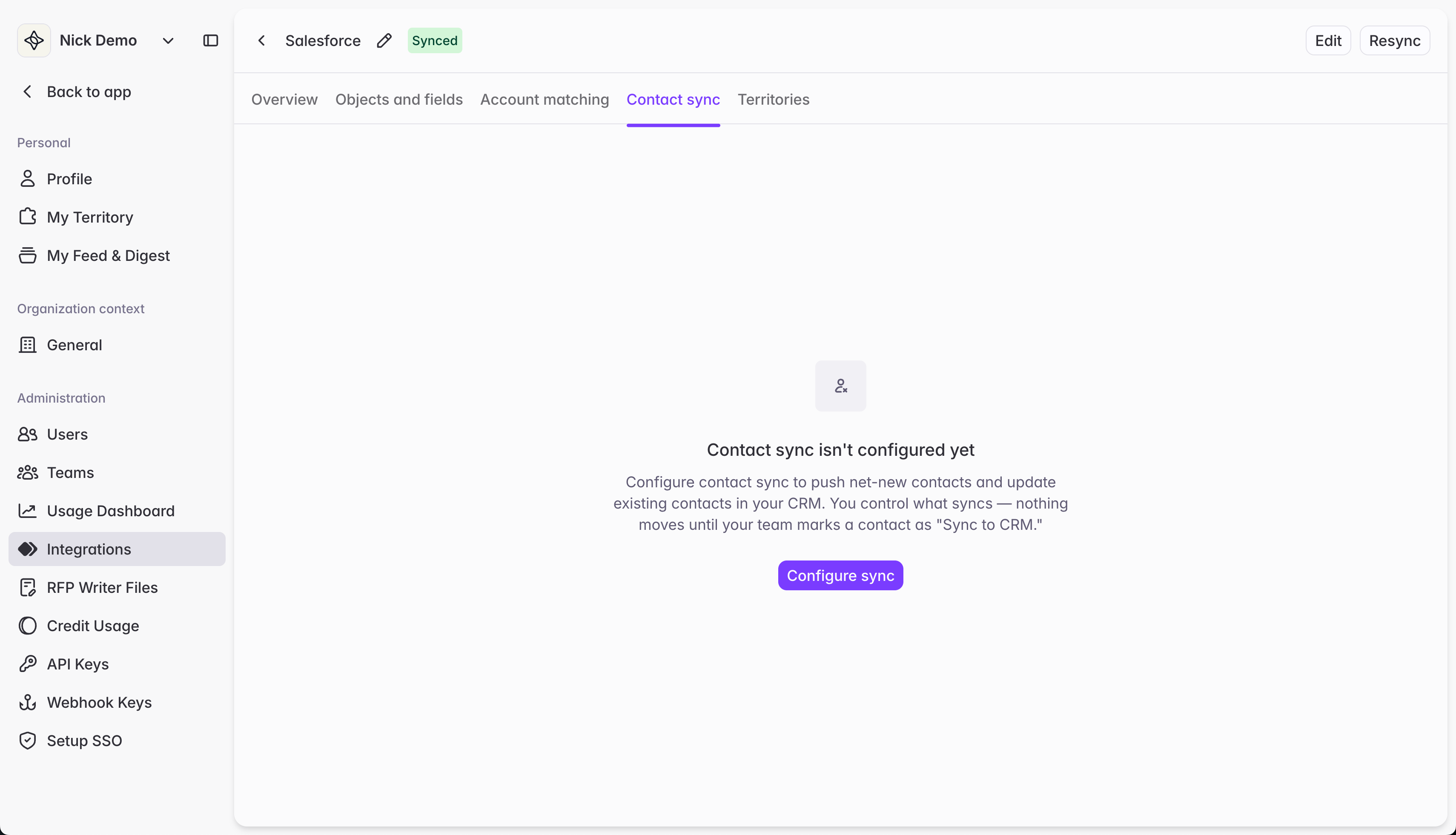
Step 2: Configure sync
Click Configure sync. This creates your org’s Contact sync bridge and requires you to set up its Contact lookup and Contact sync columns before you can do anything else on this tab — Starbridge can’t show you a useful contact list until it knows how to find and write CRM records.Contact lookup
This determines whether a contact already exists in your CRM, so the sync column knows whether to create a new record or update an existing record. Contact lookup is configured by default with recommended lookup rules:- Lookup by Starbridge Contact ID. If Starbridge previously created or updated this Contact record in your CRM, it will stamp the record with a unique identifier to ensure accurate lookups moving forward.
- This lookup rule is required. If you do not see a custom field for Starbridge Contact ID:
- Make sure you create the custom field on the Contact object in your CRM. See Step 1 of Connect your CRM for step-by-step instructions.
- Double-check your Objects and fields configuration and confirm you have toggled on the Starbridge Contact ID field to sync it from your CRM to Starbridge.
- This lookup rule is required. If you do not see a custom field for Starbridge Contact ID:
- Lookup by normalized email and account ID. Matches a CRM contact whose email matches the contact’s email, scoped to the contact’s already-matched CRM account — the most reliable match when an email is on file. Starbridge normalizes email formatting to ensure matches are as accurate as possible.
- Lookup by first name, last name, and account ID. Falls back to matching on full name within the same matched account, for contacts that don’t have an email on file.
- Lookup by last name, phone, and account ID. Falls back further to matching on last name and phone number within the same matched account, so a contact’s phone number can resolve a match even without an email or a full name match. Starbridge normalizes phone formatting to ensure matches are as accurate as possible.
Contact sync
This is what actually creates or updates the CRM Contact record. A few things to set: Field mappings. We recommend:
Starbridge Contact ID, Is Active, and Title are the two exceptions to “Write if Empty” — you want Starbridge to keep these current every time it syncs, since they’re what it uses to maintain accurate lookups and contact hygiene over time.
Run conditions. Starbridge requires Sync to CRM to be true. This is the toggle you can flip on when you’re ready to sync a given contact to your CRM. Starbridge also requires the Account lookup column’s Record ID to not be empty, because Starbridge will not create orphan contacts in your CRM. Orphan contacts are contacts without an associated account. Optionally, you can also require email or phone to not be empty if you want to avoid creating sparse CRM records.
Special case: Contact record types
If your Salesforce org uses contact record types, you can tell Starbridge which record type to apply to the contacts it inserts.If you do not know what a record type is, then you can skip these special case instructions and proceed to Step 3: Choose which contacts sync.
Syncing record type ID to contacts
Syncing record type ID to contacts
Follow along with this video, or read the step-by-step instructions:Before you start
- Configure contact sync. In the Contact sync tab of your Salesforce integration, set your contact lookup and contact sync configurations, then click Save. You should see a table of contacts as rows, with contact data attributes as columns.
- Connect the Record Type object to Starbridge. Go to Objects and Fields, and confirm Record Type is toggled on. If it is off, toggle it on and click Save Changes.
1
Find the record type ID you want to use
In your contact lookup column, open an existing contact that already has the record type you want Starbridge to use, and copy its record type ID.
2
Create a record type lookup column
In the Contact Sync table, click Add Column → Configure Integration → Pull data from my CRM. Name the column something like
Record type lookup.Select the Record Type object, then add a lookup rule: Record Type ID equals → Add custom value → paste the record type ID you copied.Add the enrichment. The cells will verify and process in a few seconds.3
Map the column in your sync configuration
Click Configure sync in the top right of your screen.Find the Record Type ID field, click Select Categories, choose your record type lookup column, select Record Type ID, and set the write behavior to Write if Empty.
4
Rerun enrichment
Rerun enrichment for all rows. Starbridge will now apply this record type to contact records it inserts.
These steps assume all contacts syncing from Starbridge should get the same record type. To sync multiple record types, the setup is similar but reach out to your GTME or email support@starbridge.ai for hands-on support.
Step 3: Choose which contacts sync
Once configured, the Contact sync tab lists every contact your org has ever enriched — across bridges, Buyer pages, Ask Starbridge, the Chrome extension, and MCP — along with where it was enriched, who enriched it, and its current sync state.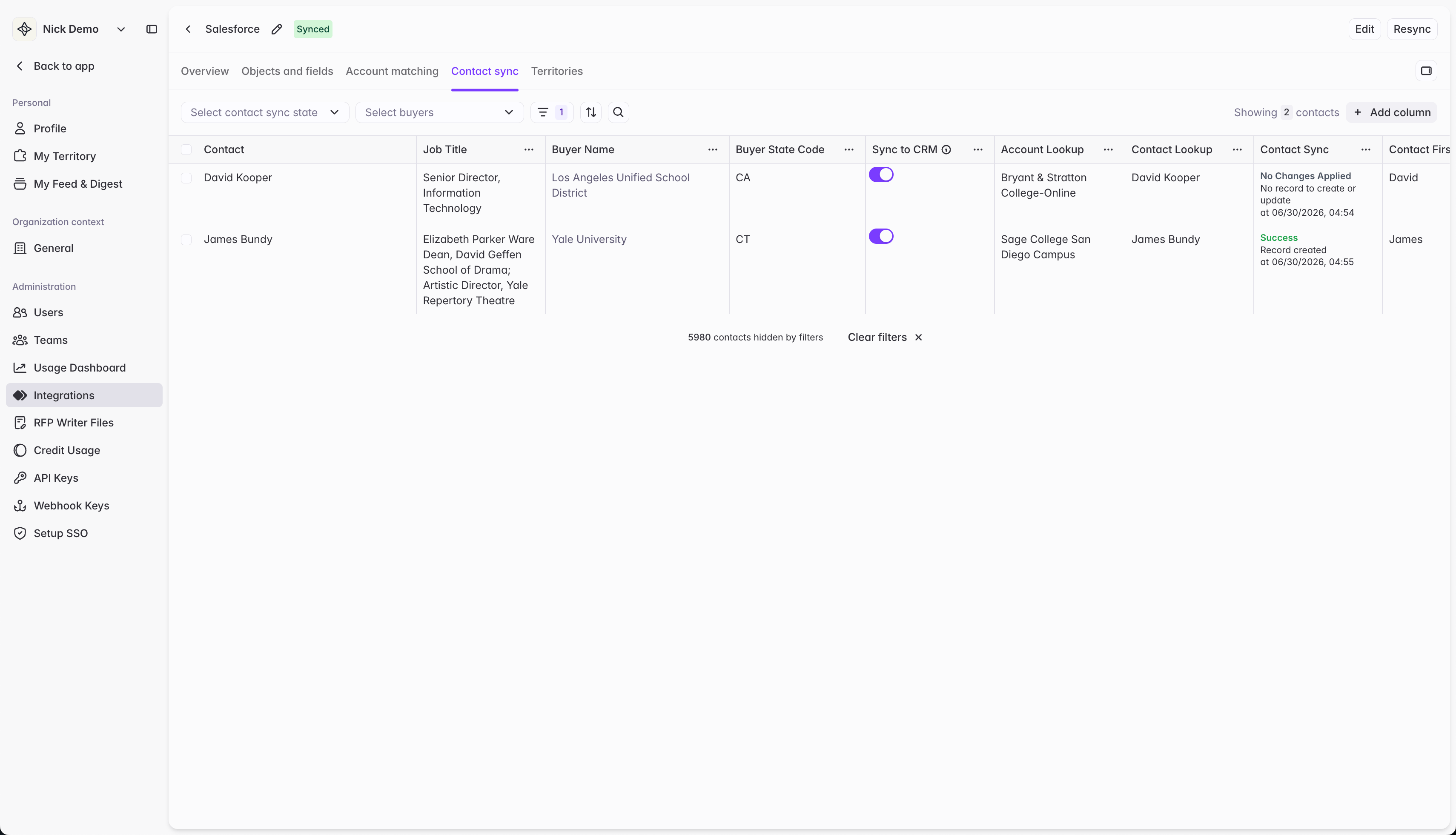
What your reps see
Once Contact sync is configured, contact cards on Buyer pages and in Ask Starbridge show a Sync to CRM action. Reps don’t interact with anything described above — all they need to do is click a button to enrich the contact and sync it to your CRM using the rules you set here. If a sync can’t go through, the card explains why in plain language (for example, no matched CRM account) instead of just failing.Troubleshooting
A contact's sync toggle is on, but it's not syncing
A contact's sync toggle is on, but it's not syncing
Check its run conditions. The Sync to CRM is required to sync, but you may have additional run conditions that aren’t satisfied and prevent sync.
Reps don't see a Sync to CRM option on contact cards
Reps don't see a Sync to CRM option on contact cards
Contact sync stays hidden from consumers until an admin has configured it for at least one CRM integration.
I inserted a contact's corresponding account record to my CRM, but Starbridge still isn't letting me sync the contact
I inserted a contact's corresponding account record to my CRM, but Starbridge still isn't letting me sync the contact
Starbridge pulls new accounts from your CRM every few hours. Follow these steps to force a faster refresh:
- Open your CRM integration.
- Click ‘Refresh’ and wait for the connection to refresh with the new account record in your CRM.
- Find the account in your account matching table, and mark it as Reviewed.
- Now the contact sync should be enabled.
What is the 'ICP' column, and where are its values coming from?
What is the 'ICP' column, and where are its values coming from?
Starbridge tags contacts with your target titles, as defined in your Organization Profile, as ICP contacts. All other contacts are tagged as non-ICP.
Error: While updating record : insufficient access rights on object id - INSUFFICIENT_ACCESS_OR_READONLY
Error: While updating record : insufficient access rights on object id - INSUFFICIENT_ACCESS_OR_READONLY
This is a permissions issue. Worry not: we have step-by-step instructions on how to resolve it. Have your Salesforce admin follow the instructions at: Granting Starbridge write access to Salesforce contacts.
Error: While creating record : record type missing for: Contact - CANNOT_INSERT_UPDATE_ACTIVATE_ENTITY
Error: While creating record : record type missing for: Contact - CANNOT_INSERT_UPDATE_ACTIVATE_ENTITY
Follow the instructions above under the heading: Special case: Contact record types.
What’s next
Sync contacts to your CRM
Build custom lookup and sync logic inside a single bridge instead of using the org-wide default.
Account matching
Review and approve the CRM account matches Contact sync depends on.
How do credits work?
Understand credit consumption and how to set per-user limits.