Overview
There are two ways to start an RFP proposal generation:
Creating a Proposal from an existing RFP
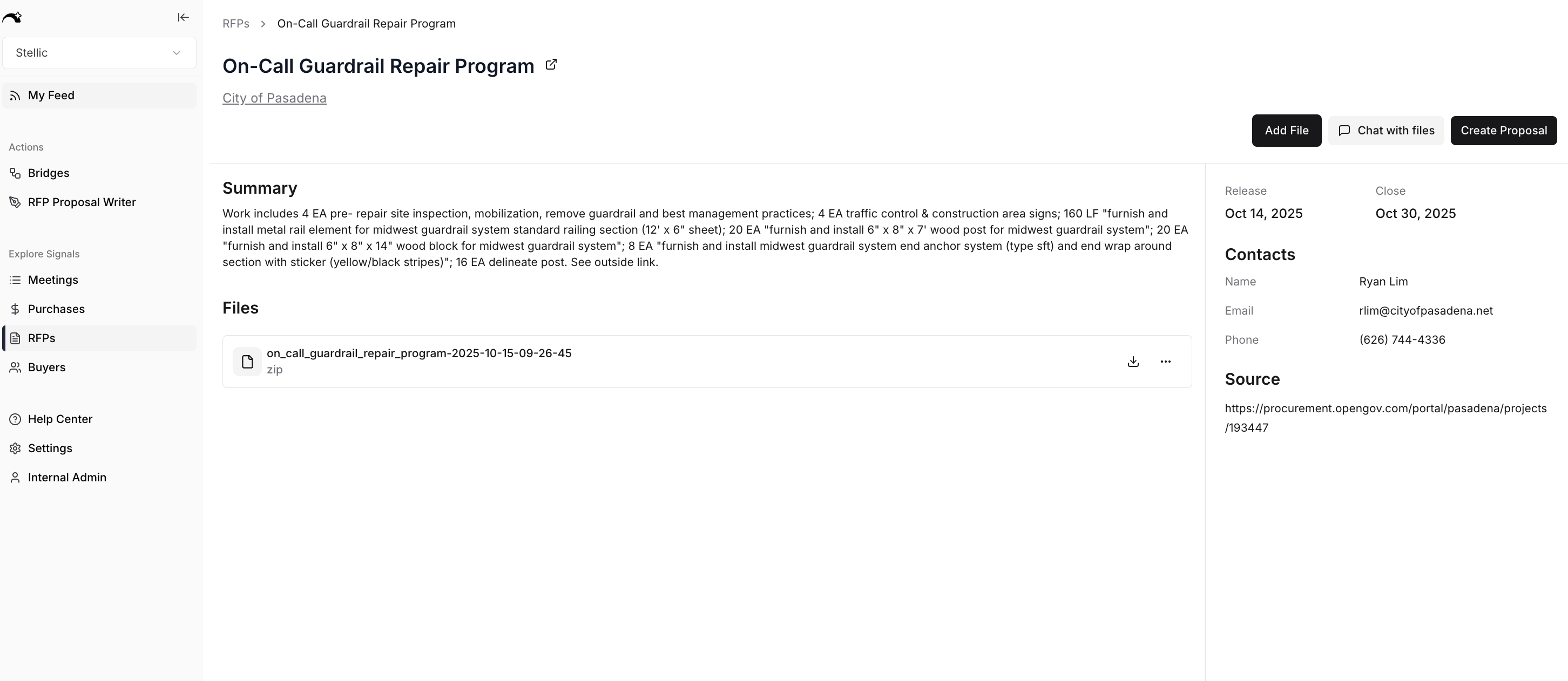
The system will then make you confirm the RFP files attached. Note: Starbridge can not always pick up the files associated with an RFP, so you may need to import them on your own.
Create an RFP Draft Found Elsewhere
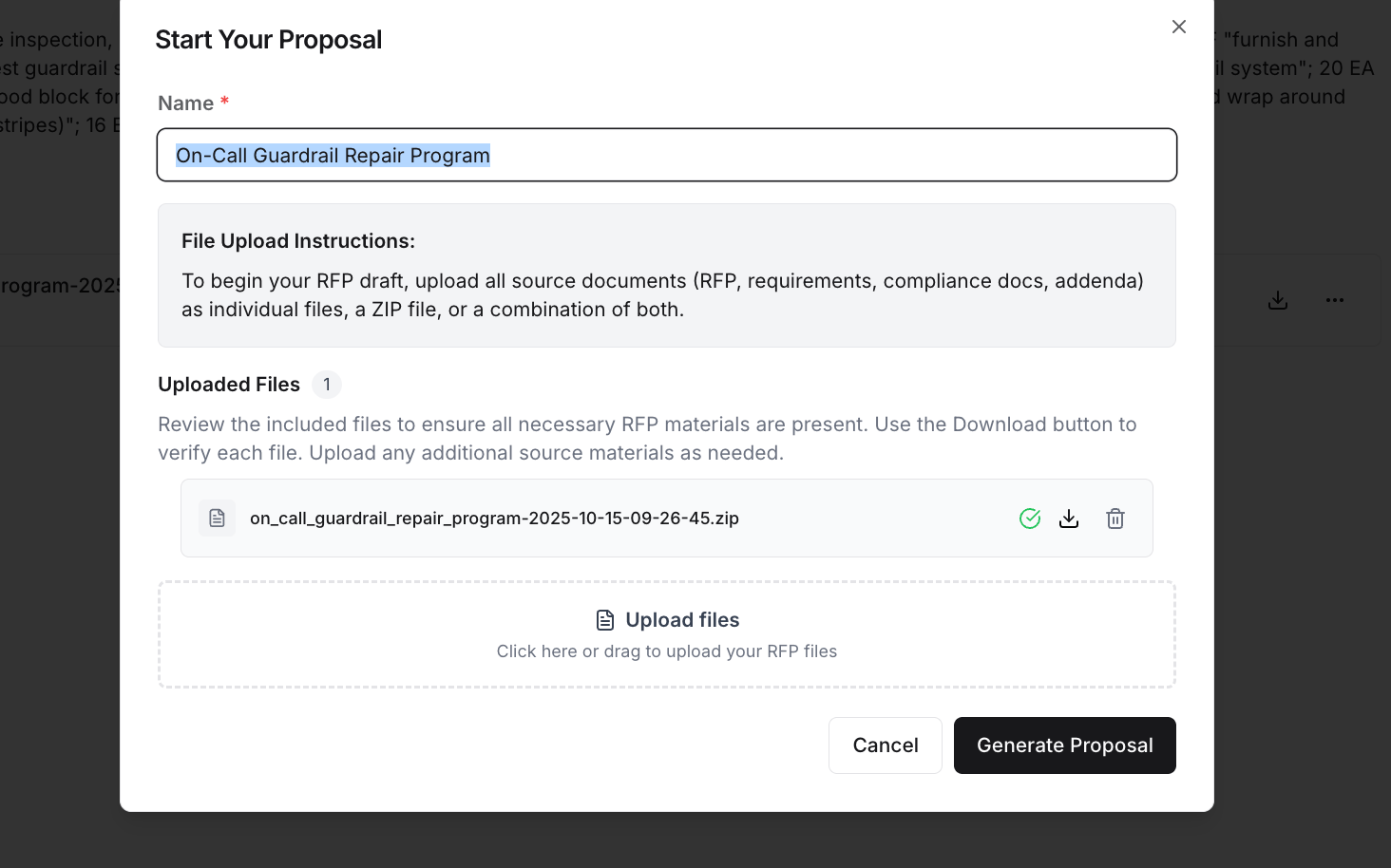
If you found an RFP outside of the Starbridge platform, you can begin the process of creating a draft by navigating to the RFP Drafts tab and clicking “Create a Proposal.”
- Be sure that you have all of the proposal documents downloaded and zipped into a single .zip file, which is the way that the Starbridge platform accepts RFP documents. You cannot upload files individually.
Creating an Outline
Once you start an RFP, the status of the RFP will progress from “Initializing” to “Initialized”. When the RFP is “initialized”, it is ready for you to edit the Outline.

Outline Editor
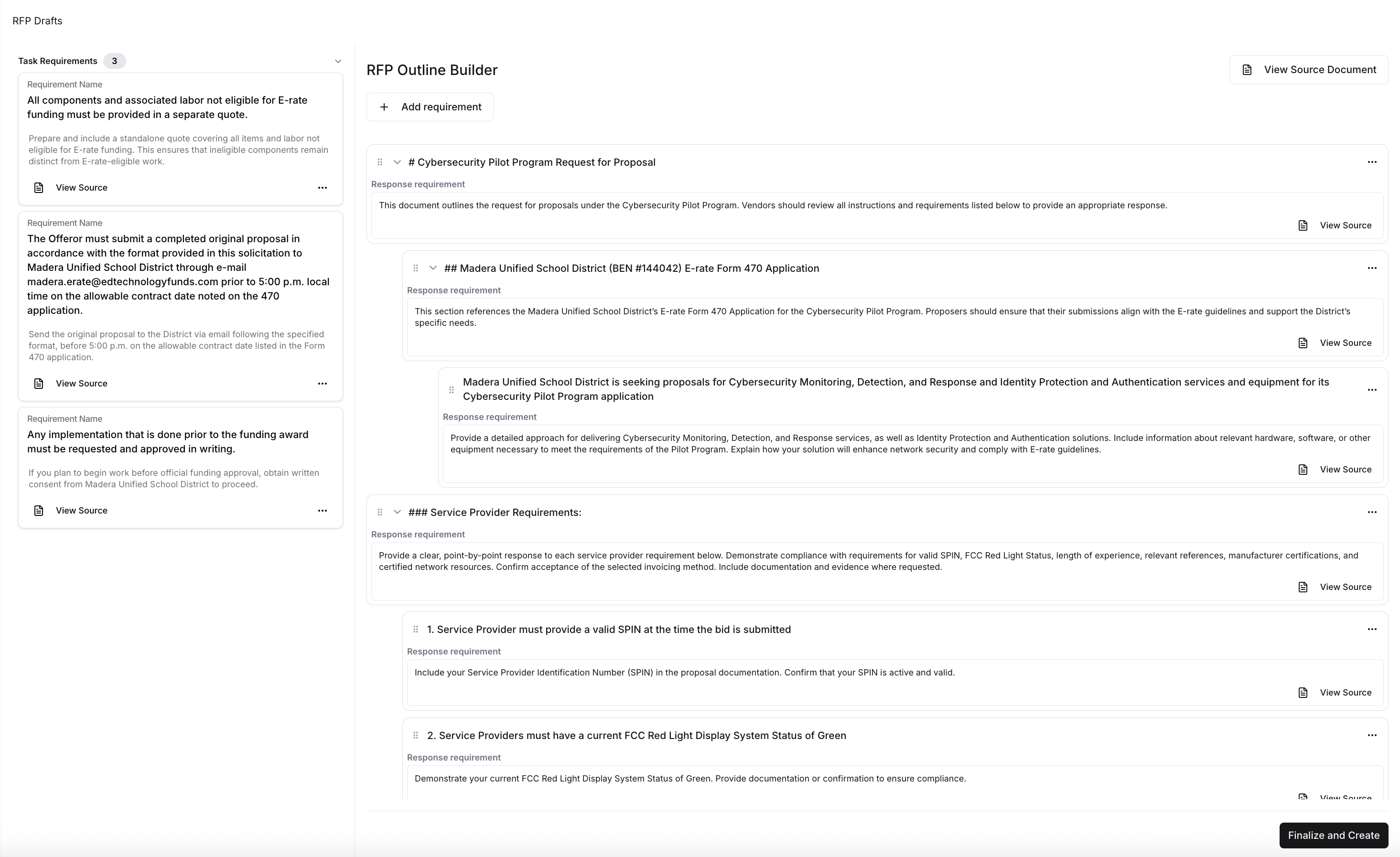
Once initialized, the Outline Editor will be available for view.
The left side contains “Task Requirements”, these are requirements that need to occur outside of the RFP, for example: submitting the RFP, additional approvals, third party quotes.
The right side of the RFP will contain all of the RFP requirements for which Starbridge will draft an answer.
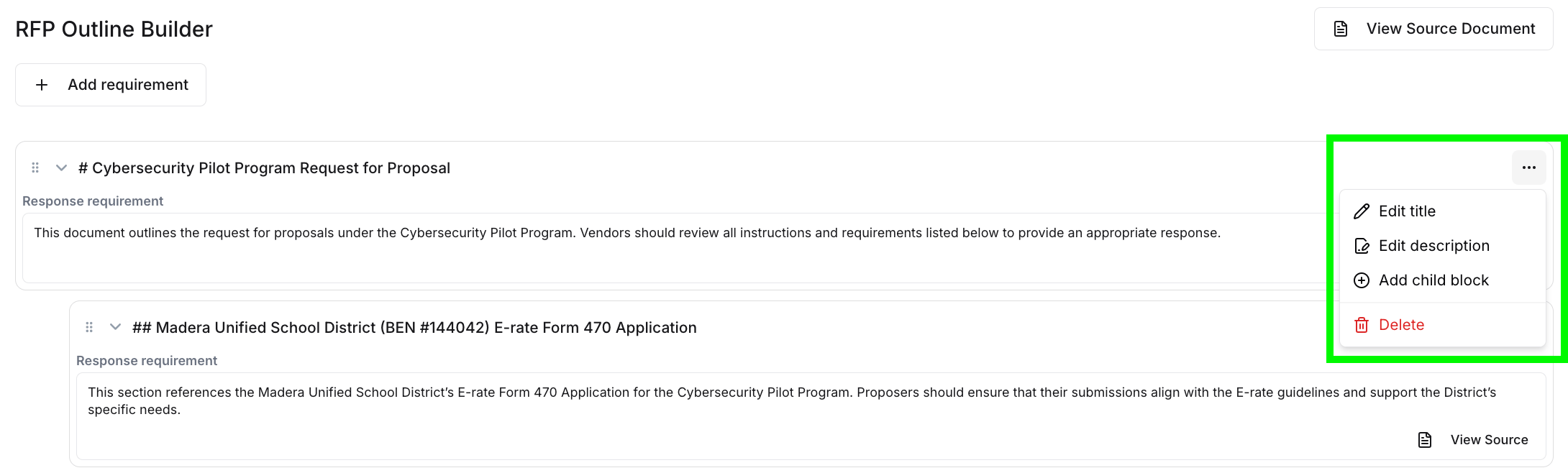
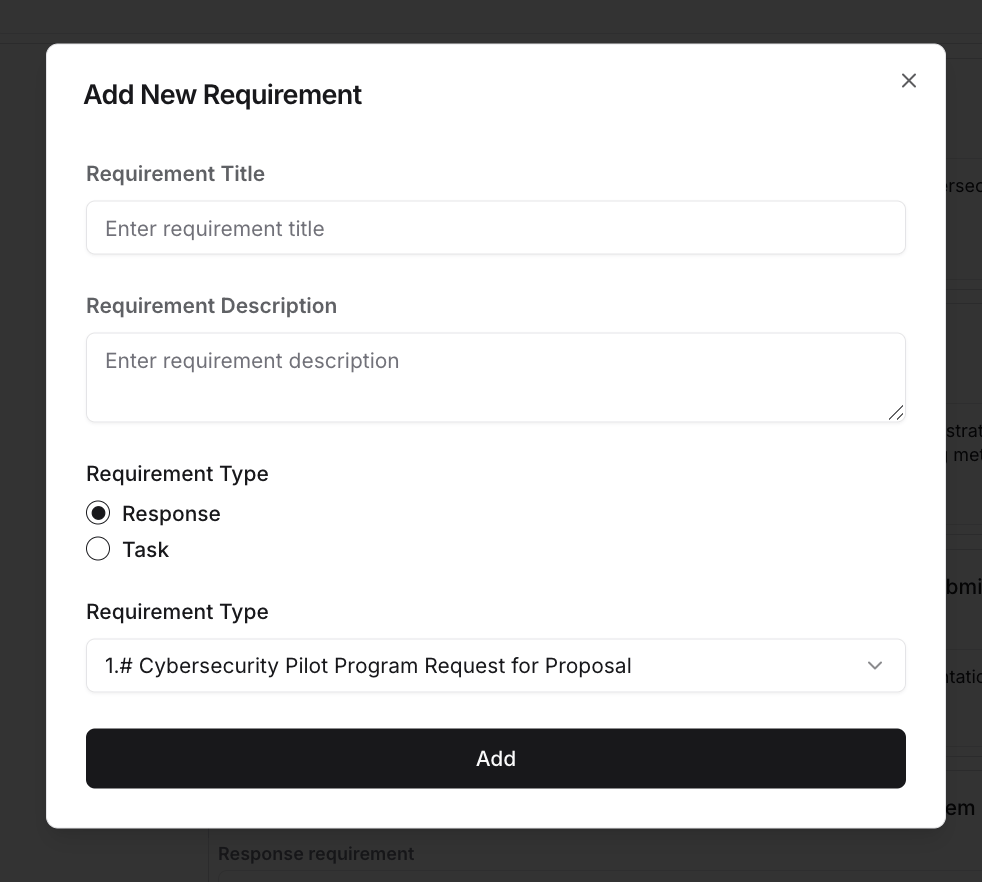
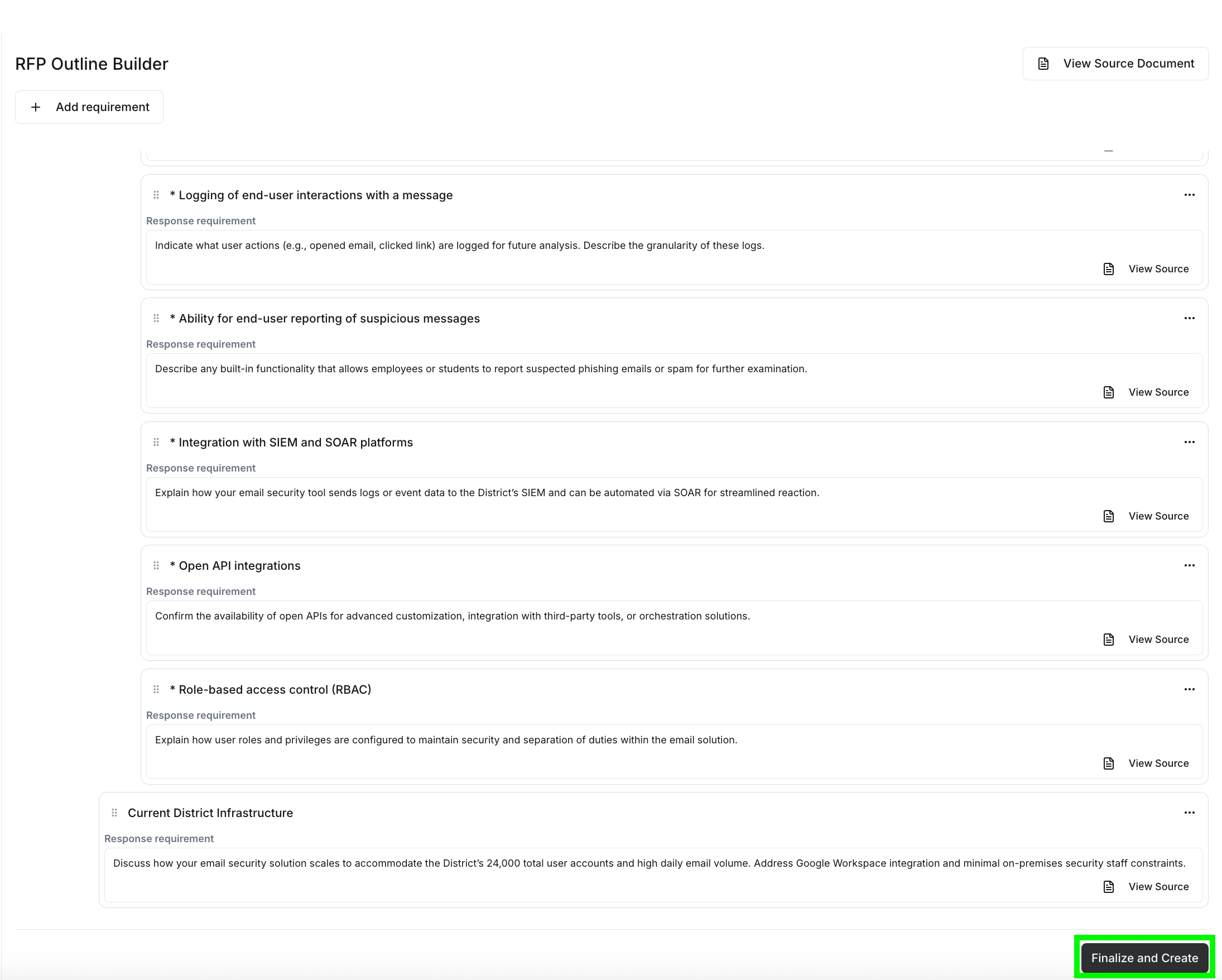
For every requirement in the RFP, you can edit the title and description. You can also add additional ‘child’ requirements (sub requirements).
When adding a new requirement, you can specify if it is a Response (i.e. a Question to be Answered in the RFP) or if it is a task that needs to be confirmed outside of the RFP document itself.
Finalizing the Outline
Once happy with the Outline, you can click on “Finalize and Create” and the Draft of the RFP will be generated with all of your specifications and edits included!
Once the Status of the RFP Draft moves from “Generating” to “Open” you can click into the RFP and begin working on what will hopefully be a successful proposal!
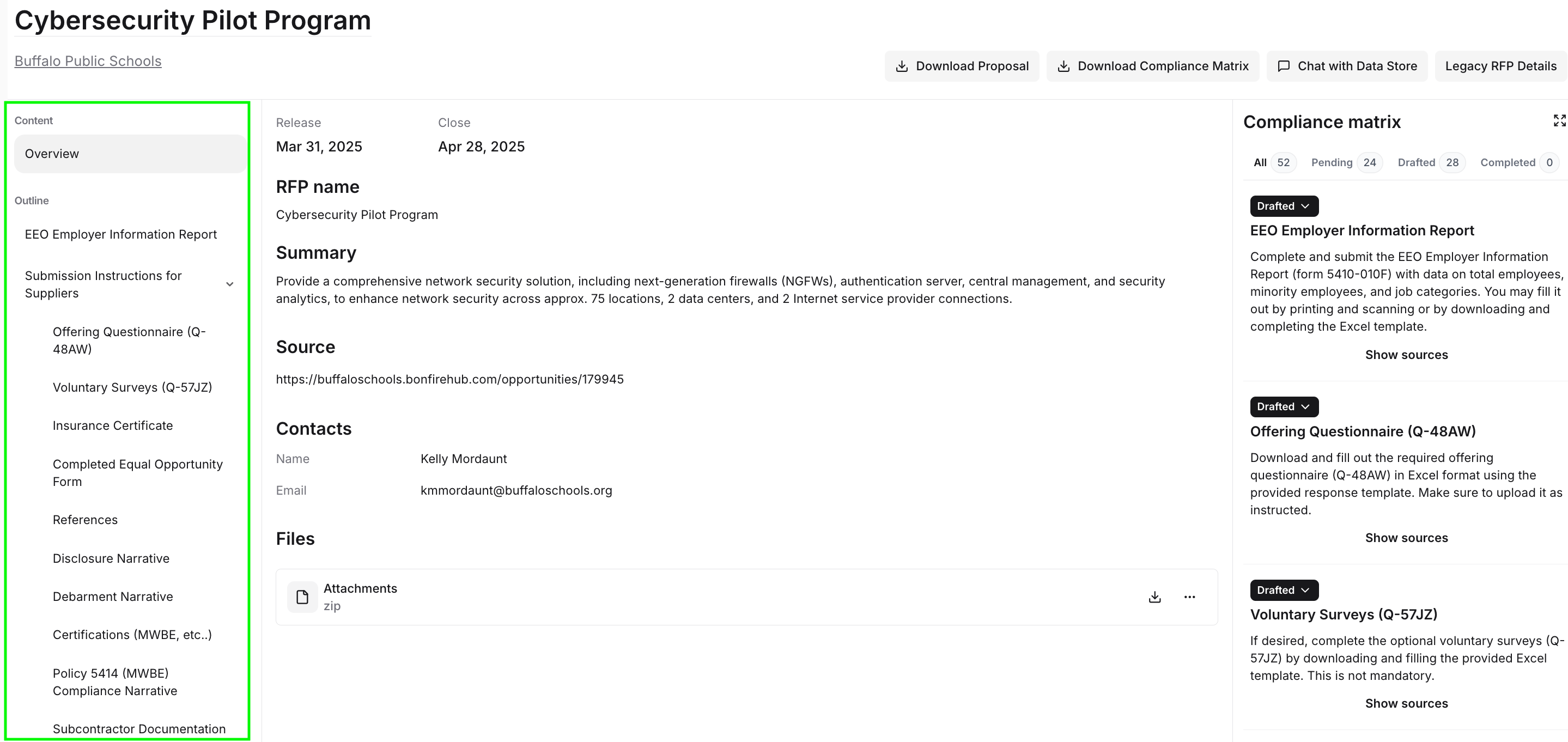
Viewing Your Outline
The Outline is your tool to provide answers to the specific requirements listed in the RFP that require text answers.
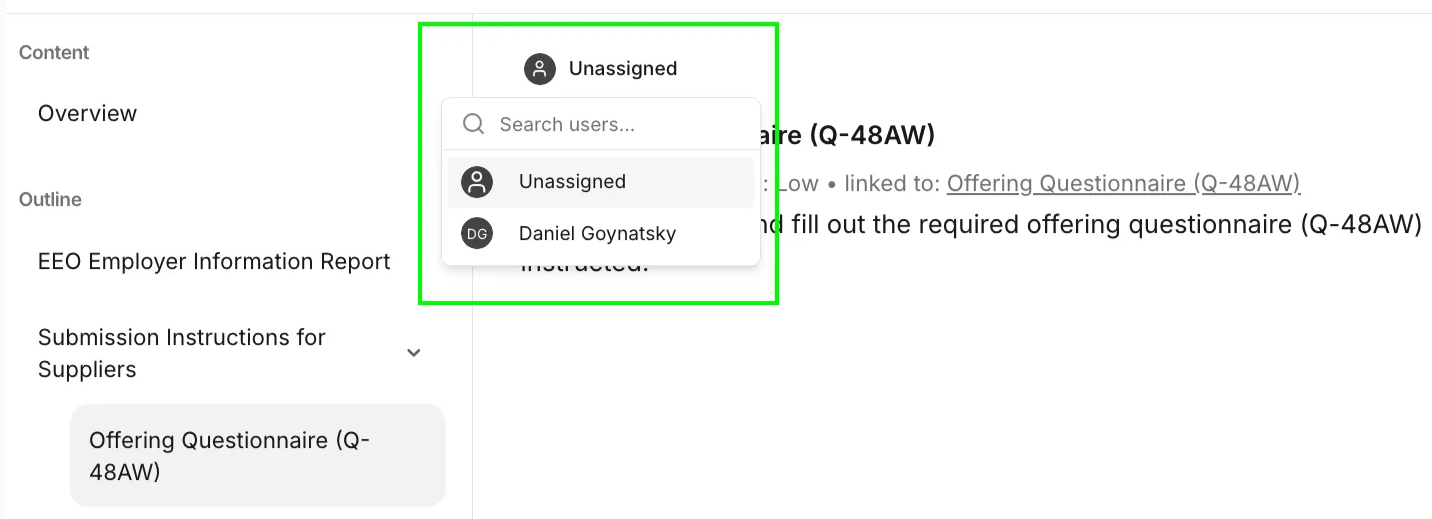
You are also able to “tag” users against each individual requirement, sending them a notification based on assignment of a particular task/requirement:
Once you have completed a task, you can change its status from “pending” or “drafted” to “completed”:
Compliance Matrix
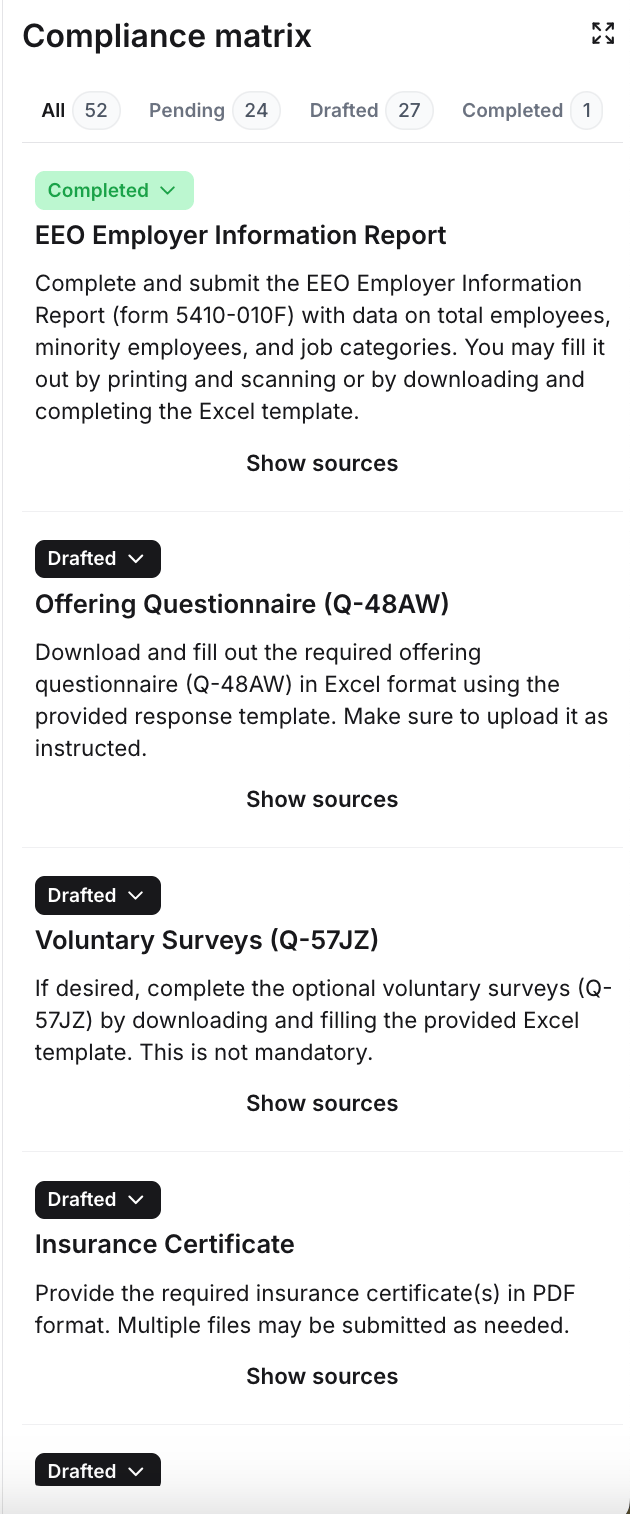
For each RFP, we will display a compliance matrix. The Compliance Matrix is generated by Starbridge’s AI to ensure that you comply with all of the requirements in the RFP. You can then manage the status of each of these requirements directly with your proposal draft.
Drafted:
- These are the requirements for which Starbridge provided an AI-generated response based on the uploaded RFP or question/answer pairs that you have provided.
Pending:
- These are requirements which are yet to be completed, including additional forms/documentation that may not have been provided as part of the RFP.
Additional info
You can interact with all of your saved data, including previous RFP drafts or other connected materials, via a chat window in order to quickly extract information that you may need to fill in the RFP requirements.
Finalizing RFP Drafts
Once you have completed all of the requirements in the compliance matrix, you can download the RFP with your answers. Starbridge does not submit the RFP for you, so you need to extract the RFP and add your organization’s formatting and stylization prior to submitting the finalized proposal.