

Overview
The Starbridge Chrome Extension brings buyer profiles, contacts, signals, and Ask Starbridge directly into your browser. It automatically surfaces account intelligence as you browse, making it easy to research buyers, prepare for calls, and get answers without switching tabs.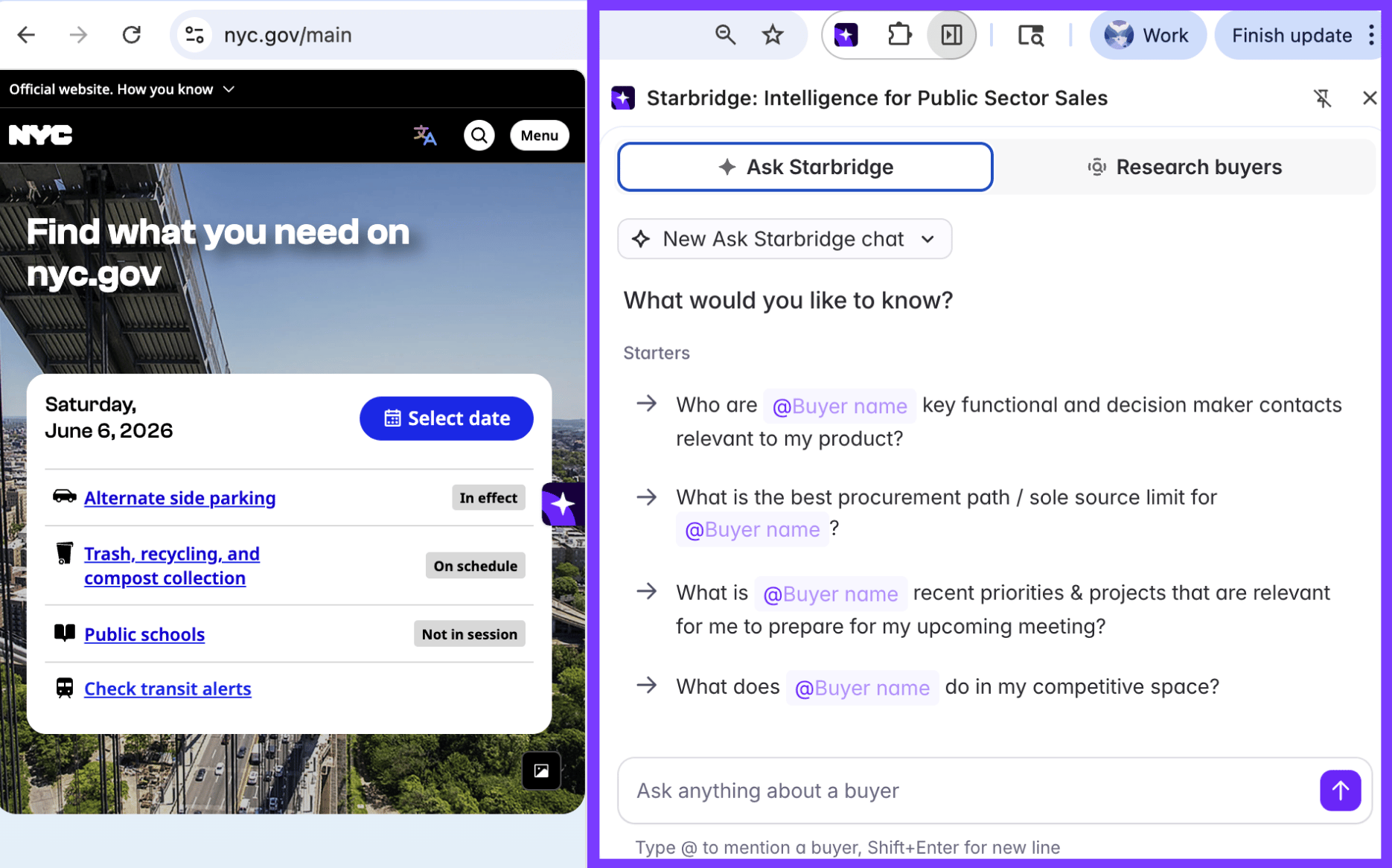
Installing the extension
1
Open the Chrome Web Store
Go to the Starbridge Chrome Extension page on the Chrome Web Store.
2
Add it to Chrome
Click Add to Chrome, then Add extension when prompted.
3
Pin it to your toolbar
Pin the extension so it’s always one click away: click the puzzle-piece icon in the top right of Chrome, then click the pin next to Starbridge.
4
Sign in
The first time you open the extension, sign in with the same credentials you use for the Starbridge web app. You’ll only need to do this once per browser.
Using the extension
Automatic buyer detection
As you browse, click the Starbridge icon on any account website or account LinkedIn page. The extension matches the URL against Starbridge’s buyer database and opens the matching buyer profile if it finds one.Search when no buyer is detected
If the page you’re on doesn’t match a known buyer, search is always available at the top of the popup. Type the buyer’s name to pull up the right profile. You can search at any time, even when a buyer has been auto-detected, which is handy for looking up a different account without leaving the page you’re on.Exploring buyer data
The extension gives you access to any buyer data your organization has in Starbridge — the same profile you’d see in the web app:Buyer Summary
A cited, AI-written briefing on what’s happening at the account.
Contacts
Verified decision-makers and stakeholders for the buyer.
Signals
Meetings, RFPs, contracts, and other buying signals for the account.
Attributes & more
Key buyer attributes, procurement overview, and org hierarchy.
Ask Starbridge in the extension
Ask Starbridge is built into the extension. Open the popup on any page, switch to the Ask Starbridge tab, and ask anything you’d ask in the web app.
Common use cases
Use it for first-call prep on the prospect’s own site. Open the agency’s homepage or the school district’s “About” page — the extension surfaces the contacts, signals, and Buyer Summary your team has built up, no separate tab needed. Use it to qualify inbounds in real time. When an unfamiliar account name lands in your inbox, open their site in a new tab and the extension does the lookup for you. Find relevant contacts for a specific buyer, live. As you’re researching an account, use the Chrome Extension to find relevant contacts to reach out to. You can also use Ask Starbridge to craft outbound emails or talking points tailored to that account.Extension settings
By default, the Starbridge Chrome extension icon will be visible on the right side of your Chrome browser at all times for easy access to the extension. If you’d like to gate access to the extension to the extension menu in your toolbar, click the “Gear” icon on the “Buyers” page within the extension, and toggle the “Show Starbridge tab” option to OFF.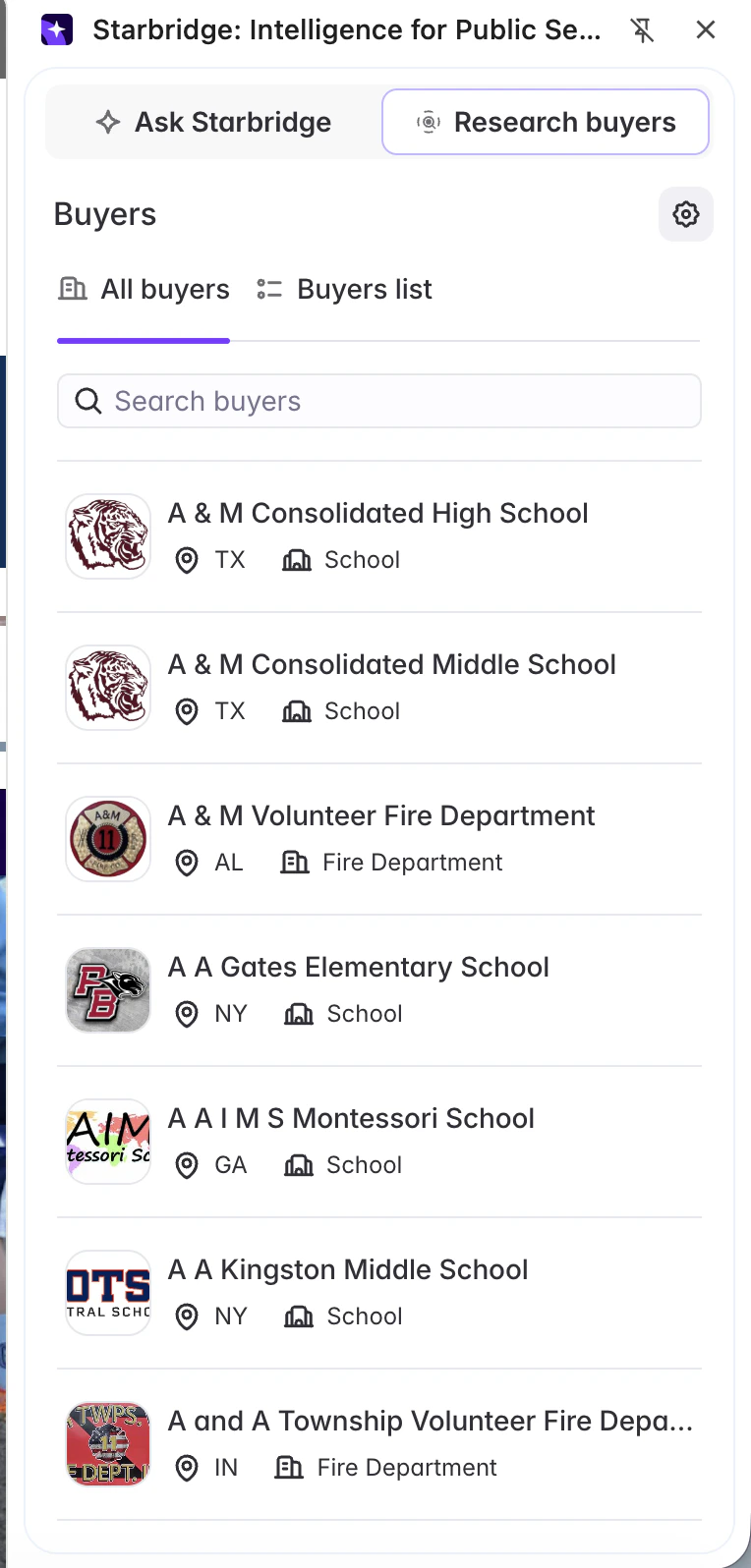

Related articles
Researching Buyers
All the ways to research an account across Starbridge.
Ask Starbridge Chat
The full guide to researching accounts through chat.