

Overview
The Usage Dashboard gives you a view of how your team is using Starbridge — who’s active, how many signals are being reviewed and acted on, and how individual users are contributing — all filterable by date range and exportable as CSV.The dashboard is only visible to Admins.
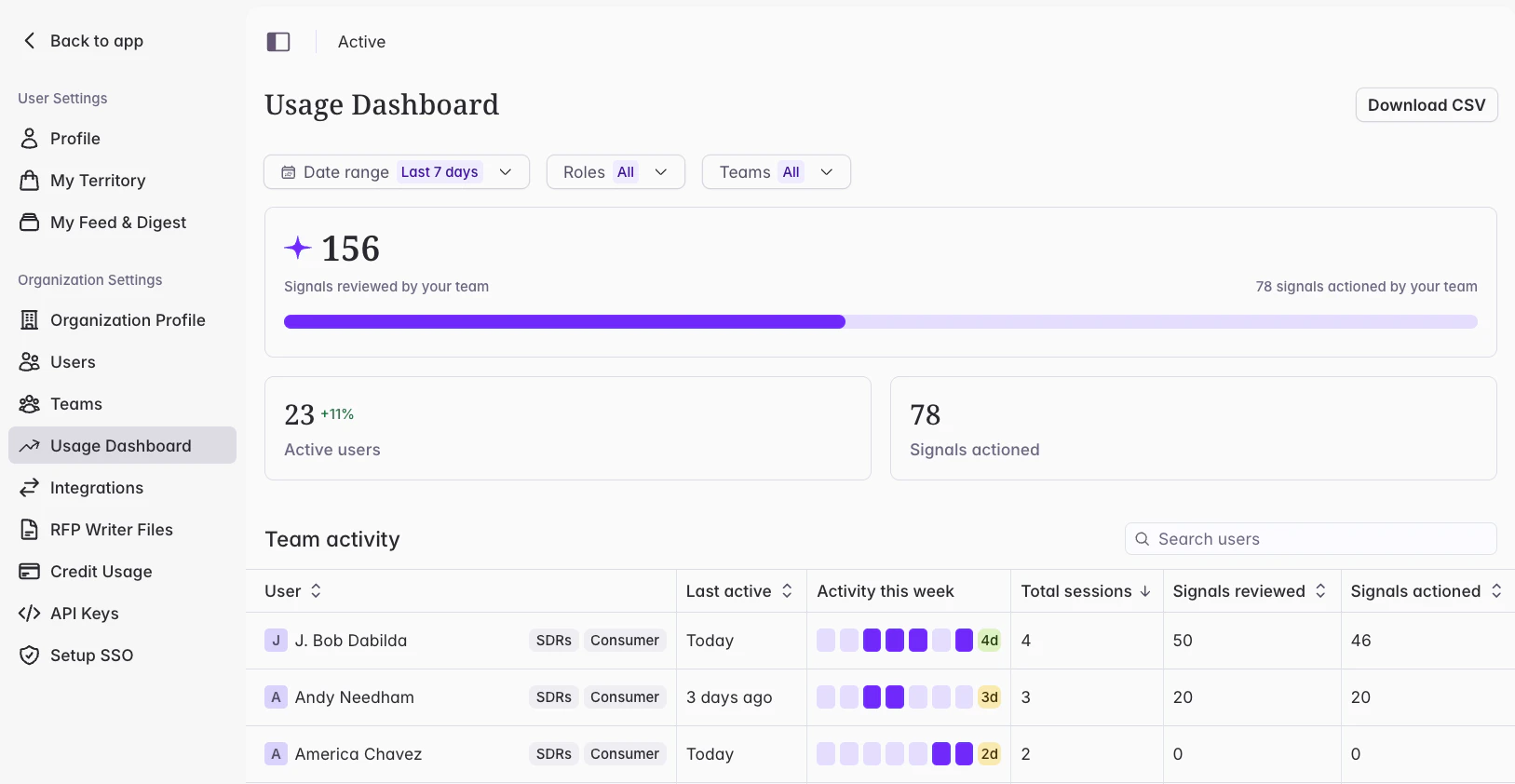
Accessing the dashboard
Go to Usage Dashboard in the left navigation.Summary tiles
At the top of the dashboard, three tiles show team-wide totals for the selected date range:- Active users — the number of unique users who visited any page or sent a message to Ask Starbridge via Starbridge or Slack in the period
- Signals reviewed — signals any user opened or to which they applied any status (Actioned, Starred, Not interested, Needs action); deduplicated by signal across users
- Signals actioned — signals any user marked as Actioned, Starred, Not interested, or Needs action; deduplicated by signal across users
- Chat questions asked — questions sent by any user to Ask Starbridge. Includes Ask Starbridge from any tab/surface in the product and Ask Starbridge via Slack integration, if installed for your organization.
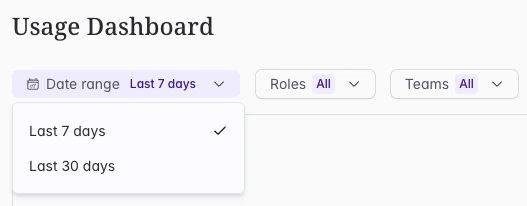
You will see more date range options over time, as your team accumulates activity data.
Team activity table
The Team Activity table shows one row per user and includes:- Name — the user’s full name
- Teams — tags showing the user’s assigned teams, sorted alphabetically; the role tag (Consumer, Builder, or Admin) always appears last
- Activity this week — a day-by-day breakdown of the past 7 days showing which days the user was active, with a total count (0–7); only visible when Last 7 days is selected
- Last active — the date the user was last active in Starbridge; always current and not affected by the date range filter
- Sessions — total sessions in the selected date range; a session is defined as any signal metric produced within a 60-minute window
- Signals reviewed — signals this user opened or to which they applied any status (Actioned, Starred, Not interested, Needs action) in the selected date range
- Signals actioned — signals this user marked as Actioned, Starred, Not interested, or Needs action in the selected date range
- Chat sessions — unique chat sessions initiated by this user with Ask Starbridge. E.g., each time a user starts a new chat or clicks ‘New chat’, this initiates a new chat session.
- Chat questions asked — questions sent by this user to Ask Starbridge. Includes Ask Starbridge from any tab/surface in the product and Ask Starbridge via Slack integration, if installed for your organization.
Sorting
Click any column header to sort by that column. Activating a new sort clears any existing sort. Click the same header again to reverse the direction.Filtering
Use the Team and Role dropdowns above the table to filter the list to specific segments. Both filters support multi-select.Searching
Use the search field to find a specific user by name. The search is case-insensitive and hides rows that don’t match.Exporting data
Click Export to download CSV files:- Summary file — the team-wide totals shown in the summary tiles
- Team activity file — the full per-user table with all columns
A note on historical data
Analytics tracking begins when the dashboard goes live. Last 7 days, Last 30 days, Last 3 months, and Last 6 months will become available as your team accumulates usage history over time.Related articles
Video walkthrough
Watch the full admin setup walkthrough in the platform.
Set up users, roles, and teams
Add users, assign roles, and create teams for your organization.