

Overview
Bridges are created by Search Agents that you configure. When configuring a Search Agent, you provide inputs on the set of accounts you’d like the Agent to search over, the types of relevant signals it should look for, and the guidance on what makes a good signal. Once you set the Search Agent live, it will continuously scrape the web looking for new signals that match your criteria. Bridges are the resulting set of relevant signals that the Search Agent found for you. Once you have a Bridge with signals populated, you can add enrichment columns to do further analysis on the signals found. This Help Center article describes how to configure Search Agents for Bridges, and how to further enrich your Bridges with additional columns.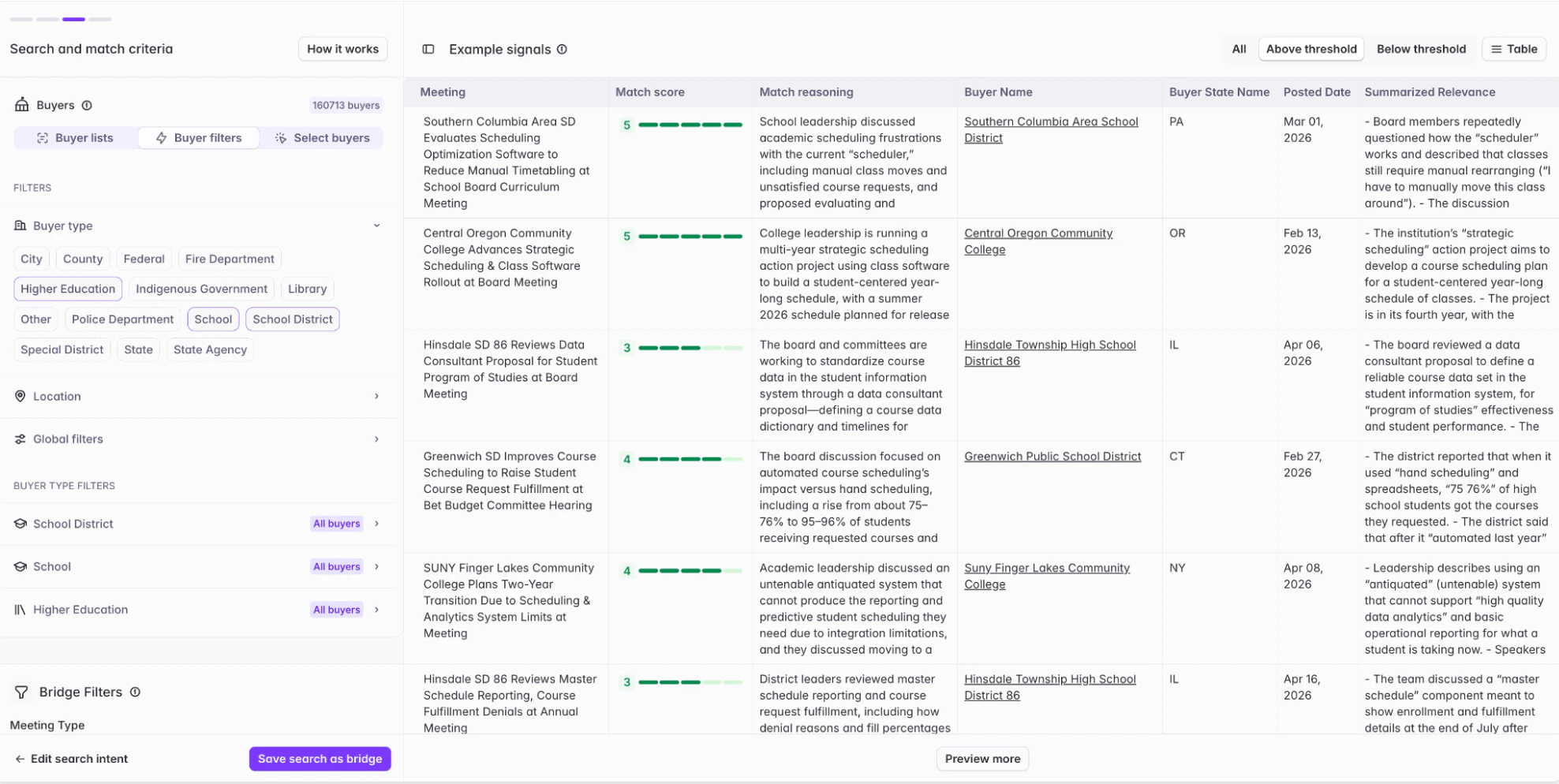
Who can build Bridges?
Only Builders and Admins can create Bridges, and they have access to all Bridges within your organization. Consumers can only view Bridges that have been shared with them.See user roles for more information.
Creating a Bridge
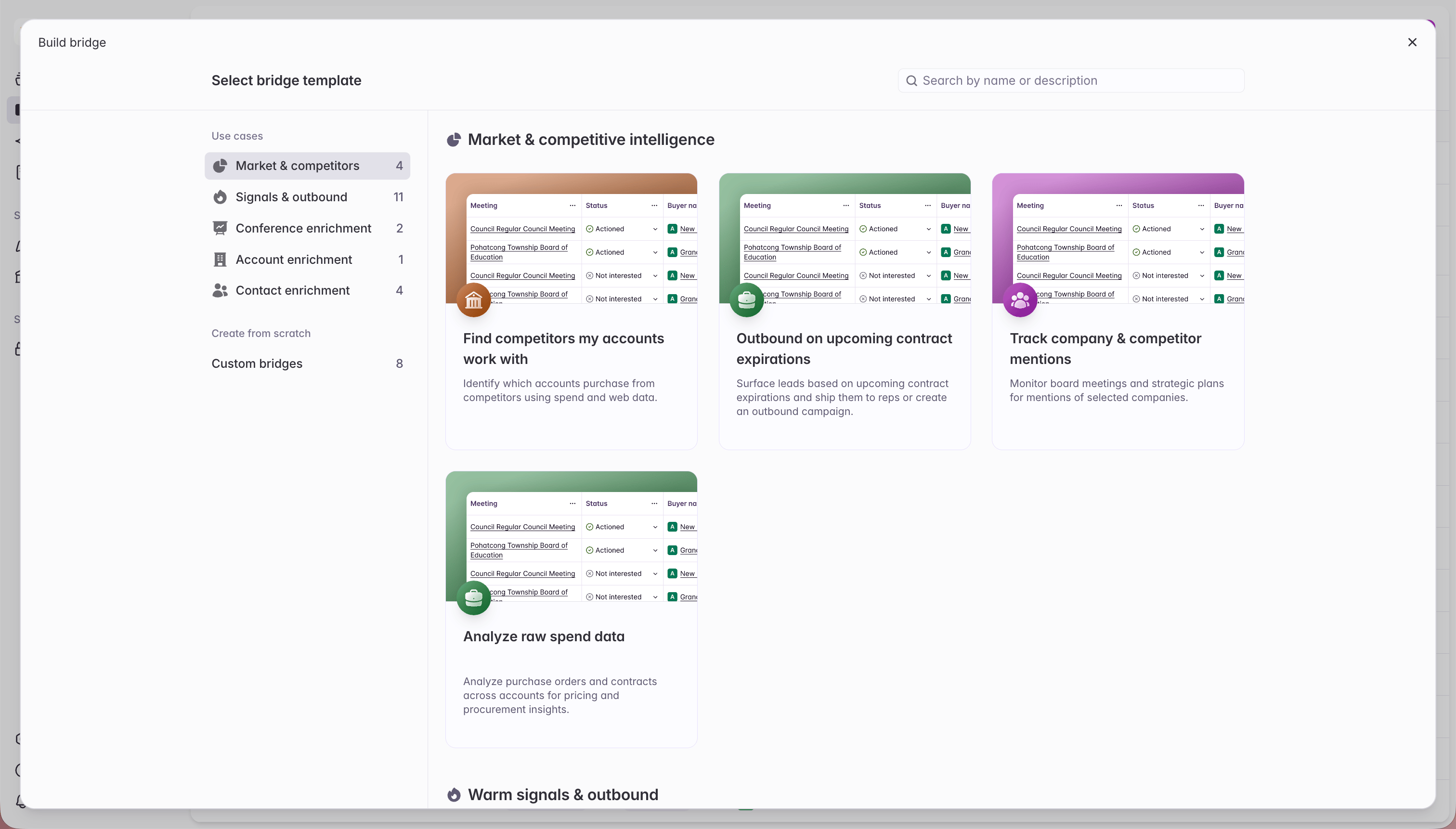
There are two main ways to create a Bridge within Starbridge:- From “Build Bridge” use case templates
- From “Explore” in the Signals sidebar
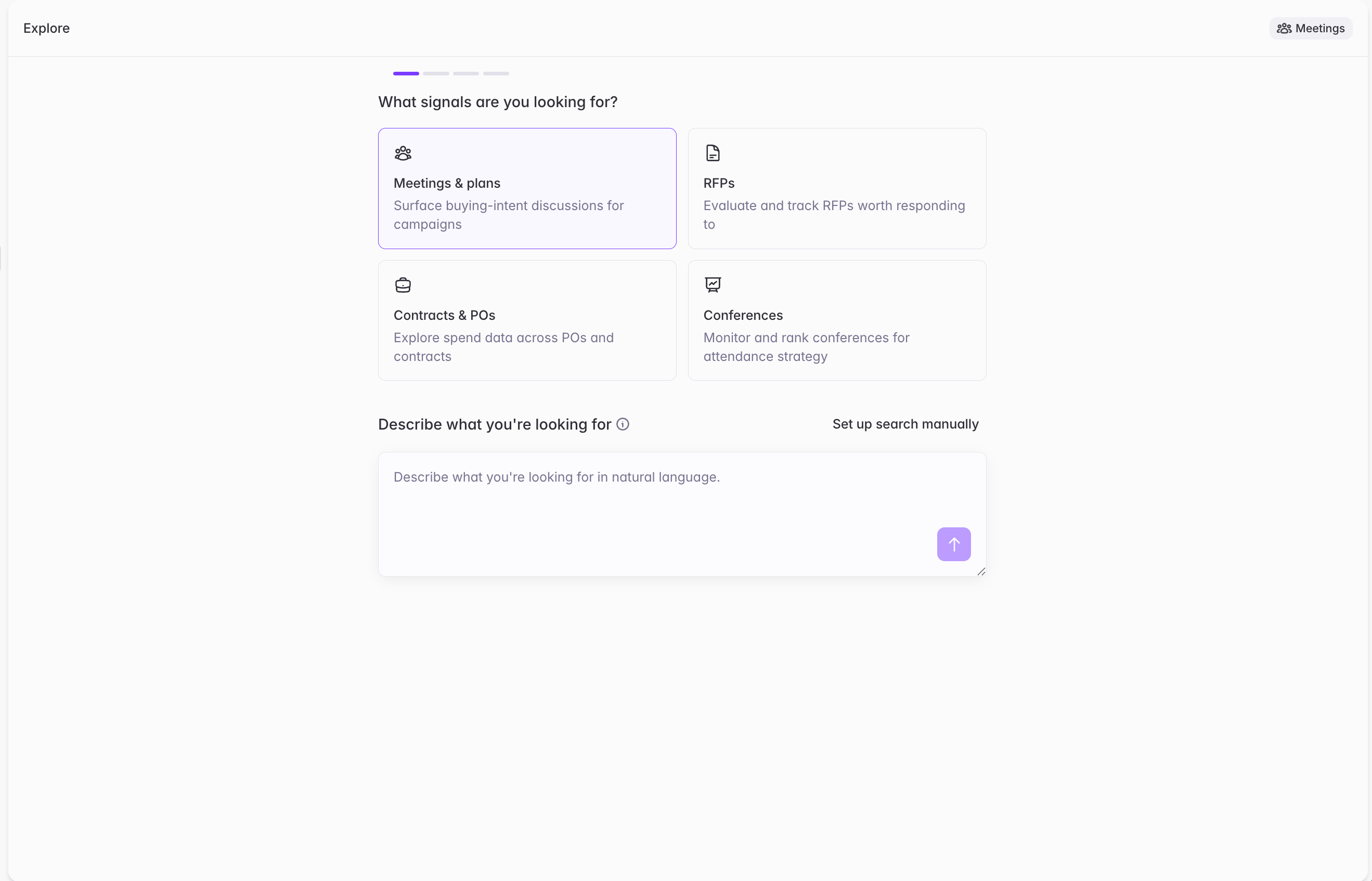
Configuring your Search Agent
There are two ways to configure your Search Agent:- Describing your ideal signals using natural language
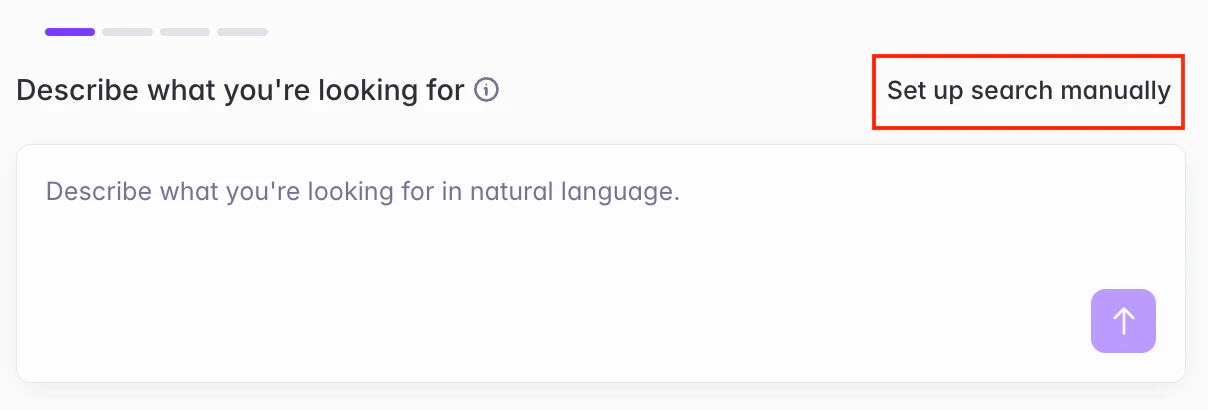
- Building your criteria with manual filters and search terms
Building a Search Agent using Natural Language
The three phases of bridge building
- Describe — Enter a natural language description of what you’re trying to find.
- Refine — Review the structured search Starbridge generated for you. Edit buyer filters, bridge filters, search phrases, and match score criteria. Preview scored results.
- Create — When the preview looks right, create the bridge.
Phase 1: Describe what you’re looking for
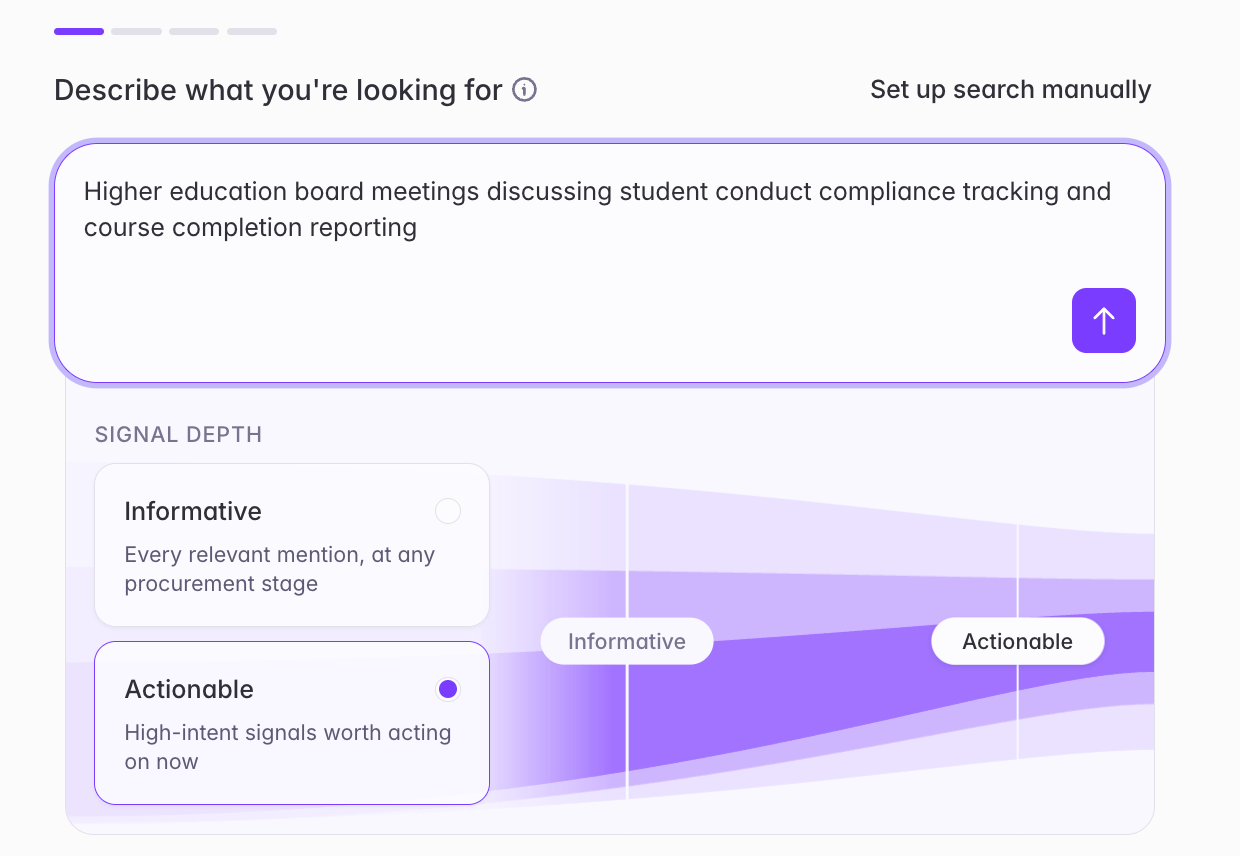
From the Bridge creation entry point (for example, Create Bridge on the Meetings, RFPs, or Purchases page), you’ll land on a single input that asks you to describe your search in natural language.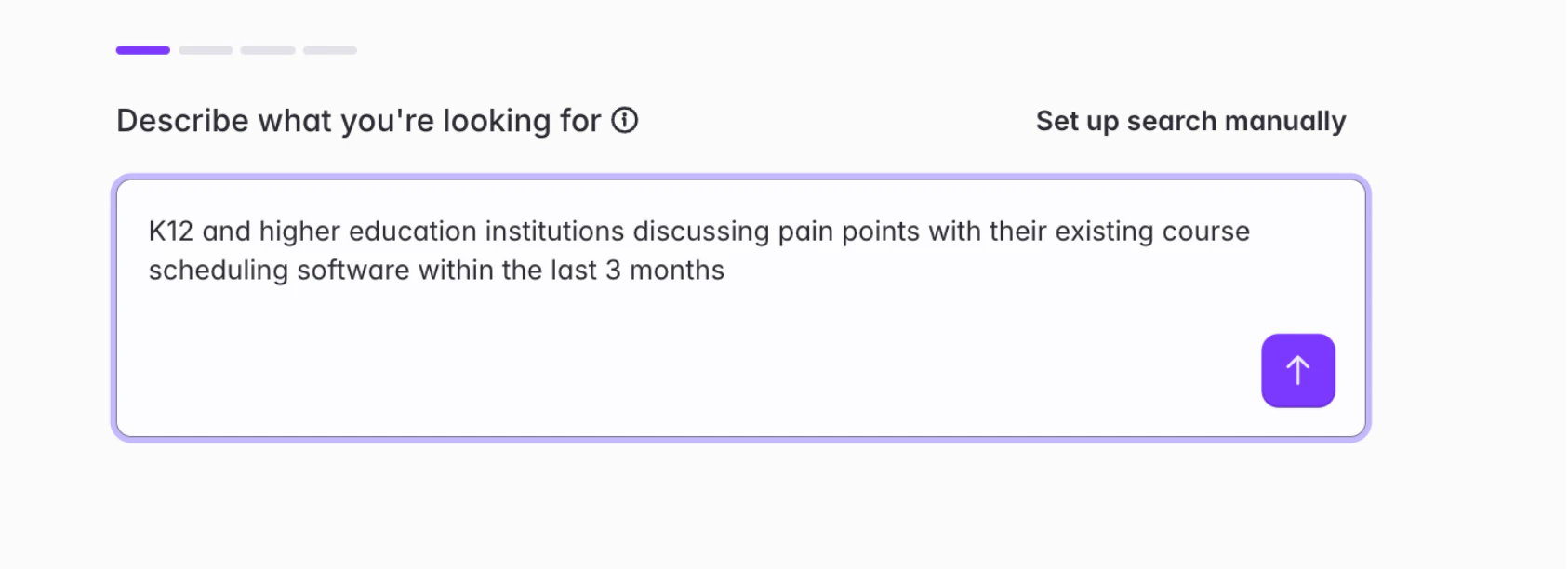
- Who you’re looking at — the type of buyer, geography, size, or segment
- What you’re looking for — the topic, keyword, product category, or signal type
- Timeframe you’re interested in – things like “meetings in last 3 months”, or “RFPs due in the next 6 months”
- What “good” looks like — the conditions that make a result worth acting on (e.g., “actively evaluating alternatives,” “contracts expiring within 12 months,” “budget already allocated”)
Signal depth: Informative vs. Actionable
Alongside your search description, choose how tightly you want your results scoped:- Informative — Every relevant mention, at any procurement stage. Choose this when you want broad awareness of everything happening in a space, not just the moments to act on.
- Actionable — High-intent signals worth acting on now, like signals appearing early in a procurement process before a vendor has been formally selected.
Phase 2: Refine search and match criteria
After you submit your prompt, Starbridge analyzes it and generates a structured search draft. You’ll see a short animation while we break your query into filters, phrases, and scoring criteria - then the full Search and match criteria view opens for review.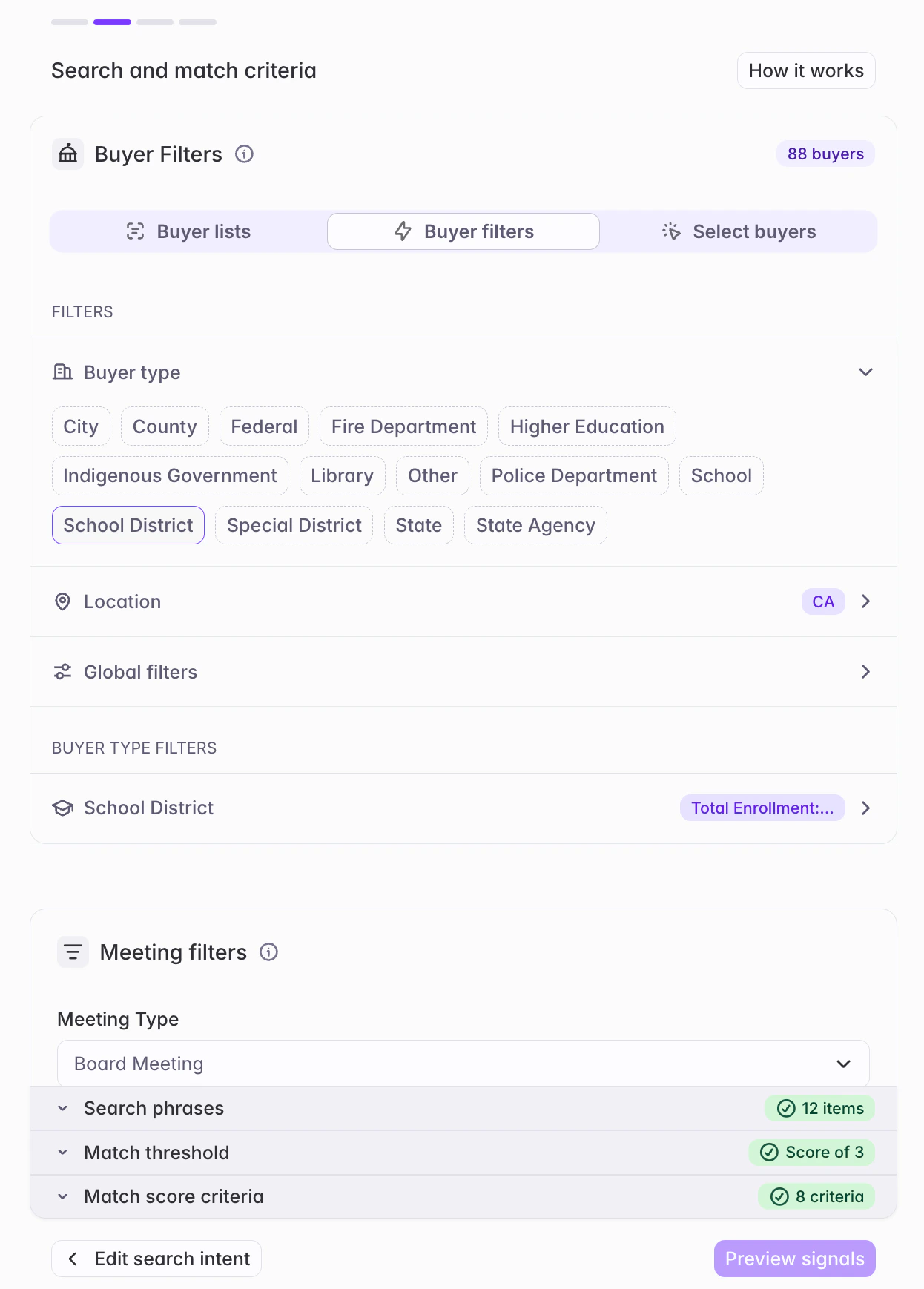
Buyer filters
Defines who you’re searching over. This controls the set of buyers whose signals are eligible to appear in the bridge. You can define buyer filters in one of three ways:- Buyer lists — Use a pre-configured list or territory
- Buyer filters — Filter by geography, buyer type, size, classification, and other structured attributes
- Select buyers — Pick individual buyers by name
To learn more about Buyer lists and filters, check out Creating a buyer list
Bridge filters
These are filters specific to the signal type you’re searching for. They are the structured fields native to the document itself — for example:- Meetings and strategic plans — meeting type, date range, meeting body
- RFPs — RFP status, due date, issuer type
- Purchases — contract type, purchase type, effective and expiration dates, total value
Search phrases
Defines what you’re searching for - the specific phrases used to surface candidate signals from the document corpus.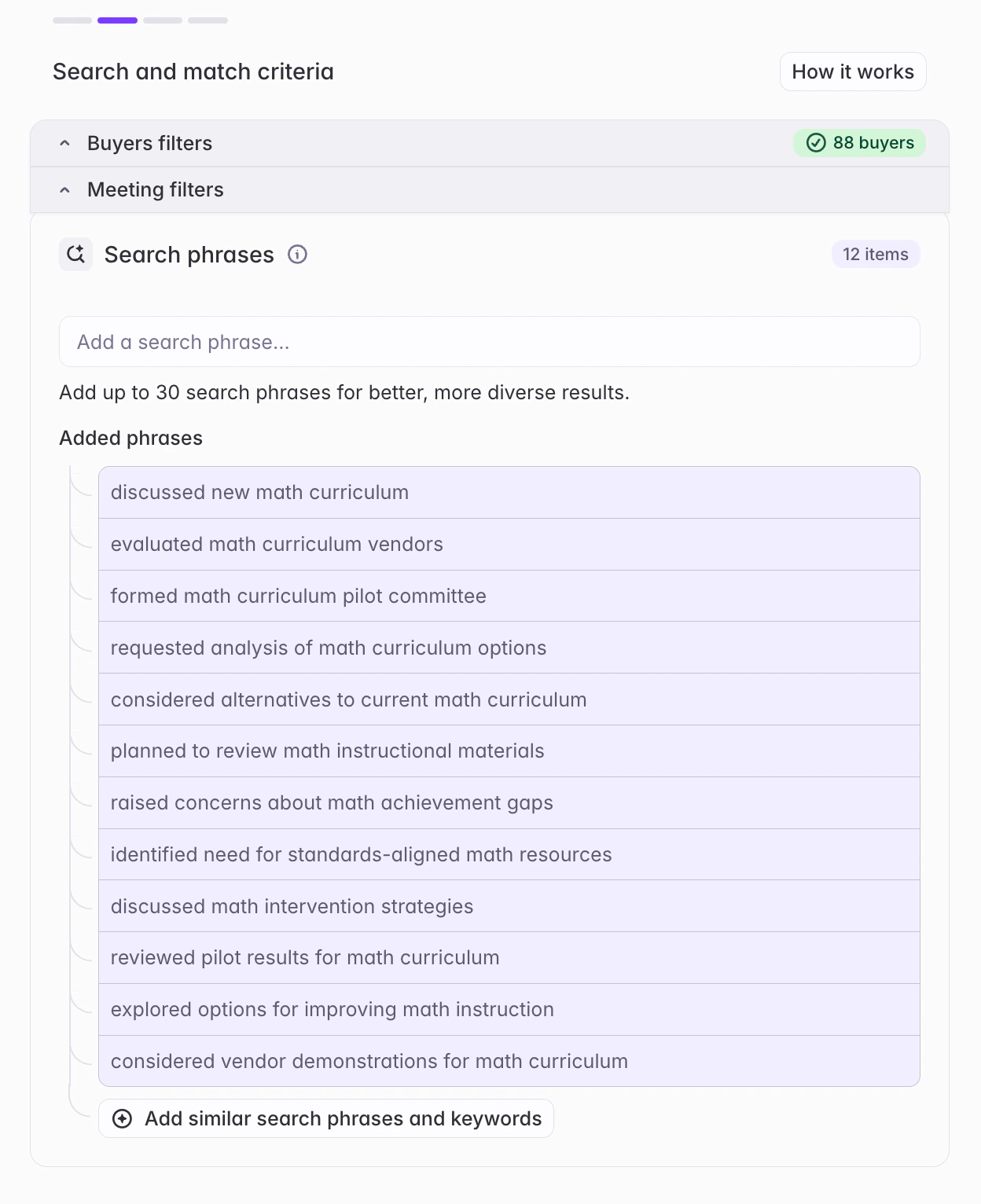
- Starbridge generates phrases proactively to make your search comprehensive. If a generated phrase doesn’t match your intent, delete it.
- For Meetings bridges, you can add up to 30 phrases to cast a wider net and improve accuracy.
- Auto-generate additional similar search phrases by using the “Add similar search phrases and keywords” option or by hovering over a specific search phrase and clicking the ”+” button to generate additional phrases similar to that specific phrase
- Cast the net wide here, filter hard in scoring. Search phrases control which signals are evaluated for your bridge; match score criteria control which signals eventually make it into the bridge.
Match score threshold
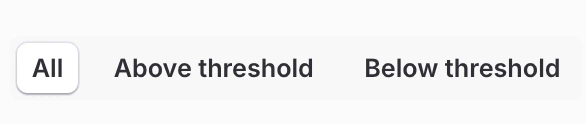
Set a minimum match score — any signal scoring below it is excluded from the bridge entirely. Moving the threshold up is the fastest way to tighten a noisy bridge; moving it down is how you open it up if you’re missing results you expected to see.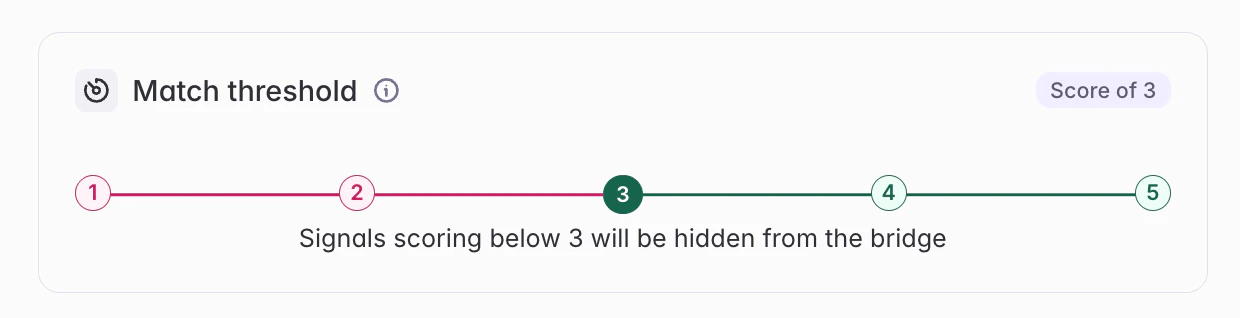
Match score criteria
Defines what counts as a strong match. This is where you translate “a result I’d actually act on” into criteria Starbridge can apply to every potential signal.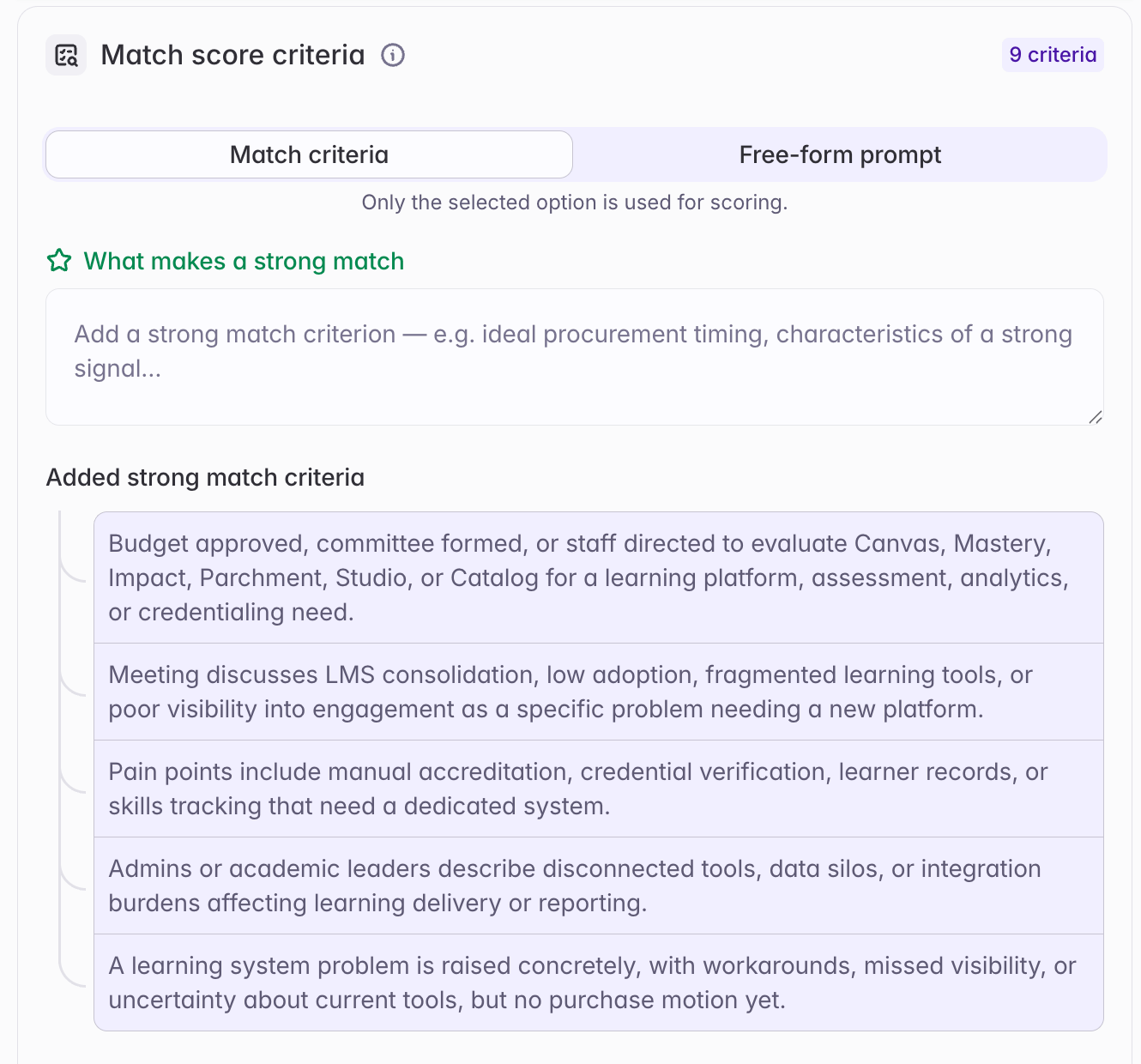
- Match criteria (default) — The simplified experience. Starbridge generates strong-match and red-flag criteria from your prompt, and you tune them as discrete statements. Best for most use cases.
- Free-form scoring prompt (advanced) — Replaces the positive / negative criteria with a single prompt you write yourself, giving you full control over how signals are scored.
Option 1: Positive / negative match criteria (default)
Write criteria as discrete statements under two headings:- What makes a strong match — Criteria that define a good result (e.g., “Discusses an active evaluation or pilot,” “Mentions a named vendor under consideration”)
- Red flags - penalize or exclude — Criteria that weaken or exclude a signal (e.g., “Passing mention only, not the focus of the meeting,” “Historical reference with no current activity”)
Option 2: Free-form scoring prompt (advanced)
Instead of positive / negative criteria, you can supply a single free-form prompt that fully defines your scoring logic. What a free-form scoring prompt gives you:- Explicit control over the score scale. You can define exactly what earns a 5 vs. a 4 vs. a 3 (and so on), including calibration guidance and how to handle edge cases.
- Customizable outputs. Similar to an AI Analysis scoring column, you control how the match reasoning, summarized relevance, and snippet are presented — length, level of detail, formatting, and focus (for example, “keep it concise” or “call out named vendors”).
- More descriptive reasoning. Match reasoning and summarized relevance generated from a free-form prompt tend to be richer and reference specific elements of your prompt, compared to those produced from positive / negative criteria.
The positive / negative criteria remain the default and are generated for you out of the box. You only need the free-form prompt when the criteria approach isn’t giving you the precision you want.
Example free-form scoring prompt
Example free-form scoring prompt
The example below scores buying signals surfaced from sales or discovery meetings on a 1–5 scale, on behalf of a fictional buyer (Ramp). Note how it explicitly defines each score, adds calibration guidance, and instructs the model on how to reason.
Previewing your bridge results
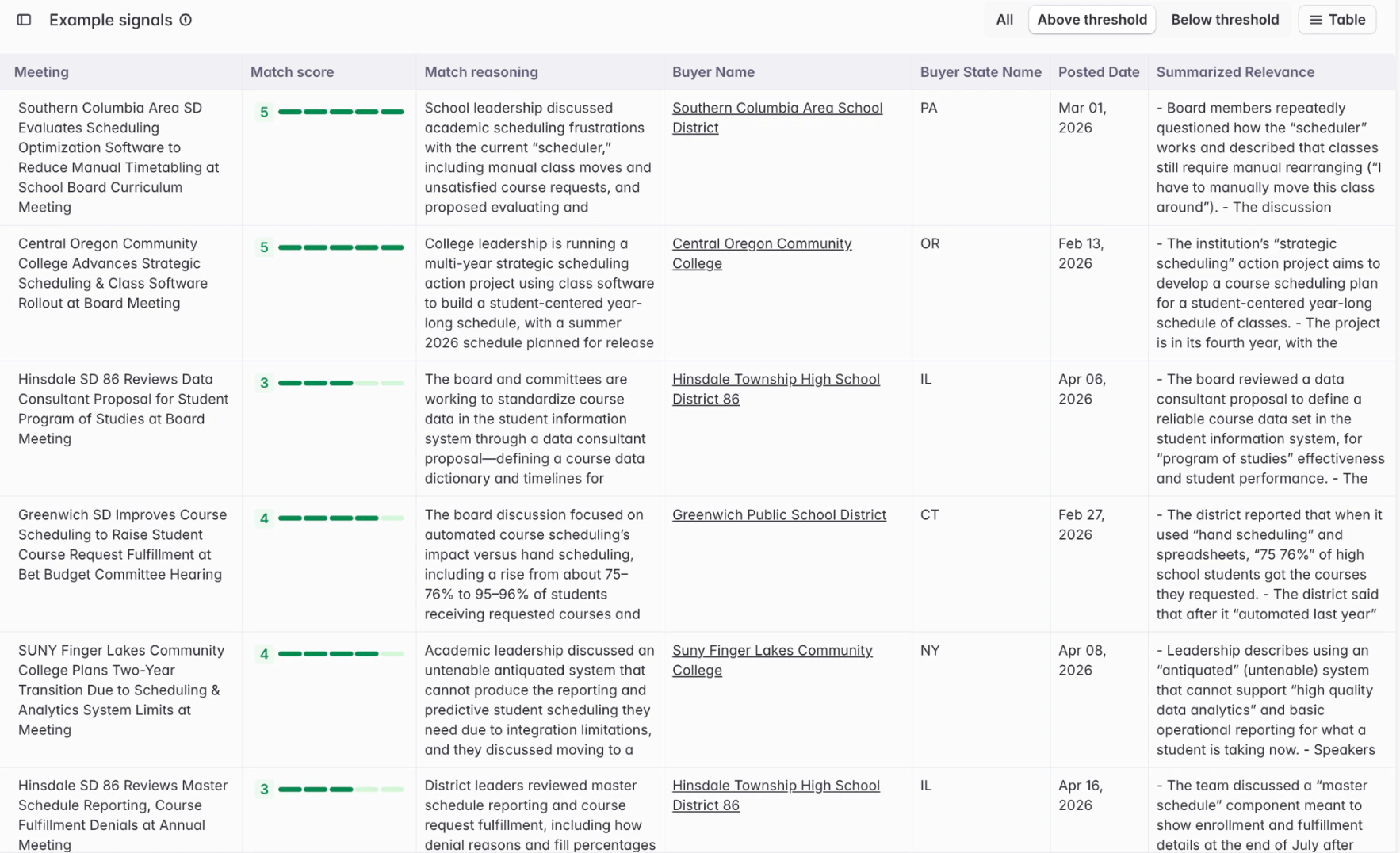
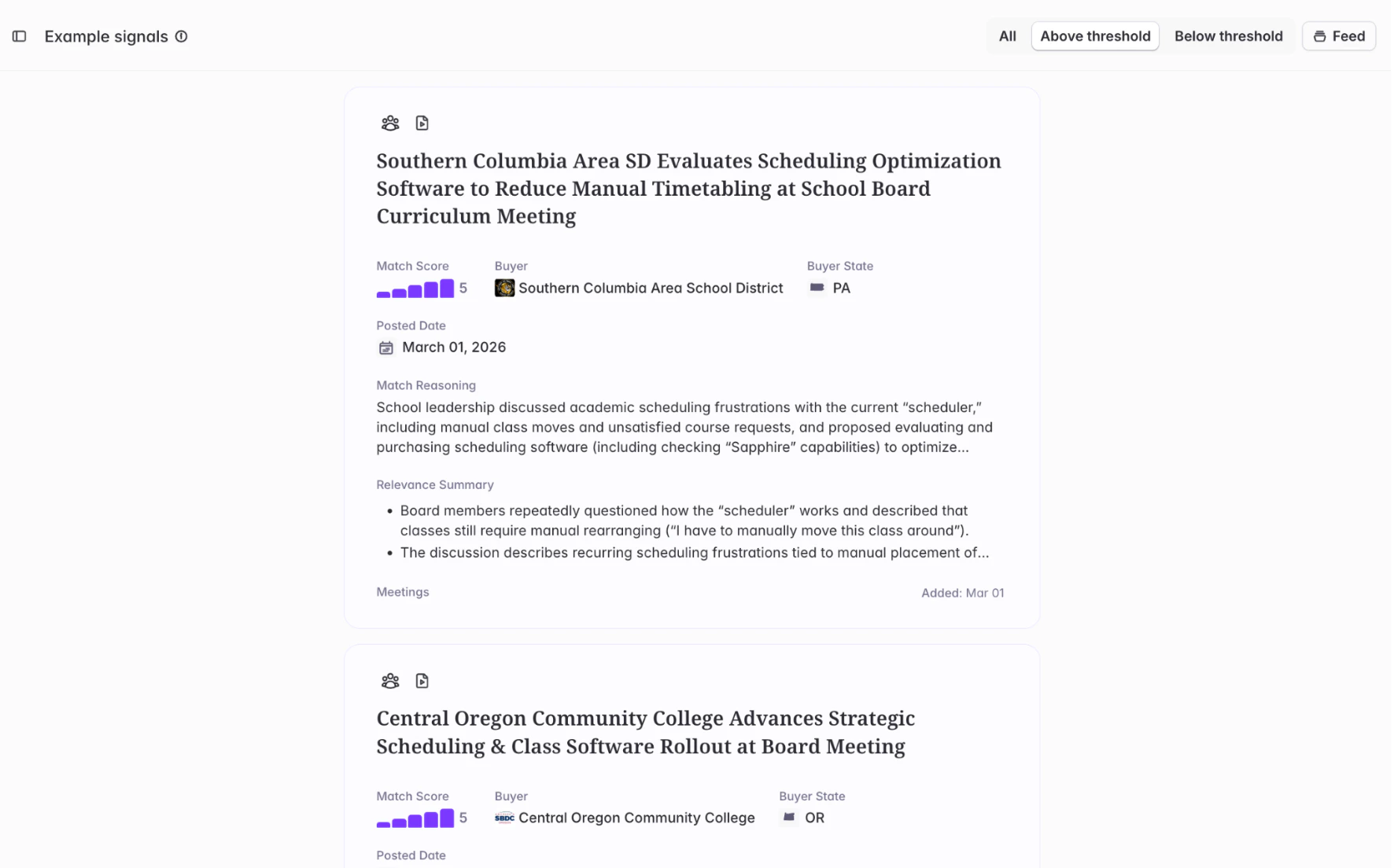
- The signal itself — the meeting, RFP, or purchase that matched
- A match score — the score for that result against your criteria
- A match reasoning — why that result received the score it did, tied directly to your match score criteria
- Summarized relevance — a longer plain-language summary of why this signal matters (Meetings only in v0; expanding to other bridge types)
- Seeing irrelevant results? Add a disqualifier to your scoring criteria, or raise the threshold.
- Missing results you expected? Add a search phrase, widen a buyer filter, or lower the threshold.
- Scores feel off but results are correct? Tune the scoring criteria to ensure that different factors increase / decrease match scores appropriately
Phase 3: Create the bridge
When the preview matches what you want, click Save search as bridge. Your Bridge is created with every existing signal that matches your criteria (which may include more signals than the bridge preview). Starbridge will surface and add new relevant signals automatically as they appear. You can further enrich signals by adding columns to the bridge — contacts, CRM data, AI analysis, web agents, and more. Every bridge created through this flow includes three default columns:- Match score
- Score explanation
- Summarized relevance
Editing a bridge after creation
You can edit any part of the structured search after the Bridge is created — buyer filters, bridge filters, search phrases, and match score criteria are all editable from the bridge’s settings.Contacts and Job Changes Bridges are the exception: their search criteria can’t be edited after creation. To change the search, duplicate the Bridge and adjust the criteria on the copy.
Tips for a good search
A few patterns that consistently produce better bridges:- Start broad, tighten with scoring. Generate a wide candidate set through search phrases, then use match score criteria to filter down to what’s actionable. Resist the urge to over-constrain phrases.
- Write disqualifiers, not just strong-match criteria. Naming what shouldn’t be in the bridge is often faster than describing every nuance of what should.
- Preview before creating. The preview is there specifically so you can catch problems before they turn into a cluttered bridge.
- If you’d describe the ideal result out loud, write that down as the prompt. Don’t translate it into keyword-speak — the whole point of the new flow is that you don’t have to.
Building a Search Agent using Filters & Search Terms
Define your buyer set
You can define your buyer set in one of three ways:- Buyer lists — Use a pre-configured list or territory
- Buyer filters — Filter by geography, buyer type, size, classification, and other structured attributes
- Select buyers — Pick individual buyers by name
Perform Bridge-specific configuration
Different Bridge types have different configuration setups. See the articles below for more on configuring your Search Agent for each Bridge type: Enriching Contacts: Contact BridgesTracking Job Changes
Custom Web Signal Bridges
Account Scoring || Buyer Bridge
Choose your Bridge name and description
Bridge descriptions clarify the purpose of a Bridge and how it should be used. Adding a description makes it easier for you and your team to understand what a Bridge is tracking when viewing it later. Create a new Bridge and navigate to the Edit Bridge view, or open an existing Bridge and select “Add description”.Sharing Bridges with Consumers
After you create a Bridge and finish customizing the Consumer view, you’ll need to share it with Consumers before they can see it. Consumers can only access Bridges that have been shared with them. Once a Bridge is shared, they’re automatically subscribed to it, though they can still manage their Feed and subscriptions at any time. You can share a Bridge with Consumers in two ways:- Share a Bridge with specific users
- Share a Bridge with teams
Sharing a Bridge with specific users
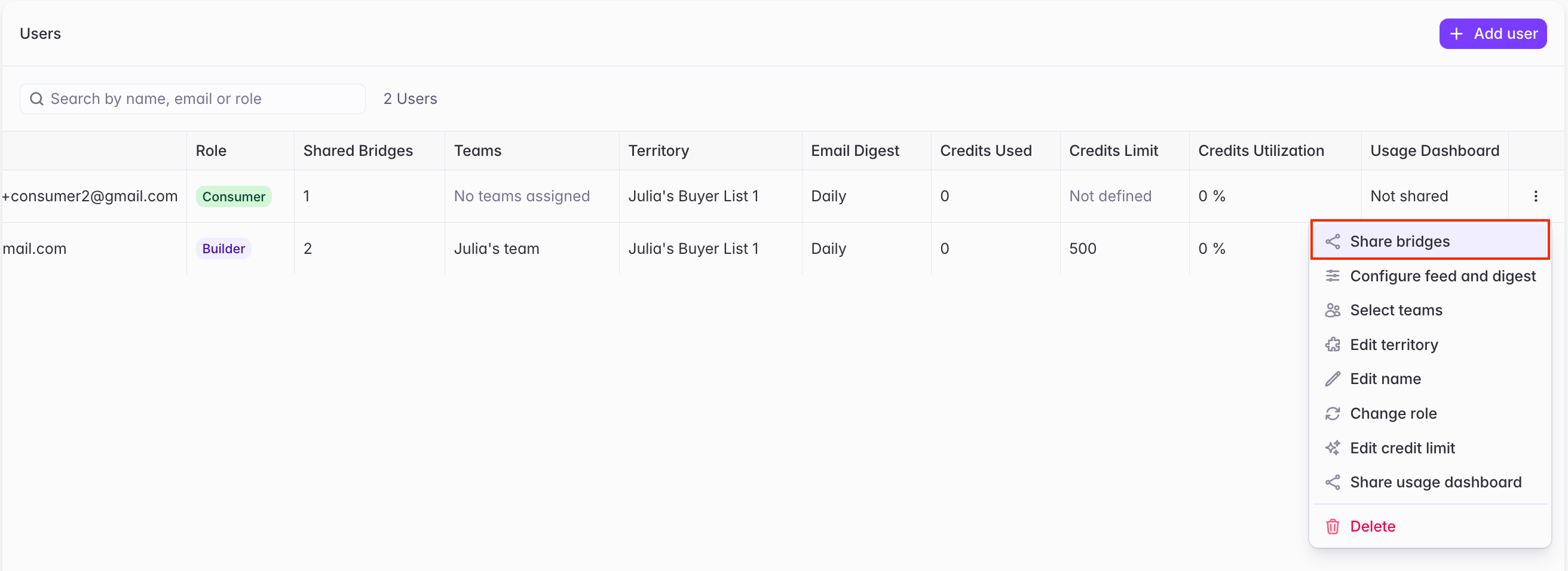
This can be done using the “Share” option on the Bridge page itself, in addition to from the Users management page within Organization settings.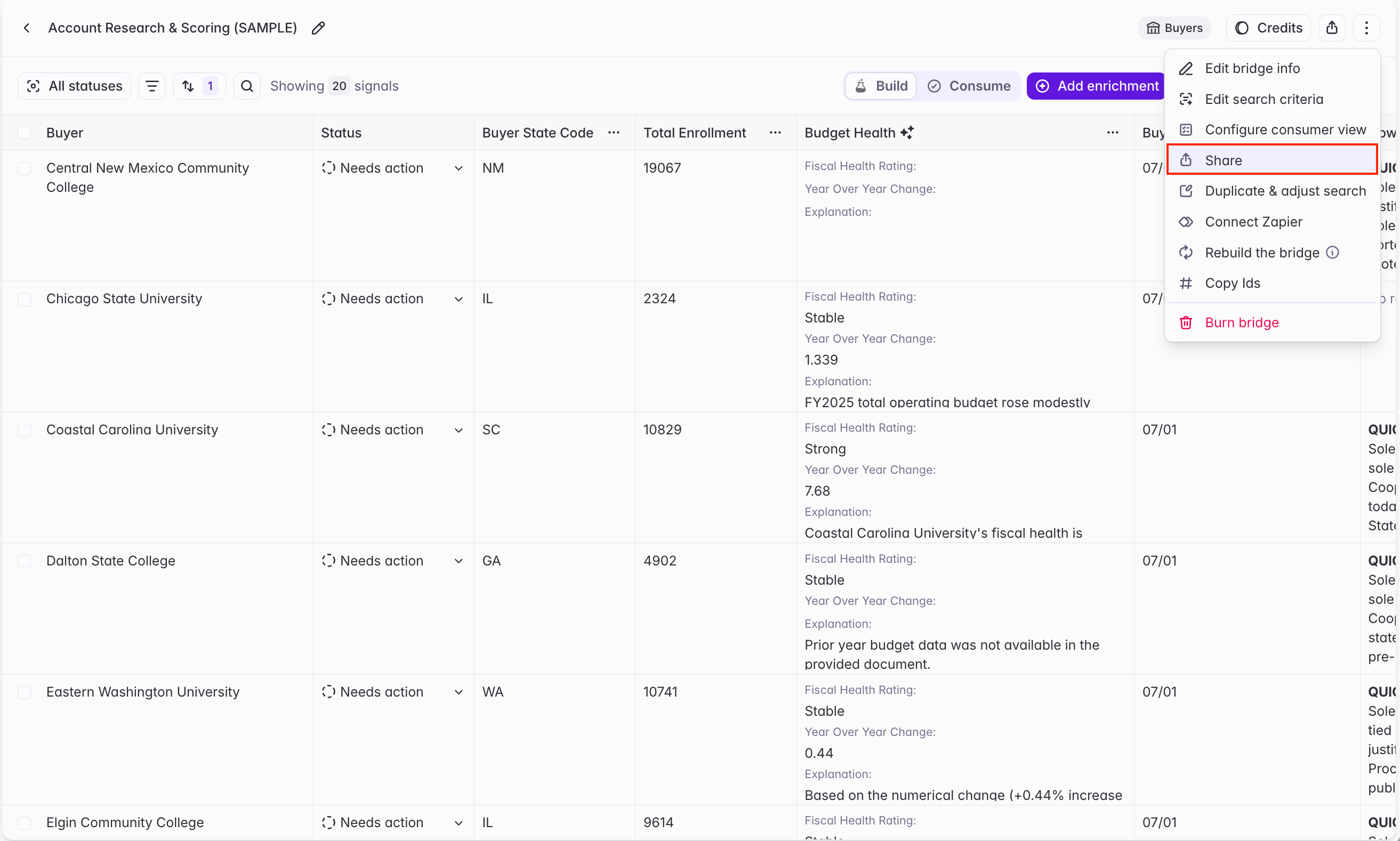
Sharing a Bridge with teams
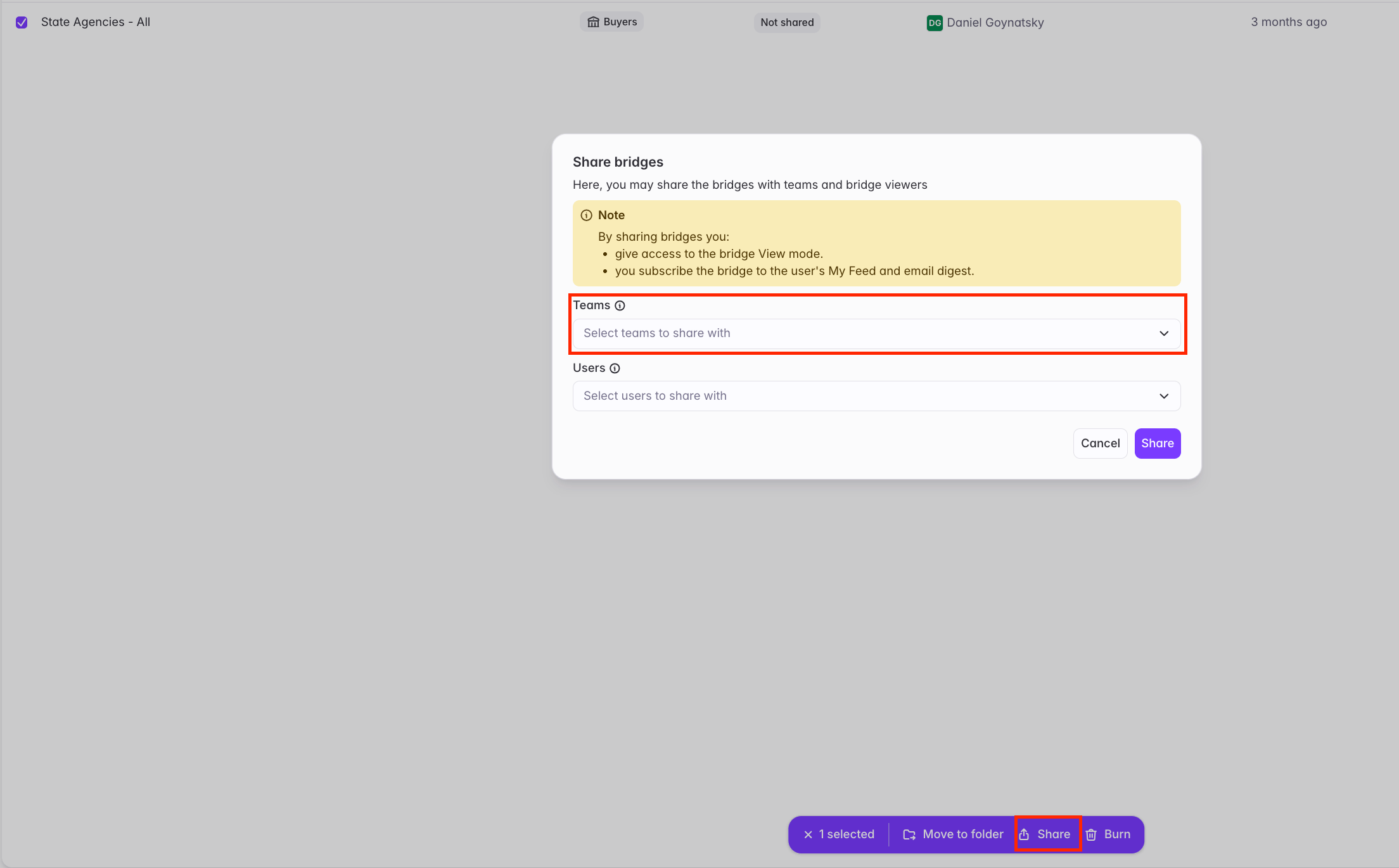
You can also share a Bridge with teams (groups of users) to make it easy to share with multiple users at once. To do so, you can utilize the “Share” button on the Bridge page (similar to above), or from the “Teams” page within organization Settings. Only Admins can create teams and add or remove users from teams.
Sharing a signal with specific users
Anyone — Admin, Builder, or Consumer — can click the “Send” icon in the top right of a signal card to copy a link to their clipboard. Any user in the Starbridge account can open that link to view the signal, even if the Bridge isn’t shared with them. However, they can only see additional Bridge results if the Bridge has been shared with them.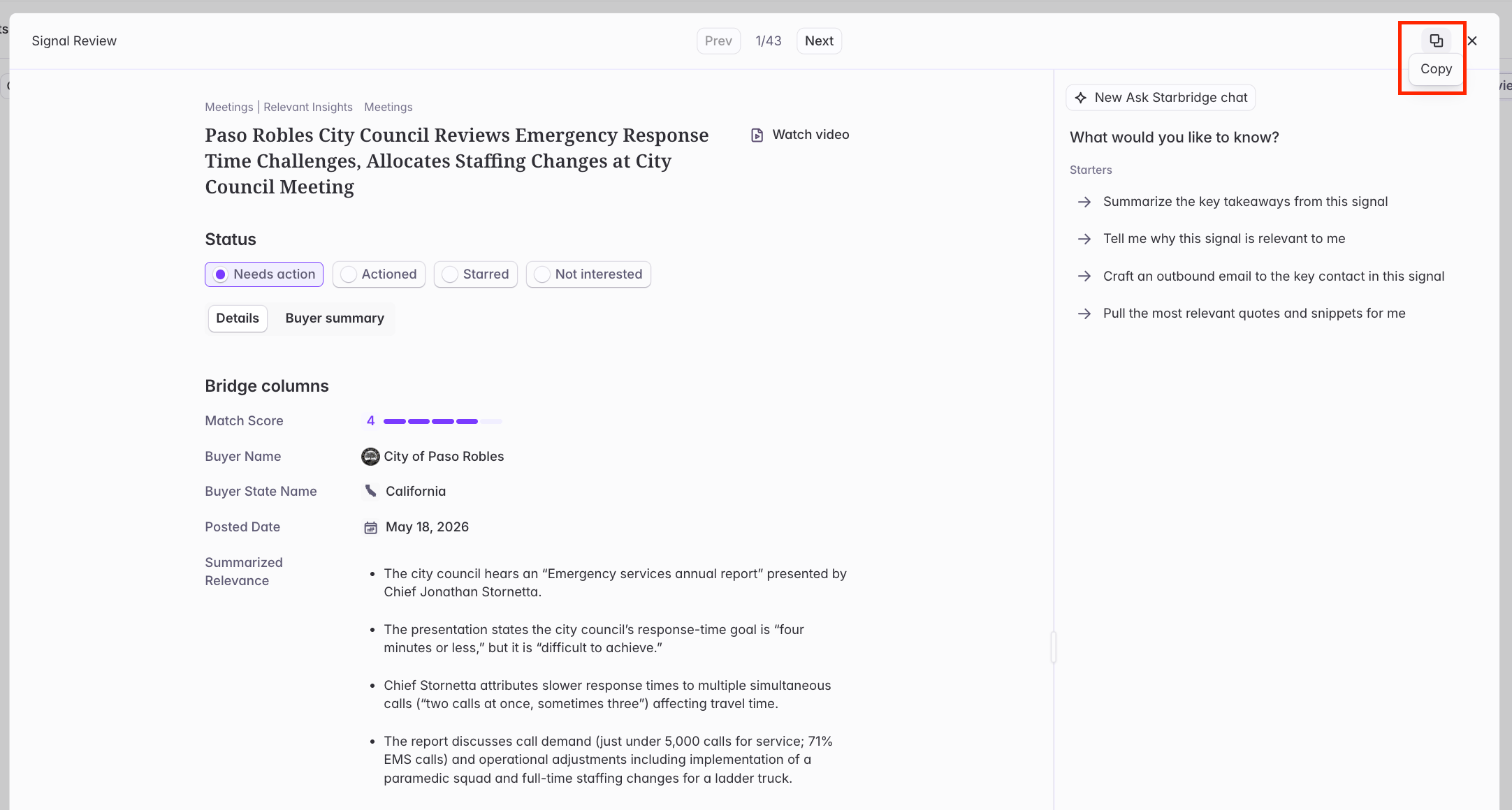
Related articles
Overview of Bridges and Use-Cases
Foundational overview of Bridges and how specific Bridge types can be used to accomplish highly curated and business-specific outcomes.
Enriching Bridges with Data
Dive deeper into the custom AI datapoints that can be added to a Bridge. Learn about scoring opportunities, building campaigns, and drafting emails and call scripts at scale.