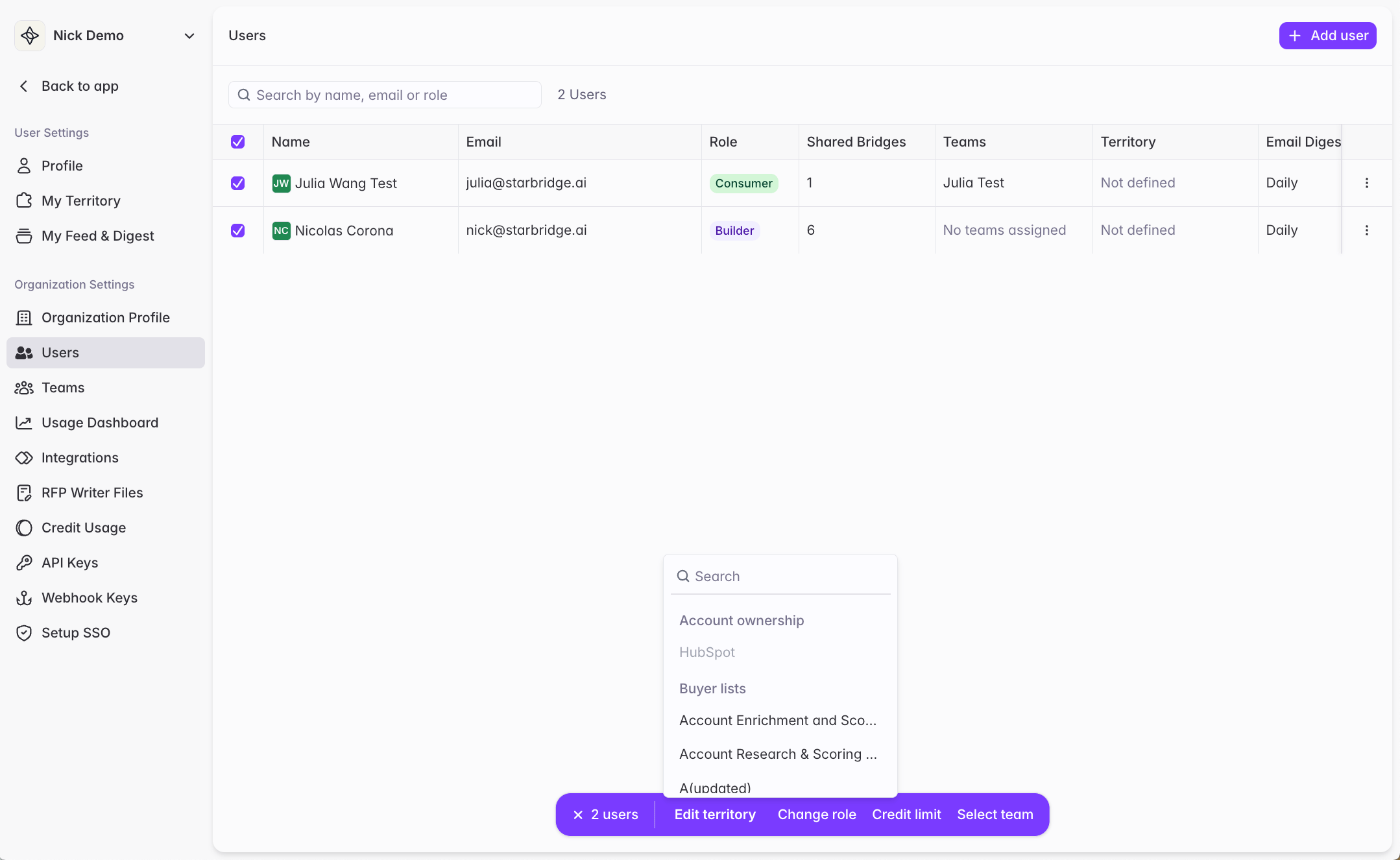
Not sure if this is the right approach? There are two ways to set up territories in Starbridge and they work differently. See Setting up territories to understand the options before getting started.
Prerequisites
Before setting up CRM-synced territories, you’ll need:- A Salesforce or HubSpot CRM integration connected in Starbridge (Settings → Integrations)
- The Account object (Salesforce) or Company object (HubSpot), along with relevant ownership fields, included in your CRM integration configuration
- The User object (Salesforce) or Owner object (HubSpot) included in your CRM integration configuration
- Account matching completed — your CRM accounts must be matched and reviewed in Starbridge before territories can be generated. See Account matching.
Overview of the Setup Flow
CRM-synced territories are built on two steps that follow account matching:- Match your CRM users to Starbridge users — tells Starbridge which CRM rep corresponds to which Starbridge user
- Define account ownership and assign territories — tells Starbridge which CRM field indicates ownership, then generates a territory for each user
Step 1: Match CRM users to Starbridge users
Starbridge needs to know which CRM user (account owner) corresponds to which Starbridge user so it can assign territories to the right people.CRM setup
Salesforce: Make sure the User object is included in your CRM integration configuration. HubSpot: Make sure the Owner object is included in your CRM integration configuration.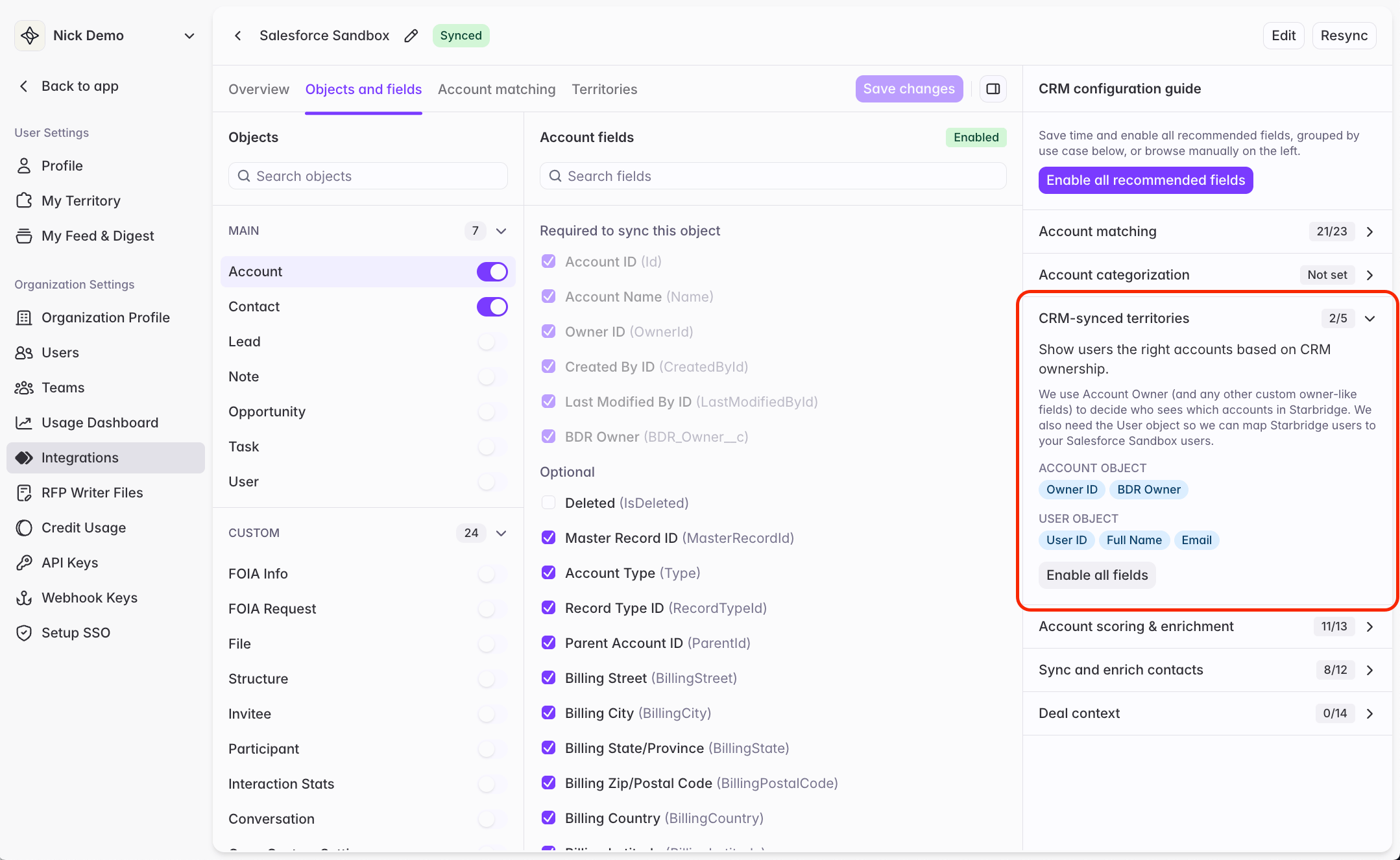
Automatic matching
Navigate to Settings → Integrations → [Your CRM] → Territories. Starbridge automatically matches Starbridge users to CRM users by email address. You’ll see a table with match status for each Starbridge user — Matched or No match.Manual overrides
If a Starbridge user’s email doesn’t match their CRM user email, or if you want to map a user to a different CRM user, you can override the match manually. Use the searchable dropdown to find a CRM user by first name, last name, email, or record ID. A CRM user can only be matched to one Starbridge user at a time. If a CRM user is already matched, they will appear in the dropdown but cannot be selected for another user.What happens over time
- When new CRM users or Starbridge users are added, Starbridge automatically attempts to match them by email
- When a CRM user is deleted, the user matching is removed and the corresponding Starbridge user’s territory is cleared
- When a user match is removed, the Starbridge user’s territory is removed
- When a user match is overridden to a new CRM user, the Starbridge user’s territory updates to reflect the new user’s accounts
Step 2: Define account ownership and assign territories
Now you tell Starbridge which field(s) on your CRM Account object indicate who owns an account. Starbridge uses this to generate a territory for each matched user.Define account ownership
In the Territory Settings section of your CRM integration, select one or more User/Owner lookup fields on the Account object that represent account ownership. Common examples from Starbridge customers:Account Owner(typically maps to Account Executives)BDR OwnerorSDR Account Owner(maps to SDRs/BDRs)- Custom AE or SDR ownership fields
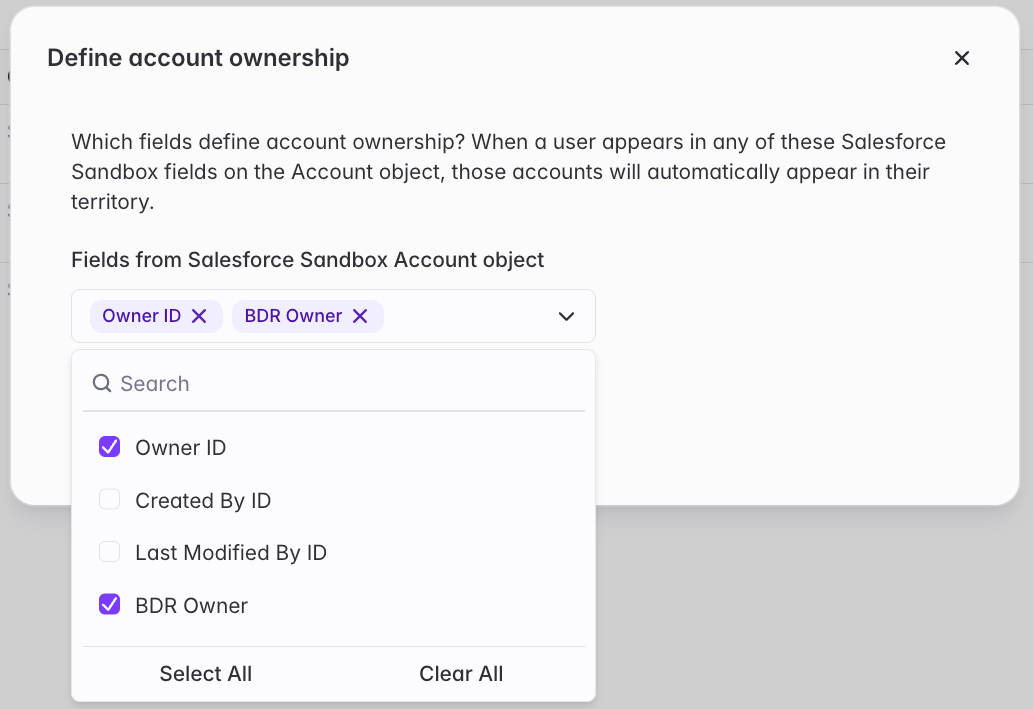
You cannot save an account ownership definition with no fields selected.
Assign territories to users
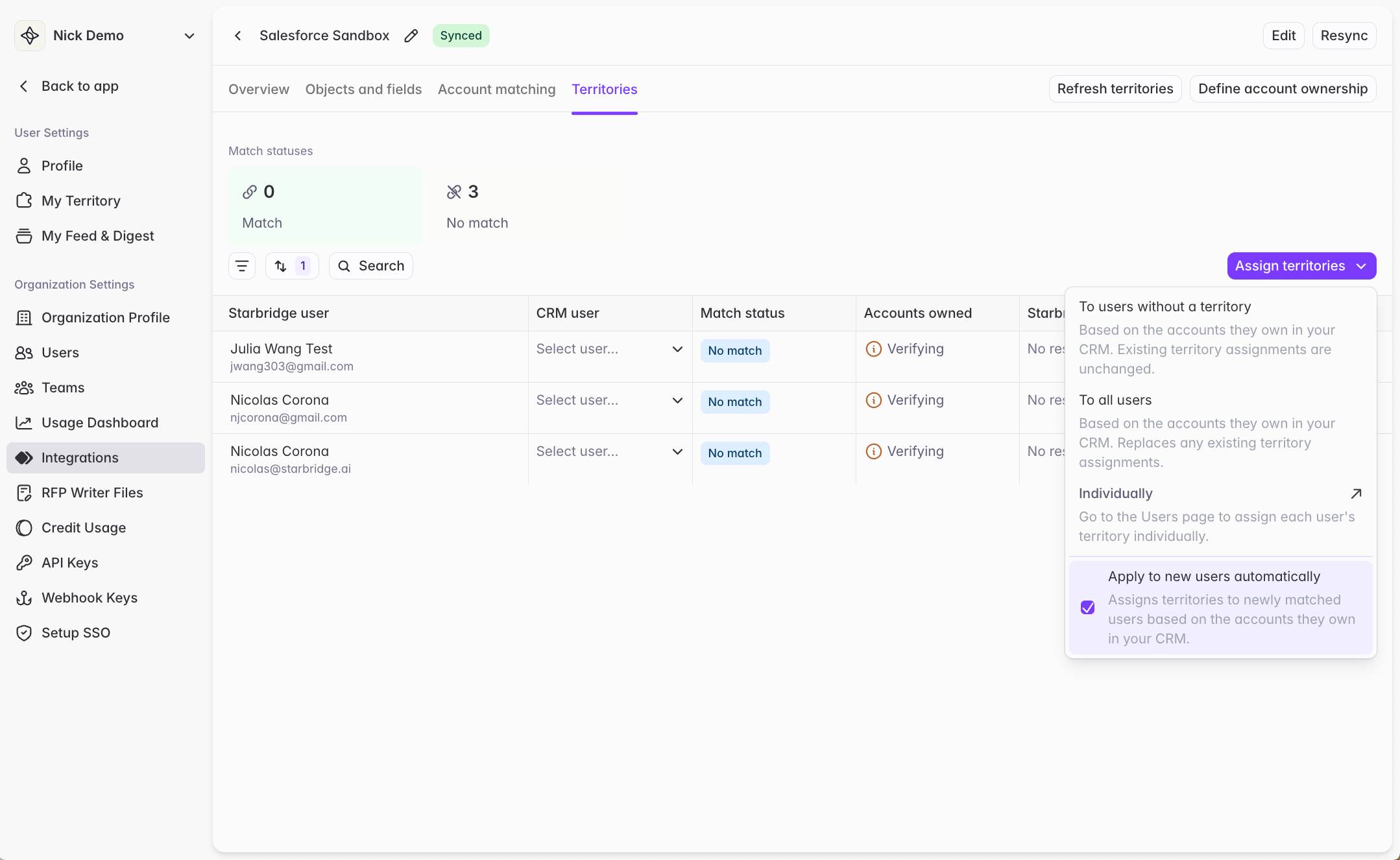
Once you’ve defined account ownership and matched your users, you’re ready to generate territories. You have three options:- Assign to all matched users — creates or overwrites a territory for every Starbridge user matched to a CRM user
- Assign to users without a territory — creates territories only for users who don’t already have one set, leaving existing assignments untouched
- Assign individually — manually assign a territory to specific users from the Users page
CRM-synced territories work best with up to 100,000 matched accounts. Larger sizes are supported but may experience slower performance.
Changing a user’s territory
Admins can change any user’s territory from the Users page by selecting a different buyer list or account ownership definition. Users with a Builder role can also change their own territory from their My Territory page in the consumer view.