

Prerequisites
- A Salesforce or HubSpot CRM integration connected in Starbridge (Settings → Integrations)
- At least one reviewed account match in the Account Matching table
Creating a CRM-synced buyer list
Open the buyer list creation flow and select Sync from Salesforce or HubSpot.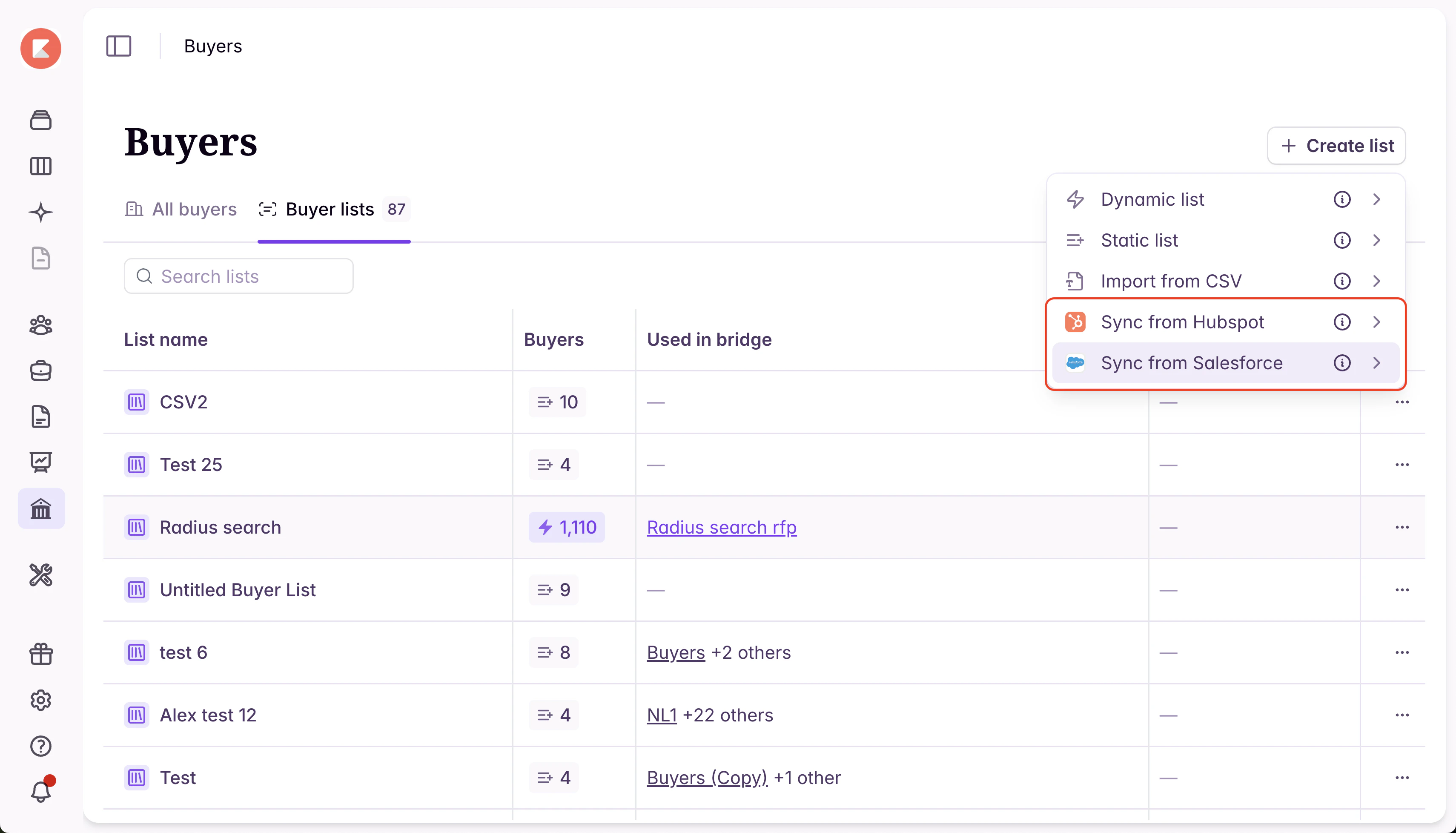
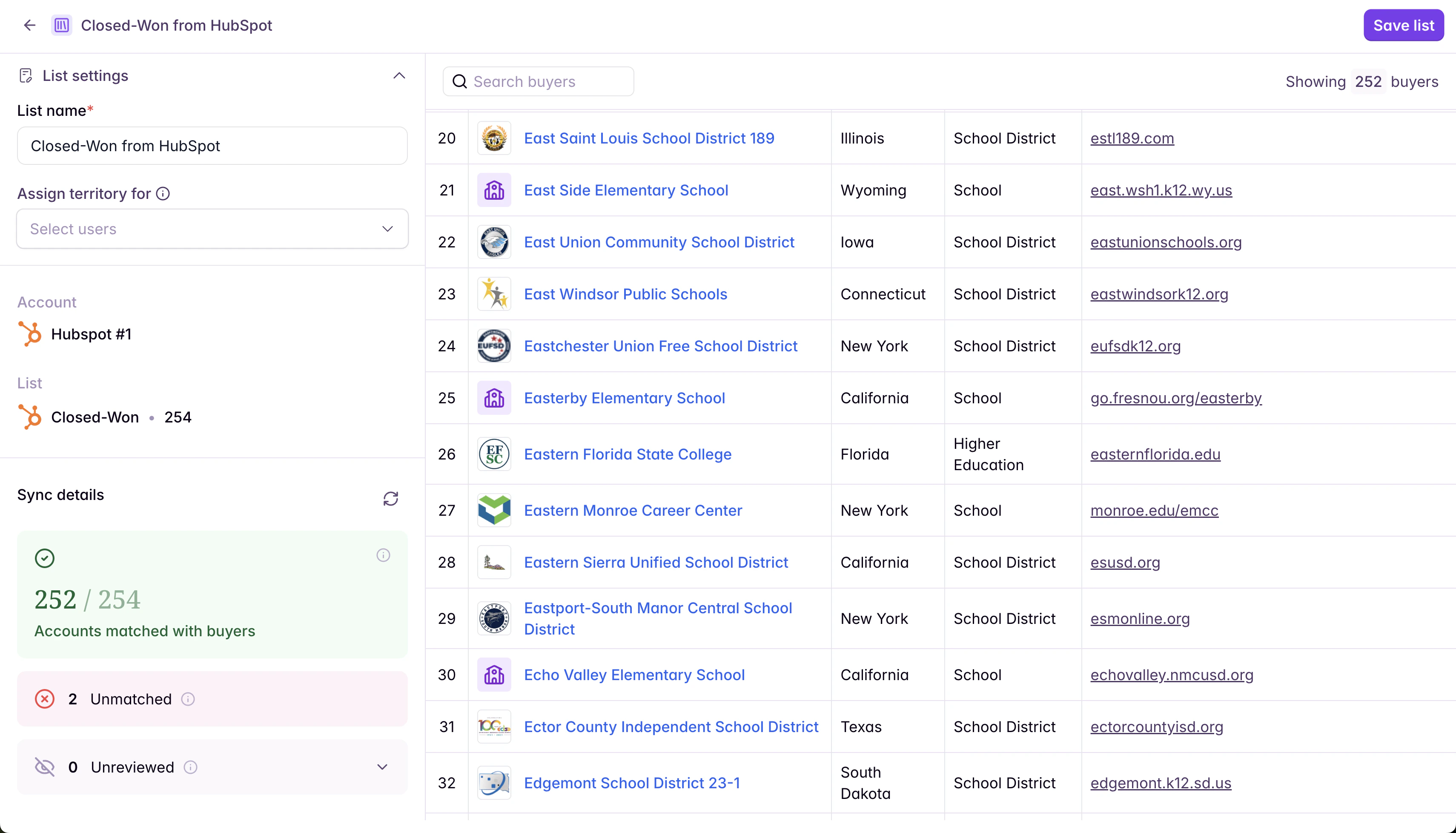
Buyer lists work best with up to 100,000 buyers. Larger sizes are supported but may experience slower performance.
Using a CRM-synced buyer list
A CRM-synced buyer list works like any other buyer list in Starbridge. Use it to create bridges, or assign it as a user’s territory from the Settings > Users page.Keeping your list current
When accounts are added to or removed from the CRM list, use the Resync button on the buyer list to pull in the latest state from your CRM and org-level account matching.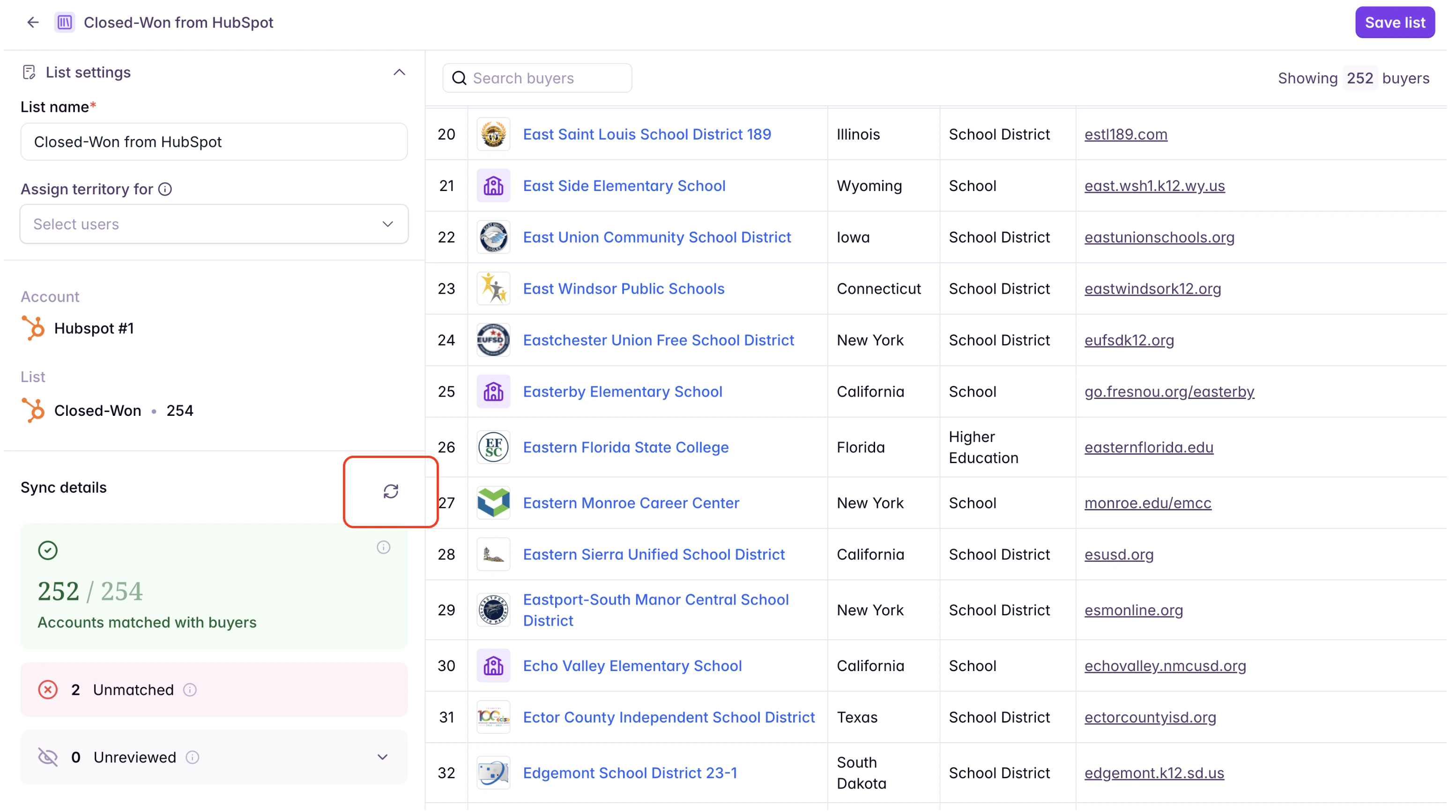
Troubleshooting
The “Sync from Salesforce or HubSpot” option is disabled. Either no CRM integration is connected, or account matching has no reviewed matches yet. Check Settings → Integrations to confirm your integration is active, then complete at least one reviewed match in the Account Matching tab. Fewer accounts are in my list than I expected. Only accounts with a matched and reviewed status are included. Unreviewed accounts and accounts explicitly marked as unmatched are excluded. Open the Edit view of the buyer list to see the breakdown and review outstanding accounts. When accounts are added to or removed from the CRM list, use the Resync button on the buyer list to pull in the latest state from your CRM and org-level account matching. The Salesforce or Hubspot list I want isn’t showing up in the dropdown. Starbridge only shows lists of account objects — contact, lead, or opportunity lists won’t appear. If you’ve recently created the list in your CRM and it still isn’t appearing, Starbridge may need to resync from your CRM. This happens automatically every few hours, but you can trigger it earlier at Settings → Integrations → [your CRM integration] → Resync.What’s next
Set up territories — Assign this buyer list as a territory so your reps see signals only for the accounts in this Salesforce or HubSpot list. See Set Up Territories. Build a bridge on this list — A few ideas to get started:- Re-engagement pipeline: Build a meetings and strategic plans bridge to surface signals suggesting it might be a good time to re-engage with closed-lost accounts — budget cycles, leadership changes, or renewed initiative activity.
- Customer sentiment tracking: Build a meetings bridge that searches for mentions of your company, products, and services to track sentiment and flag accounts that may need attention.
- Account scoring: Run a buyer bridge on your CRM list to prioritize outreach based on fit and recent activity across all Starbridge signals.