

Import Files of Prior RFP Responses or Knowledge Articles to fuel responses (Static Documents) in Settings > RFP Writer Source Files
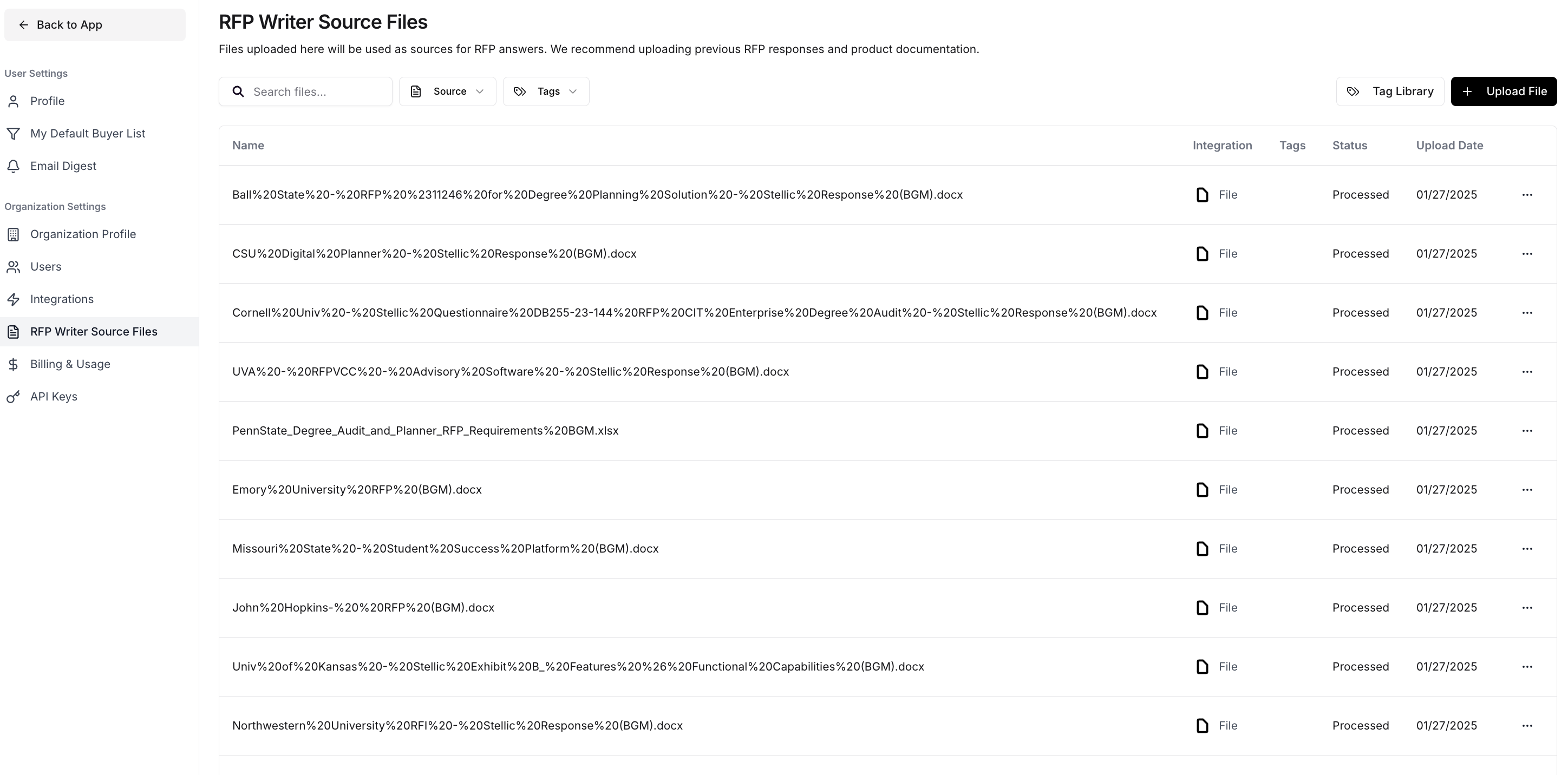
Acceptable File Types
Starbridge supports the following sources to base your RFP responses on: Files uploaded directly to our platform (most often previous RFP responses or competitor battlecards). We support the following file types:- XSLX
- DOCX
- TXT
- HTML
- CSV
- ZIP
- PPTX
Organizing Your Source Files With Tags
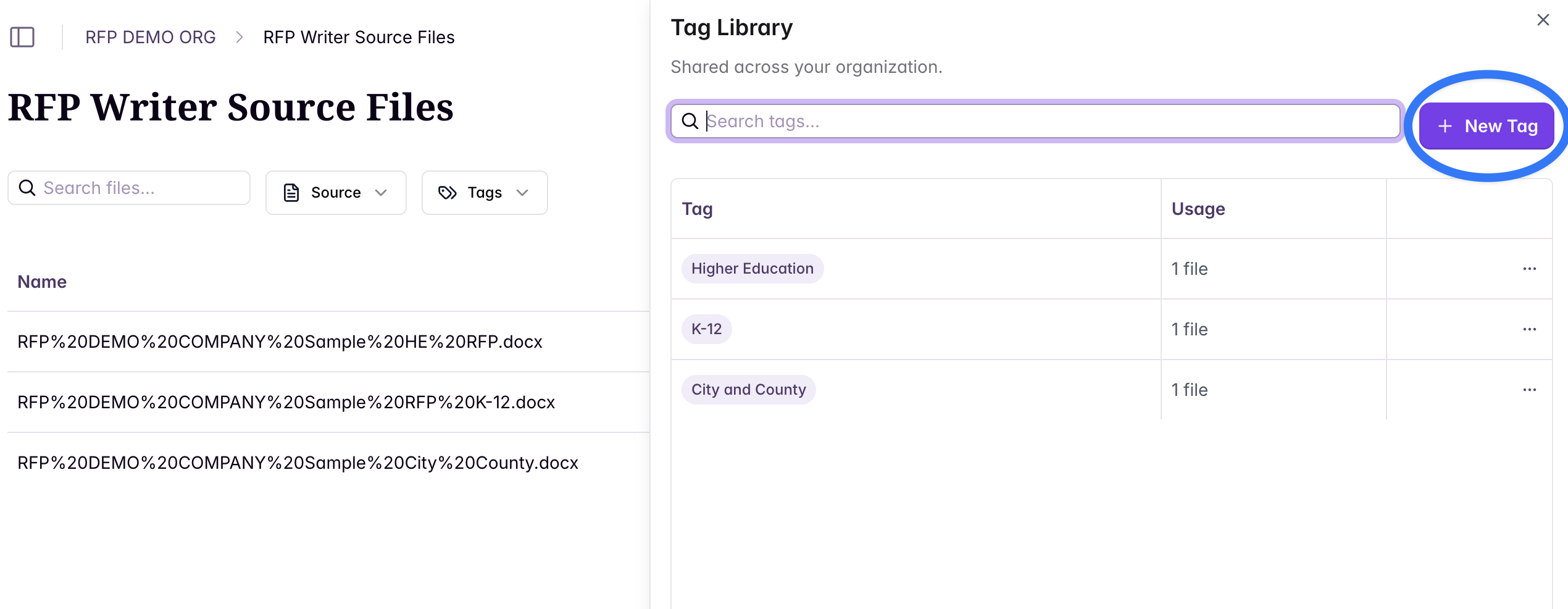
Tags help you organize and segment your RFP source files so that our RFP Writer can generate more accurate, relevant responses—especially if your company supports multiple product lines, customer segments, or use cases. You can create tags to represent different offerings, industries, regions, or any other way your content is logically grouped. Select “Tag Library” to view tags your team has already created or to create a new tag.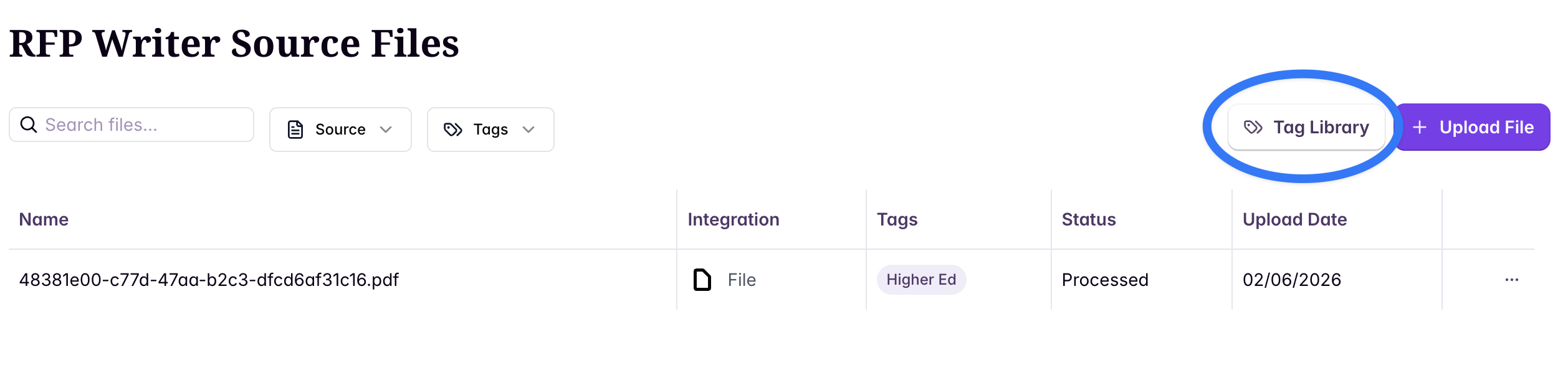
When to Use Tags
Tags are especially helpful if:- You have multiple product lines or modules
- Your offerings vary by industry, market, or customer size
- You’re uploading large volumes of source material and need better organization