Documentation Index
Fetch the complete documentation index at: https://hc.starbridge.ai/llms.txt
Use this file to discover all available pages before exploring further.
Contacts Bridge Overview
Contacts bridges allow users to fetch many relevant contacts per buyer by searching across a list of titles or by uploading a CSV file. This function is a great way to find key decision makers within a desired target market or list of buyers. The output can be tuned based on audience definitions, buyer filters, and cadence settings. Learn about how we collect and sync contact data here: Contact Data Jump to learn how to contact search via CSV UploadHow to Search Contacts by Job Title
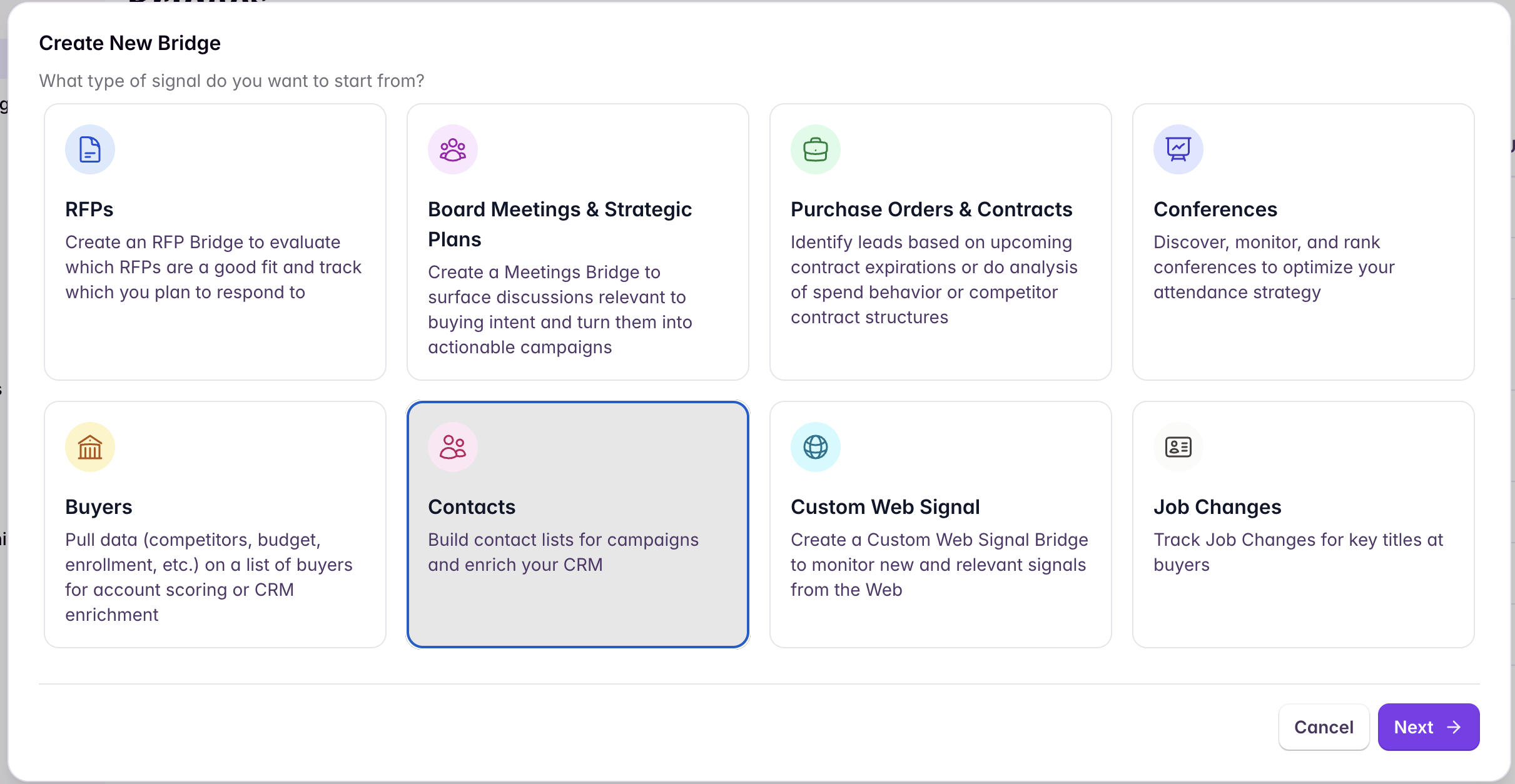
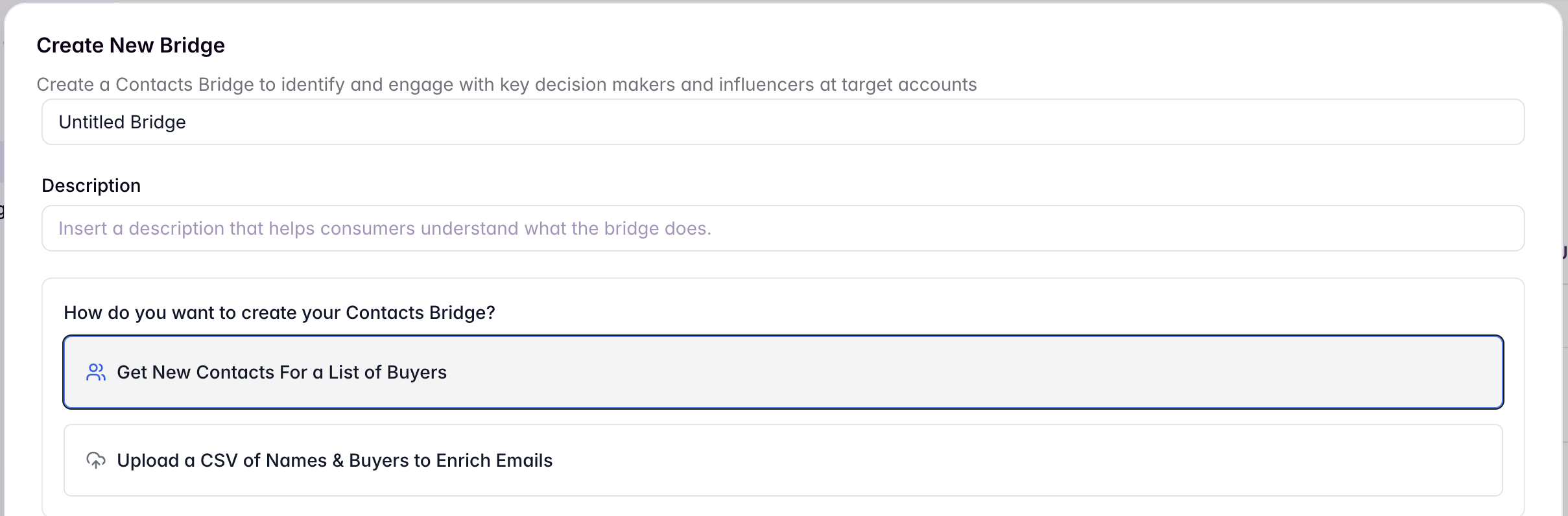
Define your target audience (job titles)
When building a Contacts bridge, you must set a target audience to define the ideal job titles for your search. There is no limit to how many titles you can include. To add a title, type the full title and end it with a comma. Common variations of each job title are automatically included - read more here: Searching by Titles.For example, searching for “Vice President of Finance” will also match “VP of Finance”, but not vice president of other departments. Similarly, searching for “Finance Director” will match “Senior Finance Director” and “Executive Finance Director”, but not “Finance Manager”.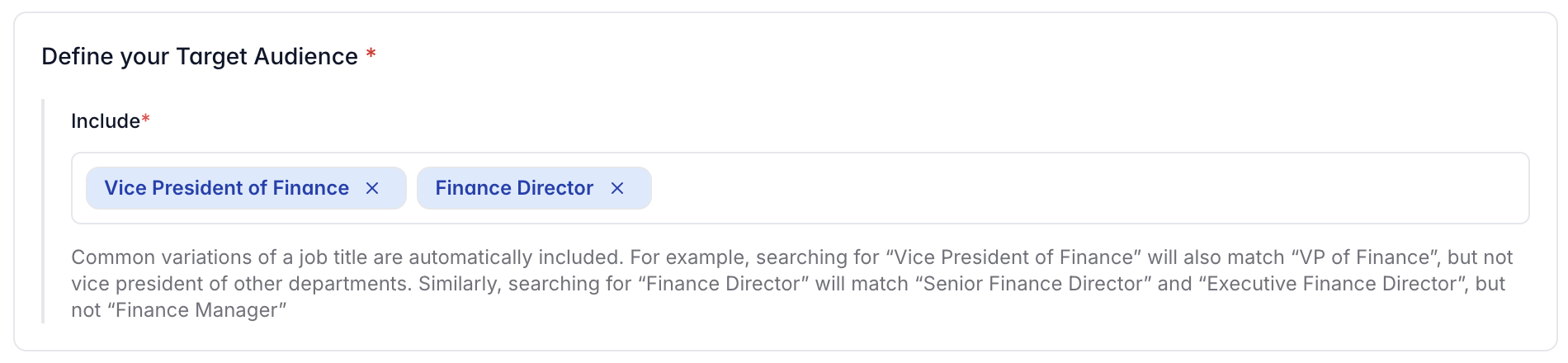
Apply buyer filters
Filters restrict the search of contacts to a specified buyer list. Buyer lists can include the following criteria:
- Buyer Name(s): the exact name(s) of the Buyer(s)
- Buyer Type: the type of Buyer (ex: School, School District, Higher Education, City, State Agency, etc.)
- Buyer Location: the state where the Buyer is located
Choose how many contacts to return per buyer
The number of relevant contacts returned per buyer can be set between 1 and 10.
Note on loading time : Contact retrieval may take longer because Starbridge finds and verifies each result at time of request with multiple layers of contact verification. This is expected, especially when fetching higher numbers of contacts per buyer or for many buyers.

Credit Usage
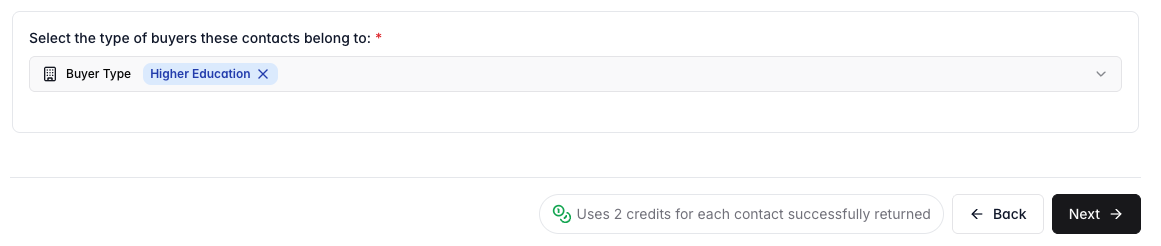
Each contact successfully returned by the bridge will debit 2 credits from your organization’s balance. For more information on credits, visit How Do Credits Work?. When you are ready to sync to your CRM, do that here: Syncing to Your CRM (SFDC or Hubspot). You will not be charged credits for any contacts that you may have previously enriched.Note: Contacts will not appear in a Consumer’s Feed or Email Digest as signals, but consumers can see contact bridges that you share with them in the Bridges page.
Contact Search via CSV Upload
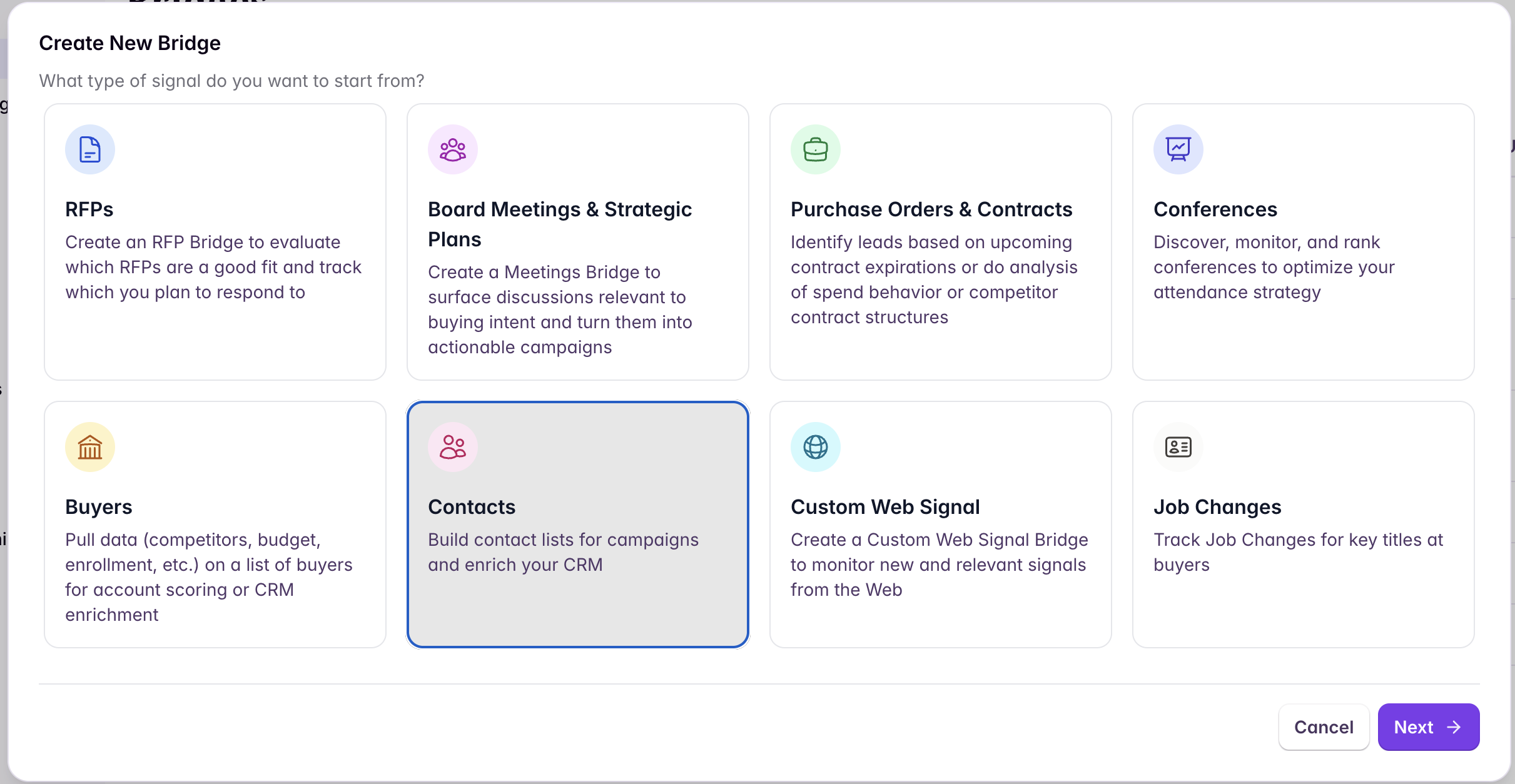
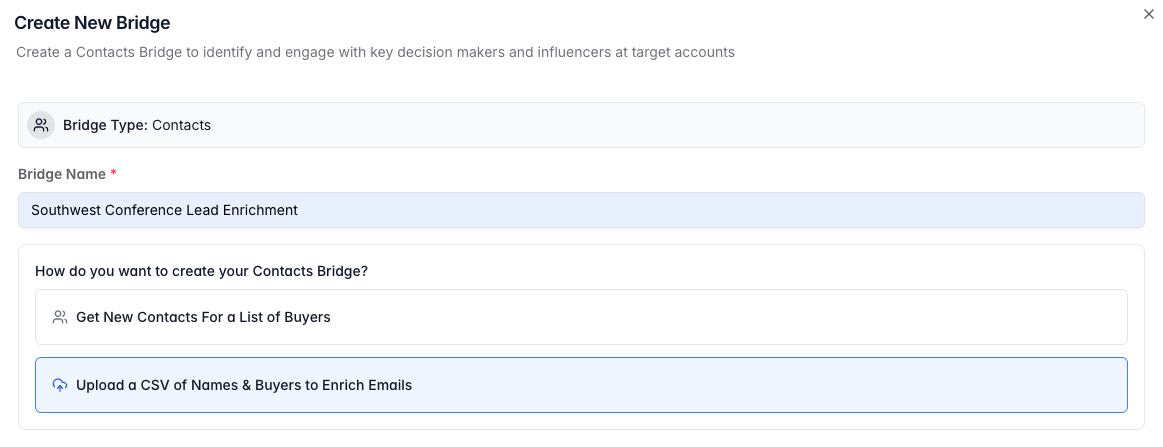
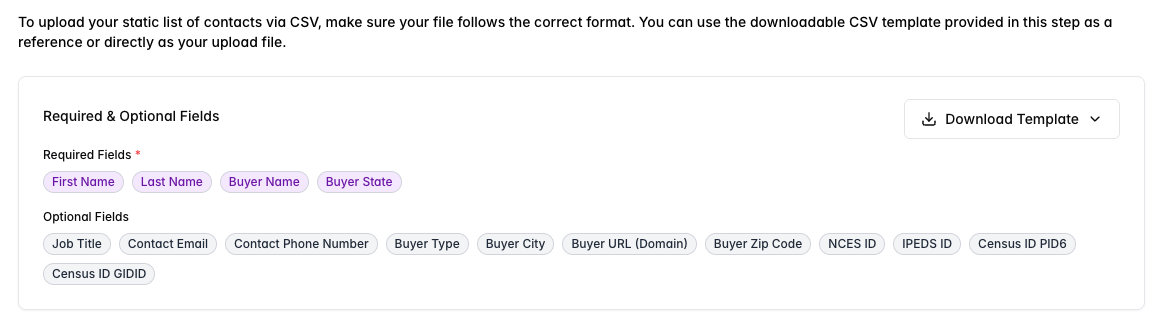
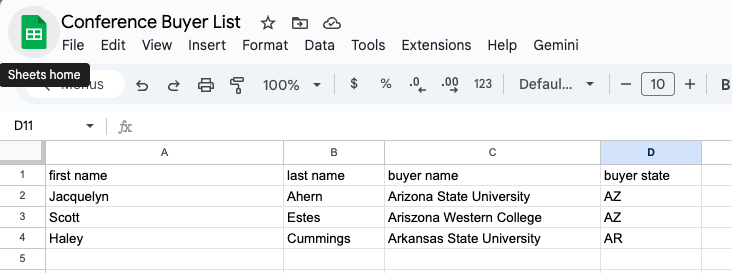
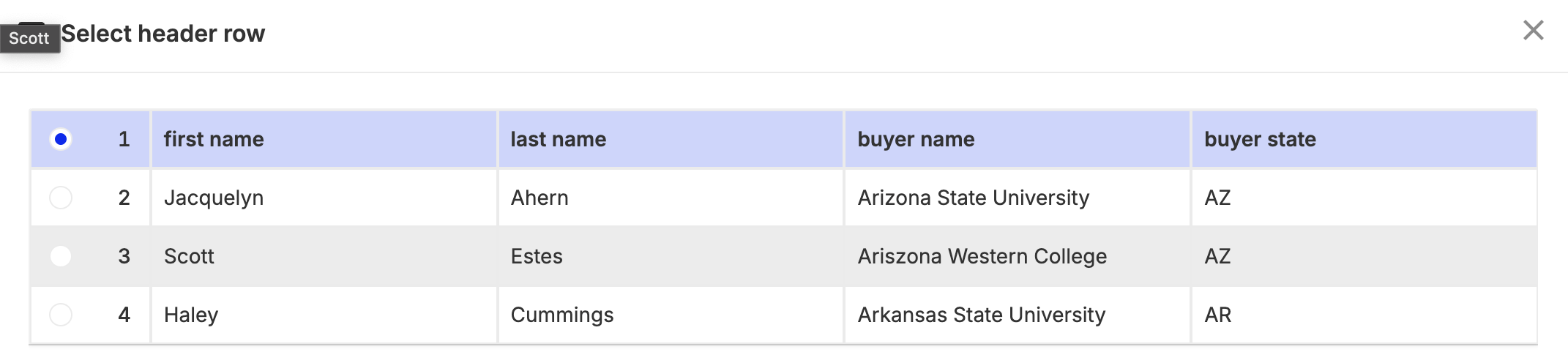
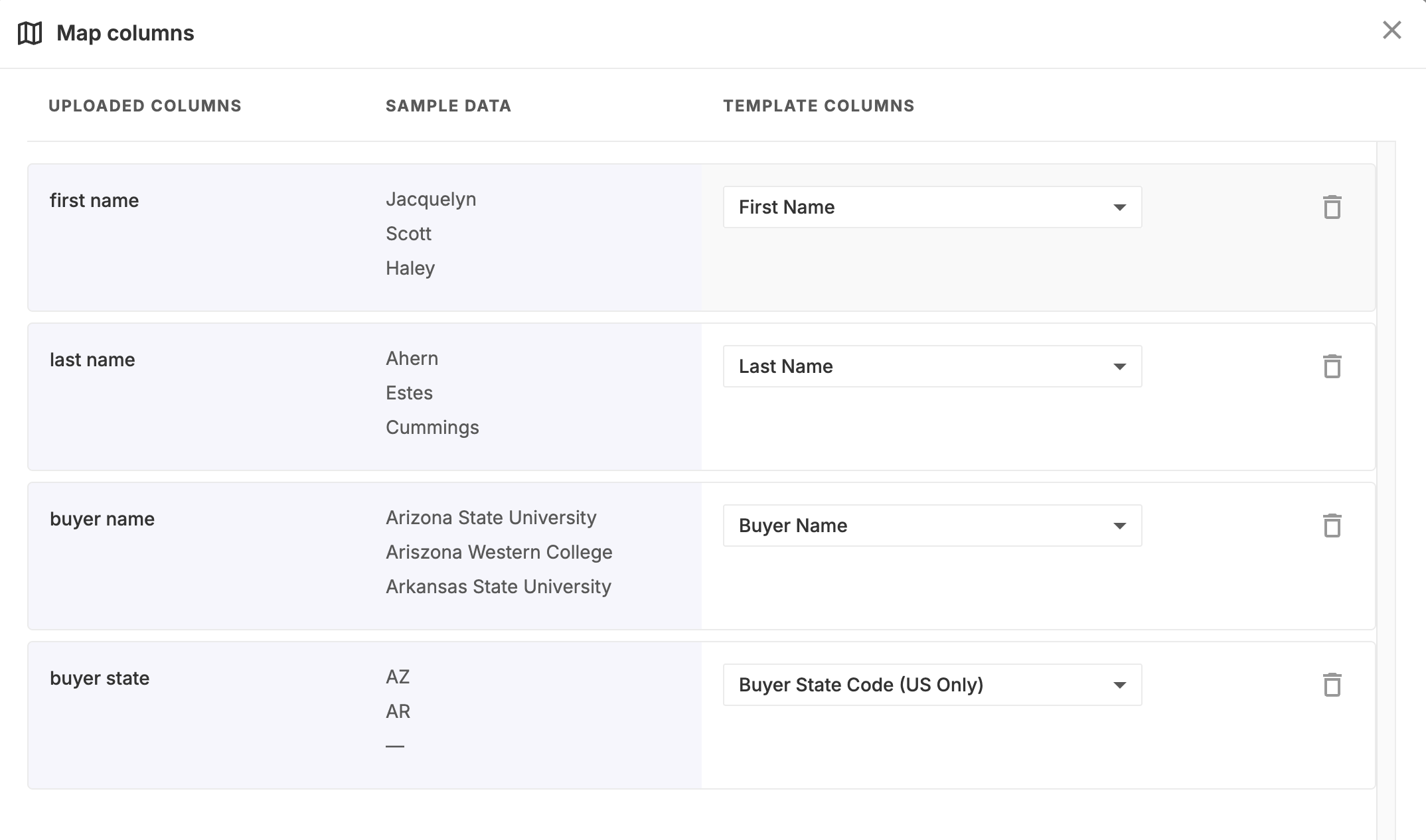
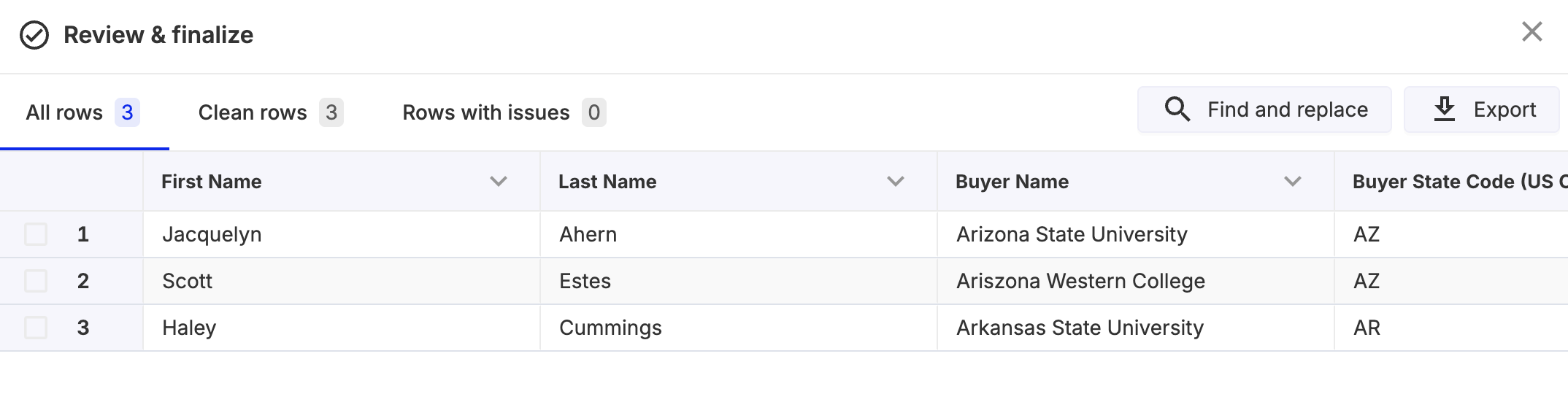
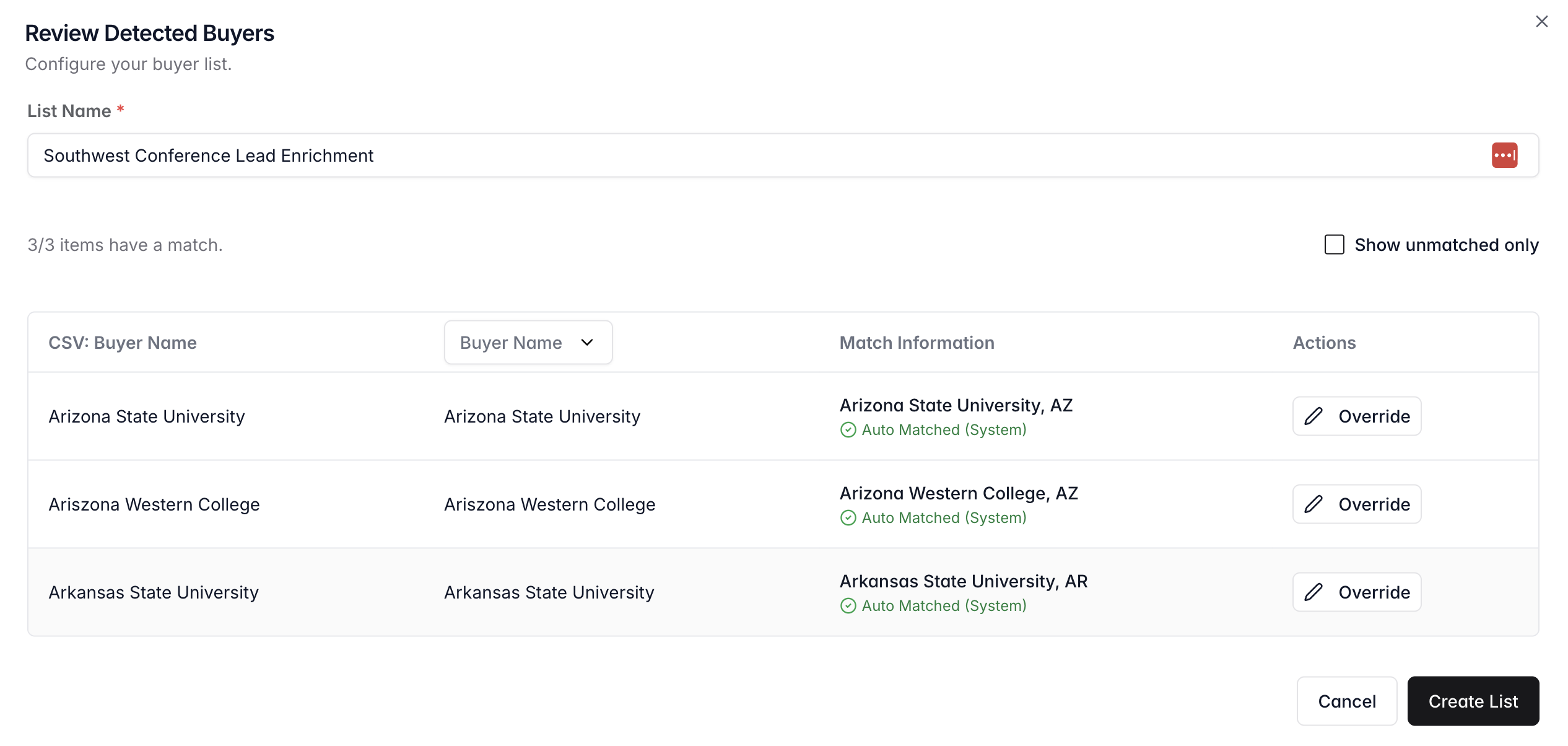
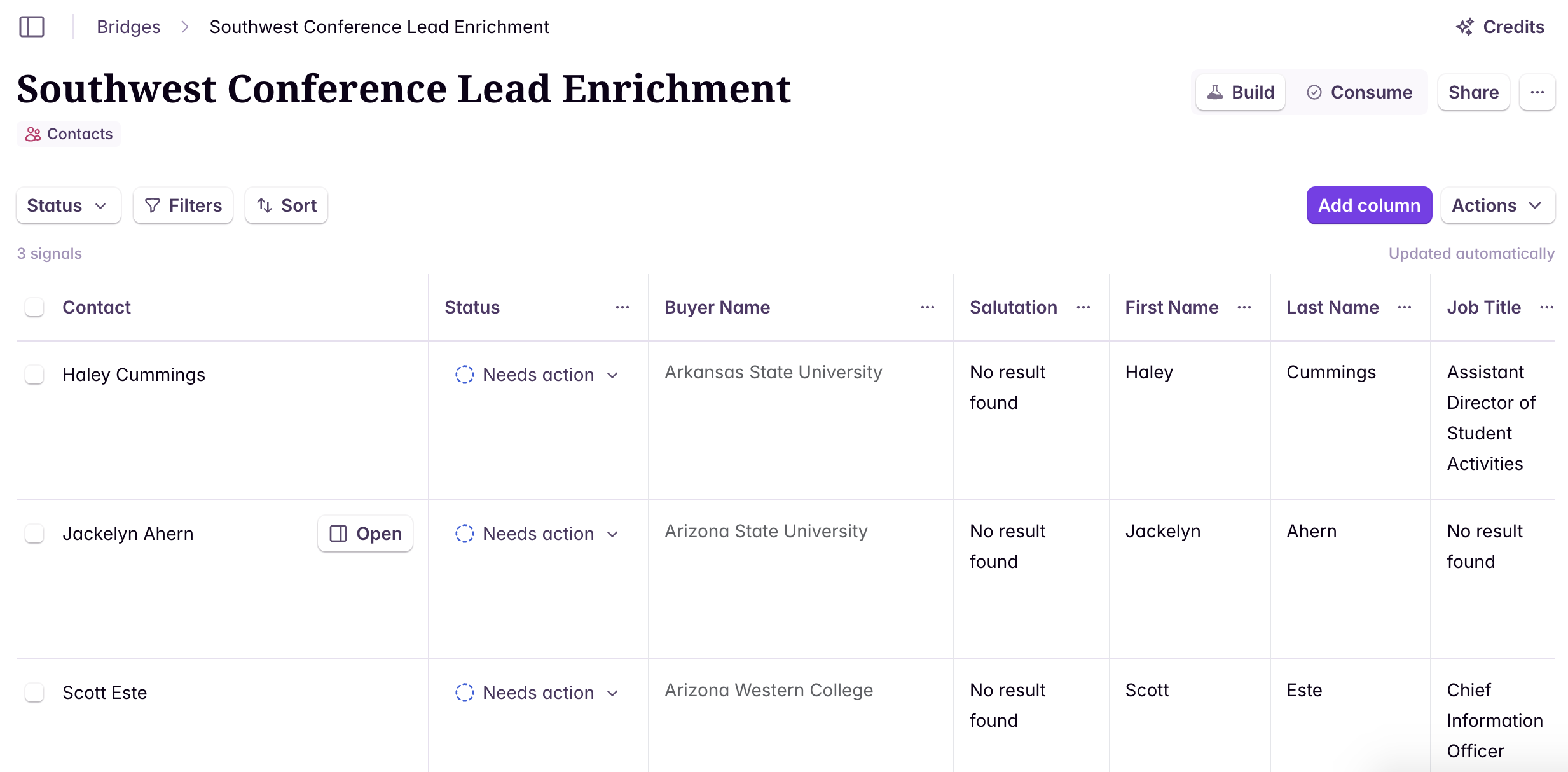
Easily import raw contact lists into Starbridge and leverage enrichment features to pull verified contact information. Sample Use Case: A sales rep attends a conference and receives an attendee list that’s incomplete. Starbridge can enrich contacts using only the attendee names and their associated accounts. Starbridge uses these name–account pairs to return verified emails and other contact details.How to Enrich Contacts via CSV Upload
Advanced Use Case: Decision Maker Contact Identification
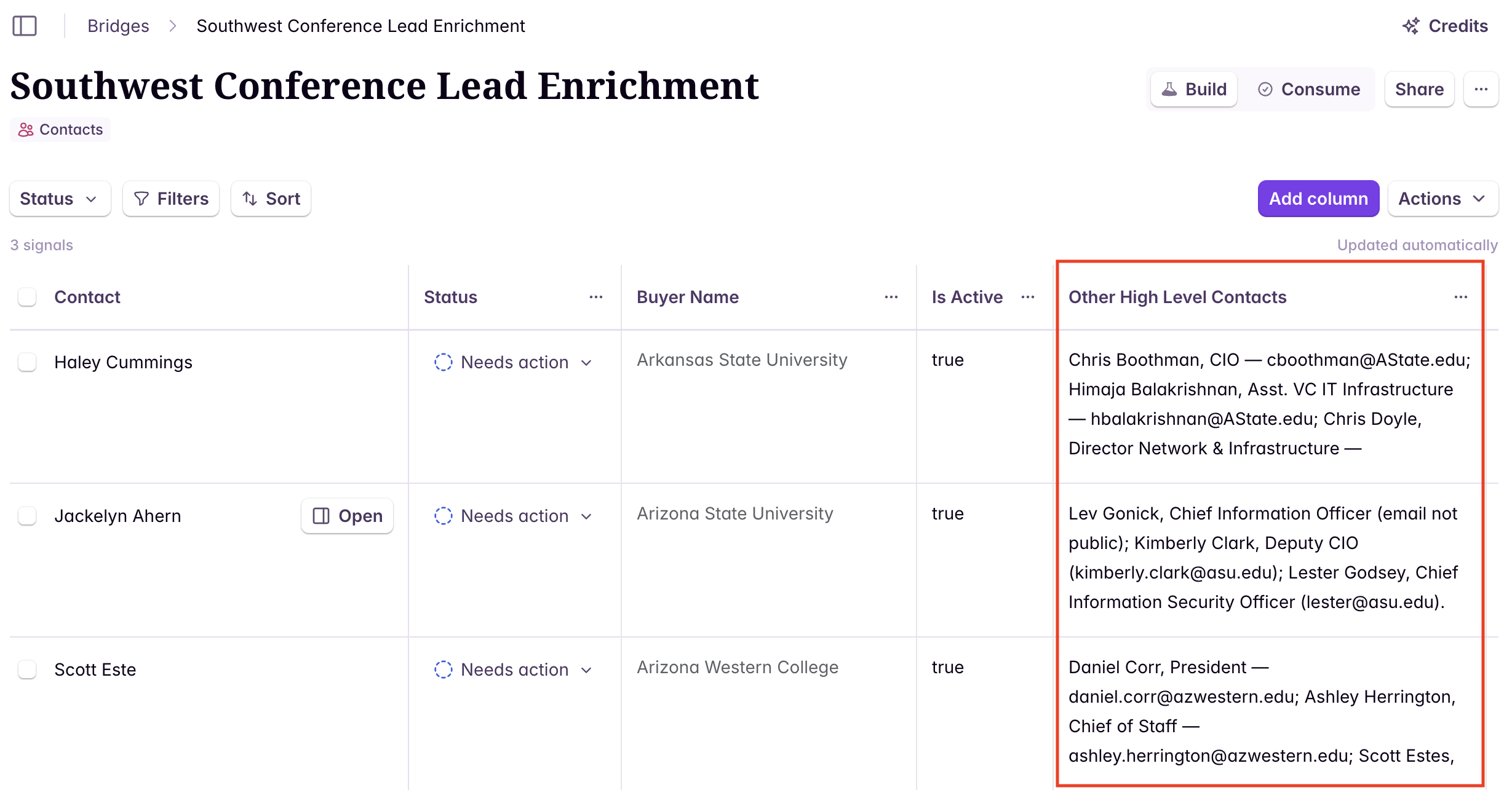
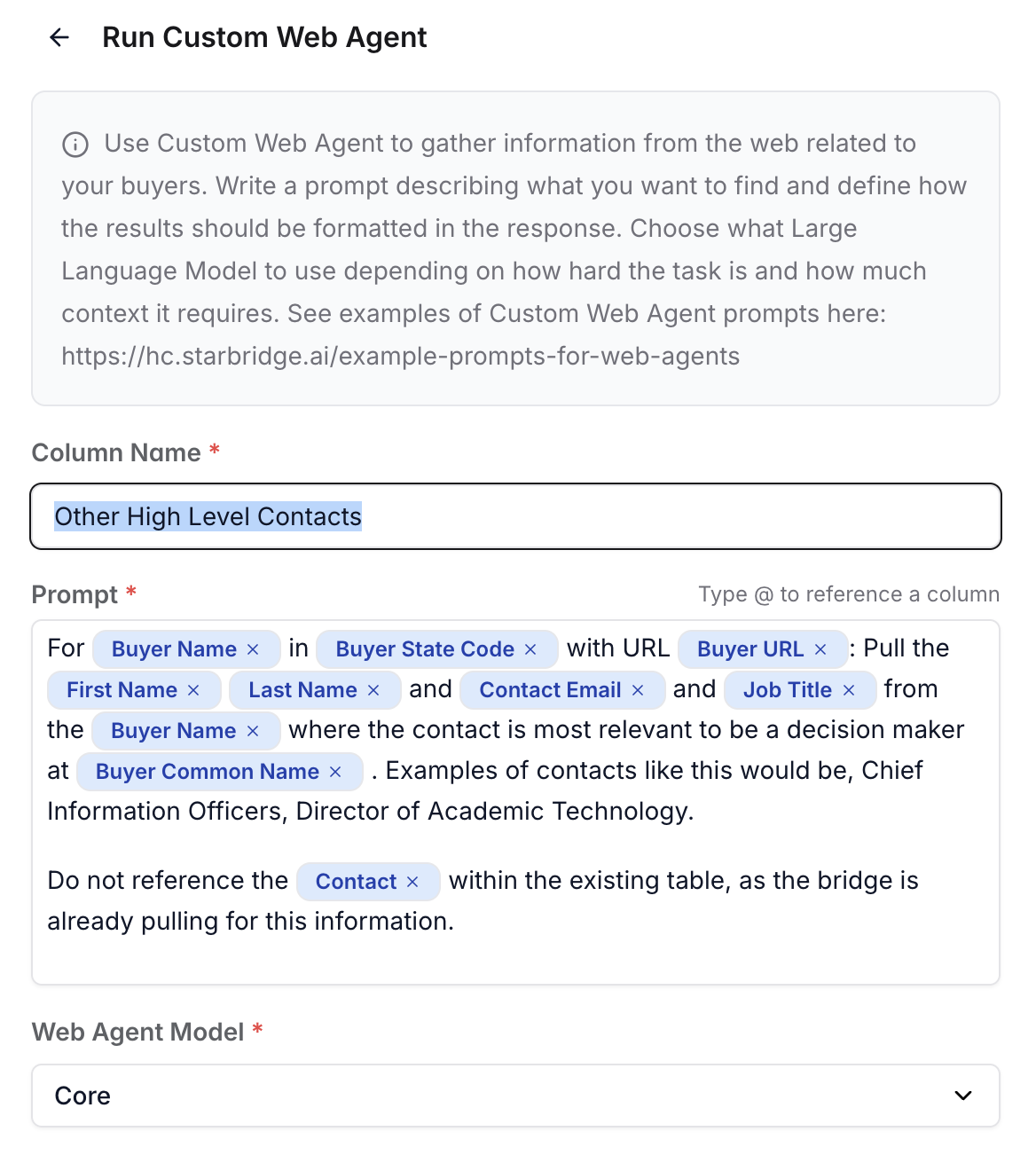
Another valuable enrichment use case is leveraging the buyer name from the original contact to identify additional high-level decision-makers at that same organization. To do this, create a new Custom Web Agent Column and prompt it to pull the names, emails, and job titles of the most relevant contacts for that buyer. Appropriate titles might include roles such as Superintendent or Director of Information Technology.