

New Functionality
Track Lead Actions More Easily
You can now keep track of which leads you’ve already taken “Action” on. If a lead isn’t relevant to you, you can quickly mark it as “Not Interested”, helping you stay focused on the opportunities that matter most.Sorting and Filtering
You can now sort and filter your lists of leads, making it easier to prioritize and select which leads to take action on. Whether you’re focusing on the most recent opportunities or narrowing down by specific criteria, you’ll have more control over your workflow.Export Only Your Newest Leads
We’ve made it possible to export only new leads — those you haven’t yet actioned. This helps you create outbound campaigns targeting only fresh opportunities.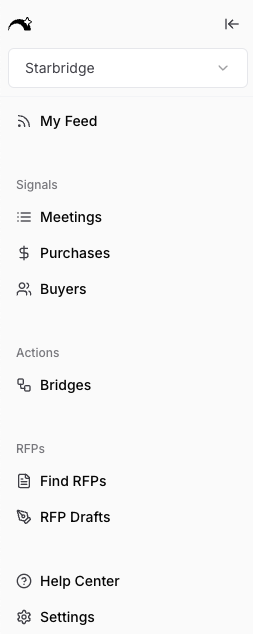
What Changes You’ll See
RFP, Meeting, and Purchases Bridges Have Row Statuses
- You can use this status to keep track of whether you’ve already taken action on a lead by marking that row as “Actioned” or “Not Interested”
- As part of the migration, all rows in all Bridges will start with the “New” status
Most Bridges are Now Live Updating by Default
You’ll also notice that you no longer have the ability to choose whether a Bridge is “Live.” We’ve simplified the application:- All Bridges based on RFPs, Meetings, and Purchases will automatically be live, with new leads added when they are added to the platform. Any previously non-live Bridges of this type have been switched to “Live.”
- Buyer-based Bridges continue to not support live update, since there are no new leads to add to this Bridge Type.
Reorganized Sidebar
The sidebar has been re-organized to improve navigation.Examples of How to Use the New Bridges Functionality
Use an RFP Bridge to Score RFPs and Track Response Status
- Create a Bridge based on an RFP Saved Search for RFPs relevant to your business.
- Use columns in the Bridge to score RFPs and find ones that are the best fit for to respond to.
- Filter your Bridge to only show RFPs that meet certain scoring criteria.
- Sort available RFPs from highest to lowest score.
- Use “Status” to keep track of your RFPs:
- Mark RFPs that aren’t relevant as “Not Interested.”
- Mark RFPs that you’re going to respond to as “Actioned” once you create a draft.
Create an Evergreen Campaign with a Meetings Bridge
- Create a Bridge based on a Meeting search of high intent conversations taking place by your Buyers.
- Add all the columns you need to make each lead actionable, including an Email Snippet and a relevant contact.
- Look through the new leads and mark any that aren’t relevant as “Not Interested.”
- Export all of the relevant signals as a CSV to enroll in your sequence. Upon export, you can automatically have all of those leads marked as “Actioned.”
- When you come back to your Bridge later, you’ll be able to see the new signal that has been added since your last export.
Find Relevant Contacts in Bulk with a Buyer Bridge
- Create a Buyer Bridge that you need contacts for.
- Create a Buyer Workbook of that list of buyers.
- Add a Contact column to find the most relevant contact for each of those buyers to outbound to.
- Add a column you may want to filter your Bridge on, like population size or enrollment.
- Filter your Bridge on that column to only find Buyers that match your criteria.