

This article assumes your CRM is connected, account matching is complete, and contact sync is configured. See Connect your CRM, Account matching, and Contact sync if you haven’t done these yet.
Standard contact sync
The recommended path for most bridges. Adding a Standard contact sync column inherits your admin’s configured lookup rules, field mappings, and run conditions automatically — no additional setup required.1
Enrich contacts in a Bridge
To find contacts to sync to your CRM, first enrich them in a Bridge.
2
Add a contact sync column
In your Bridge, click Add enrichment → Configure Integration → Sync Contacts to My CRM.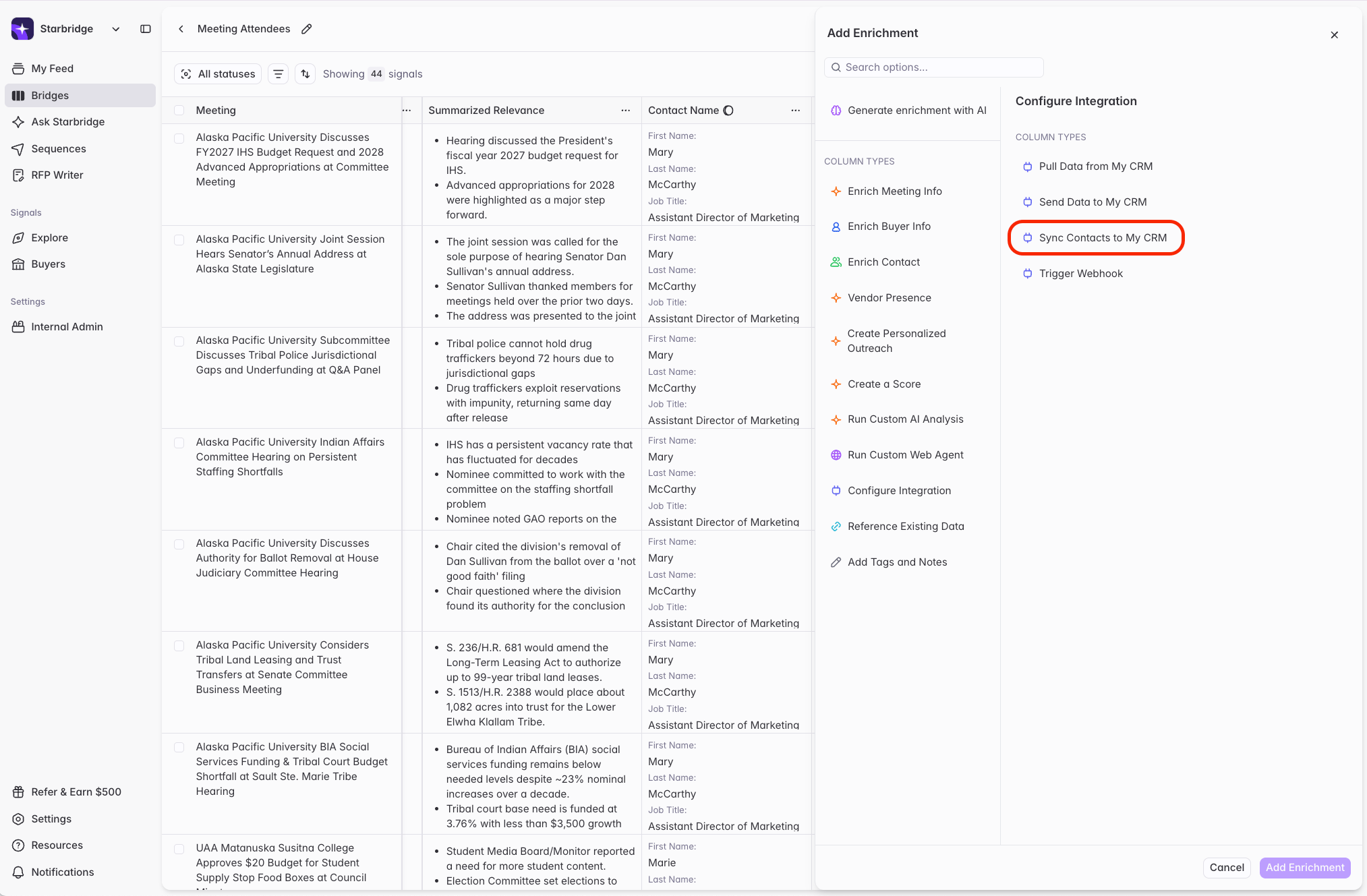
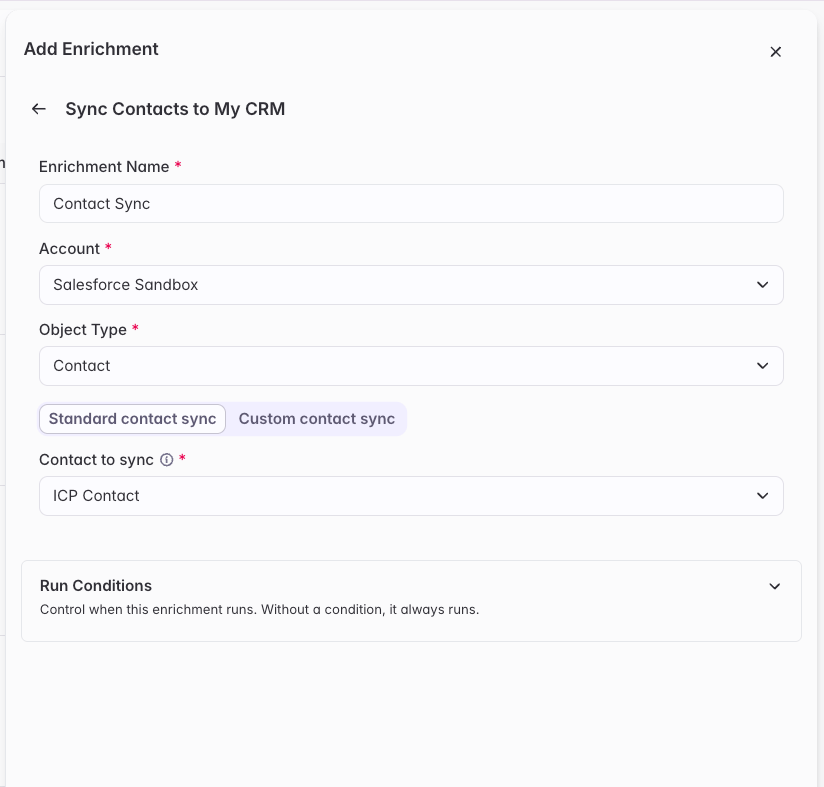
3
Run the sync
Click Add & Run Enrichment. Starbridge will apply your admin’s standard contact sync rules to sync the contacts to your CRM.Each cell in the column enrichment will update to show Success, No Changes Applied, or Skipped if the run conditions aren’t meant. Click into any cell to see a full sync history for that row.
Custom contact sync
Custom contact sync is not necessary for most contact sync use cases, and typically only recommended when you have a bridge-specific analysis you want to sync to custom fields on the Contact object.Custom contact sync
Custom contact sync
1
Add an account lookup column
In your bridge, click Add enrichment → Configure integration → Pull data from my CRM and select the Account or Company object. See CRM enrichment columns for step-by-step instructions.Enable Account matching so Starbridge resolves the right CRM account for each buyer automatically. This is used when creating new contacts to associate them to the correct account.
2
Add a contact lookup column
Add a second Pull data from my CRM column for the Contact object. This tells Starbridge whether each contact already exists in your CRM so the sync column knows whether to create or update.We recommend an if-else matching structure:
- IF Starbridge Contact ID matches CRM Contact object’s Starbridge Contact ID
- ELSE IF Starbridge Contact Email matches normalized CRM Contact object’s email
3
Add a contact sync column
Click Add enrichment → Configure integration → Send data to my CRM, select the Contact object, and set the sync type to Upsert. See CRM enrichment columns for step-by-step instructions.
- If a match exists via email or Starbridge ID → update the contact
- If no match exists → create a new contact
4
Map fields
Map each Starbridge contact field to the corresponding CRM Contact field and choose a write behavior for each. See CRM enrichment columns for step-by-step instructions.A few important mappings:
- Account association — map the Account ID returned from your account lookup column to the contact’s Account or Company relation field. This ensures new contacts are linked to the right account on creation.
- Starbridge Is Active — set to Overwrite so Starbridge can update this field when a contact becomes inactive.
HubSpot: if the Company ID (Relation to Company) value isn’t available from your account lookup column, see HubSpot-specific details.
5
Add run conditions
Run conditions prevent the sync column from firing on rows where it shouldn’t. We recommend:
- Strongly recommended: only run if the account lookup column’s Record ID is not empty. This prevents contacts from being created without an associated account (orphan contacts).
- Optional: only run if the Starbridge email address is not empty. This avoids creating contacts with no usable email address.
- If your team makes outbound calls, do not add this run condition as it may prevent you from syncing contacts with a valid phone number.
6
Run the sync
Once your lookup columns are resolving correctly and your sync column is mapped, run the sync.Each cell updates to show Success, No action taken, or Error. Click into any cell to see a full history of syncs for that row.
Keeping contacts current
Once contacts are synced with Standard contact sync, Starbridge will keep them up to date over time. As Starbridge detects changes — email address updates, title changes, or contacts who are no longer active in their role — it will update the corresponding CRM Contact record according to your admin’s sync rules. The Starbridge Is Active field is particularly useful here: Starbridge will flip it tofalse when it detects a contact is no longer active, giving your team a reliable signal for contact hygiene without manual work.
When contacts are synced with Custom contact sync, Starbridge will keep them up to date respecting the Custom contact sync’s run conditions, rerun settings, and field mappings.
Next steps
Sync job changes to your CRM
Push job change signals and contacts into your CRM for rep actioning.
Sync account data to your CRM
Write account enrichment, analysis, and scores to your CRM Account object.