

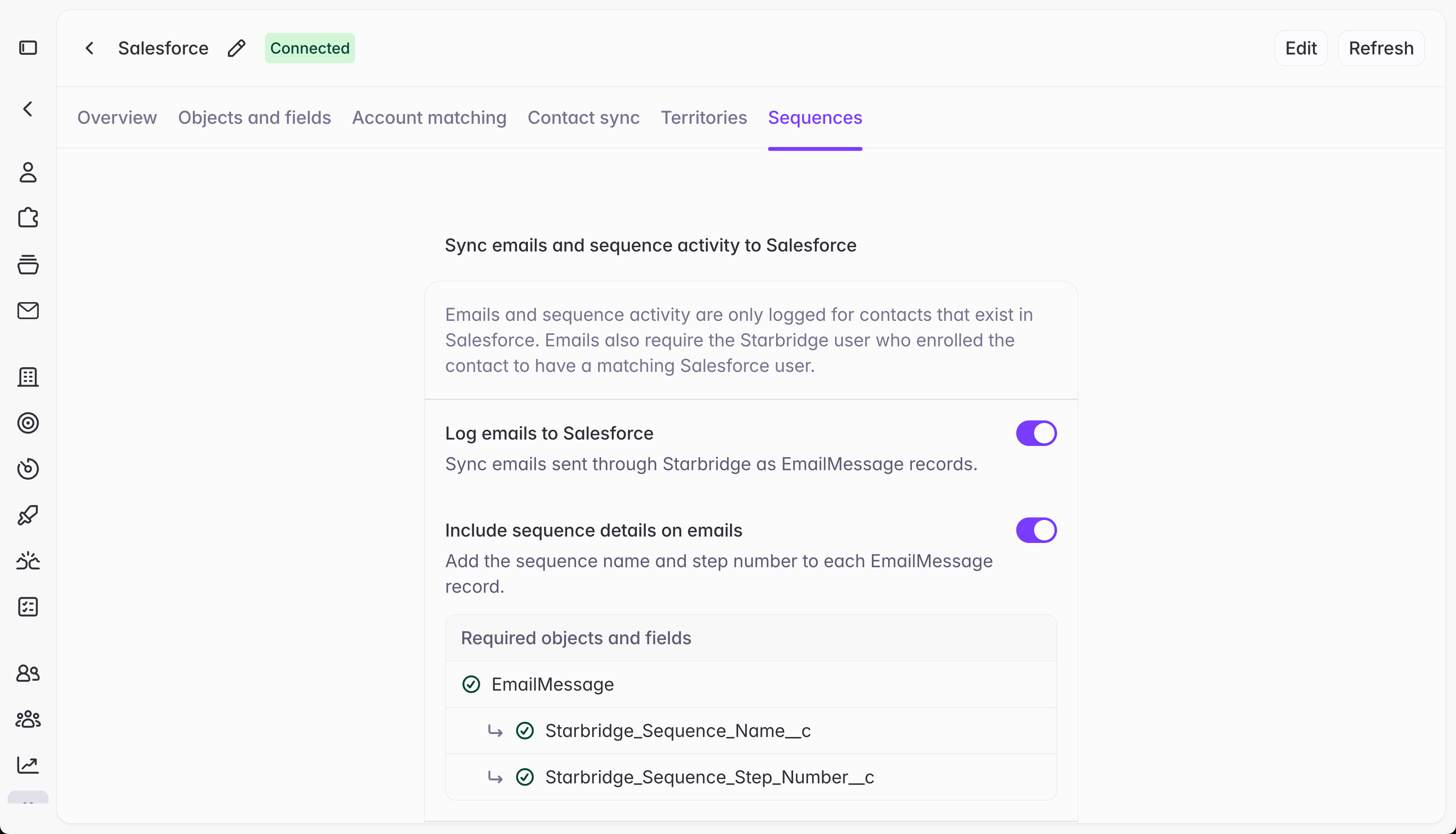
- Email logging writes each sequence email — and any direct reply — into your CRM as a native email activity record, so emails sent via Starbridge show up alongside every other touch your team logs, instead of living only in Starbridge.
- Sequence activity on contacts tracks which sequence first and most recently touched a contact, so you can see Starbridge’s influence on meetings booked and measure how a specific sequence or campaign is performing over time — directly from your CRM.
Prerequisites
Both toggles are off by default. They can be toggled on or off independently. Each has the following prerequisites.Turning it on
Go to Settings → Integrations → [your CRM] → Sequences.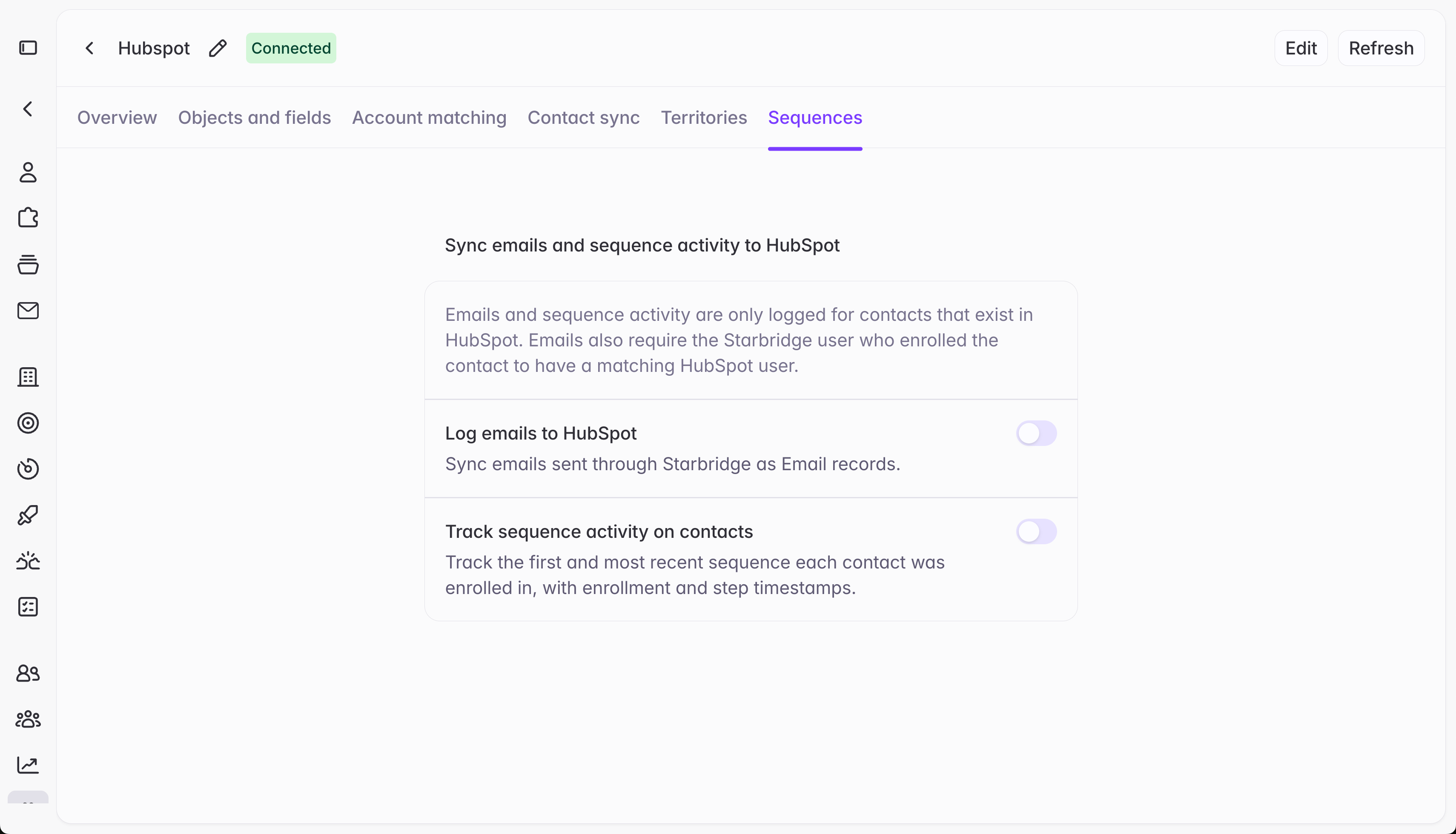
Email logging
When Email logging is toggled on, Starbridge writes every email a rep sends through a sequence, plus the contact’s direct reply to that email, as a native email activity record associated to the contact. If an email later bounces, Starbridge updates that same logged activity record in Salesforce and HubSpot to reflect it, so bounced sends are visible on the record without leaving your CRM.EAC and duplicate email activity (Salesforce only)
EAC and duplicate email activity (Salesforce only)
EAC can sync emails sent from a rep’s connected Gmail or Outlook inbox into Salesforce as EmailMessage and Task records, whenever Sync Email as Salesforce Activity is enabled for that inbox.Sequences sends through that same connected inbox, so if EAC already covers the reps running Sequences, turning on Email logging here creates a second EmailMessage/Task record for every send.Before enabling Email logging, confirm with your Salesforce admin whether EAC and Sync Email as Salesforce Activity are turned on for the mailboxes your reps send sequences from. If they are, do not turn on Starbridge’s email logging.
Include sequence details on emails (Salesforce only)
Include sequence details on emails (Salesforce only)
When Include sequence details on emails is toggled on, Starbridge writes the sequence name and step number to custom fields on the EmailMessage record for every email it logs. This lets you filter, segment, and report on logged activity by sequence directly in Salesforce, using standard reports or list views.Before turning this on, create two custom fields on the Email Message object following these step-by-step instructions:
Step-by-step instructions to add the required custom fields
Step-by-step instructions to add the required custom fields
Create two custom fields on the Email Message object.
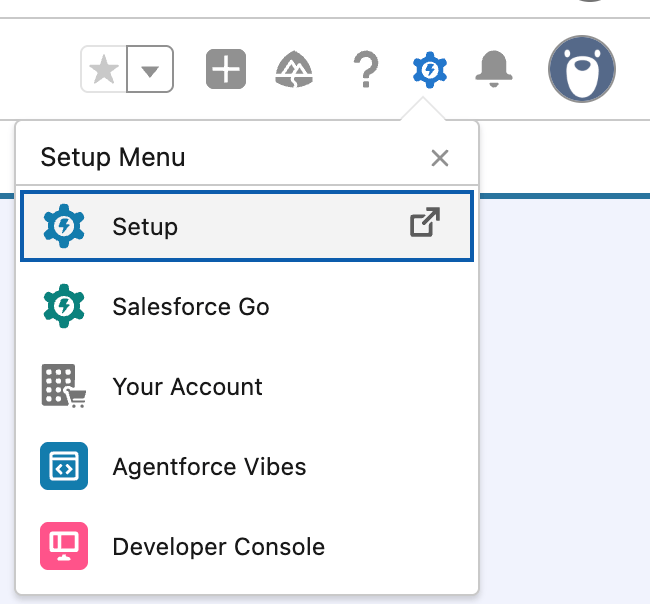
- In Salesforce, click the Gear icon (⚙) → Setup
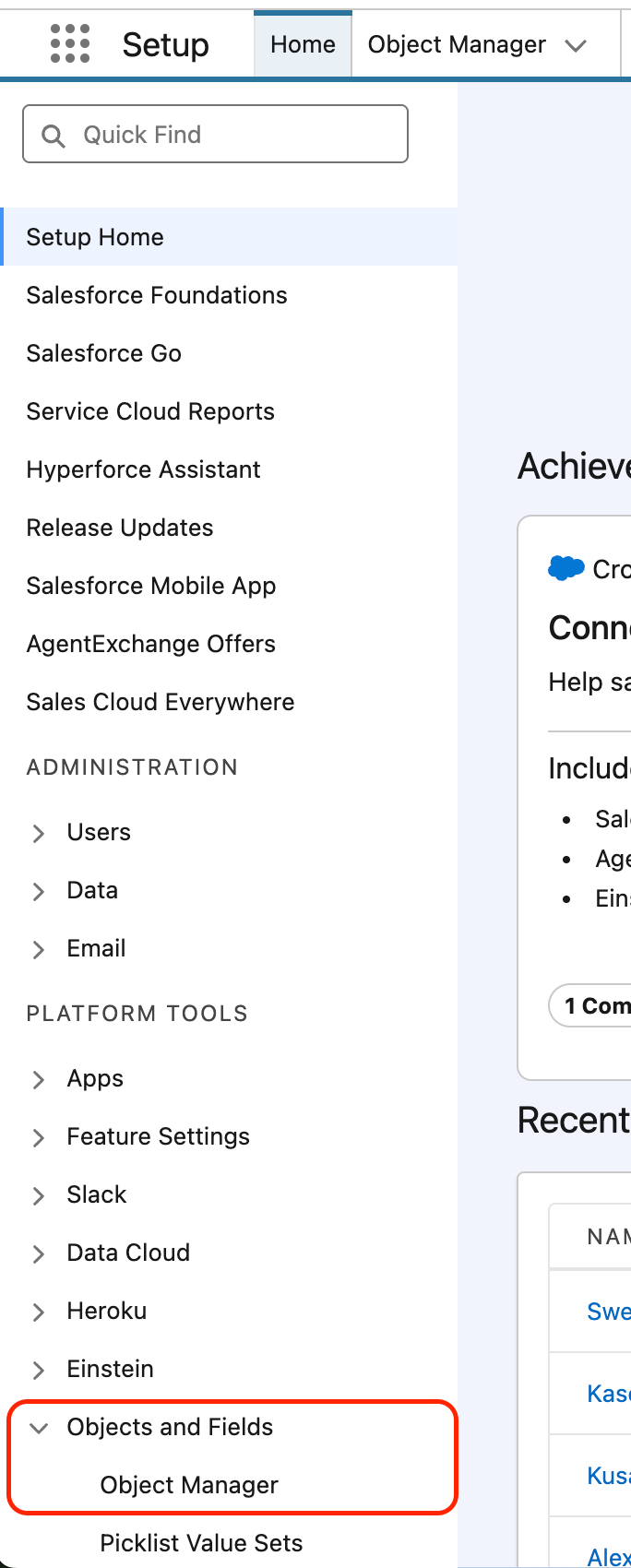
- In the left sidebar, search for Object Manager and open it, or directly click Objects and Fields → Object Manager
- Click Email Message → Fields & Relationships → New
- Create the first field — Starbridge Sequence Name:
- Create the second field — Starbridge Sequence Step Number:
Salesforce automatically appends
__c to custom field API names (e.g. Starbridge_Sequence_Name__c). This is expected.- Return to Starbridge → Settings → Integrations → [your CRM integration] → Sequences. Click Refresh in the top right corner and wait for the connection to finish refreshing, then toggle on Include sequence details on emails. All done!
Sequence activity on contacts
When Sequence activity on contacts is toggled on, Starbridge writes the fields below to your Contact records, so you can see Starbridge’s influence on meetings booked and measure how a specific sequence or campaign is performing over time — directly from your CRM.
Add these as custom fields on the Contact object in Salesforce or HubSpot before turning this on. This runs independently of email logging.
Step-by-step instructions for Salesforce
Step-by-step instructions for Salesforce
- In Salesforce, click the Gear icon (⚙) → Setup
- In the left sidebar, search for Object Manager and open it, or directly click Objects and Fields → Object Manager
- Click Contact → Fields & Relationships → New
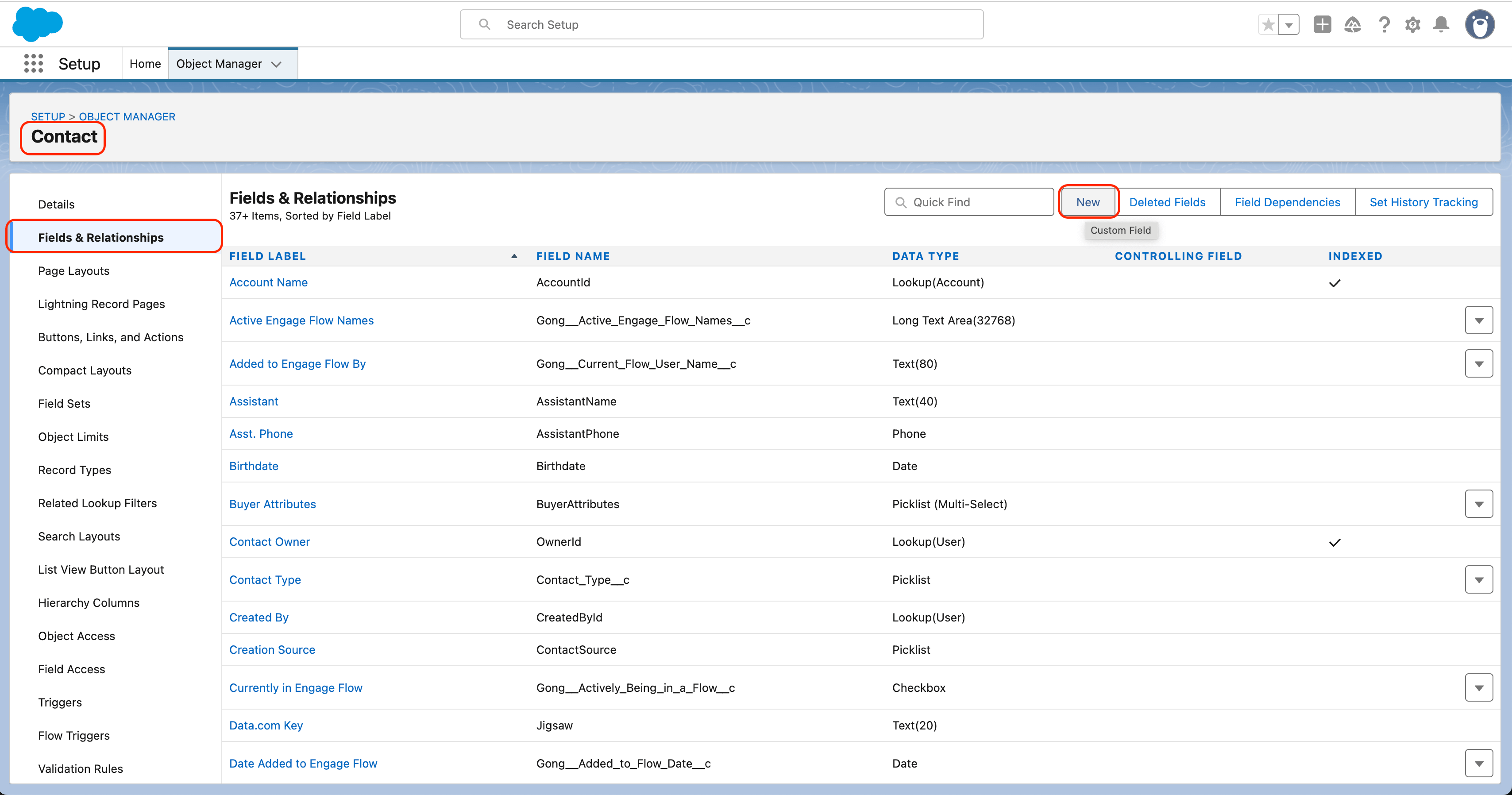
- Create each field below, one at a time — click Save & New after each, and Save on the last one:
Click Next → Next after entering each field’s settings.
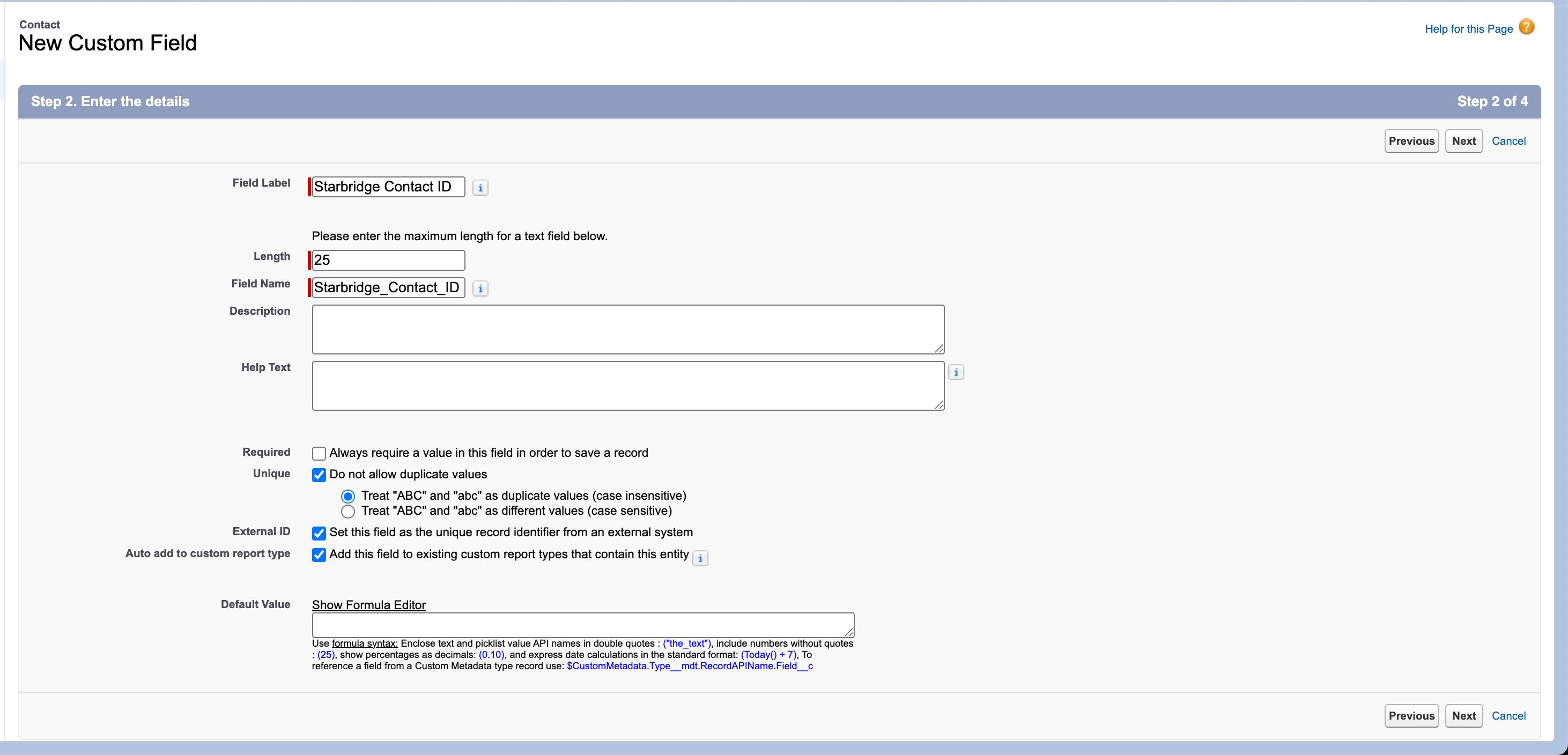
Salesforce automatically appends
__c to custom field API names (e.g. Starbridge_Initial_Sequence__c). This is expected.- Return to Starbridge → Settings → Integrations → [your CRM integration] → Sequences. Click Refresh in the top right corner and wait for the connection to finish refreshing, then toggle on Track sequence activity on contacts. All done!
Step-by-step instructions for HubSpot
Step-by-step instructions for HubSpot
- In HubSpot, go to Settings (Gear icon ⚙) → Properties
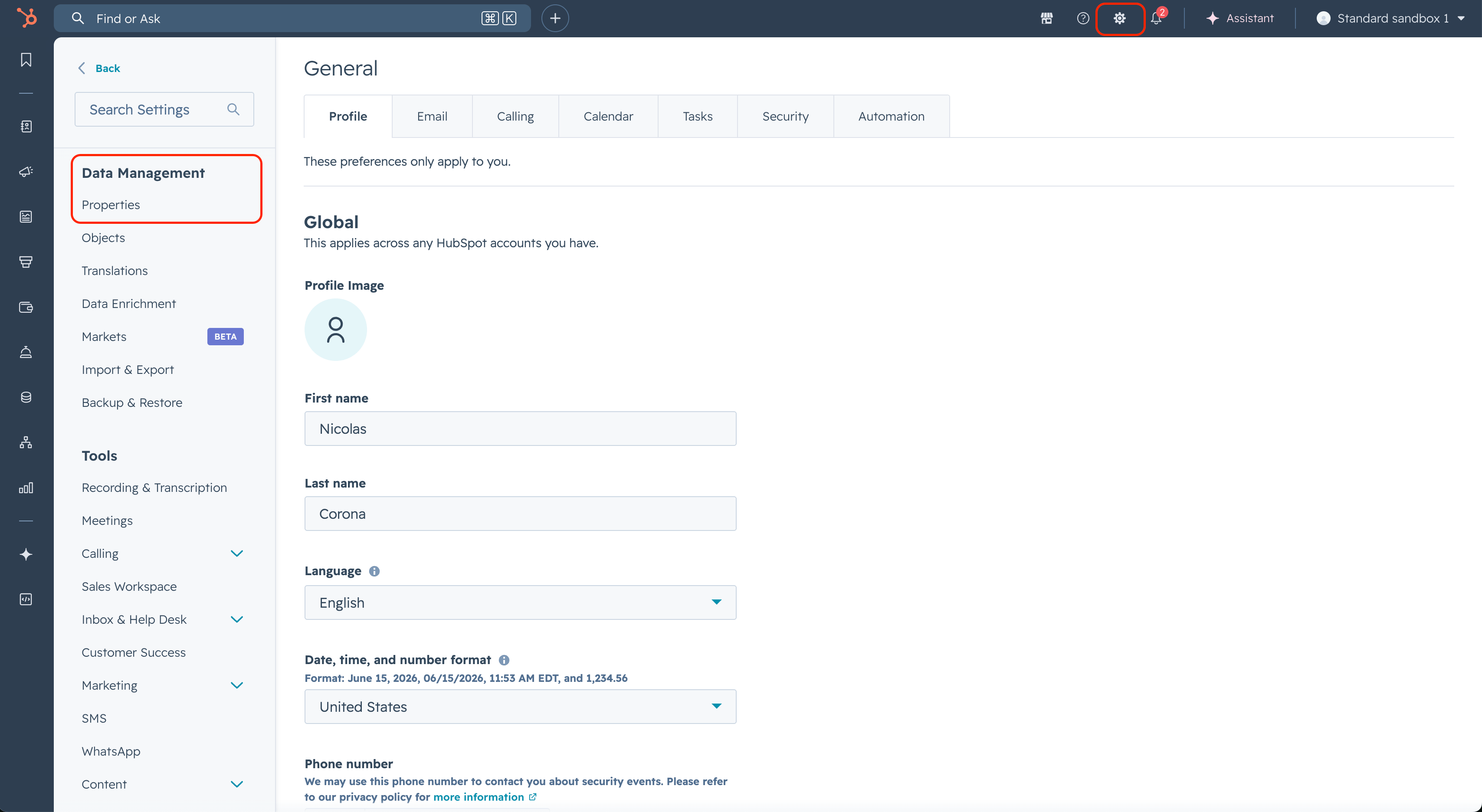
- In the Select an object dropdown, select Contact properties, then click Create property (top right) for each field below:
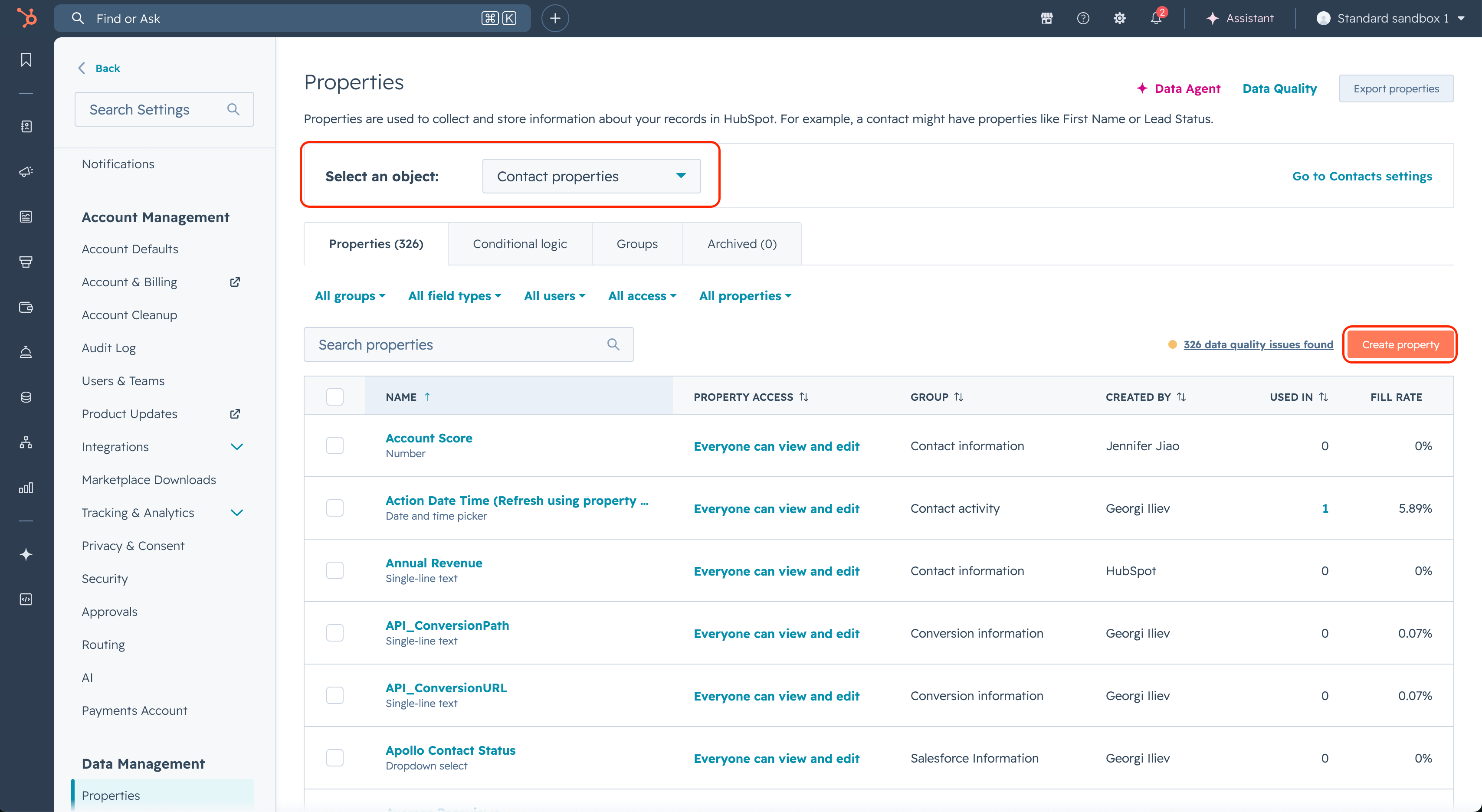
- Click Create after each property.
- Return to Starbridge → Settings → Integrations → [your CRM integration] → Sequences. Click Refresh in the top right corner and wait for the connection to finish refreshing, then toggle on Track sequence activity on contacts. All done!
What’s next
Bridge-based sequences
Turn a Bridge into a scaled sequence.
Contact sync
Required before email logging or sequence activity on contacts can run.