

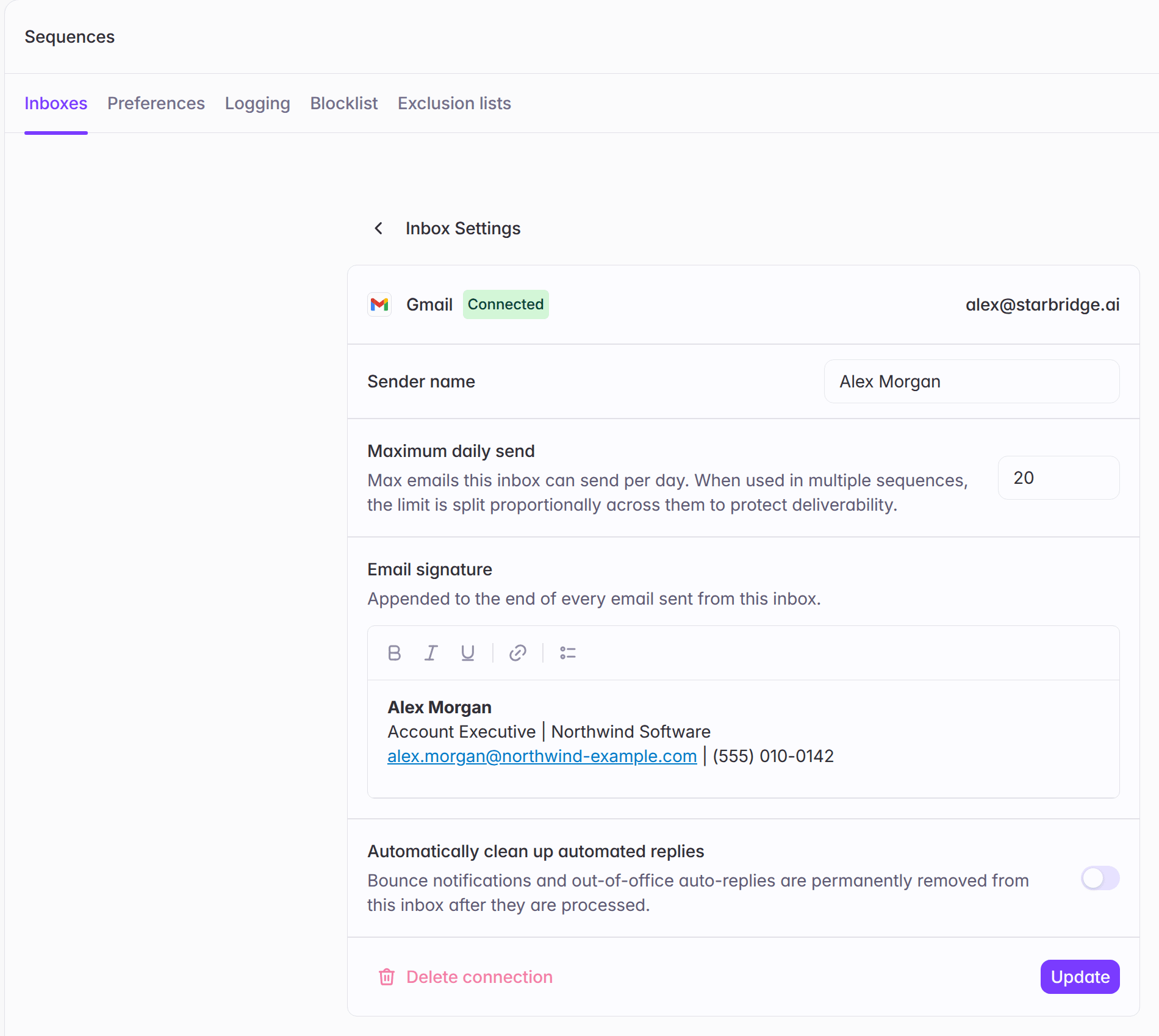
Overview
Your emails now sign off like you wrote them by hand. Give each inbox its own signature and Starbridge adds it to every email, follow-ups and replies included. Running a sequence from multiple inboxes? Each email carries its own sender’s signature. Signatures support rich-text formatting, including bold, italics, links, and line breaks. Test emails include signatures, so you can preview exactly what contacts will receive.What builders experience
Builders and admins can view and manage signatures for every inbox in their org, including inboxes connected by other reps. In Settings → Sequences, under the Inboxes tab:- The Signature column shows whether each inbox is Set or Not set.
- Opening an inbox lets you write or edit its Email signature.
What reps experience
Reps manage their own signatures in Settings → My outreach, under the Inboxes tab. Open any connected inbox to add or edit its signature.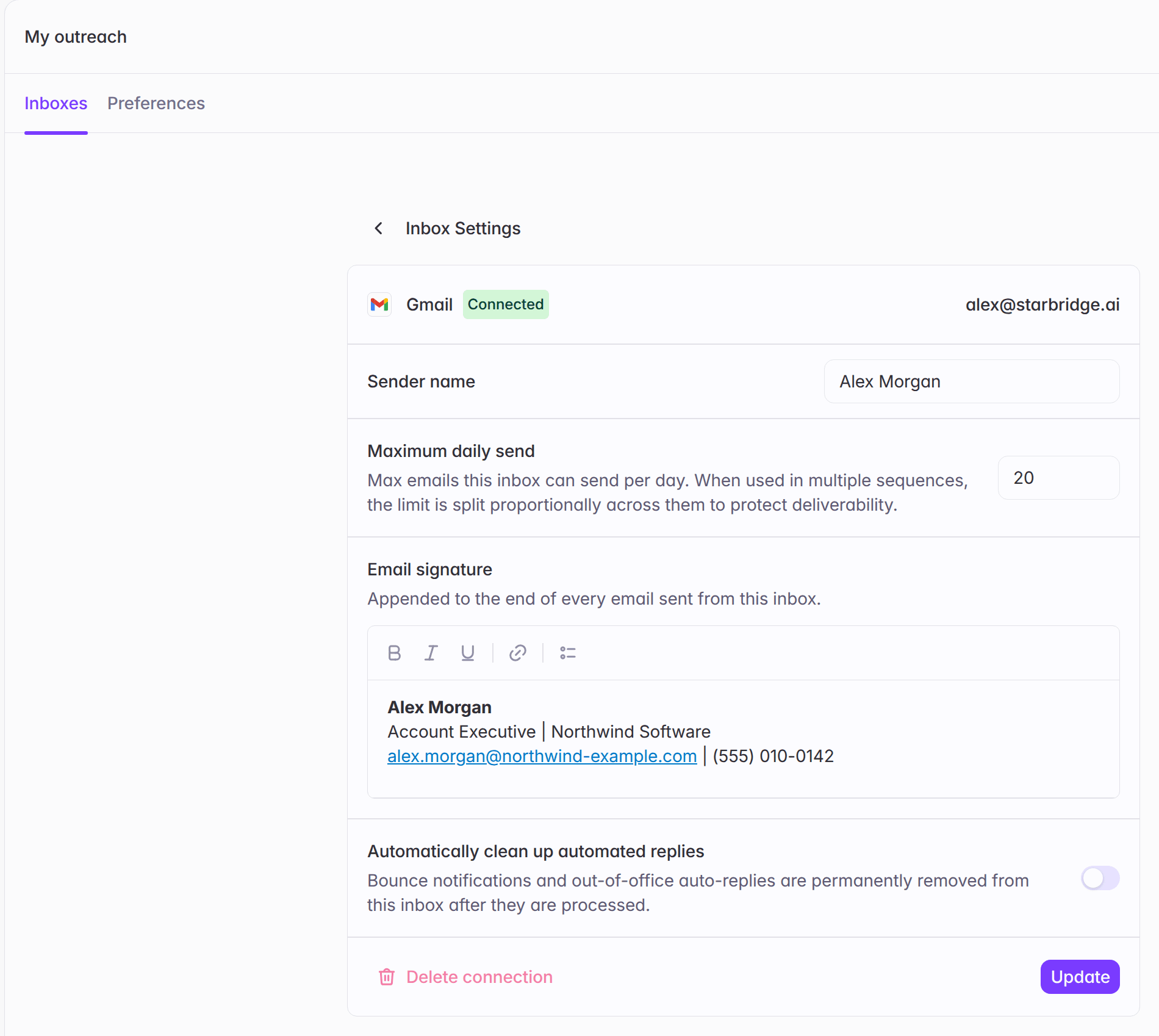
Get started
- Reps: Go to Settings → My outreach and add a signature to each inbox you send from.
- Admins and builders: Go to Settings → Sequences, open the Inboxes tab, and check the Signature column for inboxes marked Not set.