

Which inbox you need
Every rep needs their own connected inbox. Team sequences and one-off sequences send from the inbox of the rep who enrolled each contact, so a rep without a connected inbox can generate a sequence but can’t enroll anyone into it. Bridge-based sequences send from inboxes assigned to the sequence. A builder can assign any inbox available to the org, and can connect a new one while setting the sequence up.Before you start
Gmail
There are no prerequisites for Gmail.Outlook
Outlook inbox connections require a one-time approval from a Microsoft admin in your organization. Until that approval is granted, no one on your team can connect an Outlook inbox. To grant it, a Microsoft admin connects their own inbox to Starbridge using the steps below. During the connection flow, Microsoft prompts them to approve Starbridge inbox connections on behalf of the organization. Once approved, anyone on your team can connect their own inbox. The admin can disconnect their inbox afterward. The organization-level approval remains in place, so other users can still connect.Starbridge automatically supports inboxes from a single Microsoft tenant. If your team sends from inboxes across separate tenants, contact your GTME or support@starbridge.ai so we can set up the additional tenants for you.
Connect your personal inbox
1
Open Settings → Email connections
Under Personal, select Email connections, then select Add.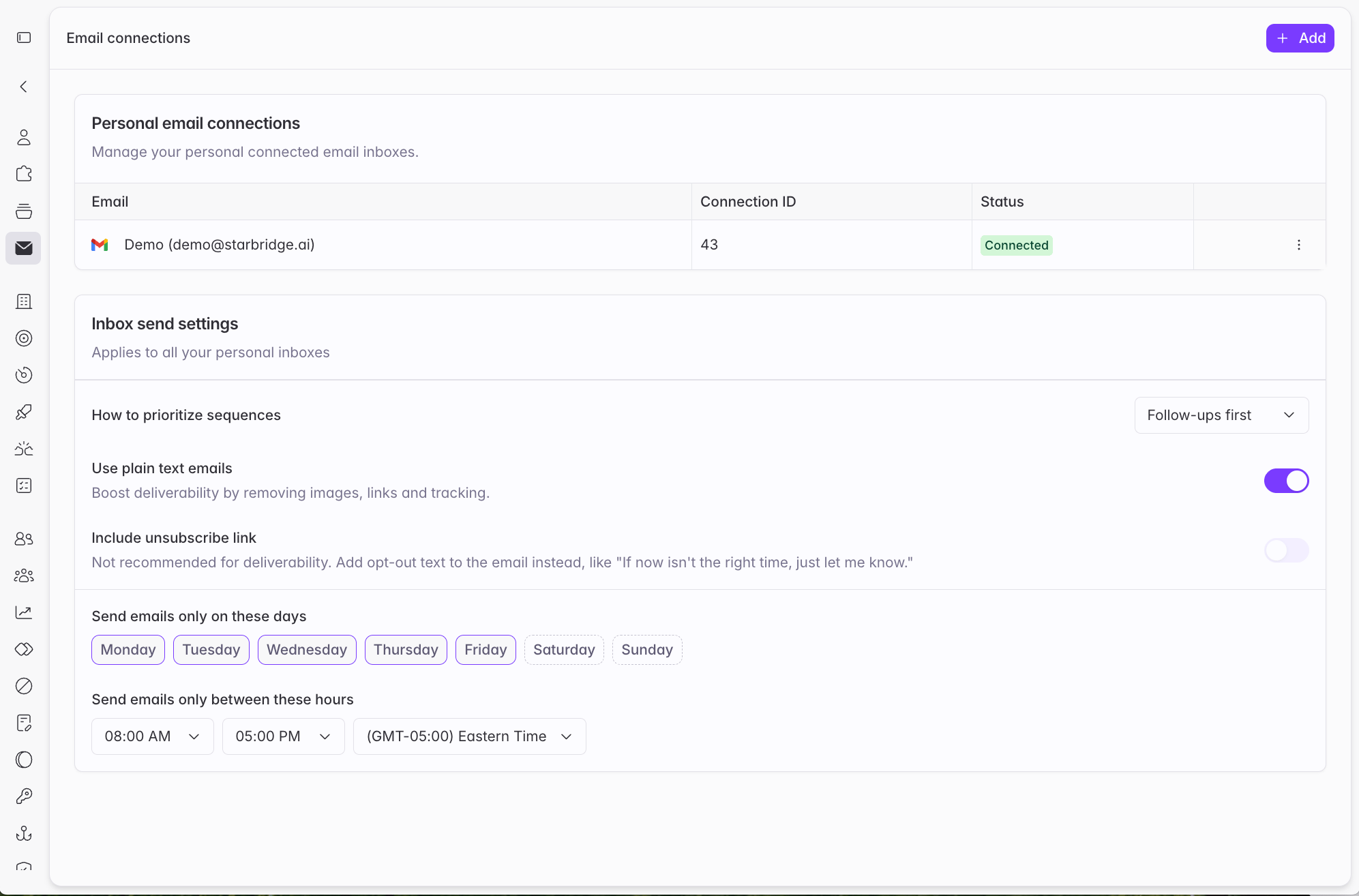
2
Authorize Starbridge
Choose Gmail or Outlook, sign in to the account you want to connect, and approve access. If the account you want isn’t listed, choose Use another account and sign in with it directly.If you hit a message from Google or Microsoft instead of a consent screen, see If your inbox won’t connect.
3
Set your inbox send settings
Under Inbox send settings, configure how your personal inboxes send. These settings apply to all of your personal inboxes.Choose how to prioritize sequences, whether to use plain text emails, and whether to include an unsubscribe link. Then set the days of the week, hours, and timezone you want emails going out.
Connect an org inbox
Admins can connect inboxes for the whole org from Settings → Integrations. Select Create, then under Email Inboxes choose Gmail or Outlook Mail. Org inboxes appear under Active Connections and are available to assign to Bridge-based sequences.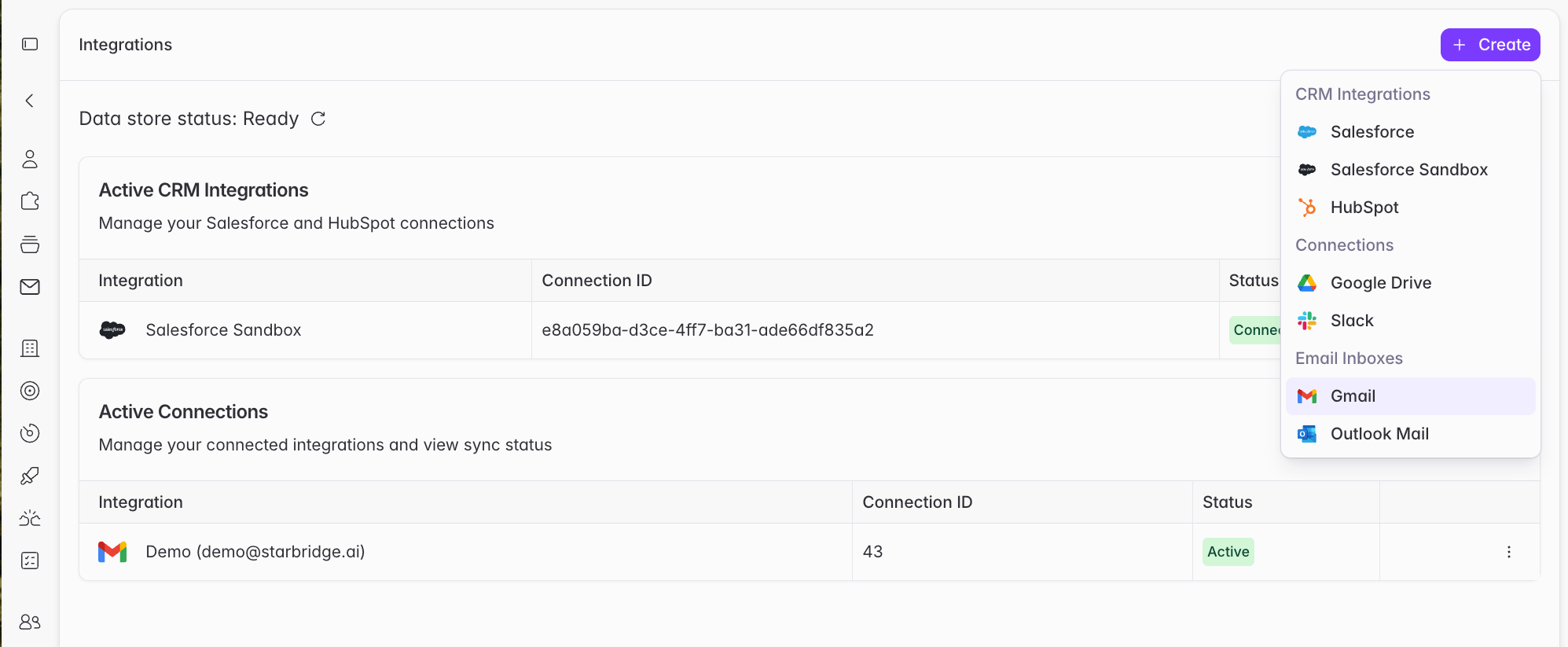
Connect an inbox while you work
Builders can connect an inbox from a Bridge-based sequence. On the sequence’s Settings tab, under Email settings, open Send emails from and choose Connect new Gmail account or Connect new Outlook account.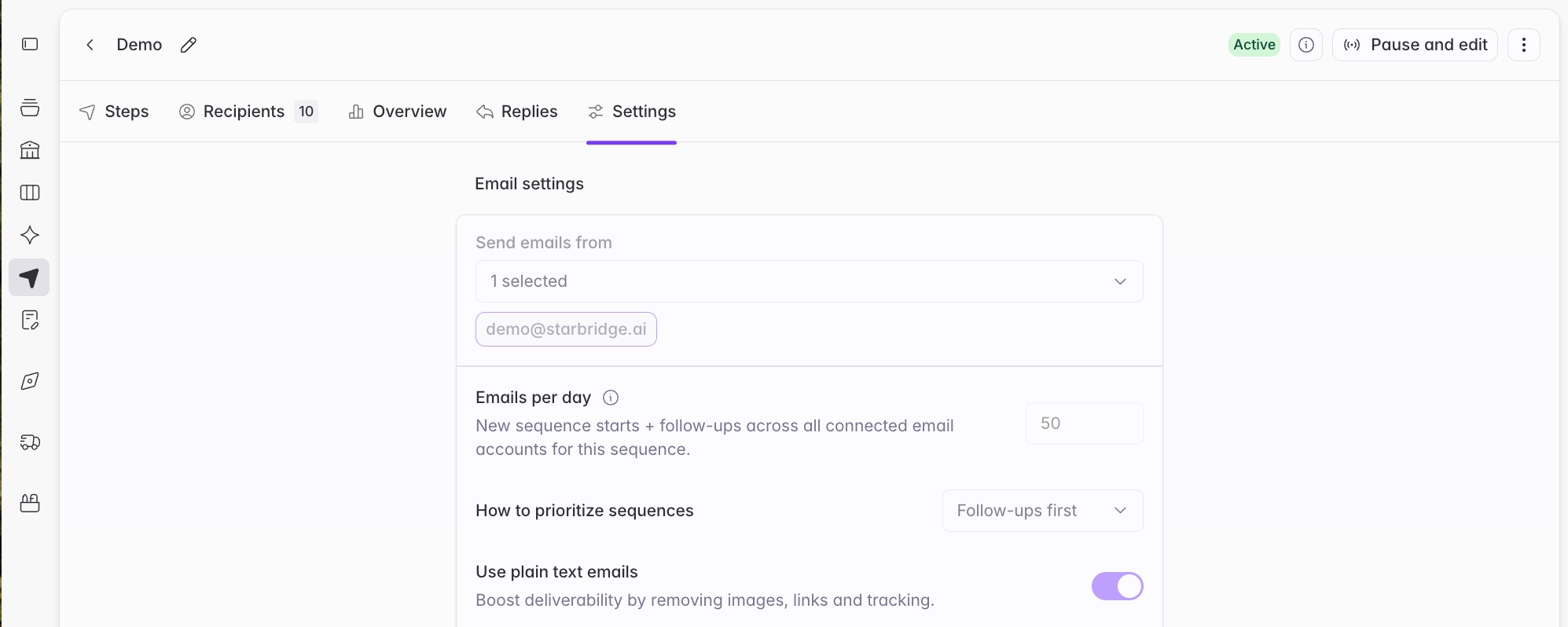
If your inbox won’t connect
This app is blocked, or Error 400: admin_policy_enforced
This app is blocked, or Error 400: admin_policy_enforced
Your Google Workspace administrator needs to approve Starbridge as a trusted app. This is a one-time setup for the whole Workspace. See Allow Starbridge to connect Gmail inboxes.
Outlook rejects the connection
Outlook rejects the connection
Your mailbox likely has Authenticated SMTP switched off. Most Microsoft 365 mailboxes have it off unless someone turned it on, so this is expected rather than a sign something is broken.A Microsoft 365 administrator can enable it per mailbox. See Allow Starbridge to connect Outlook inboxes.
Nothing here fixed it
Nothing here fixed it
Contact your GTME or support@starbridge.ai.
Where to go next
Send settings and exclusions
Configure how much a sequence sends and when.
Enrolling a contact
Put your connected inbox to work.