

Before you start
You need a connected inbox and a contact. See Connect your inbox.Generate a one-off sequence
1
Start from a contact card or Ask Starbridge
On any contact card, click Send sequence to create a personalized sequence. Ask Starbridge will start drafting a proposed sequence.You can also start in Ask Starbridge directly: find a contact, then ask for a sequence.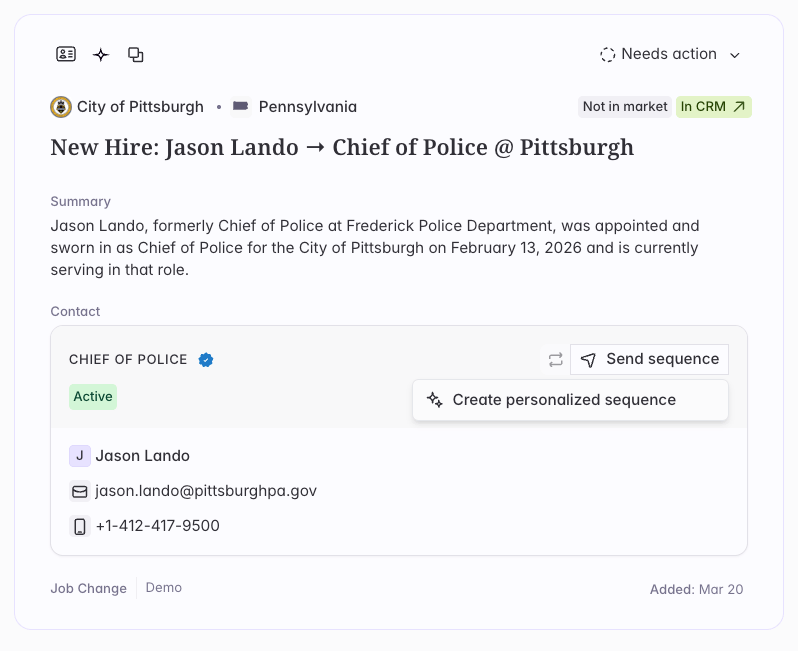
2
Workshop the copy
Edit any message directly, or tell Ask Starbridge what to change: a different angle on the second email, a shorter opener, a reference to a specific signal, etc.Starbridge draws on the contact’s details, their buyer’s context and recent signals, the signal you found them through (if any), and your org’s message generation preferences.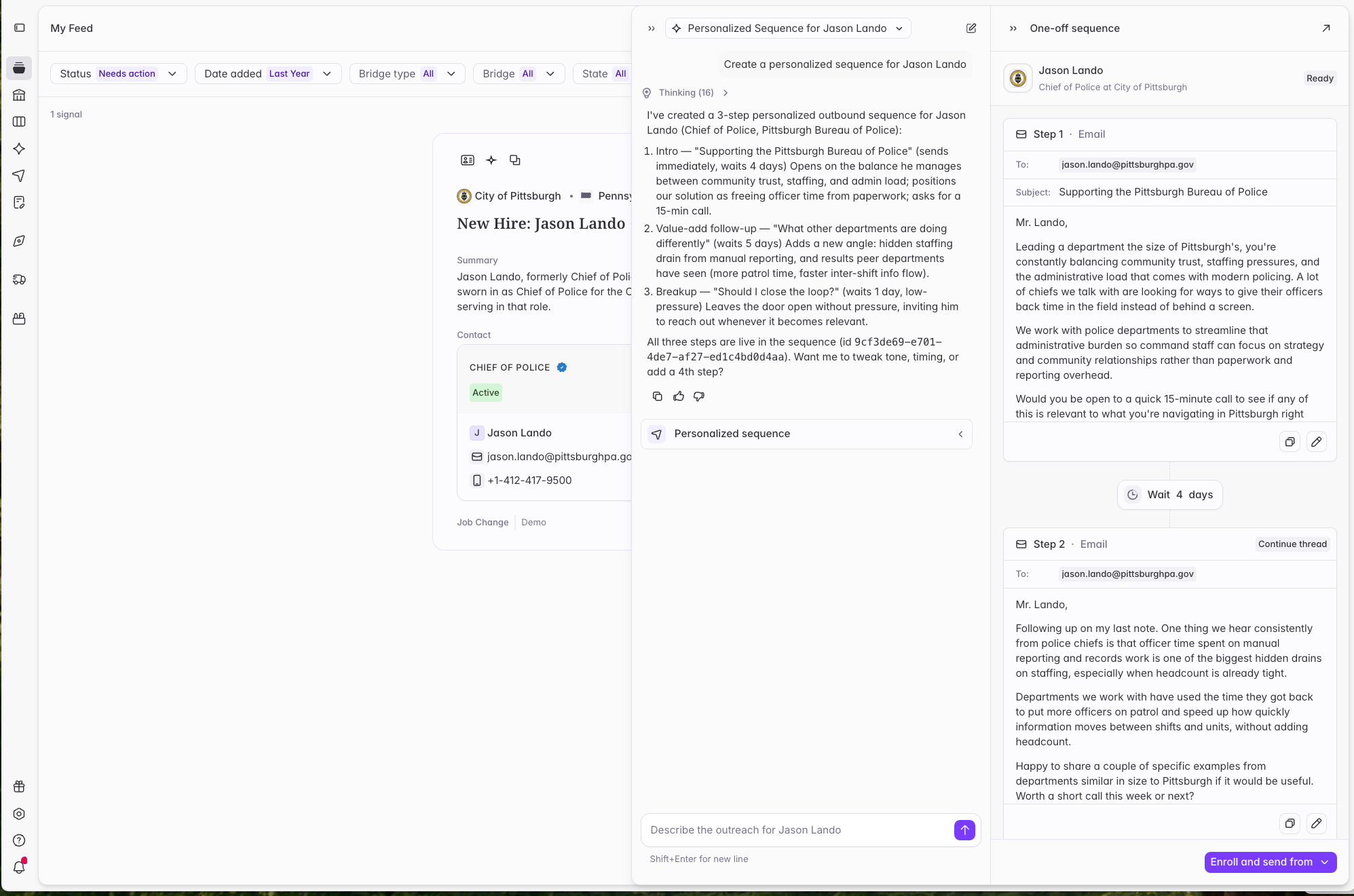
3
Enroll the contact
Click Enroll in the bottom right of the sequence side panel. The contact will switch from Ready to Enrolled, and sending starts on your inbox’s schedule.
Where your one-off sequences live
All your one-off sequences roll up into a single view under Sequences in the sidebar. Open the Sequences page and click One-off sequences to see every contact you’ve generated one for, alongside the sequence written for each.
When you can’t create one
The same guardrails apply as for any enrollment. A contact on your blocklist, unsubscribe list, or an exclusion list can’t be sequenced. A contact already enrolled in another sequence is added in Removed status, so finish or remove them there first. And a locked contact needs unlocking before you can enroll them.Where to go next
Enrolling a contact
Add a contact to a sequence your team already built.
Connect your inbox
Connect Gmail or Outlook so Starbridge can send on your behalf.