

Send settings
How daily volume actually works
Starbridge allows you to place limits on your daily send volume to protect your sender reputation and distribute email sending across multiple sequences. Each inbox sends at most 20 emails per day. This is a hard cap that protects the sending address’s reputation. Each sequence has a customizable limit on maximum emails per day. Use this to distribute load across multiple sequences.Why plain text is on and unsubscribe links are off
Both defaults exist to protect deliverability. Plain text strips HTML, including images, tracked links, and formatting. HTML-heavy email is a strong signal to spam filters that a message is bulk marketing rather than a person writing to another person. Plain text lands in more inboxes. Unsubscribe links mark a message as bulk mail in much the same way. Rather than including one, add a plain opt-out line to your copy: something like “if now isn’t the right time, just let me know.” It reads as human, and it gives the recipient the same out.Starbridge honors unsubscribes regardless of this setting. Turning the link off doesn’t remove anyone’s ability to opt out, and it doesn’t affect how Starbridge handles opt-outs it detects.
Sending inboxes for Team and one-off sequences
Team and one-off sequences send from the inbox of the rep who enrolled each contact, rather than a pool you assign. For Team sequences, the sequence controls Max emails per day, step prioritization, unsubscribe link, and plain text. The rep’s own inbox controls the schedule: their days of week, times of day, and timezone. For one-off sequences, the rep’s personal send settings prevail.Keeping the wrong people out of your outbound
Starbridge suppresses sending in three ways.
Blocklists and unsubscribes are absolute. Exclusion lists are your org’s default position, which a builder can adjust for a specific sequence.
Blocklists
Admins can add individual addresses or domains in Settings → Blocklist → Emails and domains, or bulk upload a CSV. Adding someone removes them from any sequence they’re active in and prevents future enrollment.Exclusion lists
An exclusion list is a list of accounts whose contacts shouldn’t receive outbound. Admins set org-wide defaults, and those defaults apply to every new sequence automatically.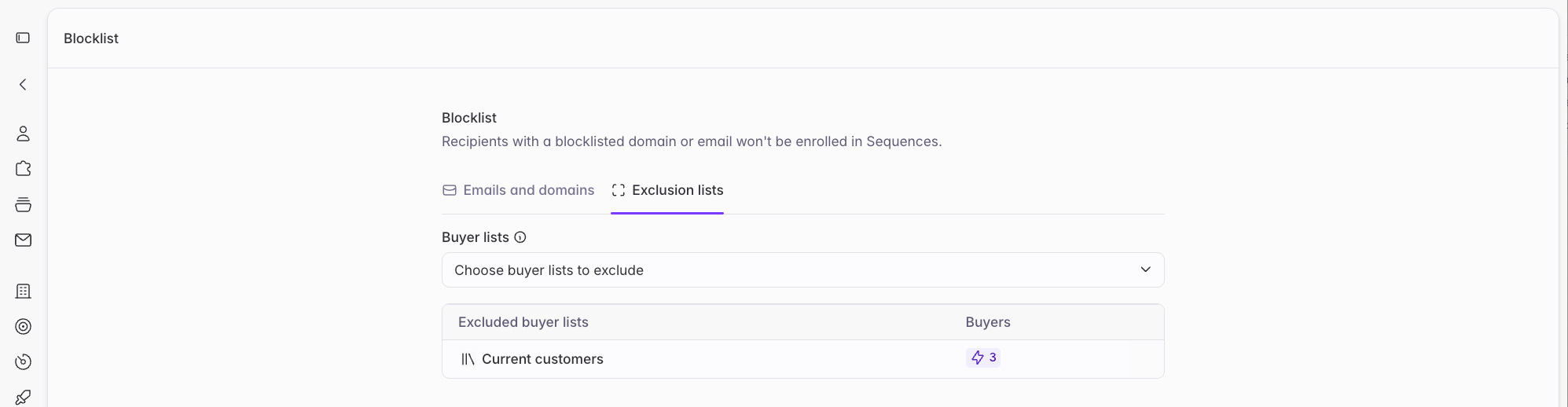
Set your org’s default exclusion lists
Admins select exclusion lists in Settings → Blocklist → Exclusion lists, choosing from your existing buyer lists. Anything you select applies as a default exclusion on every sequence going forward. The most common setup takes four steps:1
Define the accounts in your CRM
In Salesforce or HubSpot, build a view of the accounts you want excluded. For current customers, that’s however your org marks a customer: account type, lifecycle stage, or a custom field.
2
Sync it to Starbridge as a buyer list
Create a CRM-synced buyer list from that view. It stays current as your CRM changes, so accounts that become customers are excluded without anyone maintaining a list by hand. See CRM-synced buyer lists.
3
Add it in Settings → Blocklist → Exclusion lists
Under Buyer lists, use Choose buyer lists to exclude to select it. Starbridge asks whether to apply it to existing sequences as well as new ones, or only to new sequences going forward.Applying to existing sequences removes contacts at those accounts from sequences they’re already in. See What happens when exclusions change.
4
Check it on your next sequence
Build or open a sequence and confirm the list appears pre-selected in its exclusions.
Adjust exclusions on a single sequence
When a builder creates a sequence, your org’s defaults are pre-selected. Builders can remove any of them for that sequence, or add others from your buyer lists. This gives you the flexibility to run a play that your org defaults would otherwise block, like promoting a new product line to existing customers. Removing an exclusion on one sequence has no effect on any other sequence or on your org defaults.How exclusions behave when reps enroll contacts
Exclusions work differently depending on who’s acting. A builder constructing a Bridge-based sequence can remove an exclusion list from that sequence. Contacts at excluded accounts are then eligible. A rep enrolling a contact into a Team or one-off sequence can’t override an exclusion. If the contact’s account is on an exclusion list applied to that sequence, the enroll action is disabled.What happens when exclusions change
The governing principle is that adding an exclusion reaches backward, and removing one only reaches forward. Adding an exclusion sweeps contacts who are already Ready or Enrolled at those accounts into Removed status, stopping their remaining steps, and keeps new contacts out going forward. Removing an exclusion never re-enrolls or restores anyone. It only stops gating new contacts. This is deliberate: removing an exclusion never silently restarts outreach to someone your team decided to stop contacting.Deleting a buyer list in use
You can’t delete a buyer list that’s currently serving as an exclusion list. Remove it from your org defaults and from any sequence using it first. This prevents accidentally removing exclusion coverage by deleting the underlying list.Filtering by a custom do-not-contact field
If you track do-not-contact status in a custom field on the Contact record in Salesforce or HubSpot, you can use this field to exclude DNC contacts from your Bridge-based sequences.- Add a CRM lookup column to your source Bridge for the Contact object.
- Make sure the do-not-contact custom field exists as its own column in the bridge. To pull the field out as its own column, in the source Bridge click Add enrichment → Reference existing data → Reference a column.
- In your sequence, use Filter by signal when building the sequence to exclude anyone where it’s set.
What else Starbridge handles automatically
Unsubscribes. A contact who opts out is removed from sequences they’re in and won’t be enrolled again. Replies. A contact who replies to any message stops receiving the rest of the sequence, and moves to Completed. Bounces. A hard bounce removes that contact from the sequence to protect the sending inbox. Inbox disconnection. If every inbox assigned to a sequence disconnects, the sequence moves to Paused rather than failing silently.Protecting your sending domain
Starbridge protects your sending reputation in three ways. Volume limits. Each inbox sends at most 20 emails per day, keeping you below the thresholds that get an address flagged. Address verification and bounce checking. Sequence emails are verified and bounce-checked before and during sending, so you’re not burning reputation on invalid or out-of-date email addresses. Personalized copy. Every message body and subject line is generated for the individual recipient, which is far less likely to be flagged by spam filters than generic cold outbound. Your GTME can recommend third-party tools for provisioning and warming secondary inboxes, if you want to scale sending outside of your primary domain, the one your company runs its business email on.Where to go next
Connect your inbox
Connect Gmail or Outlook and set your personal send schedule.
Managing sequences
Pause, resume, and monitor sequences once they’re live.