

The sequences list
Each sequence shows its name, type, status, how many recipients it has, its source, and who built it. Filter by status to focus on what needs attention: Draft sequences you haven’t finished, Generated sequences waiting on an inbox, Active sequences currently sending.Pausing and resuming
Pausing stops sending immediately and holds every pending message without losing anyone’s place. Remaining steps move to Paused status. Resuming picks each recipient up where they left off. Anything that would have sent during the pause queues to go out as soon as your send window allows. Pause when you need to edit steps, when something looks wrong in the copy, or when your team can’t keep up with replies. There’s no penalty for pausing, and it’s the safer move if you’re unsure.If every inbox assigned to a sequence disconnects, Starbridge pauses the sequence automatically rather than failing sends silently.
Duplicating and deleting
Duplicate copies a sequence’s steps and settings into a new Draft, without its recipients. Use it to run a variation of a play that’s working, or to reuse a structure for a different audience. Delete removes the sequence entirely. Pause first and confirm nobody is mid-sequence, since deleting stops outreach for everyone still enrolled.Recipients
The recipients view shows everyone in the sequence and where they’ve got to. Filter by status to answer the questions that come up most: who’s still Ready and needs enrolling, who’s Enrolled and in flight, who’s Completed, and who was Removed. You can change a recipient’s status here. Mark someone Removed to stop their remaining steps, or Completed if you’ve taken the conversation elsewhere.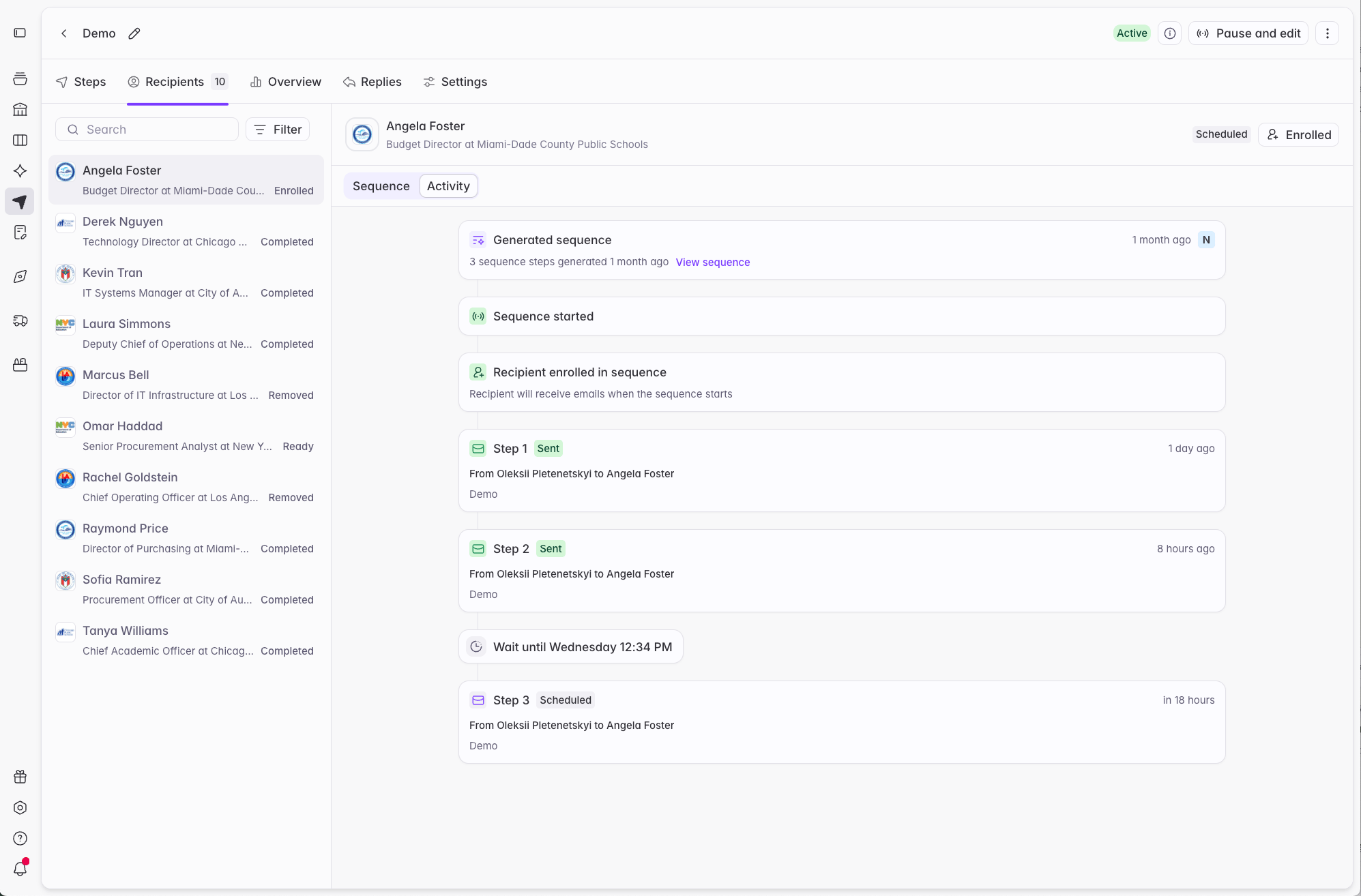
Replies
The Replies tab collects replies to the sequence, each showing the recipient and the thread context, so you can see responses without watching the connected inbox. A reply stops the sequence for that contact automatically and moves them to Completed. Continue the conversation from your own inbox.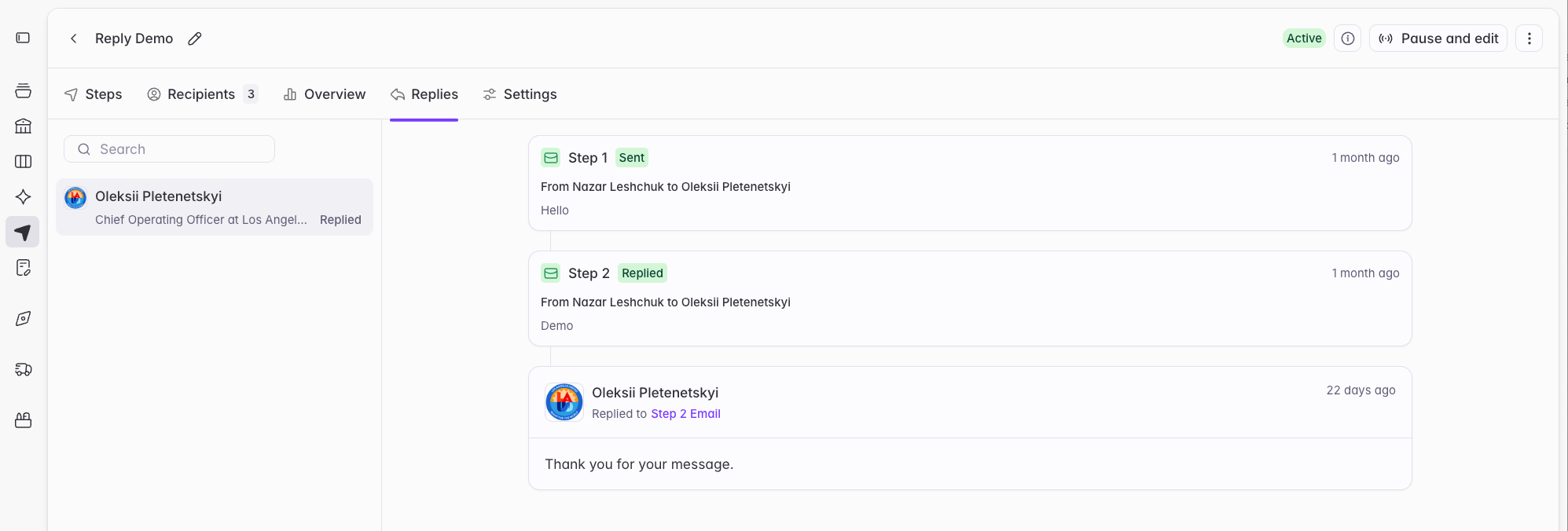
Status reference
Sequences track state at three levels: the sequence itself, each recipient in it, and each step for each recipient.Sequence statuses
A Bridge-based sequence becomes Active once an inbox is connected and you activate it.
Team sequences are Active as soon as they’re created. They start empty, so nothing sends immediately. Reps can begin enrolling contacts right away.
Recipient statuses
The status that matters most is the difference between the first two. A Ready recipient means a sequence has been generated for this contact, but nothing will send. This is the review state. “Ready” exists so you can read the generated copy before committing to sending this contact any emails. Enrolled means the contact is live. Sending is underway or scheduled.
A recipient moves to Completed on its own once every step has sent. It also completes early when they reply to any message in the sequence, or when an address hard-bounces. You can mark someone Completed manually, which stops their remaining steps.
A recipient moves to Removed when someone removes them manually, when they’re on your blocklist or unsubscribe list, when their account is on an exclusion list applied to the sequence, or when they’re already enrolled in another sequence. Removing a recipient stops all their remaining steps immediately.
You can re-enroll a removed recipient manually, unless the reason they were removed still applies. A blocklisted or unsubscribed contact can’t be re-enrolled. Re-enrolling a recipient restarts their sequence from step 1.
One contact, one sequence
A contact can be Enrolled in only one Active or Paused sequence at a time. If a contact is already enrolled somewhere and something tries to add them to another sequence, whether that’s a Bridge update, a rep enrolling them, or a one-off, they’re added in Removed status with their steps stopped, and can’t be enrolled until they exit the first sequence. This applies only to Active and Paused sequences. A contact can sit in Ready status across several generated sequences at once, because nothing is sending in any of them.Step statuses
Step statuses appear on Active and Paused sequences.Email logging
If you’ve integrated your CRM to Starbridge, turn on email logging for Starbridge to write every sequence email and reply to Salesforce or HubSpot. See Email logging for setup.Where to go next
Send settings and exclusions
Adjust volume and schedule, manage exclusions, and review what Starbridge protects automatically.
Bridge-based sequences
Turn a Bridge into a scaled, personalized play.