Overview
The Starbridge Chrome Extension brings buyer profiles, contacts, signals, and Ask Starbridge into your browser. When you visit a buyer’s website or LinkedIn page, the extension automatically detects the account and surfaces the matching Starbridge profile. When you’re on a page that isn’t tied to a buyer, you can search any account in your territory directly from the popup. Ask Starbridge is one click away on any page.
Installing the extension
- Go to the Starbridge Chrome Extension page on the Chrome Web Store.
- Click Add to Chrome, then Add extension when prompted.
- Pin the extension to your toolbar so it’s always one click away (to do so, click the puzzle-piece icon in the top right of Chrome, then click the pin next to Starbridge.)
Signing into the Chrome extension
The first time you open the extension, you’ll be asked to sign in. Use the same credentials you use for the Starbridge web app. You’ll only need to do this once per browser. If you don’t have a Starbridge account yet, ask your admin to add you.Using the extension
Automatic buyer detection
As you browse, click the Starbridge icon on any page. The extension matches the URL against Starbridge’s buyer database and opens the matching buyer profile if it finds one. You’ll see a red dot on the Starbridge chrome extension logo to indicate that we’ve matched the URL you’re on to a buyer within Starbridge.
Search when no buyer is detected
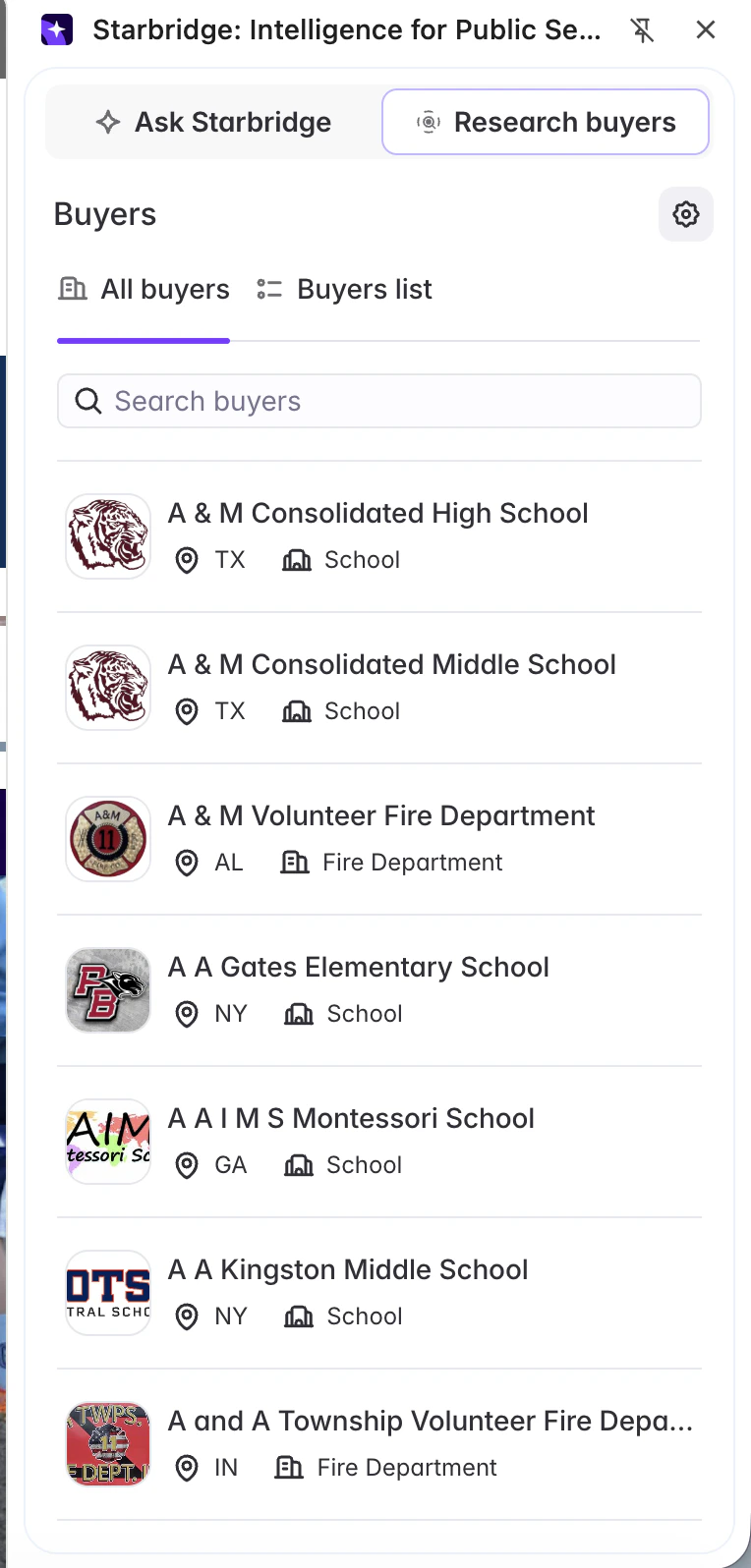
If the page you’re on doesn’t match a known buyer, or the extension picks the wrong one, search is always available at the top of the popup. Simply type the buyer’s name to pull up the right profile.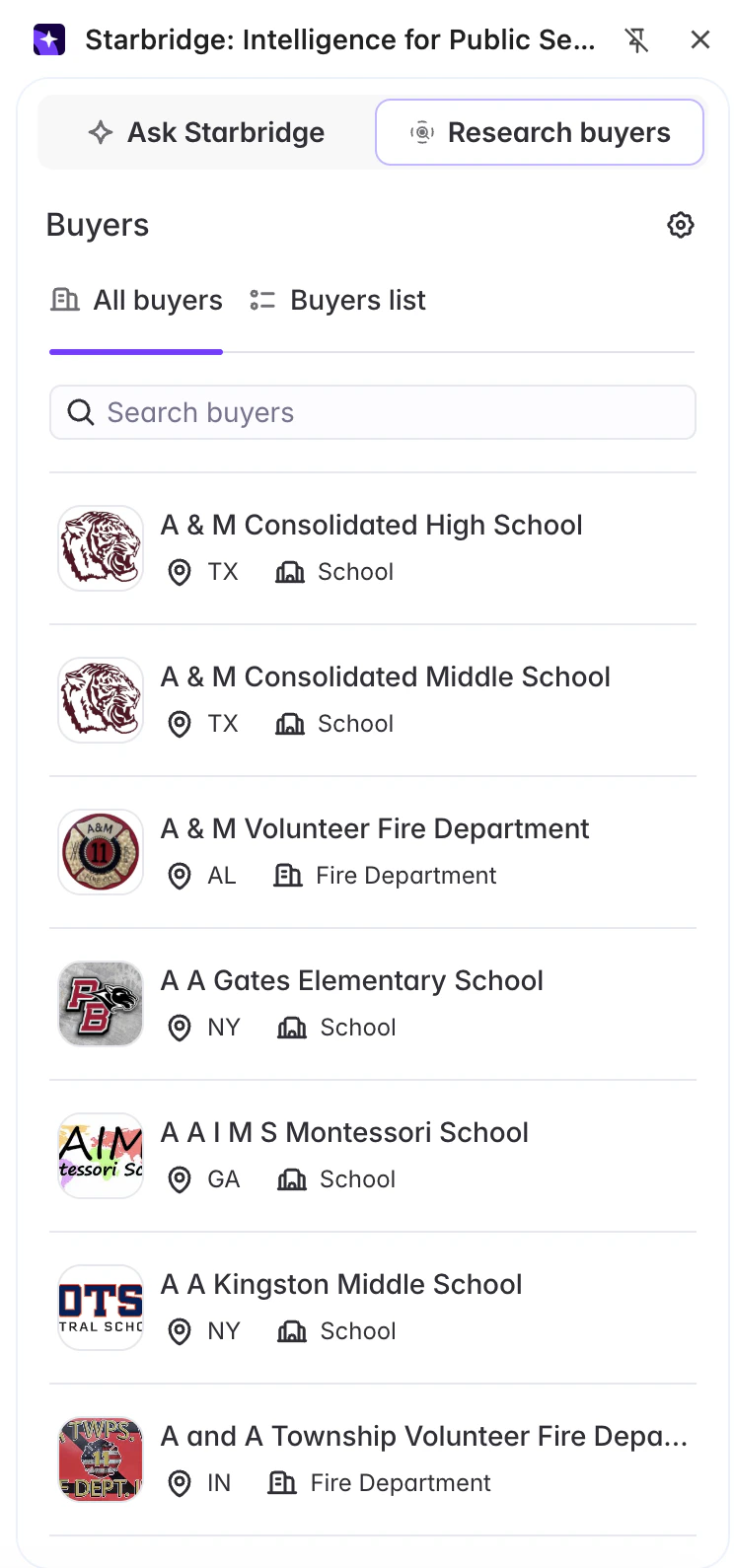
Exploring Buyer Data
The Chrome extension gives you access to any buyer data your organization has within Starbridge. You can access account data ranging from contacts to buyer attributes to buyer summary to procurement overview to the account’s organizational hierarchy. You can also use Ask Starbridge to do custom research for the account (see below).Ask Starbridge in the Chrome Extension
Ask Starbridge is built into the extension. Open the popup on any page, switch to the Ask Starbridge tab, and ask anything you’d ask in the web app — meeting prep, competitive reads, talking points, or a draft cold email.
Common Use Cases
Use it for first-call prep on the prospect’s own site. Open the agency’s homepage or the school district’s “About” page - the extension surfaces the contacts, signals, and Buyer Summary your team has built up, no separate tab needed. Use it to qualify inbounds in real time. When an unfamiliar account name lands in your inbox, open their site in a new tab and the extension does the lookup for you. Find relevant contacts for a specific buyer, live. As you’re researching an account, use the Chrome extension to find relevant contacts to reach out to for that buyer. And, you can use Ask Starbridge to craft outbound emails or talking points tailored to that account.Extension Settings
By default, the Starbridge Chrome extension icon will be visible on the right side of your Chrome browser at all times for easy access to the extension. If you’d like to gate access to the extension to the extension menu in your toolbar, click the “Gear” icon on the “Buyers” page within the extension, and toggle the “Show Starbridge tab” option to OFF.