

What you can build
Every email combines three kinds of content, mixed however you like:Static text
Your own copy that appears as typed in every email. Good for value props, CTAs, and signatures.
Dynamic Variables
Personalized data pulled from the signal or Bridge (e.g. contact name, buyer name) Inserted with
@.AI snippets
Personalized content generated for each row based on the signal. Inserted with
@, configured via a prompt you control.How to add and configure the column
1
Add the column
Open your Bridge, click Add enrichment, and select Create Personalized Outreach → Create Personalized Outbound Email.
2
Generate your email
You can either describe the email you want to write in plain language and have AI generate the draft, or configure your email from scratch.
3
Write your subject line and body
You’ll see two fields to configure — Subject Line and Email Body. Compose each using any mix of static text, variables, and AI snippets (below).
4
Preview on the first 5 rows
Run the column on the first 5 rows to check the output and snippet quality before committing. Edit your prompts and rerun until you’re satisfied with the output.
5
Run all rows
Once the drafts look right, run the column across the whole Bridge.
Building your email
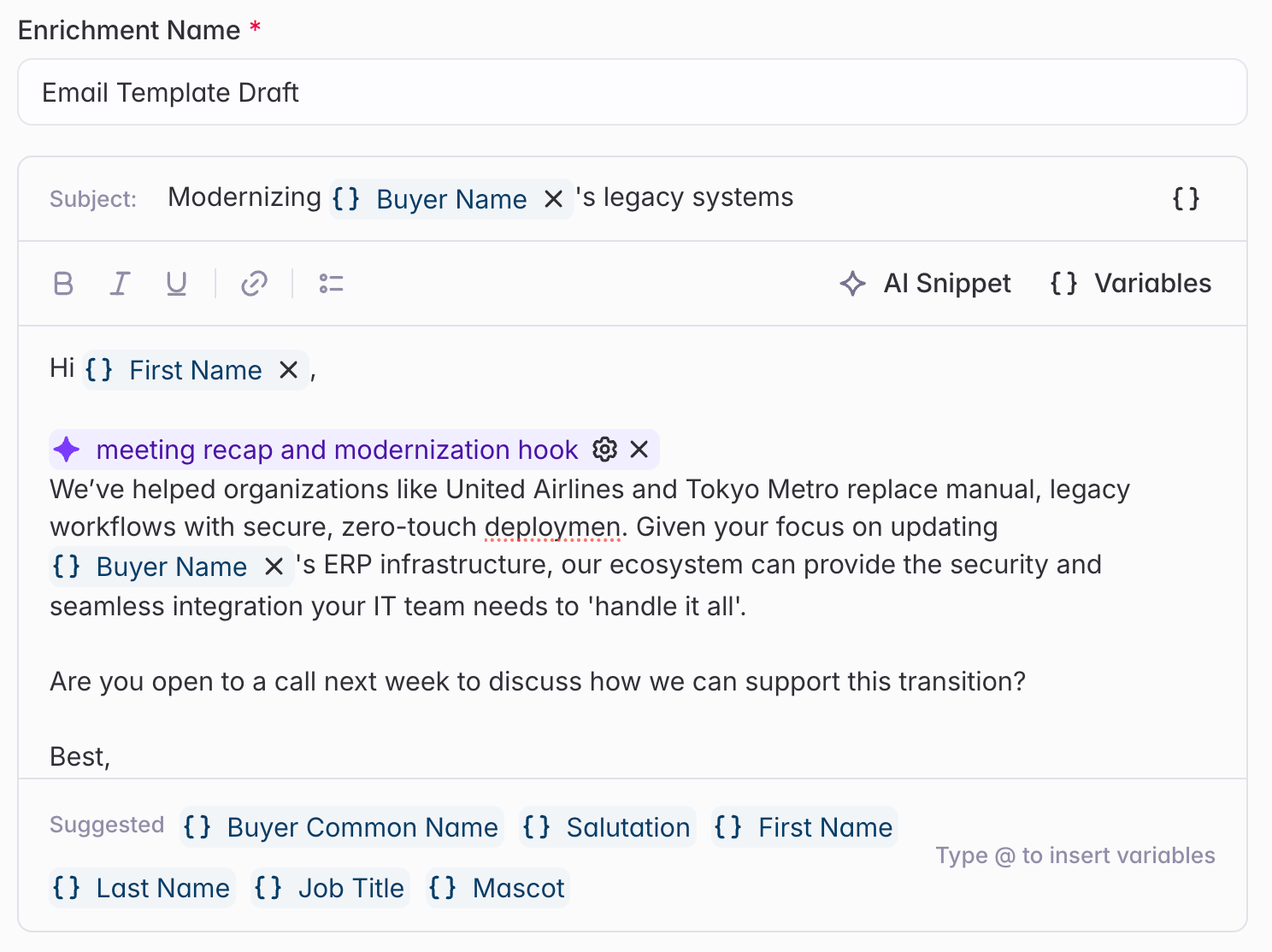
Static text
Type your copy directly. This text appears exactly as written in every email.I wanted to reach out to see if you’d be open to connecting.
Variables (@)
Insert dynamic data from your Bridge or signal attributes — these change for each row. Type @ and select from the suggested attributes. Common examples:
@First Name— the contact’s first name@Buyer Common Name— the buyer / account common name@Conference— conference name@Due Date— an RFP’s due date
Hi @First Name,
AI snippets (@)
Add AI-generated content that writes a personalized snippet for each row based on the signal. To add one: type @ in the subject line or body, select AI Snippet, give it a name, and write a prompt describing what the snippet should pull from each signal.
Let AI draft the whole email
You don’t have to compose every piece by hand. Tell Starbridge the goal of the email (e.g. book a meeting, reactivate a closed-lost account, follow up after a conference), plus any guidance, and it generates a draft with static copy, variables, and AI snippets already included. Edit from there.Rich text formatting
The email editor supports rich text — apply bold, italic, underline, bulleted lists, and hyperlinks to keep your outreach on-brand and readable.AI snippet best practices
Strong prompts are specific and bounded:- Be specific: “Write one sentence mentioning the budget challenges discussed,” not “Personalize this.”
- Set length guidelines: “Keep under 50 words” or “Write 1–2 sentences.”
- Define tone: “Write conversationally” or “Keep it professional.”
- Reference the signal or a column: point the prompt at
@Summarized Relevance,@Job Change,@RFP, etc., so it grounds in real context. - Avoid vague prompts — “Make it good” produces generic output.
Test on the first 5 rows and iterate before running the whole Bridge. You can edit any snippet later via the gear icon on the column.
Outputting and sending
Choose how the column outputs
By default the column produces three columns: a consolidated email (subject, body, and snippets together), the subject line, and the email body. You can optionally output individual AI snippets as their own columns, or show only the consolidated email — configured in the Add Email Fields as Columns section of the column editor.Send with one click — Open in mail
Every Starbridge-generated email has an Open in mail button that drops the email — recipient, subject, and body pre-populated — straight into Gmail, Outlook, or your default mail app. The first time a rep clicks it, they pick their preferred client; after that every email opens there by default. The button appears everywhere reps work with generated emails: in Ask Starbridge, on signal cards in the Feed, and inside Bridges.Export to your CRM or sequencer
When the column has fully generated, export the subject line, body, and/or individual snippets to your CRM or outbound sequencer via the CRM integration or a CSV export.Example emails by Bridge type
- Meetings
- Purchases / Contracts
- RFPs
- Job Changes
- Conferences
- Custom Web Signals
- Buyers
- Contacts
Subject:
@[AI Snippet: "Write a 3–5 word subject line referencing the main topic discussed in the meeting from @Summarized Relevance"]Hi@First Name,@[AI Snippet: "Write 2–3 sentences referencing specific challenges or initiatives mentioned in the meeting from @Summarized Relevance and position them as something we can help with"]I’d love to share how we’ve helped organizations like@Buyer Common Nametackle similar challenges. Would you be open to a brief conversation? Best, [Your name]
Related
Enriching Bridges with Data
The overview of all enrichment column types.
Syncing to Your CRM
Push generated emails to Salesforce or HubSpot.