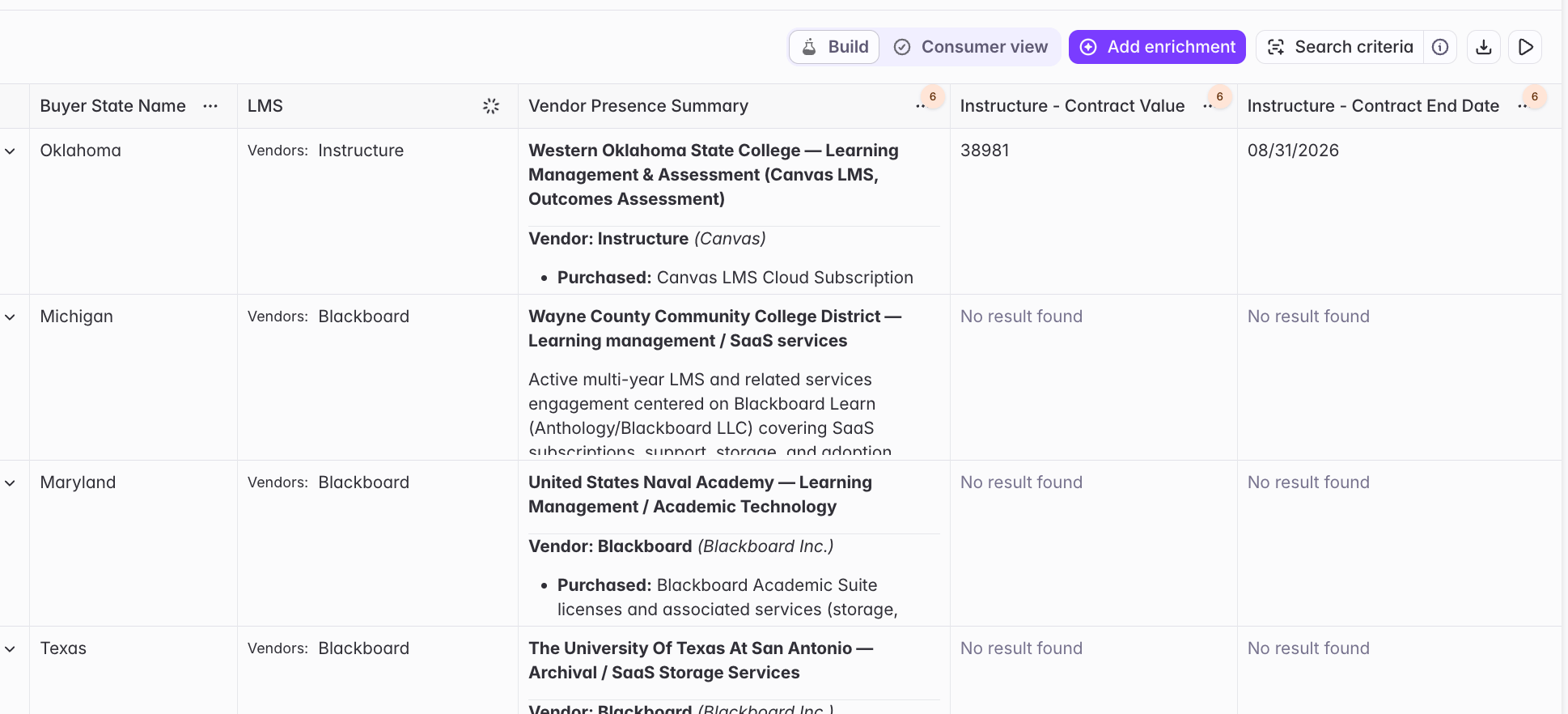
See which buyers already work with a given vendor (competitor, complementary, or otherwise), the contract details behind that relationship, and the evidence Starbridge used to find it.
Vendor presence tells you which buyers already work with a given vendor (a competitor, a complementary vendor, or any other company you track), the contract details behind that relationship, and the evidence Starbridge used to find it.
Vendor presence adds two summary fields to every row, plus a set of fields for each vendor you track. Per-vendor fields are prefixed with the vendor name (e.g. Instructure - Contract Value), and you can surface any field as its own column.
Matched Vendors. Which of the vendors you’re tracking this buyer works with.
Vendor Presence Summary. A summary of the buyer’s relationships across matched vendors, with a reference to the underlying reasoning.
Per-vendor fields (repeated for each vendor you add)
Field
What it tells you
Competitor Name
The vendor these fields describe.
Used By Buyer
Whether this buyer works with the vendor.
Relationship Context
The evidence and context behind the match.
Confidence
How confident Starbridge is in the match.
Contract Start Date
When the contract started.
Contract End Date
When the contract ends. This can be inferred when inference is enabled.
Contract Value
The total contract value.
Has Inferred Contract Data
Whether any values were inferred rather than confirmed.
Inferred Annual Contract Value
An estimated annual contract value, populated when inference is enabled.
From any Bridge, click “Add enrichment”, choose Vendor presence, then configure it.
1
Add the vendors you want to track
Company Name is the only required input. Starbridge searches documents (and the web, if you enable it) for evidence that each buyer works with that vendor.\
Advanced Configuration (optional)
Two controls tune how broadly each vendor is matched:
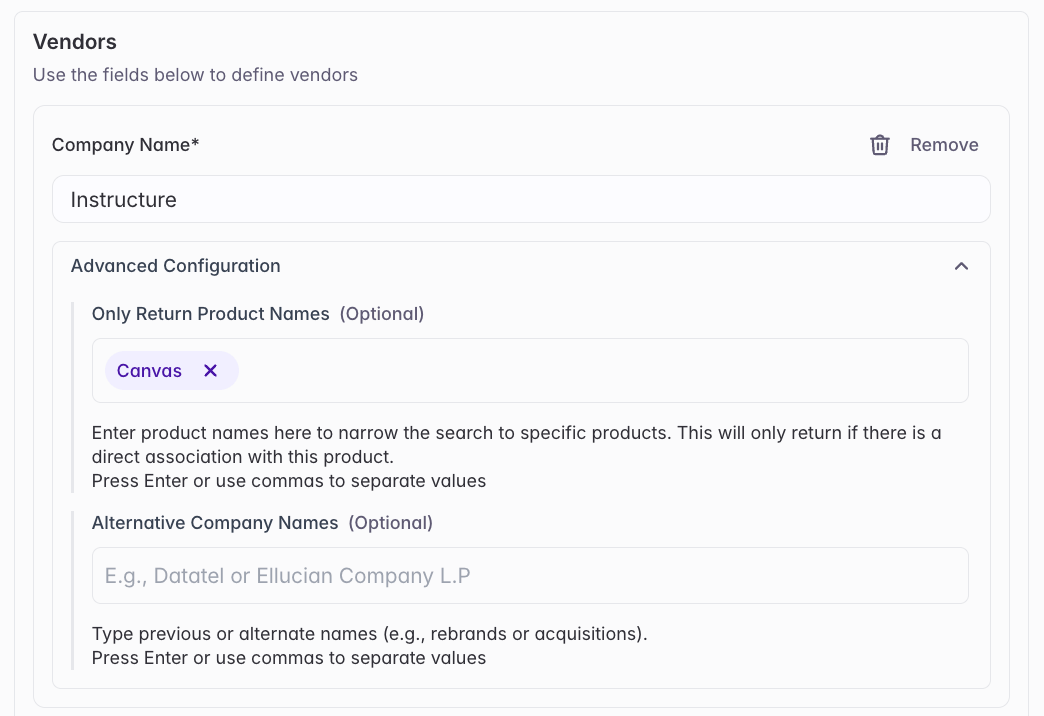
Alternative Company Names (expands the search). Vendors often go by more than one name (rebrands, acquisitions, DBAs). Add those alternates and Starbridge treats them as the same vendor, so Ellucian also matches Datatel. Each name you add is another search term under one vendor. - Only Return Product Names (narrows the search). A vendor often sells several products and you may care about only one. Add a product name and Starbridge keeps only matches that name that product, e.g. only Canvas within Instructure. The vendor (or one of its names) still has to match first; the product just filters that set down.
Click “Add Competitor” to track several vendors in one column.
Adding a vendor by Company Name, with Advanced Configuration expanded.
2
Choose your Search Scope
Vendor presence draws on documents proprietary to Starbridge’s knowledge base to establish a buyer-vendor relationship. We continuously FOIA the vast majority of US buyers across every category, so most accounts already have purchase order and contract coverage. Search Scope sets which sources we use:
Use Starbridge Purchase Order & Contract Data. Confirmed purchase orders and contracts only, no credit cost. POs come in high volume but with less detail, and are weaker on specifics like subproducts or end dates. Contracts are the reverse: richer detail, but harder to FOIA in bulk.
Use Starbridge + Web Data (broader search). Adds web and meeting mentions on top of POs and contracts, widening coverage where public records are thin (e.g. private institutions). Costs 1 credit per row.
Use Only Confirmed Data (default). Only vendor data explicitly found in our purchase order and contract records.
Use Confirmed & Inferred Data. Fills gaps with high-confidence estimates from PO and contract signals. Inferred values are flagged, and this is what populates the inferred annual contract value.
4
Add output fields as columns (optional)
Under Add Enrichment Fields as Columns, pick any field above (e.g. Matched Vendors, a vendor’s Contract Value, the Vendor Presence Summary) to surface it as its own column.
5
Set Run Conditions and Rerun Settings (optional)
Run Conditions control when the enrichment runs, e.g. only on rows that match a condition. Without one, it always runs.
Rerun Settings control how often the column refreshes. Without a rule, it won’t re-run automatically.
6
Add & run the enrichment
Click “Add & Run Enrichment” to populate the column. Test on a few rows first before running them all.
Was this page helpful?
⌘I
Assistant
Responses are generated using AI and may contain mistakes.