

Introduction
If you know the types of roles you want to reach, a Contacts Bridge can surface relevant contacts across every account in a buyer list. This is the most common starting point for teams building out a new segment, filling in missing ICP contacts for core accounts, or running a top-of-funnel play into a set of accounts.How to search contacts by title
1
Create a Contacts Bridge
Select Create a contact list.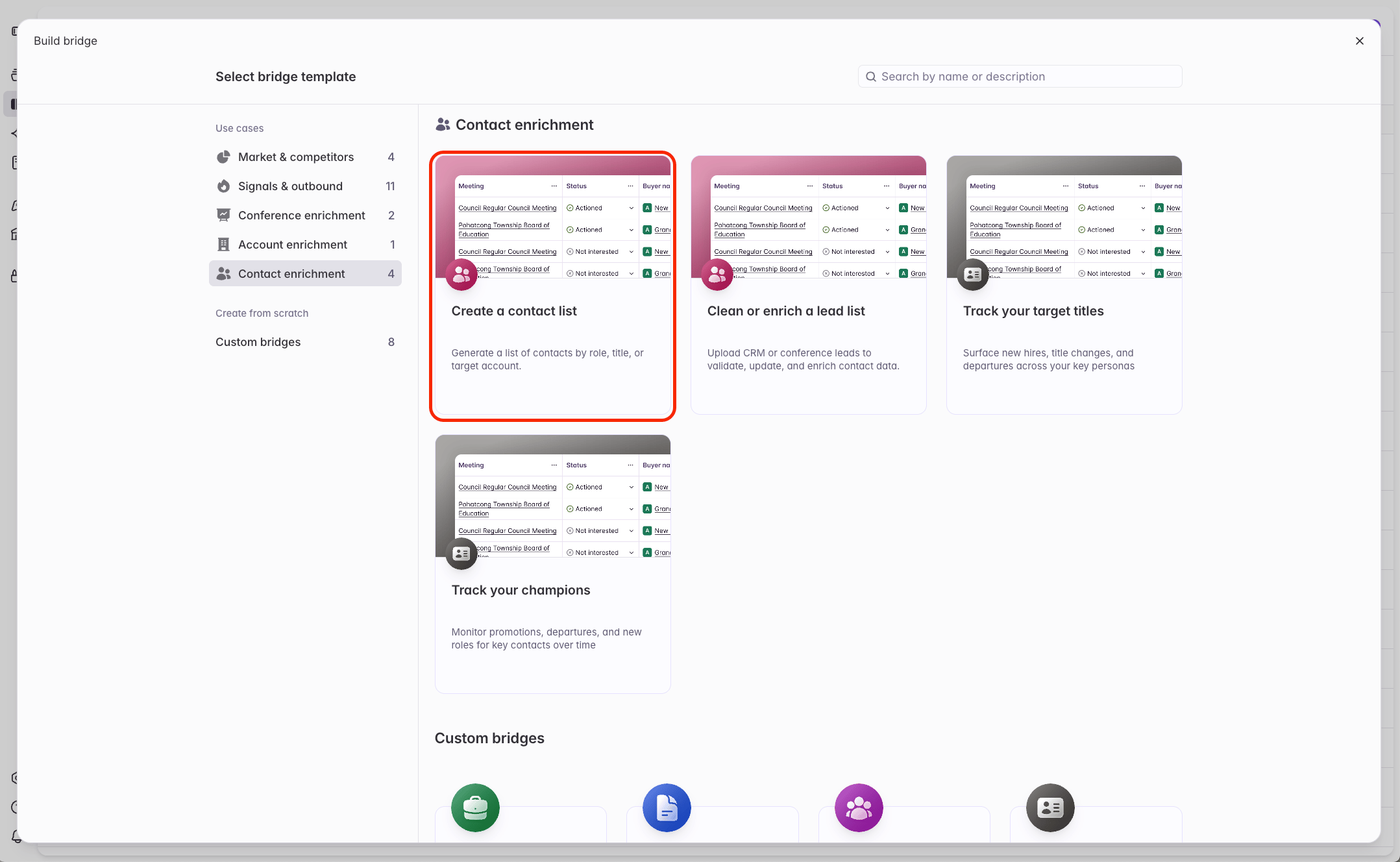
2
Define your target audience
Define the titles, roles, and personas for your search. There is no limit to how many titles you can include. To add a title, type the full title and end it with a comma or click ‘Enter’.Starbridge automatically searches for common variations of each job title - read more here: Searching by titles.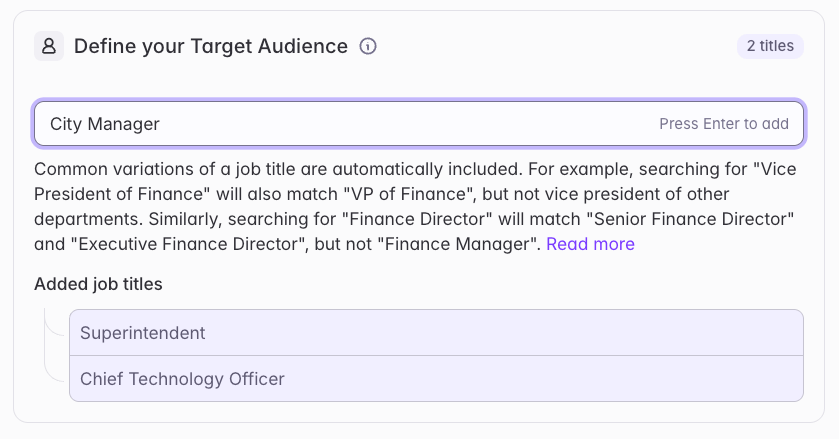
3
Set your buyer filters
Define the scope of your search to the accounts you care about. Select an existing buyer list, filter down to the buyers you care about, or select a specific set of buyers.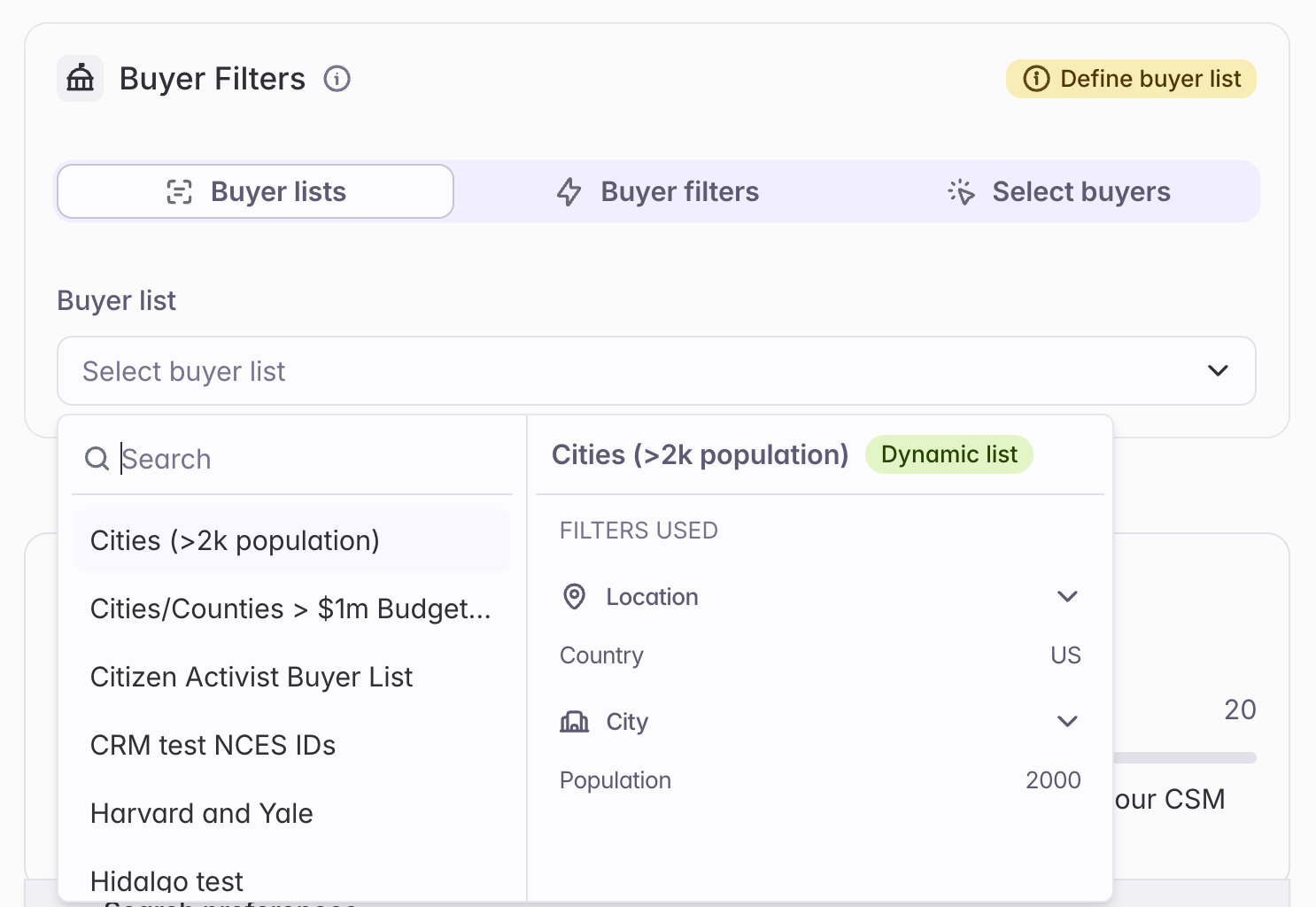
4
Choose how many contacts to return per buyer
Each contact successfully returned by a Contacts Bridge consumes 2 credits. Choose the maximum number of contacts to find per buyer.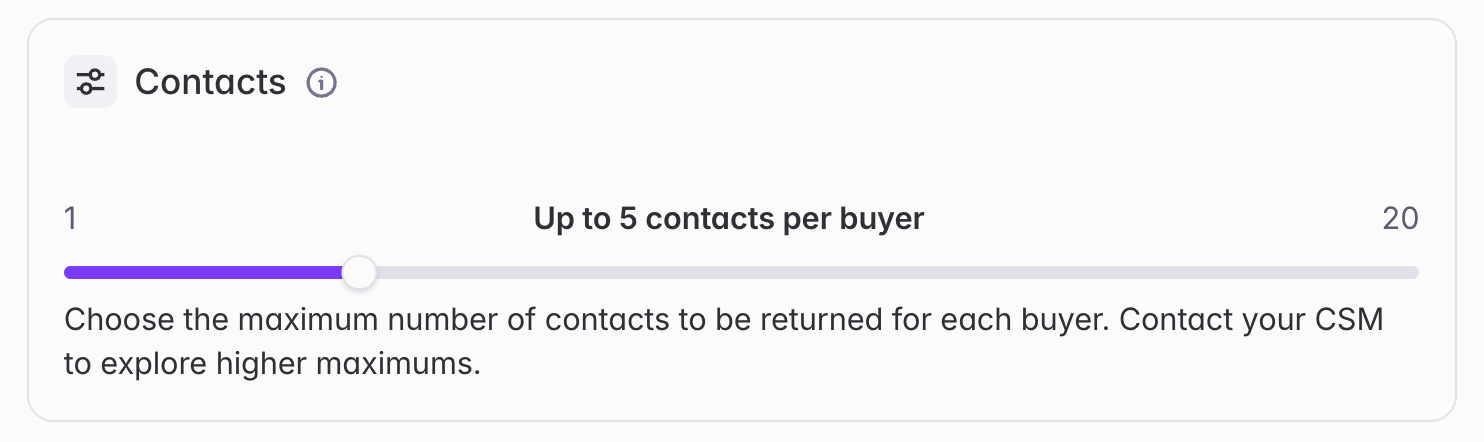
5
Set your search preferences
First, choose whether to return contacts with or without email addresses.Second, choose whether to keep searching for new contacts over time. Most teams leave this disabled by default (“Never look for additional matching contacts”).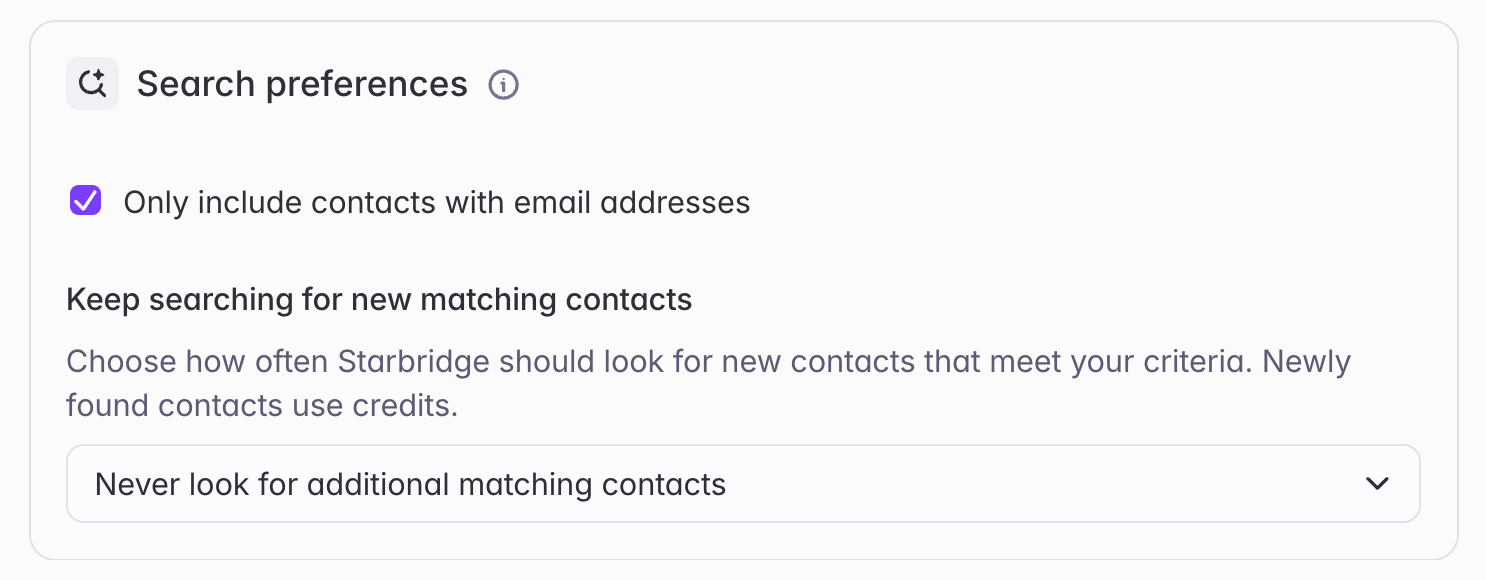
6
Create the Contacts Bridge
Click Create bridge to create the Contacts Bridge.
Heads up: this Contacts Bridge runs slower than others by design. Starbridge finds and verifies contacts in real time, so run time scales with the number of contacts per buyer and the size of your buyer list.
7
View the results
Once your Contacts Bridge is ready, open it up to see your Starbridge-verified contacts.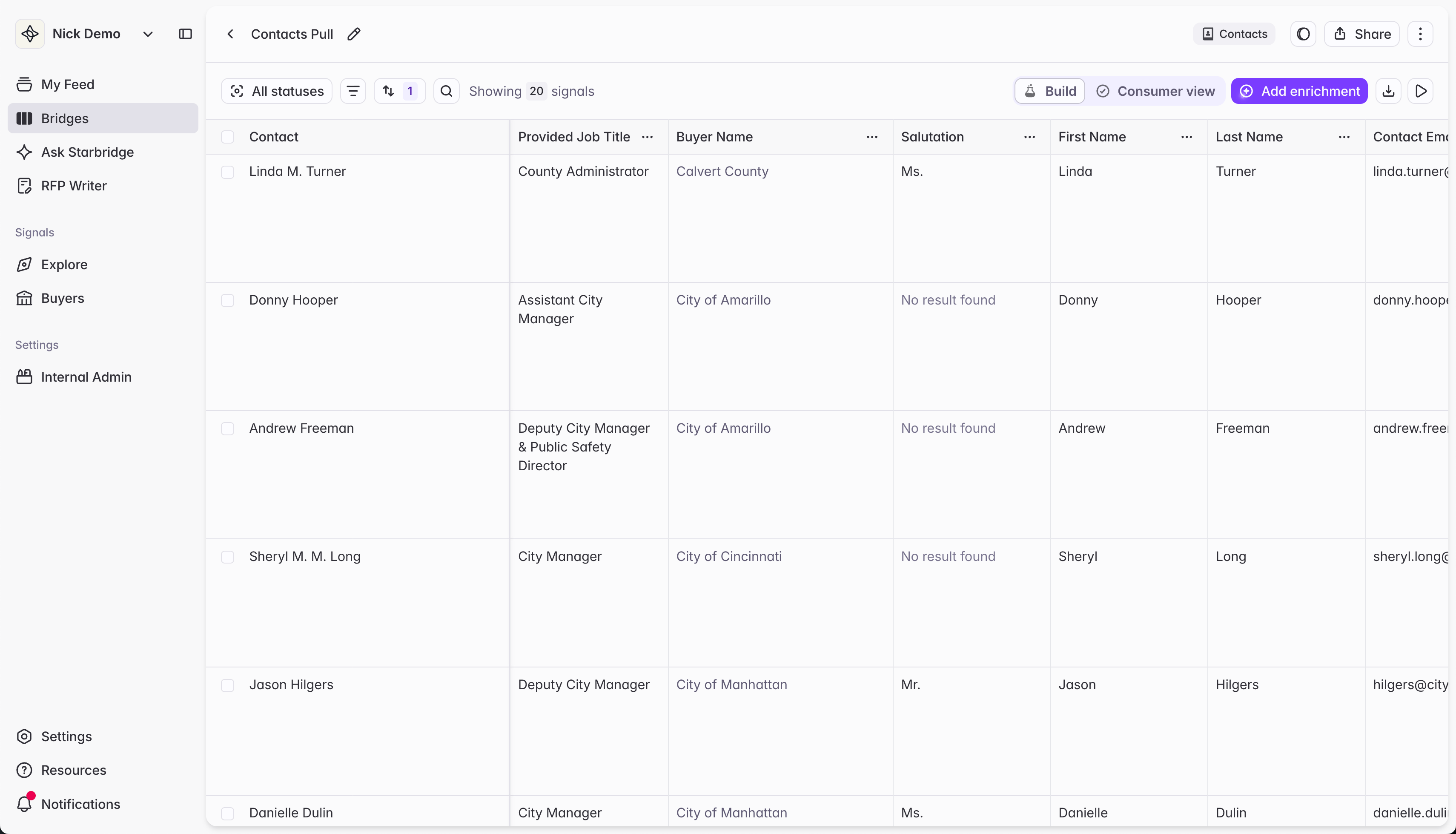
How title search works
When you search for contacts or job changes by job title, Starbridge doesn’t look for an exact string match. We understand that the same role gets written dozens of different ways, and search accordingly. Search for the role you have in mind, and Starbridge will surface the right contacts.What your search will return
1. Abbreviations and formatting are handled automatically. Searching “VP of Finance,” “Vice President of Finance,” or “V.P. Finance” will all return the same contacts. Searching “Director of R&D”, “Director of Research and Development”, and “Director of R and D” will all return the same contacts. 2. More senior variants of your title are included; more junior ones are not. Searching “Director of Finance” will return “Senior Director of Finance” and “Executive Director of Finance” — but not “Assistant Director of Finance.” Note that this applies to seniority variants of the same title, not more senior titles altogether. Searching “Director of Finance” will not return “CFO,” even though CFO is a more senior finance role. 3. Results stay within the function you specify. Searching “Vice President of Finance” will return “VP of Finance” — but not “Vice President of Operations” or “Vice President of HR.” 4. Different titles are not interchangeable. Searching “Finance Director” will not return “Finance Manager.” Director and Manager are different titles, even if both are in the Finance domain. 5. If a contact holds multiple titles or domains, searching any one of them will return that contact. For example, a contact whose title is “Director of Enrollment and Admissions” will appear in results whether you search “Director of Enrollment” or “Director of Admissions.” Similarly, a contact whose title is “Executive Vice President and Provost” will appear whether you search “Executive Vice President” or “Provost.”Examples
Related articles
Sync contacts to Salesforce or HubSpot
Push enriched contacts directly to your CRM.
Track job changes
Starbridge keeps your enriched contacts up to date — also get alerted when contacts change roles.